Remote Desktop Protocol (RDP): What does it do and is it secure?


Remote Desktop Protocol (RDP) is a popular tool for accessing Windows computers from a distance. It’s become a standard part of how many organizations maintain systems, support users, and facilitate remote work.
In this guide, we’ll look at what RDP does, why it’s used, and go over key security considerations.
What is Remote Desktop Protocol (RDP)?
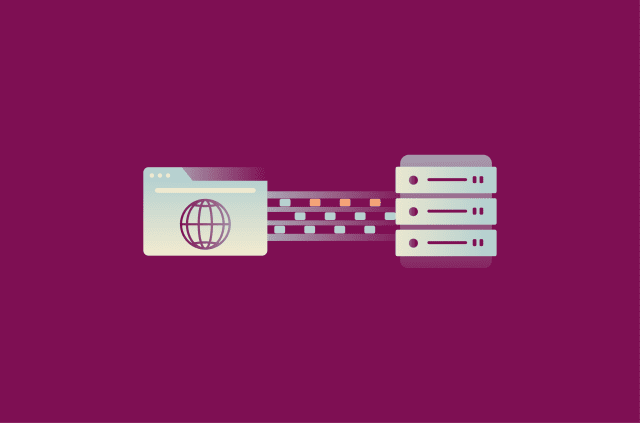
RDP is Microsoft’s proprietary remote access protocol. It enables a user to control a Windows computer that they don’t have physical access to. The remote system (referred to as the host or server) sends its screen output to the client, a device controlled by the user. The host receives keyboard and mouse inputs from the client. This allows the user to intuitively control the PC as if they were there, even if it’s located in a data center on the other side of the world.
It’s worth noting that RDP provides the technical basis but it isn’t a remote desktop application in itself. Remote access software like Azure Virtual Desktop, Windows App, and others all rely on RDP for their core functionality.
Who uses RDP and why
Though the goal is typically to work on remote devices, people in different roles tend to use RDP in different ways.
- Administrators: Employ RDP to manage servers in remote locations. They update software, change settings, and bring systems back online without touching the hardware.
- Employees: Use RDP to reach their office desktops while at home or traveling. It gives them access to the tools they need without moving sensitive company resources off the network.
- Support and helpdesk teams: Rely on RDP for streamlined troubleshooting. Instead of trading screenshots or delivering long explanations, they can connect to a user’s computer, diagnose the issue, then fix it.
How does Remote Desktop Protocol work?
From initiating a session to performing tasks once connected, various processes come together to make RDP work.
RDP communication process explained
 After opening client software built on RDP, the user is usually first prompted to enter the IP address or hostname of the computer they want to access. The connection uses port 3389 by default, though network administrators can choose to use other available options.
As soon as contact is made, Network Level Authentication (NLA) checks the client’s credentials before allowing the session to proceed. If the credentials are invalid, the connection is denied. This ensures that unauthorized parties won't be able to see the host’s screen or take control of their device. Note that NLA may not be enabled in all cases, but it’s used nearly universally in professional contexts.
Next, a Transport Layer Security (TLS) handshake takes place. From this, both the client and host independently derive the encryption keys that will be used to protect exchanged data from interception.
Once done, each device sends setup messages to agree on parameters for the session. They negotiate settings such as display size and color quality and decide which local resources (such as printers or smart cards) will be accessible.
How an active RDP session works
Once the connection has been fully established and the RDP session begins, the host starts sending screen updates. For greater efficiency, only changed portions of the screen are transmitted. These are shared as drawing commands, compressed bitmaps, or H.264-encoded video. Recently viewed parts of the screen are stored in a local cache on the client device, improving performance and reducing bandwidth use.
Meanwhile, the client transmits user inputs to the host device. If the connection is strong, the host responds more or less instantly.
Various channels of data exist at once, each carrying different kinds of information. For example, there are usually separate channels for visuals, inputs, sound, and clipboard data. These channels are usually encrypted using TLS, the default on modern Windows systems. That said, older RDP-native encryption methods may still be used in some cases.
Does RDP use TCP or UDP?
By default, RDP uses Transmission Control Protocol (TCP) to carry data between the client and host. TCP guarantees that every packet arrives intact and in the right order. When a single packet is delayed or lost, TCP temporarily stops sending new data until the lost packet is retransmitted and acknowledged. This improves reliability but adds round-trip latency, which can make controlling the remote device feel sluggish.
Since RDP 8.0, both TCP and User Datagram Protocol (UDP) are supported. TCP remains the default primary transport protocol because it guarantees reliable, ordered delivery of data. UDP reduces latency but can also result in brief glitches and dropped frames if packets are lost or delayed (usually as a result of an unstable connection).
Many RDP implementations actively switch between these two protocols. If a UDP connection cannot be established or becomes unreliable, the session reverts to TCP.
RDP vs. Remote Desktop Services (RDS)
Though related, RDP and RDS are not the same thing. RDP is the set of rules that makes remote control of a Windows system possible. RDS, on the other hand, is a full server-side remote access platform developed by Microsoft that runs on Windows Server.
On a standard Windows PC, RDP supports one user connecting to a host machine at a time. With RDS through Windows Server, up to two remote sessions are possible at once by default. For small setups or one-off administrative work, RDP is generally sufficient. But to support multiple users or deliver remote access at scale, organizations generally turn to RDS.
One notable extra built into RDS is RemoteApp, which provides access to a specific program rather than an entire device. When opened through the RD Web Access portal, RemoteApp allows employees to use apps on a host device through a browser, no additional software required. RD Web Access also provides basic information about connected devices and authorized users.
Other features include:
- RD Session Host: Creates and runs individual user desktops or applications on the server.
- RD Connection Broker: Keeps track of active sessions and reconnects users to the right one after disconnects.
- RD Gateway: Lets people connect securely from outside the company network by tunneling RDP traffic over HTTPS (port 443).
RDP features and capabilities
Several features make RDP sessions feel closer to working on a local computer.
Multi-monitor and GPU support
RDP sessions can be streamed to client devices with multi-monitor setups. Sessions can also draw on the host’s graphics card to handle visuals more efficiently. This improves responsiveness, even when working with visually demanding tasks.
File, printer, and audio redirection
A client using RDP can access the host device’s local resources and vice versa. The extent of access depends on how the session is configured. Files on a client computer can appear as shared drives on the remote device, making transfers straightforward. Printing can also be redirected so documents from the remote machine print on local hardware.
Audio can be redirected in both directions. Sound from the remote computer is usually played through the client’s speakers. Conversely, it’s possible to use a local microphone as input for apps or calls running on the remote host. Clipboard sharing works the same way, allowing the user to paste text and images between environments.
Smart card authentication
RDP supports logging in with smart cards (physical cards that store cryptographic certificates) and certain certificate-based security tokens. When you sign in with a smart card or security token, its credentials are securely passed to the remote system. This allows organizations that rely on hardware-based authentication methods to maintain security standards while supporting remote access.
Bandwidth optimization
RDP adapts to changing network conditions by automatically adjusting visual settings for smoother performance. It can reduce color depth, compress graphics, and cache data to maintain responsiveness during poor network conditions.
Using RDP on different platforms
The process for setting up a remote session varies depending on the particular software you’re using. The available options depend on the operating system of the client device you intend to use to control the remote Windows PC.
One of Microsoft’s official RDP clients is called Windows App (also available on Macs, iPhones, and Android devices). When opening Windows App and setting up a new connection, you’ll see three main options:
- Add PC: Start a remote session with a Windows computer using its name or IP address.
- Add Workspace: Connect to managed cloud desktops such as Azure Virtual Desktop or Windows 365 by entering the workspace URL.
- Add Work or School Account: Sign in with your organization’s Microsoft credentials to reach the institutional system.
Regardless of whether you use Windows App or other software, you need some basic details to set up a connection. This may be the computer name or workspace URL, login information, and, when necessary, a gateway. The gateway serves as a secure link between client devices and an organization’s internal network, providing an extra measure of protection.
After providing this information, most apps ask which local resources you want to share during the session. Depending on your needs, you can choose to incorporate things like sound, clipboard data, printers, and storage.
RDP on Windows
The Windows App is designed mainly for managed environments, as are popular alternatives like Azure Virtual Desktop. Both require a workplace or educational Microsoft account and contain features focused on cloud and enterprise access rather than personal PC-to-PC connections.
For direct PC-to-PC connections, Microsoft also supports the much older Remote Desktop Connection tool (mstsc), which doesn’t require a Microsoft account. Alternatively, FreeRDP is a popular third-party option.
macOS
As mentioned above, the Windows App is available for download on Apple’s App Store. The actual process of setting up a connection from a Mac is no different from how it is on a Windows device. Beyond Windows App, third-party RDP clients with Mac versions include FreeRDP, Remmina, and RoyalTSX.
Linux
Lacking a supported version of Windows App, Linux users must either rely on third-party RDP clients or opt for remote desktop software built on other protocols. Remmina and FreeRDP are just two options among many.
Mobile devices
On iOS and Android, the Windows App provides the same three connection options (PC, Workspace, and Work or School Account), and the same configuration fields as the desktop versions. Third-party apps built on RDP do exist, but mobile users have fewer options.
Both versions of the mobile Windows App are designed for touch input. Users do get to choose whether to share things like sound and clipboard data, but features like multi-monitor display and printer redirection are not available.
Advantages and disadvantages of RDP
RDP is a popular, efficient, and intuitive system. That said, admins and users alike should be aware of issues and limitations related to performance, scalability, and security.
Benefits of RDP
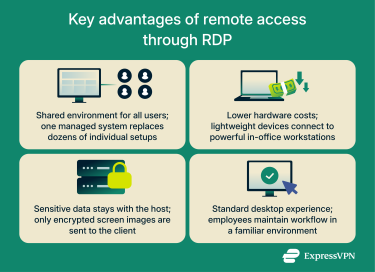
One environment for everyone
RDP makes it possible for work to proceed in the same way across different environments and locations. Instead of each employee keeping their own copies of software and files on multiple devices, everything runs on managed servers or virtual machines maintained by IT. RDS and many other RDP implementations streamline management and provide useful features for admins.
Hardware efficiency
Because the remote computer handles most processing, the client device in an RDP session needs relatively few resources, even for intensive processes. Through RDP, a cheap tablet can harness the power of a high-performance host workstation and effectively handle demanding tasks like data modeling and video editing. By expanding the capabilities of inexpensive hardware, RDP can save money.
Tighter control of sensitive data
RDP enables organizations to keep files on a single host computer or network while still allowing remote users to have a controlled level of access. The data channel is encrypted by default in most setups, providing a strong level of baseline security. Admins can further reduce the risk of data exfiltration by disabling features like clipboard sharing and drive redirection.
With such measures in place, RDP provides images of data rather than the data itself. Though there are caveats, this provides a degree of protection against threat actors aiming to collect sensitive information.
Familiar workspace from anywhere
Whether someone logs in from the office, home, or temporary job site, they see the same desktop layout, shortcuts, and drive structure when accessing a host through RDP. There’s no need to sync files or worry about version conflicts between multiple devices. This consistency is good for productivity and also enables IT to maintain one set of permissions and security policies.
Limitations and challenges
Practical benefits and security features aside, RDP isn’t well-suited to all environments and use cases.
Network quality dictates performance
RDP doesn’t run processes locally; all activity is streamed to the user. Each mouse movement or screen change must travel through the network. When network conditions are poor, latency can become apparent. A user may experience their cursor lagging behind and interactions such as mouse clicks and keyboard input taking several seconds to make a visible change.
If severe, this latency can have a significant negative impact on productivity and morale. Though various features promote efficient use of data, these cannot overcome the limitations of low bandwidth.
Single-user limit on Windows desktops
When someone connects to a Windows PC through RDP, their local session can no longer be accessed. Microsoft allows only one active session to exist at a time. To support multi-user environments, RDS or similar tools are required.
Windows-only hosting
The RDP host service (called TermService) is proprietary and built into Windows. This limits hosting ability on macOS and Linux systems. Open-source alternatives like xrdp do exist, but they recreate only part of RDP’s functionality and lack full and direct integration with Windows features like Group Policy or Active Directory.
Limited feature parity across platforms
macOS, Linux, iOS, and Android devices can all use RDP to connect to Windows hosts, but certain features are limited or missing. macOS implementations tend to support most capabilities, including printers, smart cards, and multi-monitor setups, provided the host allows them. On mobile platforms, only essential options like sound, clipboard, and storage sharing are available.
Common RDP vulnerabilities
Since RDP is built into Windows and is used by many organizations, both large and small, it makes for a predictable and highly visible target.
Most security incidents involving RDP can be tied to a small number of issues:
- Exposed services: Attackers constantly scan the internet for systems running RDP. Any machine that responds will confirm remote access is possible, making it a candidate for automated password-guessing, exploit tools, or other targeted attacks.
- Weak or compromised credentials: Many RDP intrusions begin with stolen or weak passwords. Attackers often use credential-stuffing or brute-force tools to try and gain remote access. Once an attacker authenticates, the interactive RDP session gives them direct control of the host and a foothold for further actions such as reconnaissance, lateral movement (attempts to compromise other devices on the network), and access to anything shared by the device.
- Unpatched or outdated RDP: Older RDP implementations can contain remote-code-execution flaws that allow an attacker to take control without logging in.
- Unverified encryption and session spoofing: Some RDP setups use self-signed certificates: the default ones Windows creates when no trusted certificate is installed. These encrypt traffic but don’t actually verify which computer a user is connecting to. On shared or public networks, this gap makes it possible for someone to pose as the intended host and capture the session as it begins.
- Unsafe feature redirection: Clipboard, drive, and printer redirection simplify work but can also be exploited to move malware between systems. If a connected endpoint is infected, these shared channels can be used to transmit malicious files directly into the connected environment.
Best practices for securing RDP
Strong authentication measures
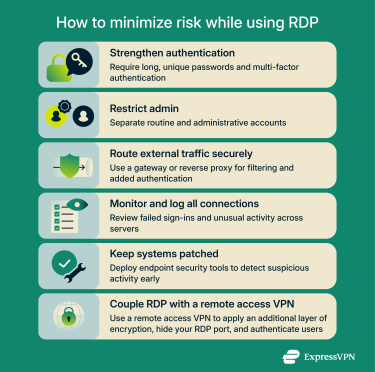
The easiest way to harden RDP is to strengthen authentication. Enforce long, unique passwords and use multi-factor authentication (MFA). Note that RDP does not natively support MFA; you need to set it up through a third-party channel such as Duo or Microsoft Entra ID.
Admin access should be tightly controlled. Keep a separate account for routine work and another for administrative tasks. Limit who has higher privileges and log whenever they’re used. The fewer people with system-level rights, the harder it is for an attacker to move laterally once inside.
Always use a remote access VPN for remote RDP access
Though distinct technologies, RDP and virtual private networks (VPNs) work well together. Integrating RDP with a remote access VPN can limit exposure and strengthen authentication, reducing the risk of both targeted and opportunistic attacks.
Routing connections through a remote access VPN hides port 3389 (the default RDP port) from external scans. This makes it highly unlikely that any threat actor scanning for targets will be able to detect the connection. The VPN also serves to authenticate users before they reach the internal network, helping prevent brute-force attempts and unauthorized probes at the perimeter.
In managed environments, use remote access VPN solutions that enforce strong encryption and MFA. Keep in mind that even subtle routing errors can expose RDP traffic outside the tunnel, which is a reminder that proper configuration is just as critical as encryption.
Note: Consumer VPNs, like ExpressVPN, typically only support traffic to the internet and aren’t suitable for securing a remote access connection between two devices.
Network-level security controls
Limit RDP access to internal networks or VPN ranges only. Firewalls should block inbound requests on port 3389 from untrusted public IPs.
When external access is required, route traffic through a Remote Desktop Gateway or a reverse proxy. The gateway authenticates users before the request reaches any internal host, while a reverse proxy filters and inspects connections for threats. Both approaches reduce the extent to which RDP connections are exposed to the internet.
Monitoring and logging
Every login attempt should be logged so there’s a clear record of who connected, when, and from where. Review these logs regularly. A sudden increase in failed sign-ins or activity from unfamiliar regions often signals that someone is probing for weak credentials. Note that centralizing logs often makes monitoring easier.
Essential security controls
Keeping Windows and RDP clients up-to-date with patches is critical. Further, deploying endpoint security tools can help spot and block unusual or unauthorized actions. For example, new software running during an RDP session and large file movements are two red flags. Having these controls increases the chance that intruders will be detected and blocked before they can do much damage.
Remote desktop alternatives
RDP is deeply integrated into Windows, but it isn’t the only remote access tool. Large organizations often rely on desktop virtualization to centralize computing power and deliver remote desktops from managed servers. Virtualization aside, other protocols offer functionality similar to what you get with RDP. The right choice for an organization depends on various factors.
TeamViewer
TeamViewer is one of the most common remote-support tools. It connects through the company’s own relay servers. These servers act as intermediaries that pass encrypted data between devices, so the two endpoints never need a direct network path to each other. This removes the need for port forwarding; both systems simply reach out to TeamViewer’s network and establish a secure link.
For support teams or small businesses, this simplicity is valuable. But it also means you’re relying on a third-party relay for every remote access session.
AnyDesk
AnyDesk also operates by default through vendor-managed relay servers, so neither endpoint needs to open incoming ports. When conditions allow, it can switch to a direct peer-to-peer connection, which lowers latency and improves responsiveness.
Requiring few system resources, AnyDesk is practical for on-demand support or remote work on lightweight devices. Each session is encrypted and requires approval from the user on the other end before control is granted.
Chrome Remote Desktop
Chrome Remote Desktop is managed through the Chrome browser and relies on Google’s infrastructure for connectivity. Setup is simple: install the extension on the device you’d like to remotely access and link it to your Google account. The host device can then generate a PIN code, which can be used by another device to remotely access it. There’s no port forwarding or firewall change involved; the connection is routed entirely through Google’s own infrastructure.
It’s handy for personal machines or quick troubleshooting. The trade-off is control: there’s no central logging, no granular permissions, and no way to restrict where or when users can attempt to connect. This may be fine for home use but makes the service impractical in environments that need security policy enforcement or audit trails.
Troubleshooting RDP connection issues
There are three main issues that cause RDP connections to fail: credentials and permissions, network reachability, including ports and Domain Name System (DNS), and service/listener misconfiguration.
Authentication or permission denial
If you can reach the host but can’t log in, confirm that the account you’re using is allowed to connect. The user must be added to the Remote Desktop Users group or explicitly granted permission by an administrator.
In many workplaces, user access is managed through a domain: a centralized system that stores all user accounts and enforces shared login and security policies. This is handled through Active Directory. Administrators can control who can connect remotely, when passwords expire, and which authentication methods are allowed.
In domain environments, these Group Policy rules take precedence over local settings, so even if a user has permission on one computer, they might still be blocked by company-wide policy.
Authentication can also fail when a computer loses its trust relationship with the domain. Each domain-joined computer maintains a hidden password it uses to identify itself to the domain controller.
If that password becomes invalid (because the computer was restored from an old backup, stayed disconnected for too long, or had its record reset), the system can no longer verify users against the domain, even if correct credentials are given. Rejoining the computer to the domain restores the trust relationship and resolves the issue.
RDP listener or service not running
A client that times out without reaching the login screen often means the host’s RDP listener is inactive. On the server, verify the TermService and associated RDP user-mode port redirector are running, and that the listener shows as “Listen”.
Blocked port or firewall rules
If a router, firewall, or other network device blocks port 3389 (the default for RDP) or forwards it incorrectly, an RDP session may fail to start. To troubleshoot, confirm that port 3389 and any other port set to use RDP is reachable using a command like Test-NetConnection -Port 3389, and check that inbound firewall rules allow that port on the host machine or network perimeter.
DNS or name-resolution failure
When connecting by hostname rather than IP, incorrect or outdated DNS settings may cause failures. If this occurs, clear the client’s DNS cache (using the CLI and commands like ipconfig /flushdns) and validate the DNS entry points to the correct address.
Expired or invalid certificate or NLA error
If NLA fails with a certificate or encryption/authentication mismatch, check that the host’s certificate is valid, matches the hostname, and is trusted by the client.
FAQ: Common questions about RDP
What protocol does RDP use?
Remote Desktop Protocol (RDP) is Microsoft’s proprietary protocol for remote access. It uses Transmission Control Protocol (TCP) for reliable communication or User Datagram Protocol (UDP) to improve responsiveness. Encryption is usually handled by the Transport Layer Security (TLS) protocol.
Is RDP port 3389 TCP or UDP?
Port 3389 supports both. Remote Desktop Protocol (RDP) primarily uses Transmission Control Protocol (TCP) on port 3389 for session control and data transfer. In newer versions, it can also use User Datagram Protocol (UDP) to improve performance for audio and video.
Does RDP use SSL or TLS?
Remote Desktop Protocol (RDP) encrypts connections using Transport Layer Security (TLS) by default. That said, TLS itself is sometimes referred to as Secure Sockets Layer (SSL) or SSL/TLS. This is due to the fact that TLS replaced an earlier protocol called SSL. In any case, with RDP, TLS replaced older RDP-native protocols to provide stronger encryption and better performance.
What are the best RDP alternatives?
Tools like TeamViewer, AnyDesk, and Chrome Remote Desktop are strong alternatives. They vary in ease of setup, management controls, and data-routing methods.
How do I fix RDP connection problems?
There are many things you can try. You can start by checking if the client can reach the host over the network. Make sure Remote Desktop is enabled and not blocked by firewalls. If the session connects but keeps dropping, test for unstable Wi-Fi, high latency, or VPN issues.
Is RDP safe without a VPN?
Remote Desktop Protocol (RDP) traffic is encrypted, but exposing RDP connections directly to the internet can pose risks. Attackers routinely scan for open ports and weak credentials; a remote access VPN adds a crucial layer of protection, reducing exposure while protecting all traffic with extra encryption.
Do I need a VPN if I already use RDP encryption?
Remote Desktop Protocol (RDP) doesn’t need a VPN to function, but using one still brings real security benefits. Transport Layer Security (TLS) helps protect RDP sessions, but a remote access VPN hides the RDP port, applies an additional layer of encryption, restricts access to authorized users, and reduces exposure to automated attacks.
Take the first step to protect yourself online. Try ExpressVPN risk-free.
Get ExpressVPN














 Support Center
  FAQ
FAQ  VPN Setup Tutorials


