What is IP forwarding on Linux, and how to enable it



When a Linux machine is expected to pass traffic between networks, the setup can look right and still fail. Routes appear correct, firewall rules seem reasonable, and packets still go nowhere. One common cause is IP forwarding, whether it’s enabled, and whether the forwarding path is actually allowed end-to-end by routing and firewall policy.
This guide shows how to enable IP forwarding, verify that traffic is forwarding as intended, and safely troubleshoot common failure points.
What is IP forwarding?
IP forwarding is the network function in which a system receives an IP packet on one interface and routes it out through another toward its destination. Its core purpose is to let a Linux machine operate as a router between networks, enabling traffic to move between separate IP networks or subnets.
Why is IP forwarding important in networking?
IP forwarding matters because it allows separate network segments to communicate via routing through a gateway, rather than requiring direct network connections between every system. This supports network growth and structured connectivity.
Several common scenarios rely on IP forwarding:
- Internal-to-external routing: Enables multiple devices and subnets to reach external servers by routing traffic through a gateway system.
- Controlled inter-segment communication: Allows traffic to pass between segmented network sections only through explicit routes and firewall policies, reducing unrestricted lateral movement.
- Policy enforcement and traffic management: Works alongside firewall filtering to define which forwarded flows are permitted and which are blocked.
How IP forwarding works on Linux
On Linux, IP forwarding is handled at the kernel (or OS core) level and determines whether the system will forward transit IP packets between interfaces (router behavior) or only process traffic destined for the local host.
By default, most general-purpose Linux distributions treat the local device as the final destination for network traffic, not forwarding any packets addressed to a different IP. Forwarding must be enabled for the kernel to pass transit traffic between different network interfaces.
Enabling forwarding allows the system to handle transit traffic, but it doesn’t change how apps like browsers or update managers initiate their own outbound connections.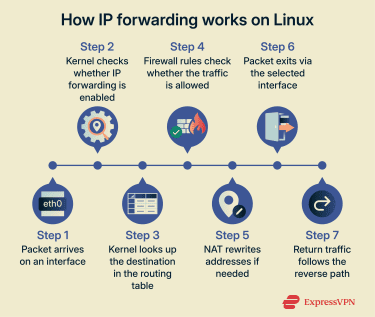
Common use cases for Linux systems
IP forwarding on Linux lets a machine:
- Connect virtual machines (VMs) and containerized apps to the wider network: Allows isolated environments to reach external services and resources through routed connectivity.
- Serve as a virtual private network (VPN) gateway for other devices: Shares a single VPN connection so other devices can route their traffic through a gateway.
- Act as a router between physical networks: Connects separate local area networks (LANs) by routing traffic between their subnets.
- Share internet access across interfaces: Routes traffic between wired, wireless, and virtual interfaces so a single upstream connection can serve multiple devices.
- Enable a high-speed direct link while keeping internet access: Connect two Linux devices directly over Ethernet for fast local transfers, while one device forwards internet access from its upstream connection to the other, often requiring Network Address Translation (NAT).
While these use cases are supported across OSs, they’re more commonly implemented on Linux systems, especially in container deployments (Docker, LXD), in cloud environments (Google Compute Engine), and in network infrastructure (VyOS).
Read more: How to set up a home server from scratch.
IP forwarding vs. NAT
IP forwarding and NAT are closely related, but they fulfil different functions.
IP forwarding controls whether a system can relay traffic between networks. Forwarding by itself does not rewrite packet IP addresses, but it’s often combined with NAT, depending on the scenario.
NAT modifies the source or destination addresses of packets, changing how traffic appears as it passes through the system. This enables specific use cases, such as sharing a single public IPv4 address across multiple devices or hiding internal addressing from external networks.
On Linux, NAT is implemented in the kernel’s Netfilter framework. Translation behavior is driven by rules configured via tools such as iptables (legacy/compat) or nftables (modern).
IPv4 vs. IPv6 IP forwarding
Linux handles IPv4 and IPv6 forwarding separately, so enabling forwarding for one doesn’t automatically enable it for the other. This separation makes it easier to manage routing and filtering policy independently for IPv4 and IPv6.
In practice, IPv4 commonly relies on NAT in home and small-business networks to share a public address across multiple devices. IPv6 is designed for end-to-end routing and is often deployed without NAT, although translation is possible in some environments.
Read more: Types of IP addresses explained: Complete guide.
How to enable IP forwarding on Linux
The following commands show how to check IP forwarding status and enable forwarding temporarily or permanently.
Checking IP forwarding status
This step shows whether IP forwarding is enabled. It confirms the current state when enabling, disabling, or troubleshooting changes.
- Press Ctrl + Alt + T to open a terminal (common on Ubuntu and many desktop Linux distributions). If that shortcut isn’t available, open the terminal from the application menu, or connect using Secure Shell (SSH) for headless servers.
- In the terminal window, run:
- For IPv4: sysctl net.ipv4.ip_forward.
- For IPv6: sysctl net.ipv6.conf.all.forwarding.
Note: This guide uses Ubuntu conventions and tooling. Depending on the Linux distribution and system setup, commands and paths may differ. For example, if sysctl is't available, the same settings can be changed by writing directly to /proc/sys, for example:
- echo 1 | sudo tee /proc/sys/net/ipv4/ip_forward
- echo 1 | sudo tee /proc/sys/net/ipv6/conf/all/forwarding
- You’ll see a line of output directly below the command in the terminal, such as net.ipv4.ip_forward = 0 or net.ipv4.ip_forward = 1. Check the number at the end. If the value is 0, IP forwarding is disabled. A value of 1 means the feature is enabled.
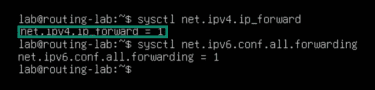
Enabling IP forwarding temporarily (runtime)
The following commands enable IP forwarding until the next reboot. Runtime forwarding is useful when testing.
- In the terminal, run the sudo sysctl -w net.ipv4.ip_forward=1 command for IPv4. For IPv6, use sudo sysctl -w net.ipv6.conf.all.forwarding=1.
- Enter your password (if prompted) to confirm changes.
- The next line should say net.ipv4.ip_forward = 1 (for IPv4) or net.ipv6.conf.all.forwarding = 1 (for IPv6). The forwarding should start working right away for new traffic and reset upon system restart.
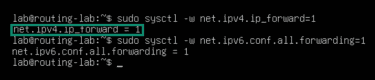
Enabling IP forwarding permanently using sysctl files
This method enables IP forwarding across reboots. Use it if you want forwarding to stay enabled after restarting the system.
- Run sudo nano /etc/sysctl.conf to open the sysctl config file. On some distributions, persistent settings are stored in .conf files under /etc/sysctl.d/ instead.
- Find the line #net.ipv4.ip_forward=1 for IPv4 or #net.ipv6.conf.all.forwarding=1 for IPv6.
- Uncomment the line (removing the “#”) so it reads net.ipv4.ip_forward=1 or net.ipv6.conf.all.forwarding=1.
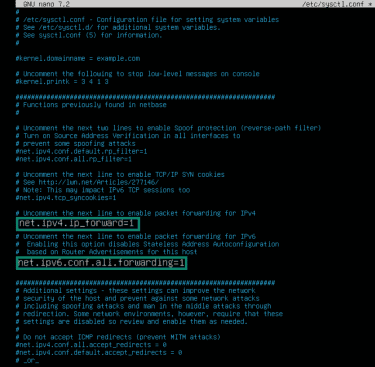
- Press Ctrl + X to exit the file. You’ll see a prompt asking if you want to save the changes; press Y, then press Enter to confirm.
- Apply the changes by typing sudo sysctl -p. This reloads the configuration and enables IP forwarding immediately.
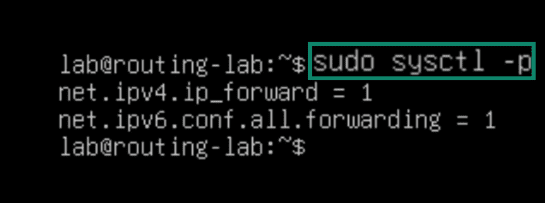
Complete the IP forwarding setup on Linux
IP forwarding enables kernel-level routing, but firewall rules and routing/NAT configuration typically still need to be set up. The sections below cover common rules and settings used to allow forwarded traffic and ensure return paths work correctly.
Firewall rules
IP forwarding allows the kernel to route packets, but forwarding can still be blocked by firewall policy. Check whether forwarded packets are allowed.
- Run sudo iptables -L FORWARD -v -n.
- Look for the rules under the FORWARD chain. If the chain policy is DROP and there are no matching ACCEPT rules, forwarding fails.
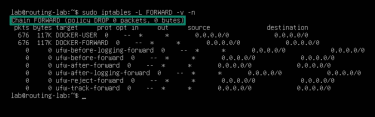
- To allow forwarding, add:
- sudo iptables -A FORWARD -i $INT -o $EXT -j ACCEPT
- sudo iptables -A FORWARD -i $EXT -o $INT -m conntrack --ctstate RELATED,ESTABLISHED -j ACCEPT
Note: Replace $INT and $EXT with the internal and external interface names you want to forward traffic between.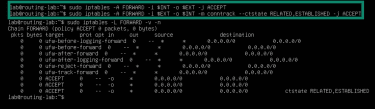
- Use iptables -L FORWARD -v -n again to ensure that the commands were successful.
NAT settings
If using the routing computer as an internet gateway, forwarded packets often need address translation when the upstream network doesn’t have a route back to the internal subnet.
Here’s how to check NAT settings:
- Run sudo iptables -t nat -L POSTROUTING -v -n.
- Look for rules listed under the POSTROUTING chain.
- To enable NAT for dynamic external IP addresses (common on home internet connections), add a MASQUERADE rule on the external interface: iptables -t nat -A POSTROUTING -o $EXT -j MASQUERADE.

- To enable NAT for static external IP addresses, use Source Network Address Translation (SNAT), which rewrites the packet’s source address to a fixed IP. In this case, <external-IP> is the IP address assigned to the routing computer’s external interface ($EXT), not the destination system’s IP: sudo iptables -t nat -A POSTROUTING -o $EXT -j SNAT --to-source <external-IP>.

- Use iptables -t nat -L POSTROUTING -v -n again to check if the commands were successful.
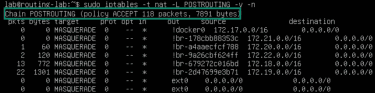
Read more: Port forwarding is different from IP forwarding. Discover how to open ports on your router.
Routing and return paths
IP forwarding doesn’t automatically create routes. If routes are missing or clients point to the wrong gateway, packets may never reach their destination.
Here’s how to check that everything’s in order.
- Run ip route to inspect the routing table.
- On the routing computer, verify that a valid default route exists toward the external network. A line like default via <gateway-IP> dev <exit interface> should appear, where <gateway-IP> is the upstream router on that external network and <exit interface> is your PC's network interface.
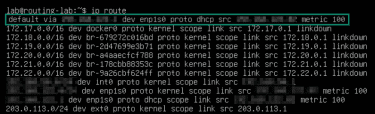
- On connected devices, verify that the default gateway points to the routing computer’s IP on the local network. If the default route is different, add ip route replace default via <router-IP> to change it, where <router-IP> is the routing computer’s local IP address (the client-facing interface).

Firewall and routing configuration issues
If firewall, NAT, and router settings look in order but issues persist, look for advanced rule ordering, kernel filtering behavior, or conflicting firewall managers.
Rule order in the FORWARD chain
The iptables process rules from top to bottom. Broad DROP rules placed before ACCEPT rules can prevent forwarding.
- Run sudo iptables -L FORWARD -v -n --line-numbers.
- Check whether a DROP rule appears before the forwarding ACCEPT rules.
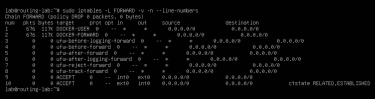
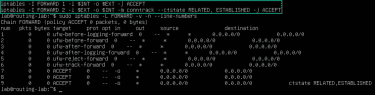
- Insert ACCEPT rules earlier using “-i” instead of “-A.” For example:
- iptables -I FORWARD 1 -i $INT -o $EXT -j ACCEPT
- iptables -I FORWARD 2 -i $EXT -o $INT -m conntrack --ctstate RELATED, ESTABLISHED -j ACCEPT
Reverse path filtering
Reverse path filtering can drop forwarded packets in asymmetric or multi-homed routing scenarios.
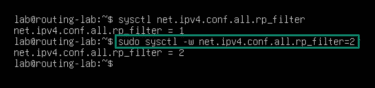
- Run sysctl net.ipv4.conf.all.rp_filter.
- Look at the end of the next line. If the value is 1, reverse path filtering is enabled in “Strict mode” (which can break forwarding in some setups).

- Run sysctl -w net.ipv4.conf.all.rp_filter=2 to switch to “Loose mode” for all current interfaces. To apply the same setting to interfaces created later, also set net.ipv4.conf.default.rp_filter=2.
Additional firewall systems
Some systems use additional firewall managers (such as firewalld and ufw) that manage the underlying netfilter rules and can conflict with manual iptables changes, especially after reloads. Note that only one firewall manager should control forwarding and NAT at a time to avoid conflicts.
For firewalld:
- Run sudo systemctl status firewalld. If firewalld is active (running), configure it to allow forwarding and NAT. If it’s not active, ignore the following steps and check Uncomplicated Firewall (ufw).

- Allow forwarding from the internal zone with sudo firewall-cmd --zone=internal --add-forward --permanent.
- Use sudo firewall-cmd --zone=internal --add-masquerade --permanent to configure NAT.
- Run sudo firewall-cmd --reload to enable changes.
For ufw:
- Run sudo systemctl status ufw to check whether ufw is active.
- Change the forwarding policy to sudo sed -i 's/^DEFAULT_FORWARD_POLICY=.*/DEFAULT_FORWARD_POLICY="ACCEPT"/' /etc/default/ufw.
Warning: This changes ufw default forwarding policy system-wide. It may allow previously blocked forwarded traffic, unless additional ufw rules restrict it.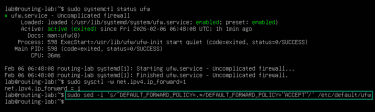
- Enable NAT using sudo nano /etc/ufw/before.rules.
- Add the following before the *filter section, replacing eth0 with the external interface:
*nat
:POSTROUTING ACCEPT [0:0]
-A POSTROUTING -o eth0 -j MASQUERADE
COMMIT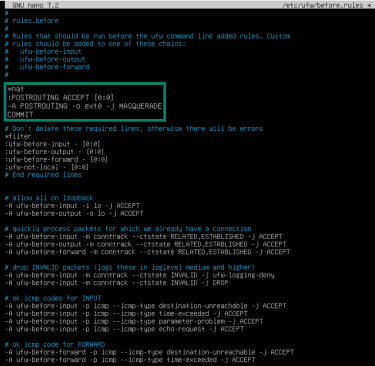
- Reload using sudo ufw reload.
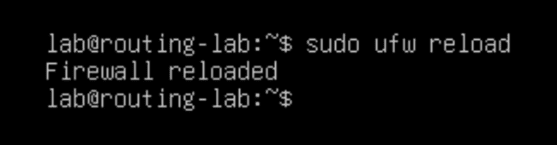
Note: If this is a remote system accessed via SSH, a misconfigured ufw rule set can block SSH and disconnect the session. Ensure SSH is explicitly allowed before reloading ufw.
How to test and verify IP forwarding functionality
Checking IP forwarding status confirms whether forwarding is enabled at the kernel level, but it doesn’t show whether traffic is actually moving between interfaces. The steps below verify real packet flow and end-to-end connectivity.
To verify IP forwarding state (IPv4):
- Run cat /proc/sys/net/ipv4/ip_forward. If covering IPv6, check cat /proc/sys/net/ipv6/conf/all/forwarding.
- Ensure the value returns 1 (0 means disabled).
- If disabled, change it with sudo sysctl -w net.ipv4.ip_forward=1 or write directly to /proc/sys/net/ipv4/ip_forward on systems without sysctl.
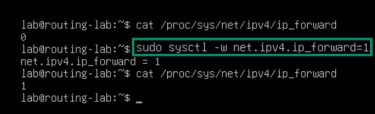
To test connectivity and forwarding:
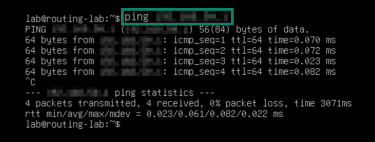
- On a connected device, run ping <router-IP> to confirm reachability to the routing system.
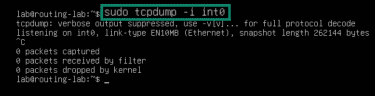
- On the routing computer, use sudo tcpdump -i <internal-interface> to confirm that packets are passing through. If nothing appears, check the client’s link/interface and addressing, and ensure the client is using the router as its default gateway.
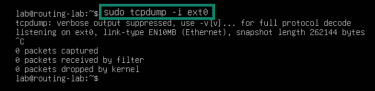
- Run sudo tcpdump -i <external-interface> to verify whether the same packets go towards the gateway IP. If not, fix the router by allowing forwarding in the FORWARD chain and enabling NAT on the external interface.
Security considerations when enabling IP forwarding
Enabling IP forwarding changes how the system handles traffic between network interfaces, introducing new security considerations and warranting additional protection measures.
Security risks of enabling IP forwarding
Firewall rules that protect local services don’t automatically apply to traffic transit being routed through the system. Instead, packets are handled according to routing and forwarding rules.
When misconfigured, these rules can lead to:
- Unintended traffic routing: On systems with multiple network interfaces, IP forwarding without explicit restrictions can allow traffic to pass between networks intended to remain separate (e.g., an internal LAN and an external-facing interface).
- Firewall misconfiguration: Forwarded traffic is evaluated differently from local traffic. Without defined forwarding policies, traffic may be routed between unintended interfaces even when local firewall rules appear restrictive.
- NAT misconfigurations: Overly broad translation rules can apply to more traffic than intended. In combination with permissive forwarding, this can unintentionally route internal traffic externally or make internal services reachable through translated connections.
- Tracking table limits: Forwarding traffic can increase the number of connections the system has to track. On high-traffic systems, this can exhaust conntrack table limits, leading to performance issues or disruptions.
- Network-wide exposure: A compromised forwarding host can affect more than the local system, since it may be able to observe, disrupt, or route traffic between connected networks.
Read more: What is an open port? A guide to network vulnerabilities.
Recommended firewall and routing safeguards
Reducing IP forwarding risk requires firewall and routing rules that explicitly control forwarded traffic, rather than relying on default host protections:
Denying forwarded traffic by default
A default-deny approach ensures that no traffic is routed between interfaces unless explicitly reviewed and approved, reducing unintended forwarding risks.
Set the FORWARD chain default policy to DROP, then add explicit ACCEPT rules only for the flows that are needed.
Adding explicit forwarding policies
Forwarding rules should clearly specify which interfaces, directions, and traffic types are allowed to pass through the system. This keeps routing behavior predictable, rather than relying on implicit defaults.
In practice, this means writing rules that match ingress and egress interfaces, and source/destination networks and protocol/ports, then explicitly allowing only those flows and dropping the rest.
Applying NAT only where needed
Limiting NAT to the interfaces and networks that actually need it helps prevent traffic from being translated or routed in unintended ways. For example, NAT is commonly used when private LAN traffic exits through an upstream internet-facing interface and the upstream network doesn't route back to the private subnet, but it's often unnecessary for traffic between internal networks or VPN tunnels.
To limit NAT scope rules to the outbound interface and the LAN subnet (avoid “NAT everything”). Example: -A POSTROUTING -s <LAN-subnet> -o <ext-if> -j MASQUERADE.
Maintaining a clear separation between network roles
Firewall and routing rules should distinguish between external, internal, and tunnel interfaces. This way, traffic is handled according to its purpose rather than being forwarded indiscriminately.
To distinguish interface roles, treat each interface as a separate trust boundary: external wide area network (WAN) for untrusted internet-facing traffic, internal (LAN) for local devices, and tunnel (VPN) for encrypted overlay traffic. Write forwarding/NAT rules that match role-to-role flows (for example, LAN → WAN allowed, WAN → LAN blocked, VPN → LAN allowed only if needed).
Following the least privilege principles
Forwarded traffic should be limited to the sources, protocols, and destinations required for the system’s intended role. For example, a VPN gateway may need to forward tunnel traffic to a specific internal network, but it shouldn’t forward unrelated traffic between internal segments that don’t require routing.
FAQ: Common questions about Linux IP forwarding
Is it safe to enable IP forwarding?
How to enable IP routing on Linux?
How to check if IP forwarding is enabled on Linux?
How to enable port forwarding on Linux?
How can I disable IP forwarding in the terminal?
Take the first step to protect yourself online. Try ExpressVPN risk-free.
Get ExpressVPN