How to factory reset Xbox One: Step-by-Step


Factory resetting your Xbox One restores the console to its default state, deleting most or all of your data, settings, and installed apps and games.
It’s recommended to do this if you’re preparing to sell or give your console away, or if you're looking to resolve performance or other issues with your console.
This guide covers how to factory reset an Xbox One, with step-by-step instructions and guidance on what to do before and after the reset.
Choose the right factory reset option
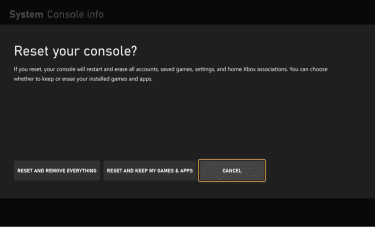
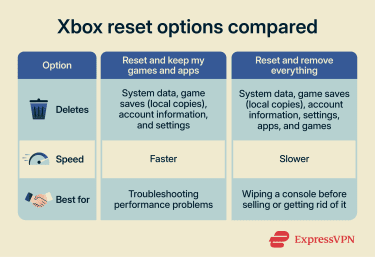 Xbox offers two reset modes: one that removes everything and another that keeps all the games and apps you already have installed.
Reset and keep my games and apps
Also known as a partial factory reset, this restores your console’s settings and operating system to their default states. Any installed games and apps will remain intact.
This is the quicker of the two resets, since it doesn’t delete as much content, and it’s the better option when you’re trying to troubleshoot performance or network problems.
Reset and remove everything
Also called a full factory reset, this option erases all data on your console and restores it to its factory state. It removes all your user data, settings, and installed content, including apps and games.
You should use this option if you’re about to sell or give away your Xbox, just like you would wipe a computer or reset a smartphone before selling it.
How long does an Xbox One factory reset take?
It depends on the type of reset you choose and the amount of data on the hard drive:
- Partial reset: Generally, much faster and might be completed within 20 minutes.
- Full reset: Can take one or more hours, especially if you have a lot of data and games installed.
Before you factory reset your Xbox One
Before you go ahead with the Xbox factory reset, it’s recommended to take a few precautionary measures to ensure the process runs smoothly and to protect your data:
- Back up your data: By default, Xbox consoles automatically back up your game saves and other important data to the cloud. Make sure you’re connected to the internet so your console can sync your data before you begin a reset.
- Remove any discs: While unlikely, there’s a small risk that something could go wrong and cause your console’s disc drive to get stuck. As such, it’s best to remove any discs from the tray before you start the process.
- Note your account data: The factory reset won’t delete your Xbox account, but it will remove your account from the console. You can log back in after the reset to regain access, so it’s worth noting down your account details beforehand.
How to factory reset an Xbox One from settings
The simplest way to factory reset your Xbox One is via the console’s settings menu.
- Open Settings (via the Xbox Guide or the dashboard), and go to the System tab.
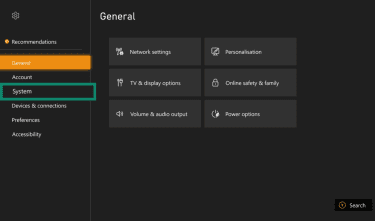
- Select Console info.
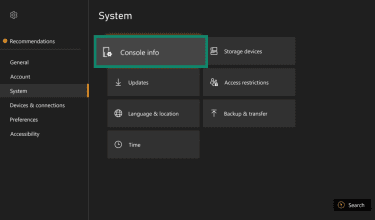
- Choose the Reset console option.
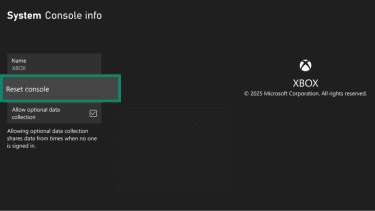
- Select the reset type you want, then wait for the process to complete. Your console may restart multiple times during the reset.
How to factory reset an Xbox One with Startup Troubleshooter
You can also reset your Xbox One via the built-in Troubleshooter tool. This is helpful if you’re encountering crashes or other issues that prevent you from accessing the settings menu.
- Turn off your console, then remove the network and power cables.
- Wait around 30 seconds, then plug the power cord back in.
- Press and hold the Pair and Eject buttons (if your console has both), or just the Pair button (if there is no Eject button). Then turn your console on with the Xbox button.
- Keep the Pair and Eject buttons (or just the Pair button) pushed down until you hear two power-up tones.
- You can then release the buttons, and your console should load into the Startup Troubleshooter menu. Select the Reset this Xbox option to start a factory reset.
How to factory reset Xbox One using a USB flash drive
It’s also possible to factory reset your Xbox with a USB flash drive. This method is a little more technical, but it may be the only viable option if neither of the above methods works.
Before you begin, you’ll need a suitable flash drive with at least 6GB of storage and no other files on it. It also needs to be formatted for the NTFS file system, which you can do using a Windows or macOS device.
Once you’ve got a properly formatted drive to work with, follow these steps:
- Plug your USB into your PC.
- Use this link to download the required files to reset your console.
- Right-click the downloaded compressed folder, click Extract all, then copy the $SystemUpdate folder onto the root directory of your USB drive.
- Remove the drive from your PC.
- Make sure your Xbox is powered off, then remove the power cable and any connected Ethernet cable.
- Wait at least 30 seconds before plugging the power cable back in.
- Plug the USB drive into one of the available ports on your console.
- Press and hold the Pair and Eject buttons (if you’re using a standard Xbox One or Xbox One X) or just the Pair button (if you’re on an Xbox One S).
- Press the Xbox button on the console to power it up, and keep the Pair and Eject buttons pressed down until you hear two power-up tones, a couple of seconds apart. This can take up to 15 seconds.
- The console should restart. When it finishes, you can remove the USB drive and follow the on-screen instructions to complete the reset.
After the factory reset
Once the reset is complete, your next steps will depend on what you want to do with the console. If you intend to sell it or give it away, you can simply power it down and package it. If you want to use it again and restore your account, games, and apps, here’s what to do:
- Reconnect to the internet: Connect your console to your home network using an Ethernet cable or Wi-Fi. You’ll need to do this to log back into your account or download any data.
- Install updates: Since your console was reset to factory settings, it won’t have the latest system updates and patches. You should be prompted to download the newest version of the Xbox operating system once you’re back online.
- Log in: Enter your Xbox credentials to regain access to your account. You’ll then be able to make use of any active subscriptions, access your friend list again, check your achievements, etc.
- Reconfigure the settings: Open the Settings menu and configure your console to your liking.
- Download games and apps: From either your library or the Microsoft Store, find and download any games or apps you wish to reinstall.
Troubleshooting factory reset problems
In most cases, the factory reset should proceed smoothly. However, there is a chance of issues occurring during or after the process. You might see a black screen, for example, when trying to power back up, or you might encounter an error message during the reset or update processes.
The following fixes may help resolve these issues:
Hard reset your Xbox
- Press and hold your console’s Power button for 10 seconds until it shuts off completely.
- Unplug the power cord.
- Wait 5–10 minutes.
- Plug the cord back in, then try restarting your console.
Use the Xbox Startup Troubleshooter
- With your console turned off, press and hold the Pair and Eject buttons, or just the Pair button if your console doesn’t have an Eject button.
- Then press the Xbox button while continuing to hold the Pair and Eject buttons until you hear two power-up tones.
- Release the buttons, and your console should boot up into the troubleshooter menu. Select Reset this Xbox to factory reset your console again.
FAQ: Common questions about Xbox One factory reset
Can you undo a factory reset on Xbox One?
Will I lose my games after factory resetting my Xbox One?
Will I lose saved game progress after a factory reset?
Does a factory reset remove my Xbox account?
How do I reset an Xbox One controller?
Does a factory reset delete Game Pass or subscriptions?
Take the first step to protect yourself online. Try ExpressVPN risk-free.
Get ExpressVPN







 Support Center
  FAQ
FAQ  VPN Setup Tutorials


