How to delete your Tumblr account: Fast desktop and app walkthrough


Whether you're stepping back from social media, tidying up your digital footprint, or simply finished with the platform, deleting your Tumblr account takes just a few minutes.
This quick guide shows the fastest way to delete a Tumblr account on desktop and mobile. It explains exactly what to click, what happens immediately after deletion, what may briefly remain visible in search results, and how to back up posts before permanently removing the account.
Before you delete your Tumblr account
Deleting your Tumblr account is permanent and can’t be undone. Tumblr requires you to confirm your login details during the deletion process, so you must be able to access the account first.
Make sure you can log in
If you signed up using a third-party login, such as Google or Apple, make sure you still have access to that account.
Before starting the deletion process:
- Confirm you remember your password.
- Check that your email address is active and accessible.
- Reset your password if needed.
If you can’t access your account, you may need to use Tumblr’s account recovery options before attempting deletion. Without login access, you won’t be able to complete the process.
Once access is confirmed, there are a few optional steps that can help prevent unexpected content loss. If backing up posts or reviewing what will be removed isn’t a concern, you can skip this section and move straight to deleting your account.
Back up your Tumblr content
Here’s how to back up your primary Tumblr blog:
- Log into Tumblr on a desktop browser and click on Account on the left-hand menu.
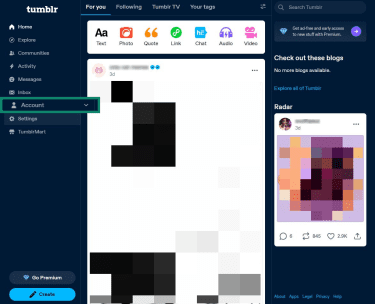
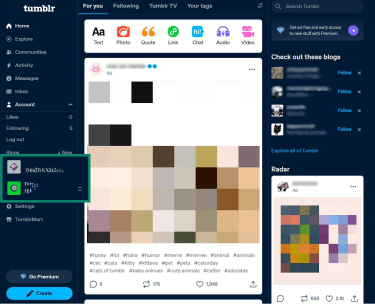
- Select the blog you want to export.
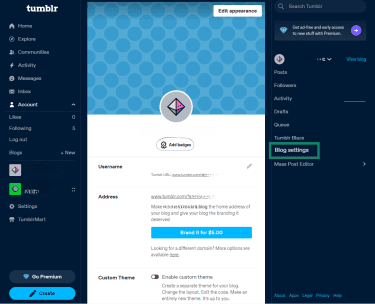
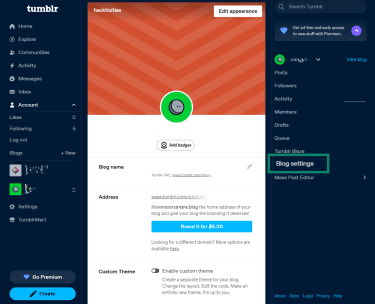
- Click on Blog settings on the right-hand menu.
- Scroll down to Export and click it. Wait for Tumblr to generate the download file.
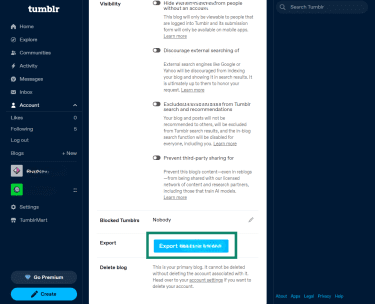
Tumblr will notify you when the export is ready for download. This can take anywhere from a few minutes to a few hours, depending on how much content you have. The file usually downloads as a ZIP archive containing your posts in XML format. Keep in mind that the export includes your original posts but not your likes, reblogs, or follower lists. If any of that matters to you, note it down or screenshot it before you proceed.
Check if you have multiple blogs
Tumblr allows you to have more than one blog under the same account. These can include your primary blog, one or more secondary blogs, and group blogs where you’re a member. Deleting your primary Tumblr account removes:
- Your primary blog
- All secondary blogs you own
- Your access to any group blogs
If you only want to remove one blog while keeping your main account, you should delete the secondary blog instead of the entire account.
To see which blogs are connected to your account, click on Account in the left-hand menu. Any blogs listed there are part of your account.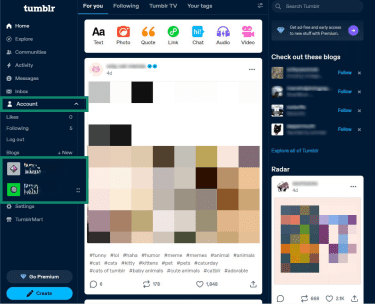
How to delete a primary Tumblr account
Only follow these steps if you want to permanently remove your main Tumblr blog, all the content associated with it, and any secondary blogs linked to it.
The steps differ slightly depending on whether you’re using a desktop browser or the mobile app.
Delete your account on desktop
You can delete your Tumblr account from any desktop browser by following these steps.
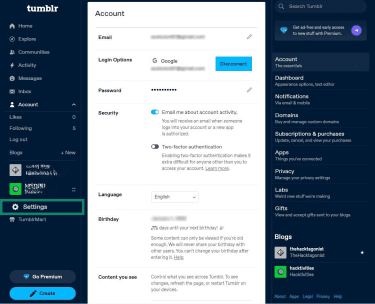
- Log into Tumblr at tumblr.com and click on Settings in the left-hand menu.
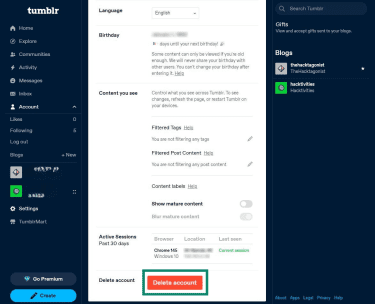
- Scroll to the bottom of the Settings page and click Delete account.
- Tumblr will ask you to confirm your email address and password. Enter your credentials and click Delete everything.
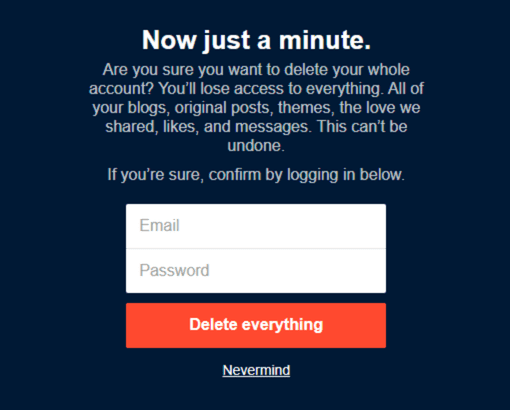
Note: If you signed up using a third-party login, you’ll need to set a password first before you can delete your account.
Delete your account in the mobile app
You can also delete your account through the Tumblr app on both iOS and Android. The steps are the same on both operating systems.
- Open the Tumblr app and tap the Account icon at the bottom of the screen.
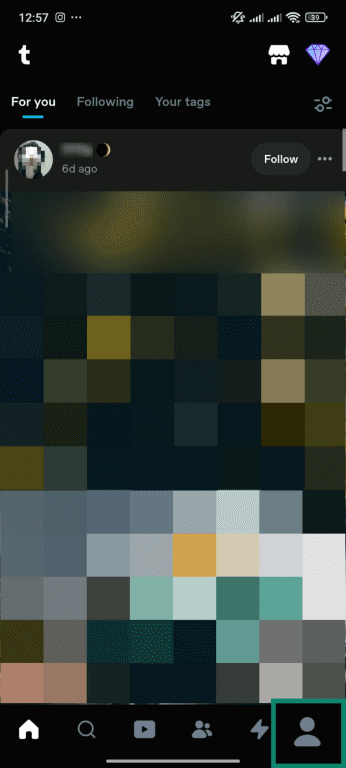
- Tap the Settings icon (the gear icon) in the top-right corner.
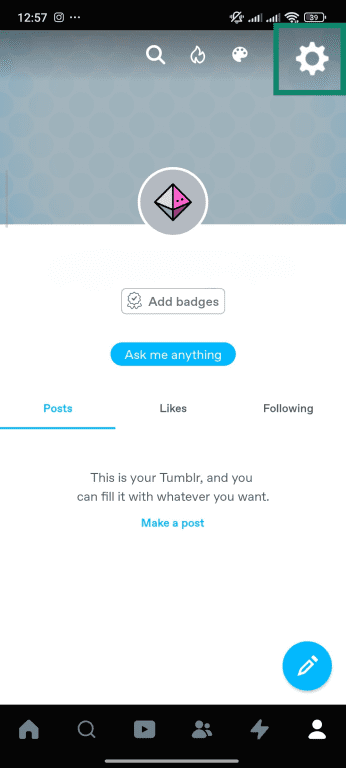
- Tap on Account settings.
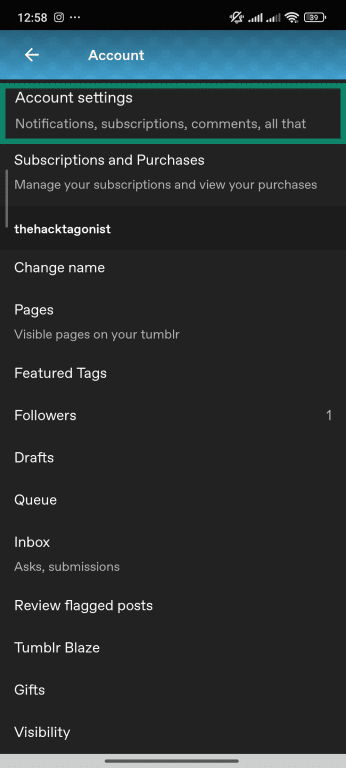
- Scroll down and tap Delete account.
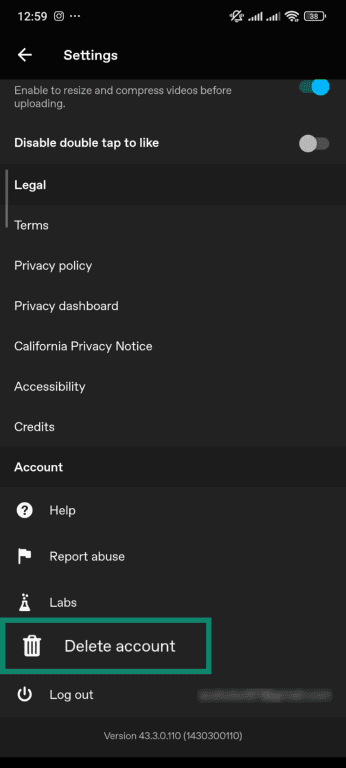
- Enter your email address and password when prompted, then tap Delete everything to confirm.
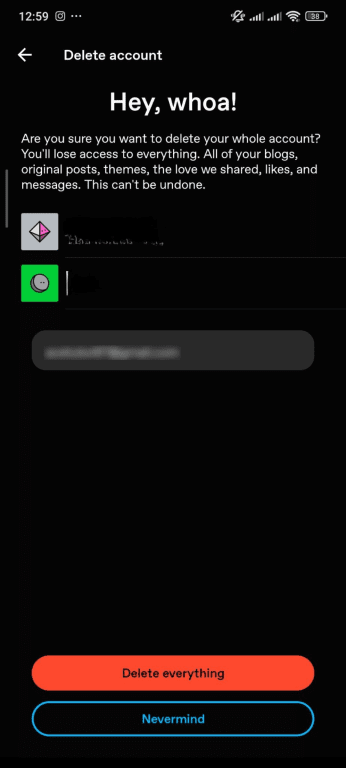
Just like on desktop, you’ll be asked to set a password first before you can delete your account if you signed up using a third-party login.
Troubleshooting deletion problems
In most cases, the deletion process should go through without any issues. If you run into problems, here are the most common ones and how to handle them.
- Incorrect password: Reset your password before trying again. If you still can’t access your account, use Tumblr’s account recovery process to regain access before attempting deletion.
- App glitches: Reinstall or update your app before trying again.
If issues persist, you may need to file a support request through Tumblr’s Help Center.
How to delete a secondary Tumblr blog
On Tumblr, secondary blogs are separate from your primary account. Deleting one doesn't affect your account or any other blogs you have. It only removes that specific blog and its content. This is useful if you want to clear out an old blog without closing your account entirely.
Delete a secondary blog on desktop
Follow these steps to delete a secondary Tumblr blog from your browser on desktop:
- Log into your Tumblr account and click on Account in the left-hand menu.
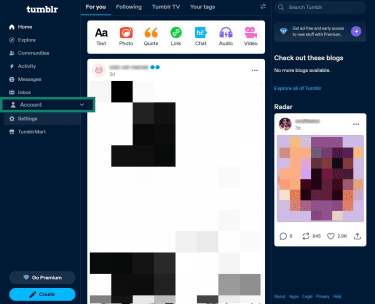
- Select the secondary blog you want to delete.
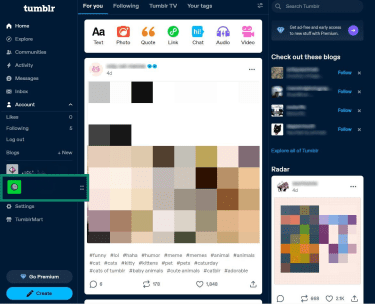
- Click on Blog settings on the right-hand menu.
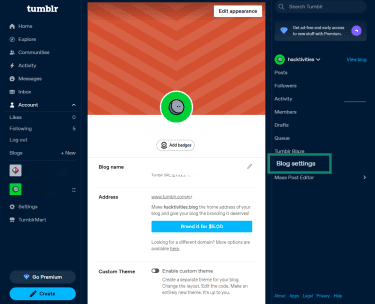
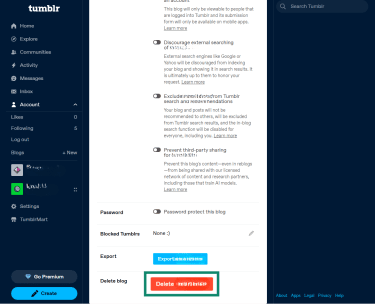
- Scroll down to Delete and click it.
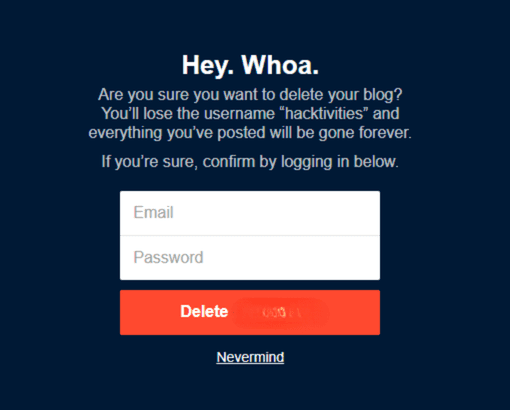
- Enter your account password (or create one) when prompted to confirm, then click the delete button to finalize.
Delete a secondary blog in the mobile app
It’s also possible to delete a secondary Tumblr blog directly from the mobile app. The steps work the same on both Android and iOS.
- Open the Tumblr app and tap the Account icon at the bottom of the screen.
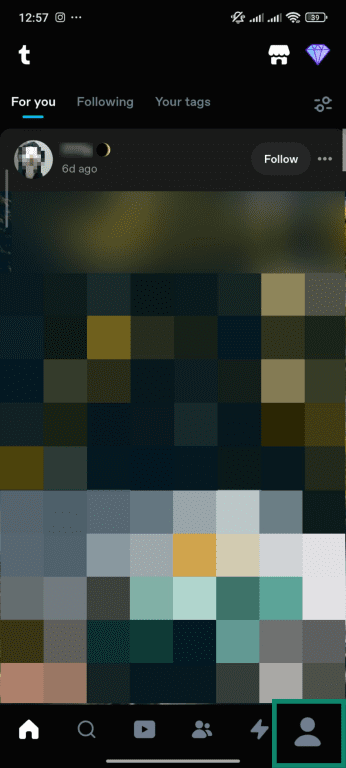
- Tap the account name in the top-left corner and select the secondary blog you want to delete.
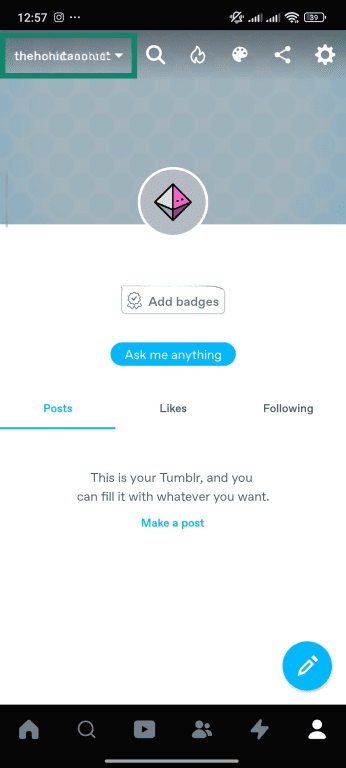
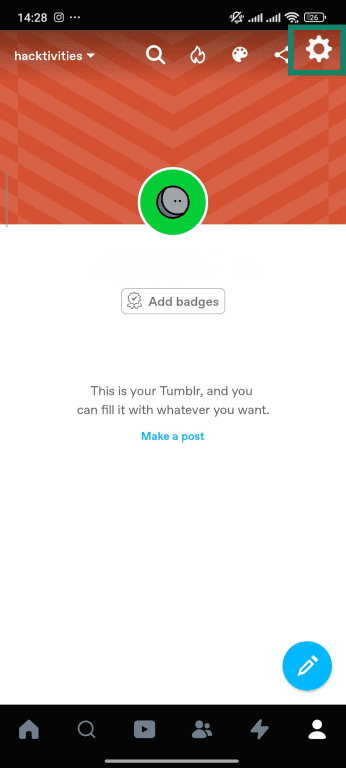
- Tap the Settings icon (the gear icon) in the top-right corner.
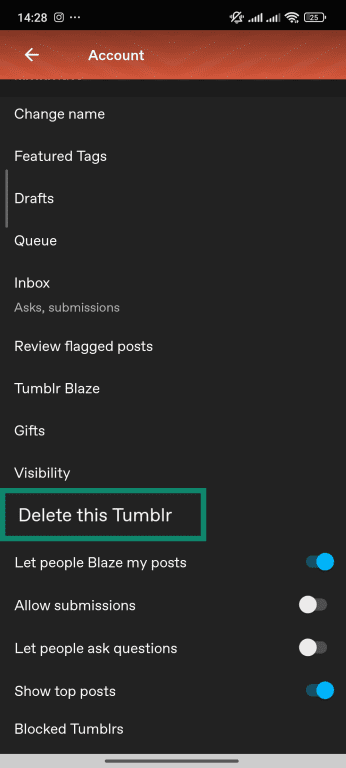
- Scroll down and tap Delete this Tumblr.
- Enter your password when prompted and tap Delete to confirm.
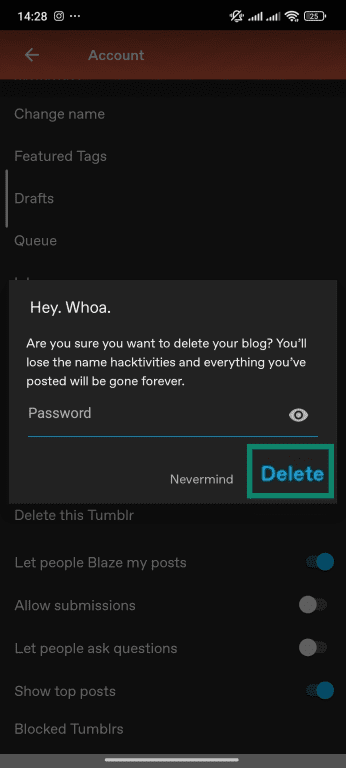
Once deleted, the blog’s posts, media, and customizations are permanently removed. The blog URL may eventually become available for reuse. Make sure you select the correct blog before confirming, since this action can't be undone.
Note that you can't delete your primary blog this way. The primary blog can only be removed by deleting your entire account.
What happens to group blogs
Group blogs, also called shared blogs on Tumblr, work differently from secondary blogs. They can have multiple members, each with their own role, and what happens when you leave or delete your account depends on your role within the blog.
If you're a member of a group blog (not the admin), deleting your account or leaving the group blog removes you as a member. The blog continues to exist under the remaining members and isn't affected by your departure.
If you’re the only admin of a group blog and delete your account, Tumblr will promote another member to an admin. This will give the new admin full rights to the group, including access to messages.
You also have the option to transfer admin ownership to another member before deleting your account. If there are other admins already in place, deleting your account simply removes you from the blog without affecting its operation.
Why do people delete Tumblr?
People delete their Tumblr accounts for various reasons. Below are two common motivations:
Privacy and personal data concerns
Like most social platforms, Tumblr collects data about its users, including email addresses, IP addresses, device information, and browsing activity. According to its Privacy Policy, this data is used for purposes such as advertising and analytics and may be retained for as long as the account exists or as required for legal reasons.
If you’re trying to minimize your online footprint, keeping an account on a platform you no longer use means all this information continues to be held and potentially shared with third parties. Deleting the account is one way to request that Tumblr remove your personal data, though there are alternatives if you prefer a less permanent approach.
It should be noted, however, that Tumblr content that was previously indexed by search engines may still appear temporarily in search results until those pages are updated or removed from cache.
Reducing distractions and improving digital well-being
Tumblr is designed for continuous browsing and content discovery. For some users, that can lead to spending more time on the platform than intended.
Deleting an account can help:
- Reduce screen time
- Minimize notifications and digital interruptions
- Simplify daily online habits
Others choose to step away after a change in interests, career direction, or personal priorities. Instead of maintaining multiple inactive profiles, they prefer to close accounts they no longer use.
What happens after you delete your account
Here’s what you can expect after the process is complete.
What gets removed vs. what may remain
When you delete your primary Tumblr account, the following are permanently removed:
- Your primary blog and all its posts, including text, photos, videos, and audio
- Any secondary blogs attached to your account
- Posts, reblogs, drafts, and queued content
- Messages and activity history
- Your account credentials, including your username and email association
- Your follower and following lists
- Your account settings and personal information stored in your profile
- Your blog URLs
Some information may remain on and outside the platform. For example:
- Search engine results may still show cached versions of your blog pages.
- Reblogs of your content by other users will remain on their blogs. Tumblr doesn't remove posts that others have reblogged once your account is deleted.
- If anyone embedded or saved your posts outside of Tumblr, that content exists independently and won't be affected by the deletion.
- Data retained by Tumblr for legal or operational purposes may be held for a period of time in line with Tumblr's privacy policy and personal data removal laws, even after your account is removed.
Search engines update their indexes over time. Once they recrawl Tumblr’s pages, deleted content usually disappears from results.
How long does Tumblr account deletion take
Account deletion is usually effective immediately after confirmation. You should no longer be able to log into your account.
That said, some platform updates may take a short time to fully propagate. For example, your username may not become available right away. Additionally, cached content may still appear in search results until updated.
How to confirm your Tumblr is deleted
To verify that your account has been deleted:
- Try logging in using your previous credentials: You should see an error message.
- Visit your former blog URL in a browser: The page should return a "not found" or similar error rather than displaying your blog.
- Search for your blog name on Tumblr: It shouldn’t appear in Tumblr’s internal results. However, Google or other search engines may still show cached links for a short time, even after your account has been deleted.
If you can still access your account, the deletion process hasn't been completed. In that case, repeat the steps in the deletion section and ensure you confirm the action.
Can you recover a deleted Tumblr account?
Once you confirm deletion, the process is permanent. Tumblr doesn't offer a recovery option, and there’s no grace period or deactivation state.
If you delete your account and later decide to return, you can create a new Tumblr account using your previous email address. Depending on availability, you may be able to sign up using the same username. However, your previous posts and data won’t be restored.
Alternatives to deleting your account
If your goal is to reduce visibility, limit personal information, or take a break, you may not need to remove your account entirely. Below are some practical alternatives.
Make your blog private or less discoverable
Tumblr gives you several ways to limit who can see your blog and how easily it can be found, without requiring you to delete anything. Some options include:
Password-protect your blog
You can add a password to your blog so that only people who have it can view your content. This effectively makes your blog content invisible to anyone who stumbles across it or finds it through a search engine.
To enable this on desktop:
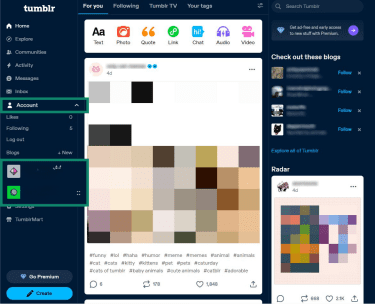
- Go to Account and select your blog from the left-hand panel.
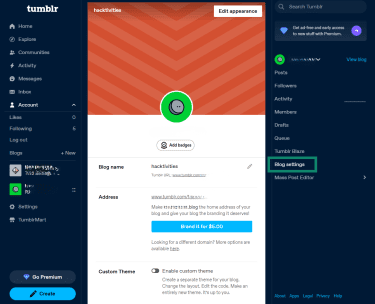
- Select Blog settings on the right-hand panel.
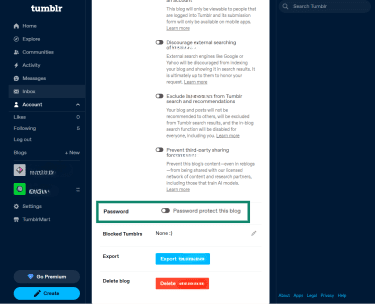
- Scroll down to the password protection option and toggle it on.
- Set a strong password and save your changes.
Note that password protection is only available for secondary blogs, not your primary blog.
Turn off search engine indexing
If your main concern is your blog appearing in Google or other search engine results, you can disable indexing without restricting access to the blog itself.
To do this on desktop:
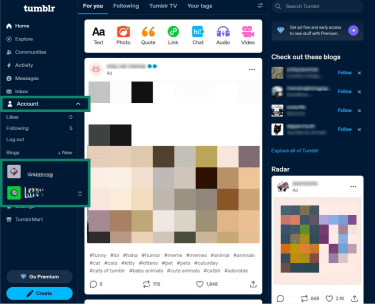
- Go to Accounts and select the blog you want to manage.
- Click on Blog settings on the right-hand panel.
- Scroll down to Visibility, find the option labelled Discourage external searching, and toggle it off.
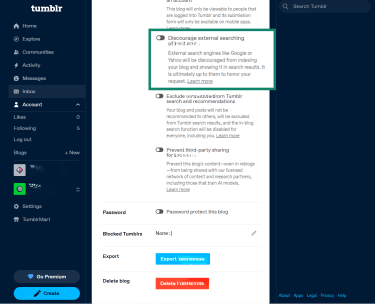
Keep in mind that this discourages future indexing but won't immediately remove pages that are already cached by search engines. Those results will drop over time as search engines re-crawl the URLs.
Hide your blog from Tumblr's search and recommendations
You can also stop your blog from appearing in Tumblr's own search results and recommendations. In your blog settings, look for the visibility option and toggle the different options on or off depending on your preferences.
From this section, you can hide your blog from people without Tumblr accounts, exclude it from Tumblr search and recommendations, and even prevent Tumblr from sharing your blog content with third parties.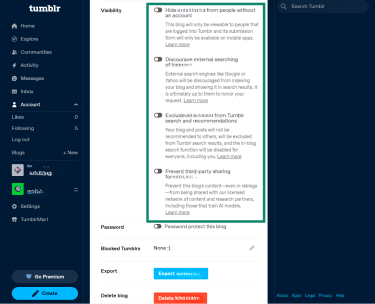
You can also choose whether to make your likes and followers public and limit those who can mention you or reply to your posts.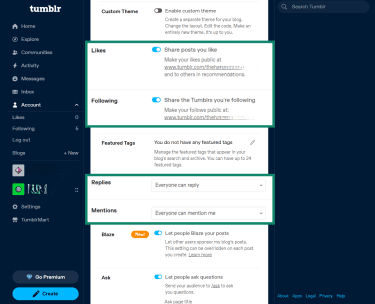
Clean up posts and personal info
You can also remove specific content instead of deleting your entire Tumblr account. This allows you to clean up posts, images, or personal details you no longer want public while keeping the rest of your blog intact.
Review and remove personal information from your profile
Your Tumblr profile and blog bio may contain personal details added during setup, such as a name, location, or profile photo. These can be reviewed and removed if needed before deleting the account.
To update profile information, go to Account, select the relevant blog, choose Blog settings from the right-hand panel, and then click Edit appearance at the top of the page.
From there, remove or update any details that should no longer be publicly visible, then save the changes.
Delete individual posts
You can delete posts individually from your blog's archive or post queue. If you have a large volume of content to remove, this can be time-consuming, but it gives you precise control over what stays and what goes.
Update your account email address
If you're concerned about your email address being associated with your Tumblr account, you can update it to a less personal one, such as an alias or a dedicated address, without deleting the account. This can be done from your Settings page.
FAQ: Common questions about deleting your Tumblr account
What happens to my posts and reblogs after I delete my Tumblr account?
Will my Tumblr URLs and usernames become available again?
Can my deleted Tumblr content still appear in Google search results?
What happens to blogs I was a member of after I delete my account?
Can I delete my Tumblr account if I signed up with a third-party login?
Can I transfer ownership of a group blog before deleting my account?
Take the first step to protect yourself online. Try ExpressVPN risk-free.
Get ExpressVPN





 Support Center
  FAQ
FAQ  VPN Setup Tutorials


