This guide will show you how to change or reset your ExpressKeys vault password. If you do not remember your vault password, you can reset it with your recovery code.

Jump to…

ExpressKeys Chrome extension
ExpressKeys for Android and iOS


ExpressKeys Chrome extension

  1. Install and set up the ExpressKeys Chrome extension.
  2. Open the ExpressKeys browser extension.Google Chrome Extensions tab, showing the ExpressKeys extension.
  3. Click Forgot Primary Password?
    The "Forgot Primary Password?" button in the ExpressKeys extension for Chrome.
  4. Select Use Recovery Code.
    The "Need help?" pop-up in the ExpressKeys extension for Chrome, showing "Use Recovery Code" and Contact Us" buttons.
  5. Enter the recovery code and select Enter.The "Use recovery code" screen for the ExpressKeys extension.
  6. Enter a new primary password twice and click Set Primary Password.The "Your new primary password" screen for the ExpressKeys extension.

If the ExpressKeys Chrome extension is unlocked

  1. Click the Options tab, then Settings. The "Options" tab and the "Settings" option highlighted in the ExpressKeys browser extension.
  2. Select Change primary password.The "Change your primary password" option highlighted in the ExpressKeys browser extension.
  3. Click Forgot Primary Password?The ExpressKeys' "Verify primary password" page, highlighting the "Forgot Primary Password?" option.
  4. Click Use Recovery Code and follow the instructions.The "Need help" pop-up window in ExpressKeys' browser extension, highlighting the "Use Recovery Code" option.
  5. Enter your recovery code and click Enter.The "Use recovery code" page in the ExpressKeys browser extension.
  6. Set your new password, re-enter it, and click Set Primary Password to confirm.The "Your new primary password" page, showing two fields to enter and re-enter a new primary password, with a "Set Primary Password" button at the bottom.

Need help? Contact the ExpressVPN Support Team for immediate assistance.

Back to top


ExpressKeys app for Android or iOS

  1. Open the ExpressKeys app.
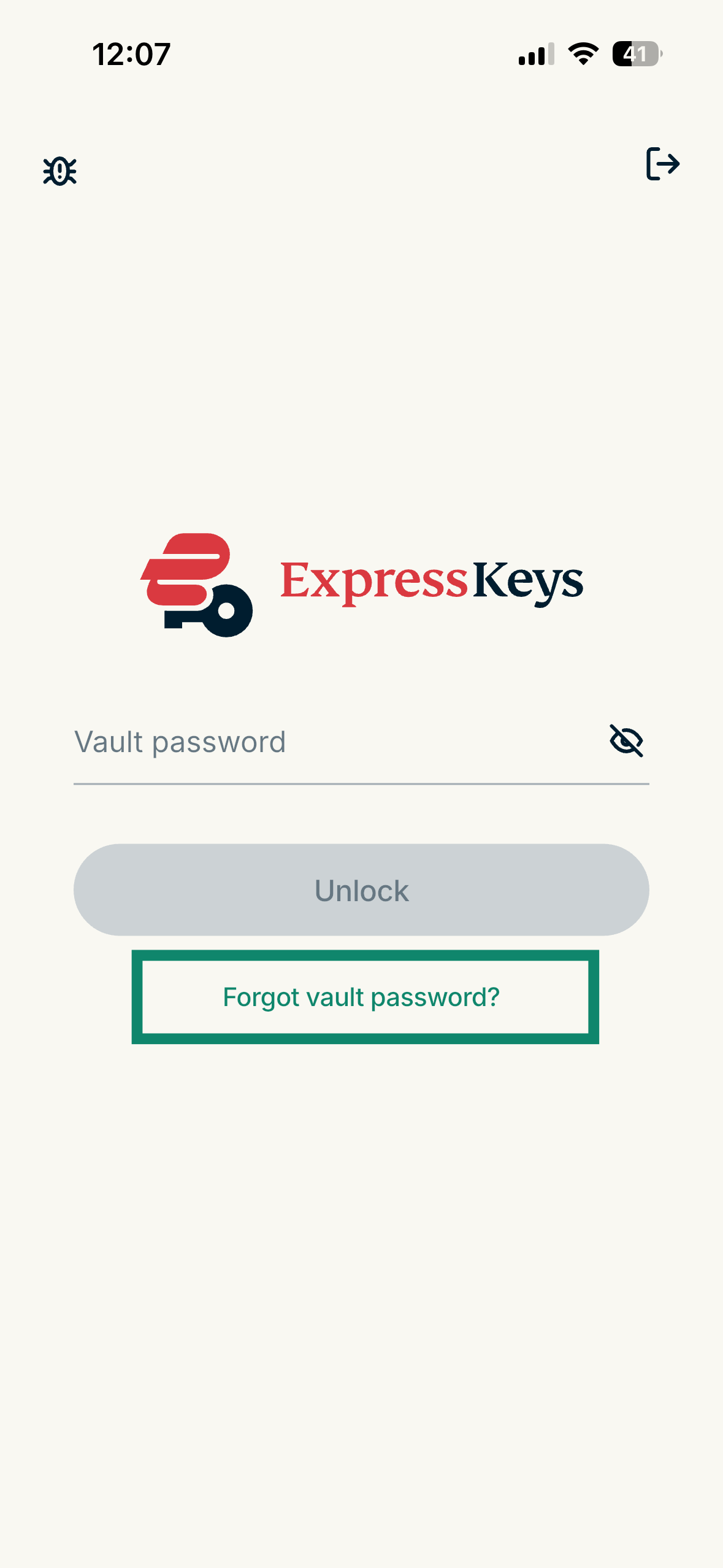
  2. Tap Forgot vault password?The login screen for the ExpressKeys app for iOS and Android with a highlighted "Forgot vault password?" option.
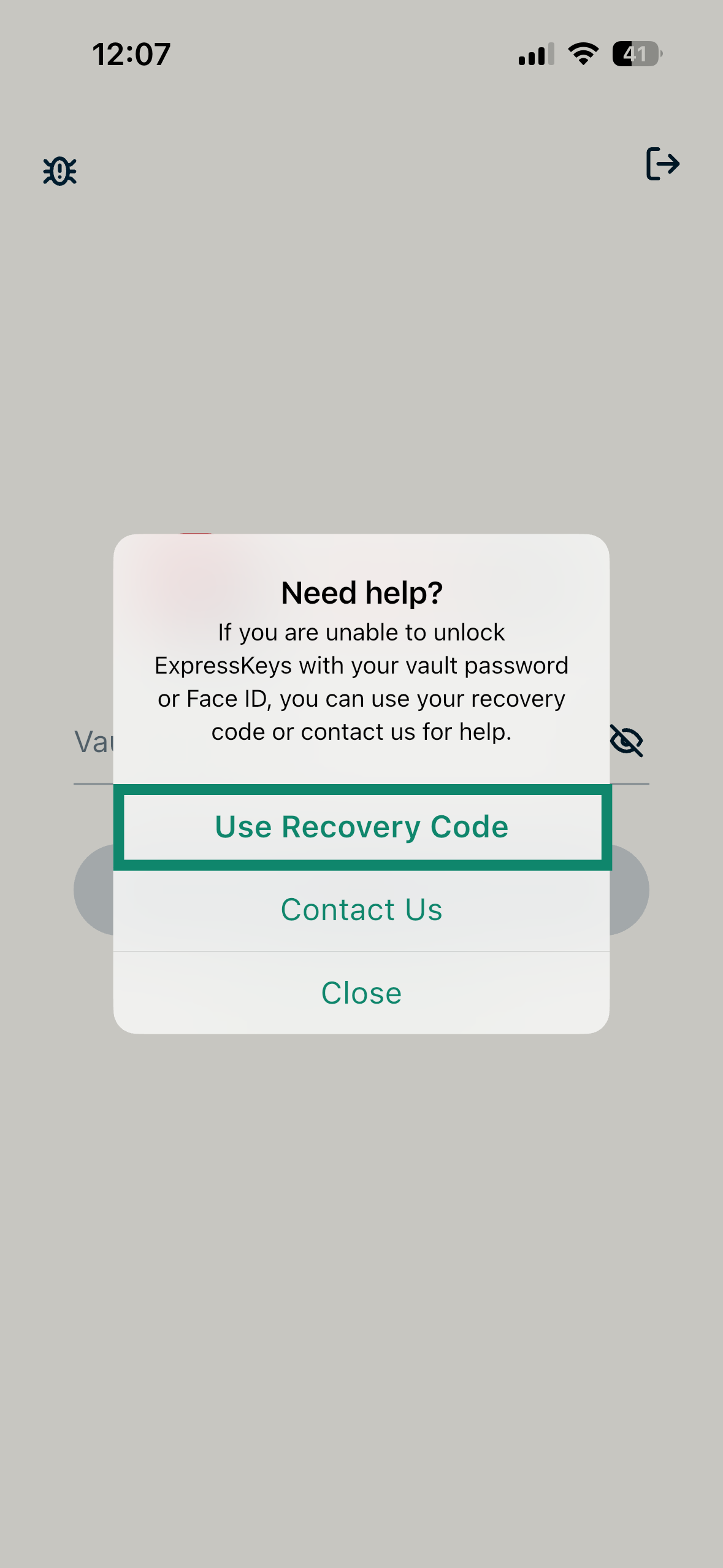
  3. Select Use Recovery Code.The "Need help?" pop-up in the ExpressKeys app for iOS and Android, with a highlighted "Use recovery Code" option.
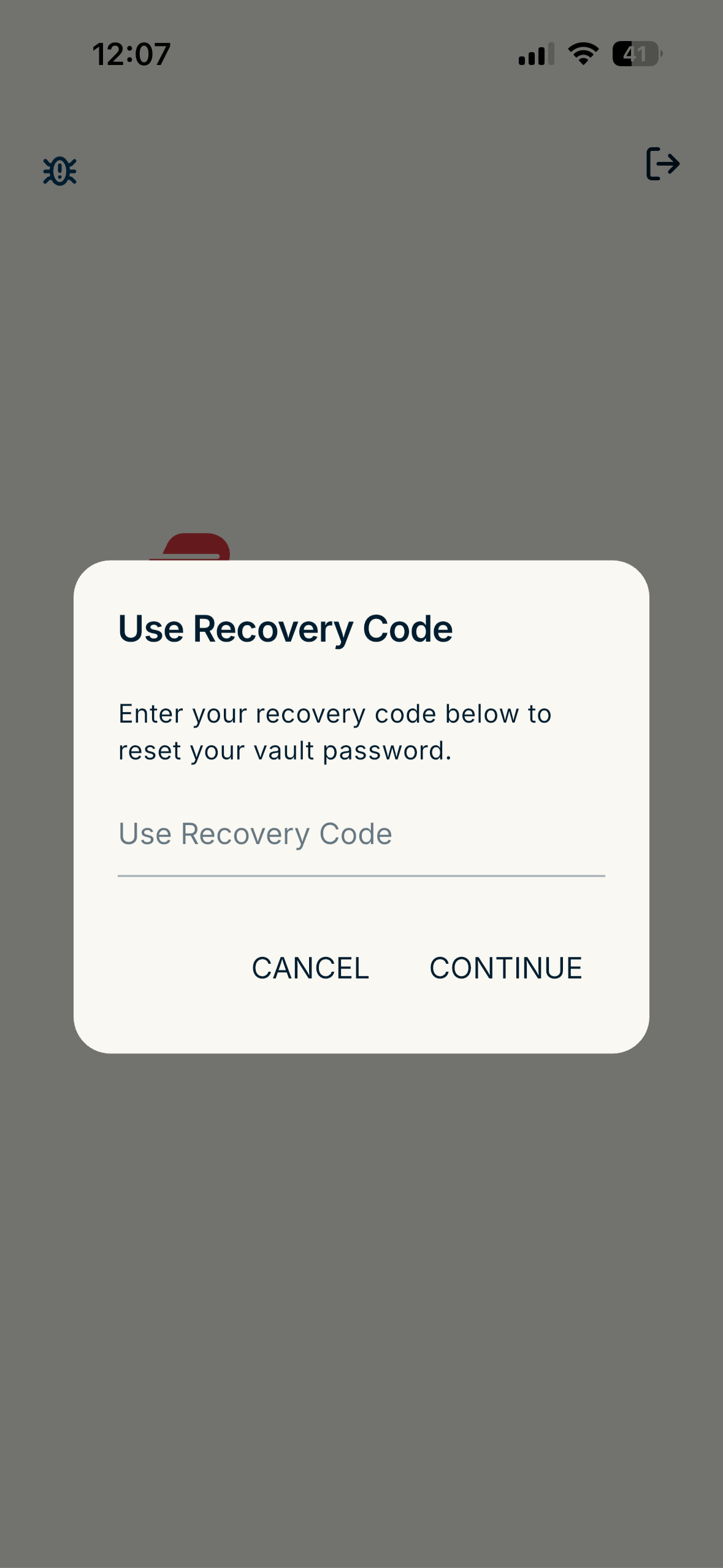
  4. Enter your recovery code and tap CONTINUE.The "Use Recovery Code" pop-up for the ExpressKeys app for Android and iOS.
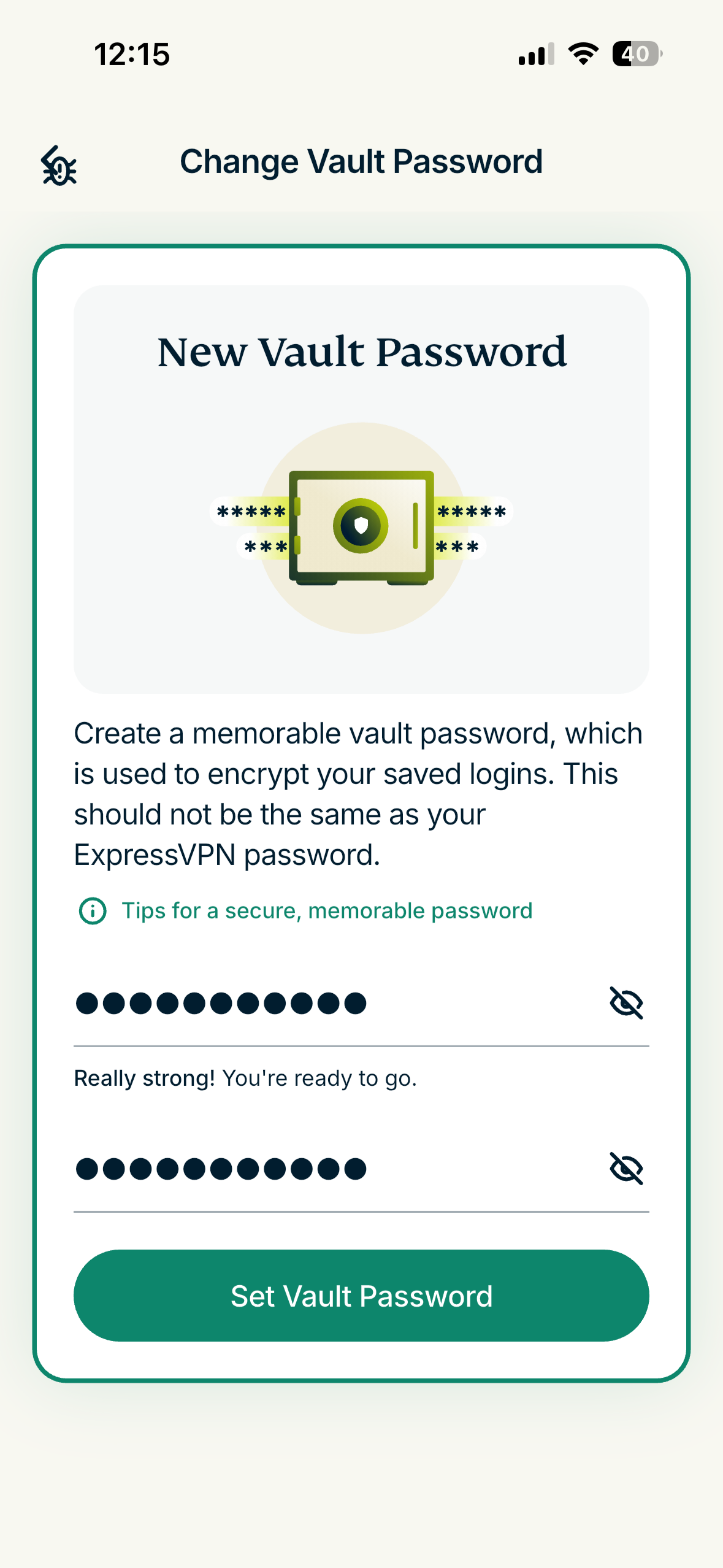
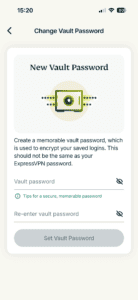
  5. You will then be prompted to set a new vault password for your account. Enter it twice and tap Set Vault Password.The "Change Vault Password" screen in the ExpressKeys app for iOS and Android.
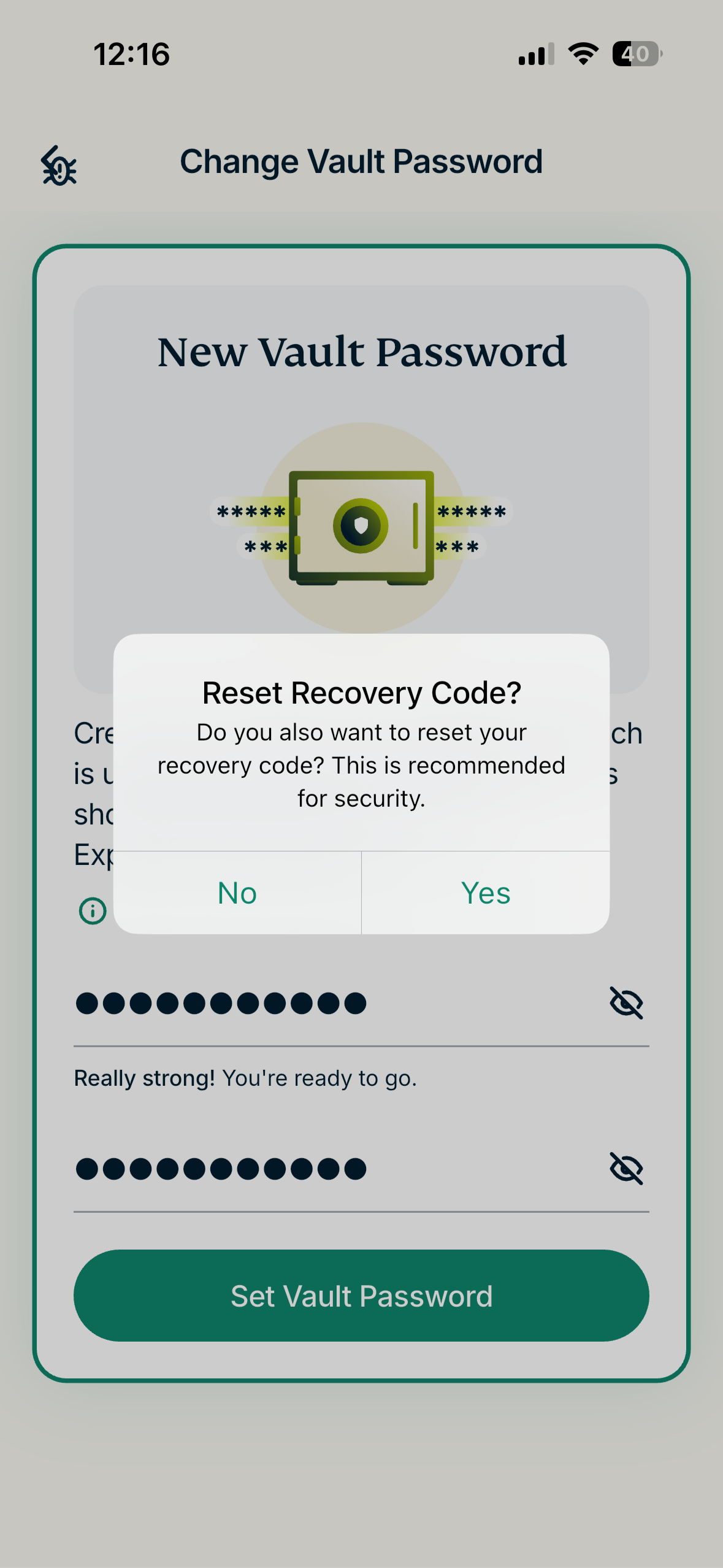
  6. Next, you will be asked to reset your recovery code. This is optional.The "Reset Recovery Code" pop-up in the ExpressKeys app for Andorid and iOS.
  7. Once done, you will gain access to your ExpressKeys account.
If the ExpressKeys app is unlocked

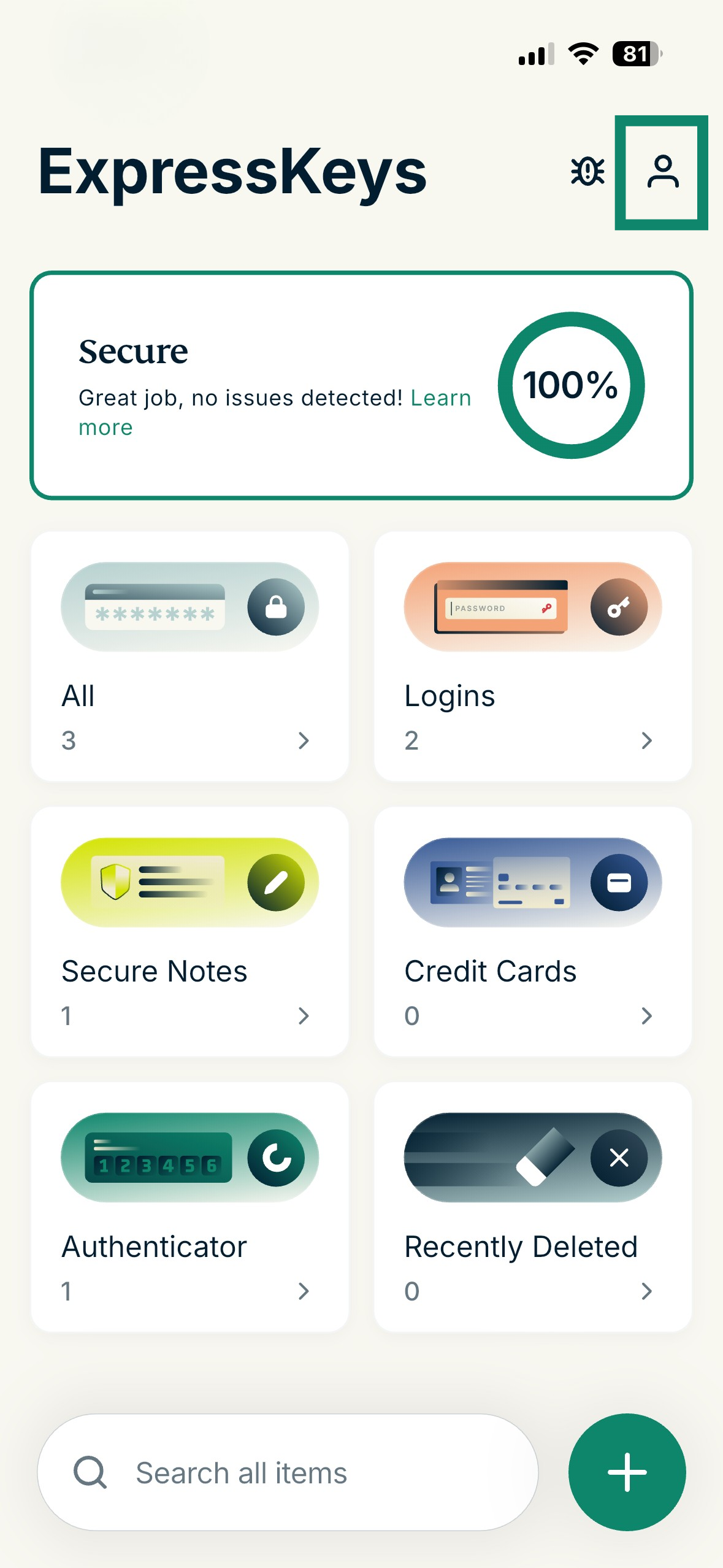
  1. In the app, tap .The ExpressKeys app on mobile, showing the Profile option highlighted.
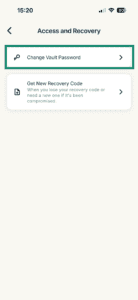
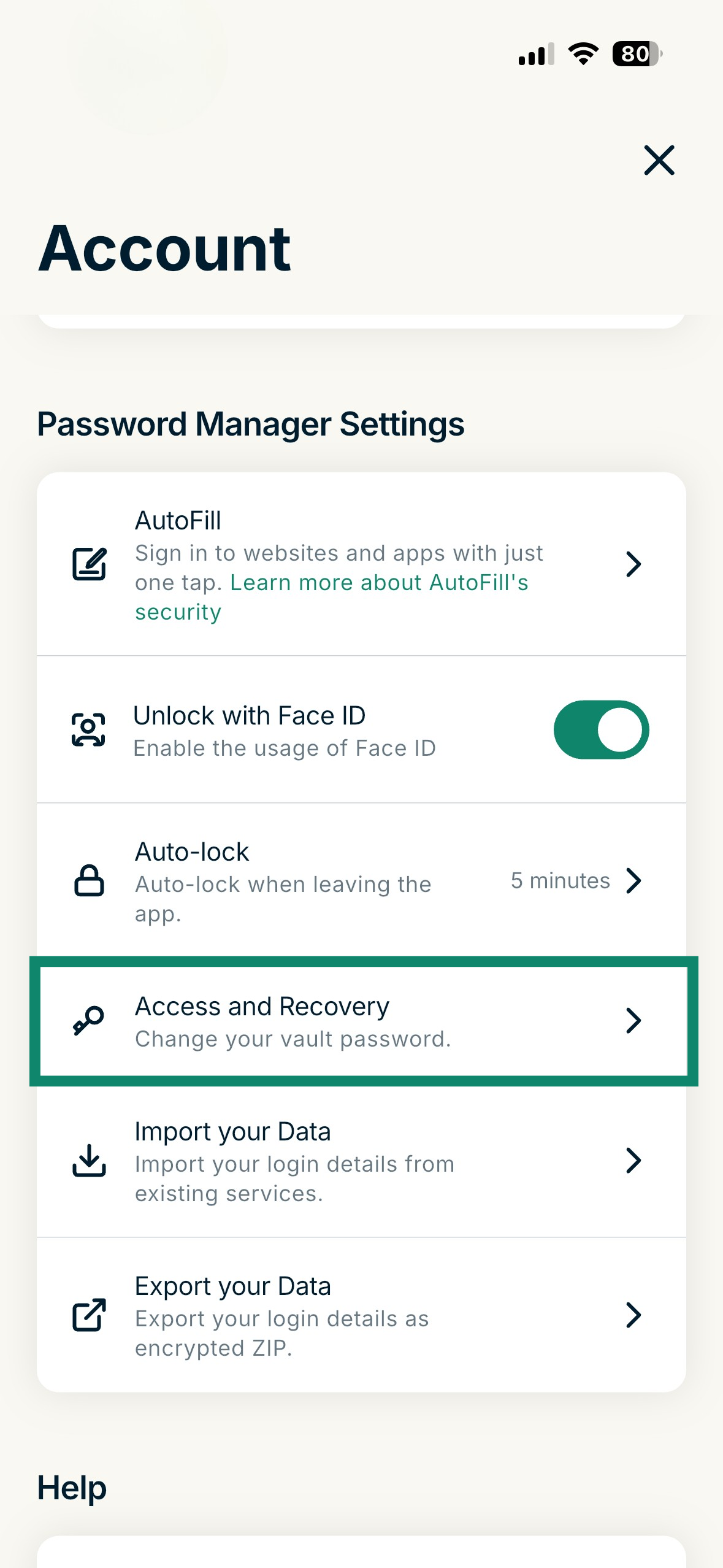
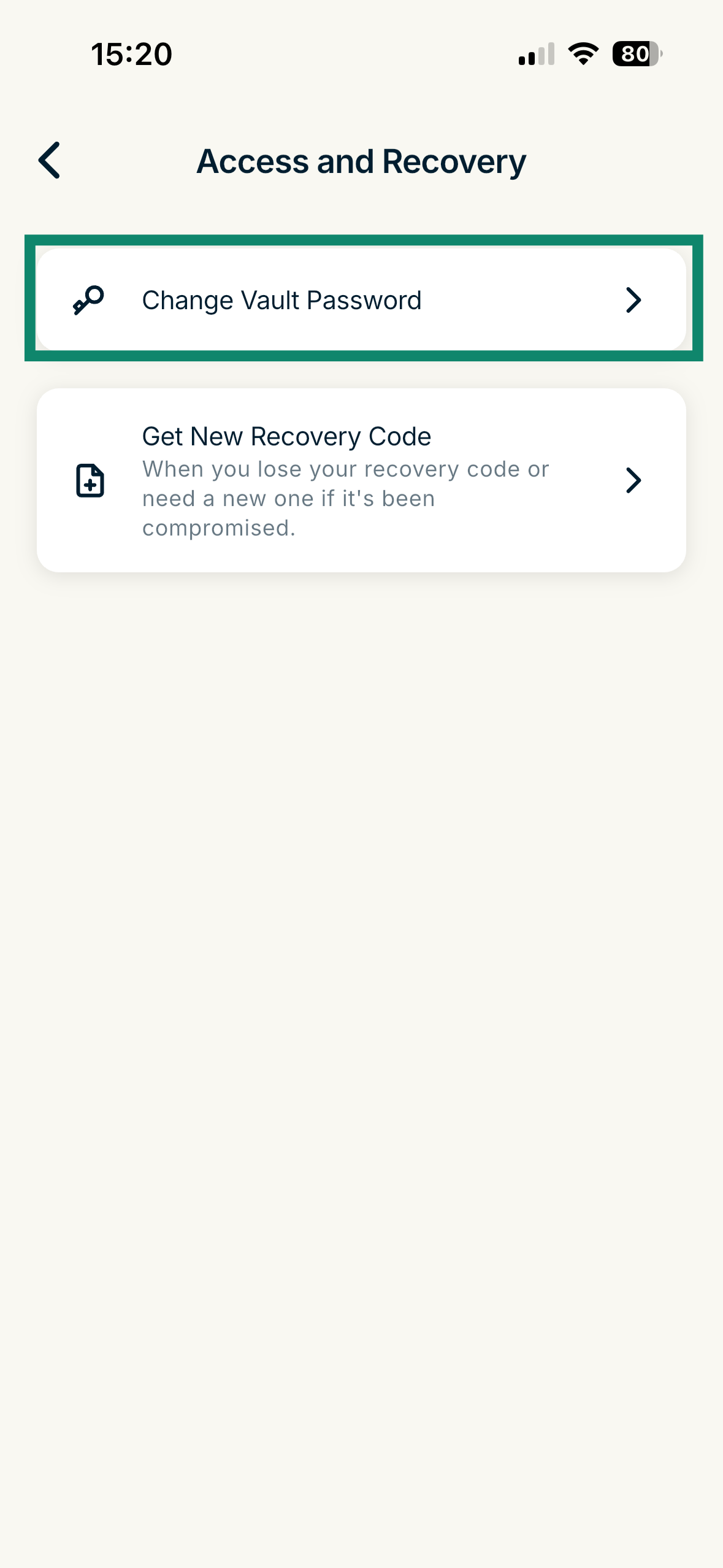
  2. Tap Access and Recovery.The Password Manager Settings in the ExpressKeys app, highlighting the "Access and Recovery" option.
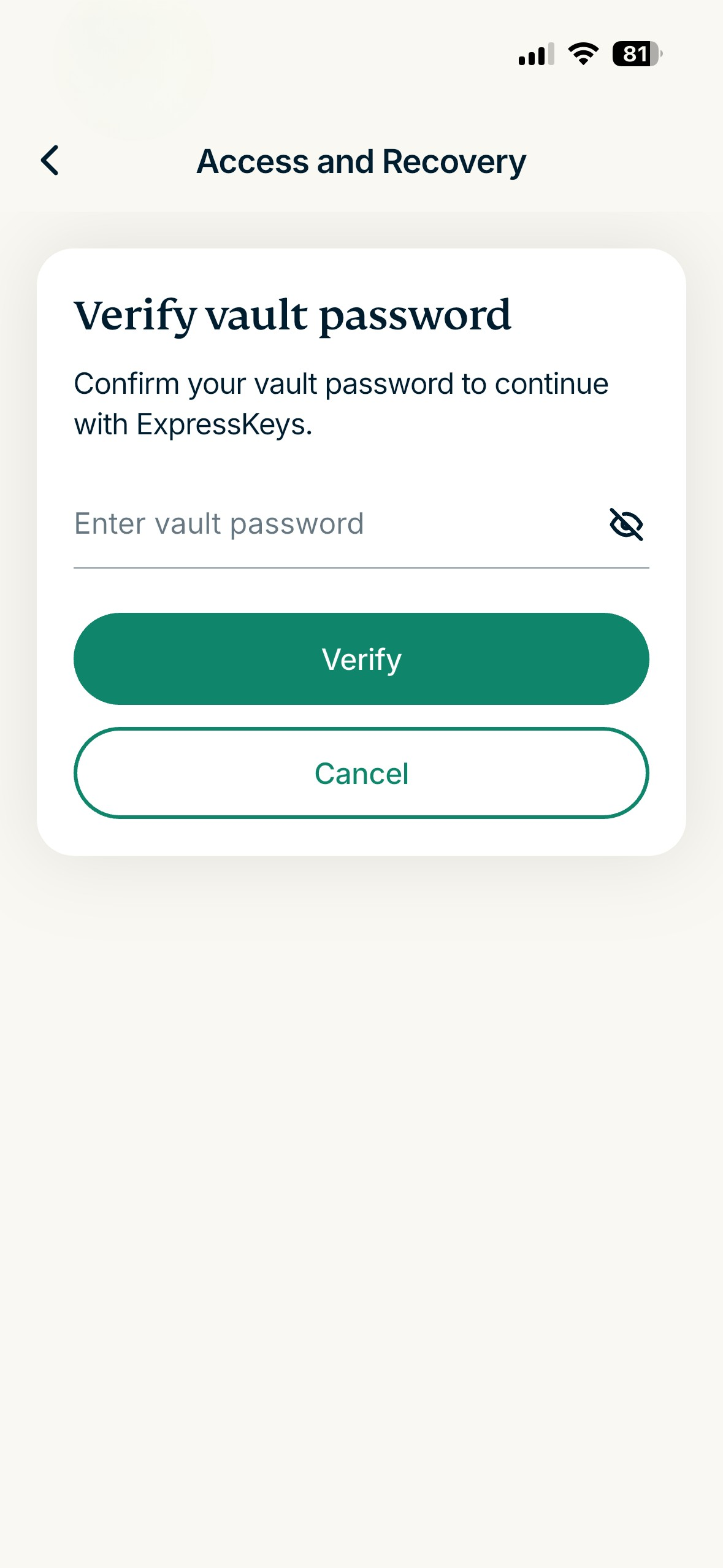
  3. Enter your password incorrectly and tap Verify.The Access and Recovery page in the ExpressKeys app, showing a "Verify your vault password" pop-up.
  4. Tap Use Recovery Code.The "Need Help" pop-up in the ExpressKeys app, with a highlighted "Use Recovery Code" option.
  5. Enter your recovery code, then tap CONTINUE.The "Use Recovery Code" pop-up in the ExpressKeys app, with a highlighted "CONTINUE" button.
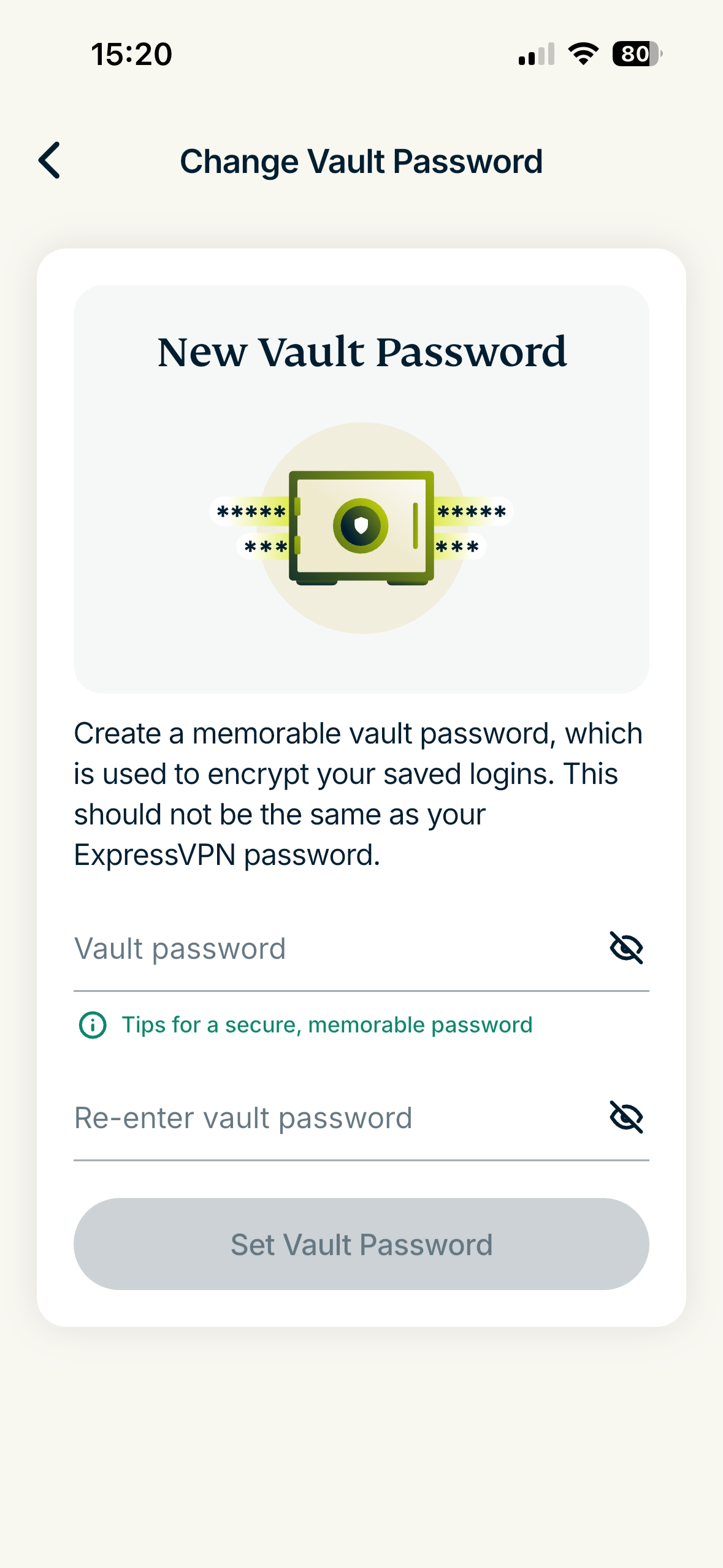
  6. Enter and re-enter a new vault password, then tap Set Vault Password.The "New Vault Password" pop-up in the ExpressKeys app.


Need help? Contact our Support Team for immediate assistance.

Back to top

Was this article helpful?

We're sorry to hear that. Let us know how we can improve.

A member of our Support Team will follow up on your issue.