



If your internet stops working after disconnecting from ExpressVPN, it is usually caused by either the Internet Kill Switch or an issue with your DNS settings.
Jump to …
Internet Kill Switch is enabled
DNS settings were not restored
Internet Kill Switch is enabled
If you are unable to access the internet when disconnected from ExpressVPN, you might have set the Internet Kill Switch to Enable at all times. This is the advanced kill switch mode in the Windows app, which blocks all internet traffic unless the VPN is active, even if you intentionally disconnect.
To update your Internet Kill Switch settings on Windows:
- Go to the Profile tab and under Settings, click Internet Kill Switch.
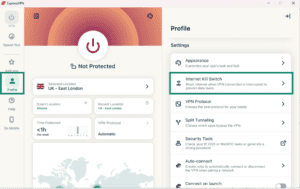

- If enabled, click the toggle next to Enable at all times to switch this feature off.
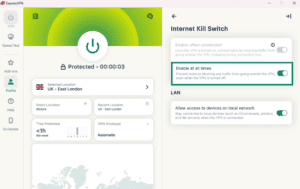
- Your internet connection should now work as normal after you disconnect from the VPN.
If your connection is still not working after disconnecting from ExpressVPN, proceed to the following section.
Need help? Contact the ExpressVPN Support Team for immediate assistance.
DNS settings were not restored
In some cases, your DNS settings may not be fully restored after disconnecting from ExpressVPN, which can prevent websites from loading even when your internet connection is active.
To reset your DNS settings manually:
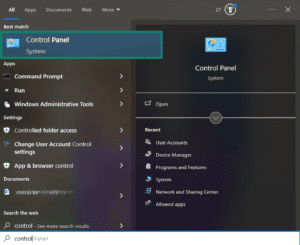
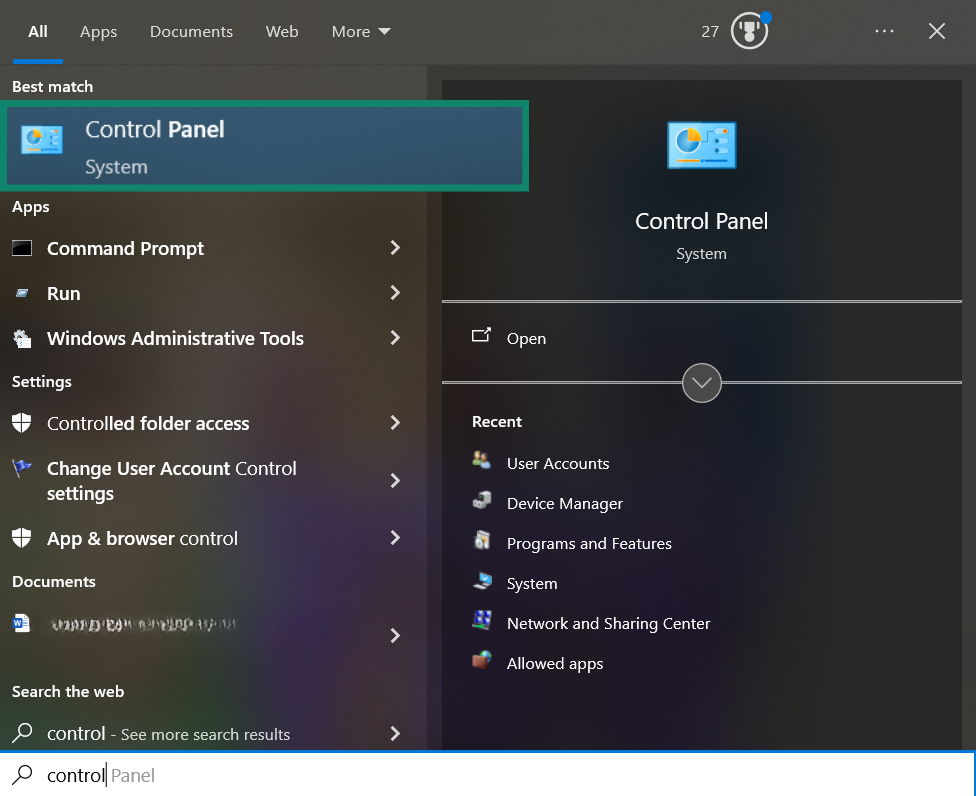
- In the search bar, search for “Control Panel” and click to open it.

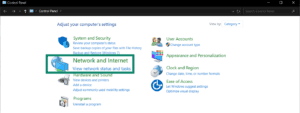
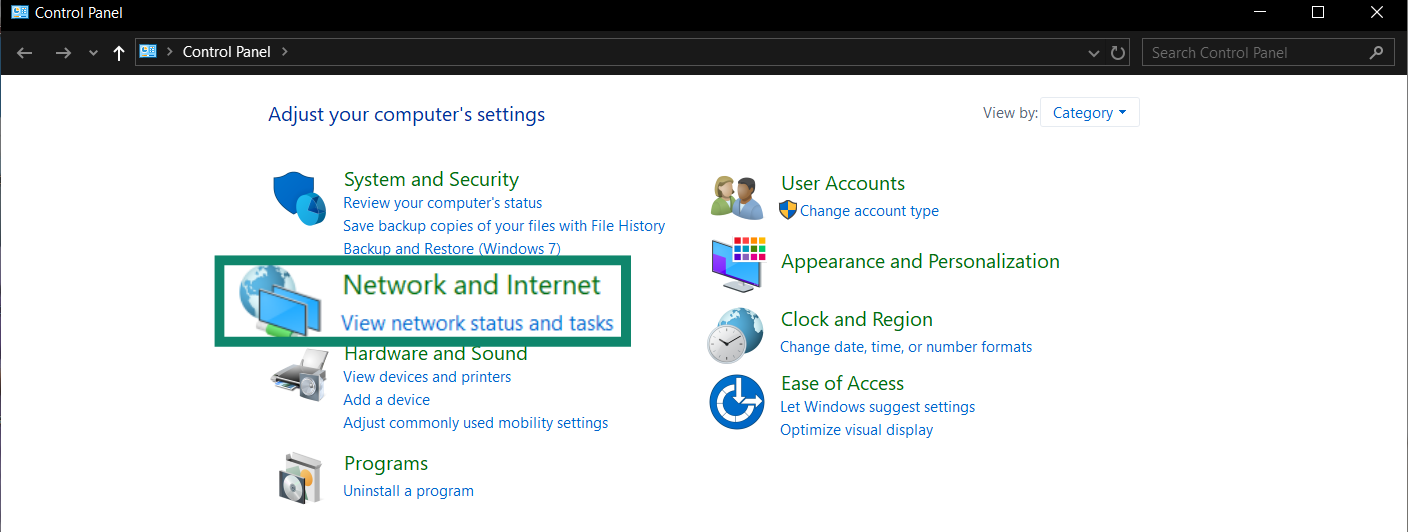
- Click Network and Internet.

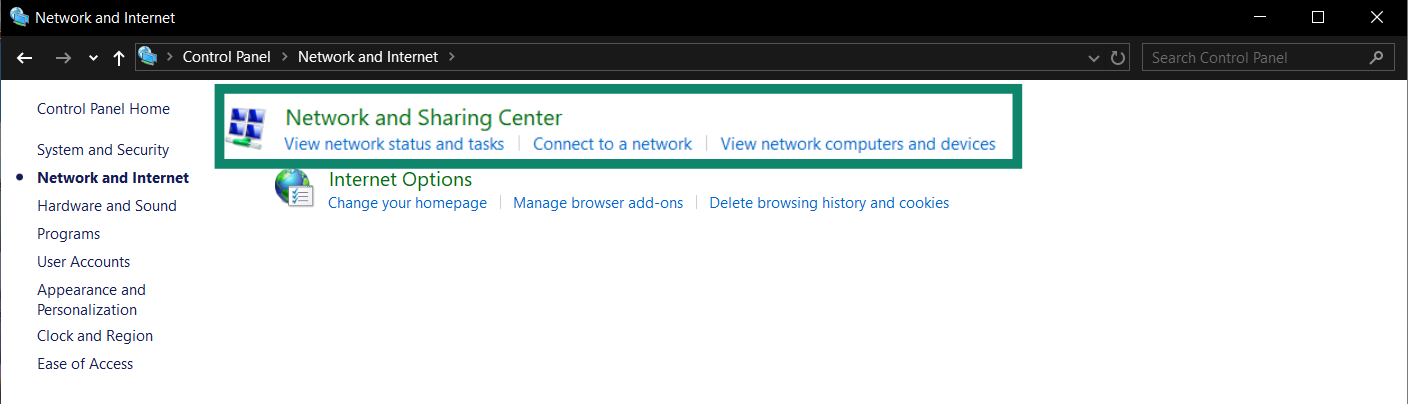
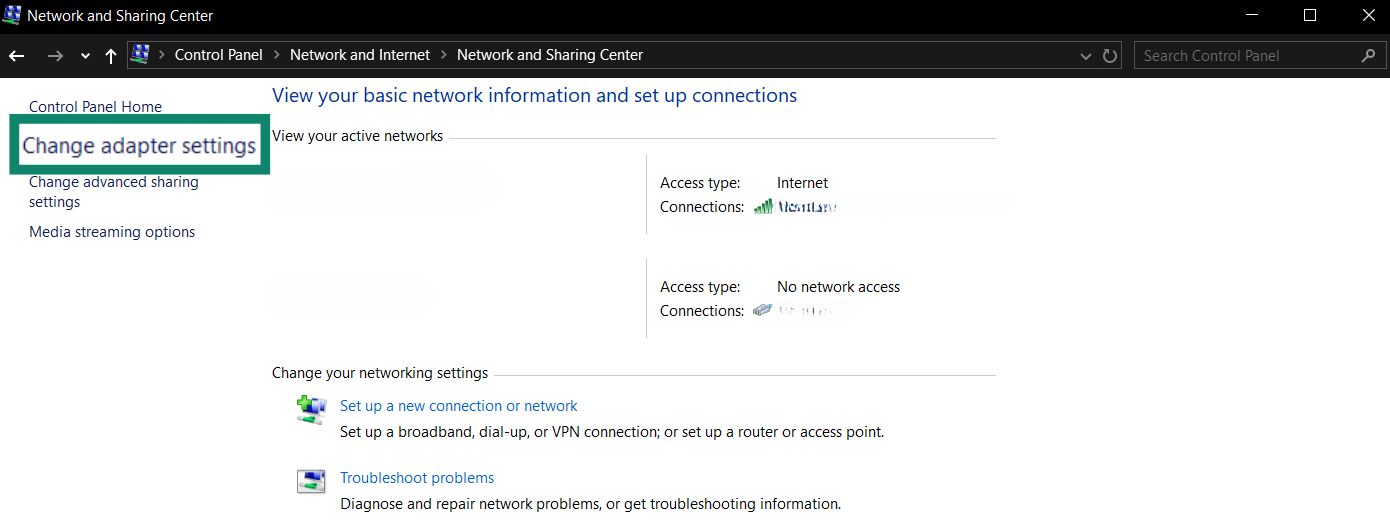
- Click Network and Sharing Center.
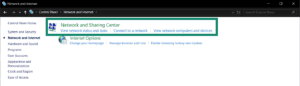

- Click Change adapter settings.
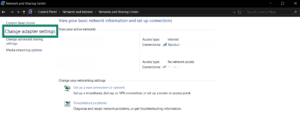
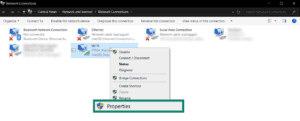
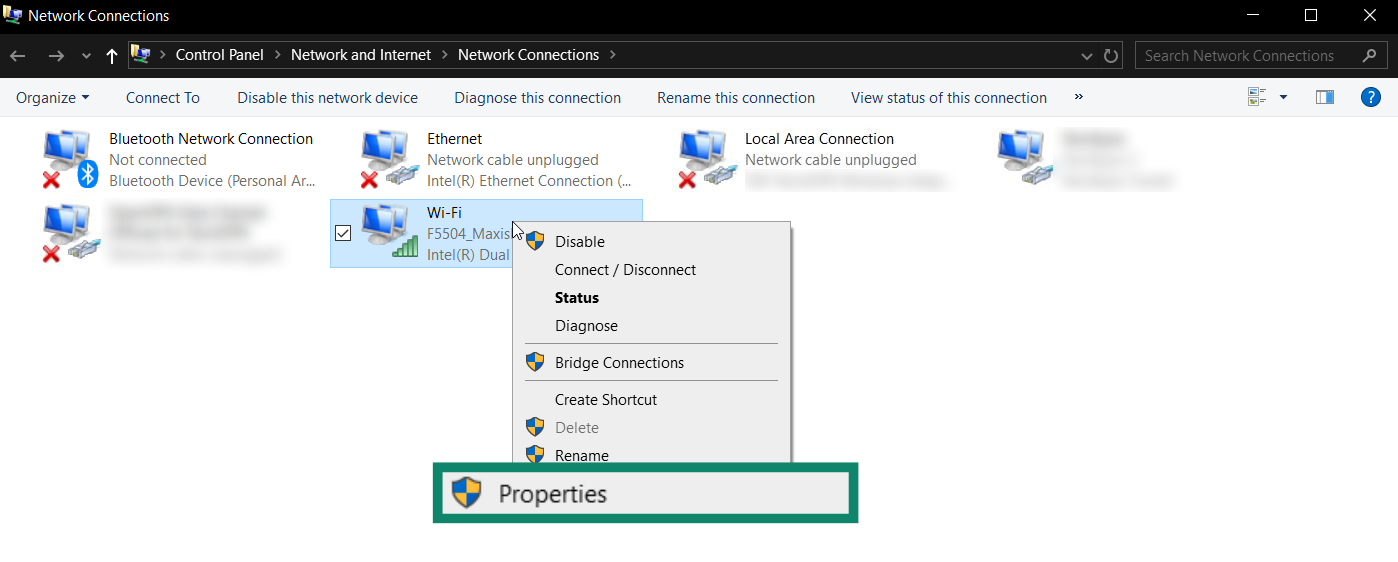
- Right-click your active connection, then click Properties.

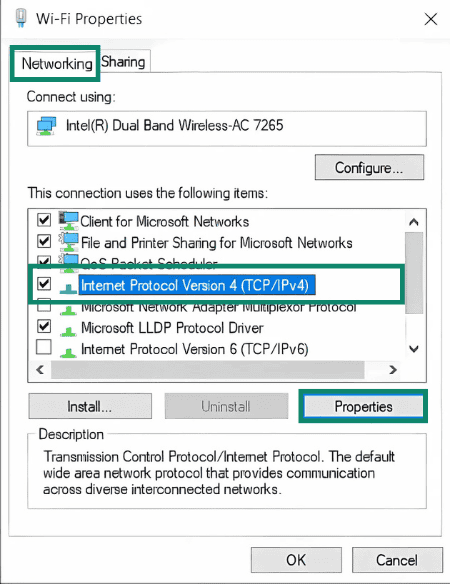
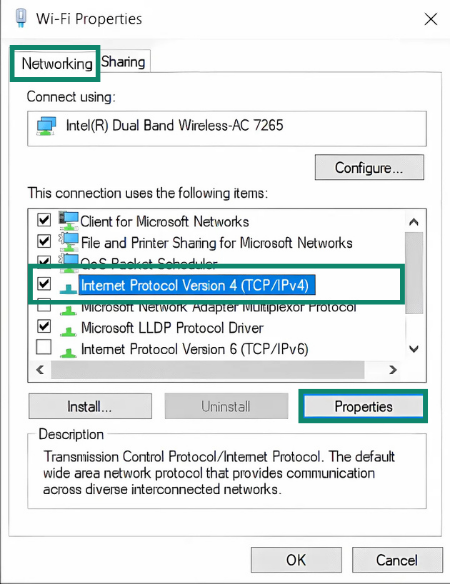
- Select the Networking tab. Then, double-click Internet Protocol Version 4 (TCP/Ipv4) and select Properties.

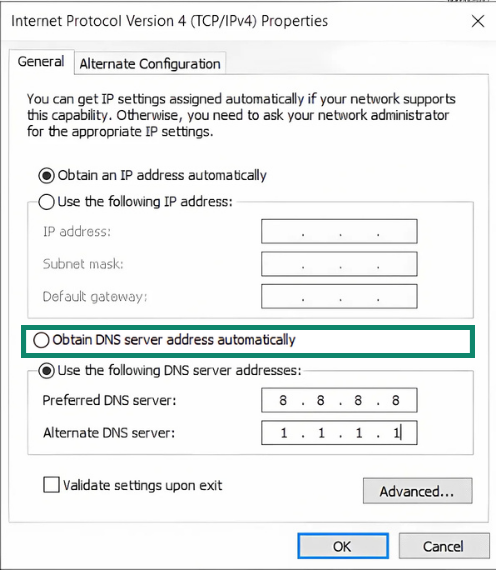
- Click Obtain DNS server address automatically.
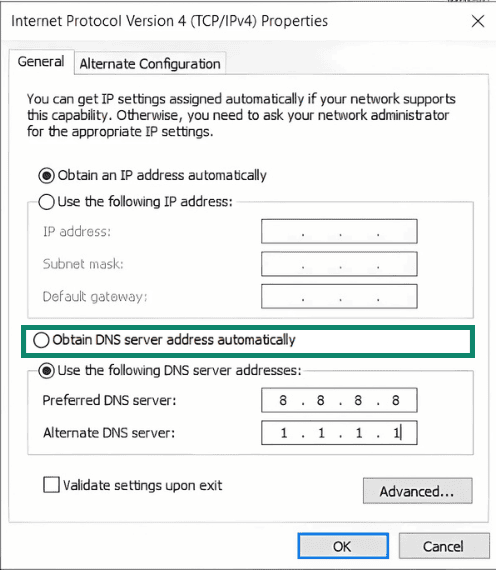

- Click OK > OK.
Repeat these steps for all of your remaining network connections.
Need help? Contact the ExpressVPN Support Team for immediate assistance.