






Web Protection is a suite of browser-level security features built into the ExpressVPN browser extension. It blocks known malicious, phishing, and scam websites in real time, offers clear alerts when visiting a potentially malicious site, and lets you choose how to proceed. You can also customize your settings to allow or block specific websites directly from the extension.
The ExpressVPN browser extension is available for Firefox and Chromium-based browsers (including Chrome, Edge, Brave, Opera, and Vivaldi). Web Protection features are available to all ExpressVPN users, including ExpressVPN for Teams users, as long as you are signed into your ExpressVPN account in the browser extension.
Jump to…
How Web Protection works
Web Protection works inside any browser where you have the ExpressVPN extension running and you’re signed in. It works whether or not you are connected to the VPN. When it stops a site, it shows you an informational warning page so you know why the site is not loading.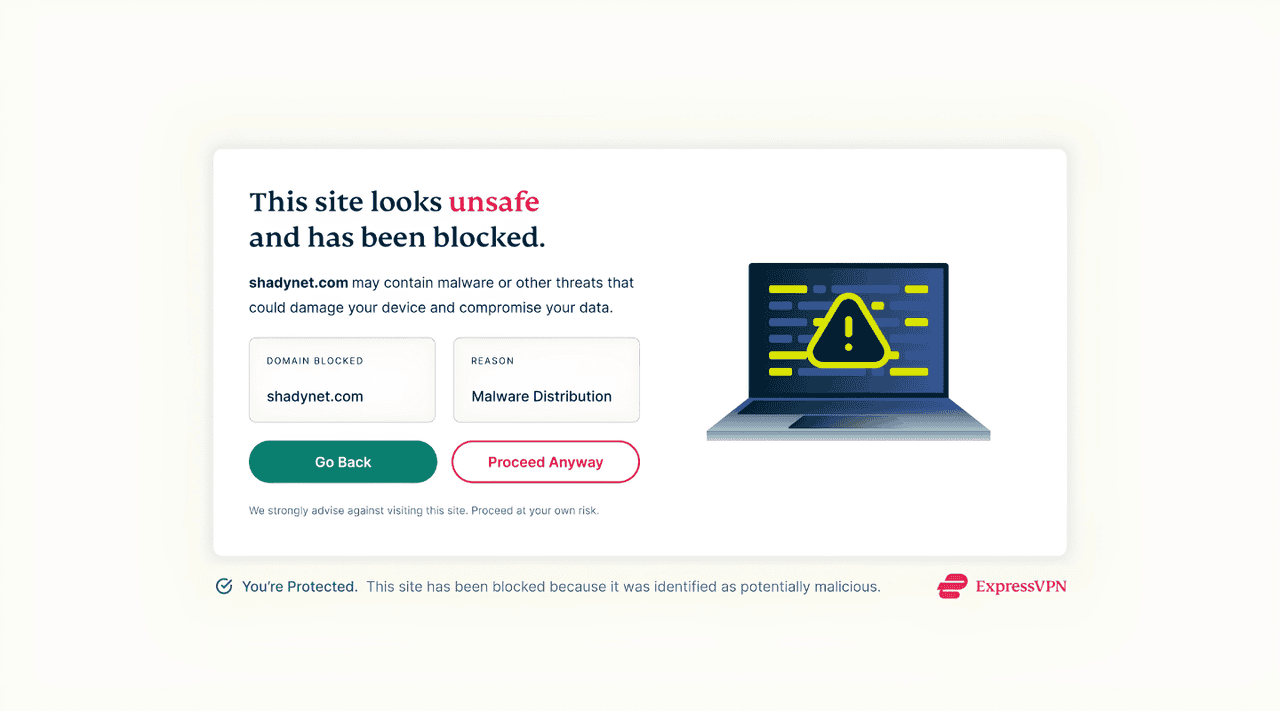
Web Protection can also detect and block a specific ad, tracker, or harmful page while keeping the rest of the website accessible. This is possible because it uses URI (Uniform Resource Identifier) blocking, a filtering method that blocks access to a specific page or resource based on its web address.
Instead of checking only the domain, it checks the full web address of the page and the web address of each resource it tries to load, including images, ads, trackers, and scripts, against its blocklists. If an address for any resource matches a rule for a protection you’ve turned on, it blocks that page or content. Other resources can continue to load (although blocking a resource may affect some website features).
For example, a legitimate news website might load a known malicious script:
- Main page: https://example.com/news
- Malicious script: https://example.com/files/malicious.js
Because both URLs belong to the same domain, domain-level blocking alone could either miss the threat or block the entire website. Web Protection can check the script’s URL against its blocklists and block it while keeping the news page accessible.
Need help? Contact the ExpressVPN Support Team for immediate assistance.
Web Protection features
Web protection offers a suite of settings that together work to block trackers, ads, and malicious sites, as well as adult sites.
Each tool works using URI blocking and our Web Protection blocklists. We regularly review and update these blocklists so that you can stay protected against the latest threats. You also have the option to create custom block or allow lists.
Threat Manager
The Threat Manager setting in Web Protection blocks:
- Trackers: Information that websites can send about your activity to third-party trackers, which may be used to build a profile of your interest and browsing habits.
- Malicious sites: Pages and websites that may try to steal sensitive information, such as passwords and payment details, or infect your device with harmful software.
Ad blocker
The ad blocker setting in Web Protection stops most display ads from loading on web pages and in search results when you are browsing the web.
Parental controls
The parental controls settings in Web Protection block adult sites on our blocklist from loading in your browser.
Custom blocking
Web Protection lets you create a list of sites you want the feature to block or always load regardless of whether your protection settings would normally allow or block them. For example, you can use this setting to allow a website you need for work that may otherwise be blocked for having trackers, or you could block distracting sites such as social media.
Need help? Contact the ExpressVPN Support Team for immediate assistance.
How to use Web Protection
Web Protection is disabled in the ExpressVPN browser extension by default; you’ll need to enable the features you’d like to use. To do so:
- Install the ExpressVPN browser extension for Chrome or Firefox.
- In the extension, sign into your ExpressVPN account.
- Click the hamburger menu (

 ) > Web Protection.
- Toggle on the features you’d like to enable.
Web Protection will now work in your browser, whether or not the VPN is connected. Learn more about enabling each feature and setting custom rules in our full guide to setting up and using Web Protection.
Need help? Contact the ExpressVPN Support Team for immediate assistance.