



Credit Scanner helps you catch early warning signs of identity theft. It allows you to check your credit score, review activities that might affect your credit, and understand the factors that have gone into calculating your credit score.
Jump to…
How to get Credit Scanner
How to set up Credit Scanner
Credit Scanner features and how to use them
How to cancel Credit Scanner
How to get Credit Scanner
Currently, Credit Scanner is included for new and existing ExpressVPN users in the U.S. who purchased Advanced or Express Pro subscription.
- Go to the Order page and choose an ExpressVPN plan. Credit Scanner is included in the Advanced and Express Pro plans.
- Select the button on the plan to proceed.
- Complete your order by entering your email address and payment details.
Need help? Contact the ExpressVPN Support Team for immediate assistance.
How to set up and use Credit Scanner
You can set up the Credit Scanner in the ExpressVPN+ portal or through the Identity Defender mobile app.
Set up Credit Scanner via the ExpressVPN+ portal
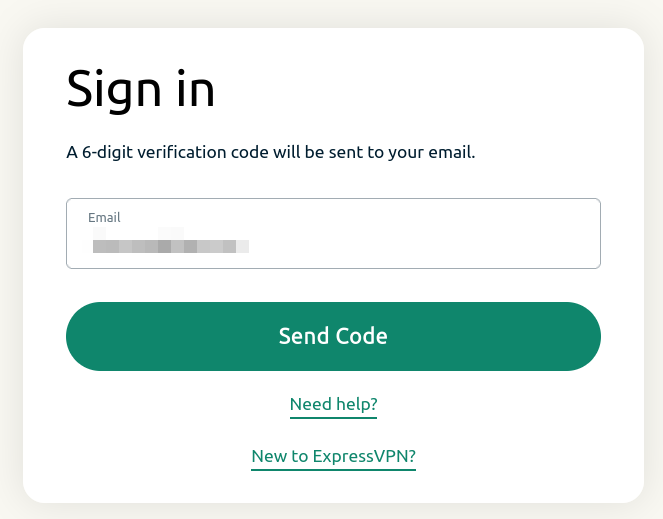
- Open the ExpressVPN+ portal and sign in if prompted.


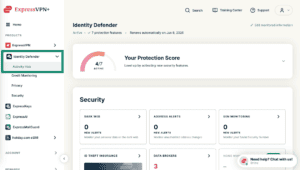
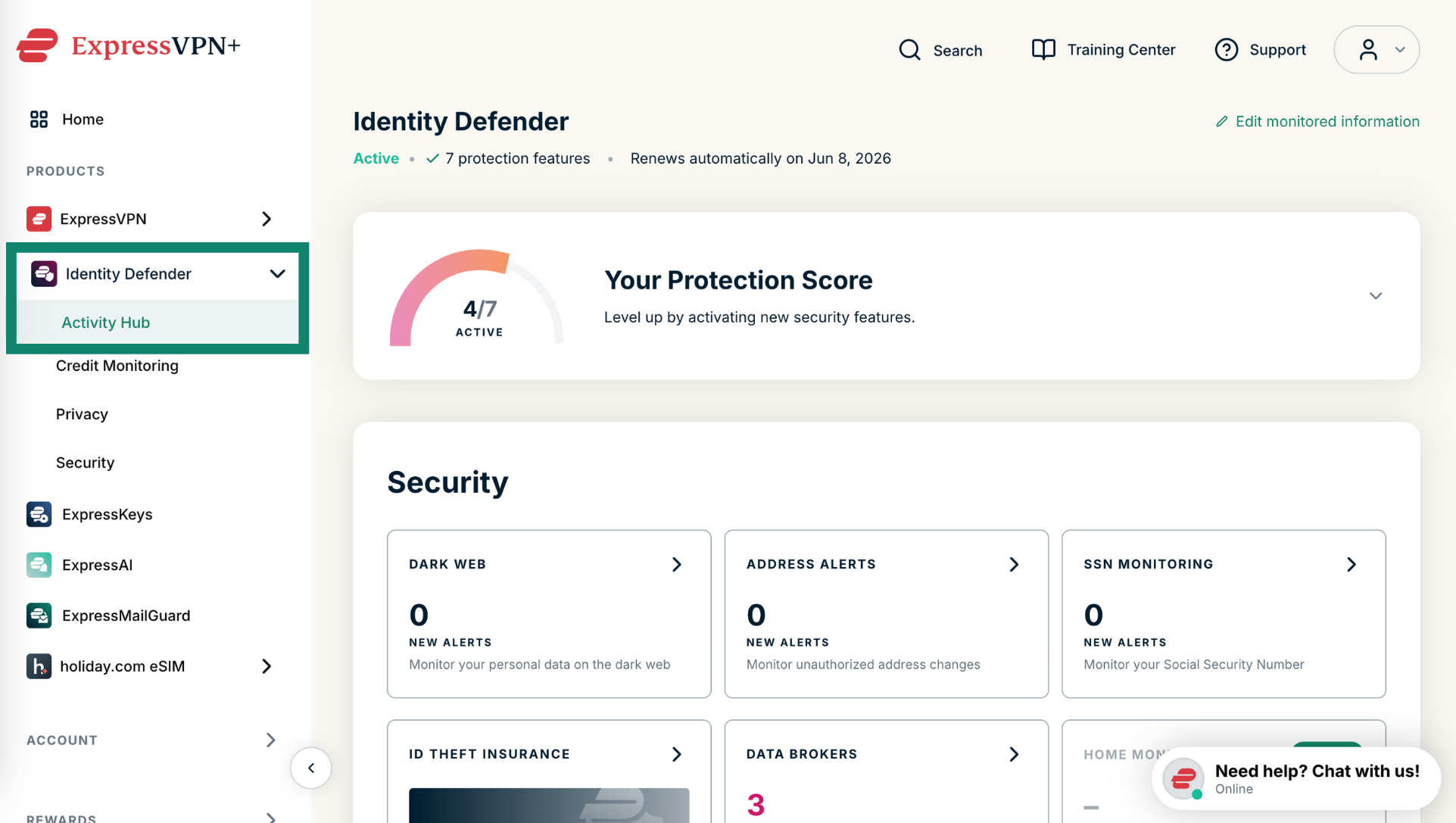
- Click Identity Defender and select Activity Hub.

If you haven’t set up any Identity Defender features yet:
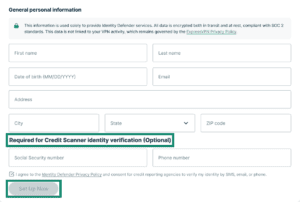
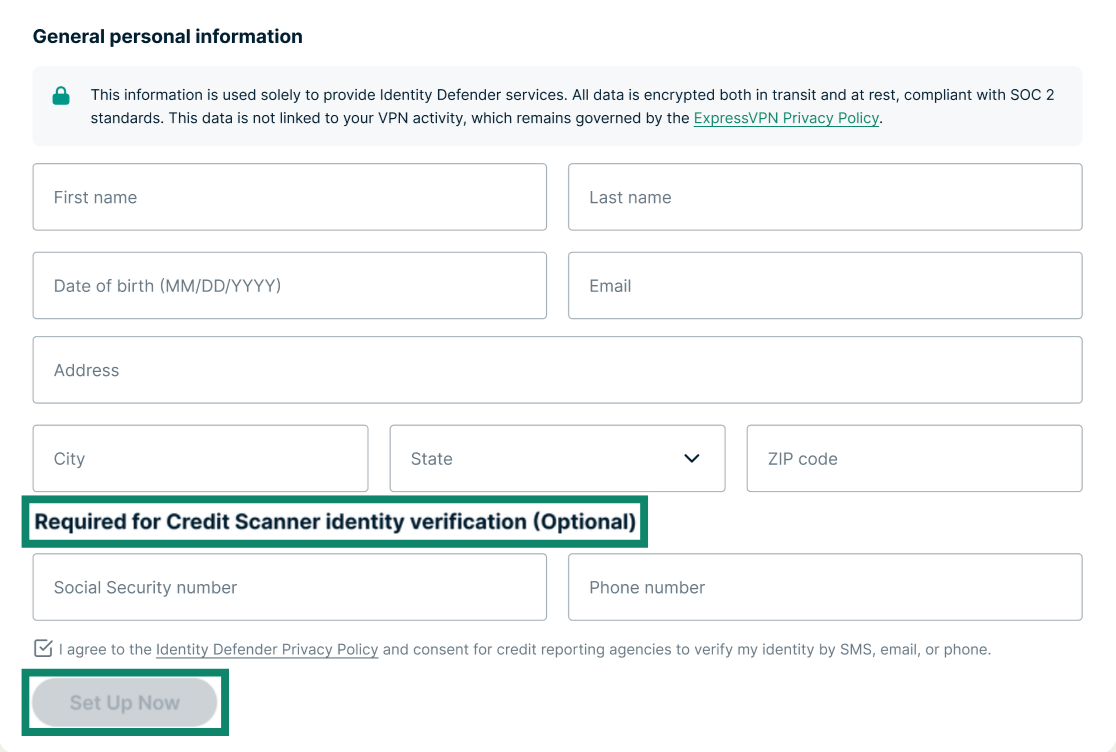
- You’ll find a form that requests the selected information you need to get started with Identity Defender. Fill it out, including the Required for Credit Scanner identity verification fields, and click Set Up Now.

- The credit reporting agencies will verify your identity. This may be done in two ways:
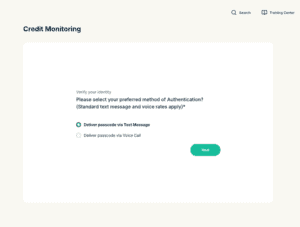
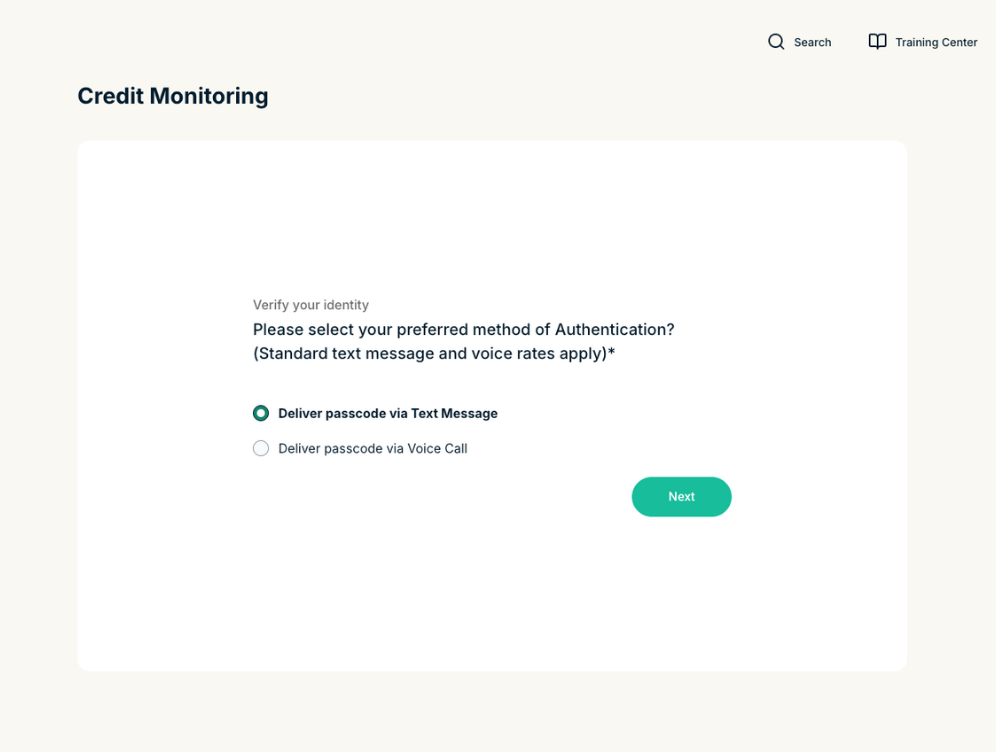
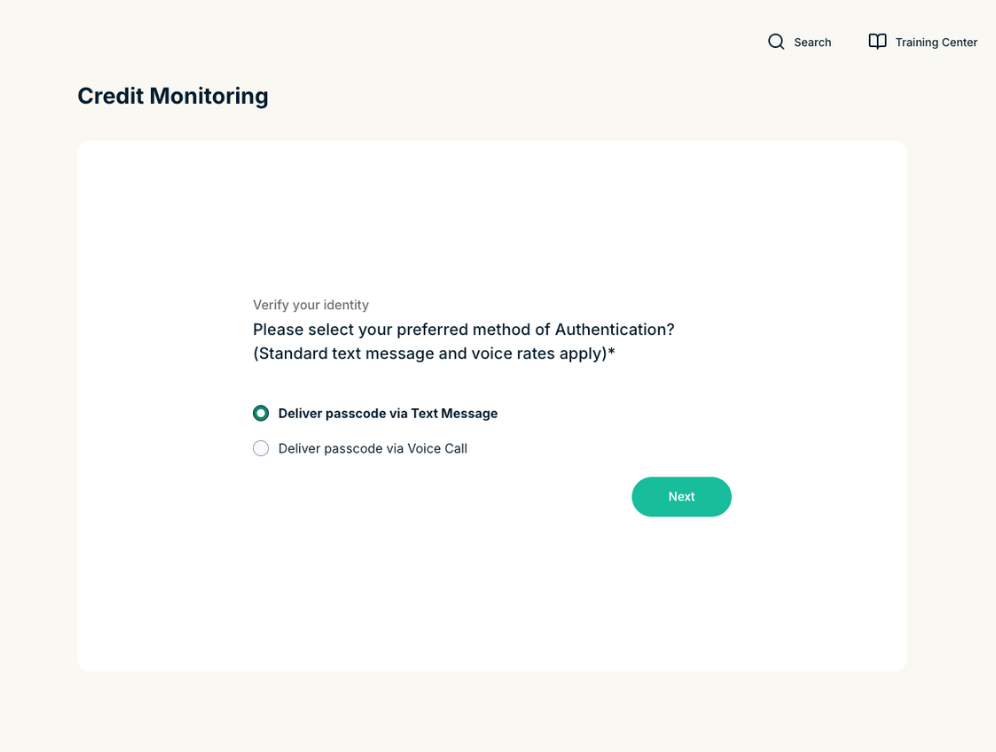
- Via a verification code to your phone. If prompted, choose how you want to receive the passcode, click Next, and then enter the passcode you receive on the next screen.

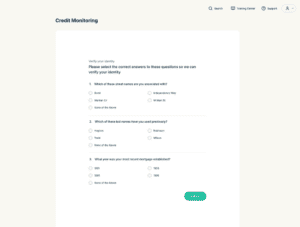
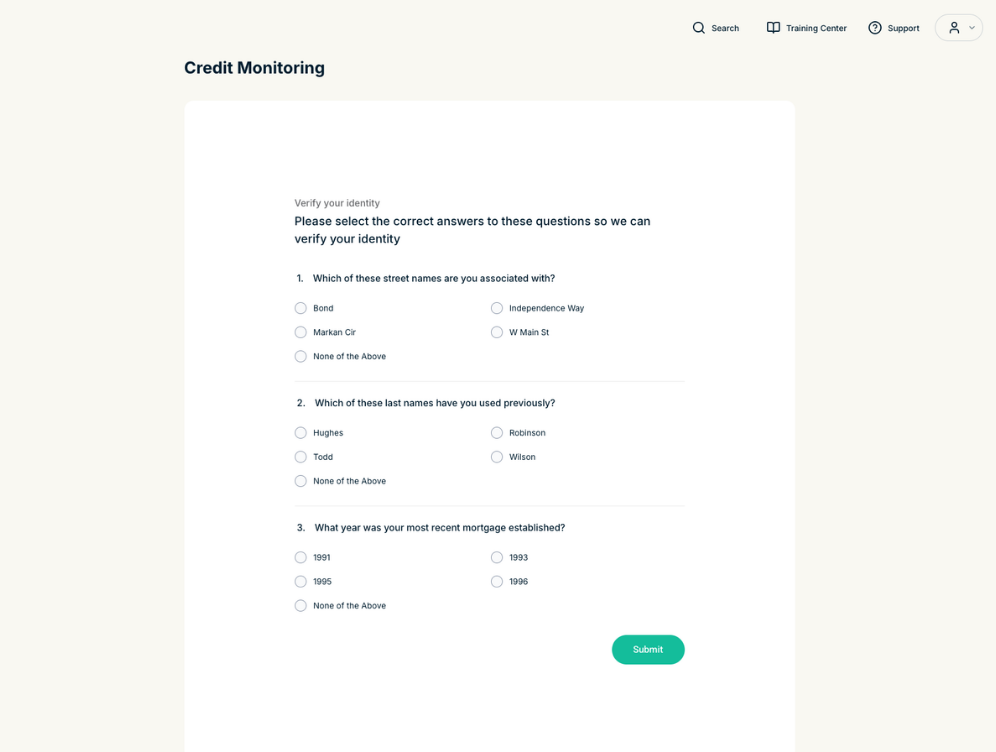
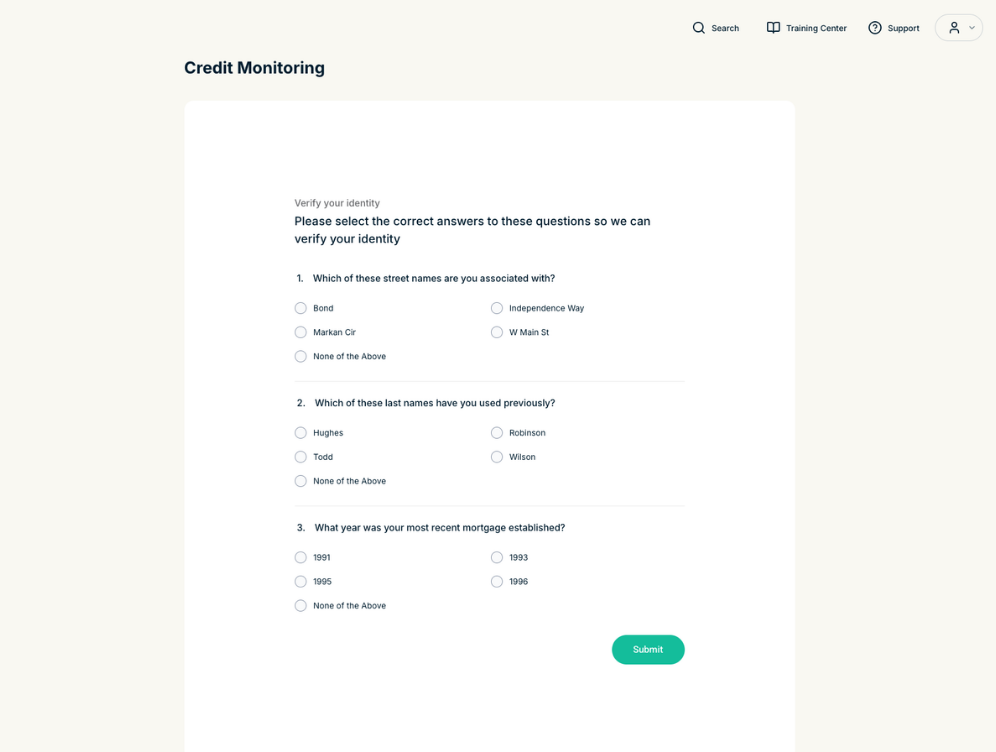
- Via a form with questions about your credit history. If prompted, answer the questions, then click Submit.
- Via a verification code to your phone. If prompted, choose how you want to receive the passcode, click Next, and then enter the passcode you receive on the next screen.
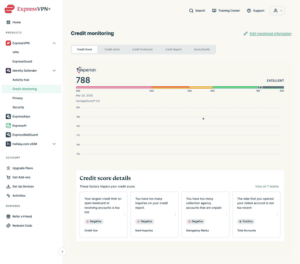
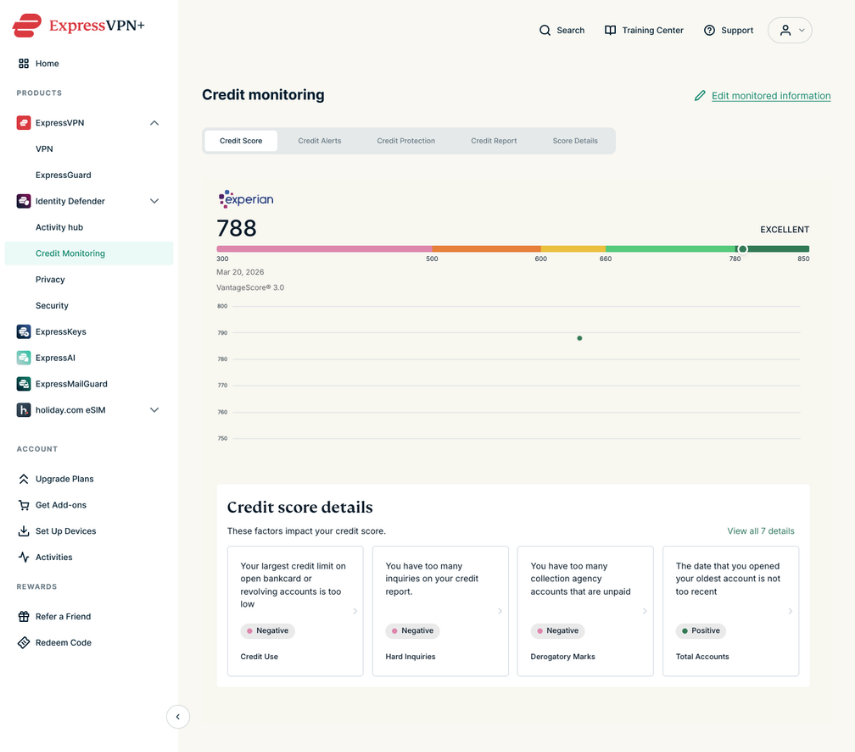
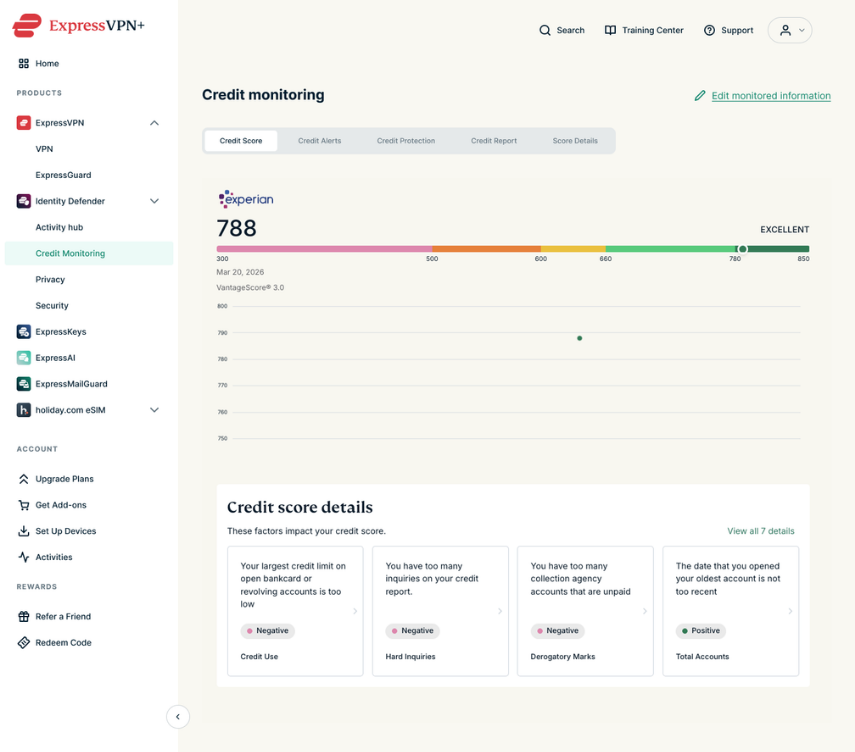
- After your identity is validated, you will be taken to a dashboard with your credit score and other features.

If you have set up Identity Defender features but have yet to provide your SSN and phone number (required for Credit Scanner):
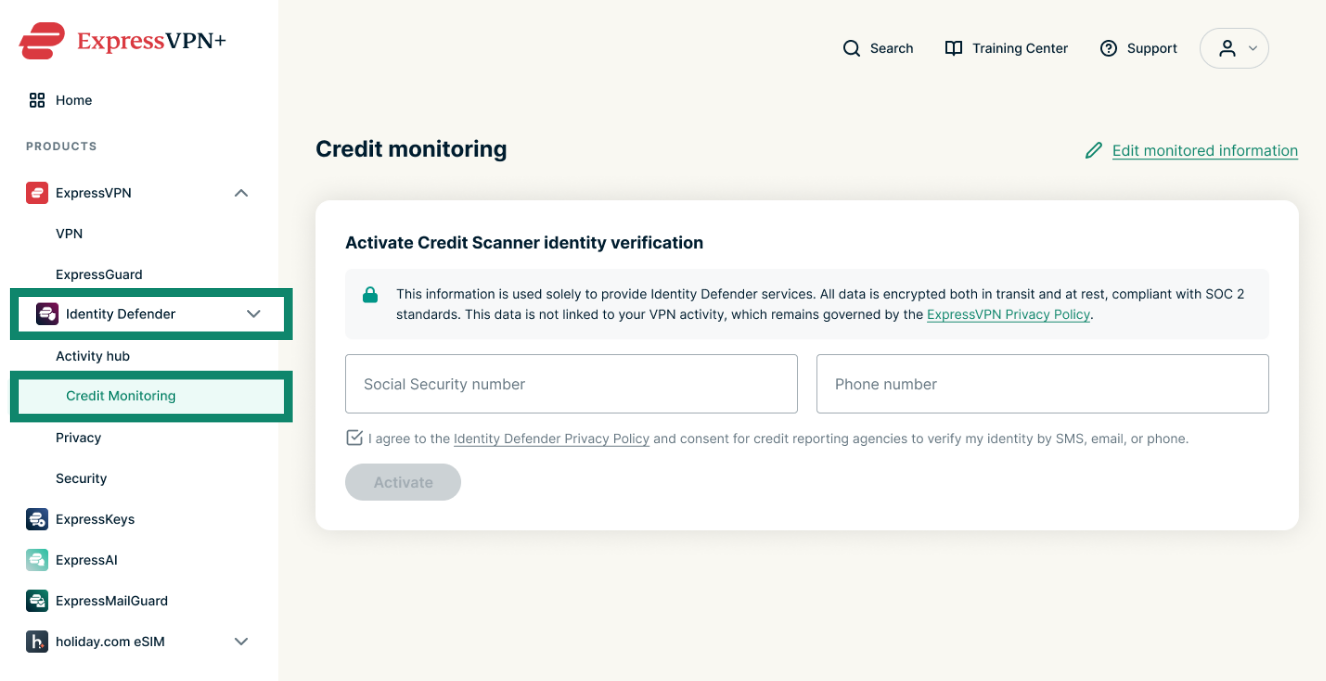
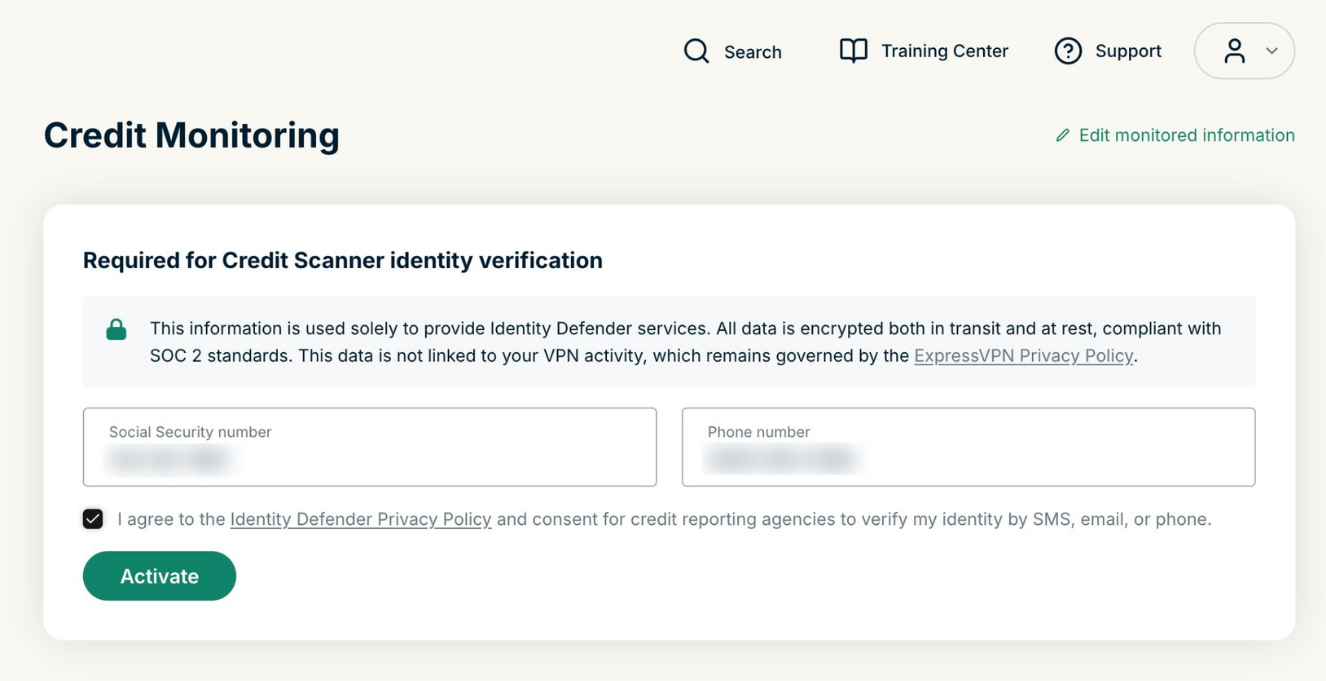
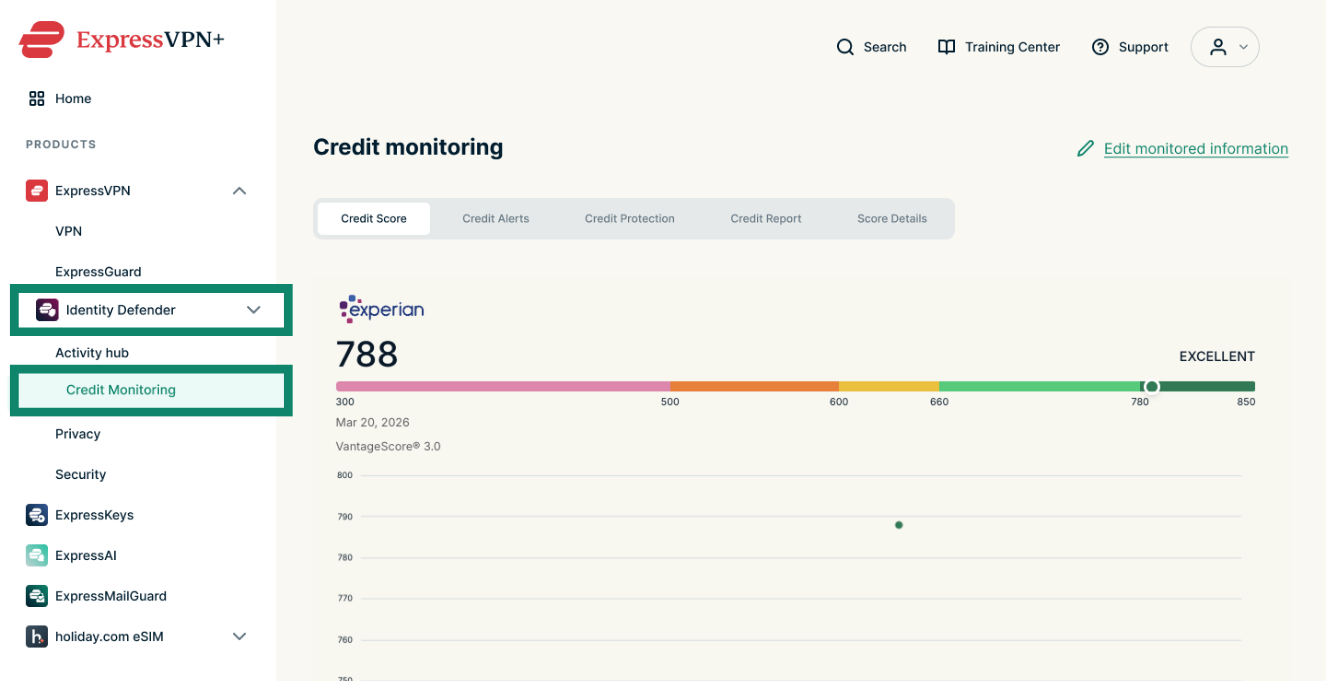
- Go to Identity Defender > Credit Monitoring to find a form to Activate Credit Scanner identity verification.
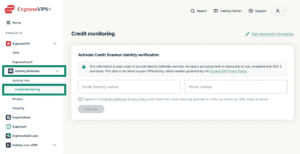

- Fill out your Social Security number and phone number, check the box once you agree to the Identity Defender Privacy policy, and click Activate.
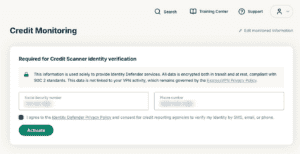
- The credit reporting agencies will verify your identity. This may be done in two ways:
- Via a passcode to your phone. If prompted, choose how you want to receive the passcode, click Next, and then enter the verification code on the next screen.
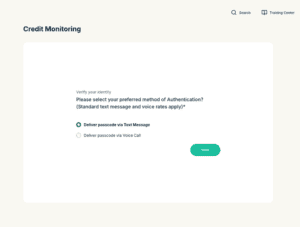
- Via a form with questions about your credit history. If prompted, answer the questions, then click Submit.

- Via a passcode to your phone. If prompted, choose how you want to receive the passcode, click Next, and then enter the verification code on the next screen.
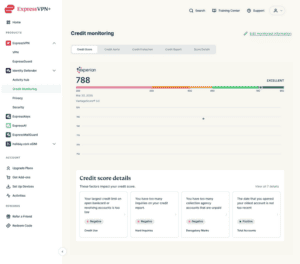
- After your identity is validated, you will be taken to a dashboard with your credit score and other features.
Set up Credit Scanner in the Identity Defender mobile app
You can set up Credit Scanner in the Identity Defender apps for iOS or Android. To do so:
- Open the Identity Defender app.
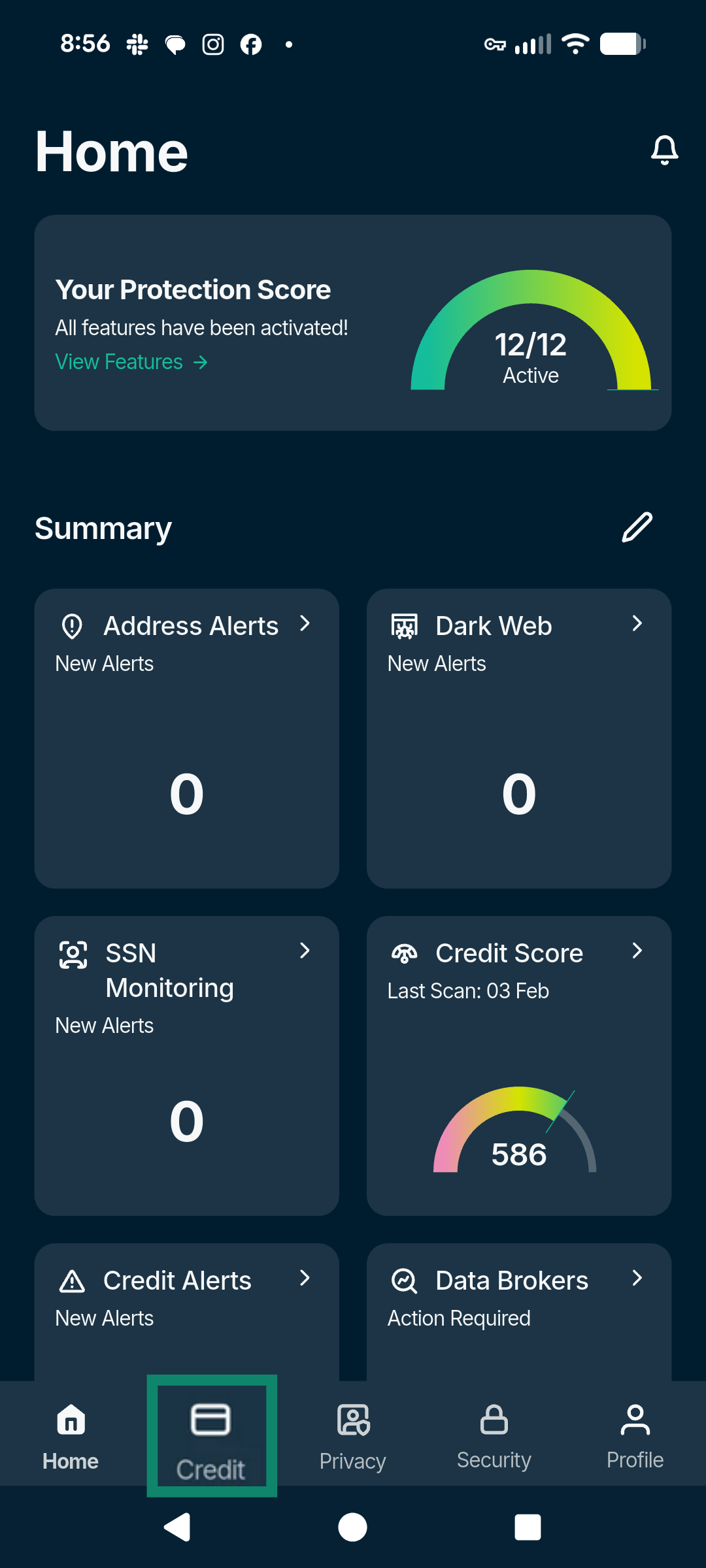
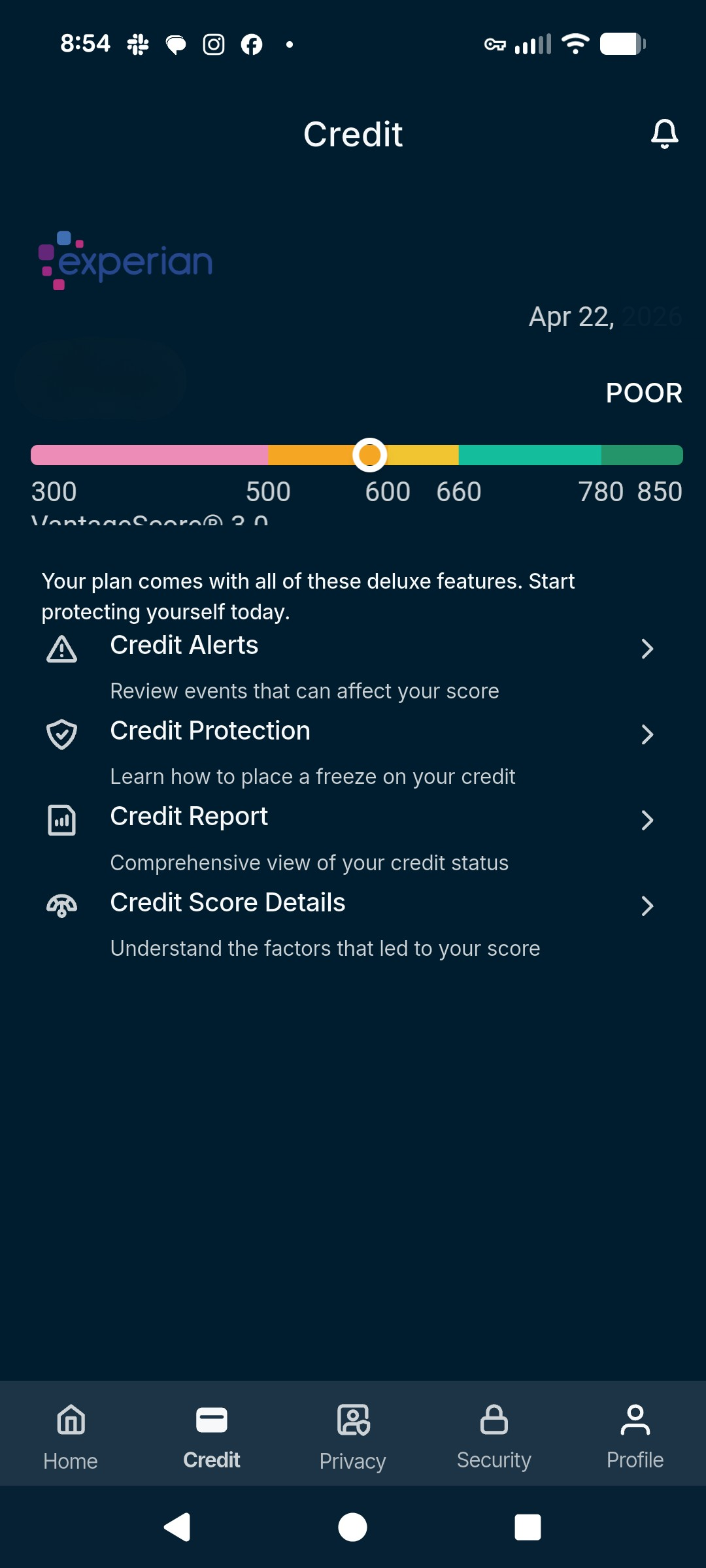
- Tap the Credit tab.
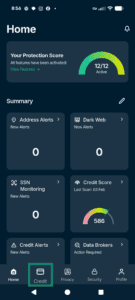

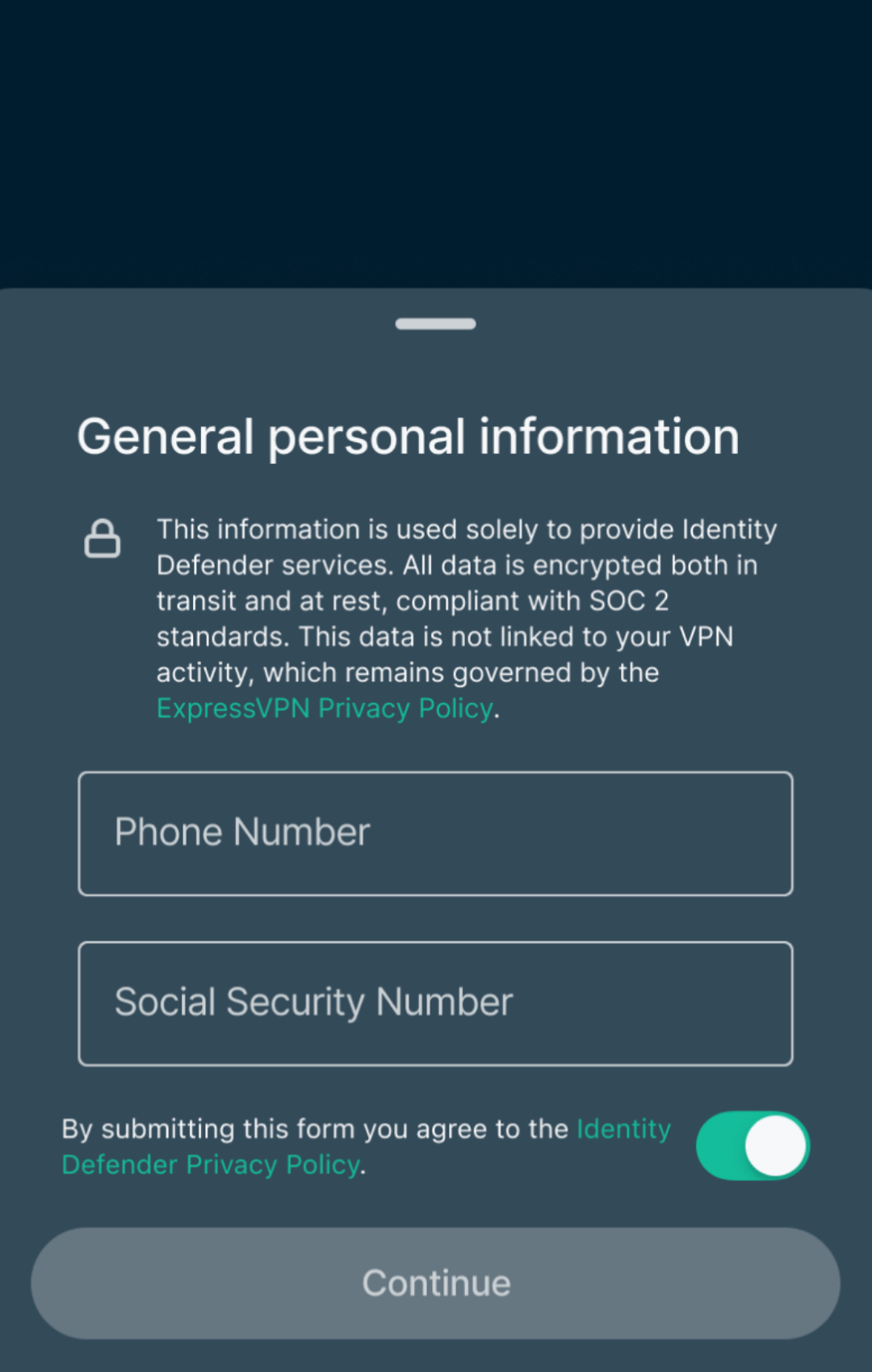
- You will be asked to enter your personal information. If you have previously set up an Identity Defender service, you won’t have to re-enter the same information, but you will need to input your Social Security number and phone number in order for us to provide your credit details. Select Continue.


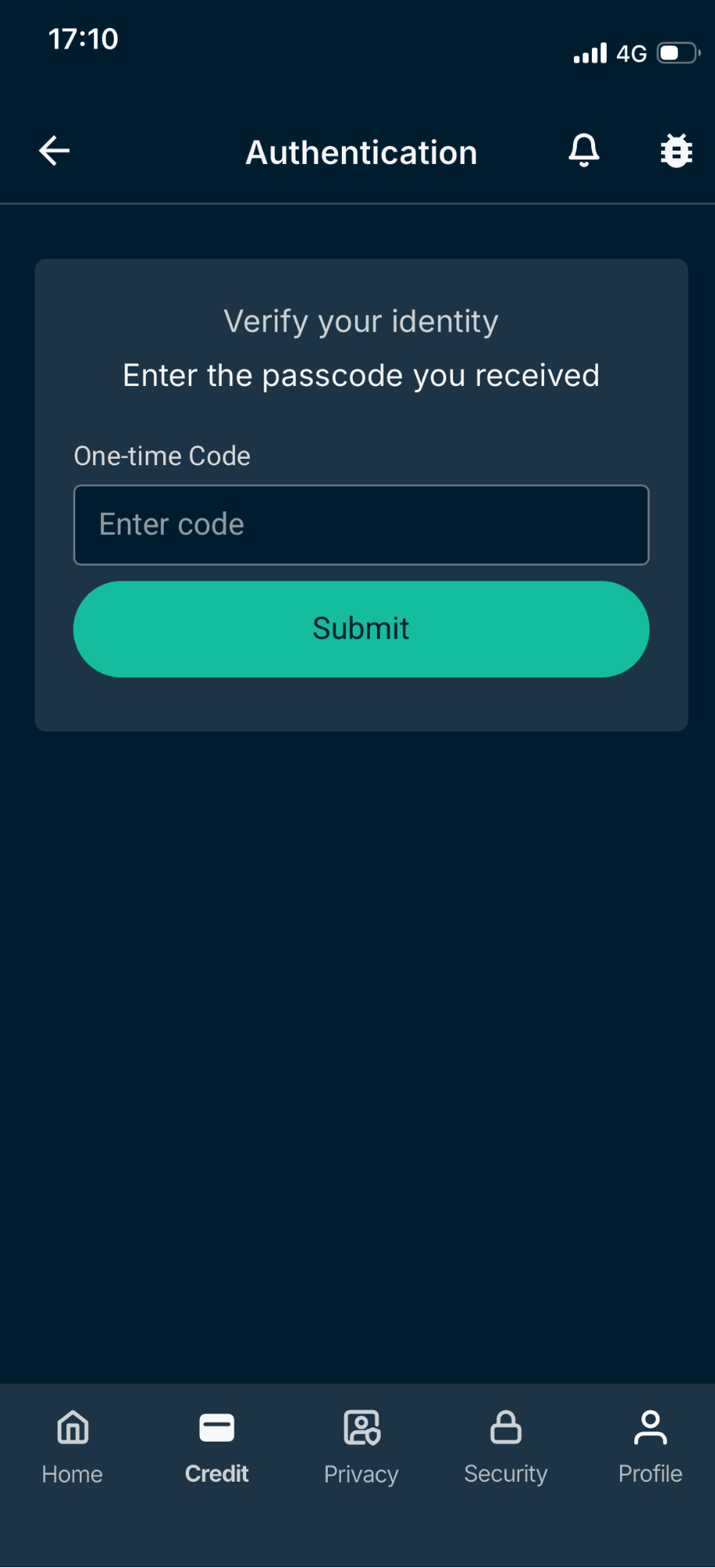
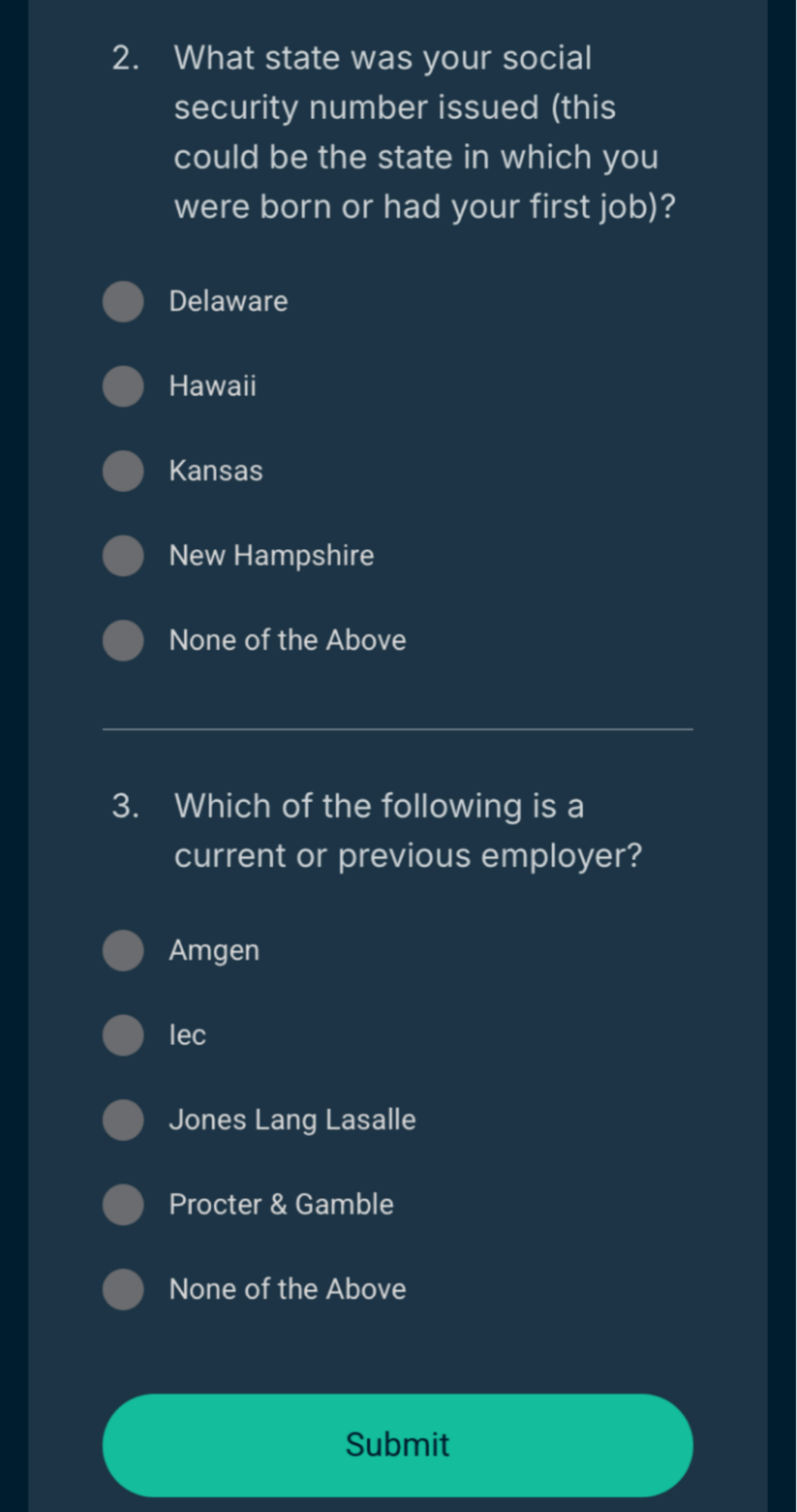
- The credit reporting agencies will attempt to verify your identity. This may be done in two ways:
- Via a verification code to your phone. If prompted, enter the passcode you receive and tap Submit.


- Via a form with questions about your credit history. If prompted, answer the questions and tap Submit.


- Via a verification code to your phone. If prompted, enter the passcode you receive and tap Submit.
- Once verified, you will be taken to a dashboard with your credit score and other features.

Need help? Contact the ExpressVPN Support Team for immediate assistance.
Credit Scanner features and how to use them
Credit Alerts
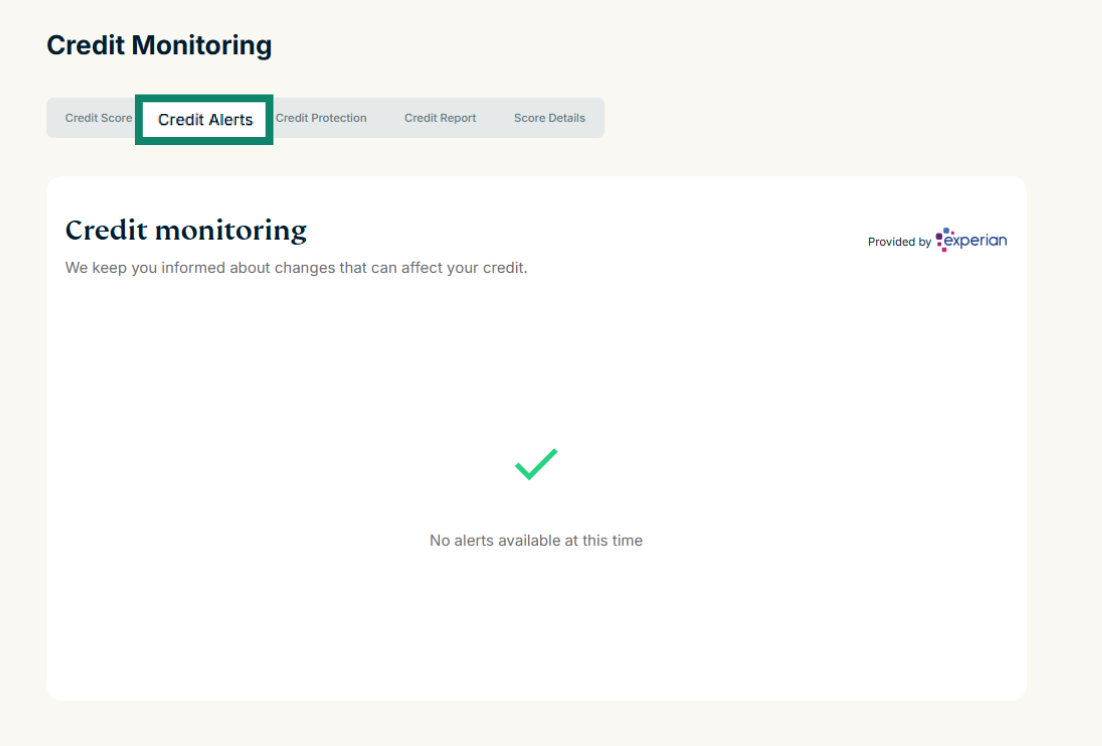
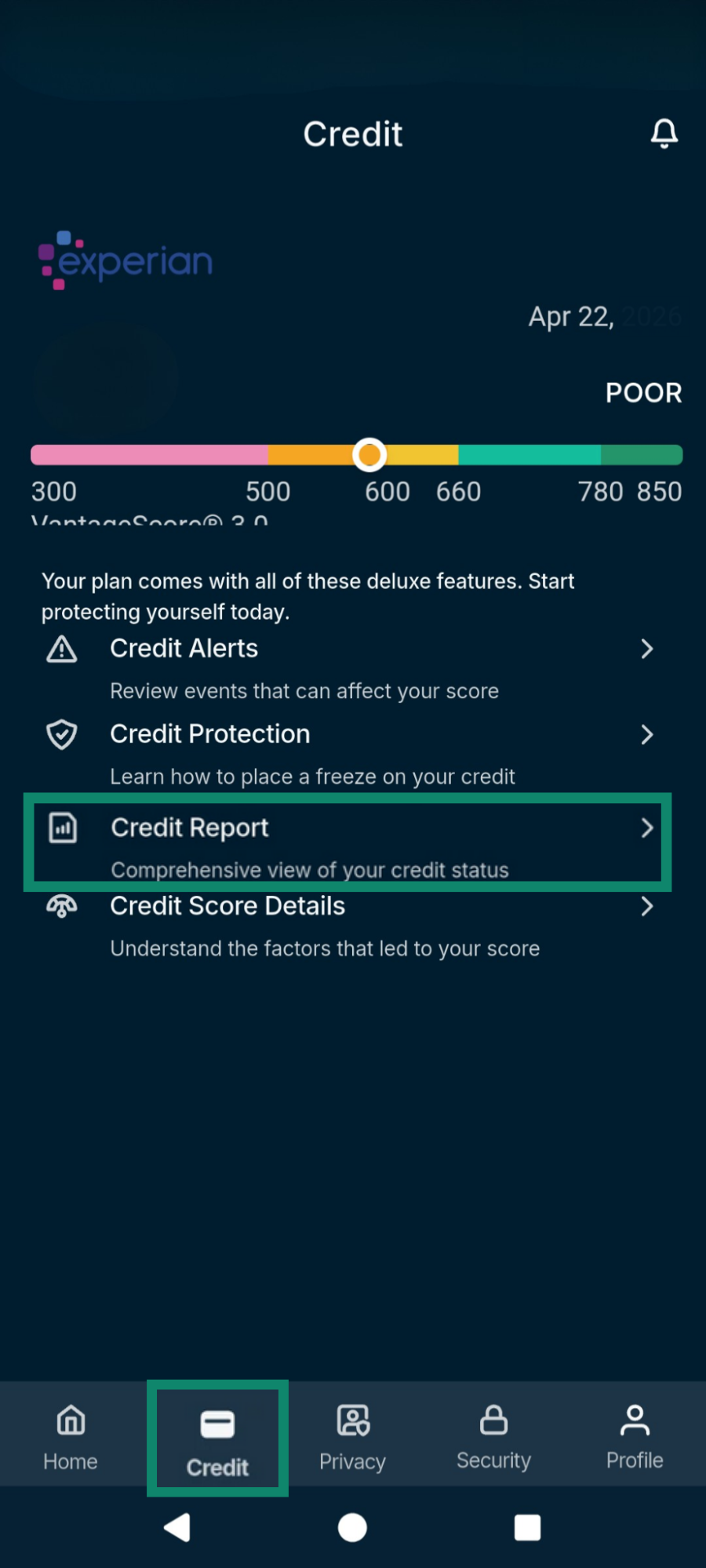
Credit Alerts enable you to view events that could impact your credit. Selecting the plus sign on each item provides more information on each event and why it might affect your score. To view your credit alerts:
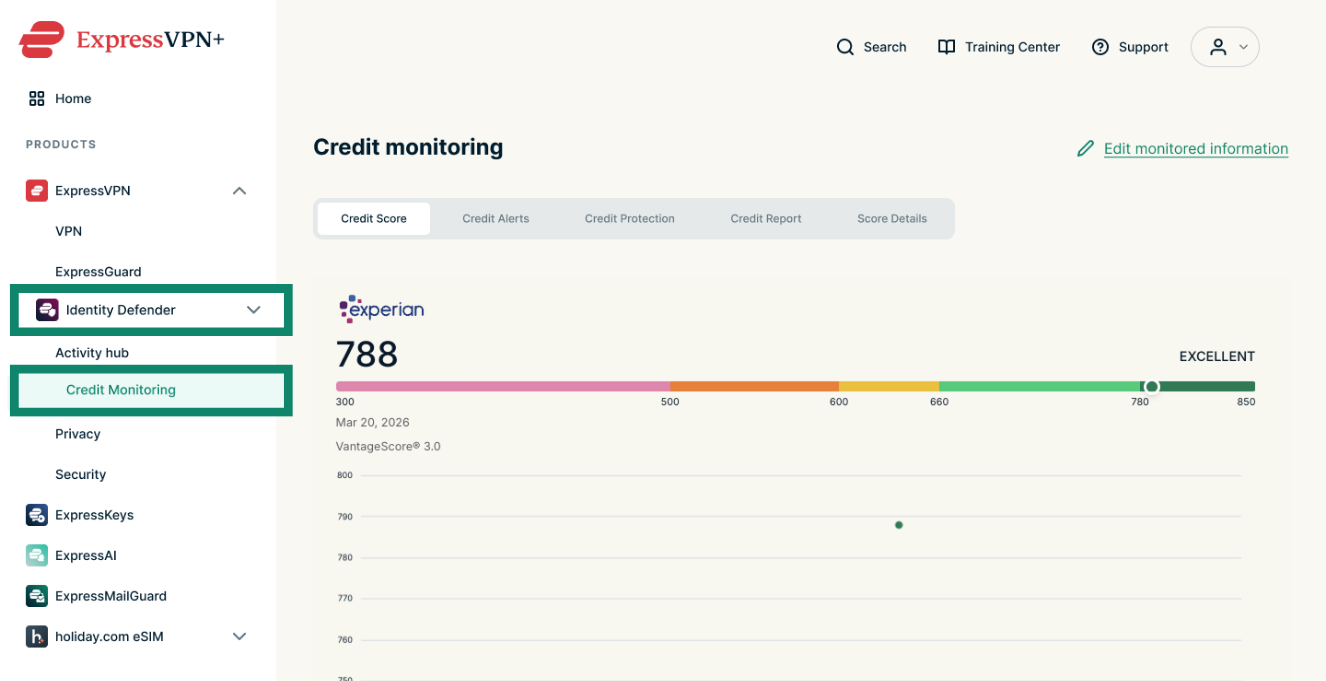
In the ExpressVPN+ portal:
- Go to Identity Defender > Credit Monitoring.

- Click Credit Alerts at the top.


In the mobile app:
Tap the Credit tap from the menu at the bottom of your screen, then select Credit Alerts.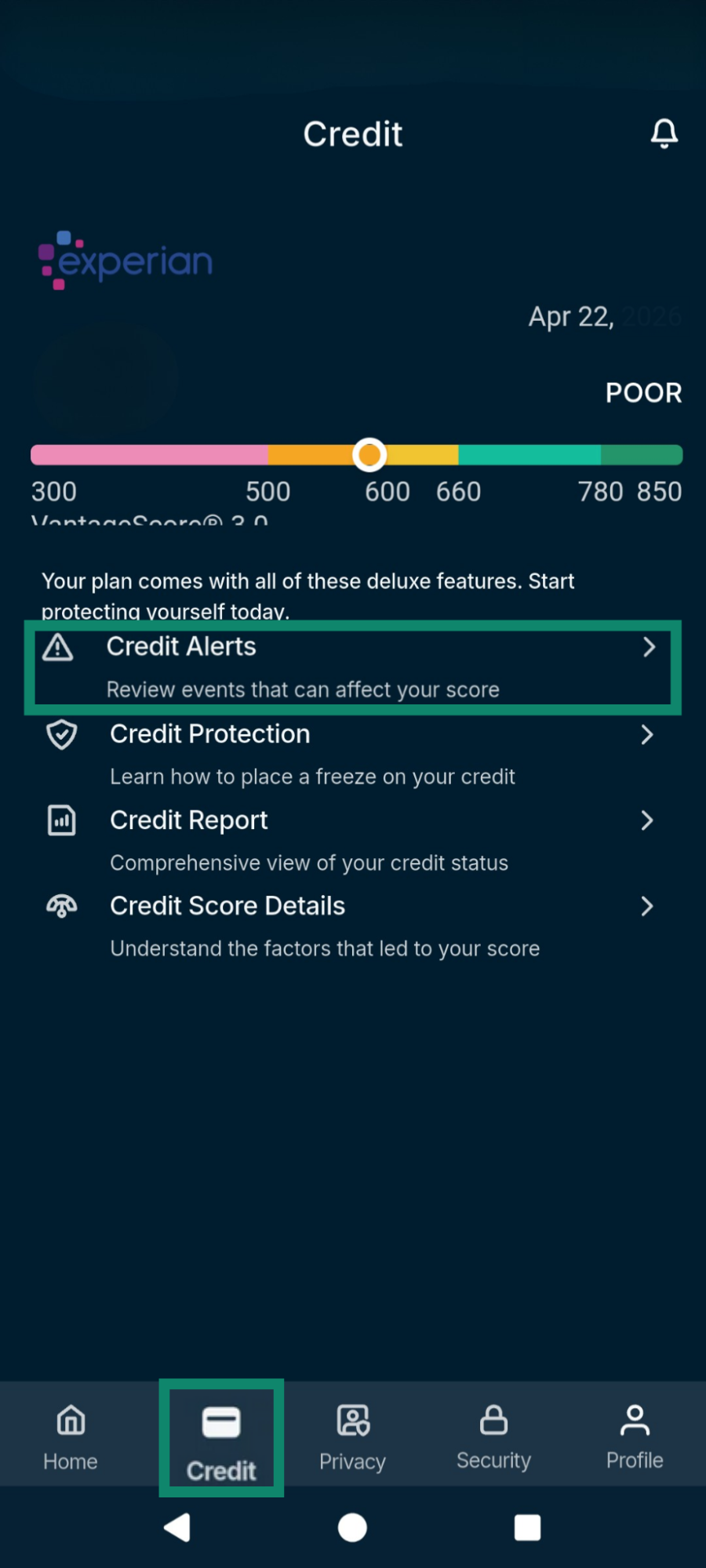
Need help? Contact the ExpressVPN Support Team for immediate assistance.
Credit Protection
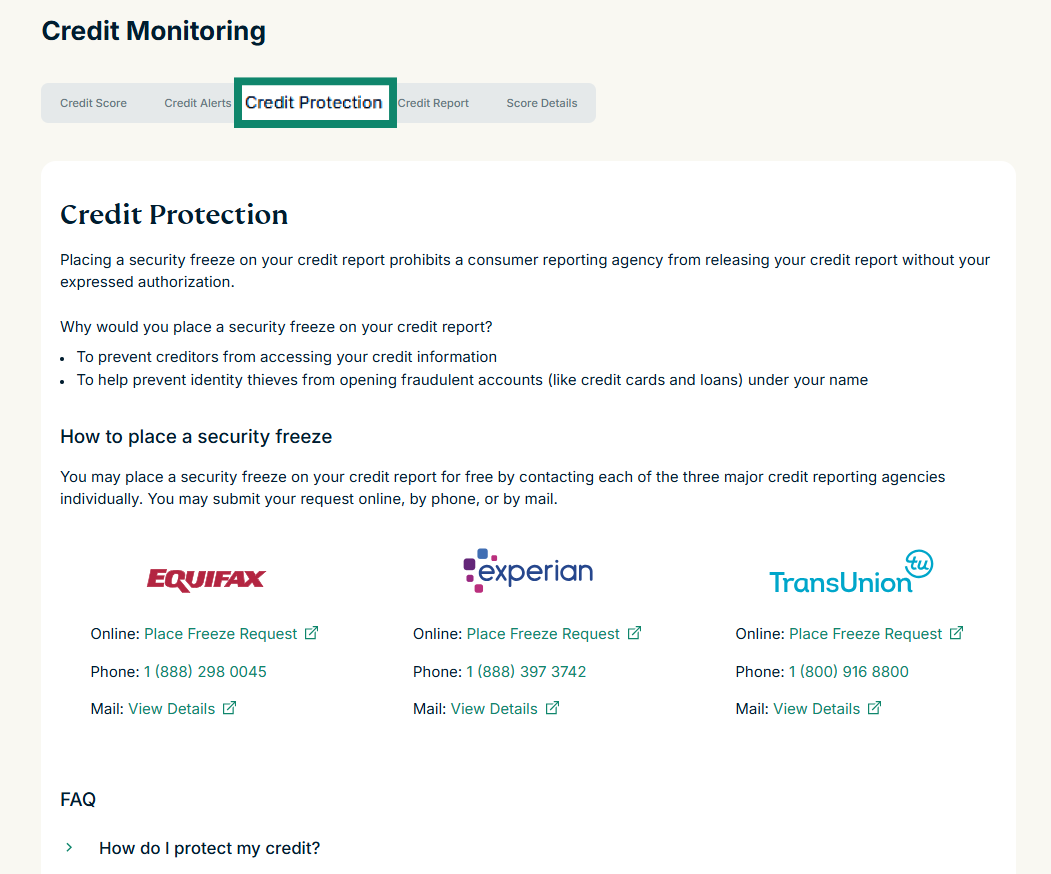
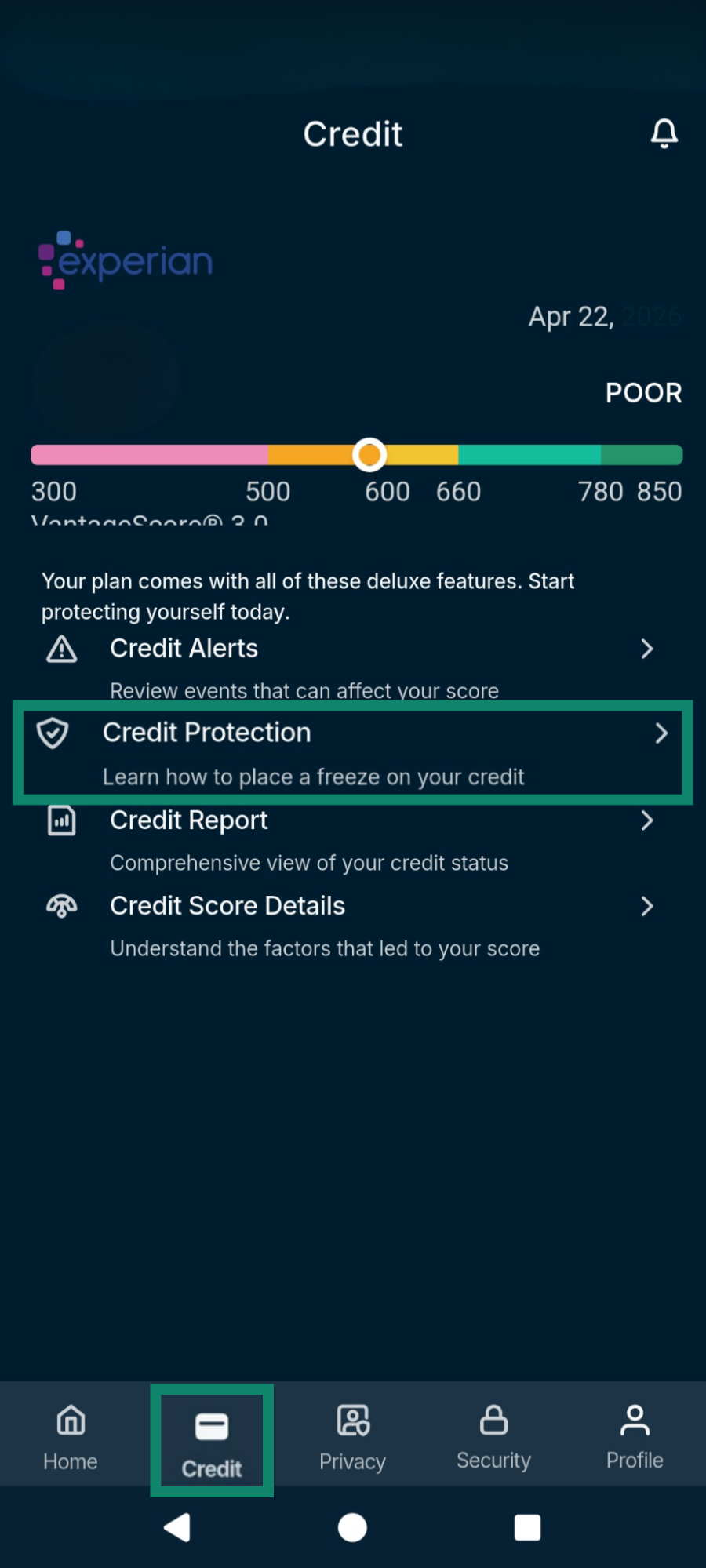
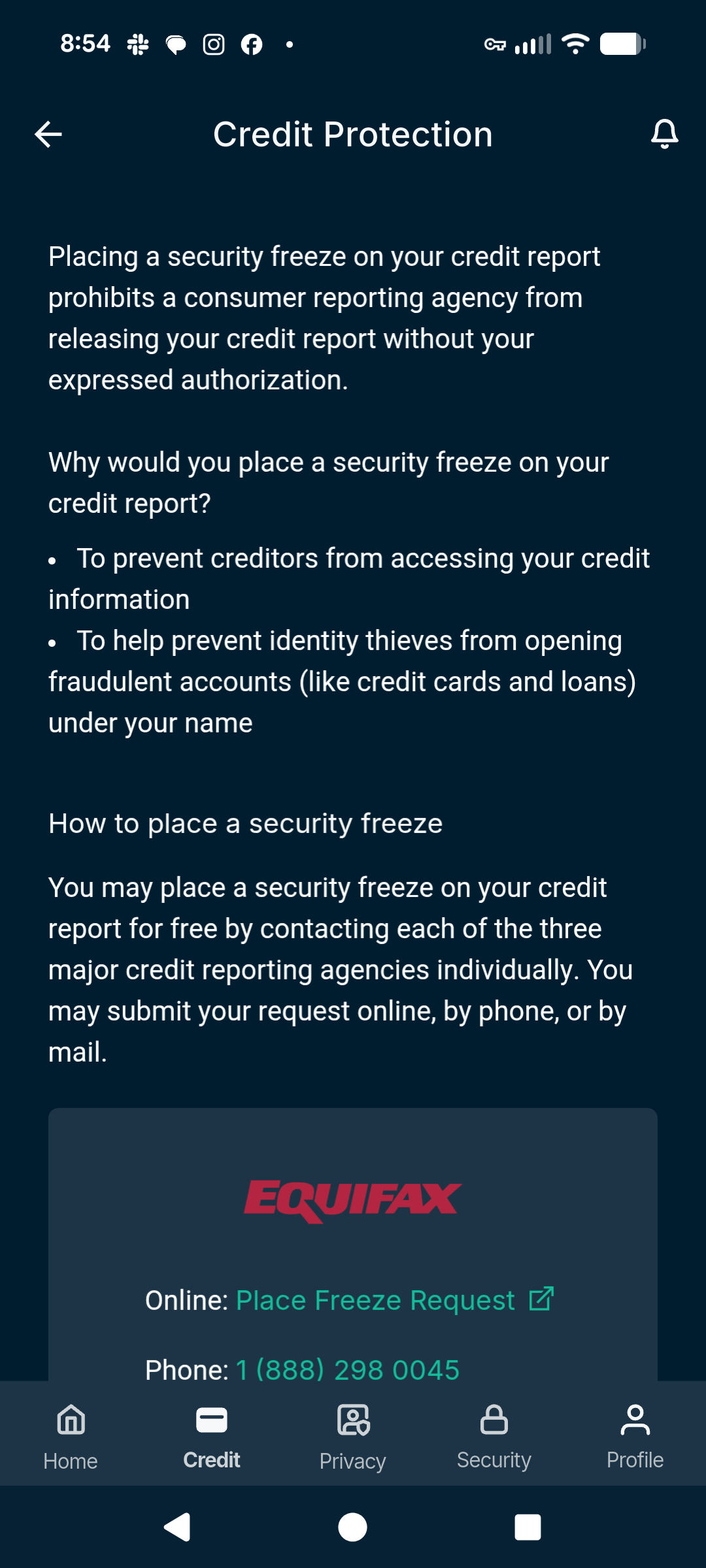
Credit Protection provides helpful information on how to contact the three credit bureaus to request a freeze on your credit. Freezing your credit will prevent creditors from approving any new credit account in your name, whether it is fraudulent or legitimate. To view the contact information:
In the ExpressVPN+ portal:
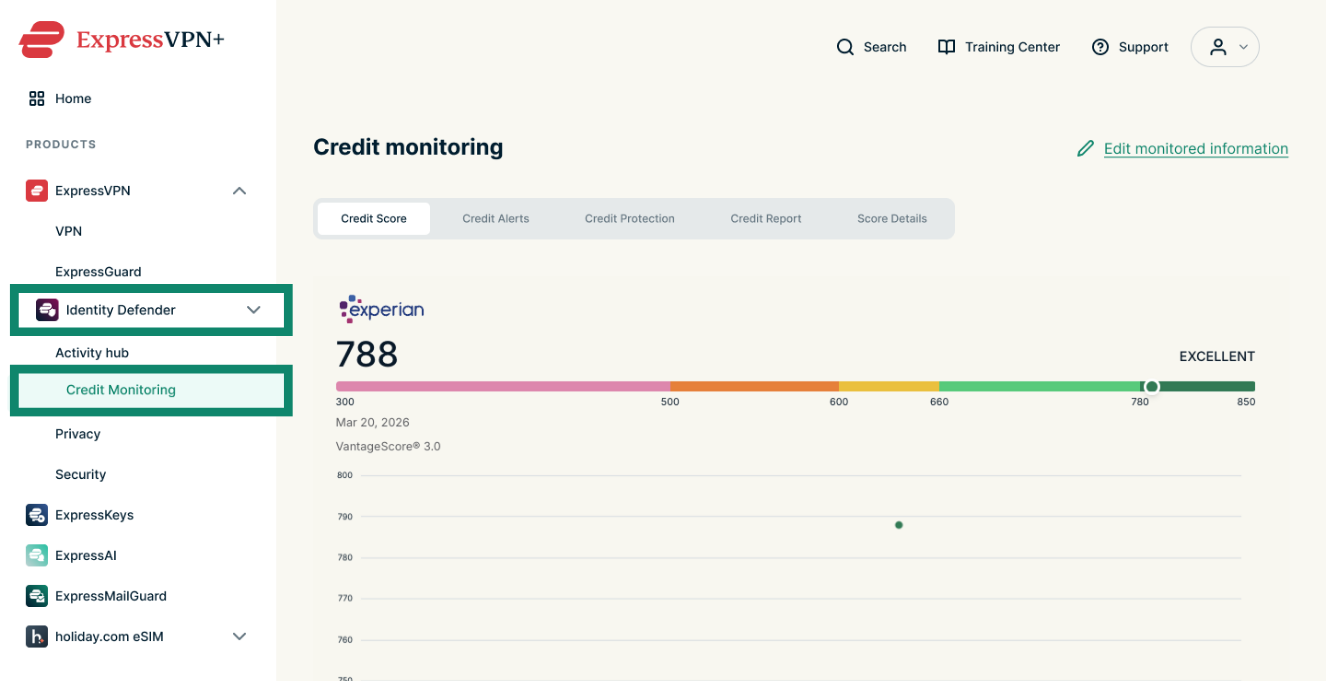
- Go to Identity Defender > Credit Monitoring.
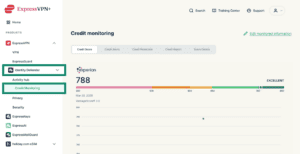
- Click Credit Protection at the top of the tab.


In the mobile app:
- Tap the Credit tap from the menu at the bottom of your screen, then select Credit Protection.

- You will be taken to a page where you can view the contact information of the credit bureaus.

Need help? Contact the ExpressVPN Support Team for immediate assistance.
Score Details
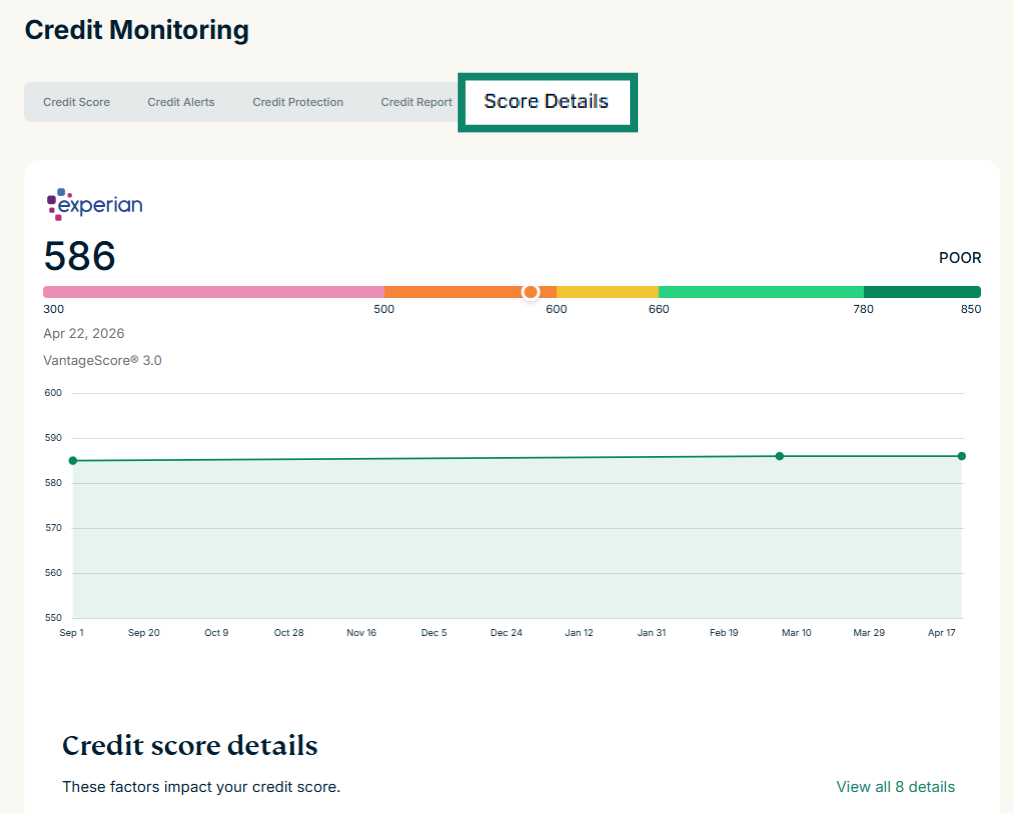
Score Details explores the factors that impact your credit score and whether they are affecting you positively or negatively. Each negative item also recommends actions.
In the ExpressVPN+ dashboard:
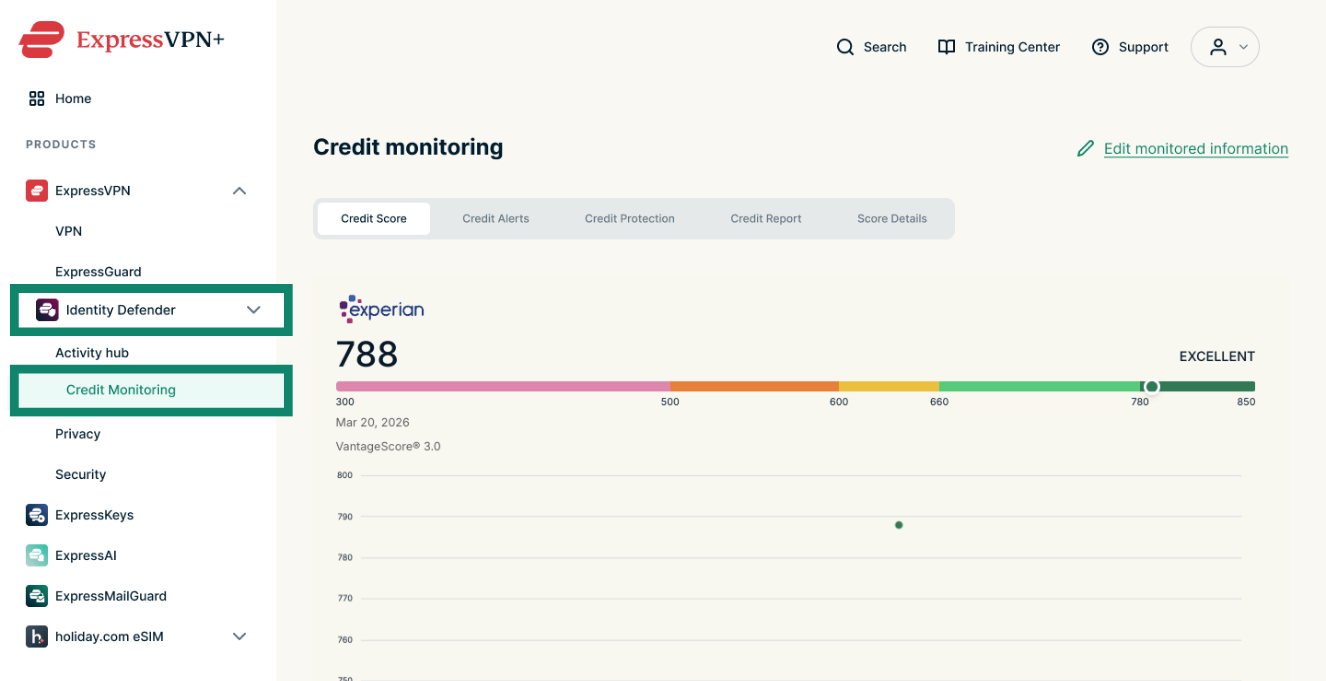
- Go to Identity Defender > Credit Monitoring.
- Select Score Details.


In the mobile app:
Tap the Credit tap from the menu at the bottom of your screen, then Credit Score Details.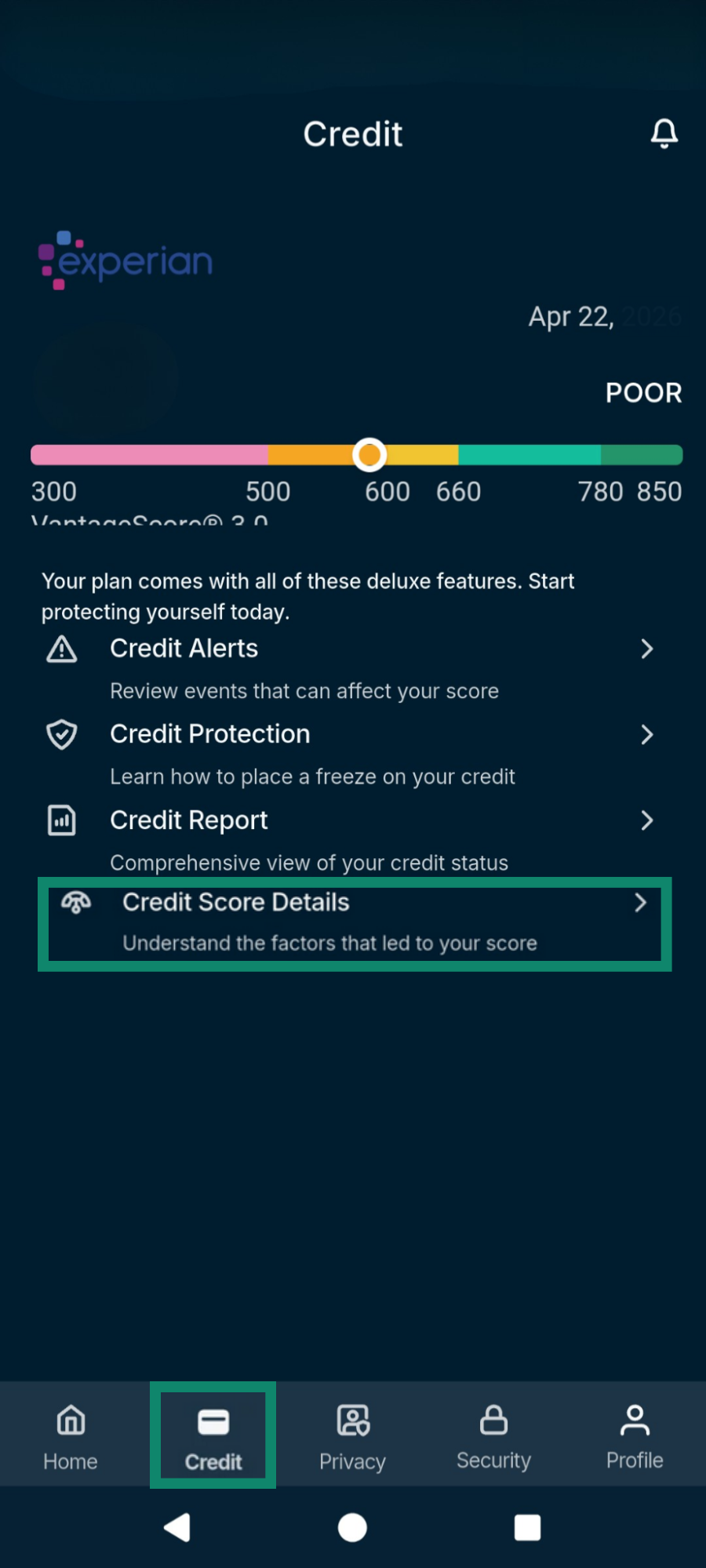
Need help? Contact the ExpressVPN Support Team for immediate assistance.
Credit Report
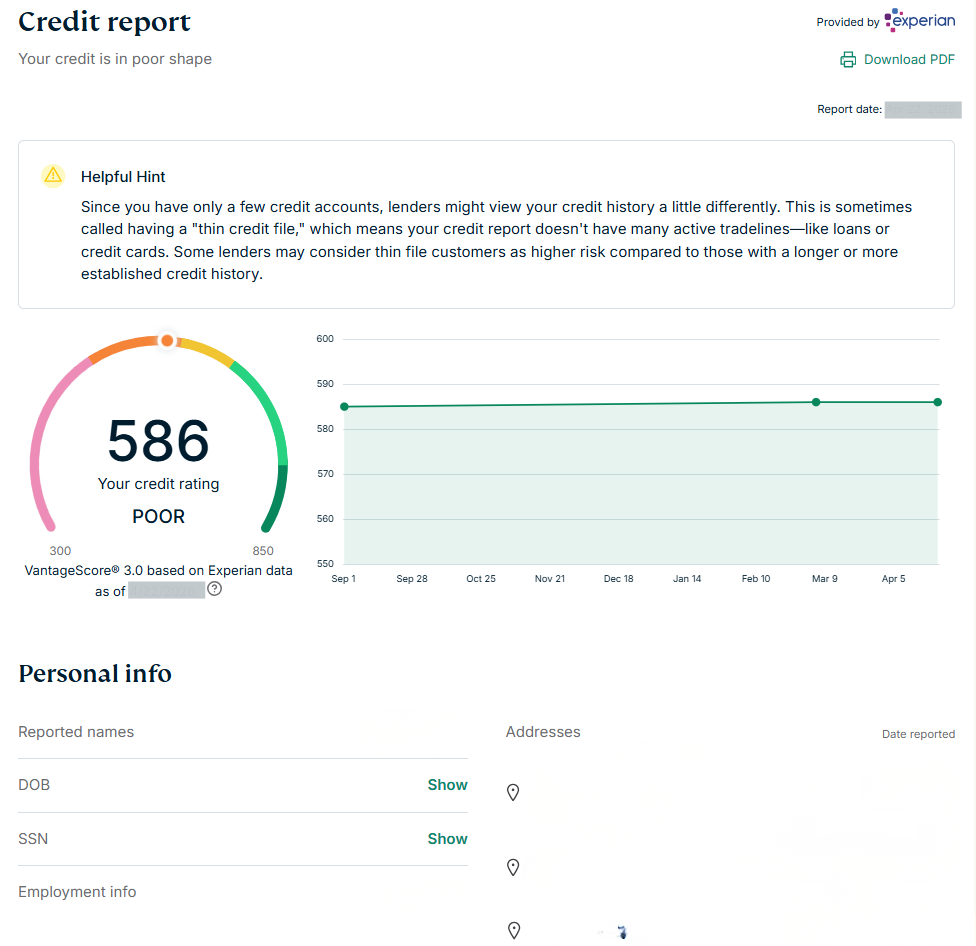
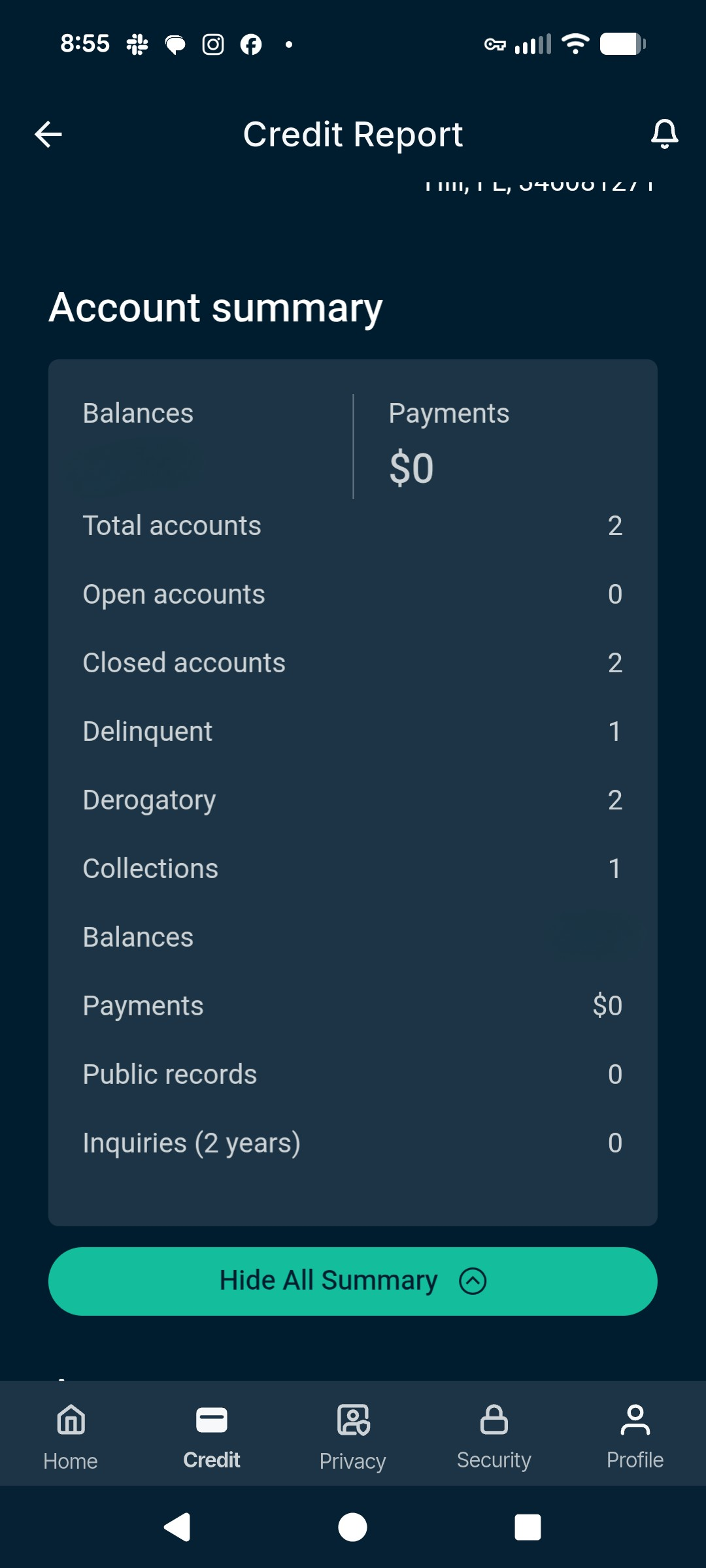
Provides a comprehensive view of your credit status. These monthly reports list information like current and past addresses, balances, payments, and accounts in your name.
In the ExpressVPN+ dashboard:
- Go to Identity Defender > Credit Monitoring.

- Select the Credit report option and you will be taken to the appropriate page.


In the mobile app:
- Tap the Credit tap from the menu at the bottom of your screen, then select Credit Report.

- The next page will show you relevant information about your credit report, like open accounts, total balance, and inquiries.

Need help? Contact the ExpressVPN Support Team for immediate assistance.
How to cancel Credit Scanner
To cancel your Credit Scanner subscription, turn off auto-renewal of ExpressVPN on the My Subscription page. This cancels all services within your ExpressVPN account, including Credit Scanner.
For more information, read our full guide to canceling your ExpressVPN subscription.
Need help? Contact the ExpressVPN Support Team for immediate assistance.