This guide will show you how to reset your ExpressKeys recovery code. You should reset your recovery code if you have lost it or believe it may have been compromised.

To reset your recovery code, you will need your vault password. You can reset your recovery code using the ExpressKeys app for Android or the ExpressKeys Chrome extension.

Jump to…

Android and iOS
Chrome extension

ExpressKeys for Android and iOS

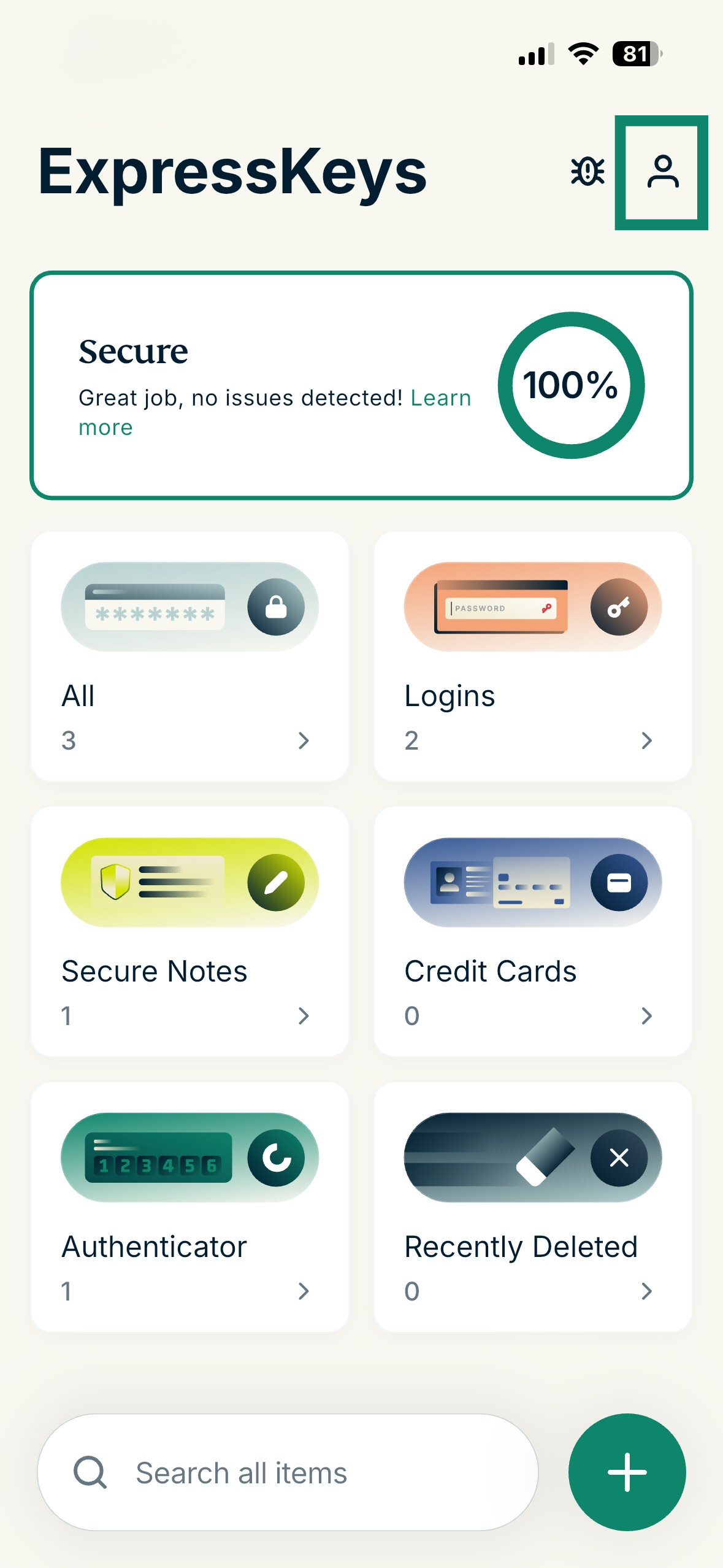
  1. In the ExpressKeys app for Android or iOS, tap .The ExpressKeys app on mobile, showing the Profile option highlighted
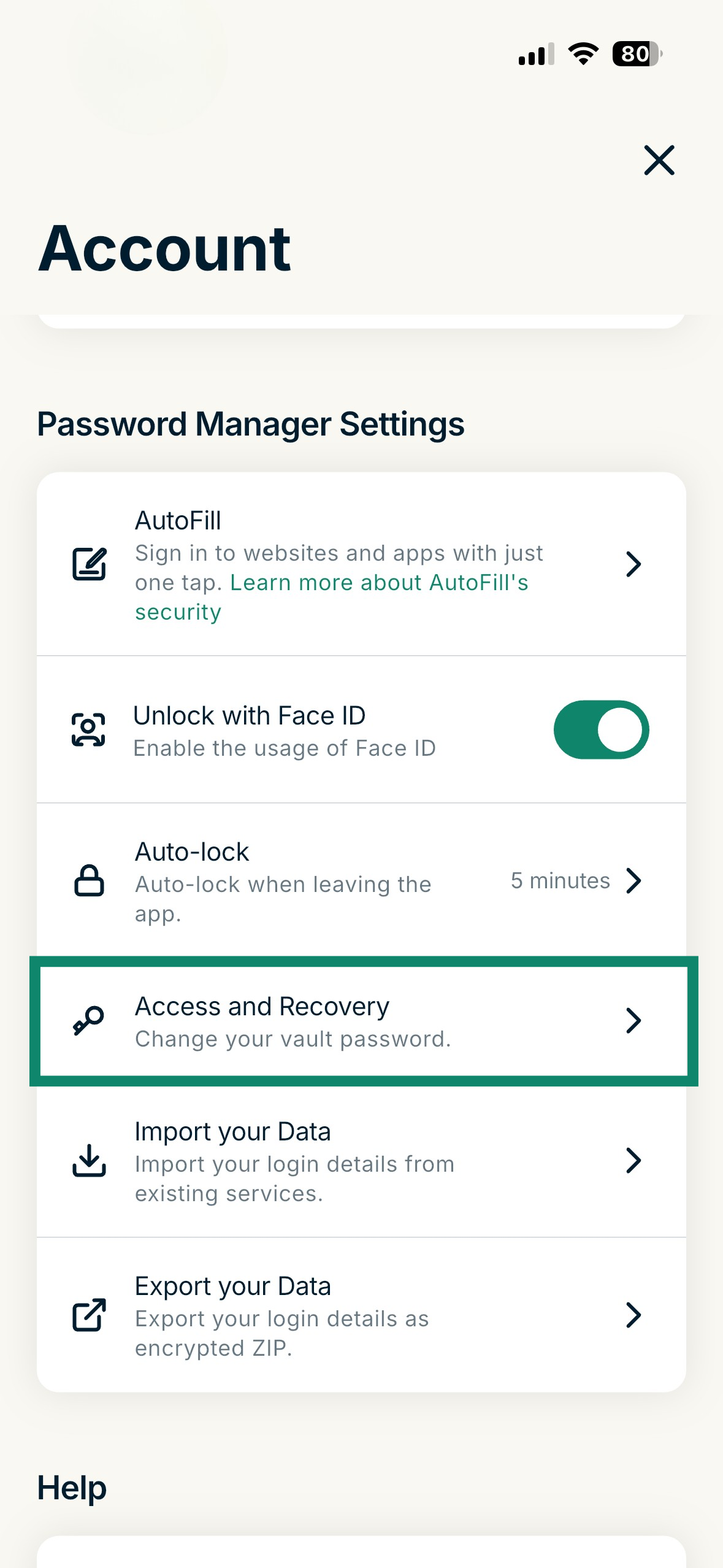
  2. Tap Access and Recovery.The Password Manager Settings in the ExpressKeys app, highlighting the "Access and Recovery" option.
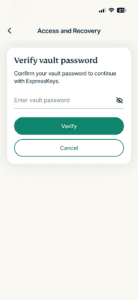
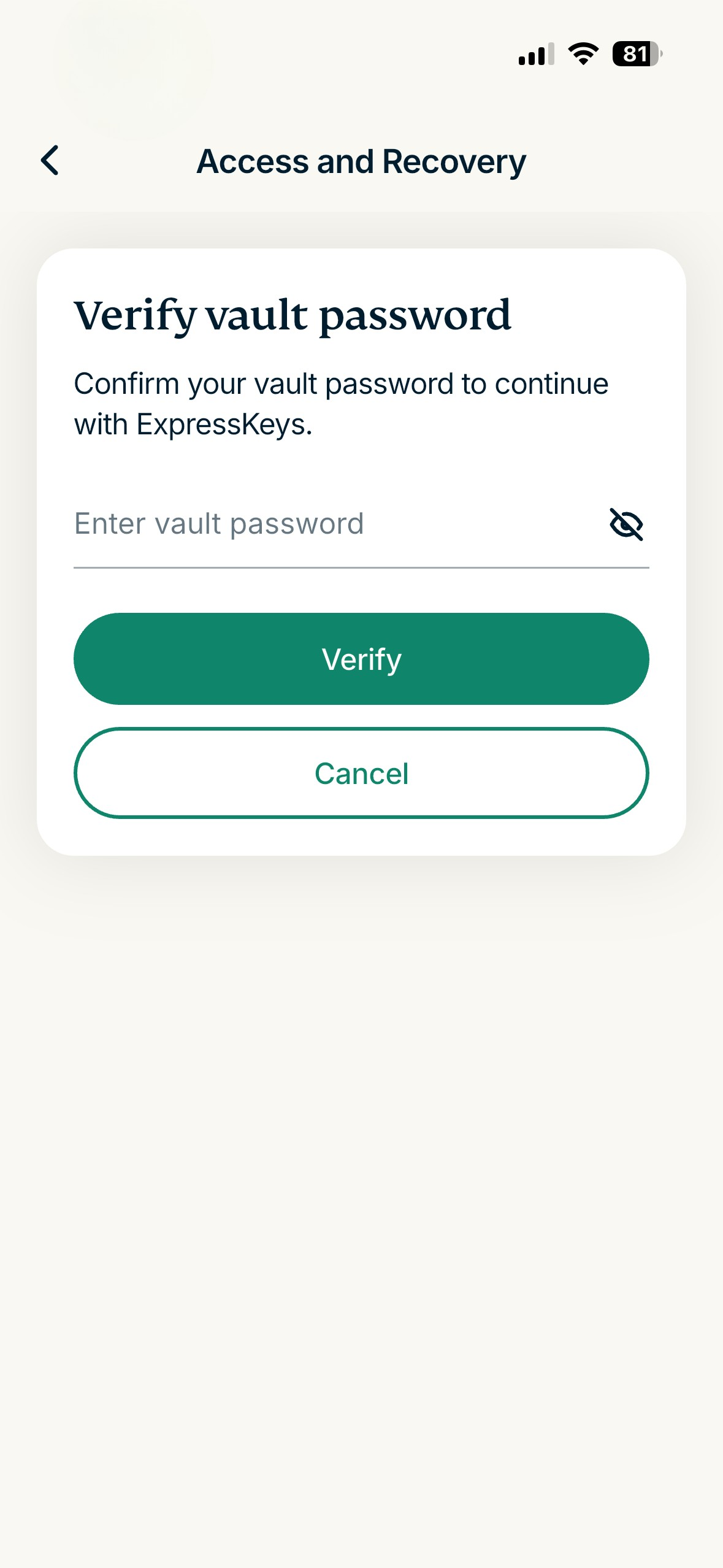
  3. Enter your vault password, then tap Verify.The Access and Recovery page in the ExpressKeys app, showing a "Verify your vault password" pop-up
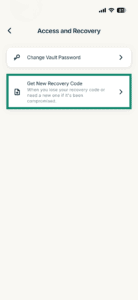
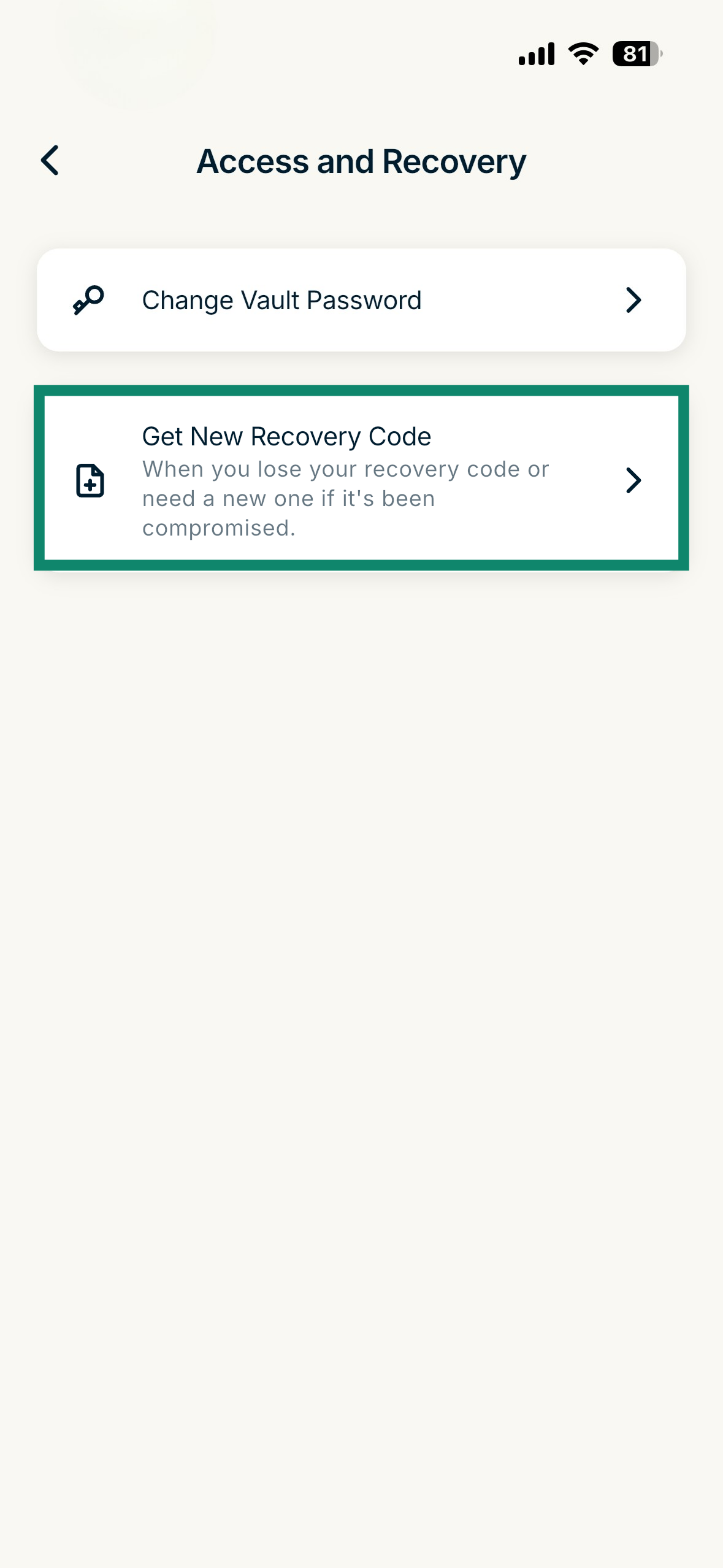
  4. Tap Get New Recovery Code.The Access and Recovery page in the ExpressKeys app, highlighting the "Get New Recovery Code" option.
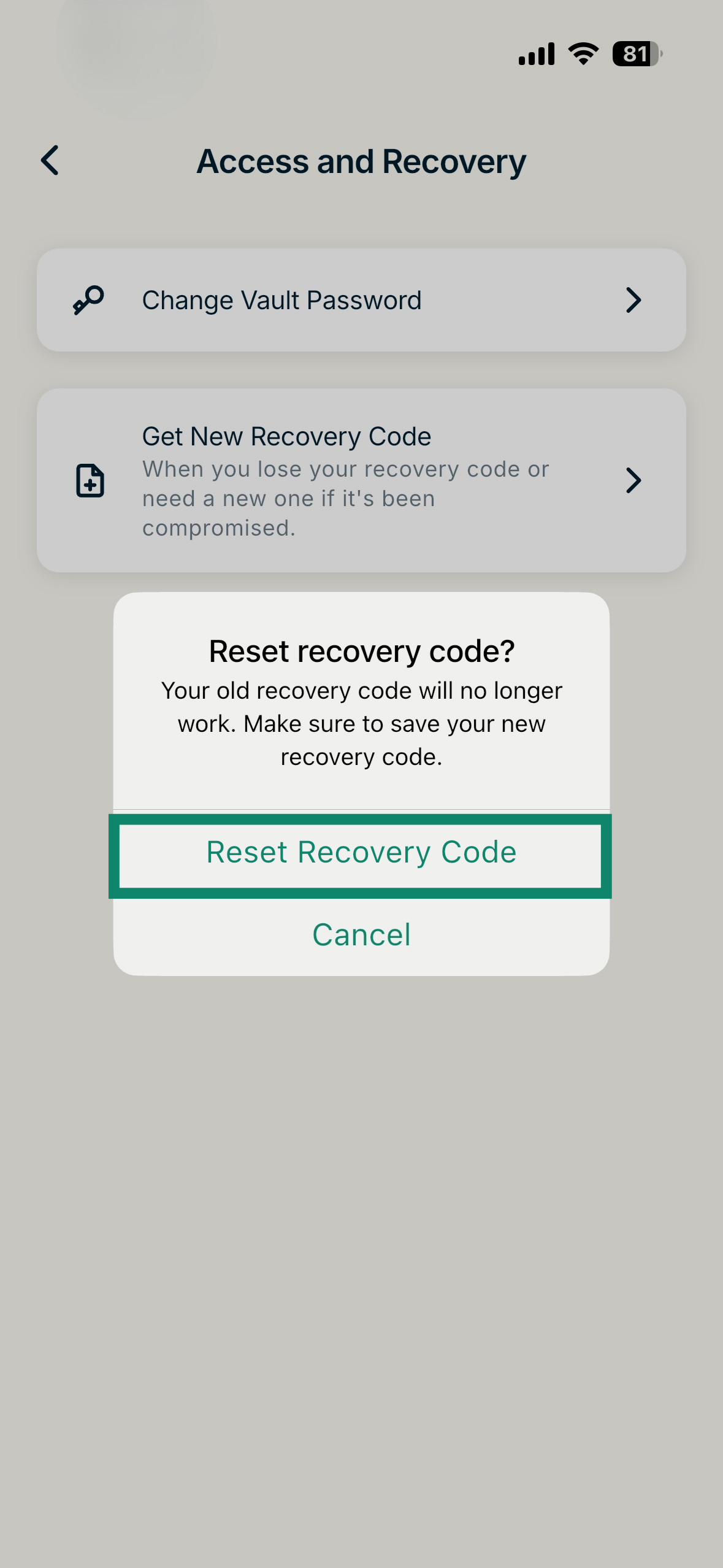
  5. Tap Reset Recovery Code to confirm.A "Reset recovery code?" pop-up in the ExpressKeys app, highlighting a "Reset Recovery Code" option.
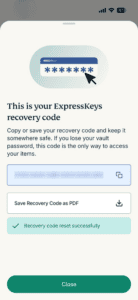
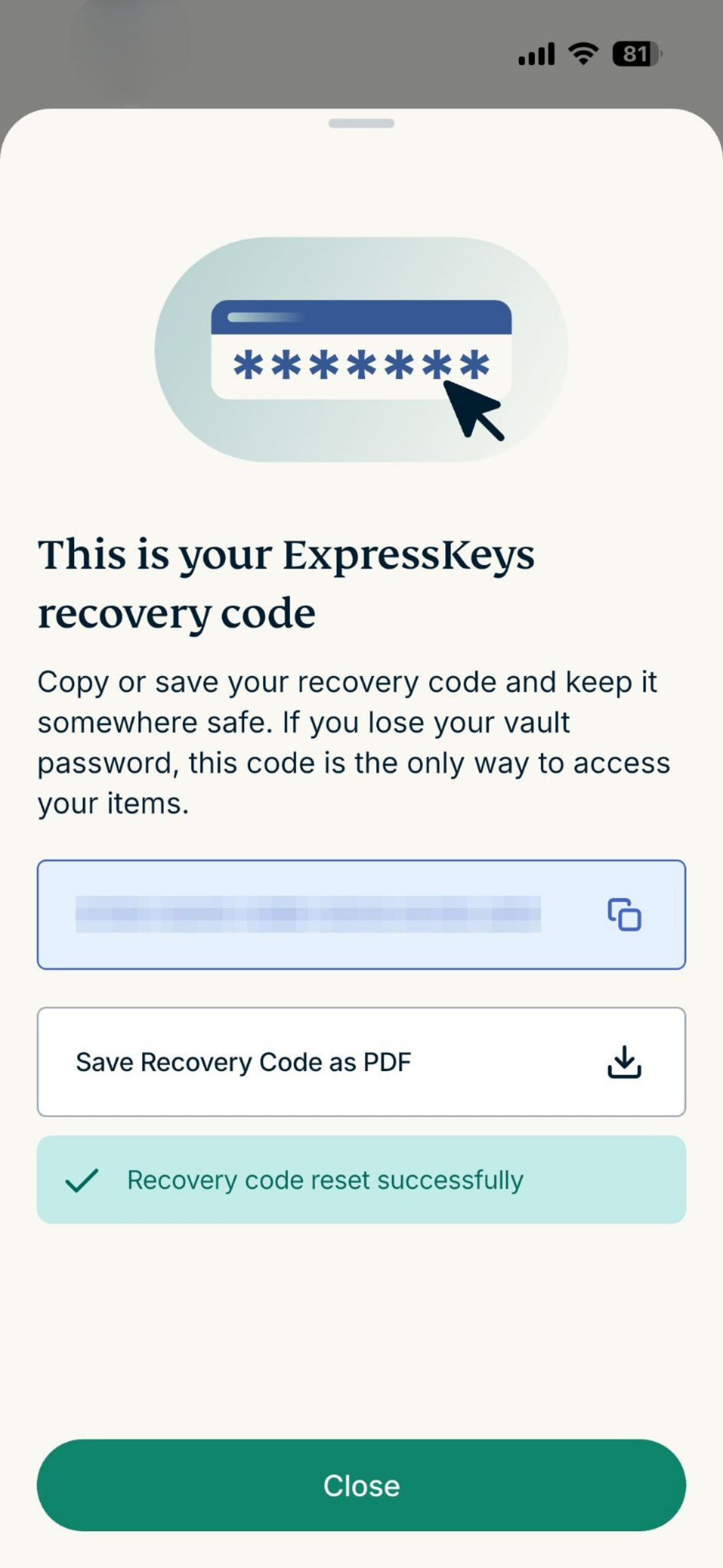
  6. Save your new recovery code and store it in a safe place. You can copy and paste it into a note or a document or download it as a PDF file. When done, tap Close.The "This is your ExpressKeys recovery code" page in the ExpressKeys app, showing an option to copy the recovery code or save it as a PDF file, as well as a "Close" button at the bottom.

Need help? Contact the ExpressVPN Support Team for immediate assistance.

Back to top


ExpressKeys Chrome extension

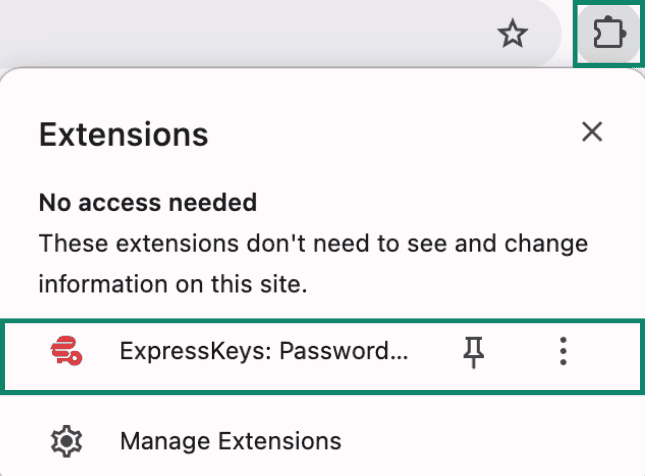
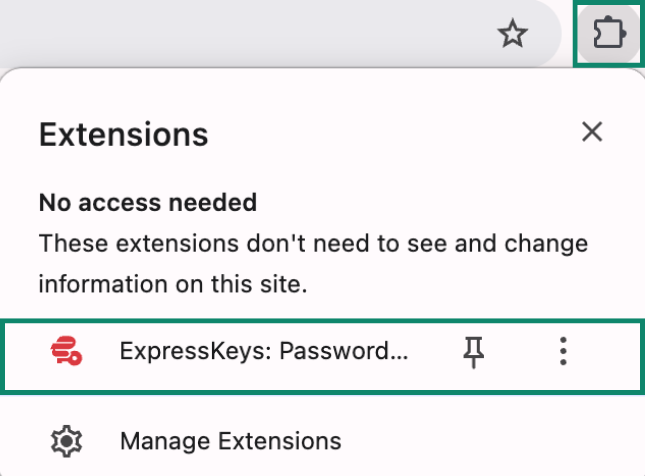
  1. Open the ExpressKeys Chrome extension.Google Chrome Extensions tab, showing the ExpressKeys extension.
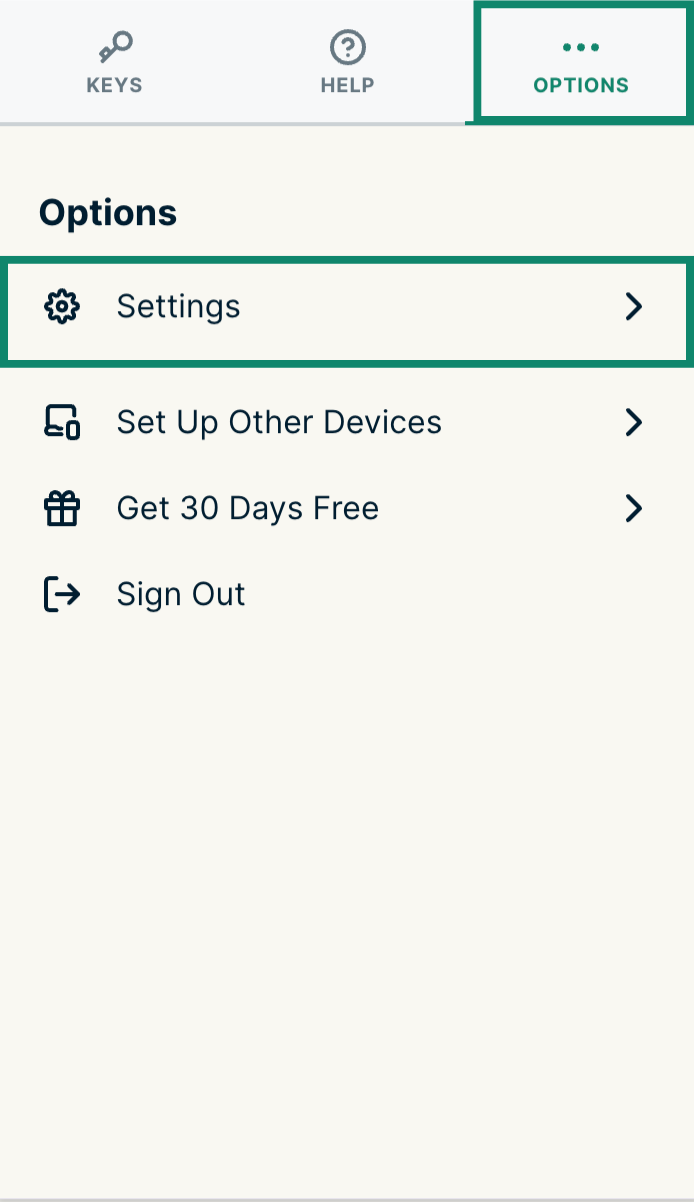
  2. Click the Options tab, then Settings.The "Options" tab and the "Settings" option highlighted in the ExpressKeys browser extension.
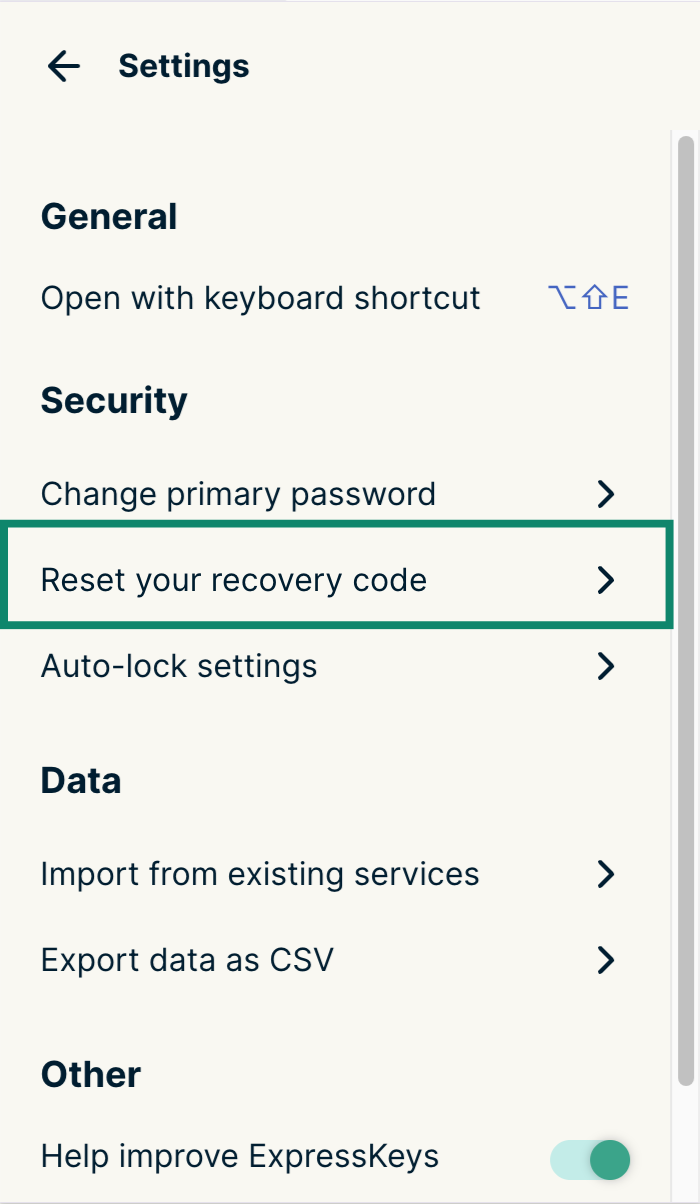
  3. Under Security, click Reset your recovery code.The "Reset your recovery code" option highlighted in the ExpressKeys browser extension.
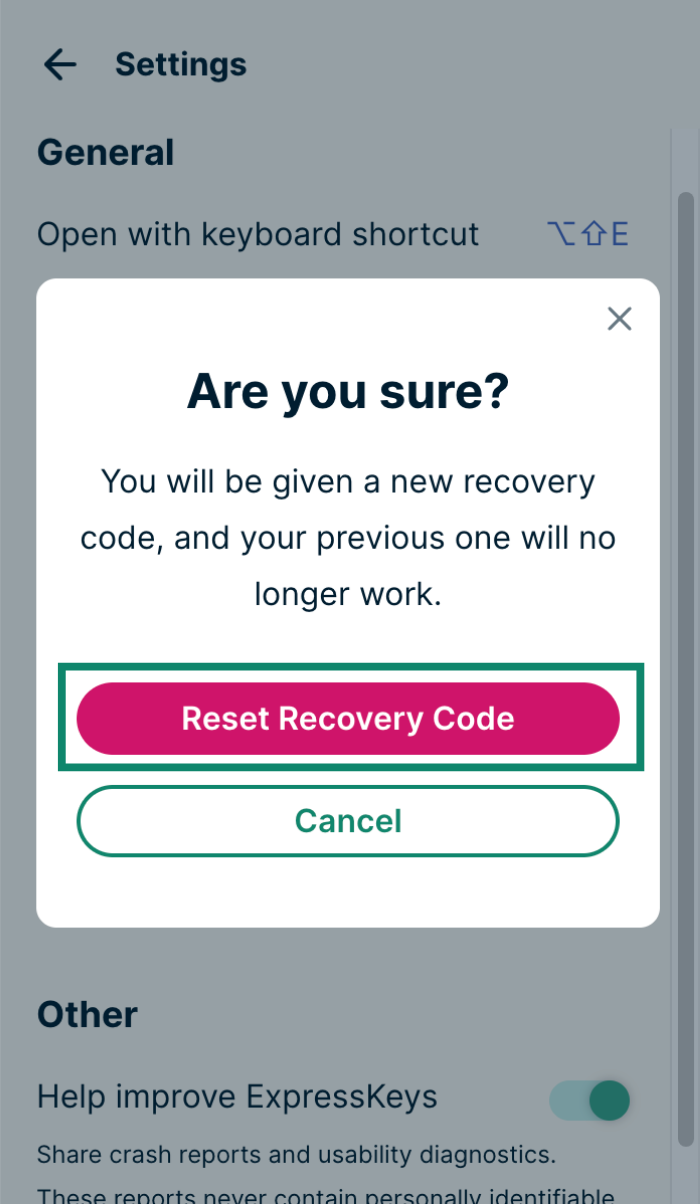
  4. In the pop-up, click Reset Recovery Code to confirm.The "Are you sure?" pop-up in ExpressKeys browser extension, with a highlighted "Reset Recovery Code" button.
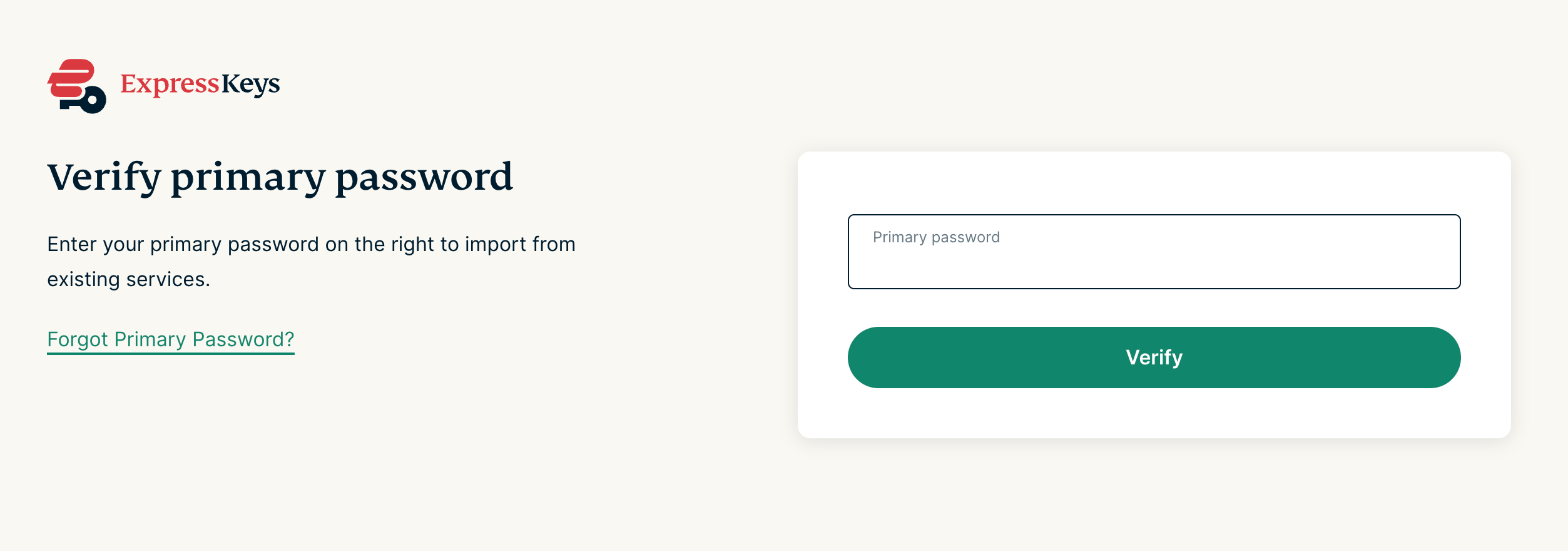
  5. Enter your primary password, then click Verify.The ExpressKeys' "Verify primary password" page.
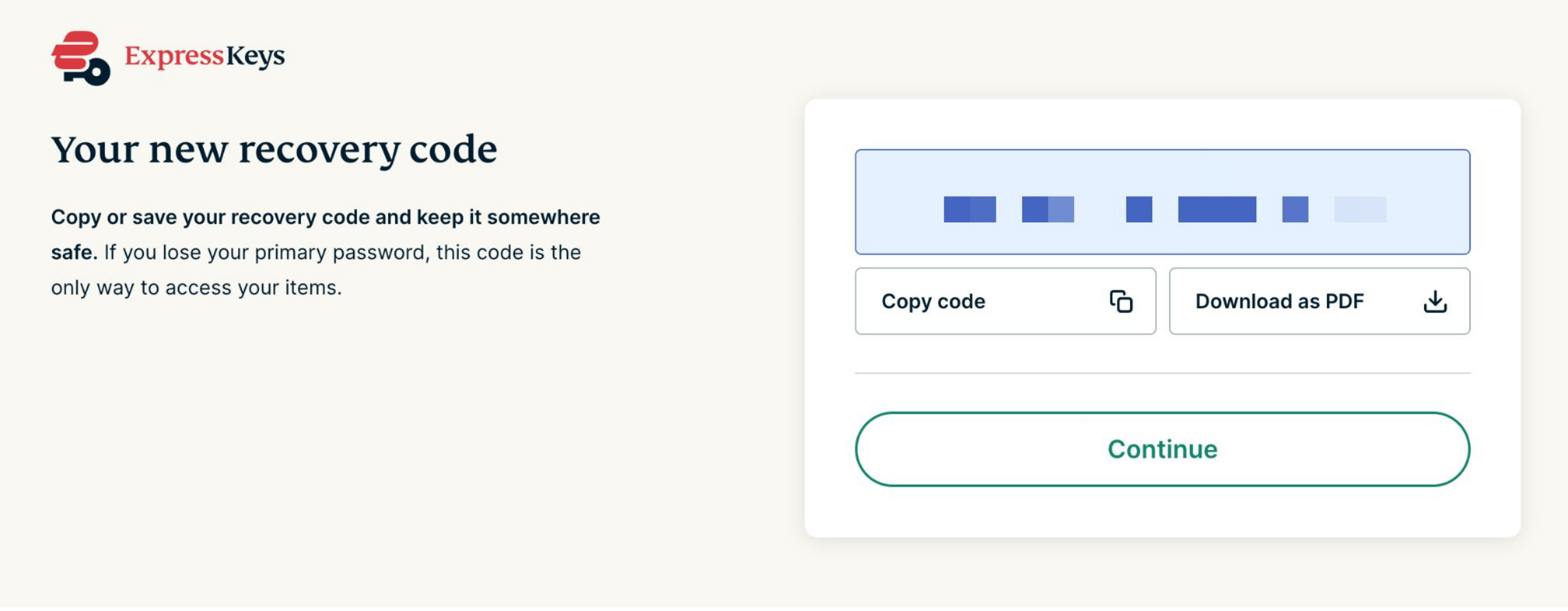
  6. Store your new recovery code in a safe place. You can copy and paste it into a secure note or save it as a PDF file. Once done, select Continue.The ExpressKeys' "Your new recovery code page" showing two options: "Copy code" and "Download as PDF," as well as a "Continue" button at the bottom.

If you have lost both your vault password and your recovery code, contact our Support Team to reset your password manager account.

Back to top

Was this article helpful?

We're sorry to hear that. Let us know how we can improve.

A member of our Support Team will follow up on your issue.