



This guide will show you how to get started using ExpressMailGuard. You will learn how to sign in to ExpressMailGuard and create your first alias.
ExpressMailGuard is a private email relay service that enables you to create aliases that protect your identity and help keep your inbox safe.
Jump to…
How to access and sign in to ExpressMailGuard
Basic terms used in ExpressMailGuard
How to create your first alias
How to access and sign in to ExpressMailGuard
ExpressMailGuard is included in all ExpressVPN Basic, Advanced, and Pro subscription plans.
There is no need to create a separate ExpressMailGuard account. You sign in to ExpressMailGuard using your ExpressVPN account email address.
To sign in to ExpressMailGuard for the first time:
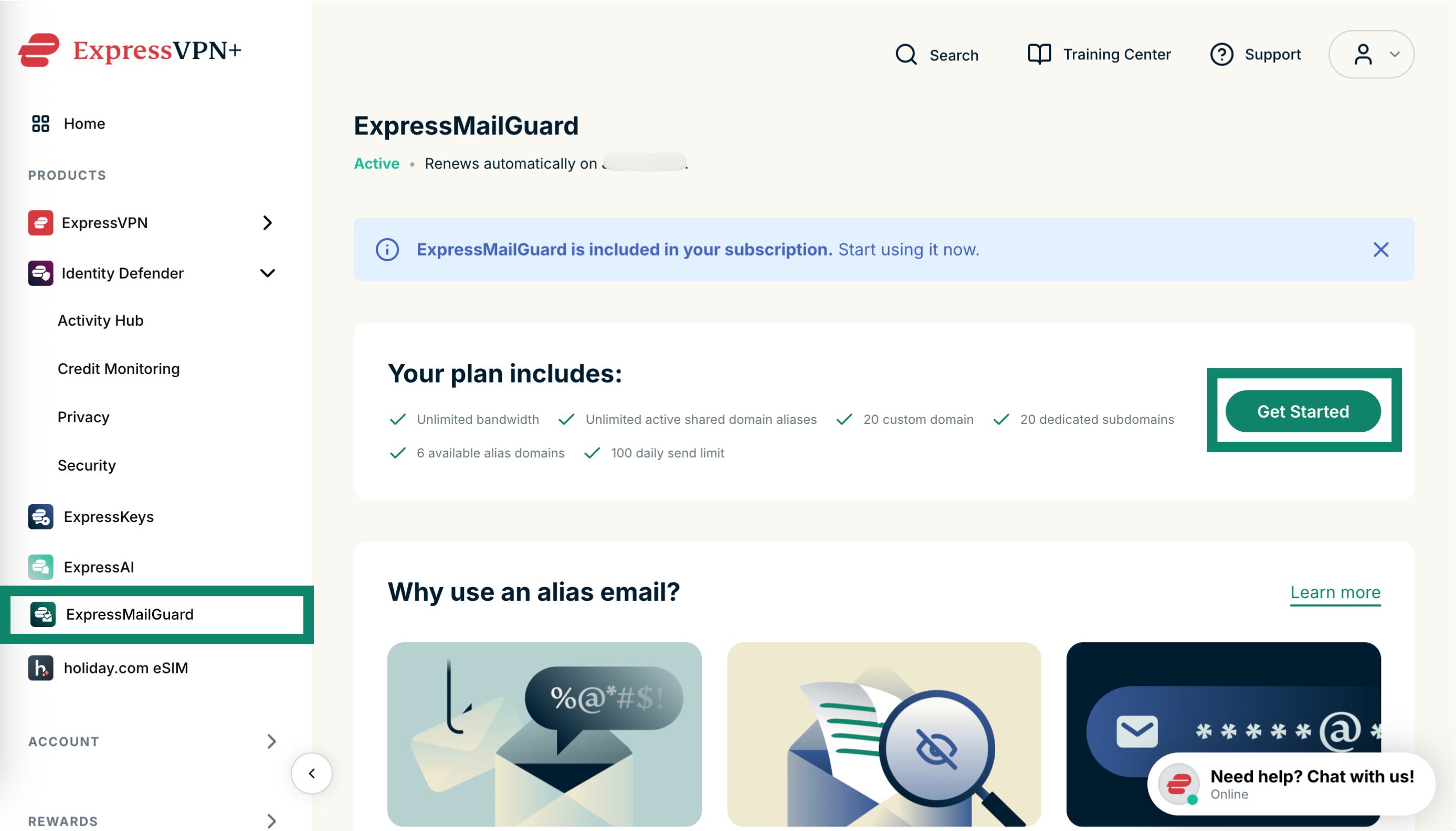
- Go to app.expressmailguard.com. Alternatively, visit the ExpressVPN+ portal, select ExpressMailGuard, and tap Get Started.


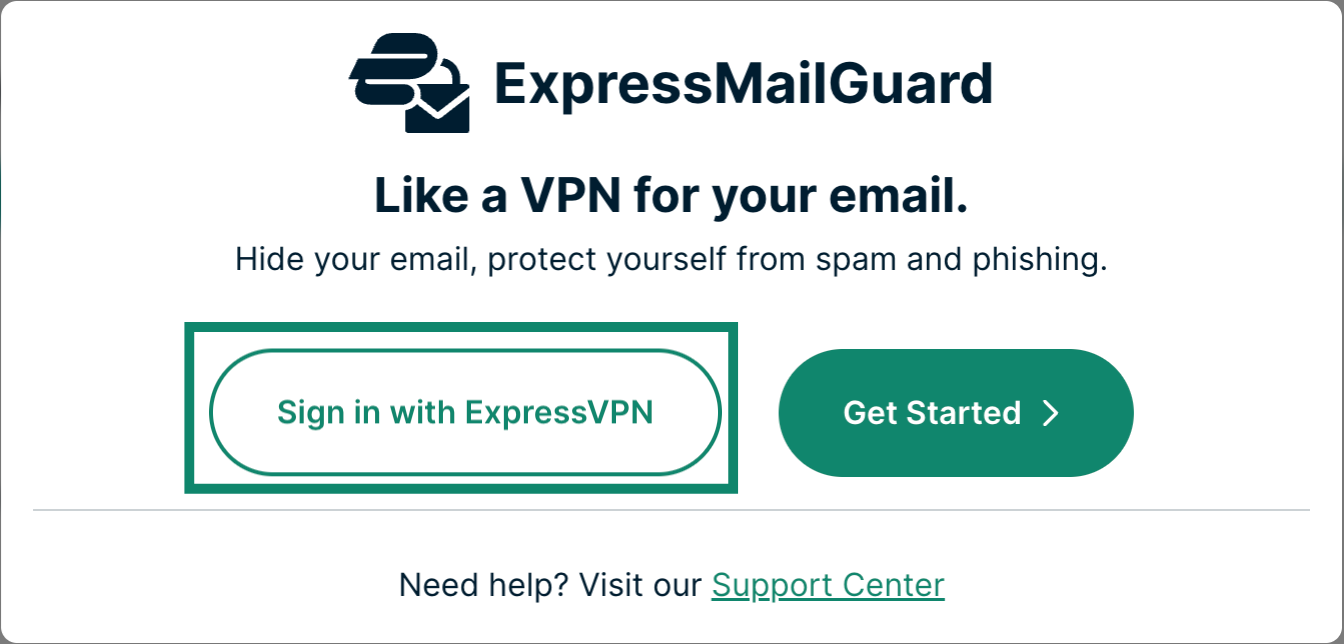
- Select Sign in with ExpressVPN.


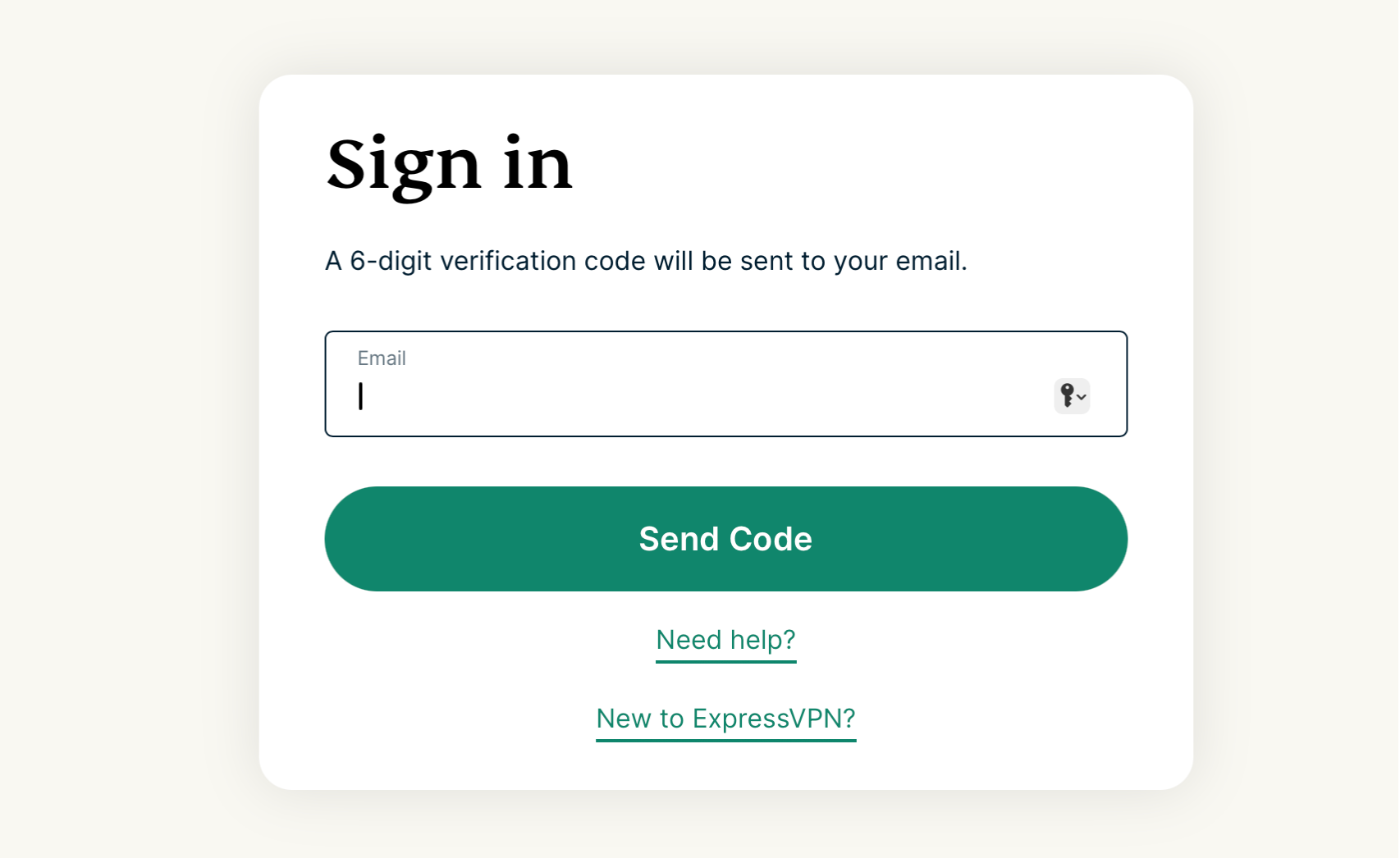
- Enter your ExpressVPN email and select Send Code.


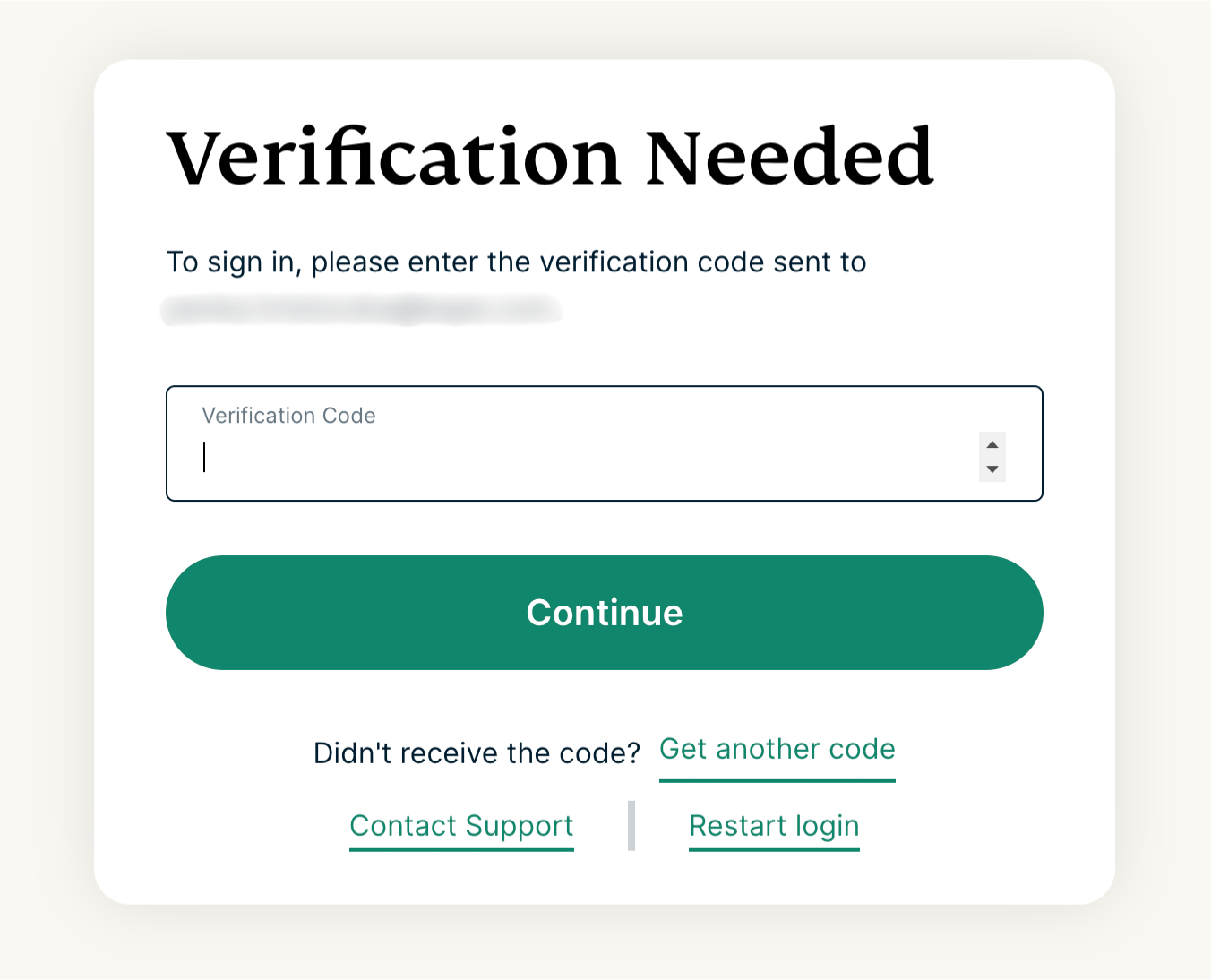
- Input the 6-digit code into the field marked Verification Code, then click Continue.


You are now signed in to ExpressMailGuard.
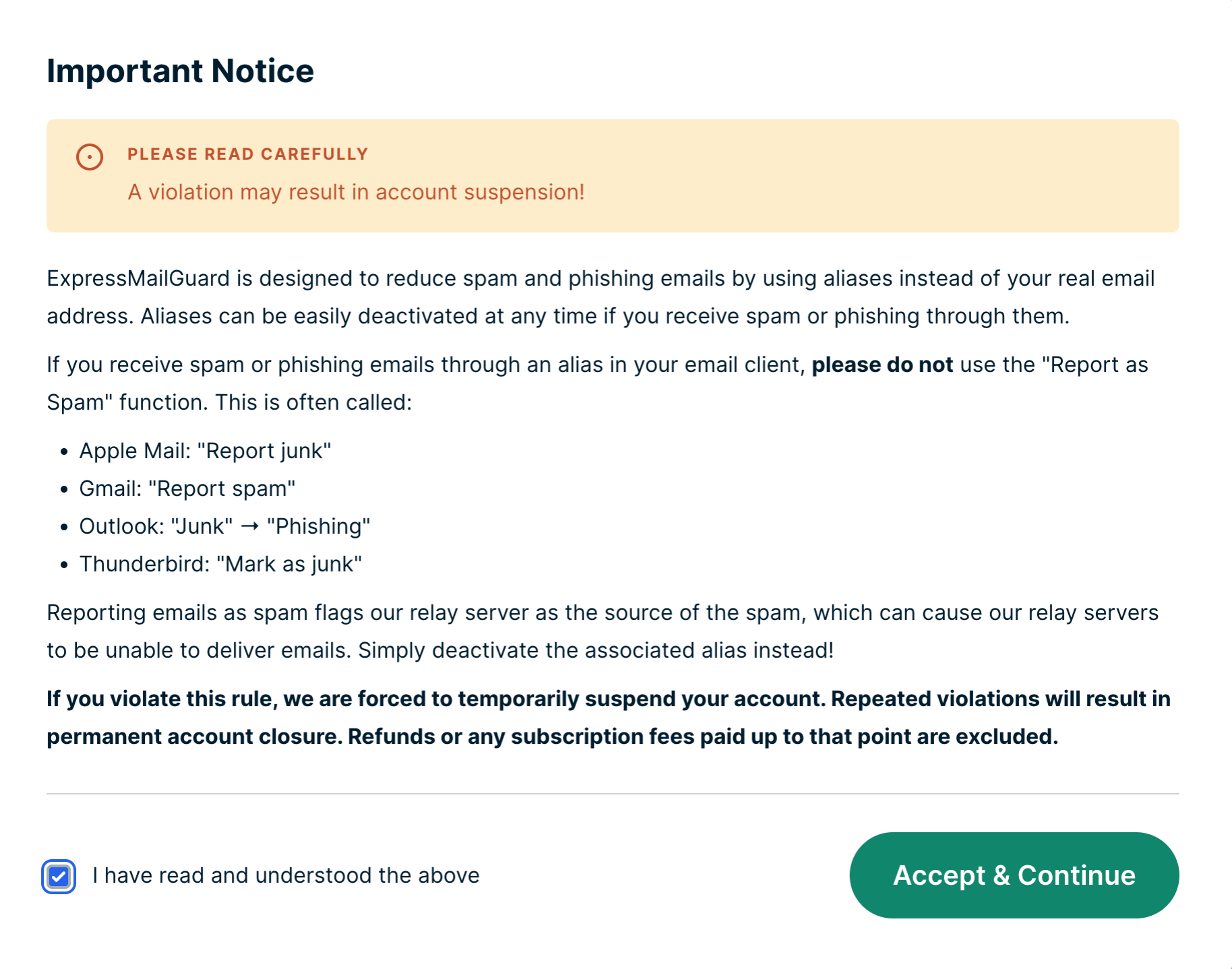
Continue to the next section below to learn more about some of the basic terms used in ExpressMailGuard.
Need help? Contact the ExpressVPN Support Team for immediate assistance.
Basic terms used in ExpressMailGuard
ExpressMailGuard uses a lot of terms you might be unfamiliar with. To get you up to speed, let’s go through some of the basic terms you will need to know when using ExpressMailGuard.
Not all terms used in ExpressMailGuard are mentioned here, especially for the more advanced features. For a full list of the terms used in ExpressMailGuard, consult the ExpressMailGuard glossary.
Aliases
Email addresses created in ExpressMailGuard are known as aliases. These aliases act as a privacy layer between you and the outside world, protecting your real email addresses by acting as a forwarding address for any emails sent to the alias.
Some aliases are created automatically when they receive their first email (for example, when using your personal alias format with catch-all enabled).
Other aliases must be created manually in ExpressMailGuard. These use shared domains and cannot be created automatically.
ExpressMailGuard includes three different kinds of aliases:
- Shared Domain Aliases: Use shared domains like @clivaro.io resulting in aliases like j75gk2@clivaro.io. These aliases offer maximum privacy. Must be created manually.
- Dedicated Subdomain Aliases: These aliases use the dedicated domains you created, such as silver-fox, to create aliases like example@silver-fox.clivaro.io. Unlimited aliases can be created under such a domain, and automatic alias creation is possible.
- Custom Domain Aliases: These aliases use any custom domains you own and have added to ExpressMailGuard. Unlimited aliases can be created, and automatic alias creation is possible.
Shared domains
A shared domain is an email domain shared with other ExpressMailGuard users. For example, anyone using ExpressMailGuard can generate an alias using one of the available shared domains. Aliases created using a shared domain must be created within the ExpressMailGuard app.
Dedicated Subdomains
Dedicated Subdomains are unique to you, and you can use them to create as many aliases as you want.
The number of Dedicated Subdomains you can have depends on your ExpressVPN subscription tier:
- ExpressVPN Basic: one
- ExpressVPN Advanced: Five
- ExpressVPN Pro: 20
Recipients
Recipients are your real email addresses where forwarded emails are delivered.
Each recipient must be verified before emails can be forwarded to it.
Need help? Contact the ExpressVPN Support Team for immediate assistance.
How to create your first alias
Let’s now learn how to create your first aliases. Aliases will forward any emails sent to them to your recipient email addresses. This helps keep your real email inbox private.
To create your first alias:
- On the ExpressMailGuard dashboard, click Aliases.


- You will be prompted to create either a Shared Domain Alias, Dedicated Subdomain Alias, or a Custom Domain Alias. For your first alias, let’s create a Shared Domain Alias.
- Click Shared Domain Alias.


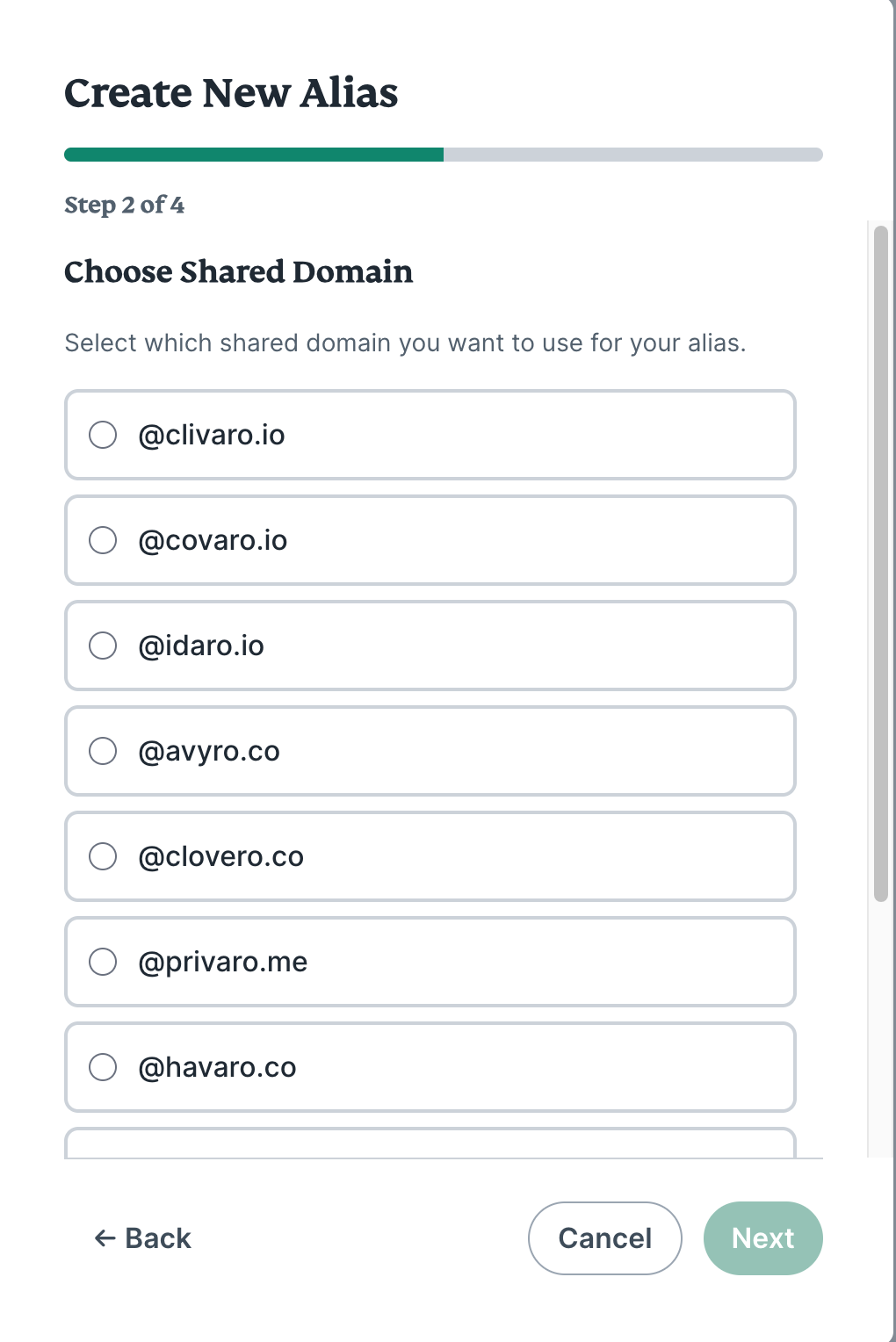
- Select the shared domain you want to use for your alias and click Next.
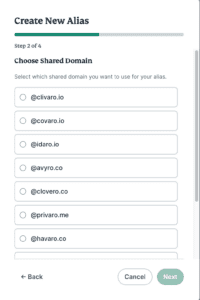

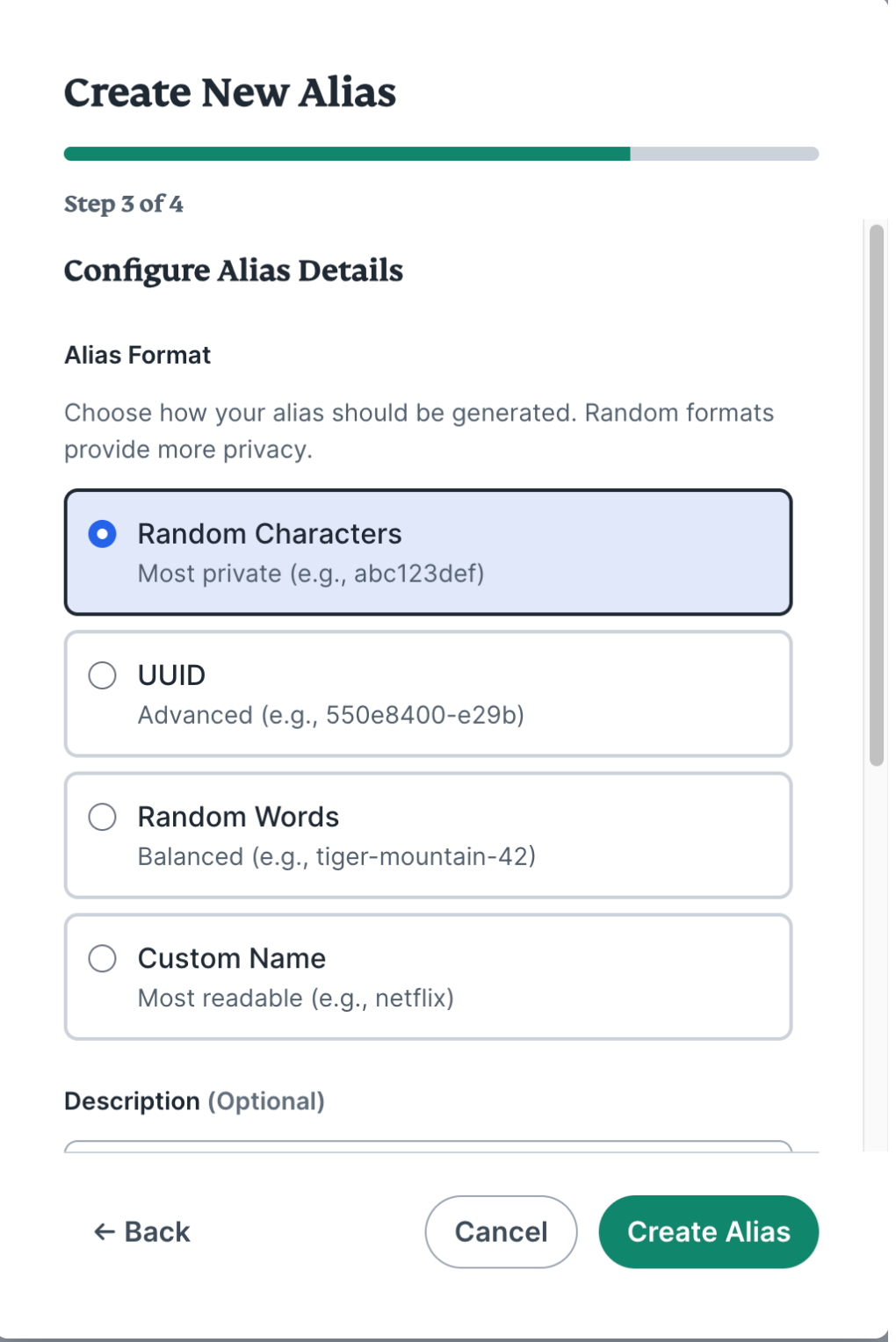
- Choose your alias format:

- Random Characters (most private)
- UUID (Universally unique identifier: offers a great level of privacy)
- Random Words (a good balance between privacy and readability)
- Custom Name (most readable)
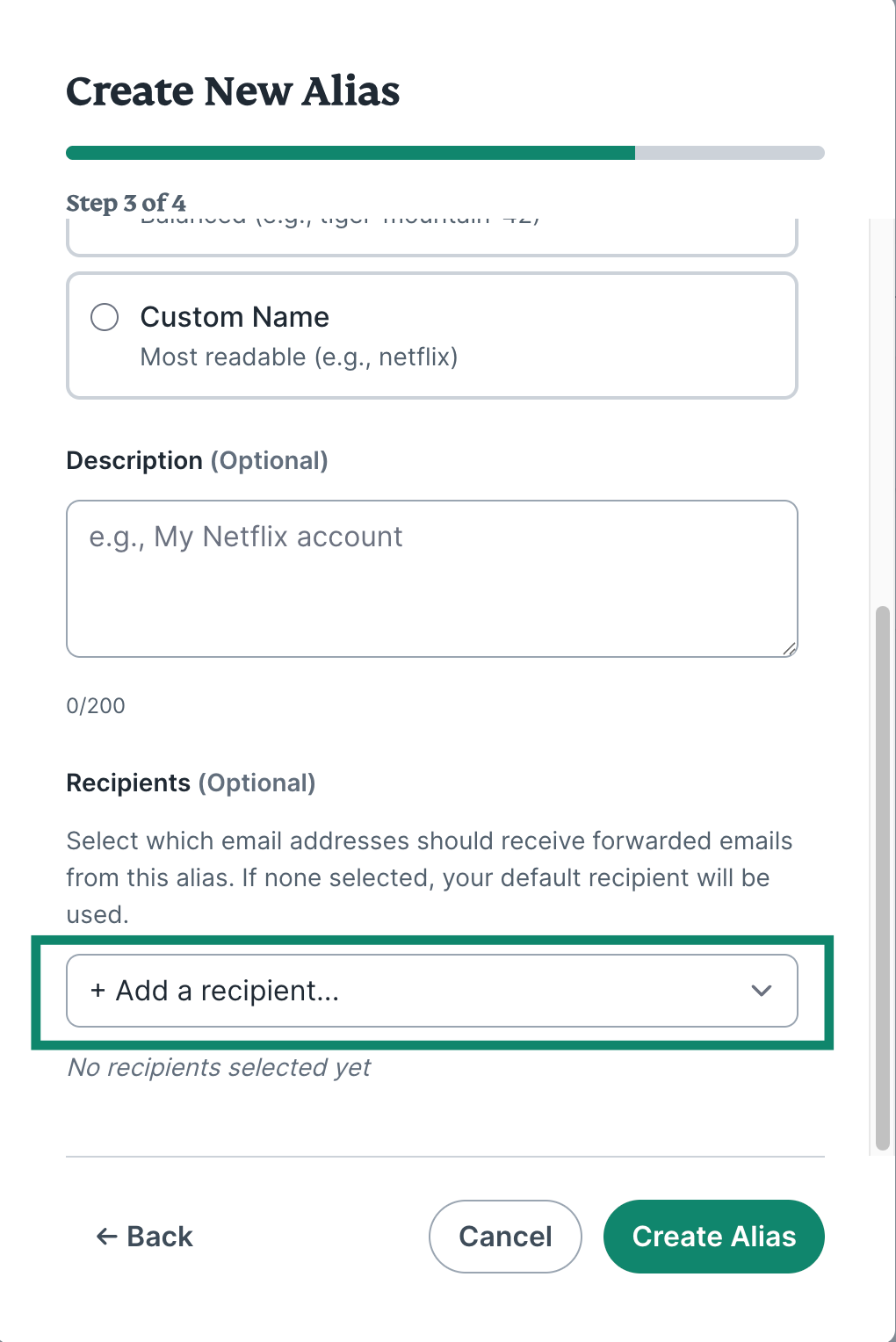
- (Optional) Add a Recipient for your new alias to forward emails to. If none is selected, your default recipient will be used (this will likely be the email address you used when signing in to ExpressMailGuard for the first time).

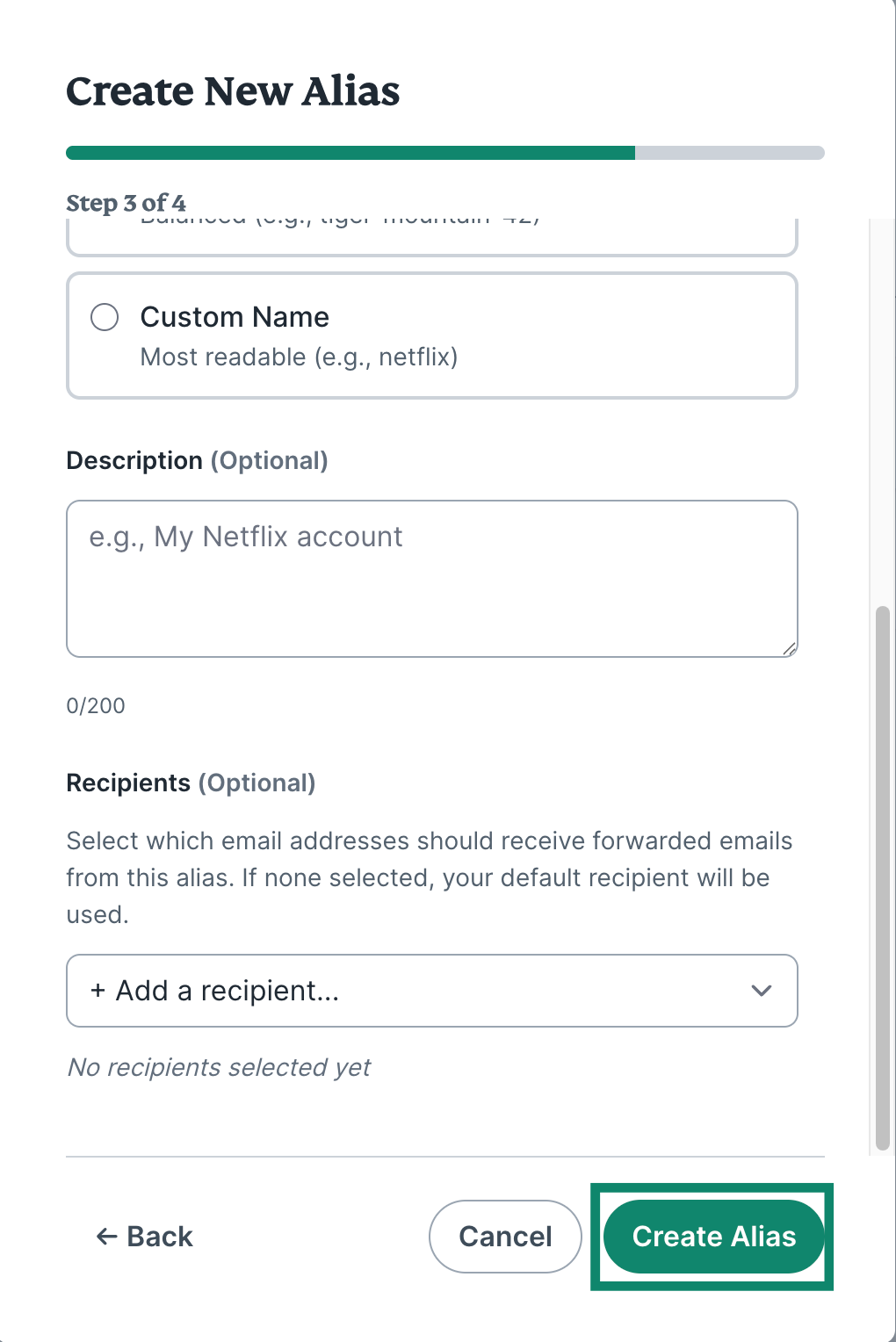
- Click Create Alias.

- You can then copy your new alias to clipboard and click Close.


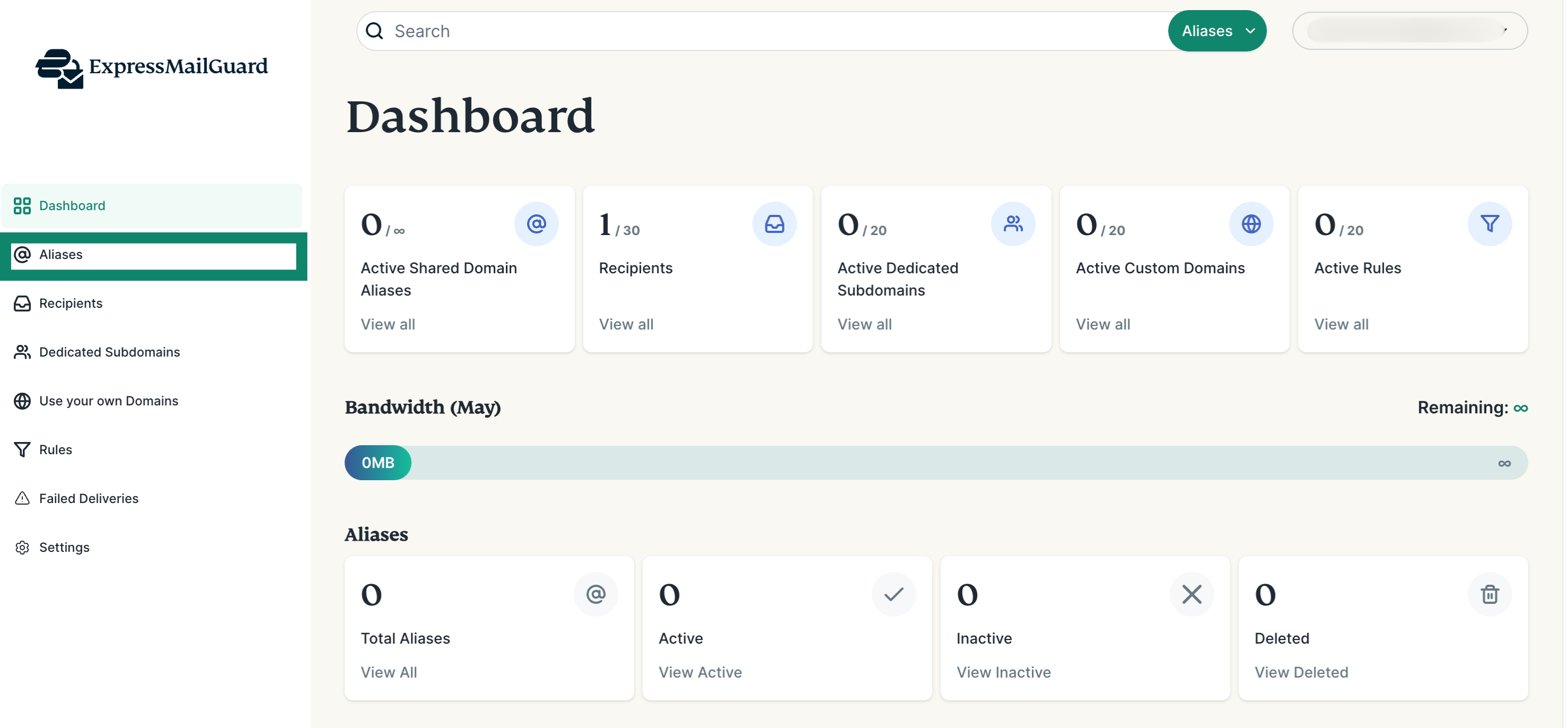
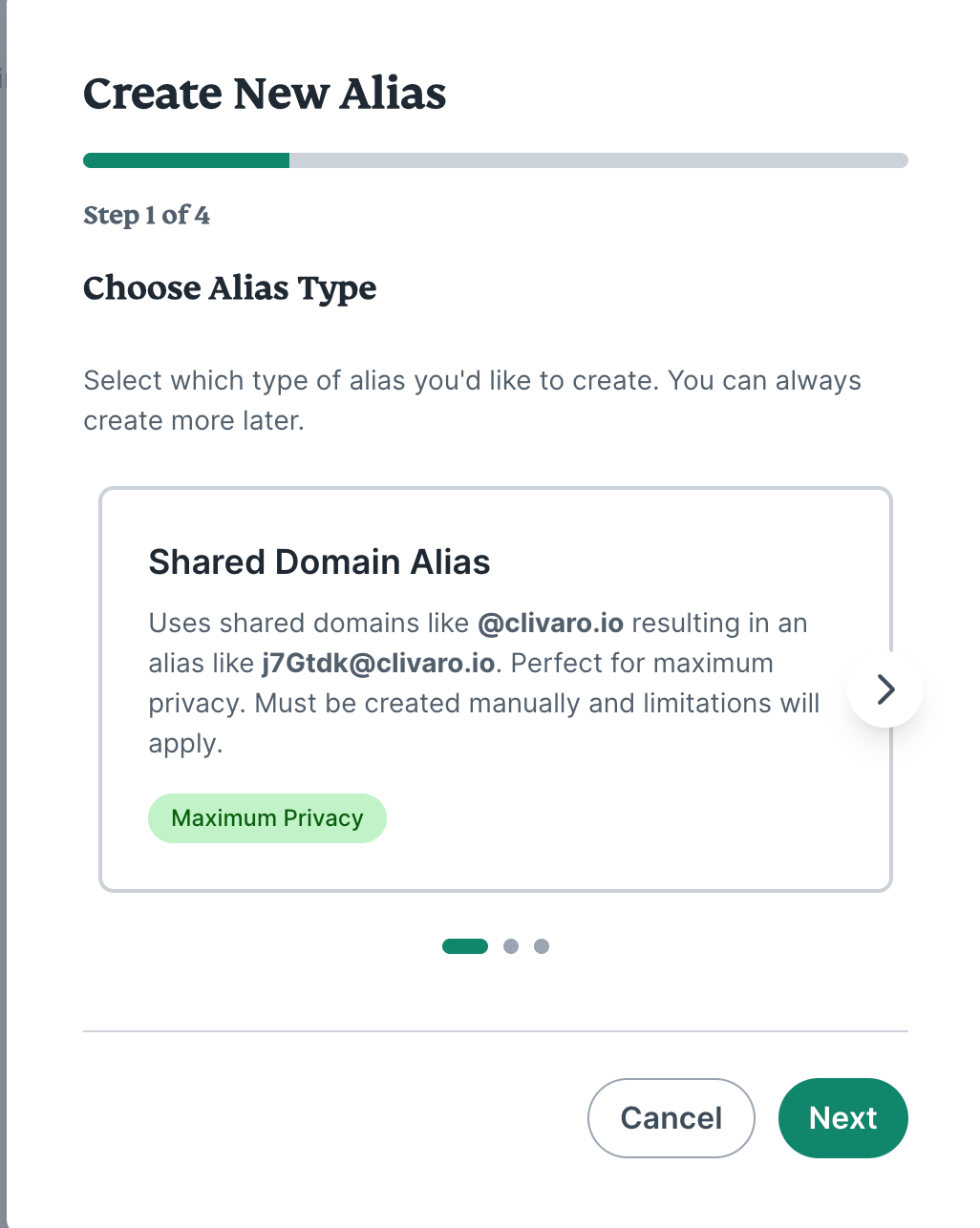
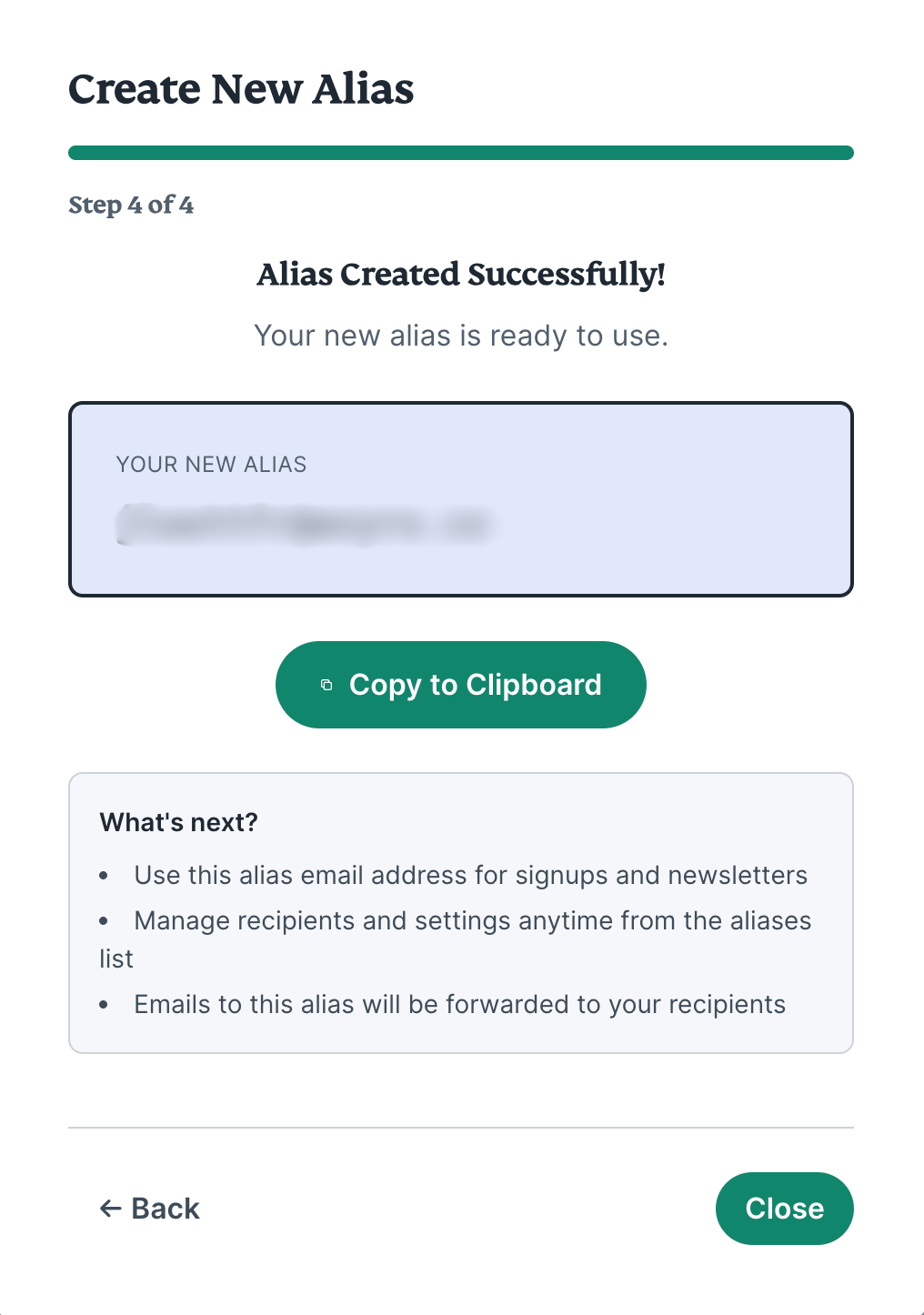
You have successfully created your first alias. You can use this instead of your real email address when signing up for trials, shopping, and newsletters and more to keep your real email hidden and private.
Need help? Contact the ExpressVPN Support Team for immediate assistance.