






Note: You can only use the holiday.com eSIM on eSIM-compatible and carrier-unlocked devices.
ExpressVPN Advanced and Express Pro tiers include a holiday.com embedded SIM (eSIM). The eSIM provides network access like a regular SIM but does not have to be physically inserted into your device. Instead, you only have to download and install it on your phone.
This guide shows you how to redeem the eSIM included with your ExpressVPN Advanced or Express Pro subscription, set up the eSIM on your phone using the holiday.com mobile app, and purchase additional eSIMs through the ExpressVPN+ dashboard.
Jump to…
Redeem your eSIM code from the ExpressVPN+ dashboard
How to set up the holiday.com eSIM
How to purchase a new holiday.com eSIM via ExpressVPN
How to assign a holiday.com eSIM to someone else
How to add data or days to your eSIM
How to redeem the eSIM included with your ExpressVPN subscription
If your subscription includes a holiday.com eSIM, you will receive an eSIM coupon code in your ExpressVPN+ dashboard, where you can redeem it.
Note: If you’re using a free trial, the eSIM coupon will appear when the paid subscription begins, after the free trial ends.
Redeem your eSIM code from the ExpressVPN+ dashboard
- Sign into your ExpressVPN account.
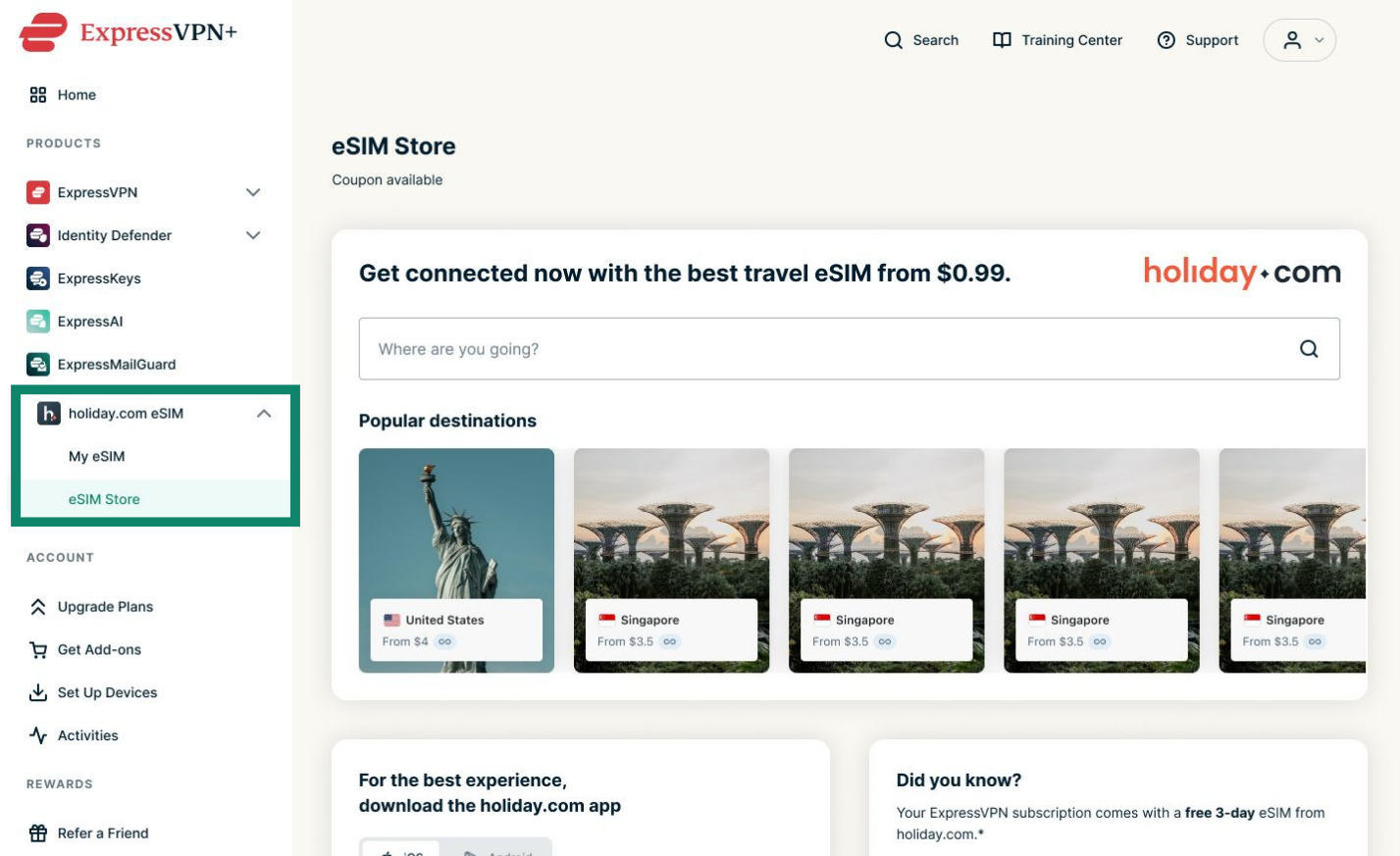
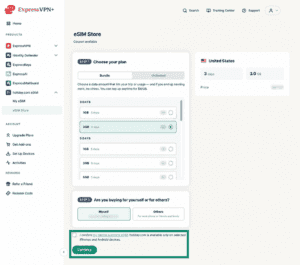
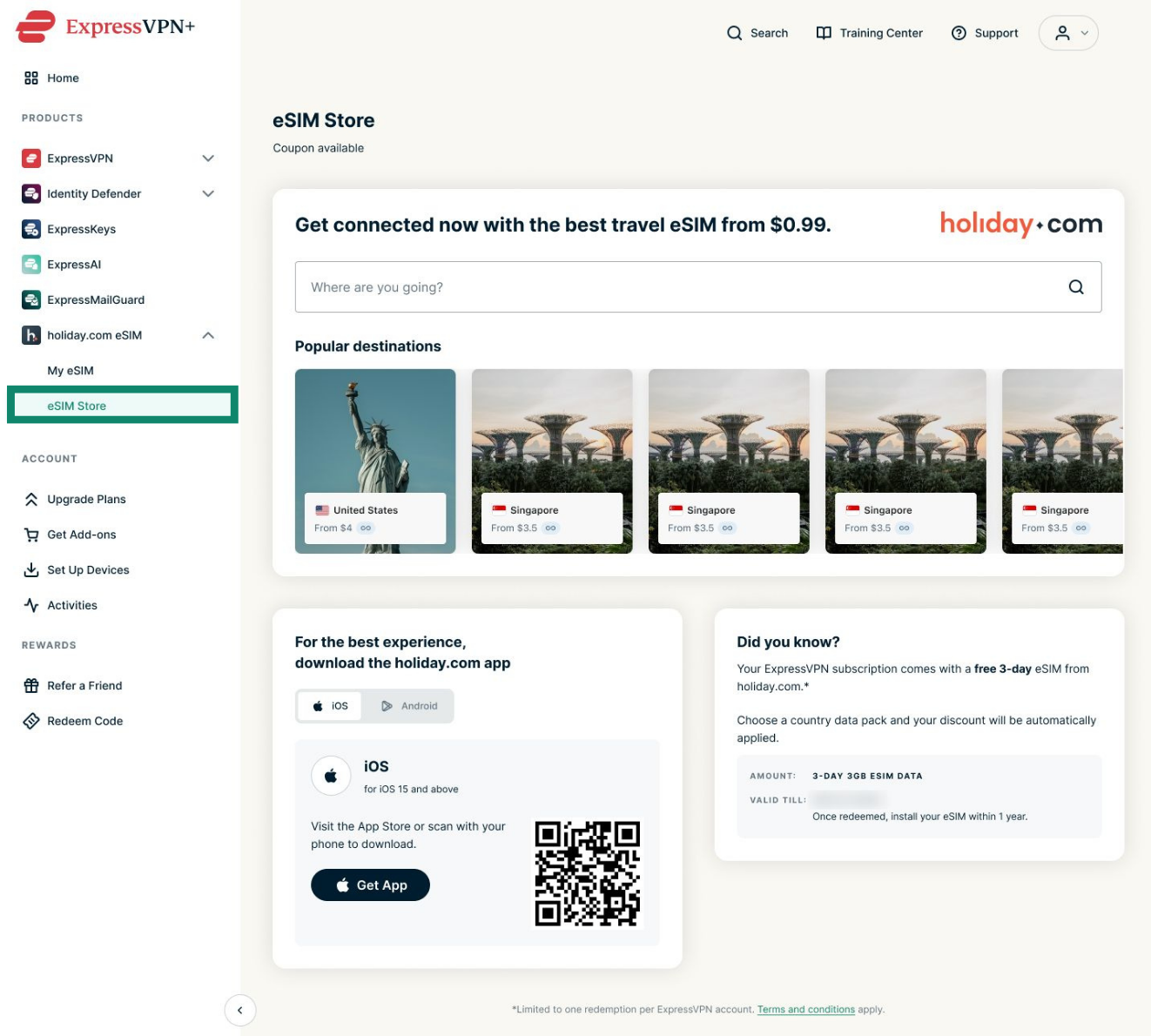
- Navigate to holiday.com eSIM > eSIM Store.
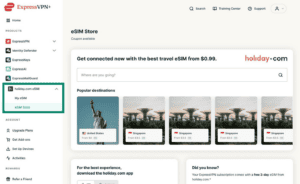

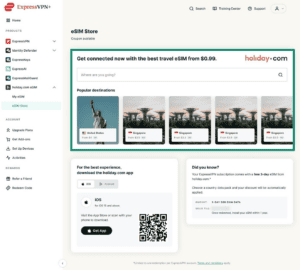
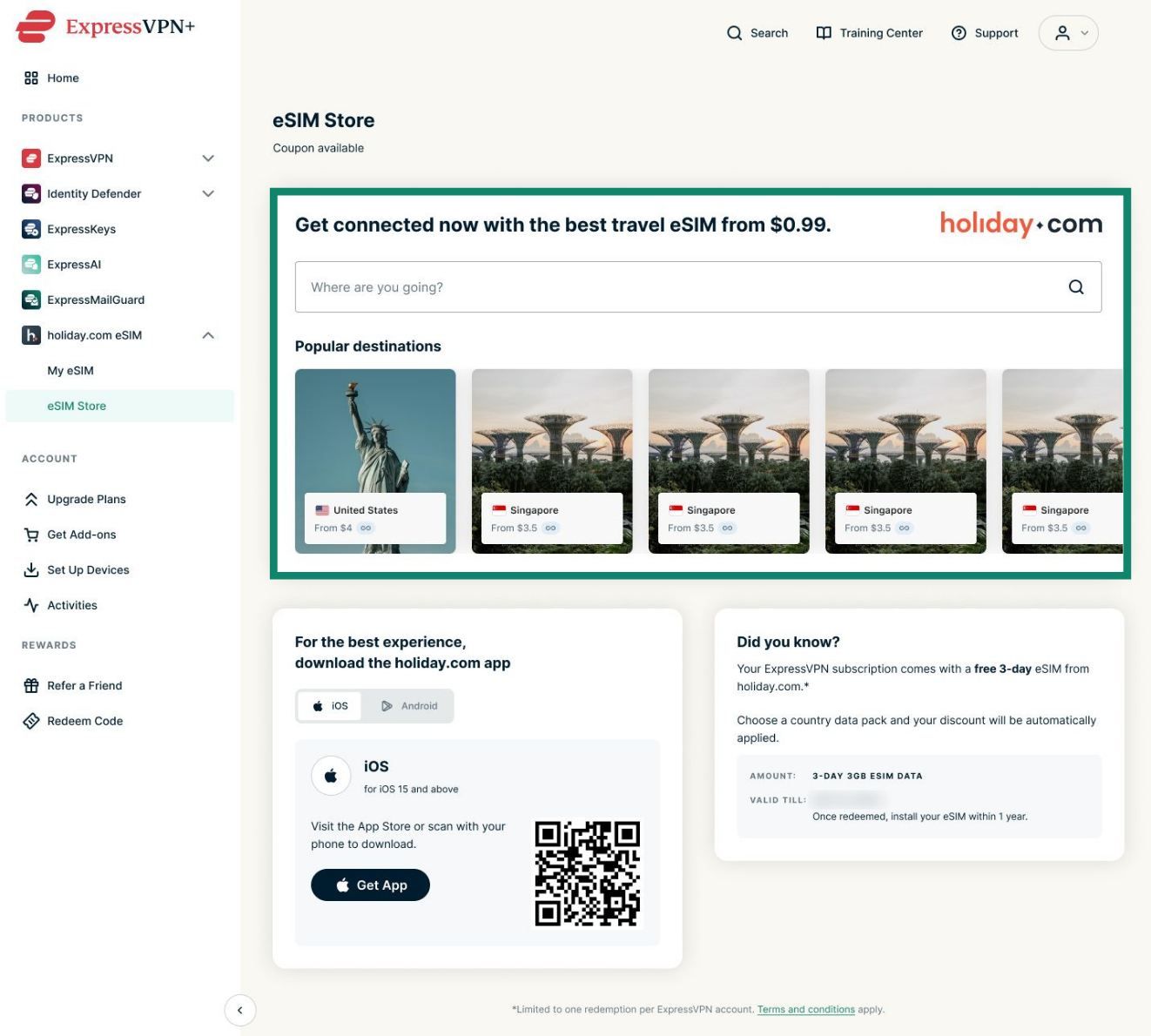
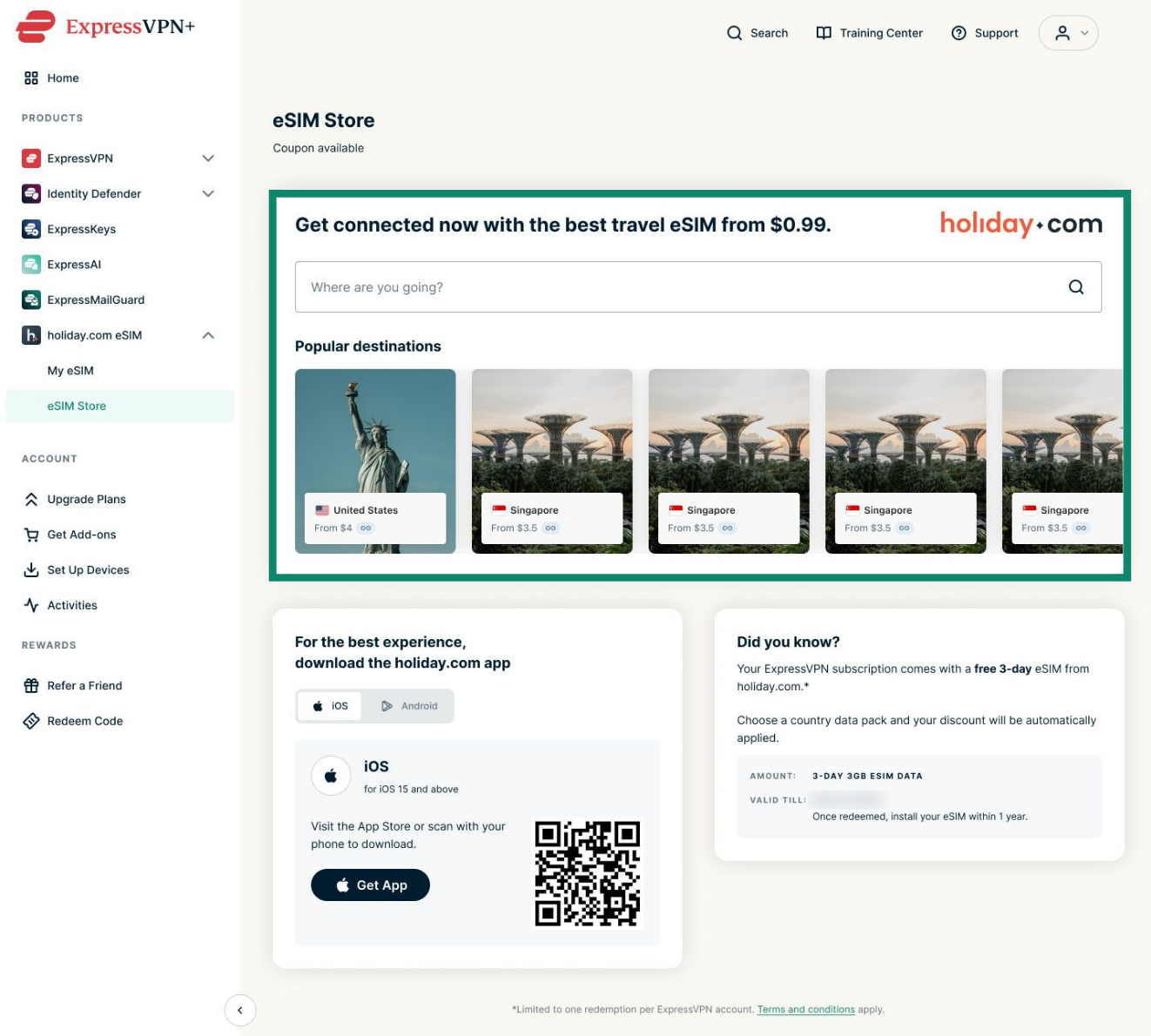
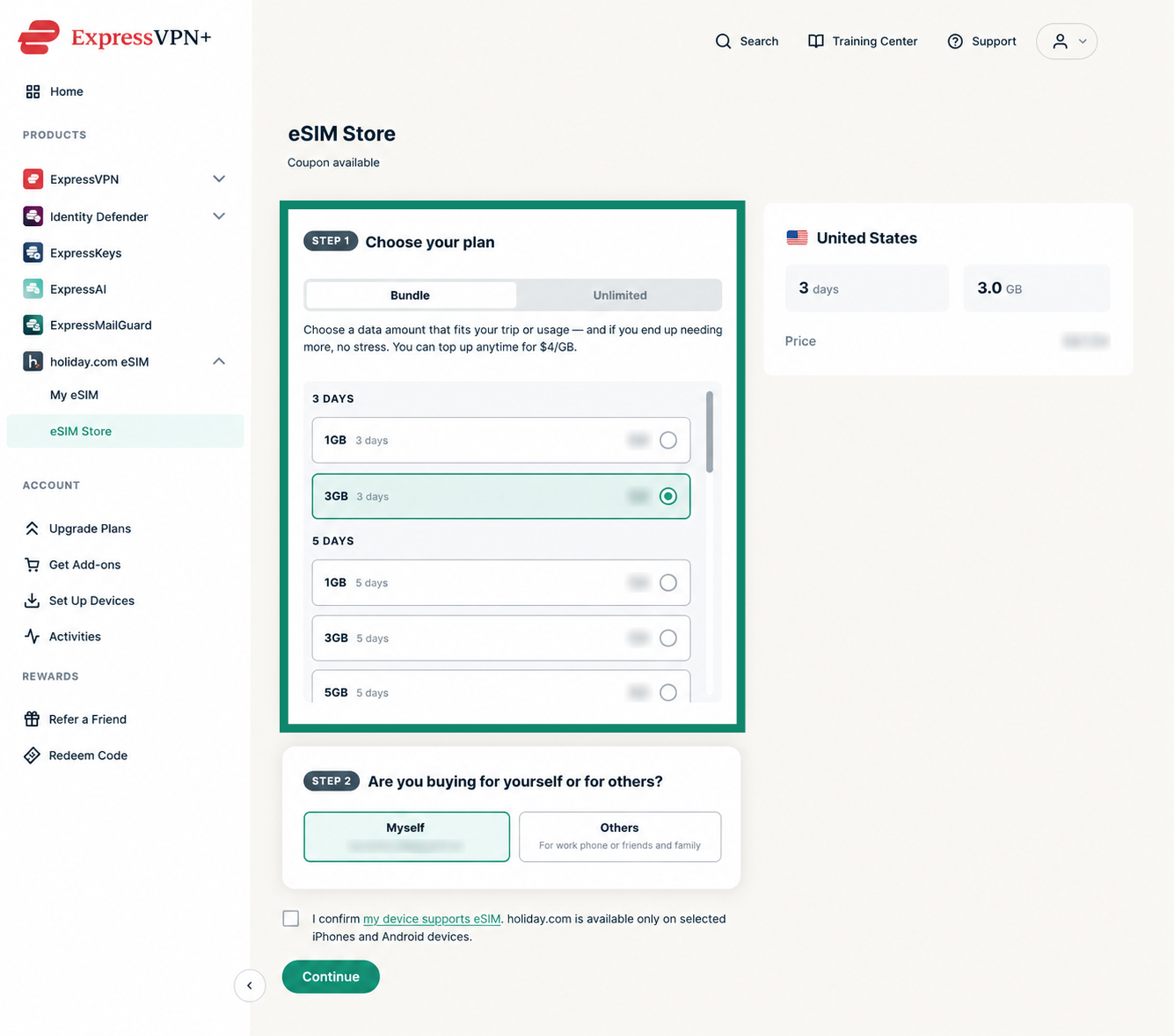
- From here, select your desired destination.

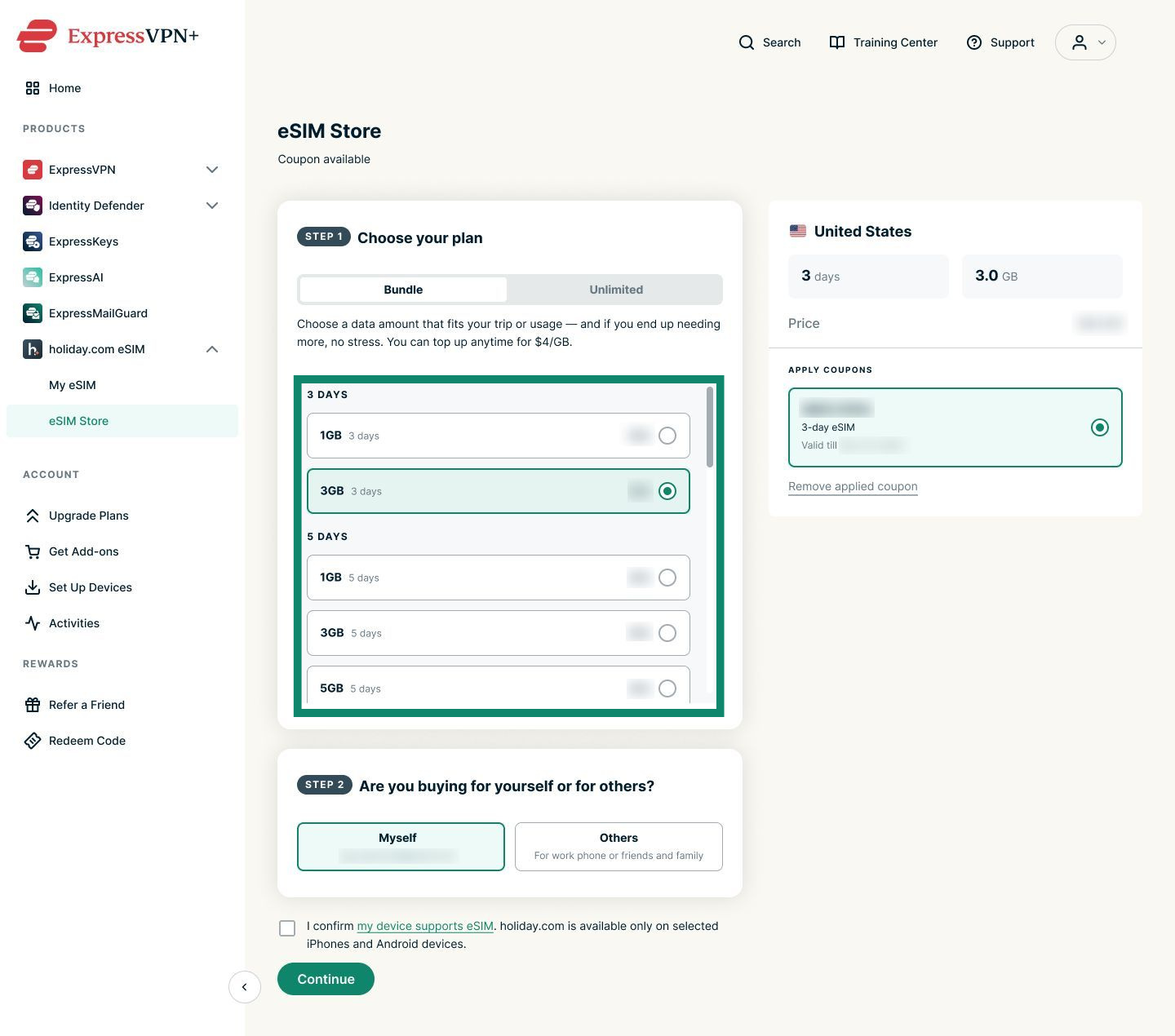
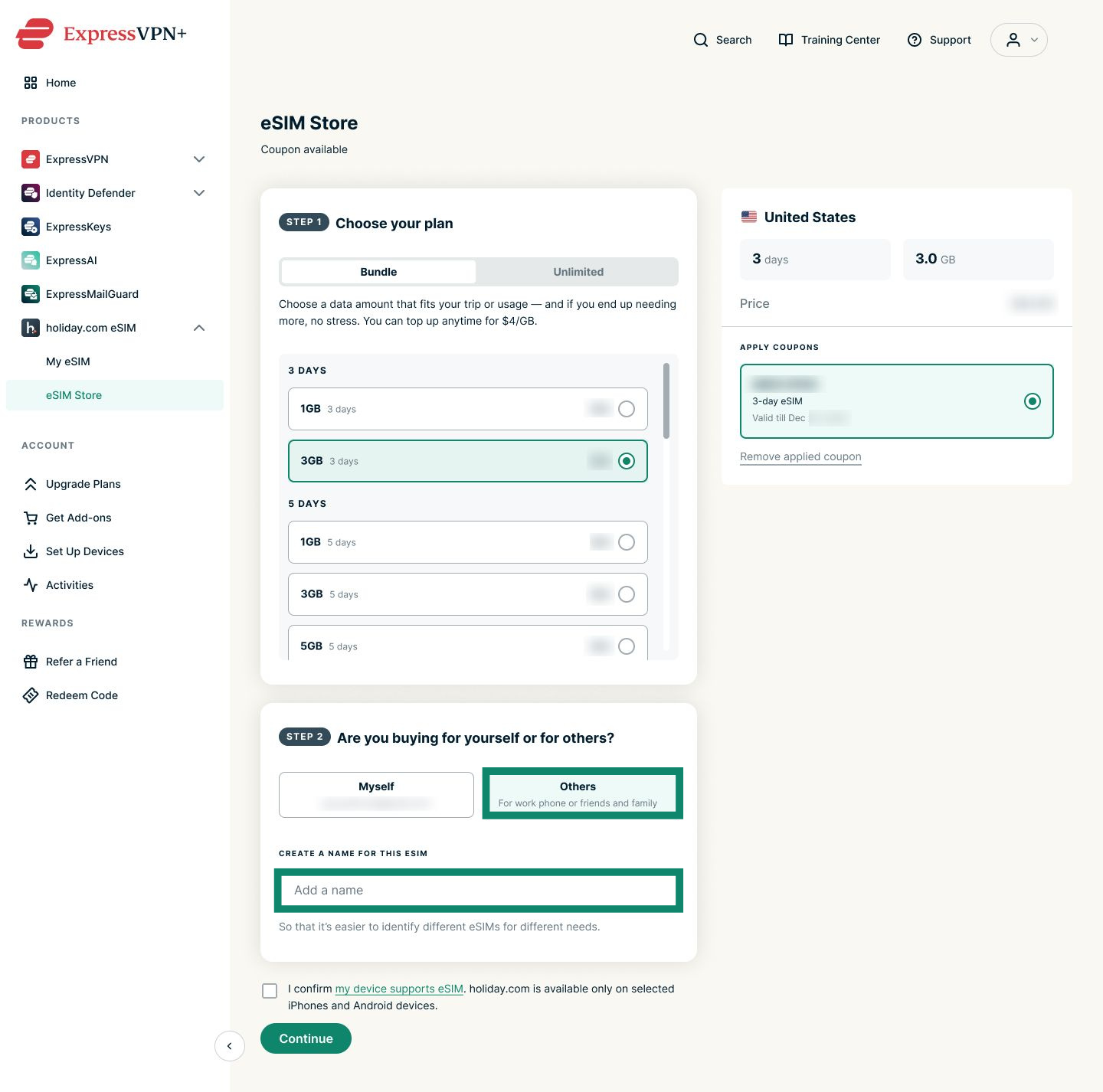
- Choose a Bundle equal to or lower than the value of the coupon you received with your plan. Advanced users receive a 3-day 3GB eSIM coupon, and Express Pro users receive a 5-day 3GB eSIM coupon. Note that the coupon is single use; remaining days are lost if you select a bundle lower than the value of your coupon.
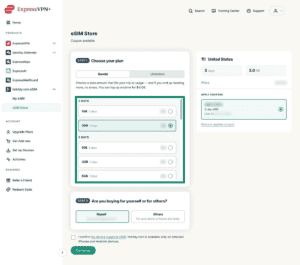
 Note: You can extend your eSIM plan later by adding more data or days.
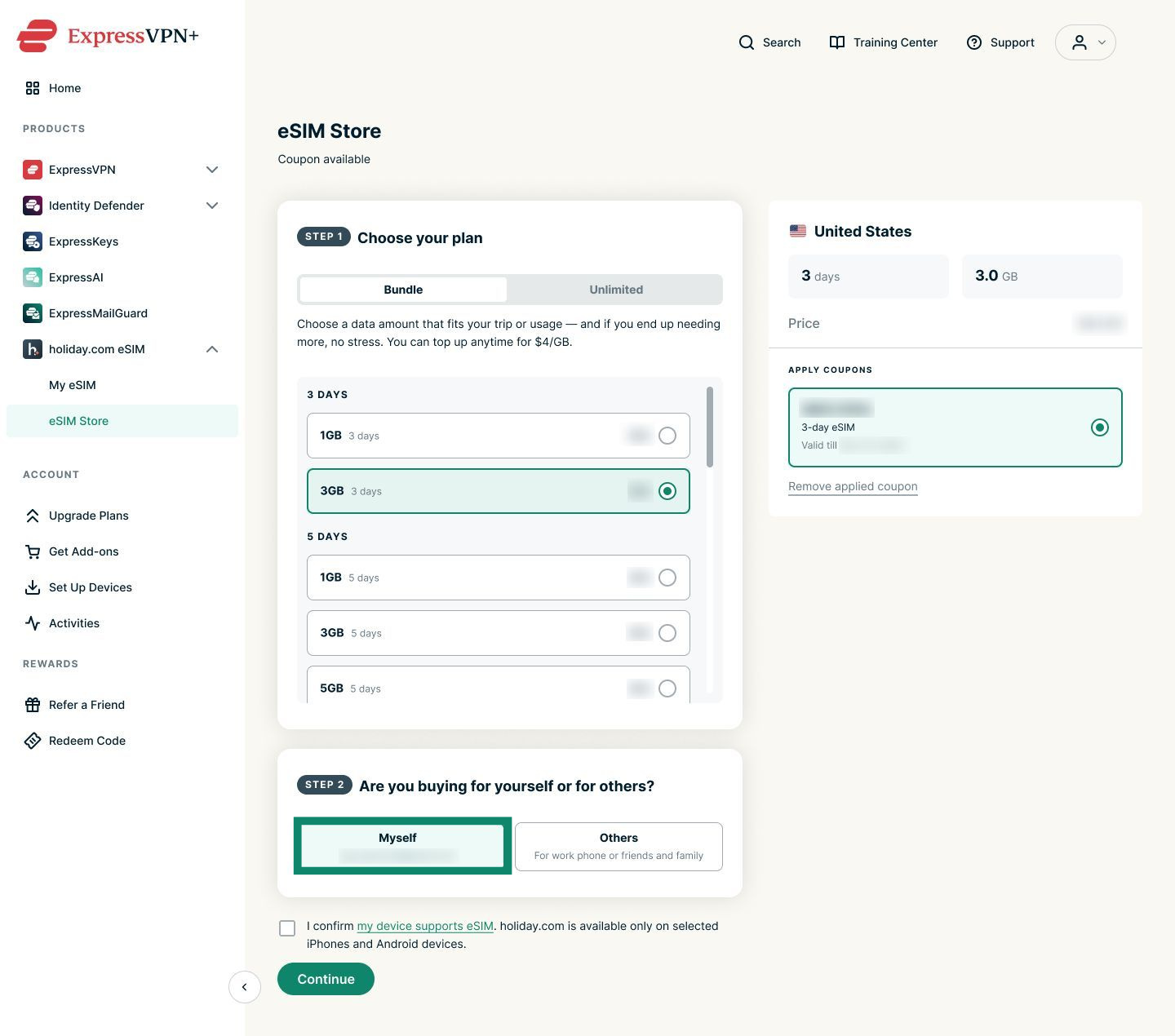
 - Next, choose one of the following options:
- Myself: If you are buying the eSIM for yourself.
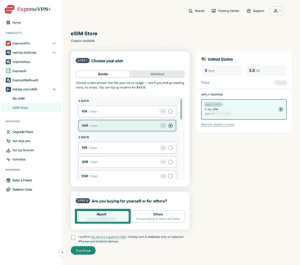
- Others: If you are assigning the eSIM to someone else or a second device like a work phone. You will also have to name the eSIM.
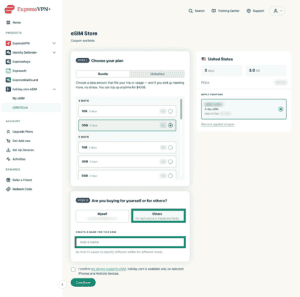

- Myself: If you are buying the eSIM for yourself.
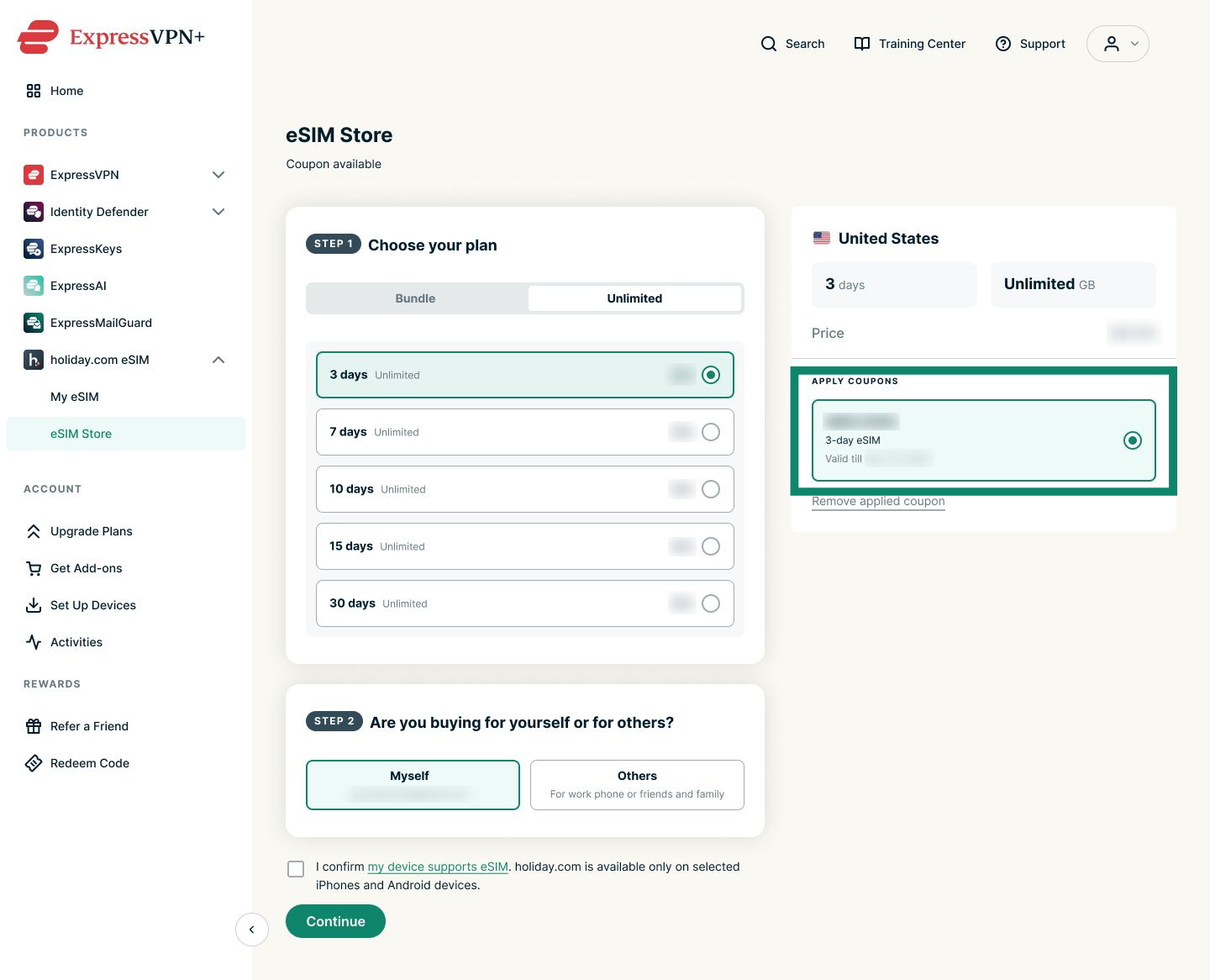
- Make sure the eSIM coupon under APPLY COUPONS is selected.
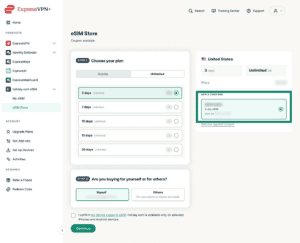

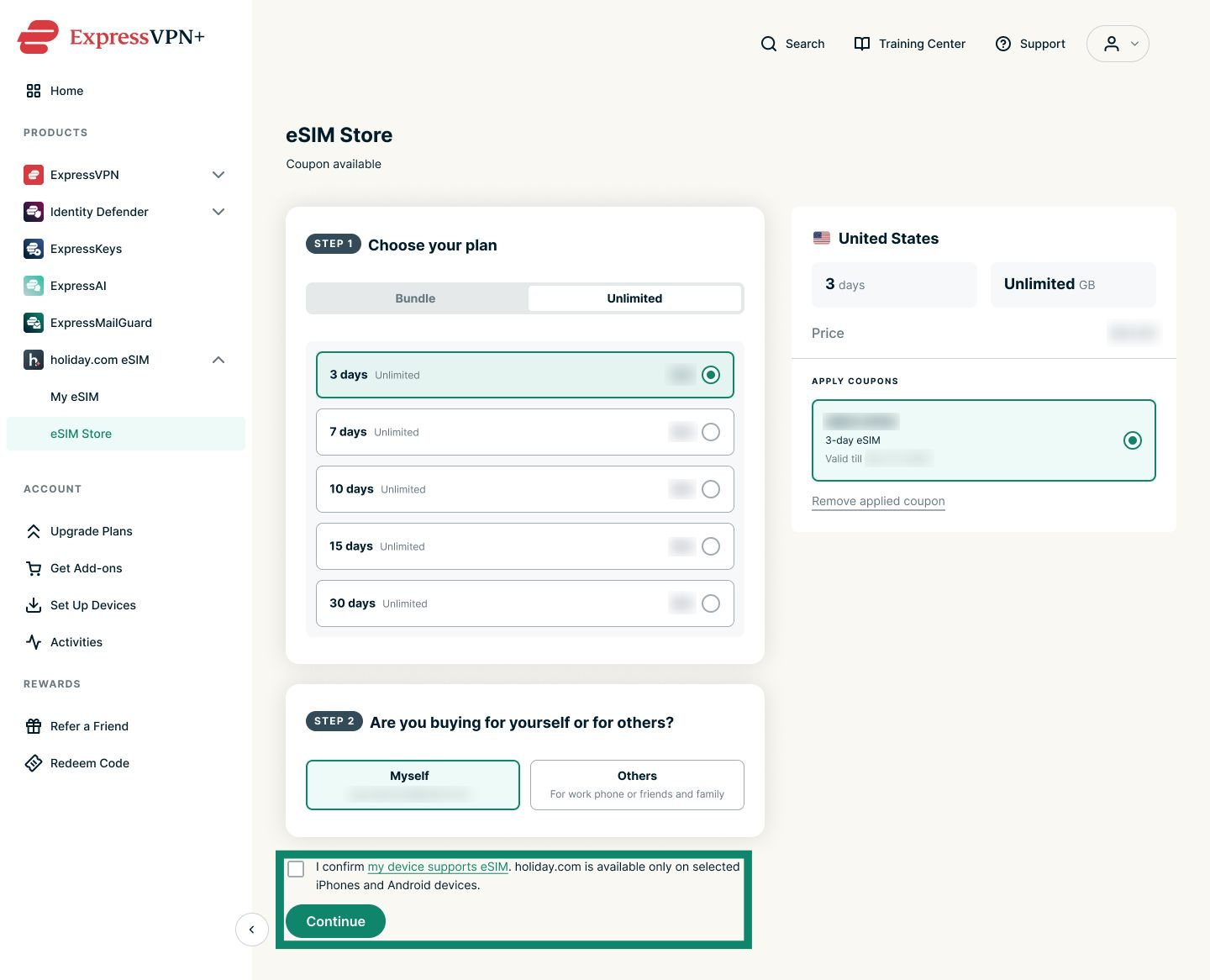
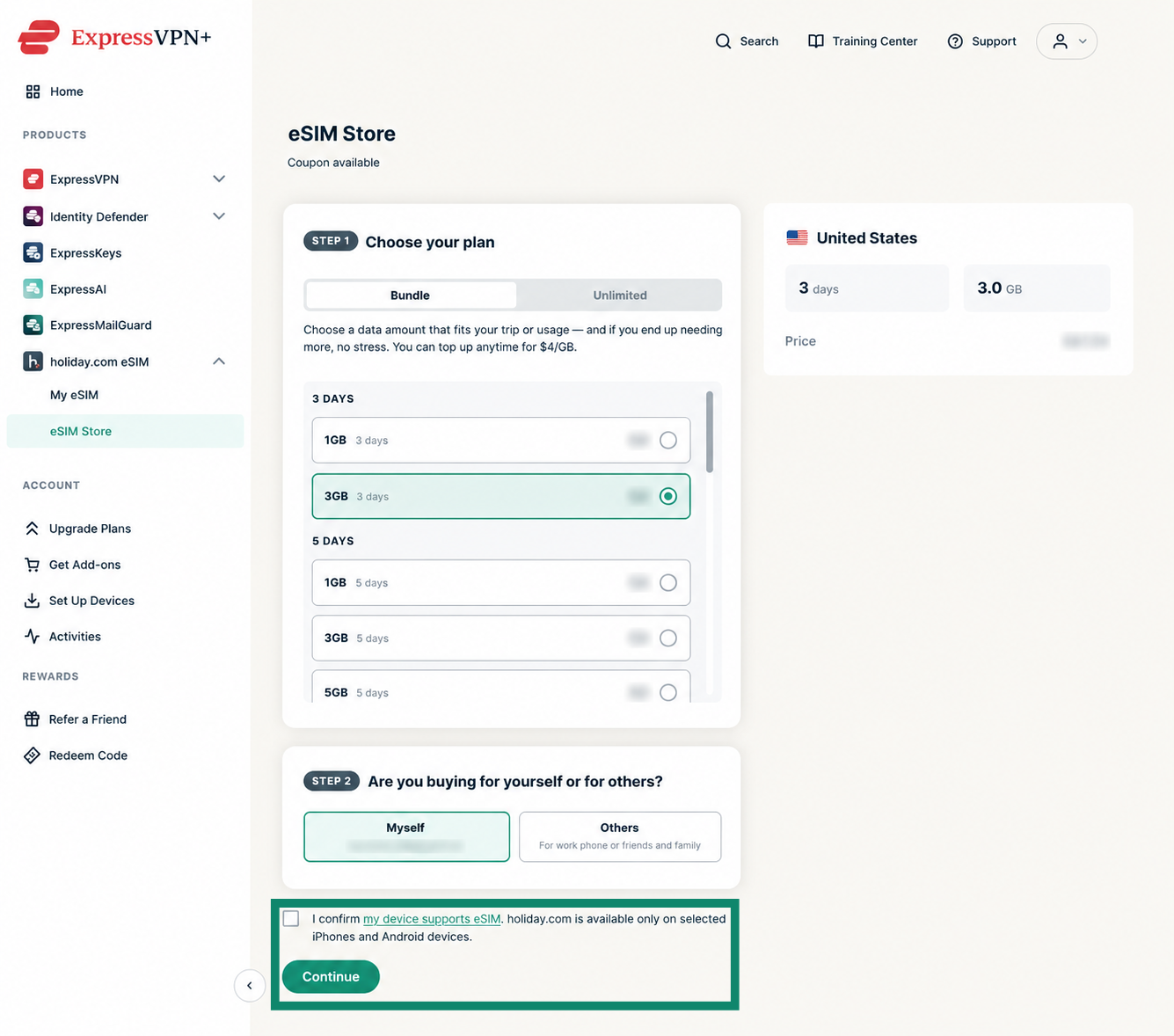
- Confirm your device supports eSIMs, then click Continue.

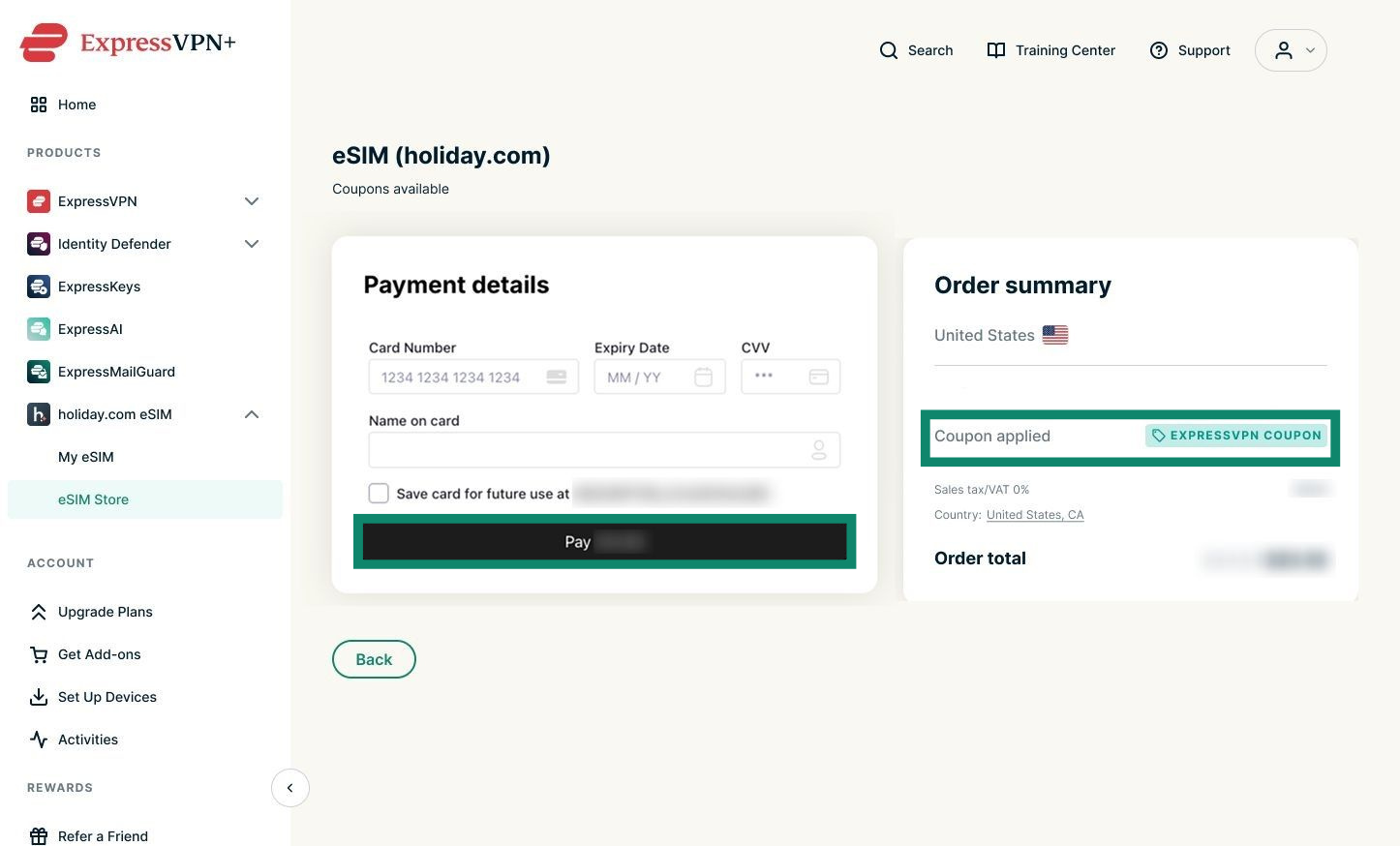
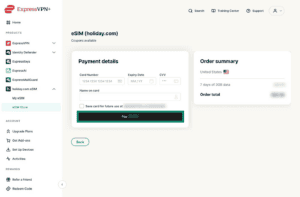
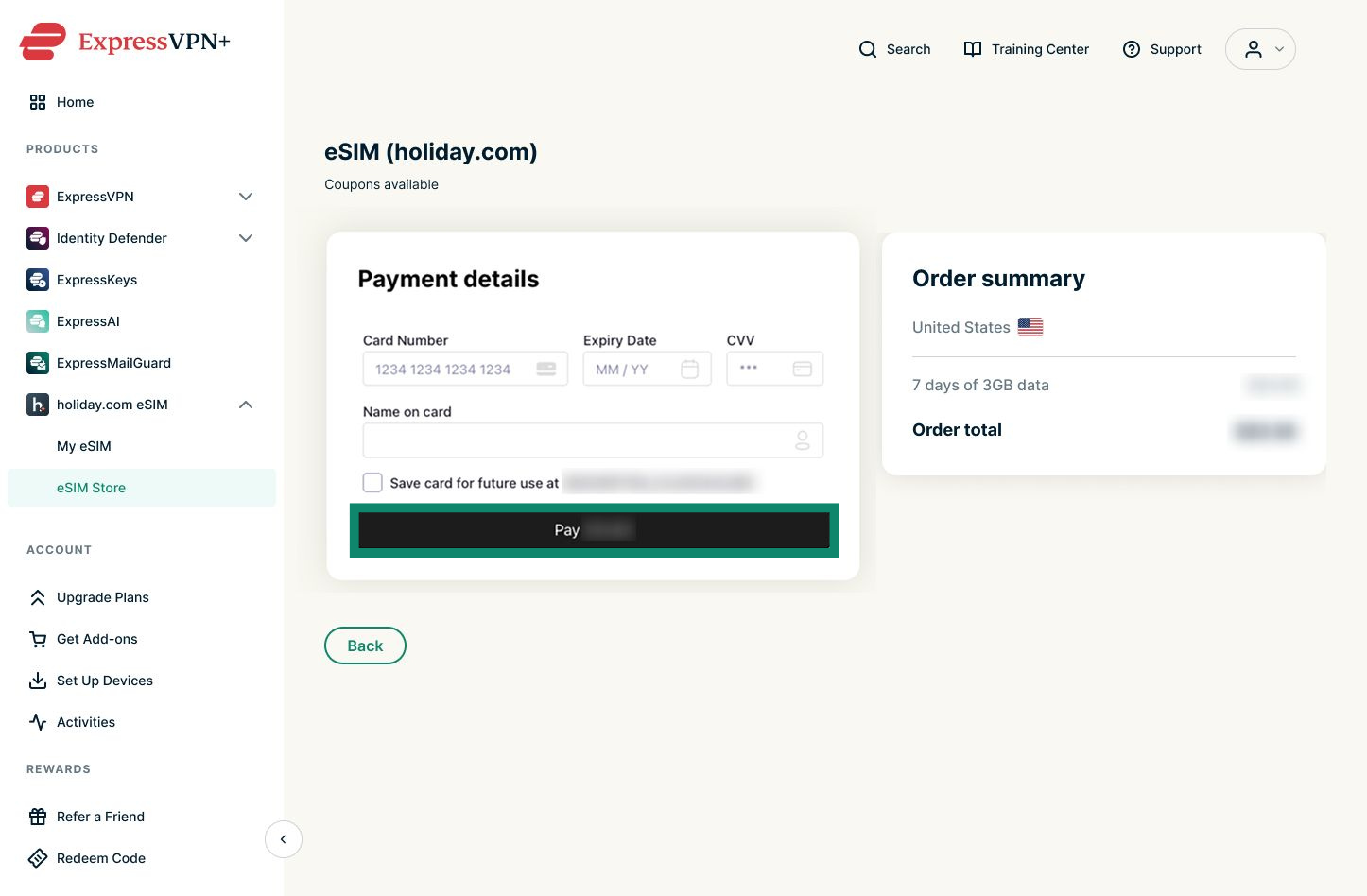
- To confirm you have redeemed the coupon, look for the Coupon applied field below Order summary. If prompted to cover any outstanding balance, enter your payment details and click Pay.
Note: If your coupon covers the entire balance, you will not need to enter any payment information.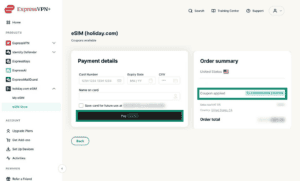

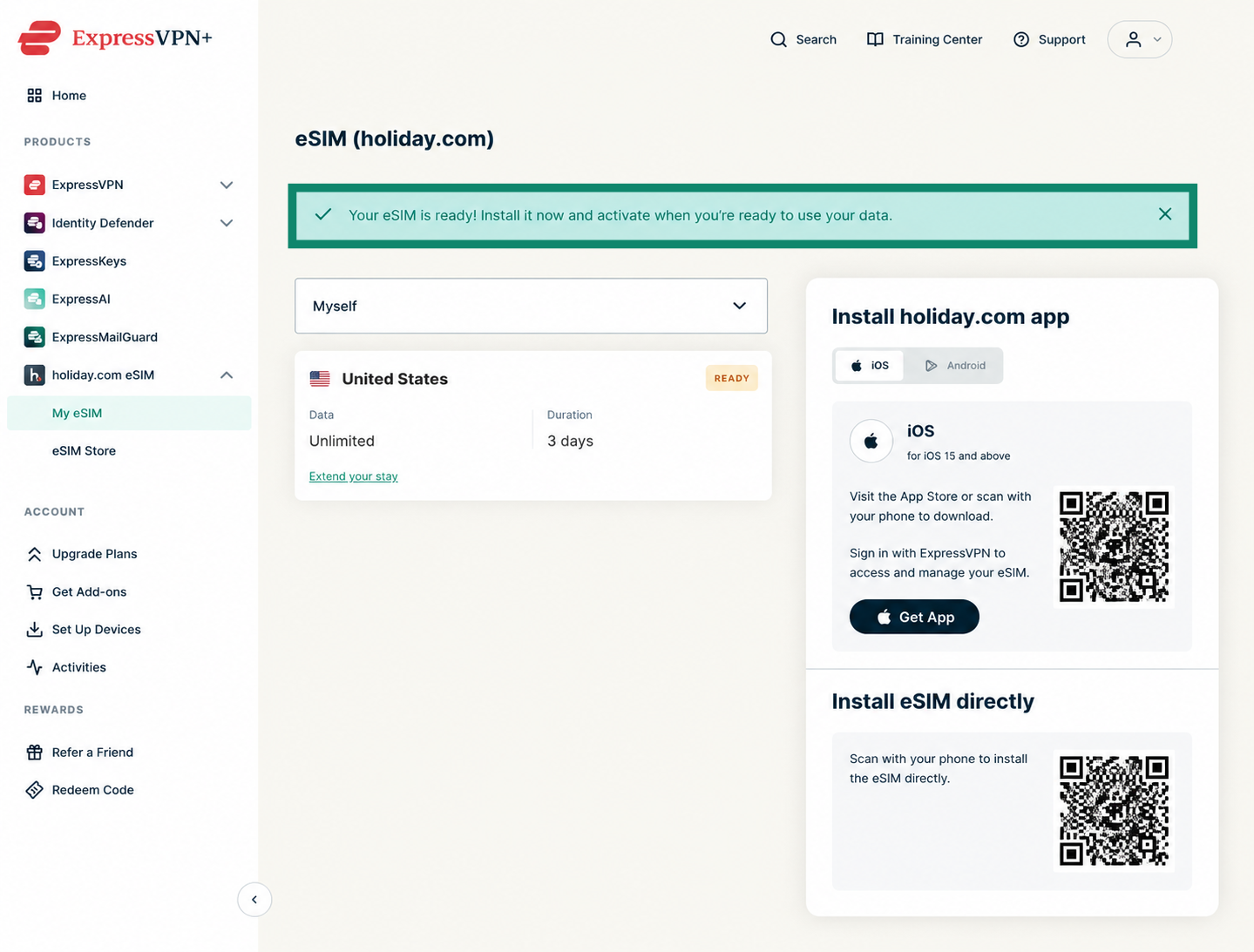
- Once the purchase is successful, you will see a message saying the eSIM is ready.
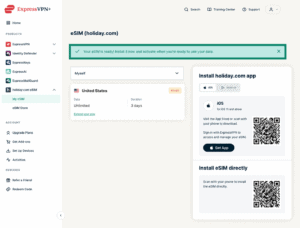

Need help? Contact the ExpressVPN Support Team for immediate assistance.
How to set up the holiday.com eSIM
After you redeem the holiday.com eSIM included with your ExpressVPN subscription, you’ll need to set it up using the holiday.com mobile app. The setup process via the holiday.com mobile app is the same on Android and iOS.
To set up the holiday.com eSIM on your device:
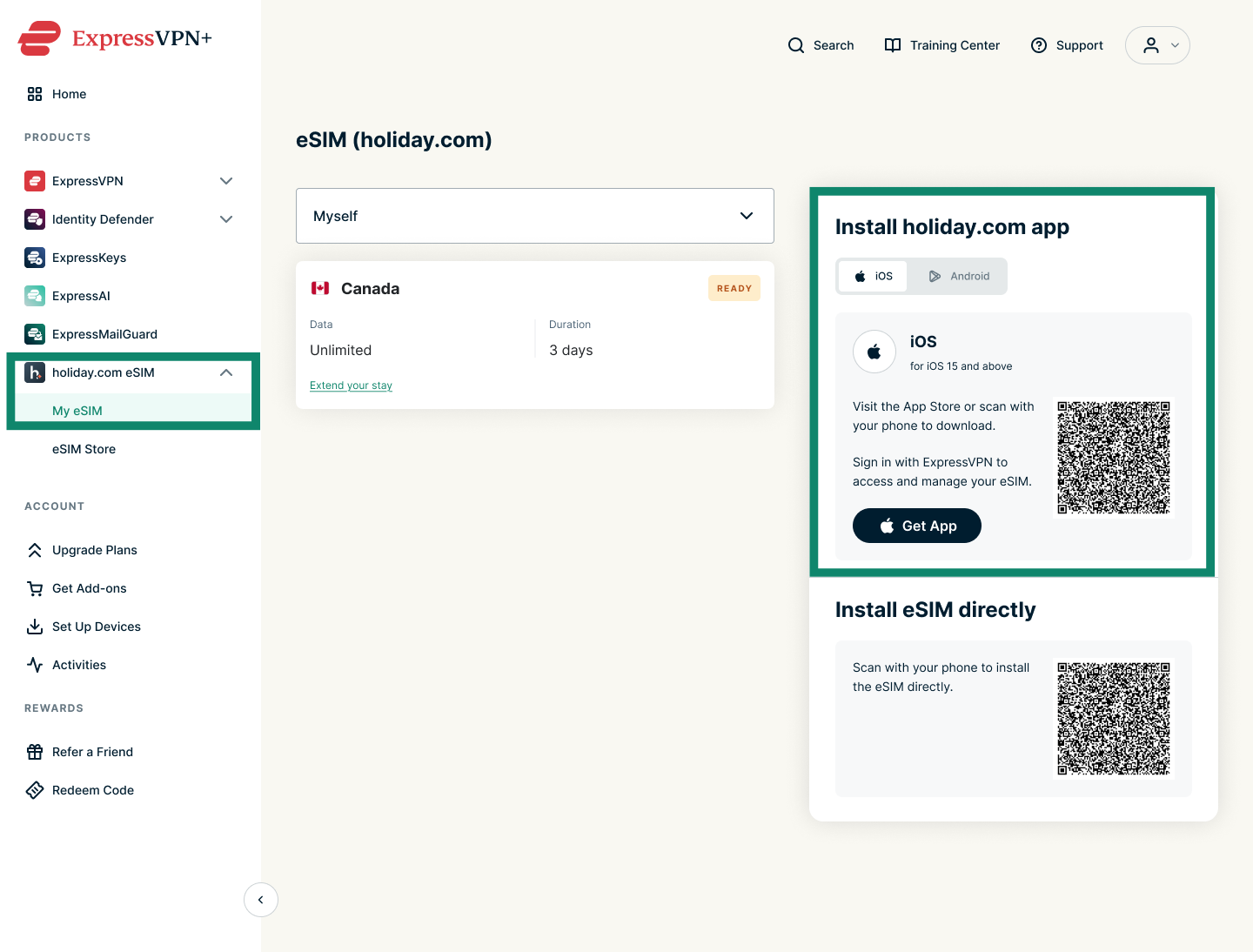
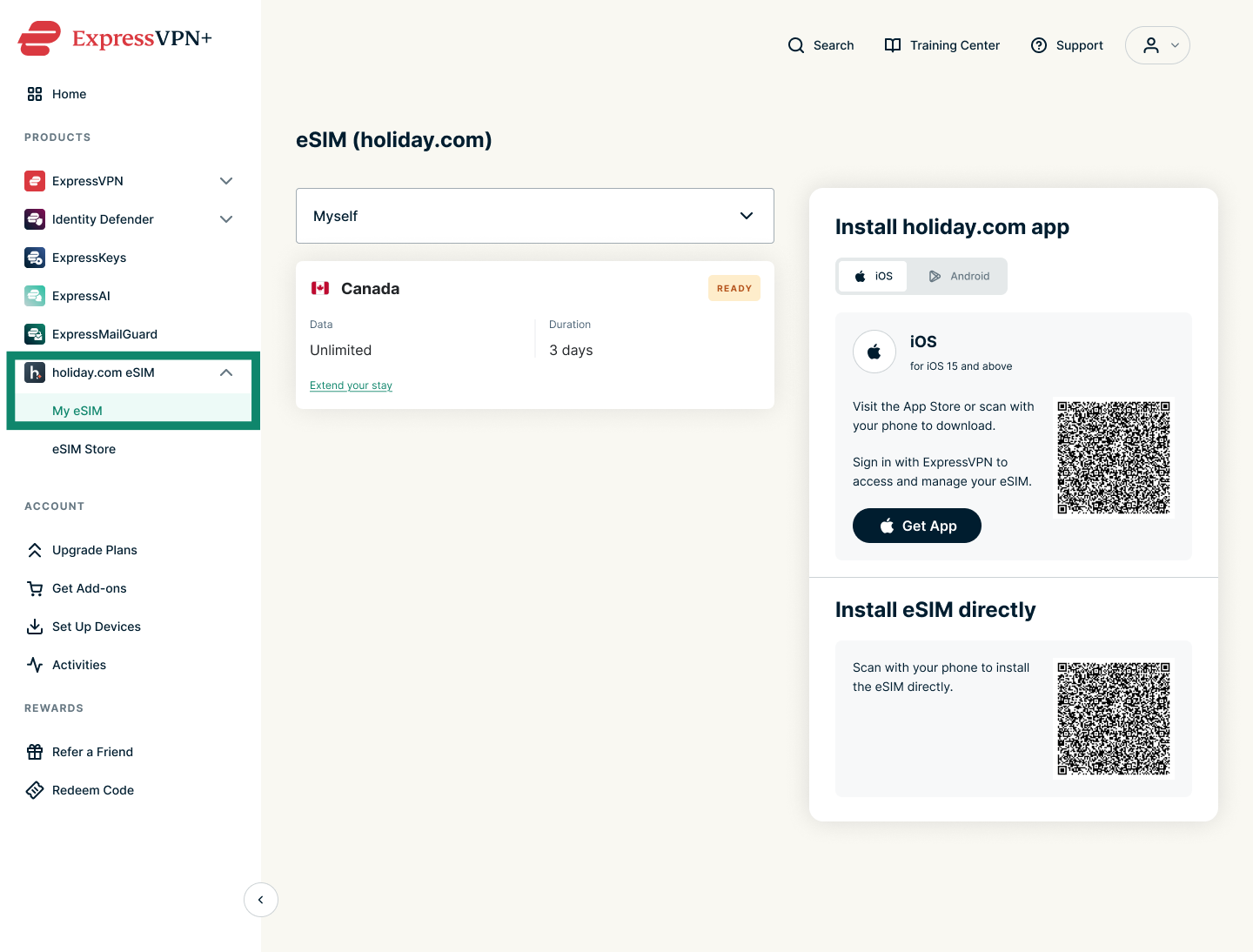
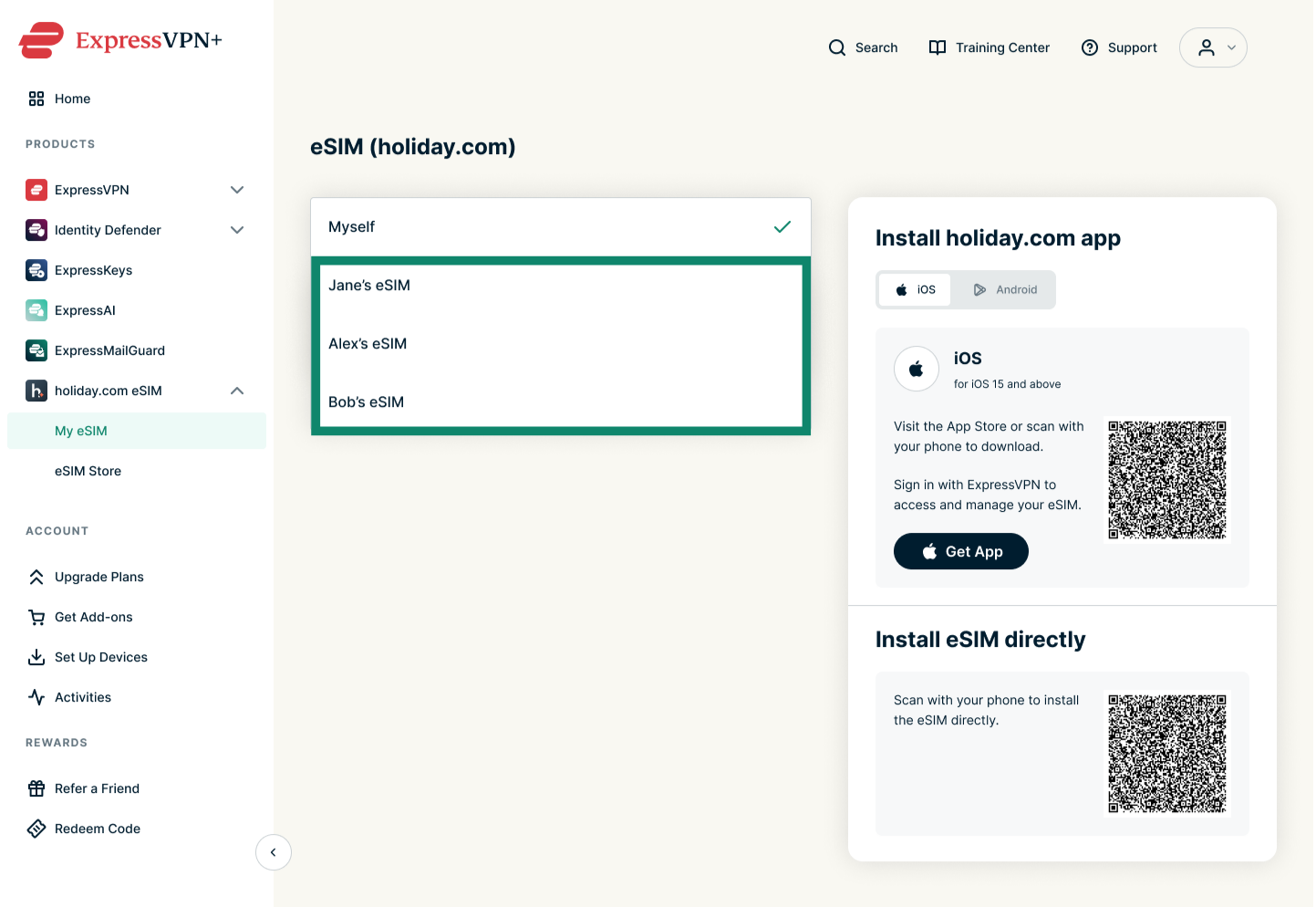
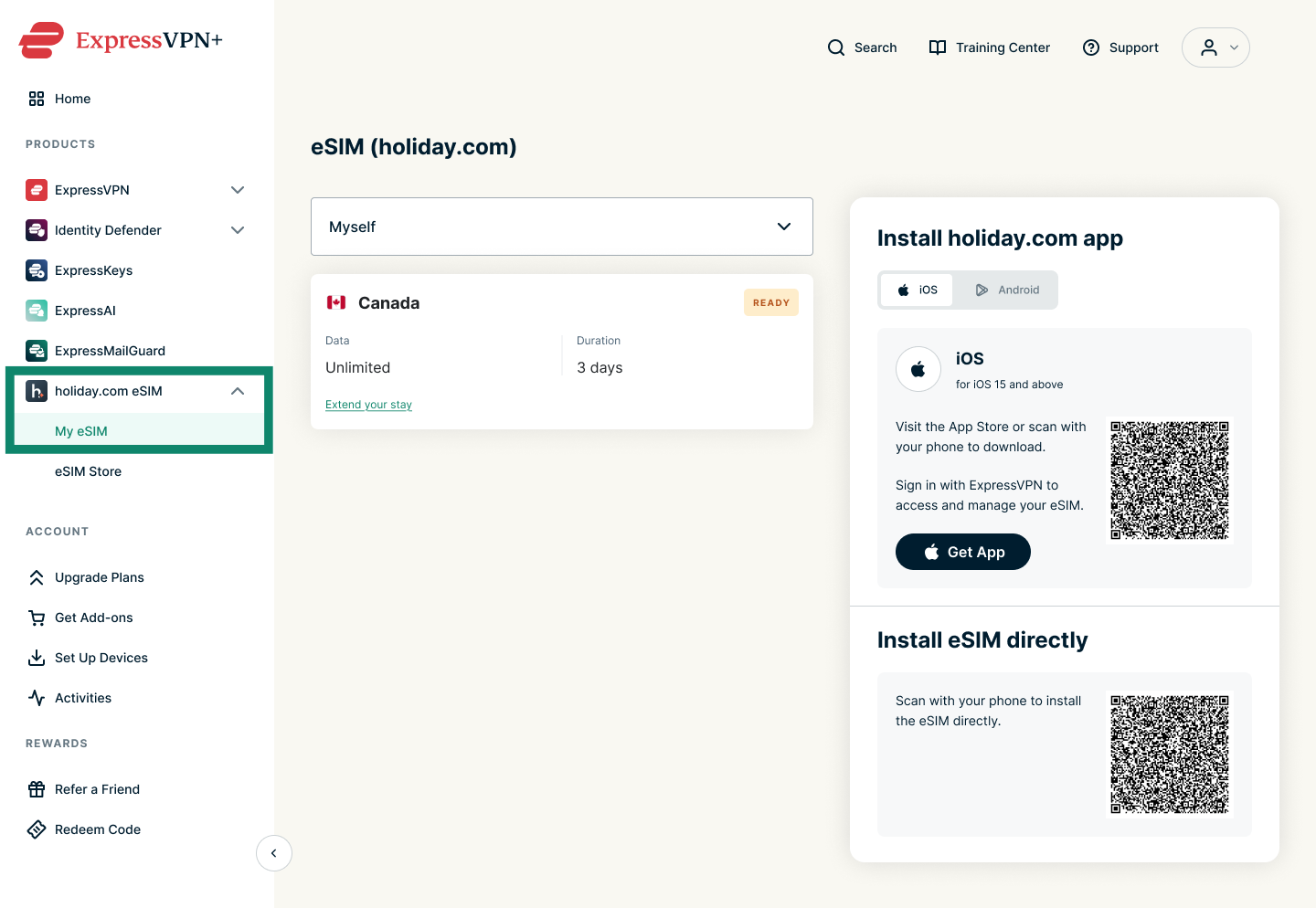
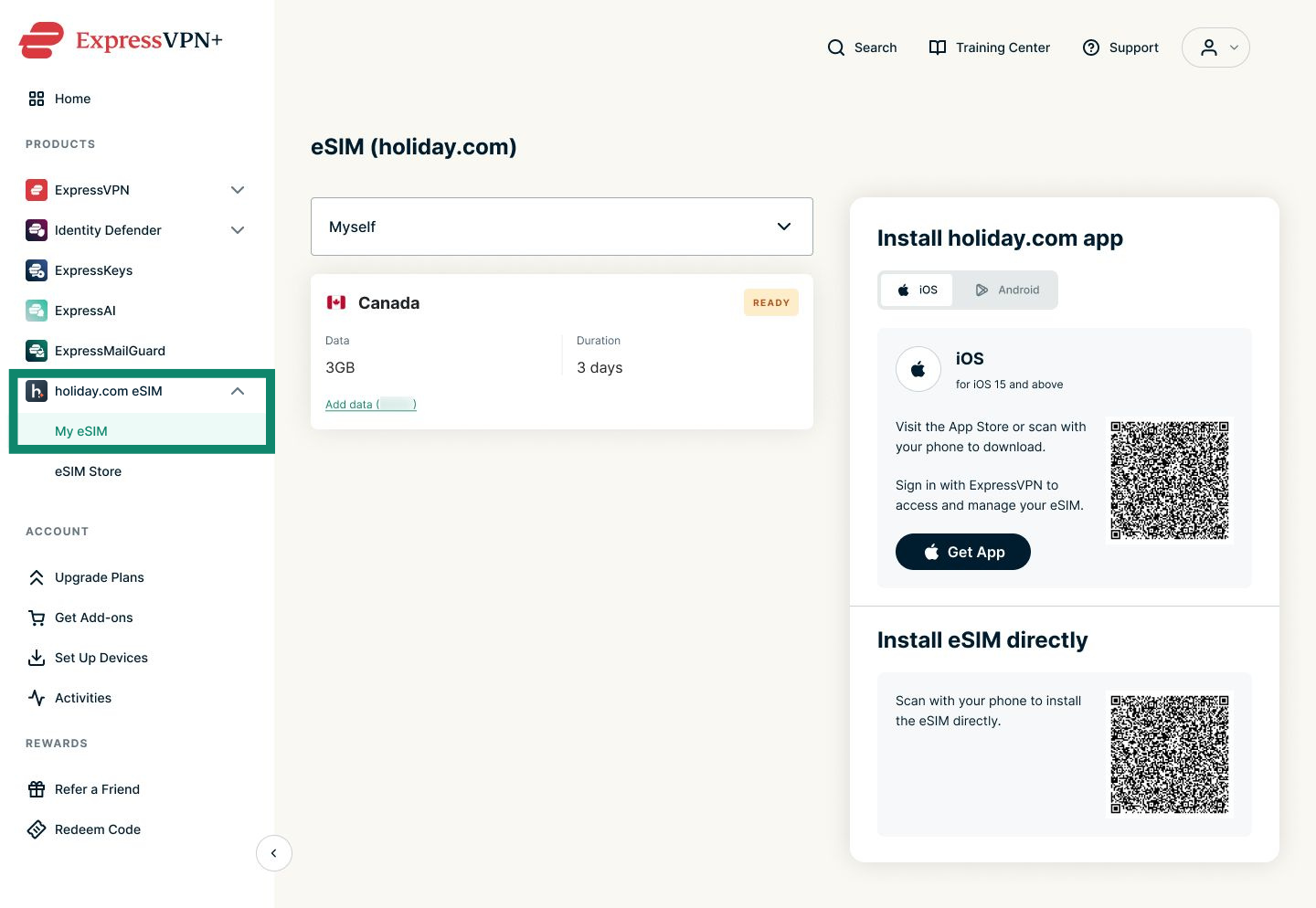
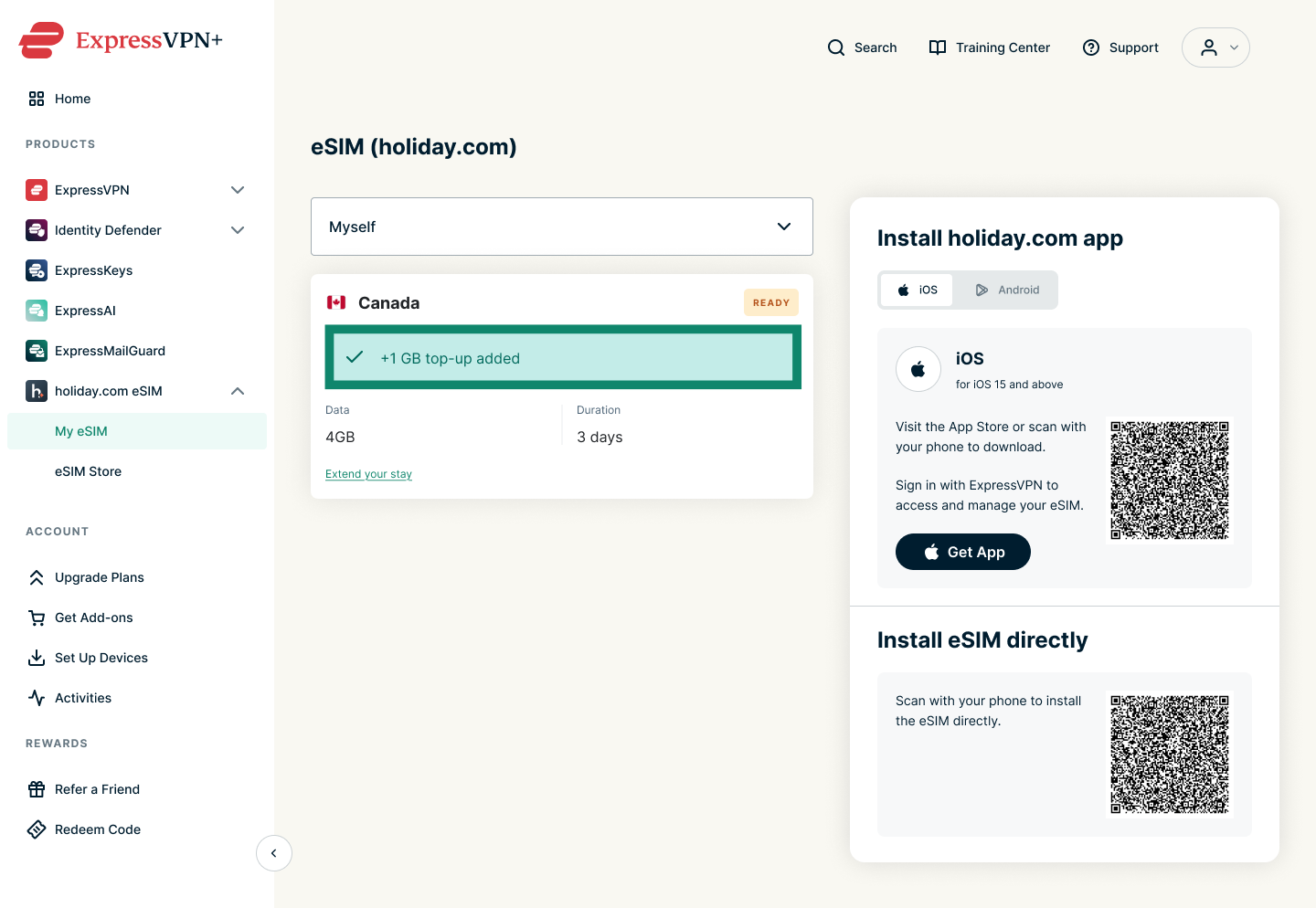
- Download and install the holiday.com app from the App Store or Google Play Store. You can either search for the app in the app store on your device or scan the QR code in the My eSIM tab of your ExpressVPN+ dashboard.
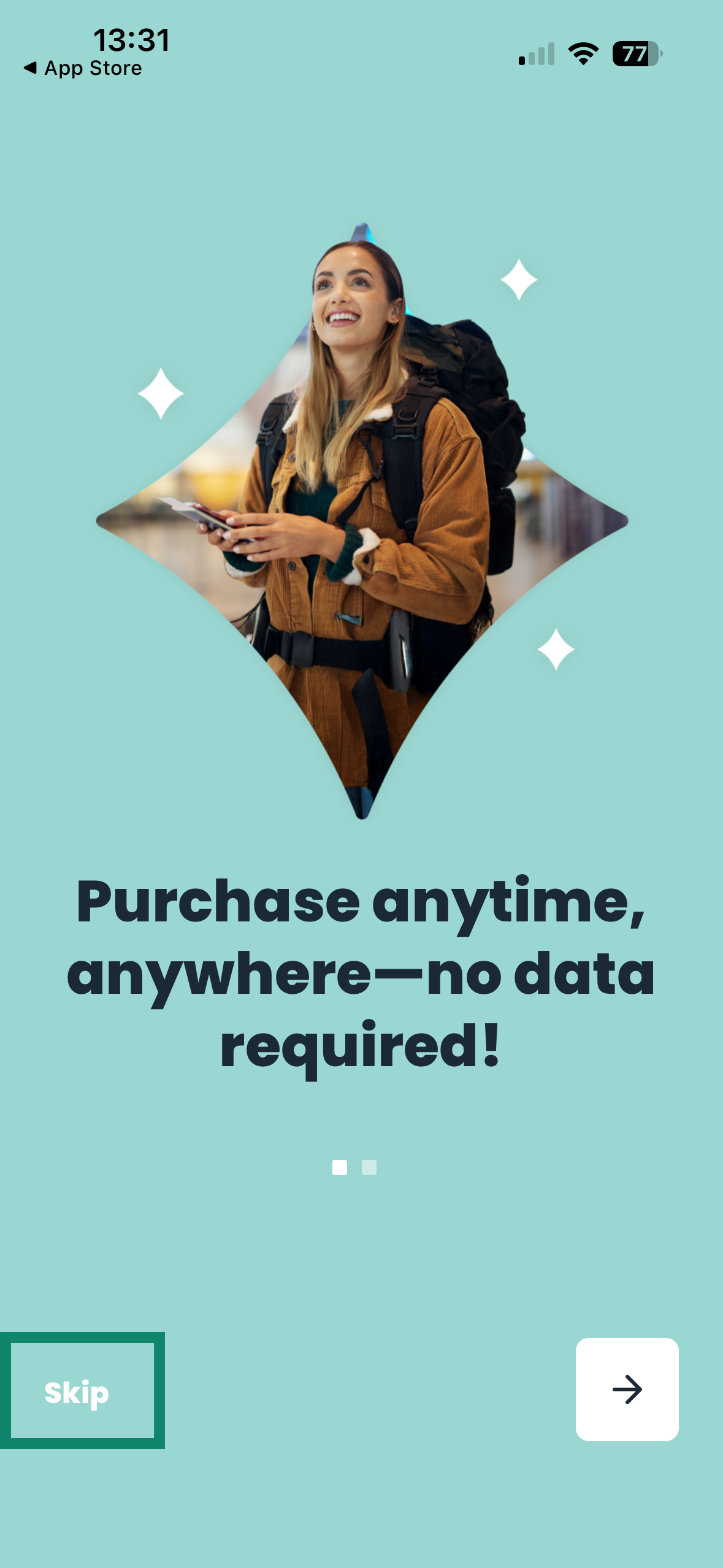
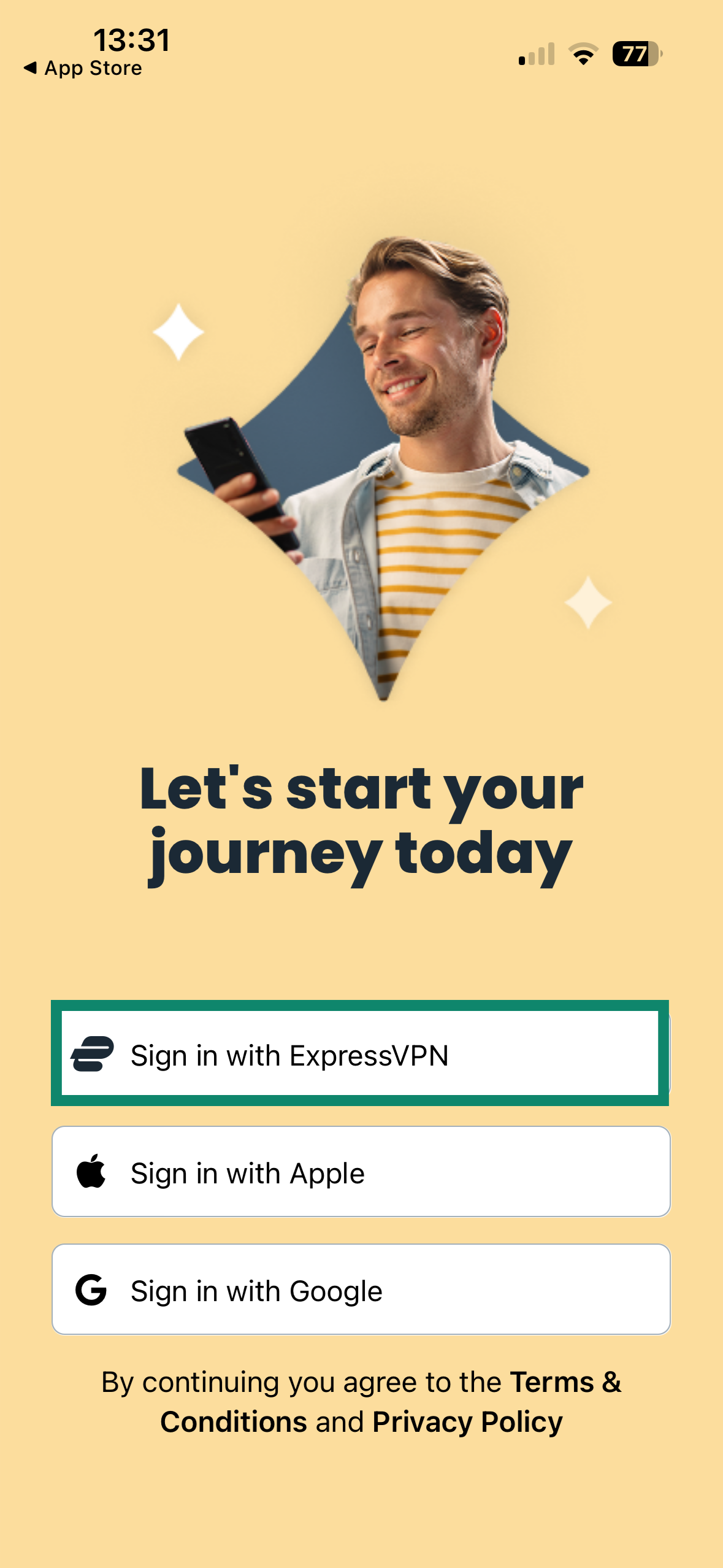
- Open the holiday.com app, and it will prompt you to sign in with your ExpressVPN account. If you see a welcome screen instead, tap Skip to reach the main login screen.


- Then, tap Sign in with ExpressVPN to log in.

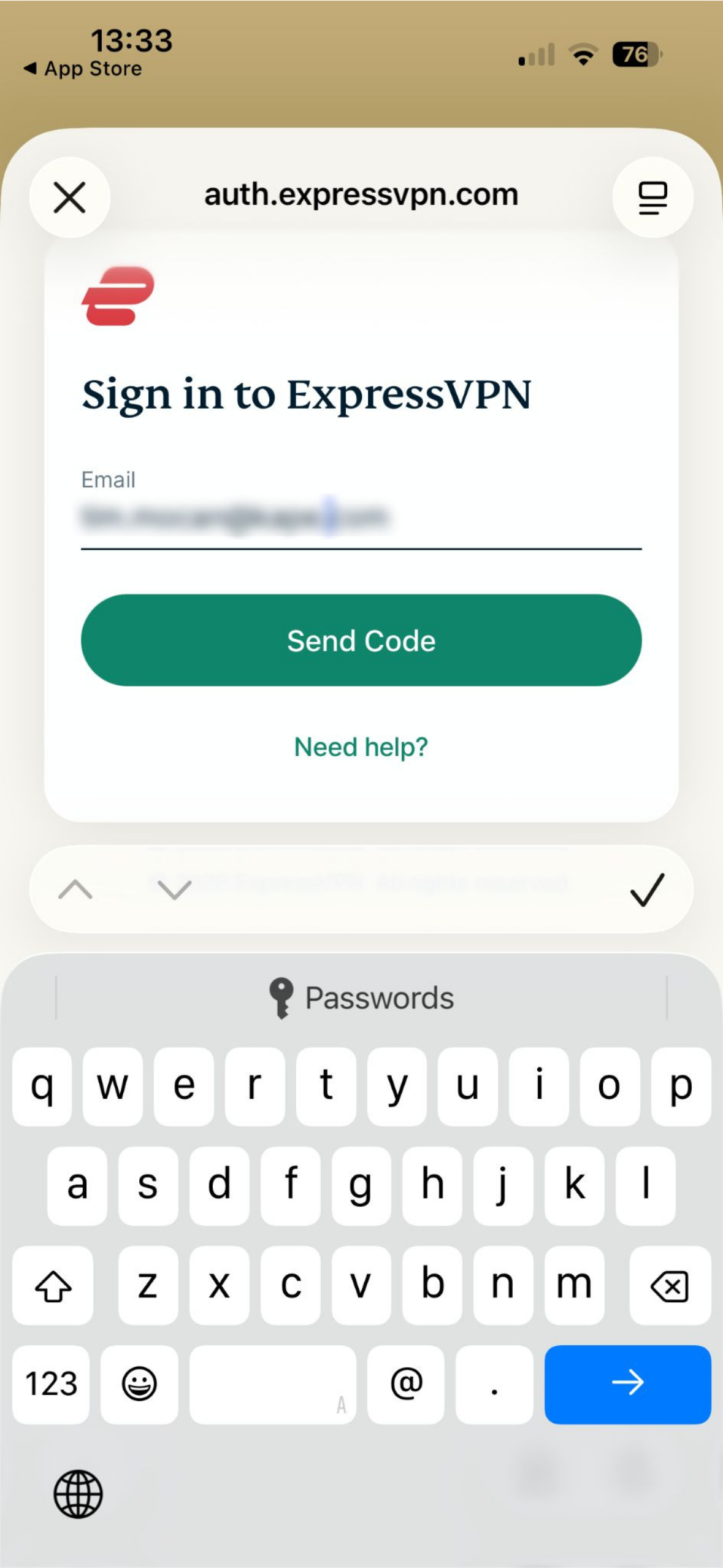
- Enter the email address connected to your ExpressVPN account and tap Send Code.

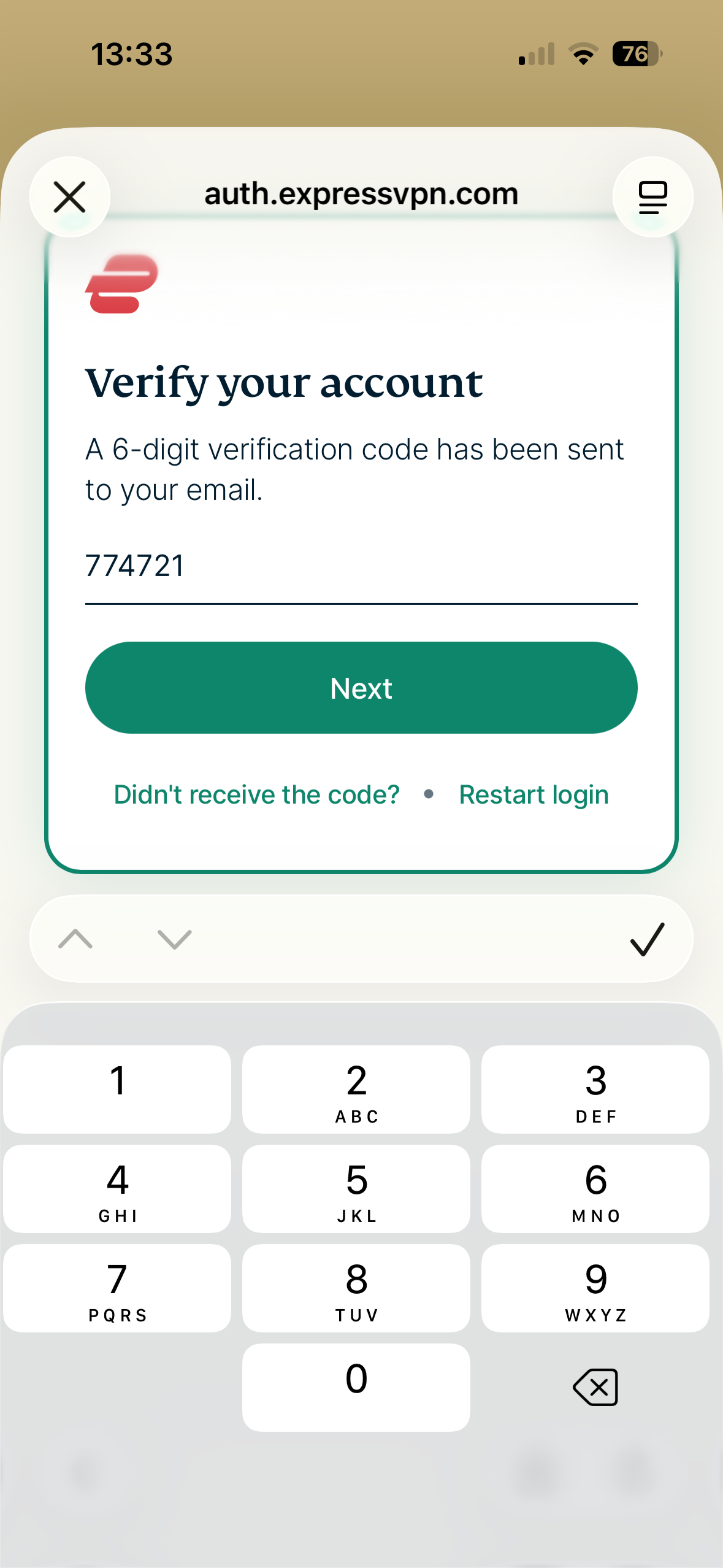
- Check your inbox for the code, enter it, and tap Next to sign in.

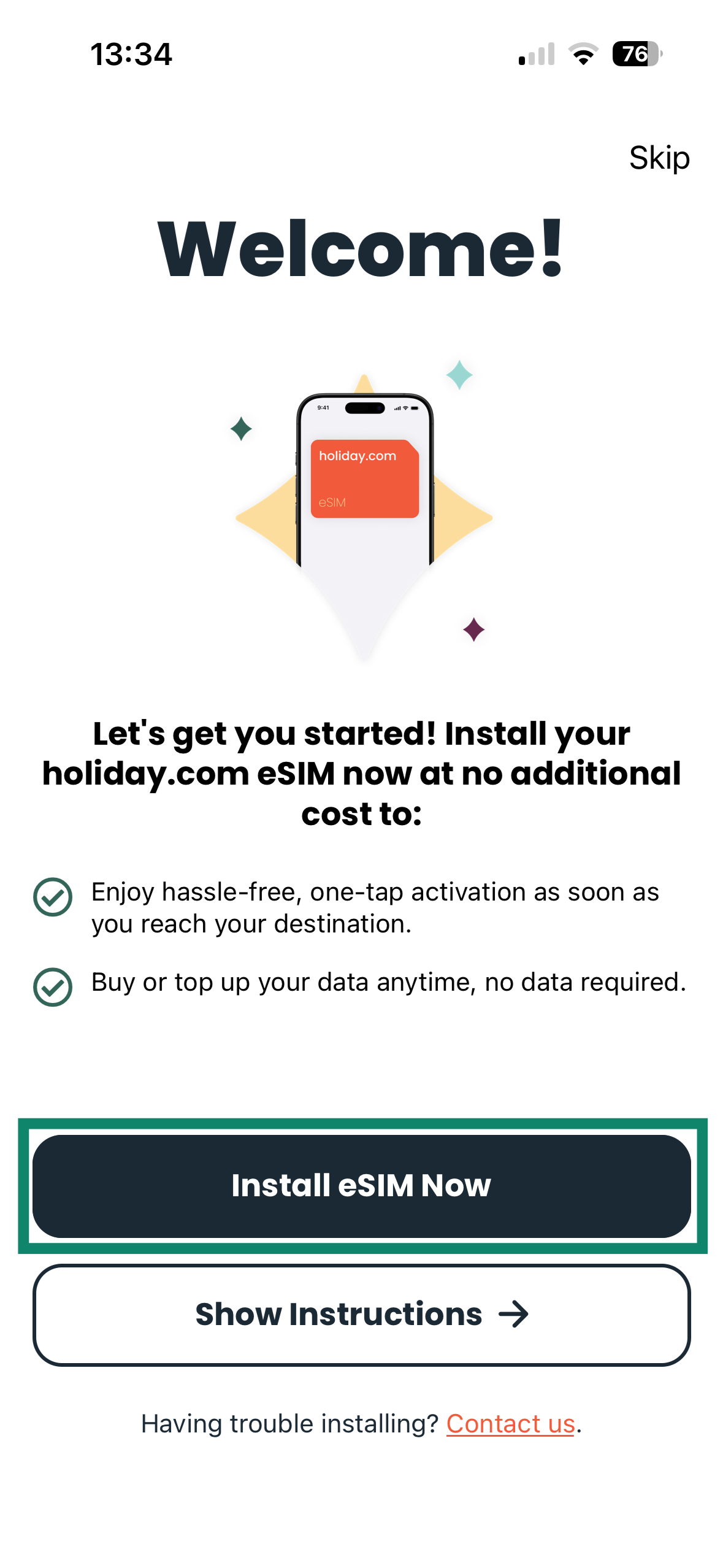
- You will now see an eSIM installation prompt. To proceed, tap Install eSIM Now.

- Follow the on-screen instructions to proceed with the eSIM setup. Setup steps may vary based on the device model. It may take a few minutes for the eSIM to connect to the network and activate.
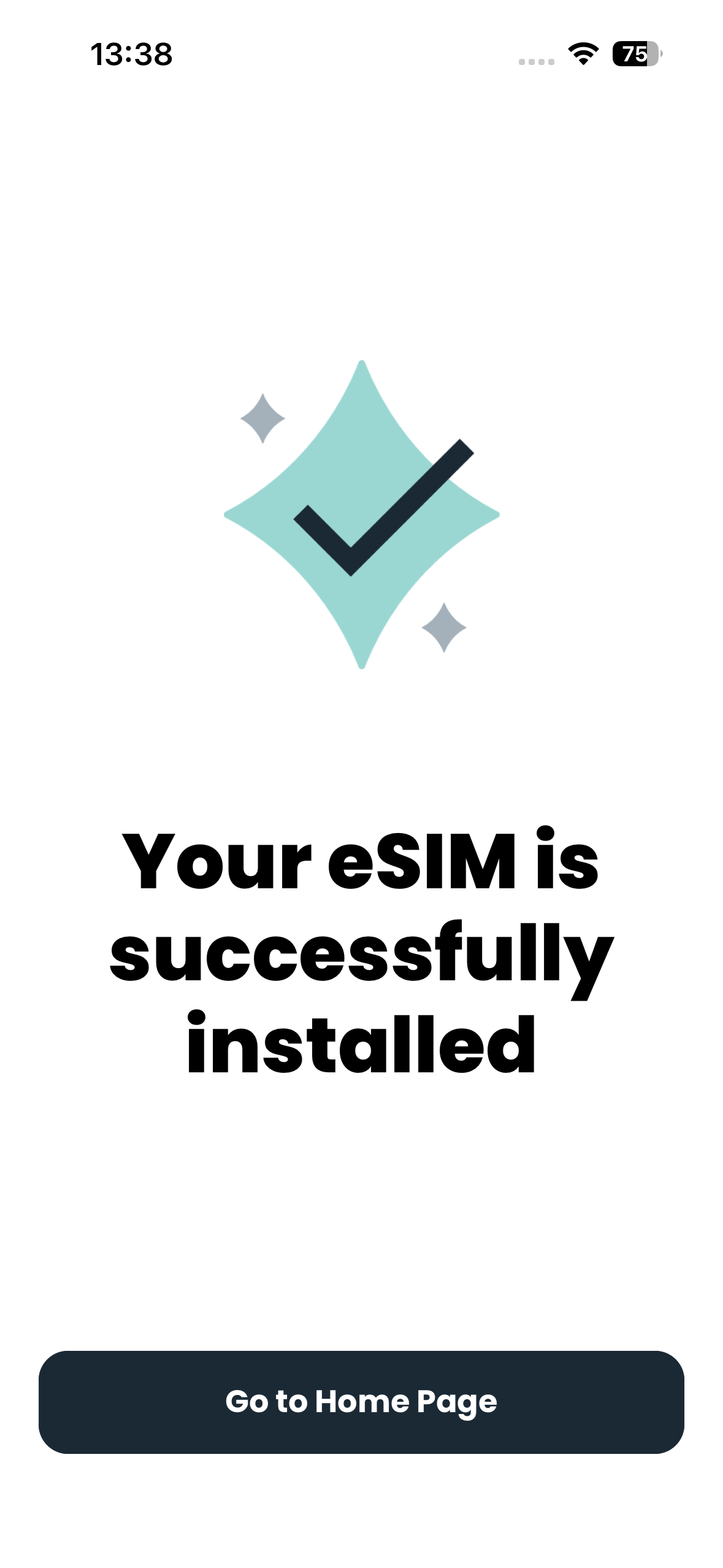
- If successfully set up, you should see a message saying Your eSIM is successfully installed.

How to use the holiday.com eSIM
When you reach your destination, follow these steps to use your holiday.com eSIM:
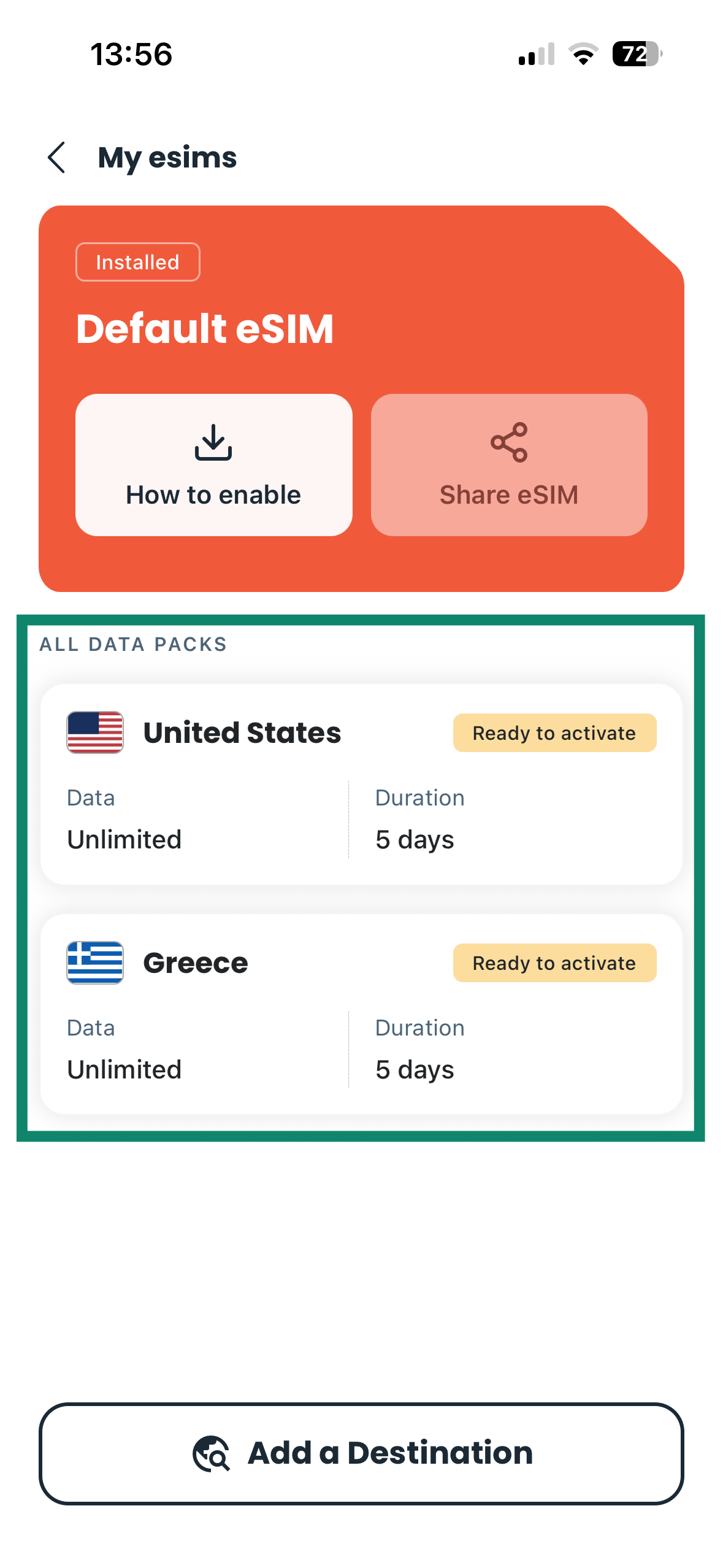
- Open the holiday.com app and tap the eSIM you want to activate. The eSIMs are located in the ALL DATA PACKS section.

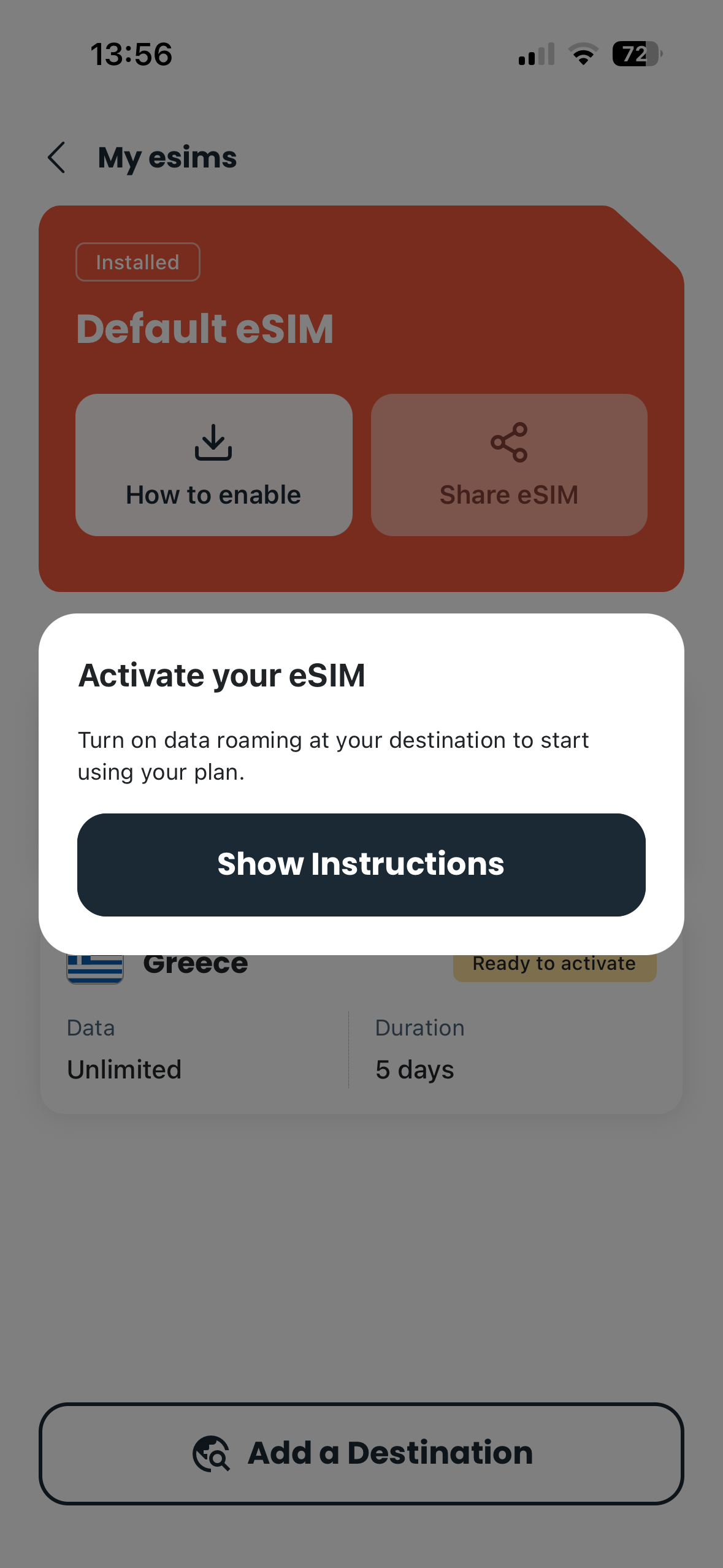
- Tap Show Instructions and follow the provided steps. This usually involves turning on mobile data and enabling roaming for the eSIM. The steps can vary across device models.

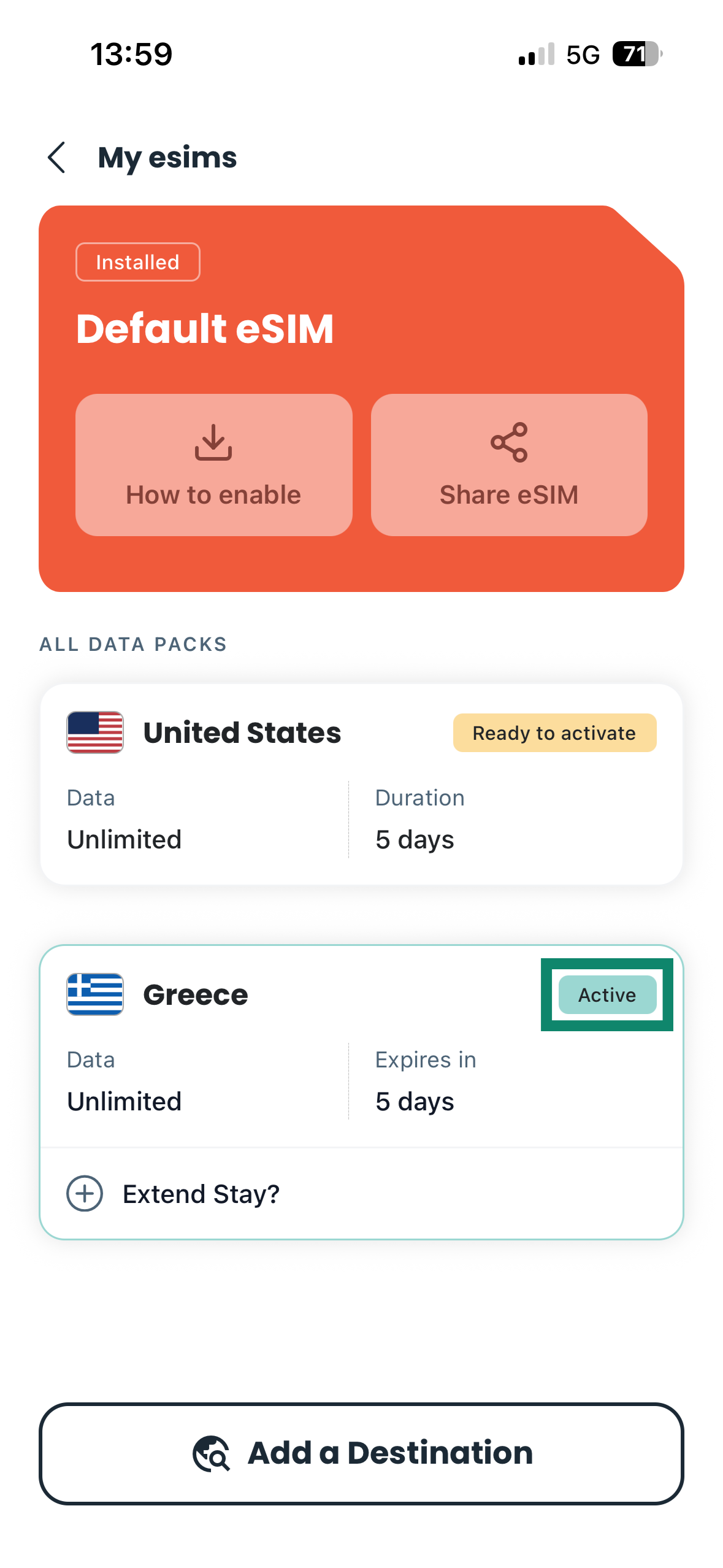
- If successfully enabled, your eSIM status should change to Active in the holiday.com app.

Need help? Contact the ExpressVPN Support Team for immediate assistance.
How to purchase a new holiday.com eSIM via ExpressVPN
You can purchase additional holiday.com eSIMs from your ExpressVPN+ dashboard. To do so:
- Sign into your ExpressVPN account.
- Head to holiday.com eSIM > eSIM Store.
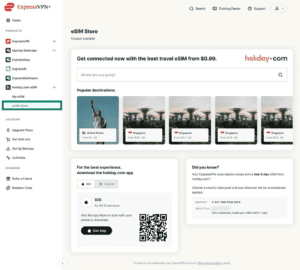
- Choose your desired destination.
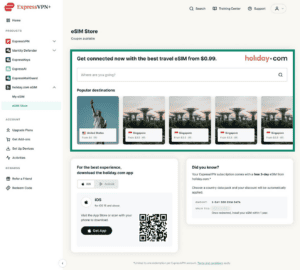
- Select your desired eSIM plan.
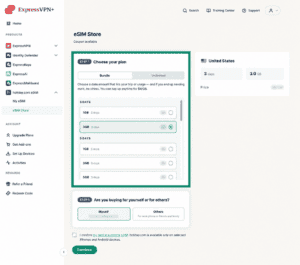

- Choose if you are buying the eSIM plan for yourself or are assigning it to someone else or another device.
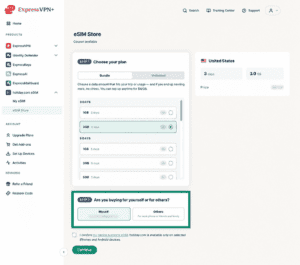
- Confirm your device supports eSIMs and click Continue.
- Enter your payment details and click the Pay button.

Need help? Contact the ExpressVPN Support Team for immediate assistance.
How to manage multiple holiday.com eSIMs from your account
If you have bought a holiday.com eSIM for another device (like a work phone) or someone else, you can find it and set it up from your ExpressVPN+ dashboard:
- Sign into your ExpressVPN account.
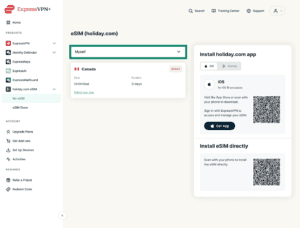
- Navigate to holiday.com eSIM > My eSIM.
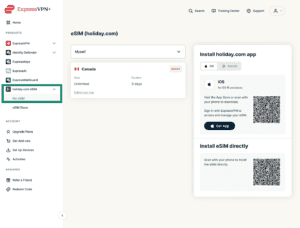
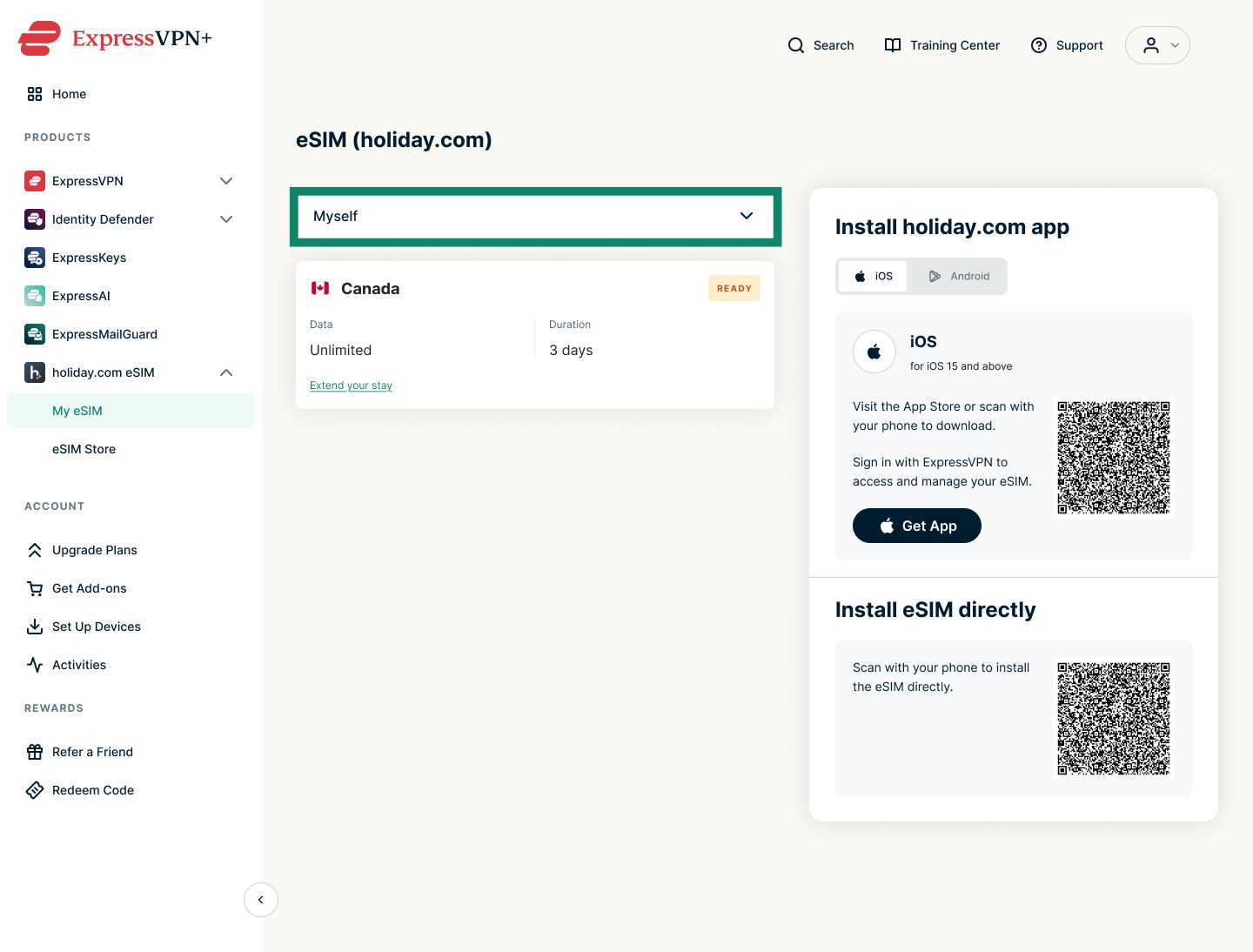
- Select the Myself menu bar to view a list of the eSIMs you have purchased.
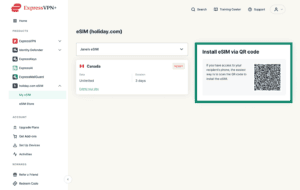
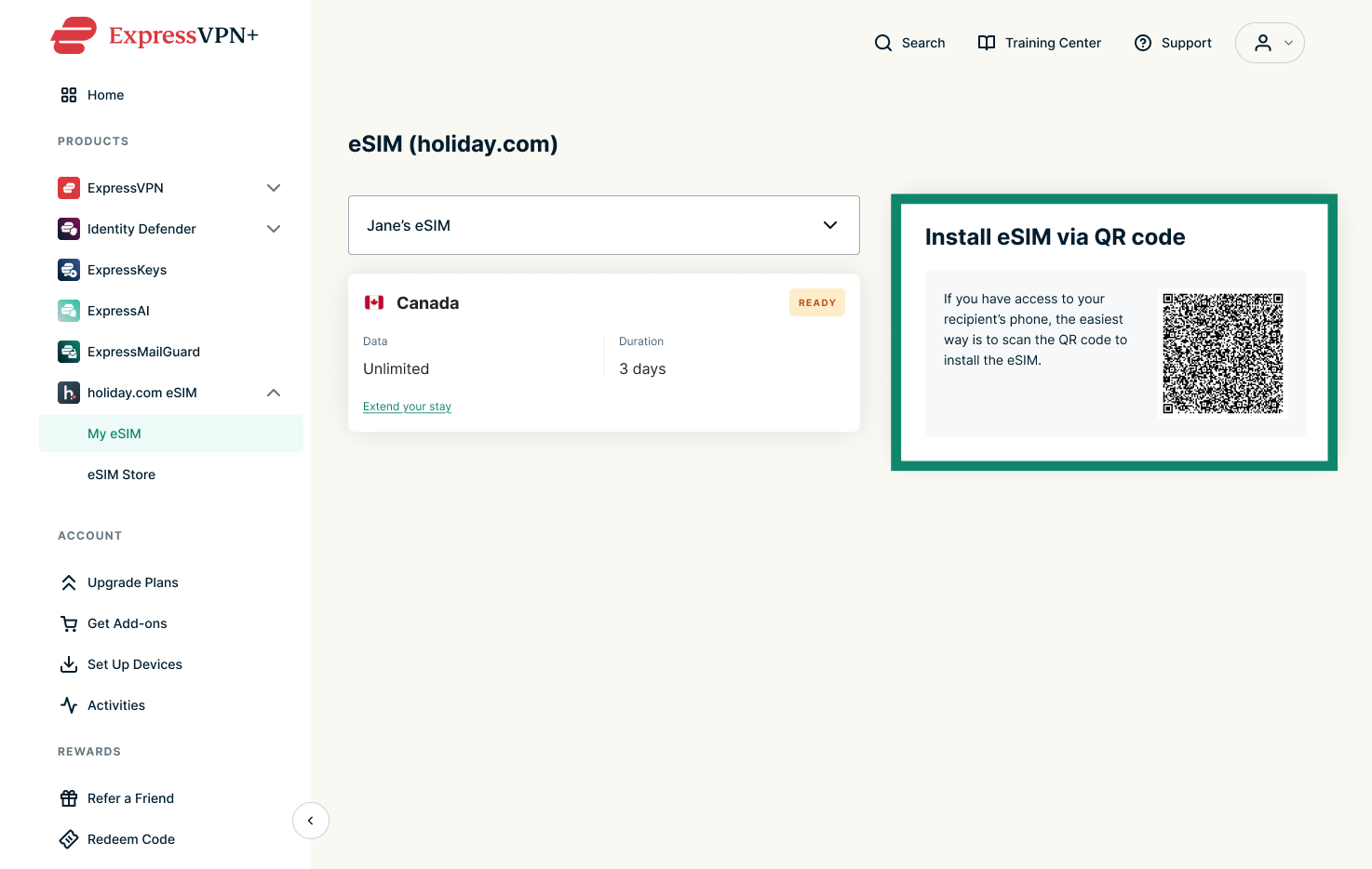
- Choose the desired eSIM.


- Scan the QR code to install the eSIM on the recipient’s phone. After you scan the code, follow the on-screen instructions on the recipient’s device.

Need help? Contact the ExpressVPN Support Team for immediate assistance.
How to add data or days to your eSIM
You can extend the number of days for unlimited eSIMs and add more data for standard eSIMs:
Add days to an unlimited eSIM
- Access your ExpressVPN+ dashboard and sign in if prompted.
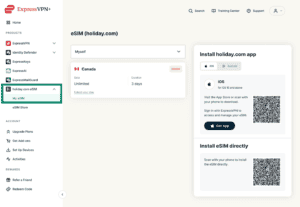
- Navigate to holiday.com eSIM > My eSIM.

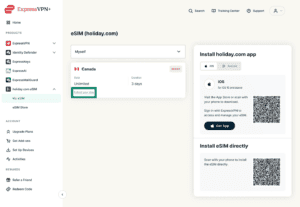
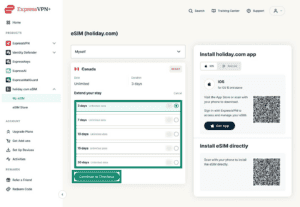
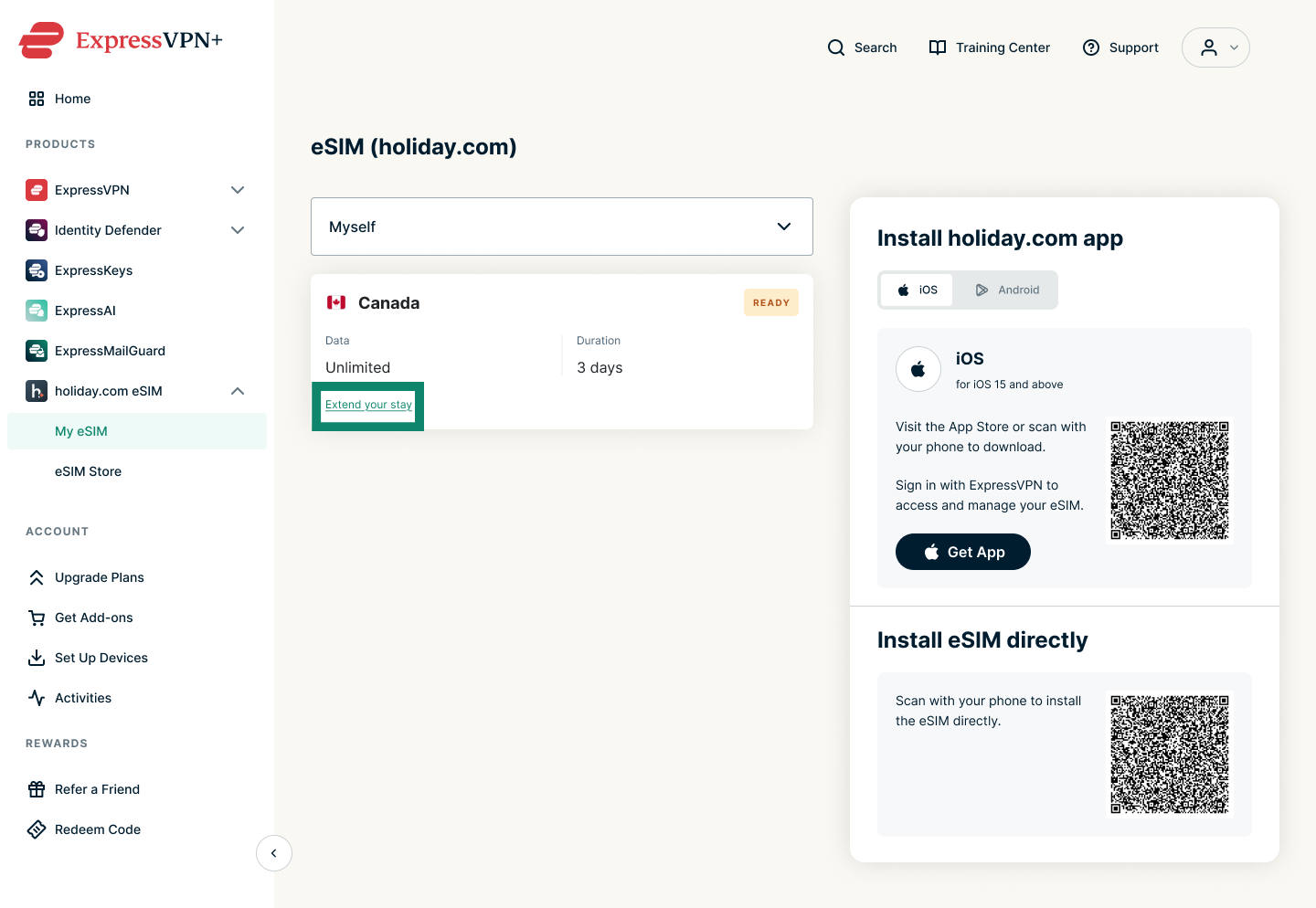
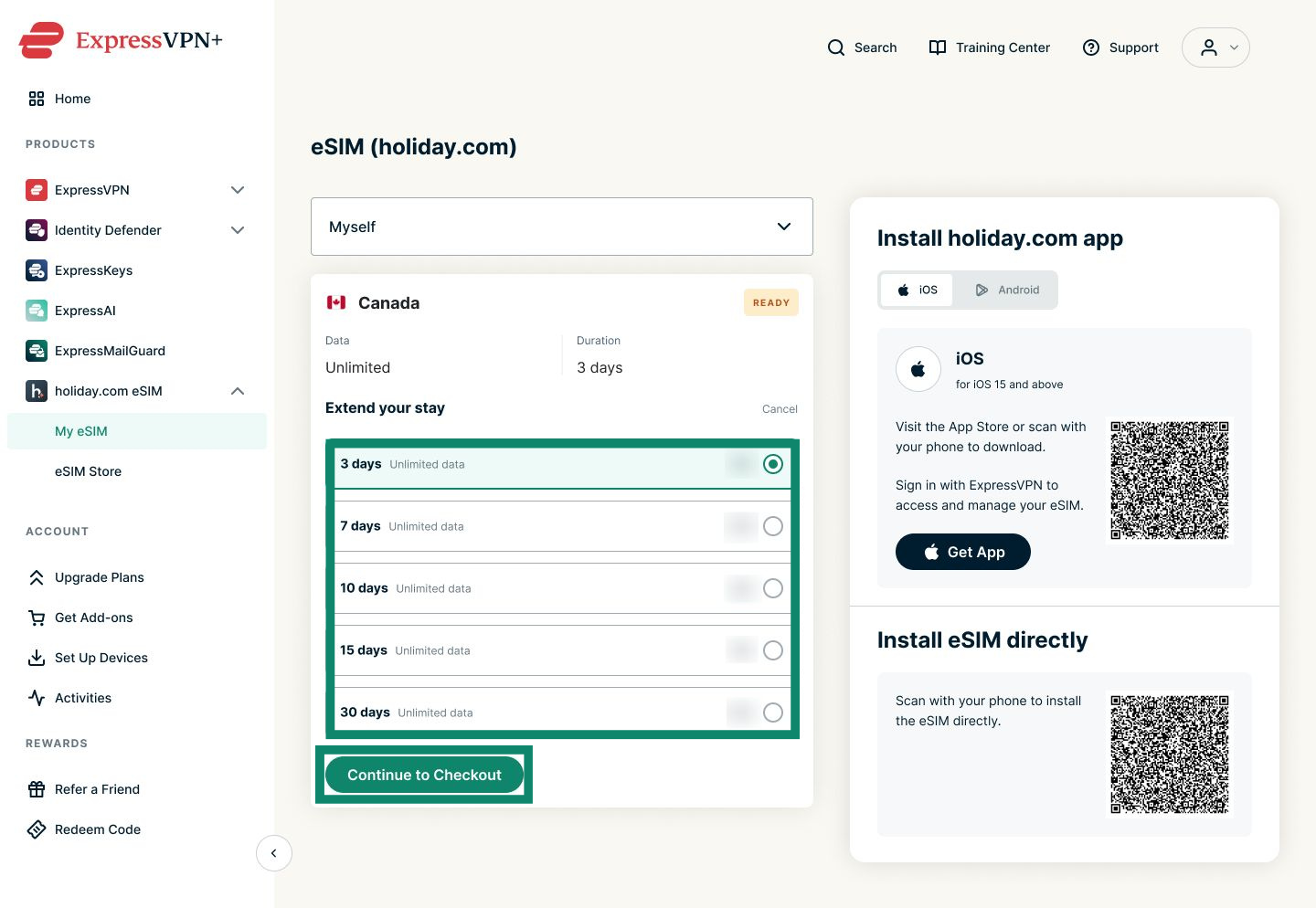
- Click Extend your stay under the unlimited eSIM you want to extend.
- Select your desired number of days and click Continue to Checkout.
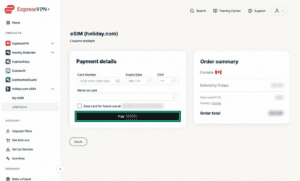
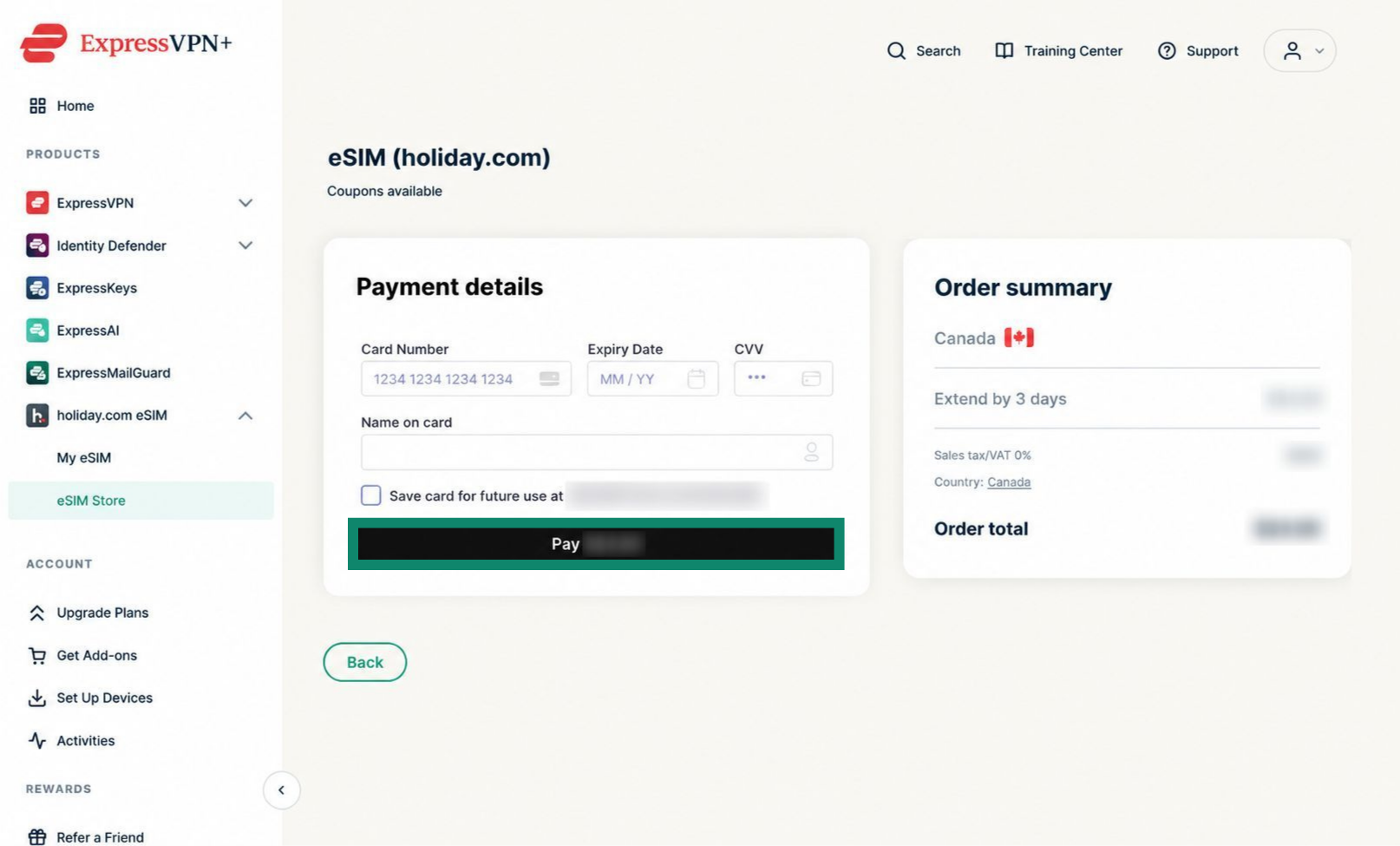
- Enter your payment details and click the Pay button.
If successful, you should see a message with the number of days added to your unlimited eSIM.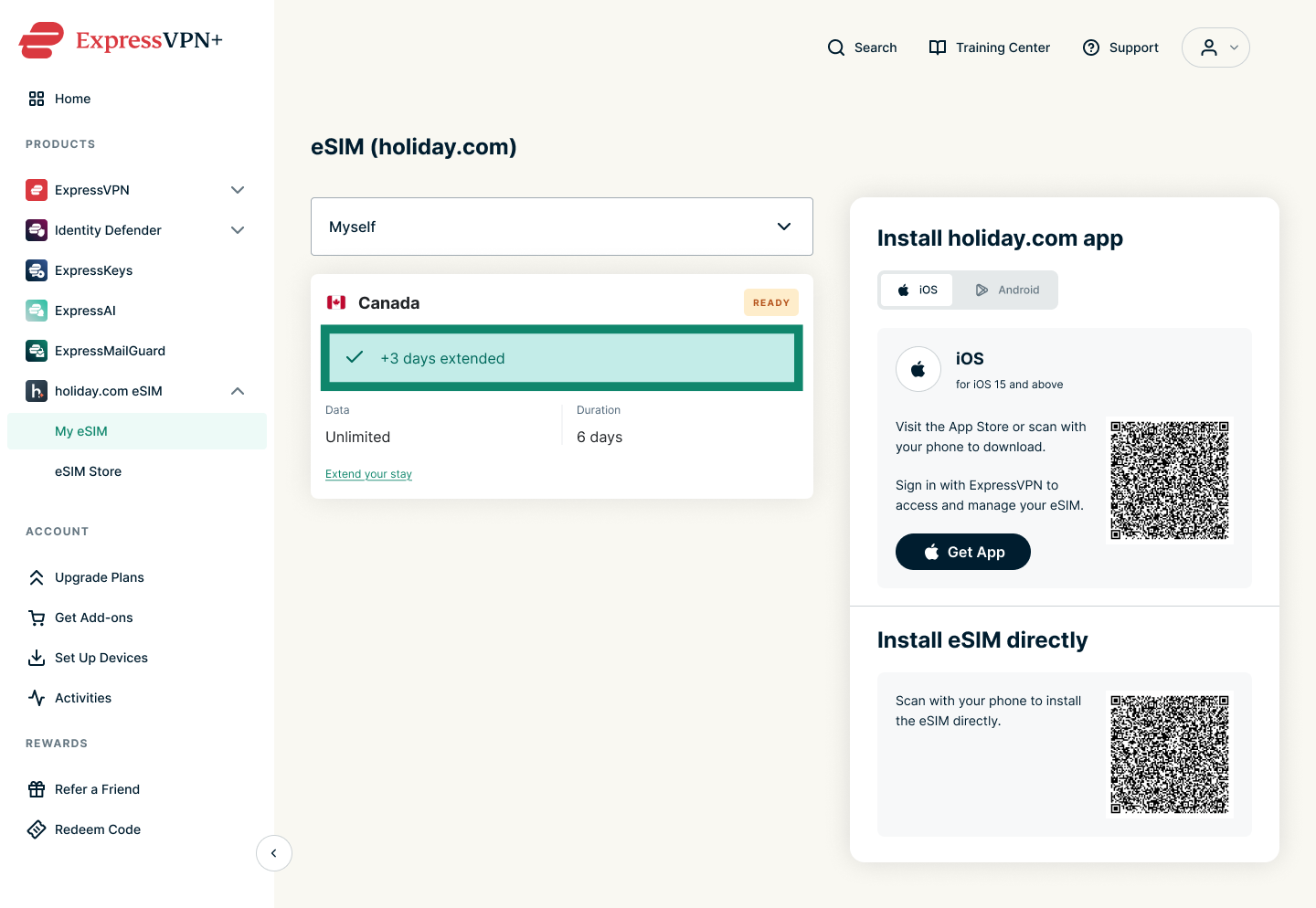
Add data to a standard eSIM
- Sign into your ExpressVPN account.
- Go to holiday.com eSIM > My eSIM.
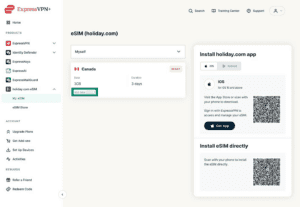
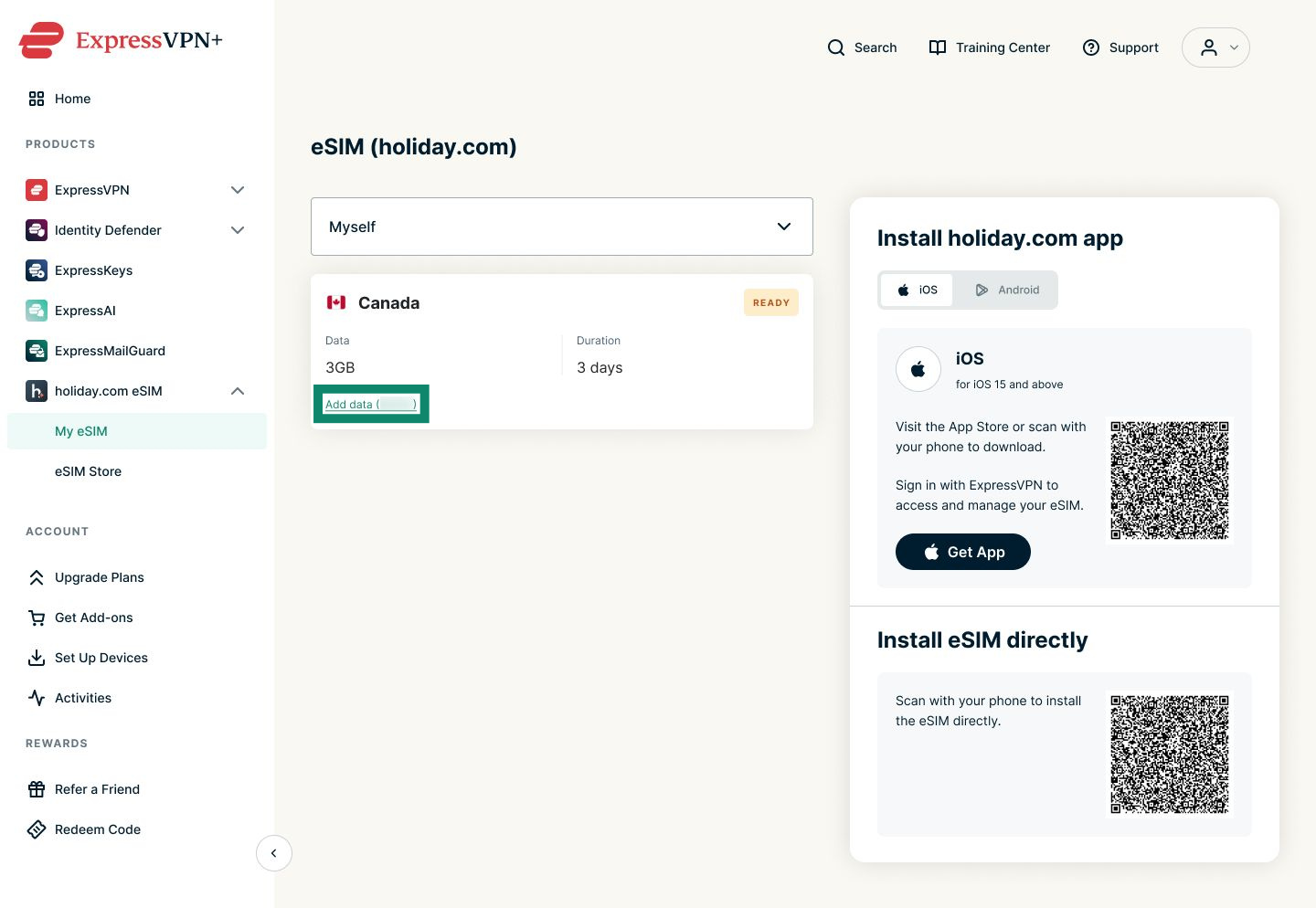
- Under the eSIM you want to add data to, click Add data.
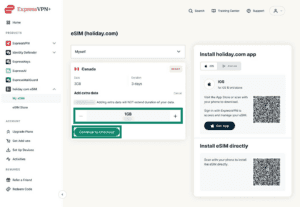
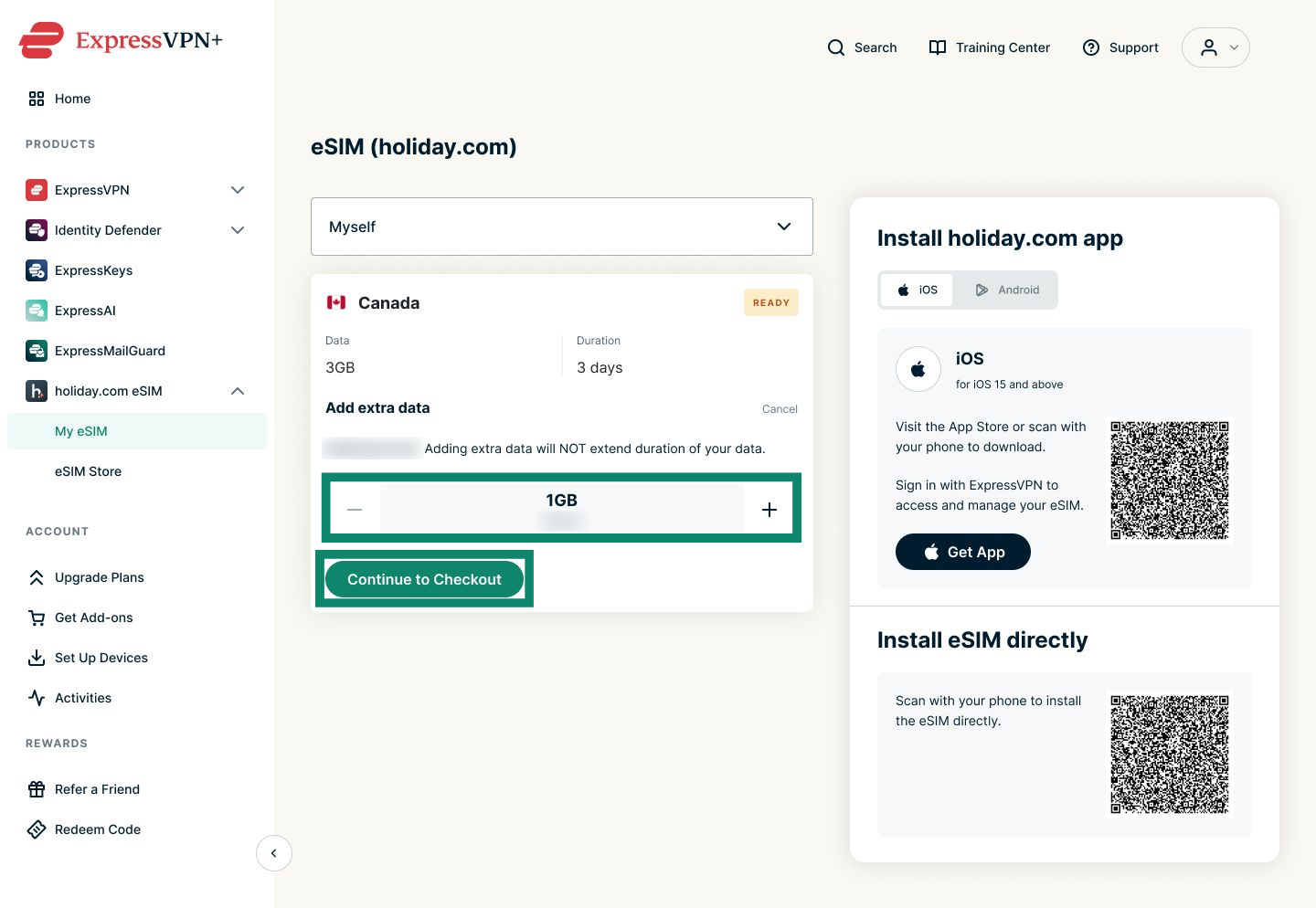
- Add your desired amount of data and click Continue to Checkout.
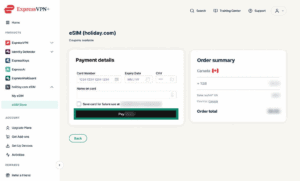
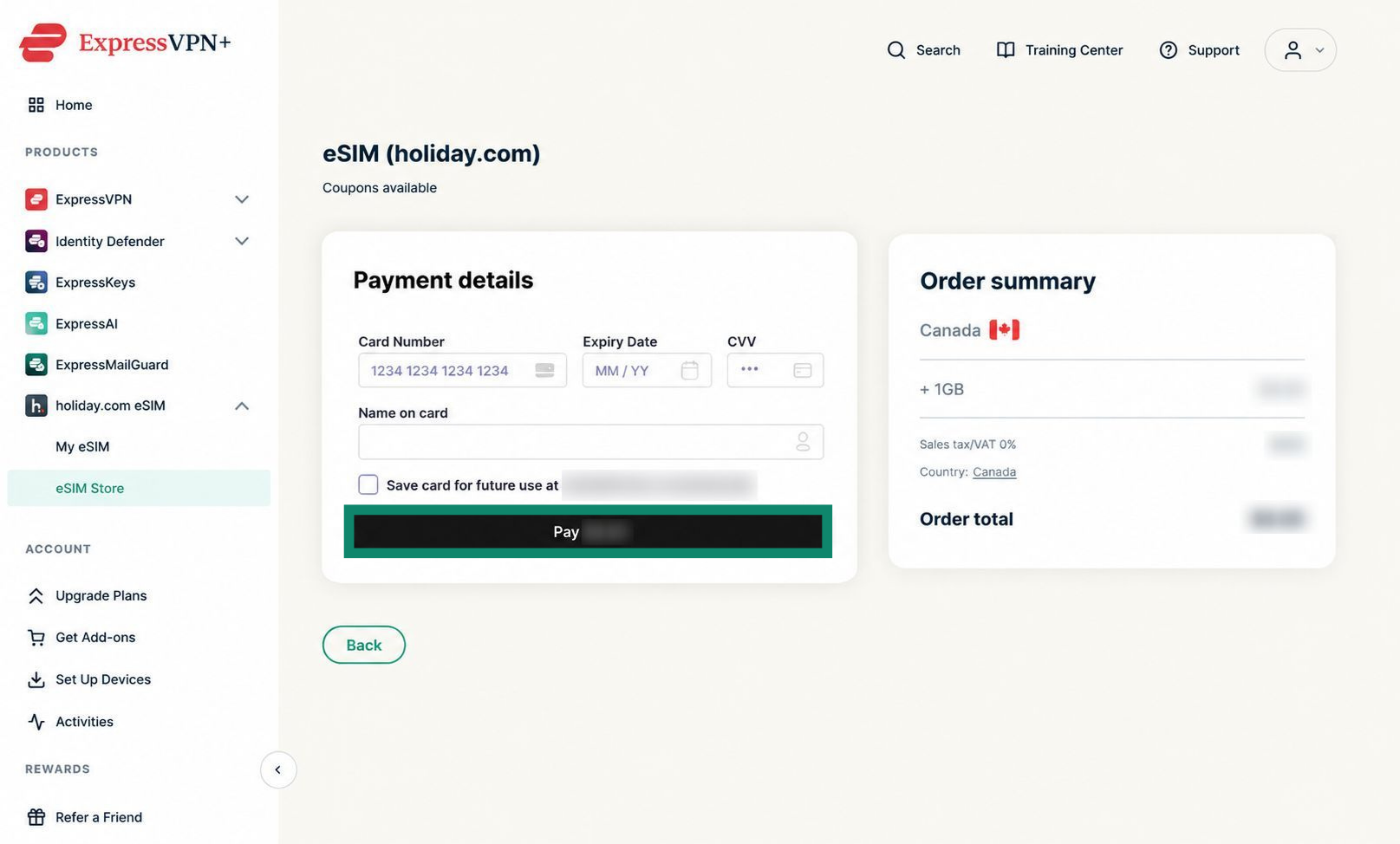
- Enter your payment details and click the Pay button.

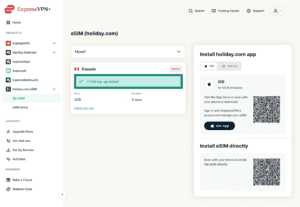
- If successful, you will see a message highlighting how much data you added to your eSIM.
Need help? Contact the ExpressVPN Support Team for immediate assistance.