



iCloud Keychain is Apple’s secure, encrypted service that stores and syncs your passwords across all your Apple devices. The Passwords app is the interface Apple built so you can actually see and manage what’s stored in iCloud Keychain. To import logins from iCloud Keychain into ExpressVPN, you first have to export them from the Passwords app.
Jump to…
Import your iCloud Keychain logins on Mac
Import your iCloud Keychain logins on iOS
Import your iCloud Keychain logins on Windows
Import your iCloud Keychain logins on Android
Import your iCloud Keychain logins on Mac
1. Export your logins from Passwords
Depending on your Mac version, follow these instructions:
- Open the Passwords app.
- If you only want to export certain logins, select them. You can do this by holding Command and clicking on the logins you’re exporting.
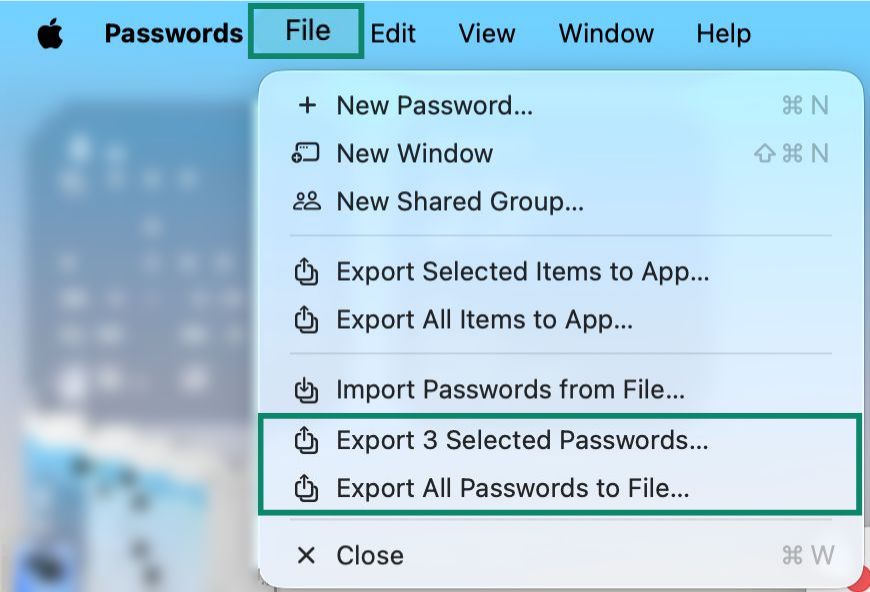
- In the menu bar, click File and choose either Export Selected Passwords (if you’re only exporting selected logins) or Export All Passwords to File.
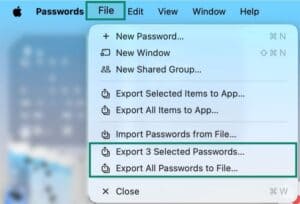

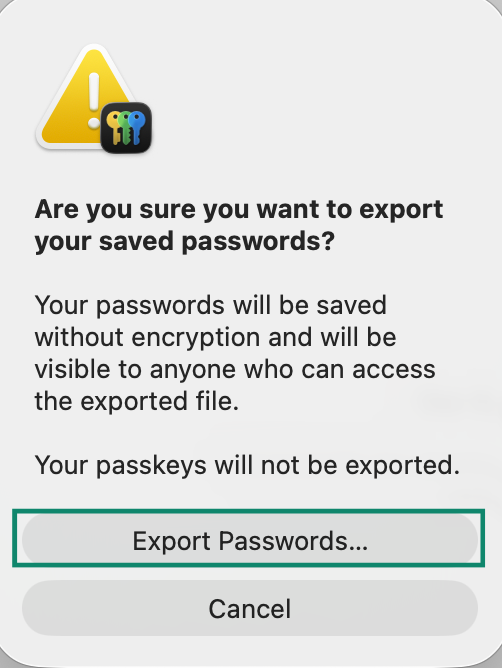
- Authenticate with Touch ID or your Mac admin password when prompted, choose where to save the file, and click Export Passwords.
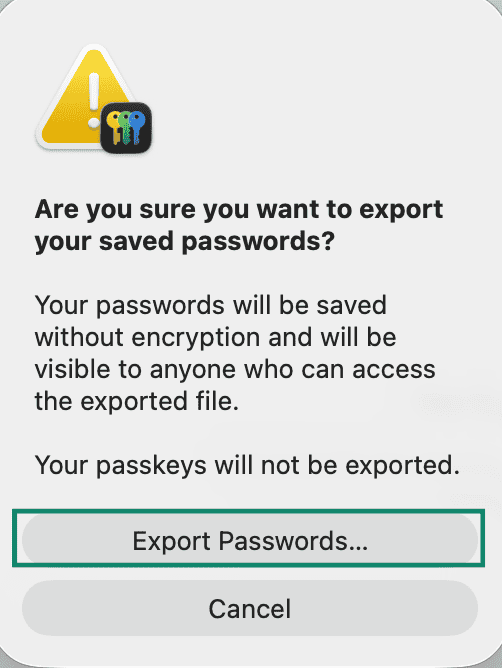

- Choose a place to save the file and click Save. Keep in mind that this won’t export your passkeys, as the Passwords app doesn’t allow that.
- Open Safari.
- Click the Safari menu > Preferences…
- Click the Passwords tab, then authenticate if required.
- In the bottom left corner of the sidebar, click … > Export Passwords > Export All Passwords.
- Save the file to your device.
Earlier macOS versions don’t support exporting logins and passwords from Apple iCloud Keychain. To import logins into ExpressKeys, you can manually copy the logins saved in Safari and paste them into ExpressKeys.
2. Import your logins into the ExpressKeys Chrome extension
On macOS, ExpressKeys is available as an extension for Chrome (also compatible with Chromium-based browsers like Edge, Brave, Opera, and Vivaldi).
- Install the ExpressKeys browser extension for Chrome.
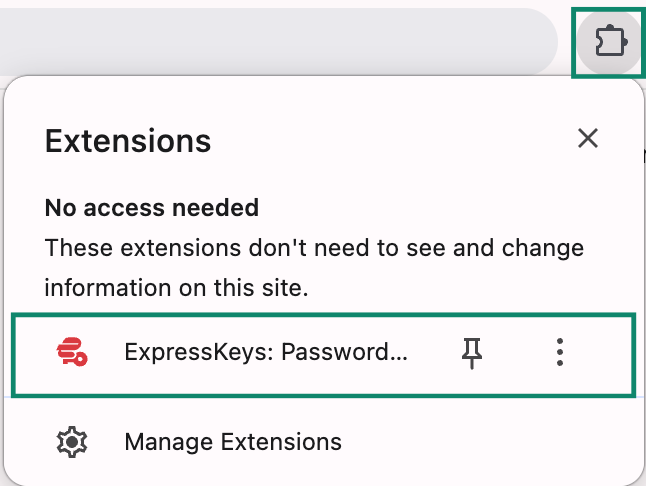
- In your browser, open Extensions and select the ExpressKeys browser extension.
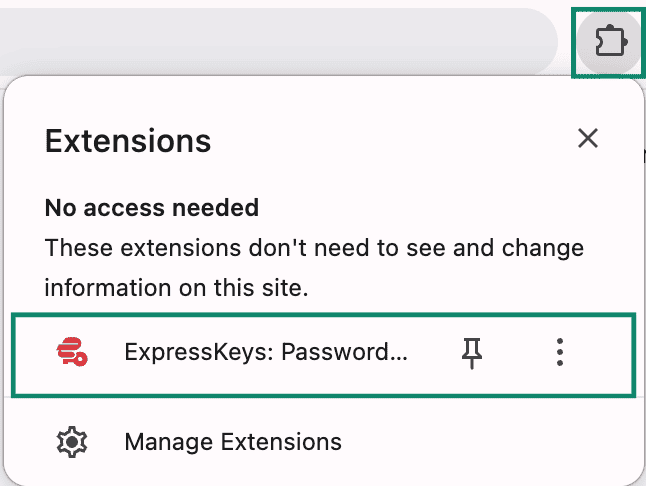

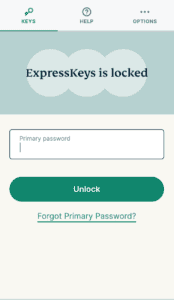
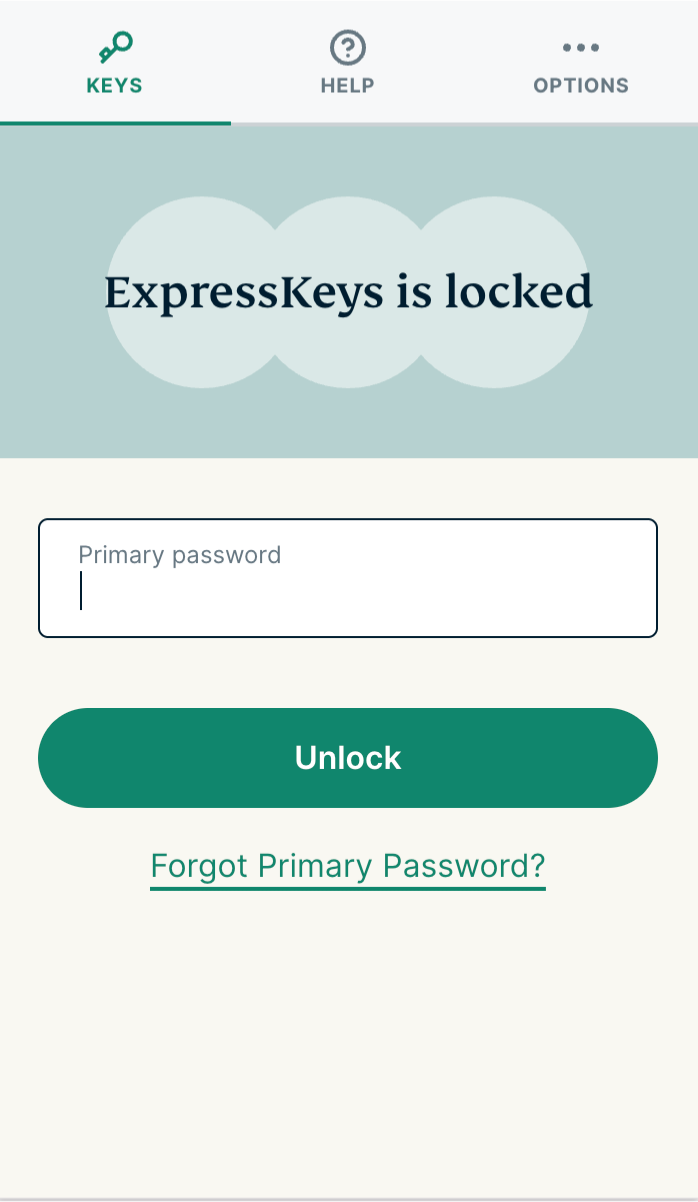
- Enter your primary password.

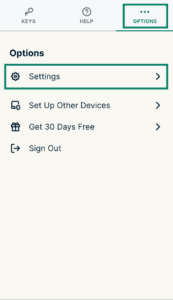
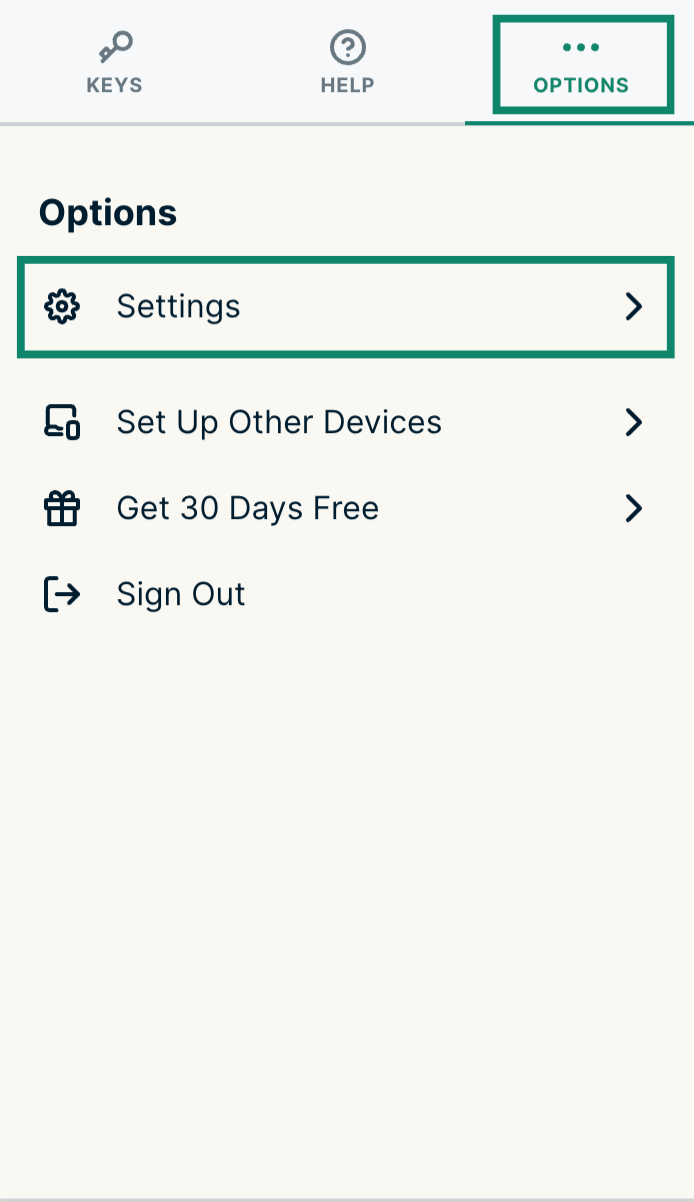
- Click the Options tab > Settings.

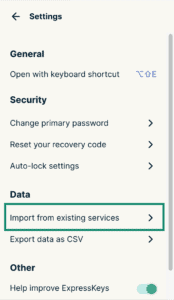
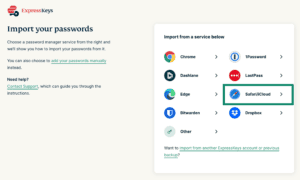
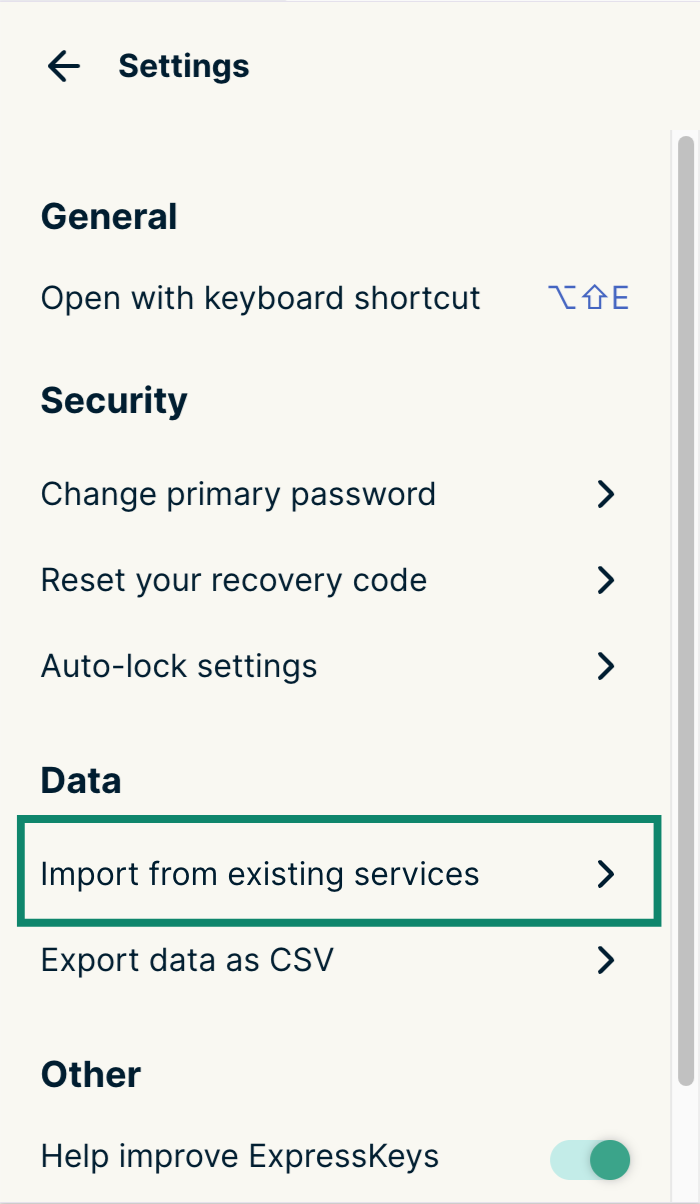
- Click Import from existing services.

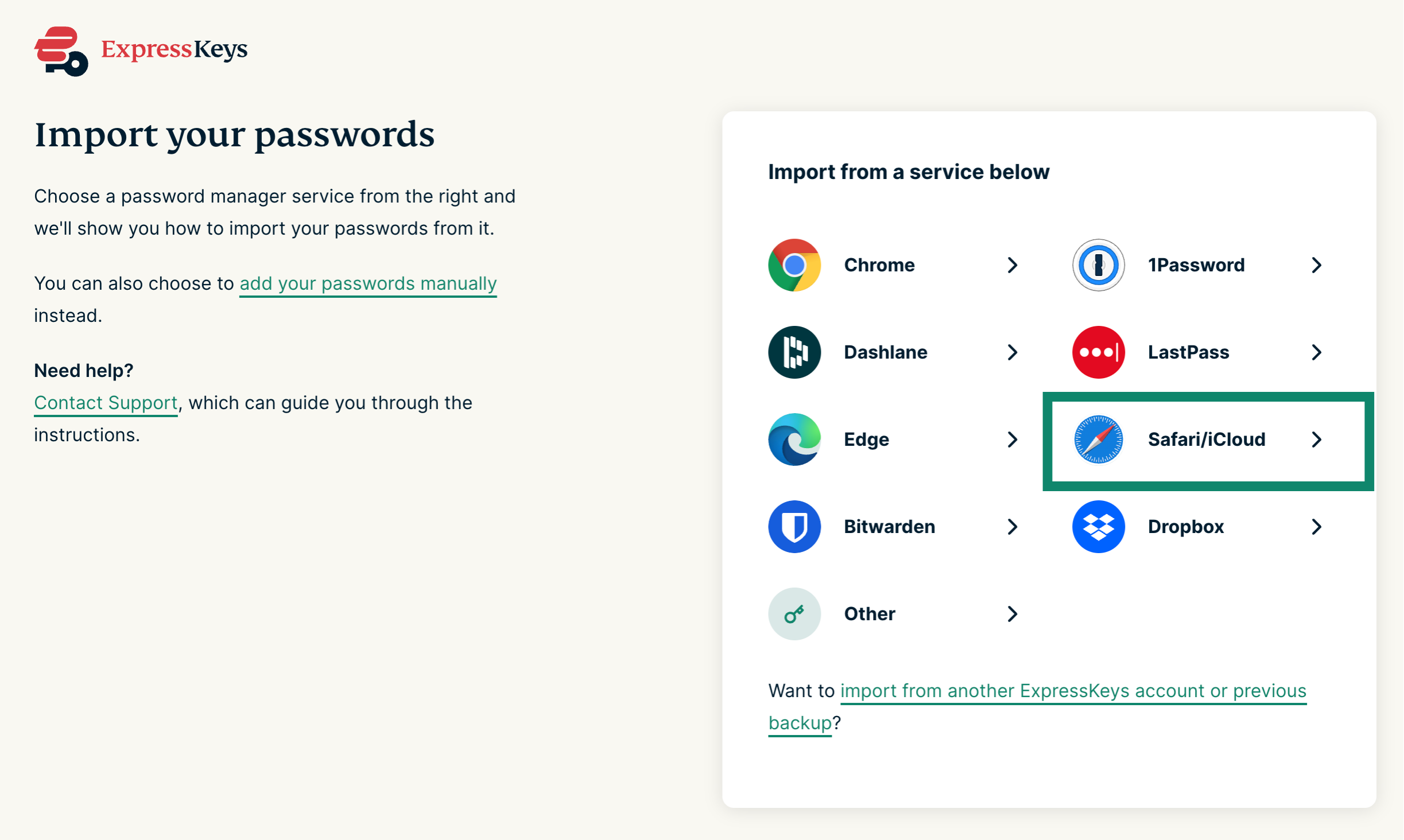
- Select Safari/iCloud.

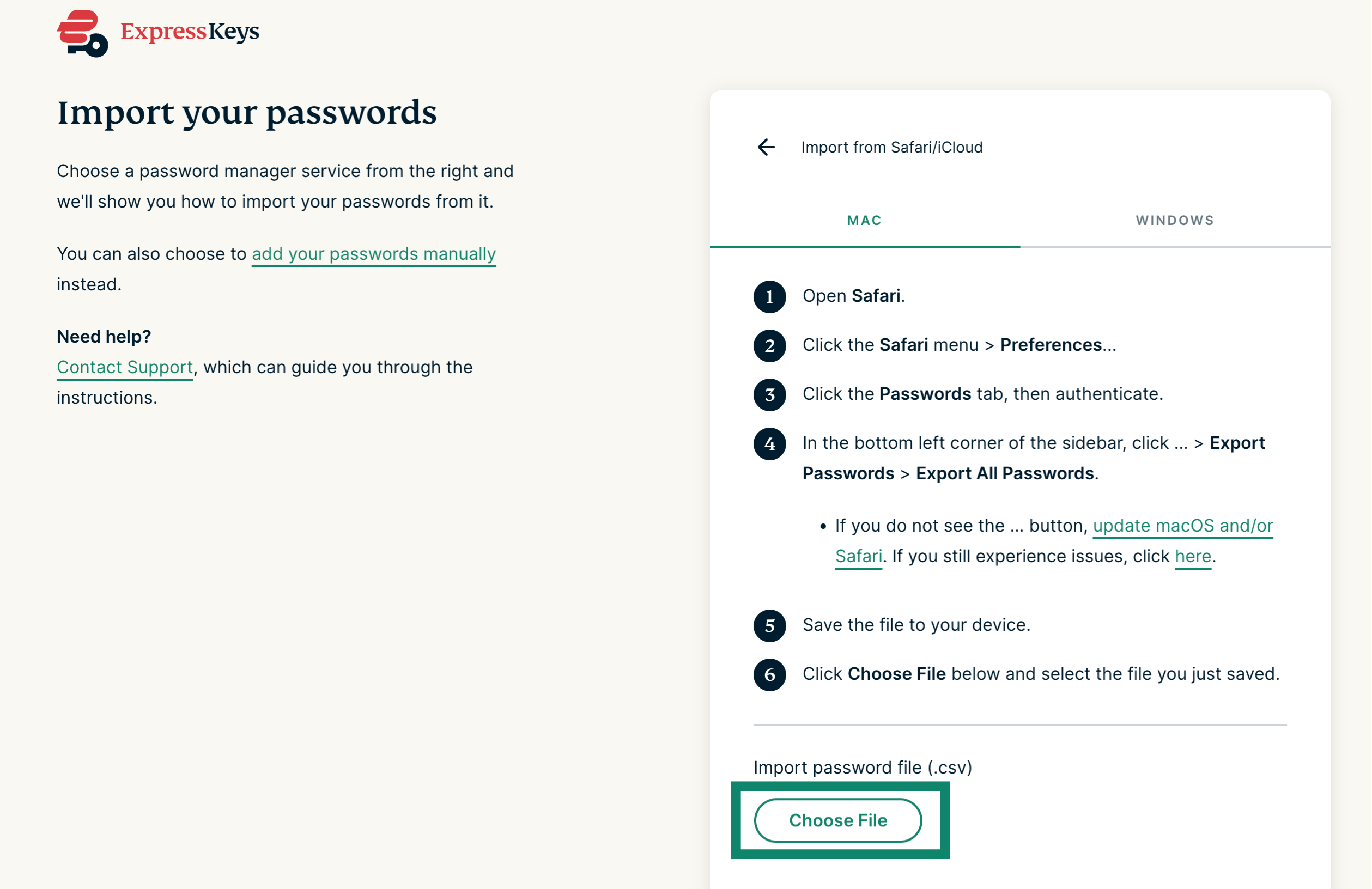
- Click Choose File.
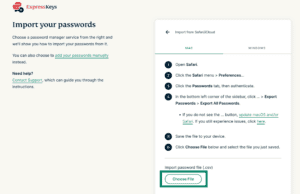

- Select the CSV file you exported earlier.
- Check to ensure all your logins are imported properly.
Need help? Contact our Support Team for immediate assistance.
Import your iCloud Keychain logins on iOS
On iOS, you can export your logins from the Passwords app and import them directly into the ExpressKeys iOS app. Here’s how to do that step by step:
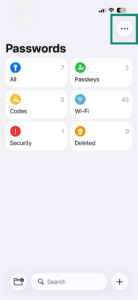
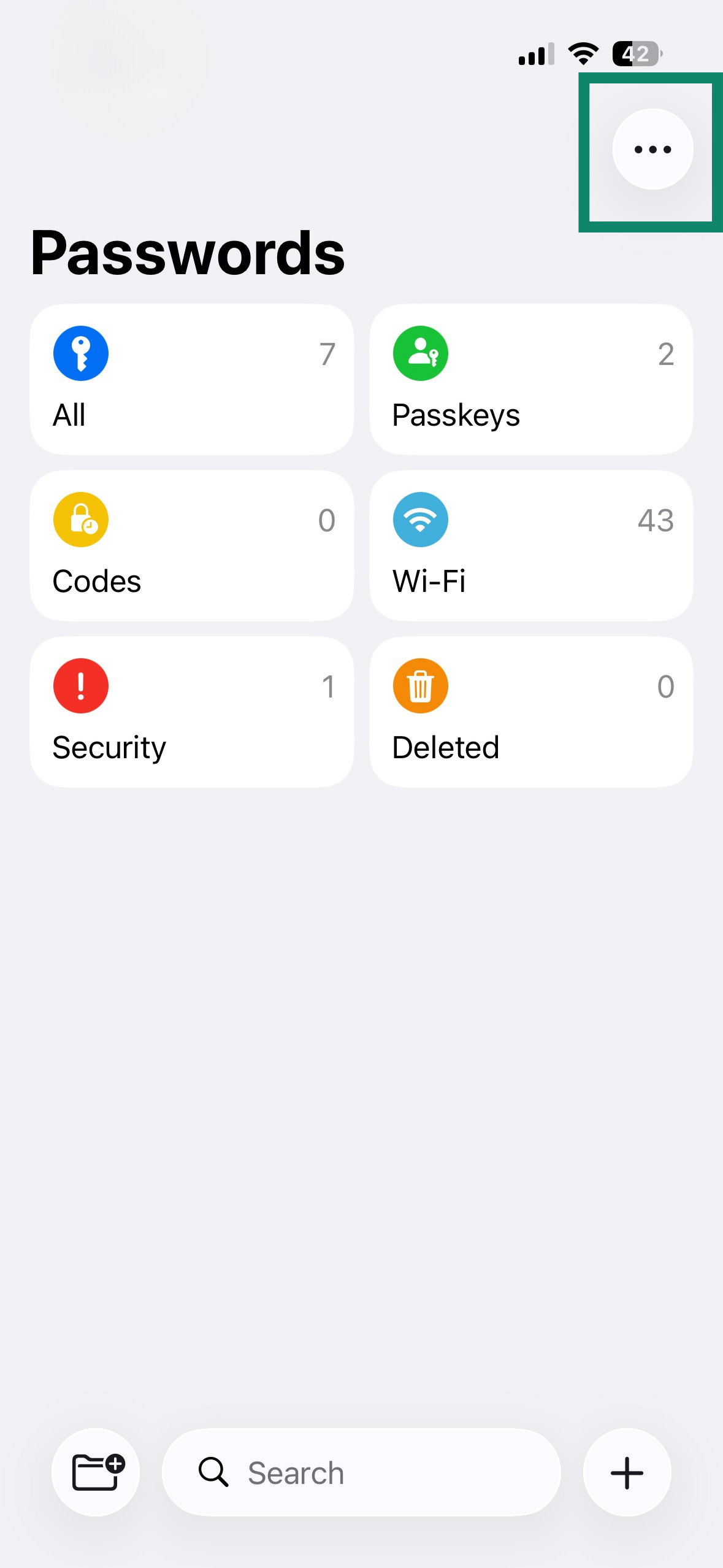
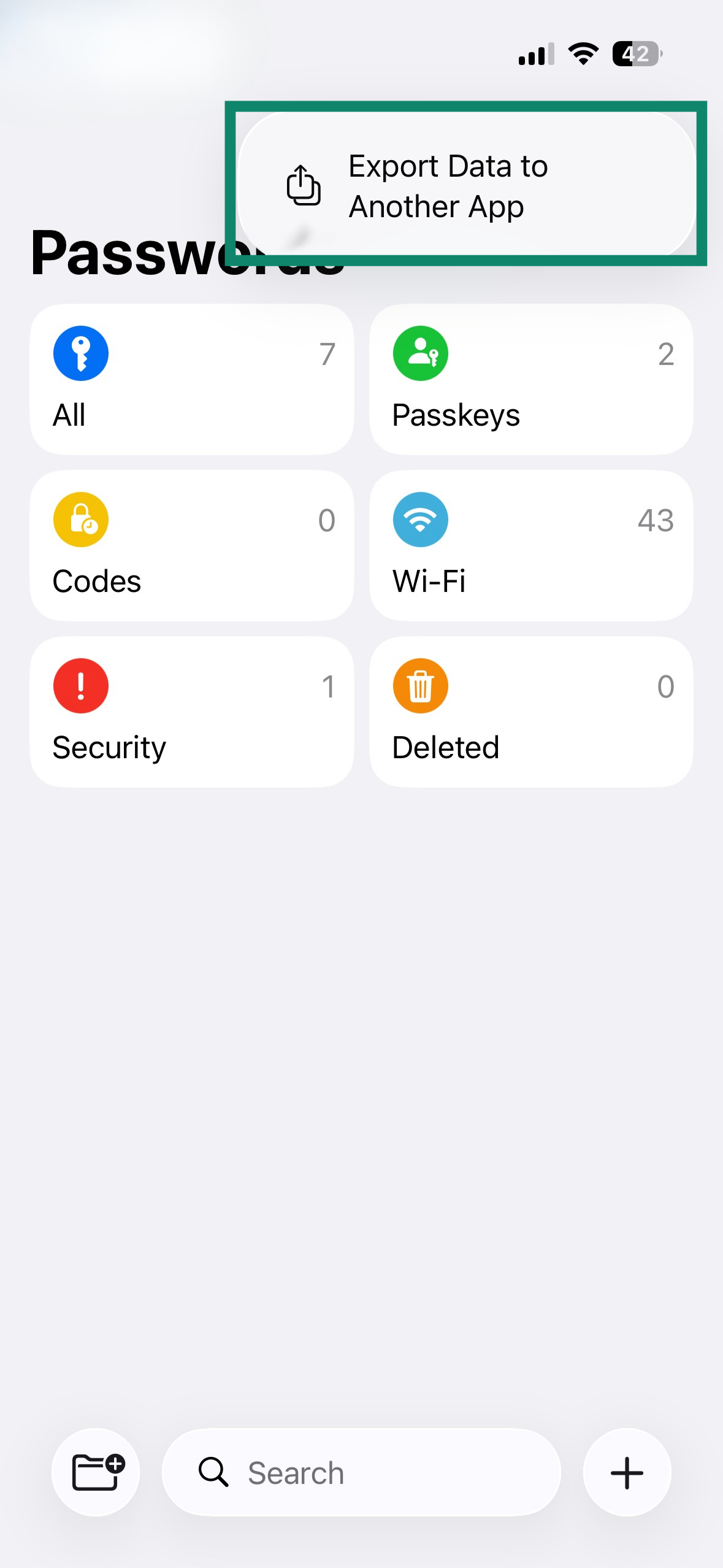
- Open the Passwords app and click the three dots in the top right corner.

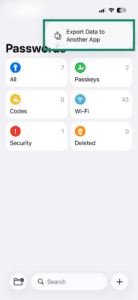
- Tap Export Data to Another App.
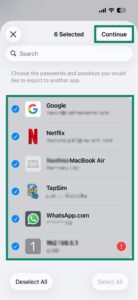
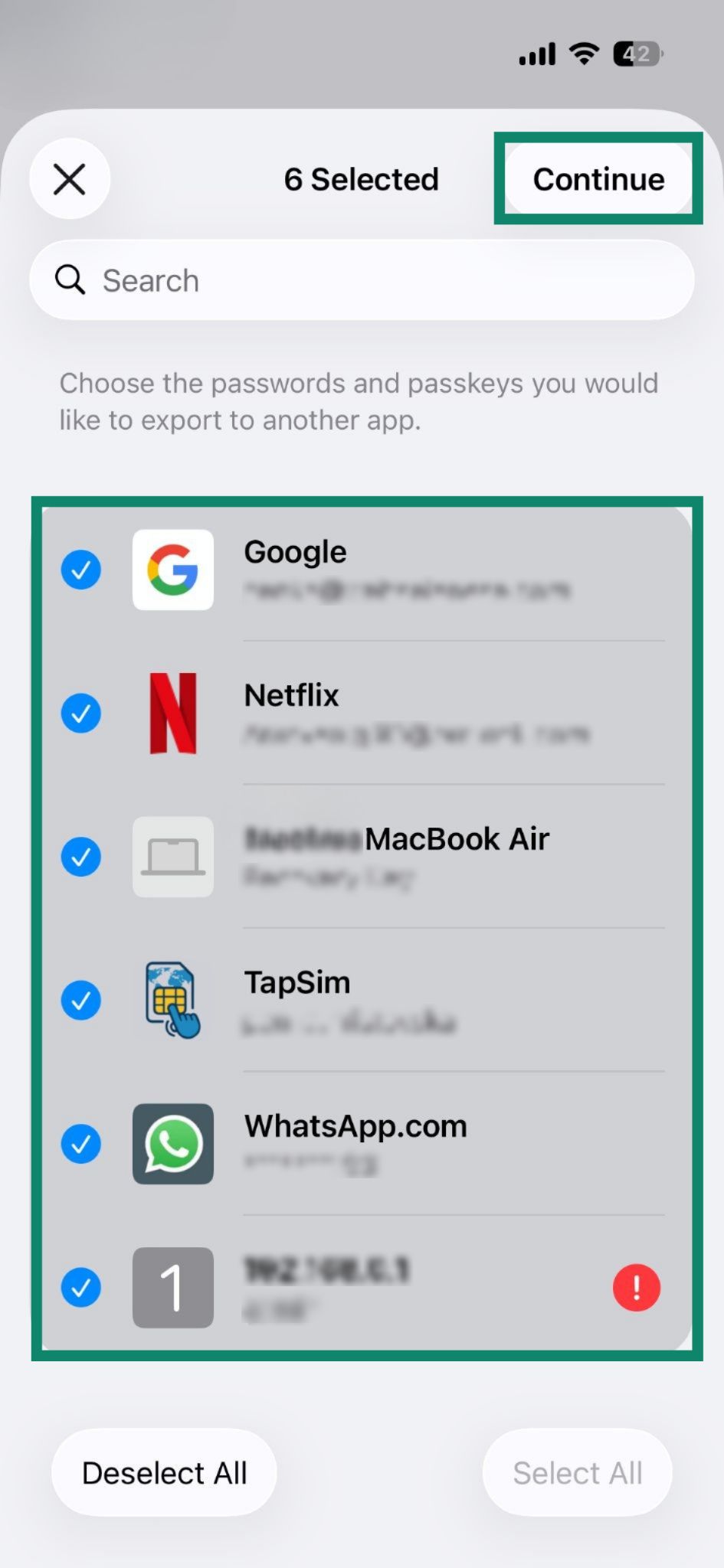
- Select the logins you want to export and tap Continue.
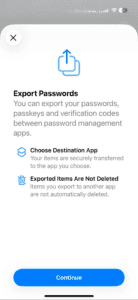
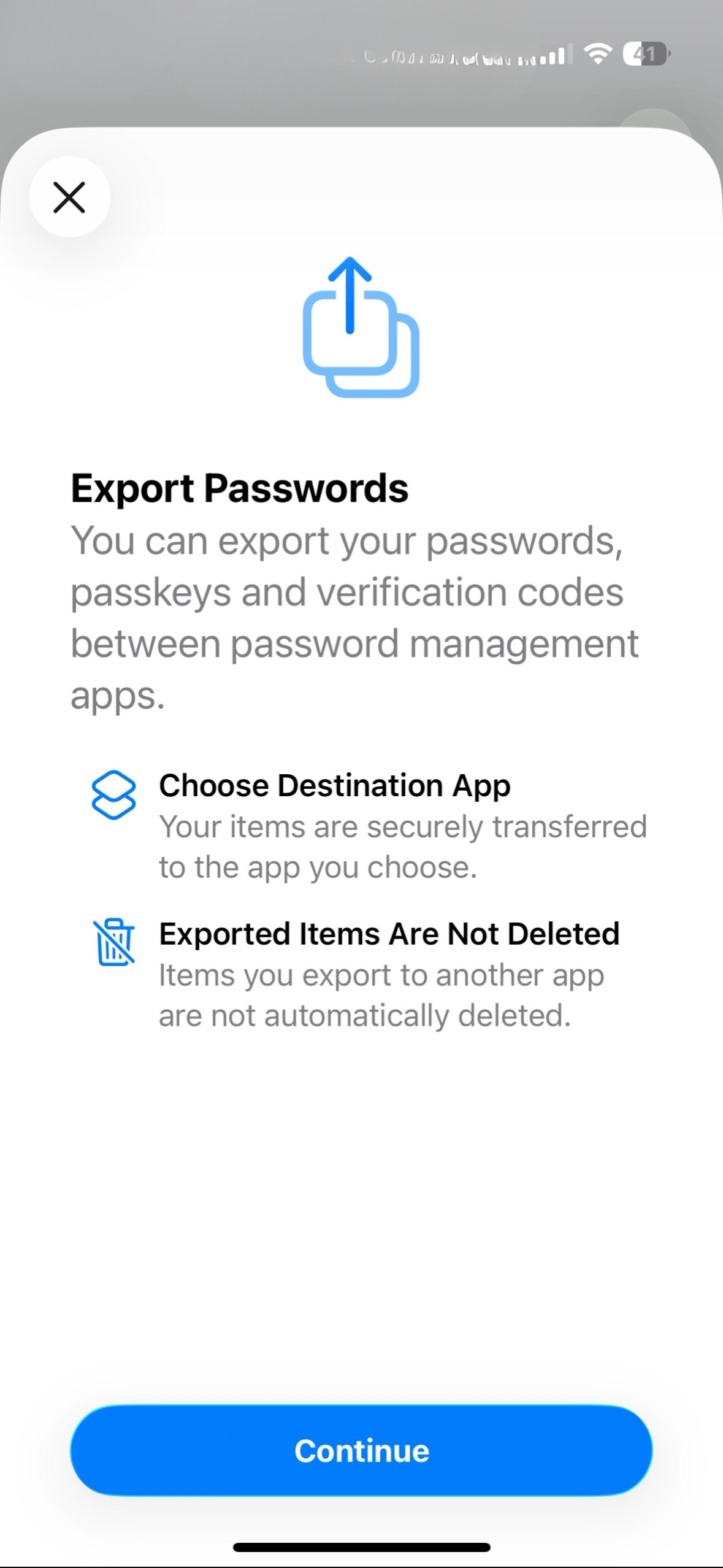
- Tap Continue on the next screen.
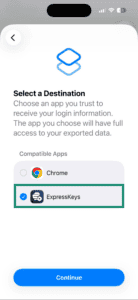
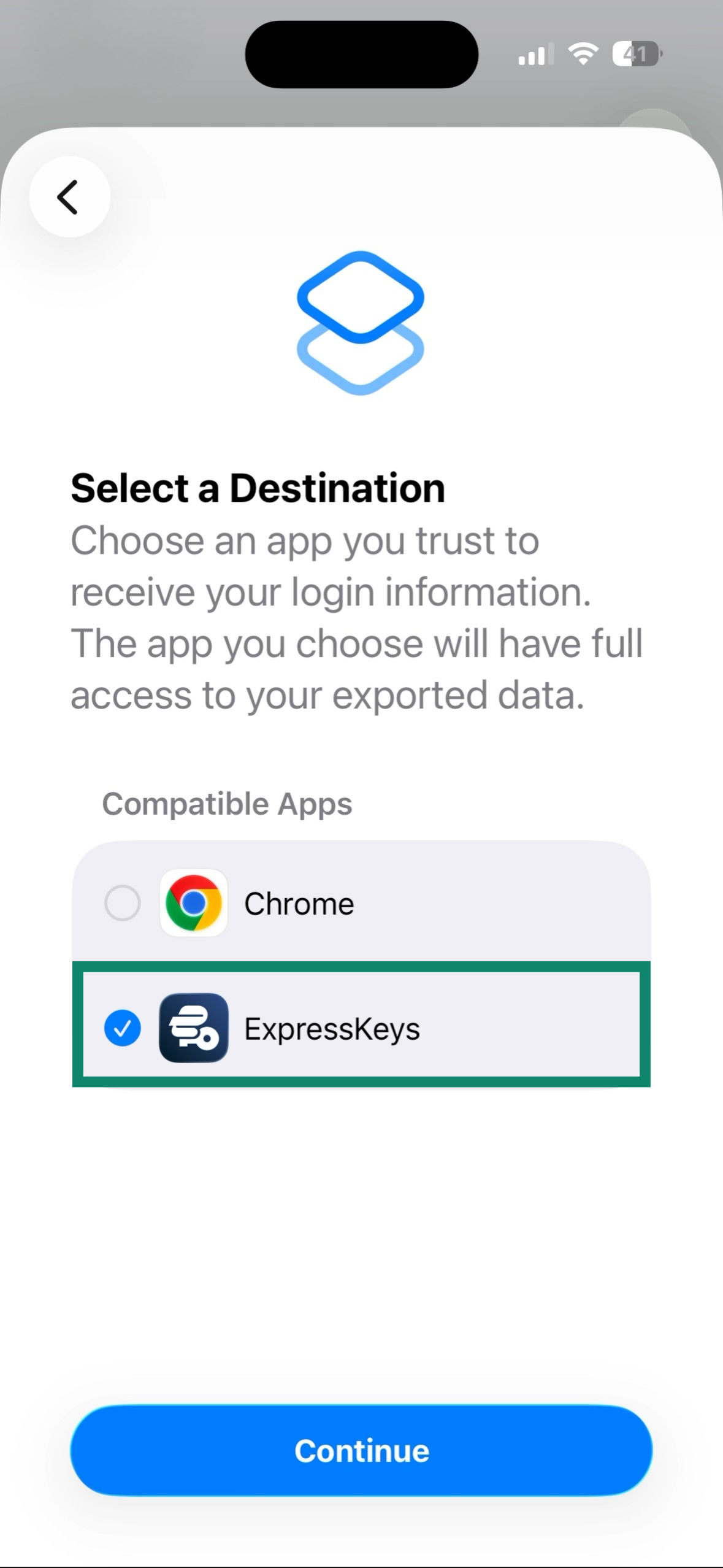
- Select ExpressKeys as the destination for the export and tap Continue.
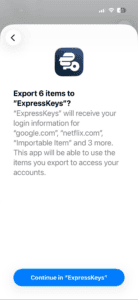
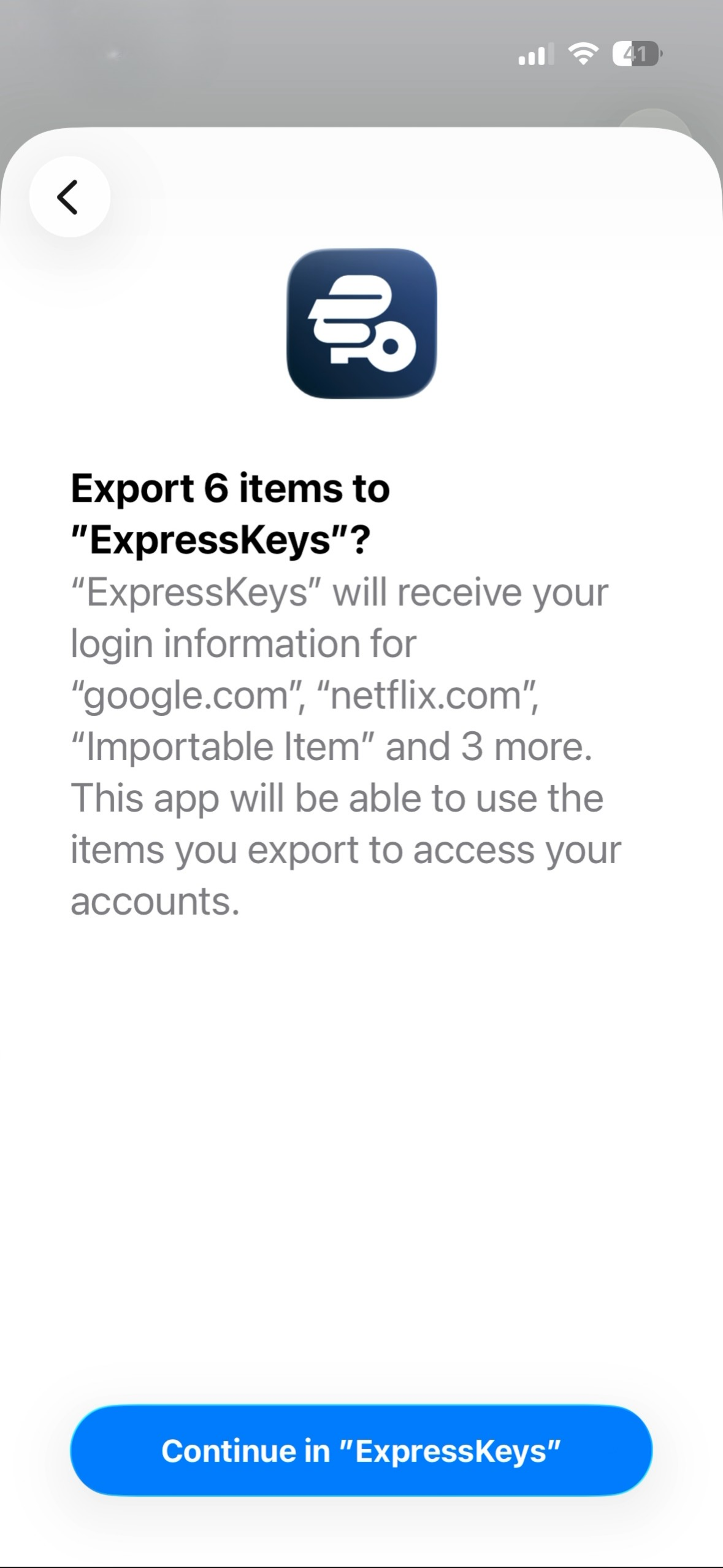
- Confirm the action by tapping Continue in “ExpressKeys.”
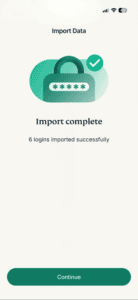
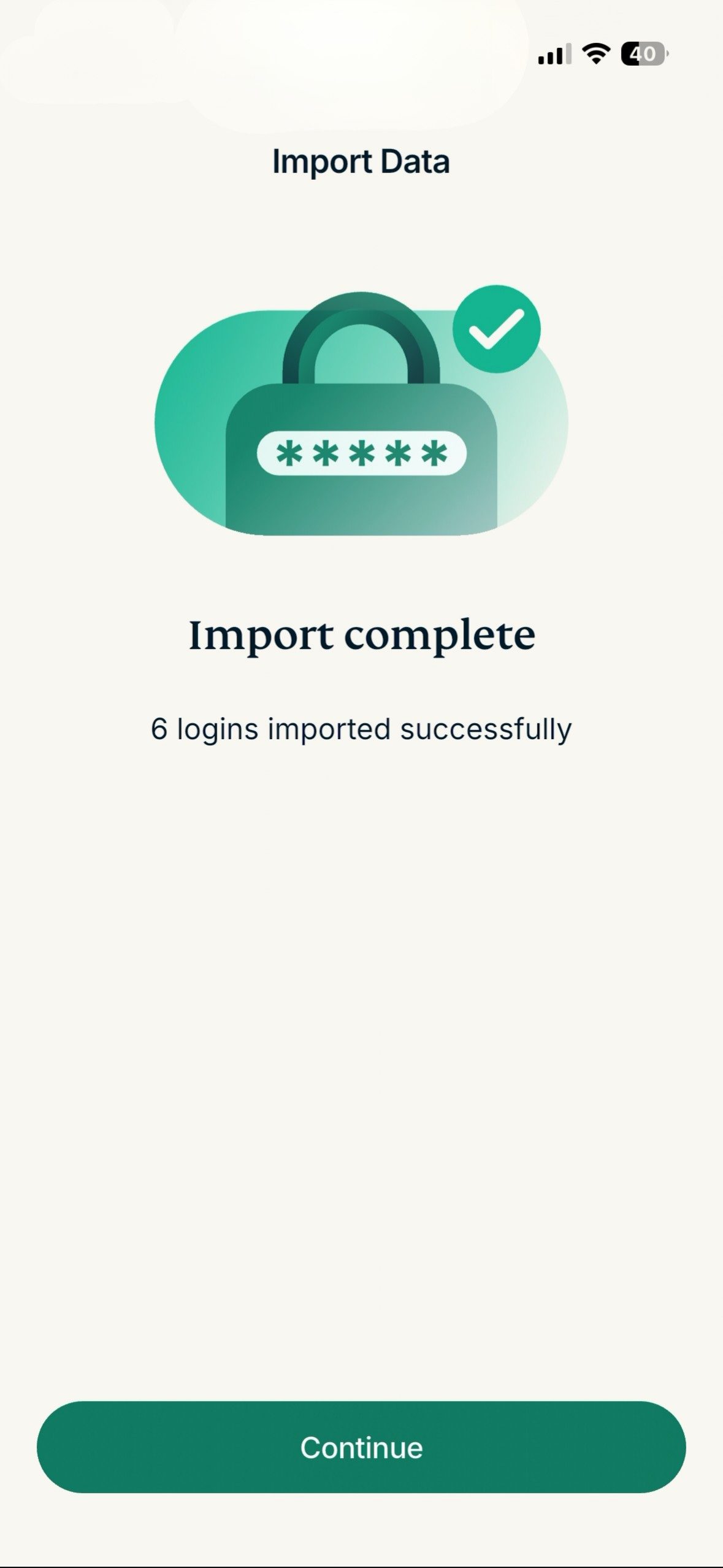
- You’ll be taken to the ExpressKeys app, where you’ll see a screen confirming the import.
Need help? Contact our Support Team for immediate assistance.
Import your iCloud Keychain logins on Windows
On Windows, you can’t export your logins from iCloud or the Passwords app. Depending on your situation, you have two options:
- If you also have a Mac: Install the ExpressKeys browser extension on your Mac and follow the Mac instructions above to export your passwords from the Passwords app and import them into ExpressKeys. Then, install the ExpressKeys browser extension. Once imported, your logins will be available across all your devices.
- If you do not have a Mac: You can copy and paste your logins from the iCloud Passwords browser extension on Windows and add them to the ExpressKeys extension one by one.
Remove the iCloud Passwords browser extension
If you are using the iCloud Passwords browser extension on your Windows device, it will continue to prompt you to fill your logins for sites or services, interfering with ExpressKeys. To prevent this, remove the iCloud Passwords browser extension.
Chrome
- In Chrome, enter chrome://extensions/ in the search bar.
- Find iCloud Passwords.
- Click Remove > Remove.
Microsoft Edge
- In Edge, enter edge://extensions/ in the search bar.
- Find iCloud Passwords.
- Click Remove > Remove.
Need help? Contact our Support Team for immediate assistance.
Import your iCloud Keychain logins on Android
There is no way to export or access your iCloud Keychain passwords directly from an Android device. There is no Passwords app for Android, and iCloud.com on the web does not provide access to your saved logins either.
To import your iCloud Keychain logins into ExpressKeys on Android, you can:
- Use a Mac, iPhone, or iPad to import your logins: Follow the Mac or iOS instructions above to import your logins into ExpressKeys. Once imported, your logins will automatically sync to ExpressKeys on your Android device.
Manually add your logins on Android: If you only have a few logins to transfer, you can manually add your logins to the ExpressKeys for Android.
Need help? Contact our Support Team for immediate assistance.