



You can import your logins from Chrome into ExpressKeys on your computer or on your Android or iOS device.
Once your passwords are imported, you can use ExpressKeys to review your password health, identify weak or reused passwords, and update them to improve your security.
Jump to…
Import your Chrome logins using your computer
Import your Chrome logins using your iOS device
Import your Chrome logins using your Android device
Import your Chrome logins using your computer
1. Export your Chrome logins
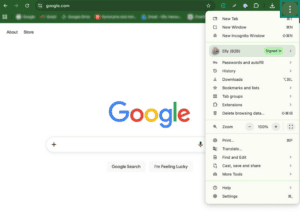
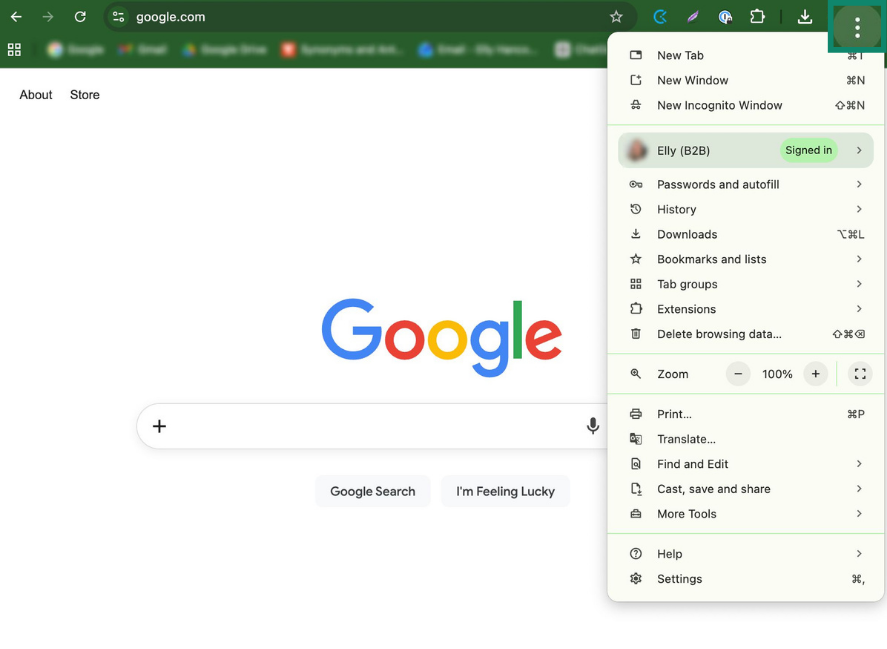
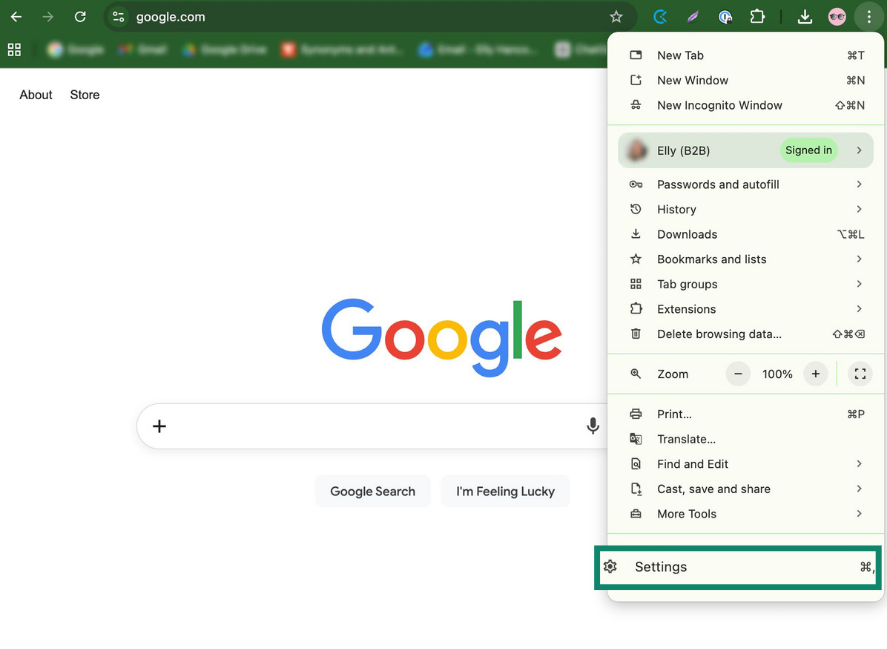
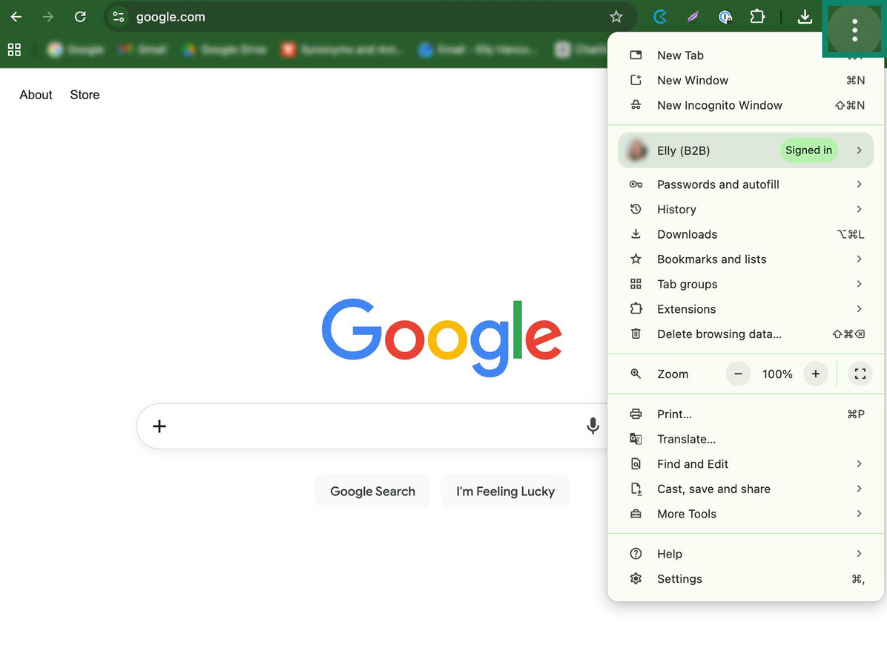
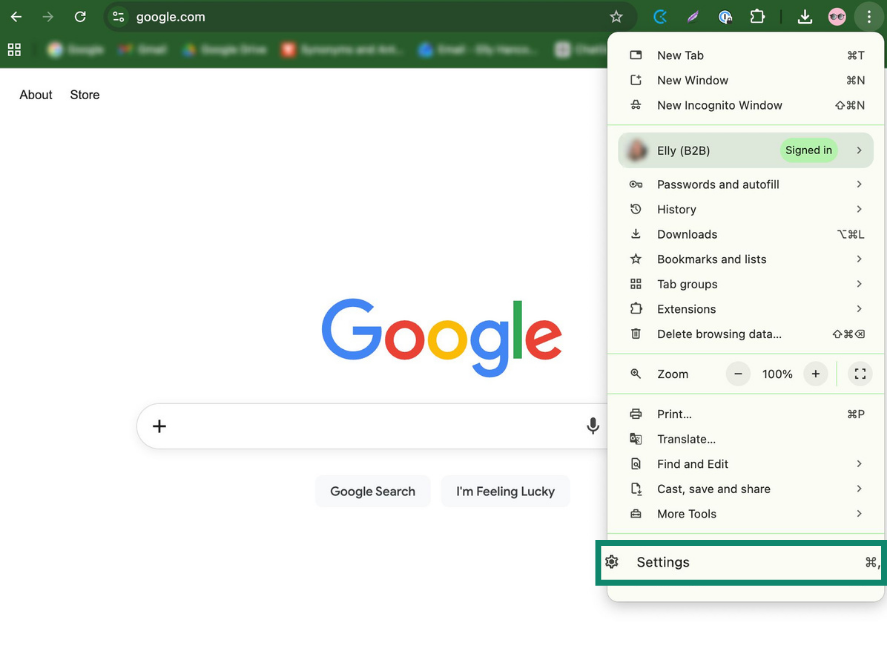
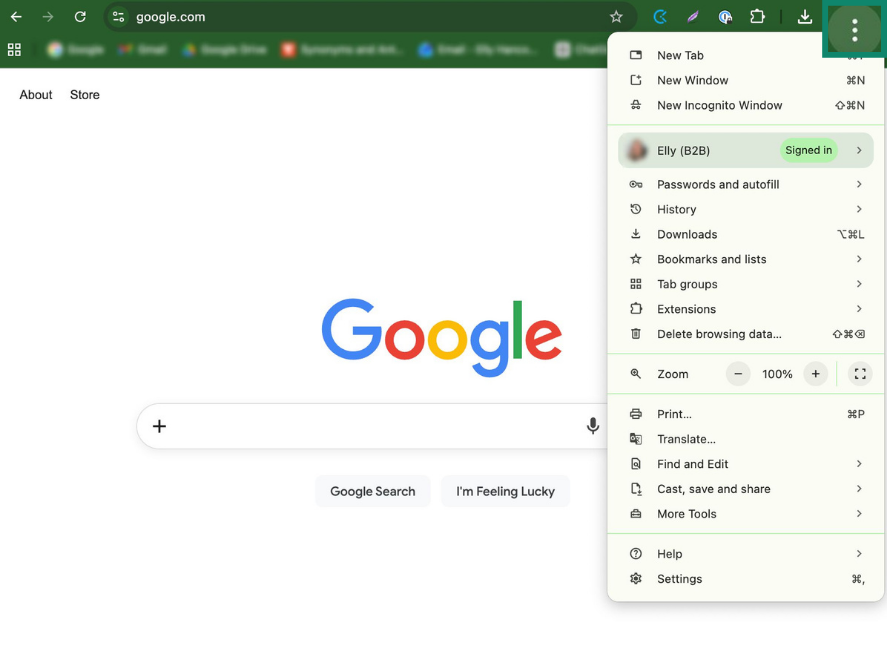
- Open Google Chrome and click the three dots (

 ).
).

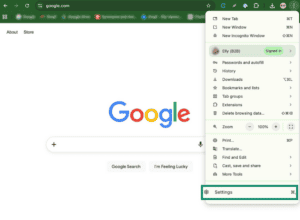
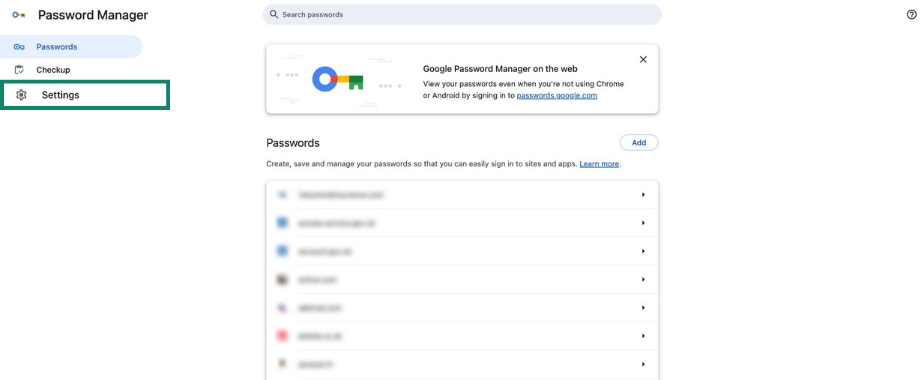
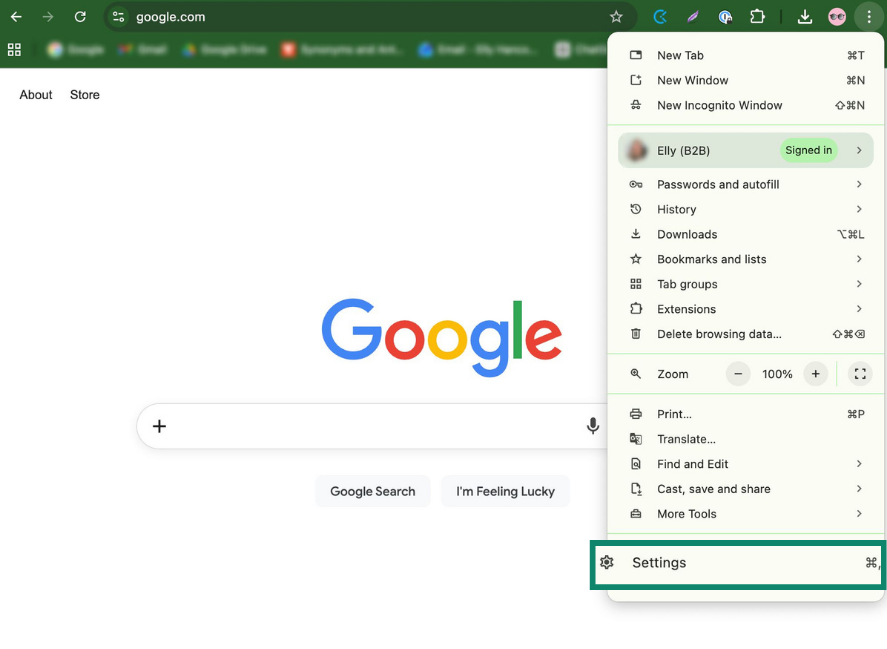
- Select Settings.
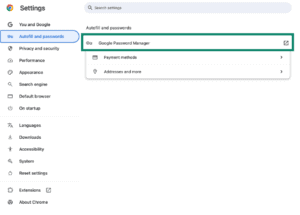
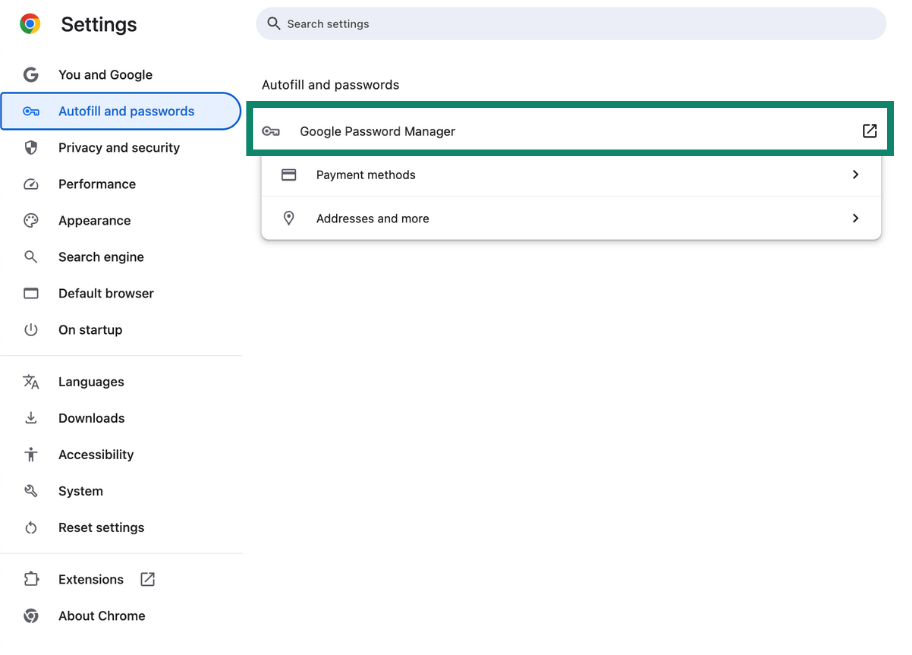
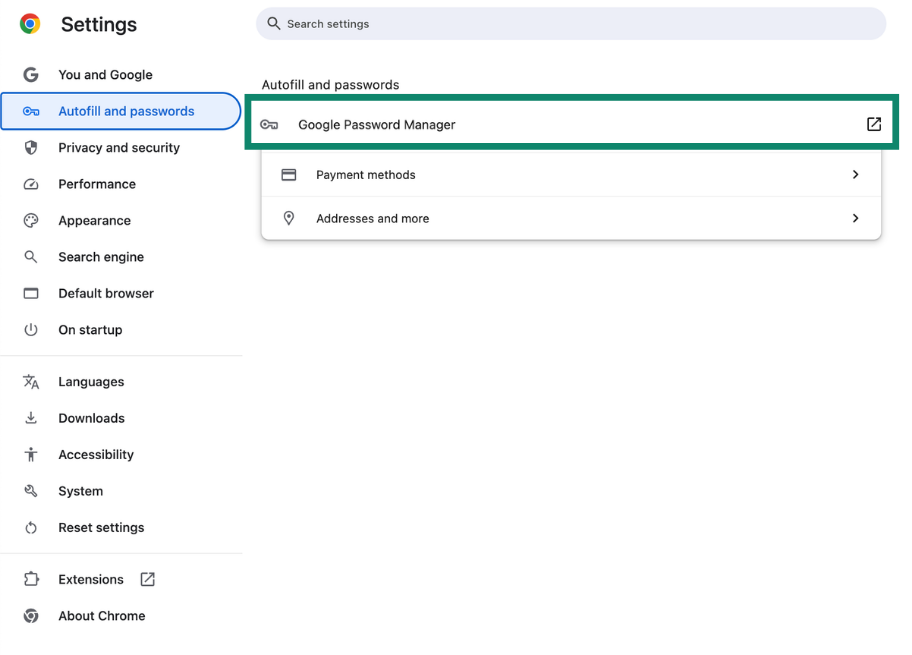
- Go to Autofill and passwords > Google Password Manager.

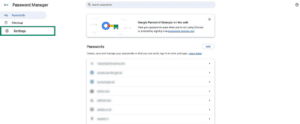
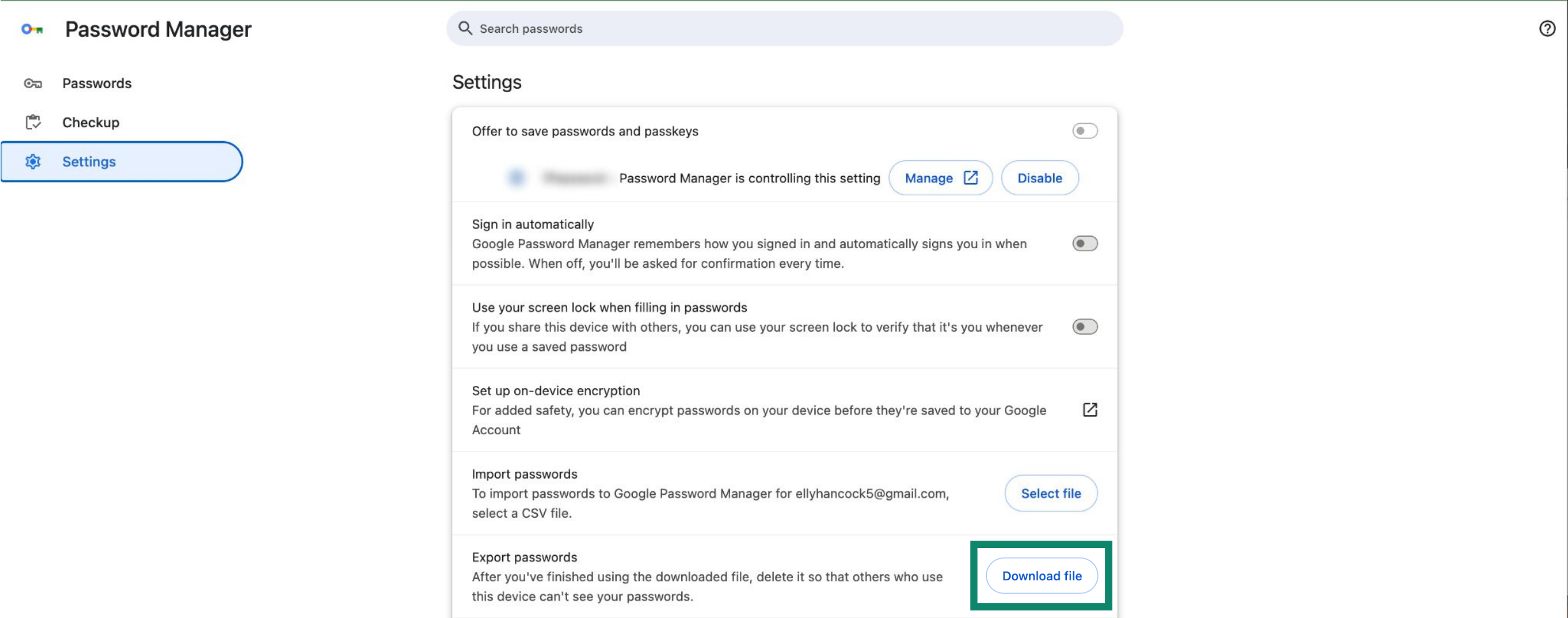
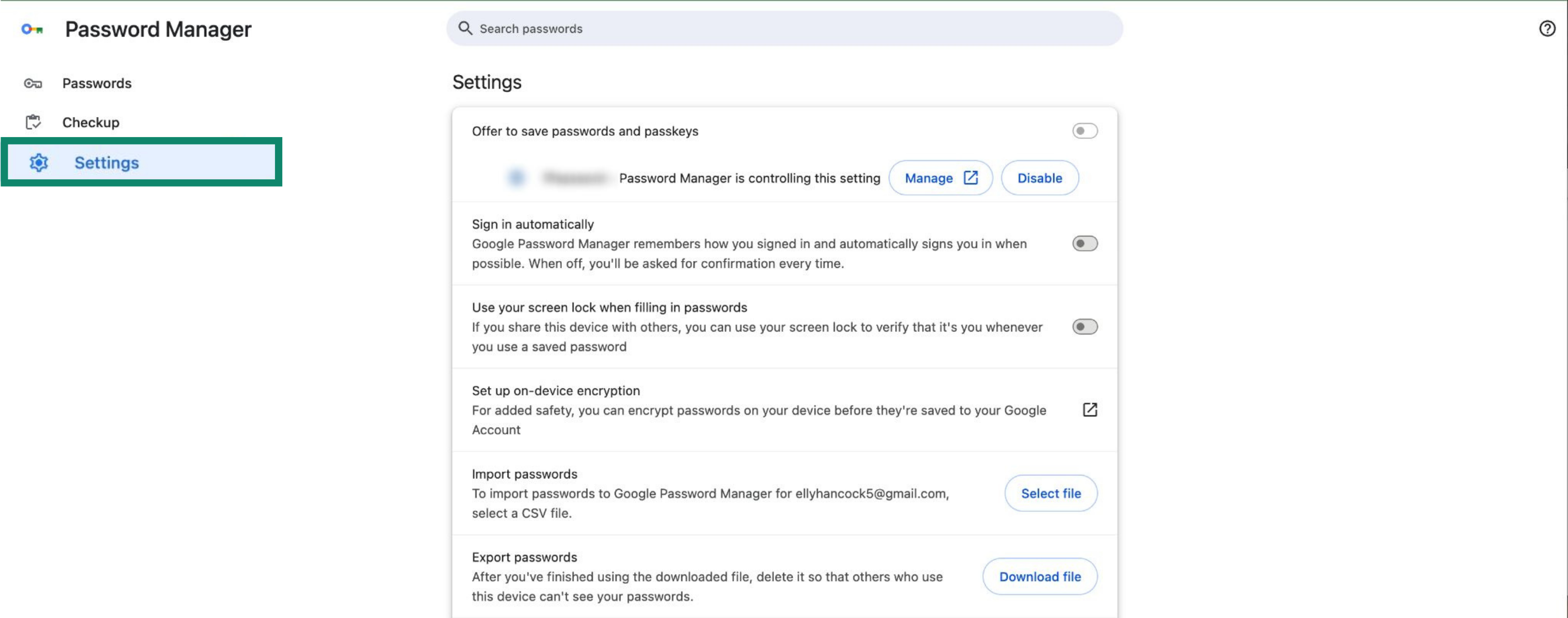
- Click Settings.

- Under Export passwords, click Download file.
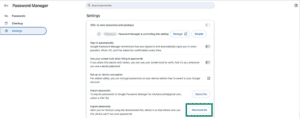

- Enter your device password and save the CSV file to your computer.
2. Import your logins into ExpressKeys
- In Chrome, install the ExpressKeys browser extension for Chrome.
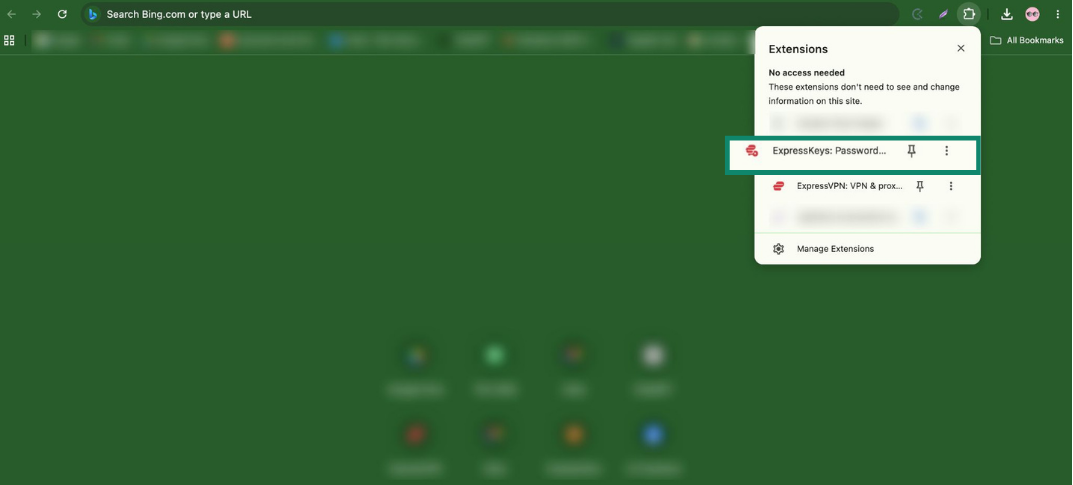
- In the toolbar, open Extensions (jigsaw icon) and click ExpressKeys.
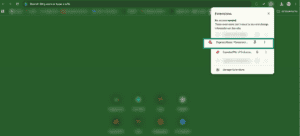

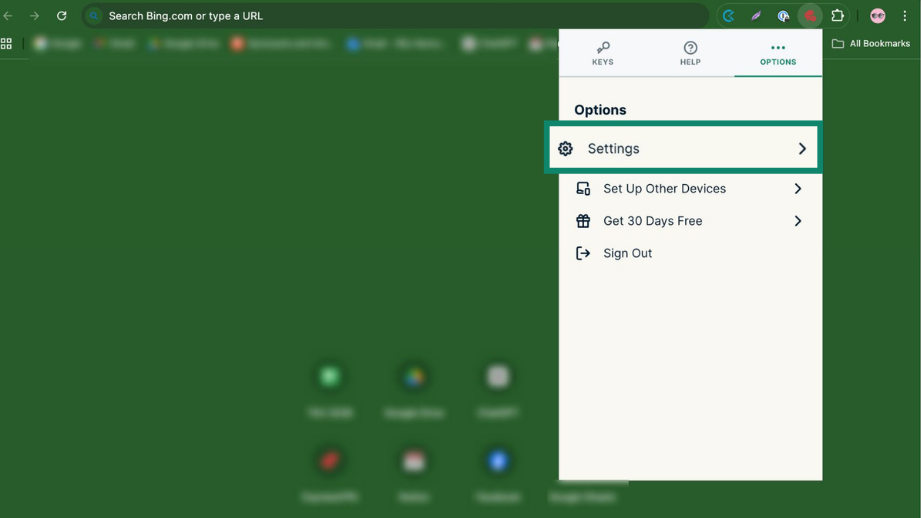
- Click the Options tab > Settings.
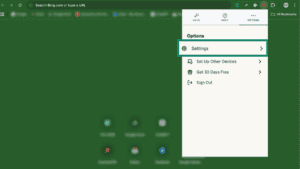

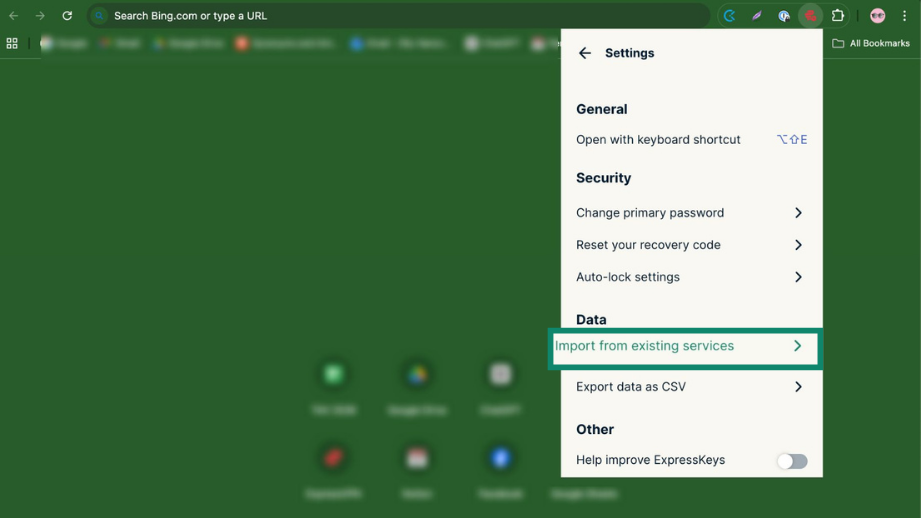
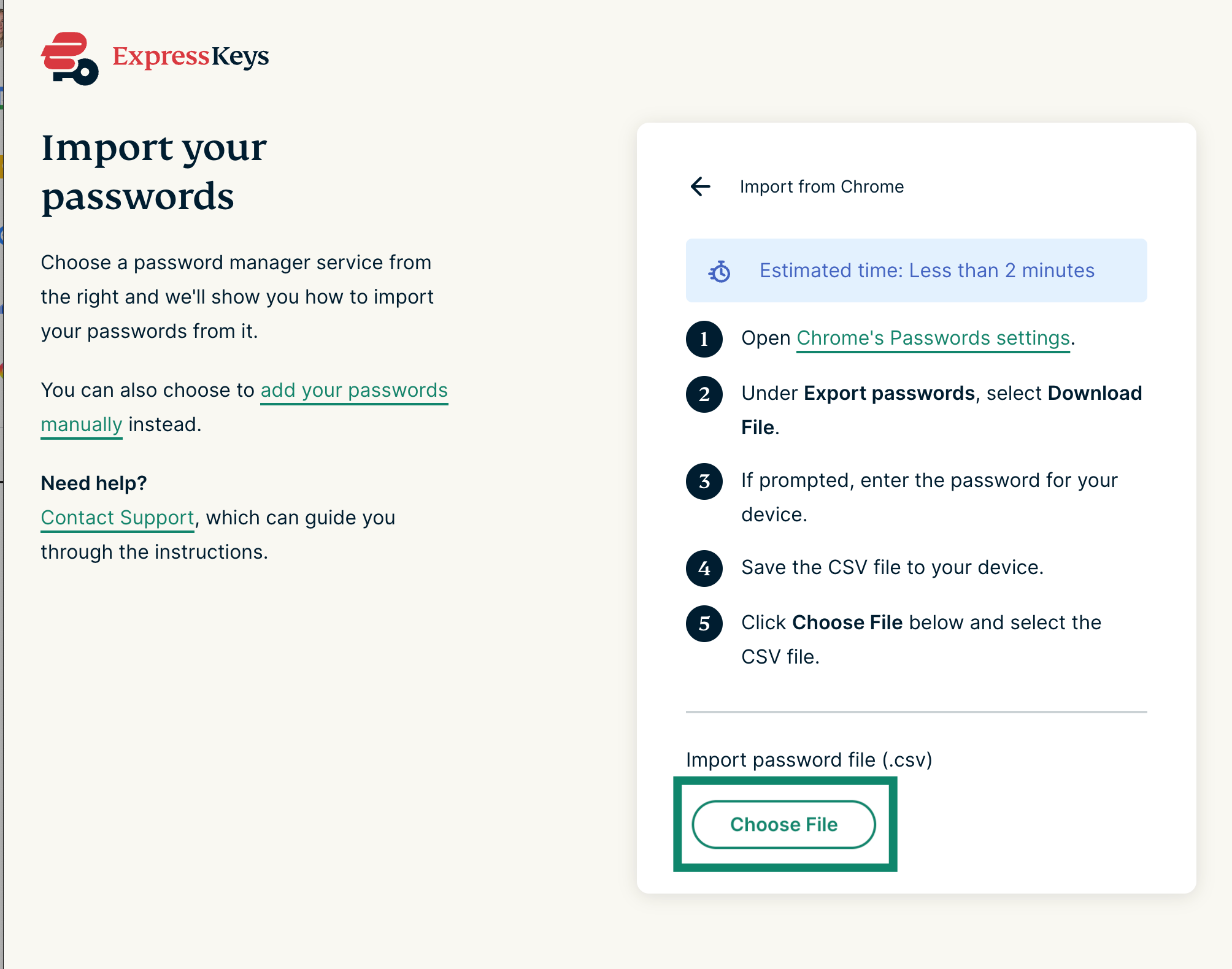
- Click Import from existing services.
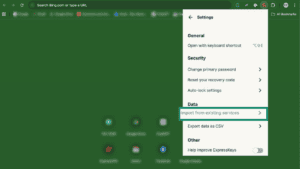
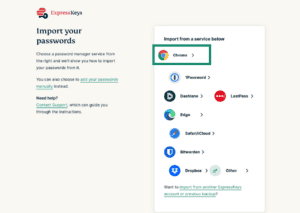
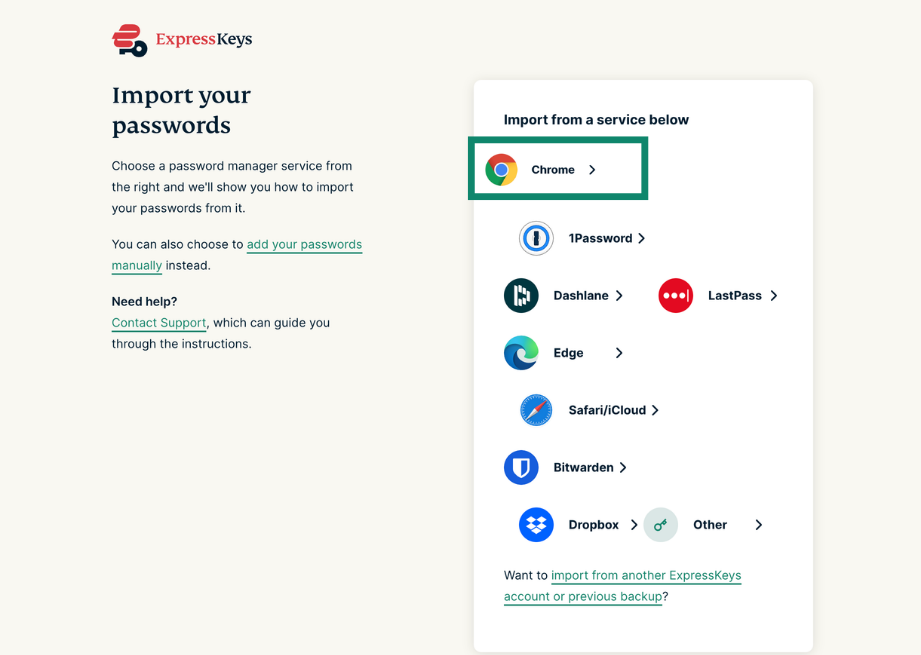
- Select Chrome.

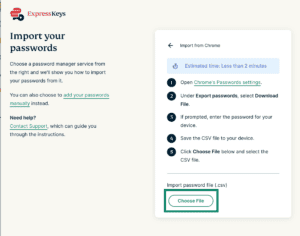
- Click Choose File.

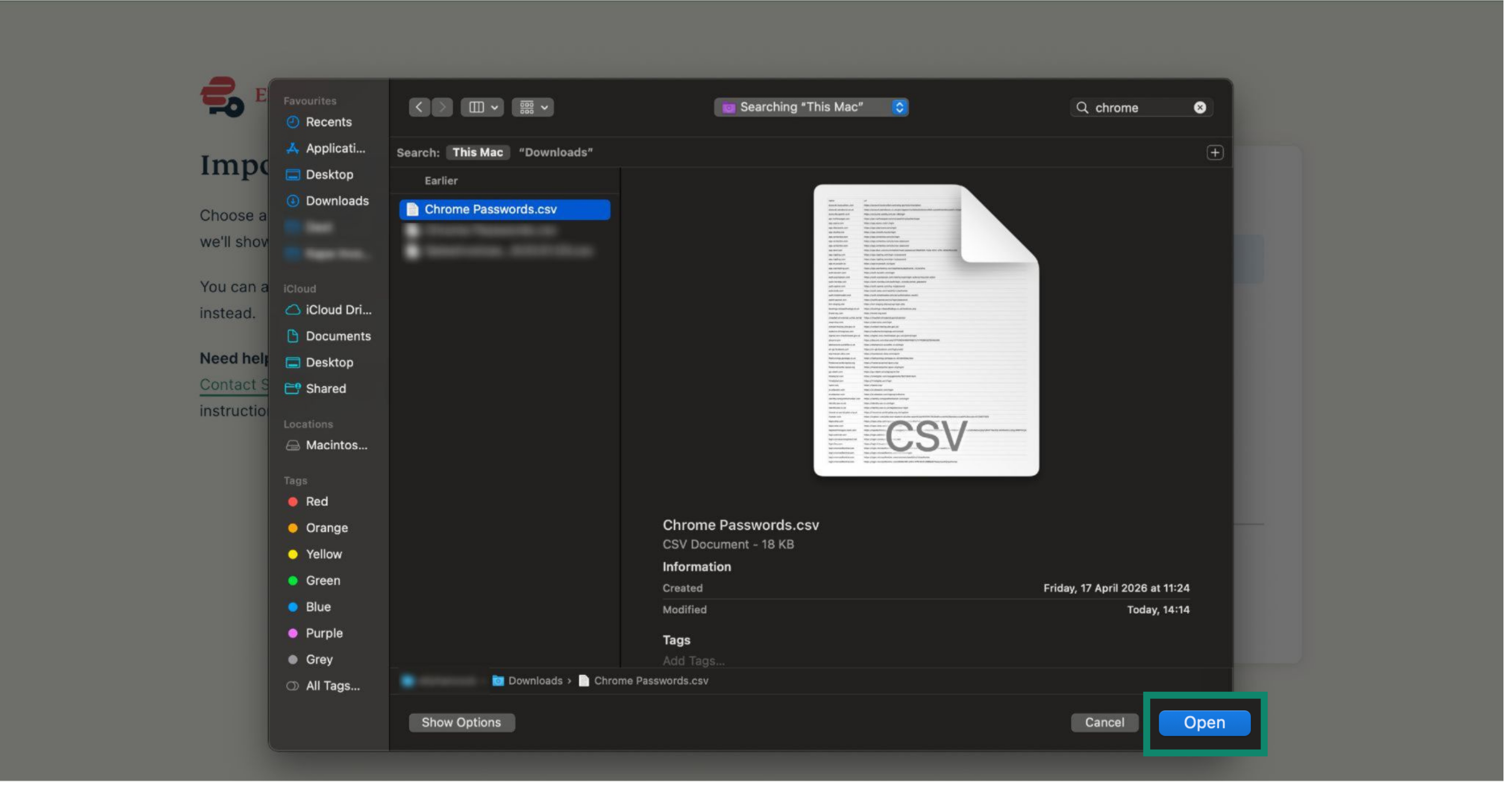
- Select the CSV file you exported earlier and click Open.
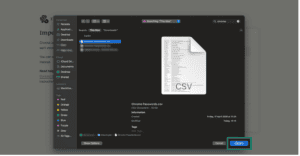

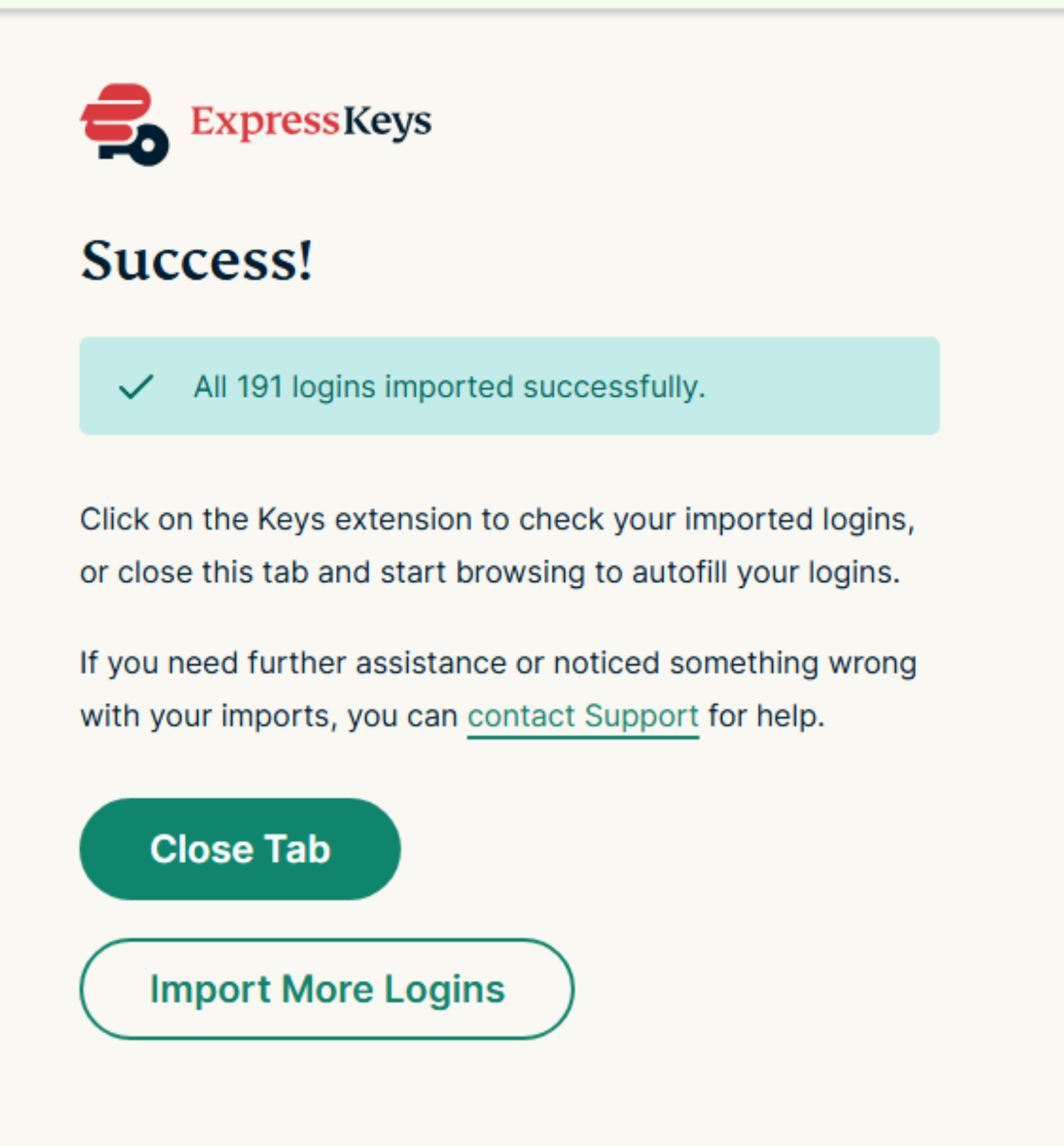
- Your data will import automatically. You should see a green tick next to your file.


3. Delete your logins from Chrome
Chrome will continue to prompt you to fill your logins for sites or services, interfering with ExpressKeys. To prevent this, delete your logins from Chrome.
To delete all your logins at once, follow these steps:
- In Chrome, click the three dots ().
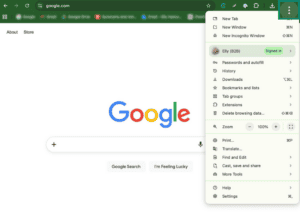
- Click Settings.
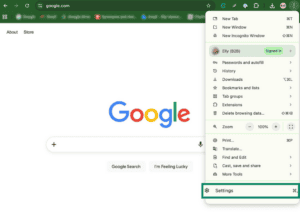
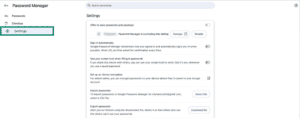
- Click Autofill and passwords > Google Password Manager.

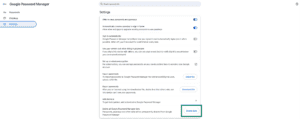
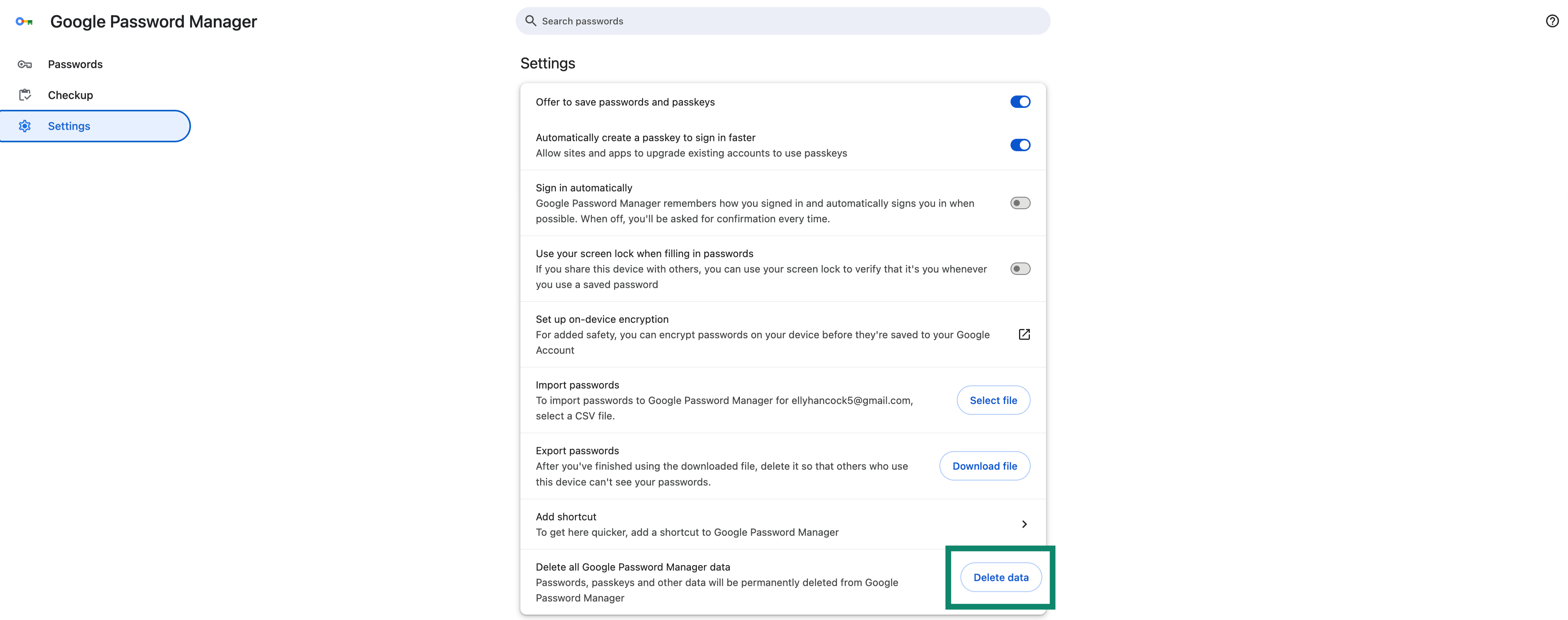
- Click Settings.
- Next to Delete all Google Password Manager data, click Delete data > Delete.


To delete your logins individually, follow these steps:
- In Chrome, click the three dots ().
- Click Settings.
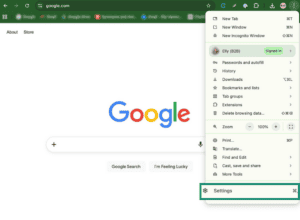
- Click Autofill and passwords > Google Password Manager.

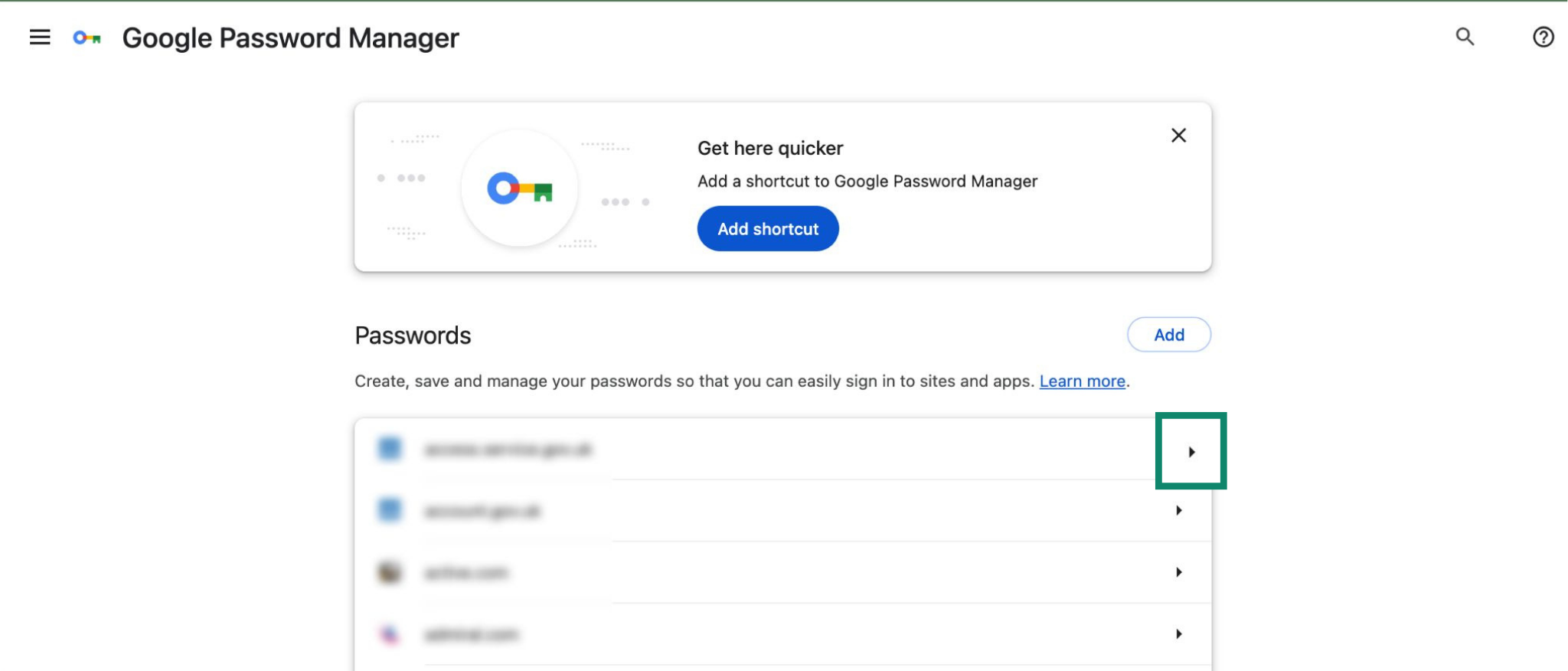
- Click the arrow (
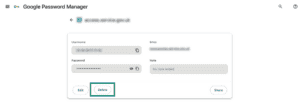
 ) next to the login you want to delete.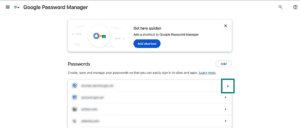

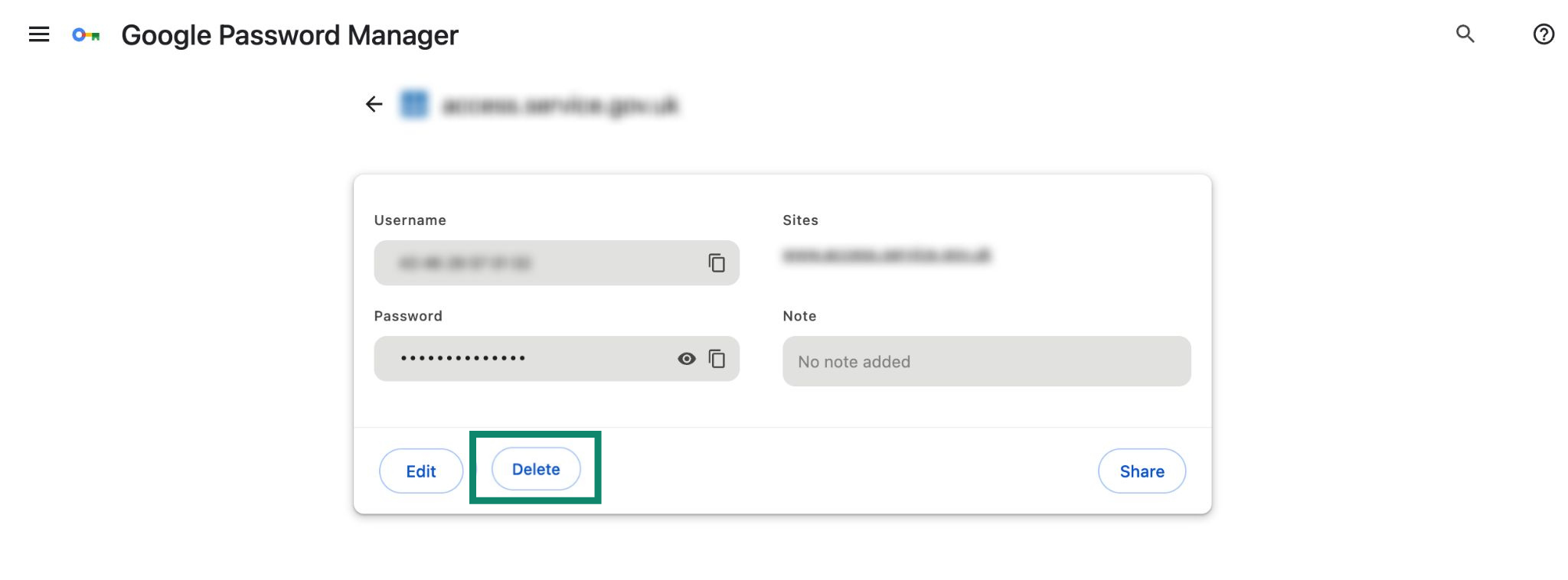
- Click Delete.

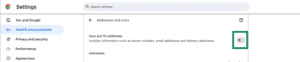
To prevent Chrome from filling names, emails, and addresses, follow these steps:
- In Chrome, enter chrome://settings/addresses in the search bar.


- Toggle Save and fill addresses off.


Need help? Contact our Support Team for immediate assistance.
Import your Chrome logins using your iOS device (iOS 26+)
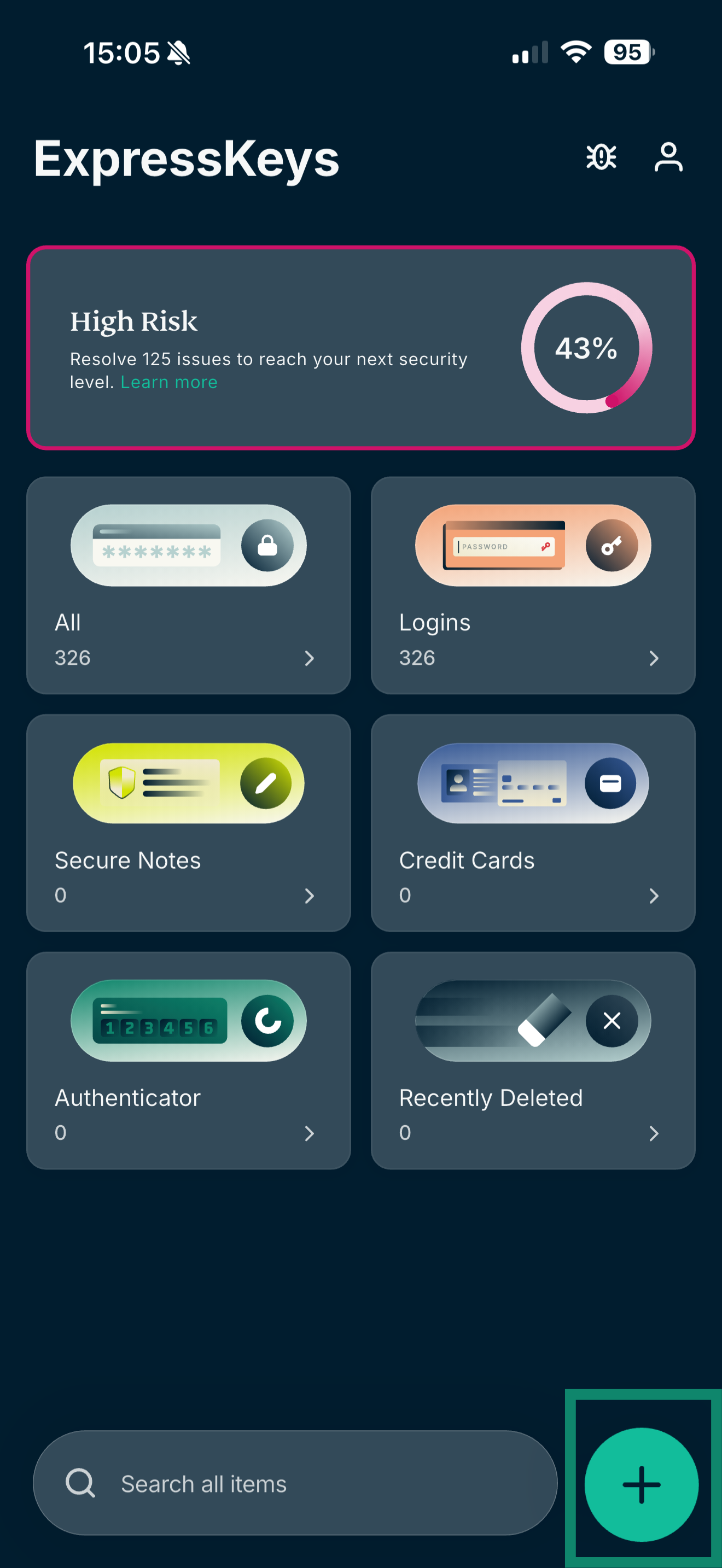
Import your logins into ExpressKeys
- Open the ExpressKeys app and tap the plus (
 ) icon.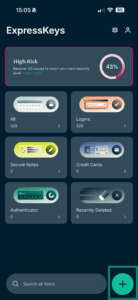

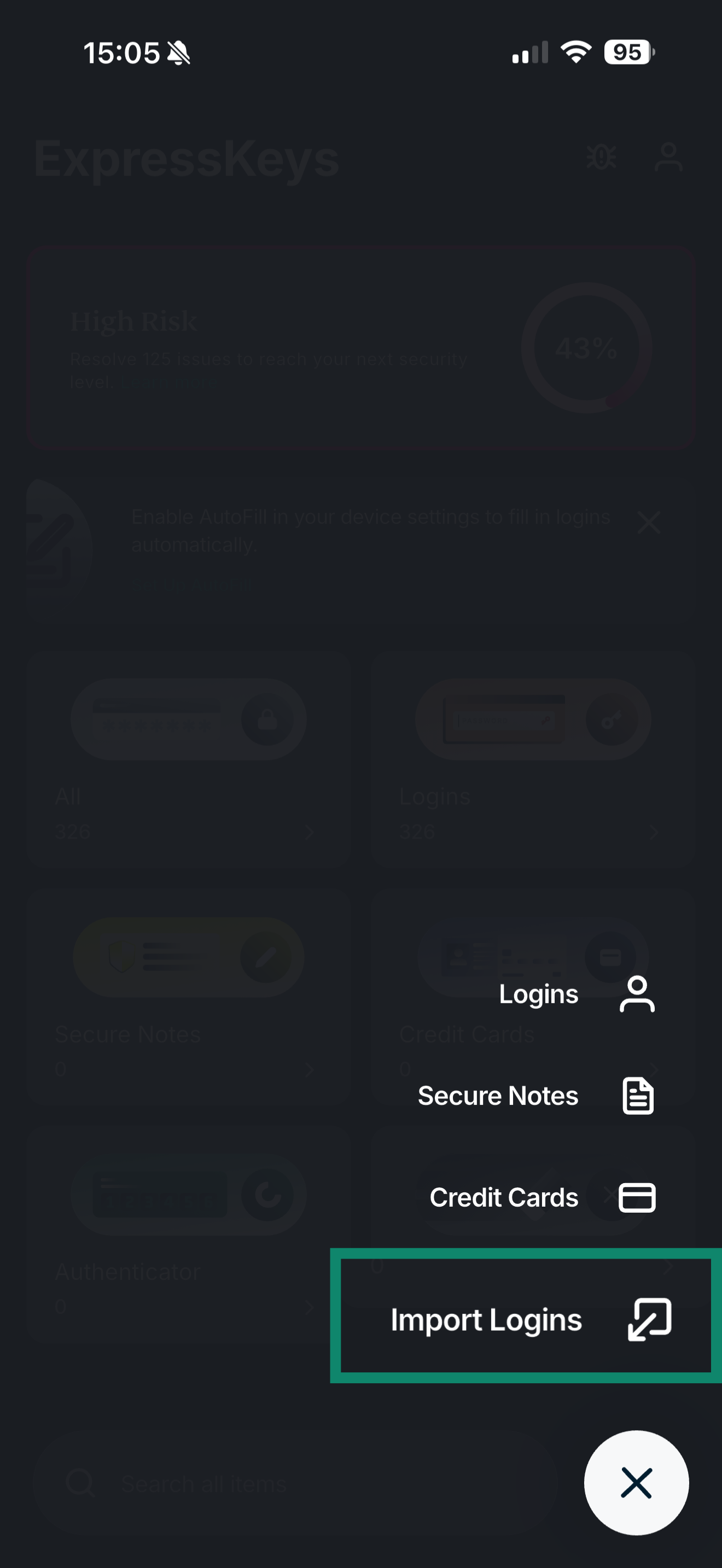
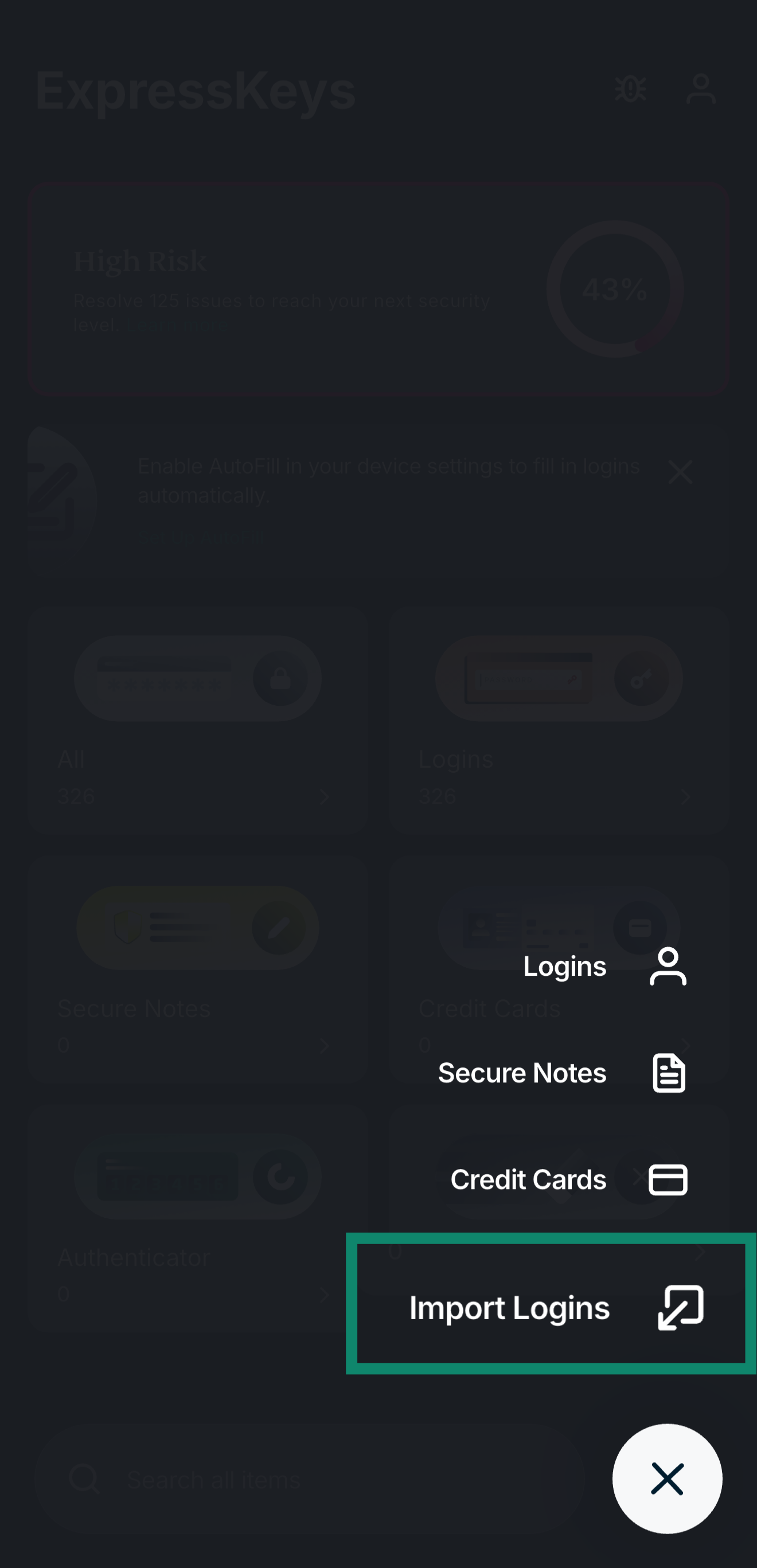
- Tap Import Logins.
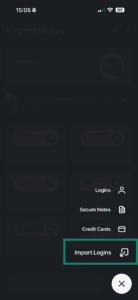
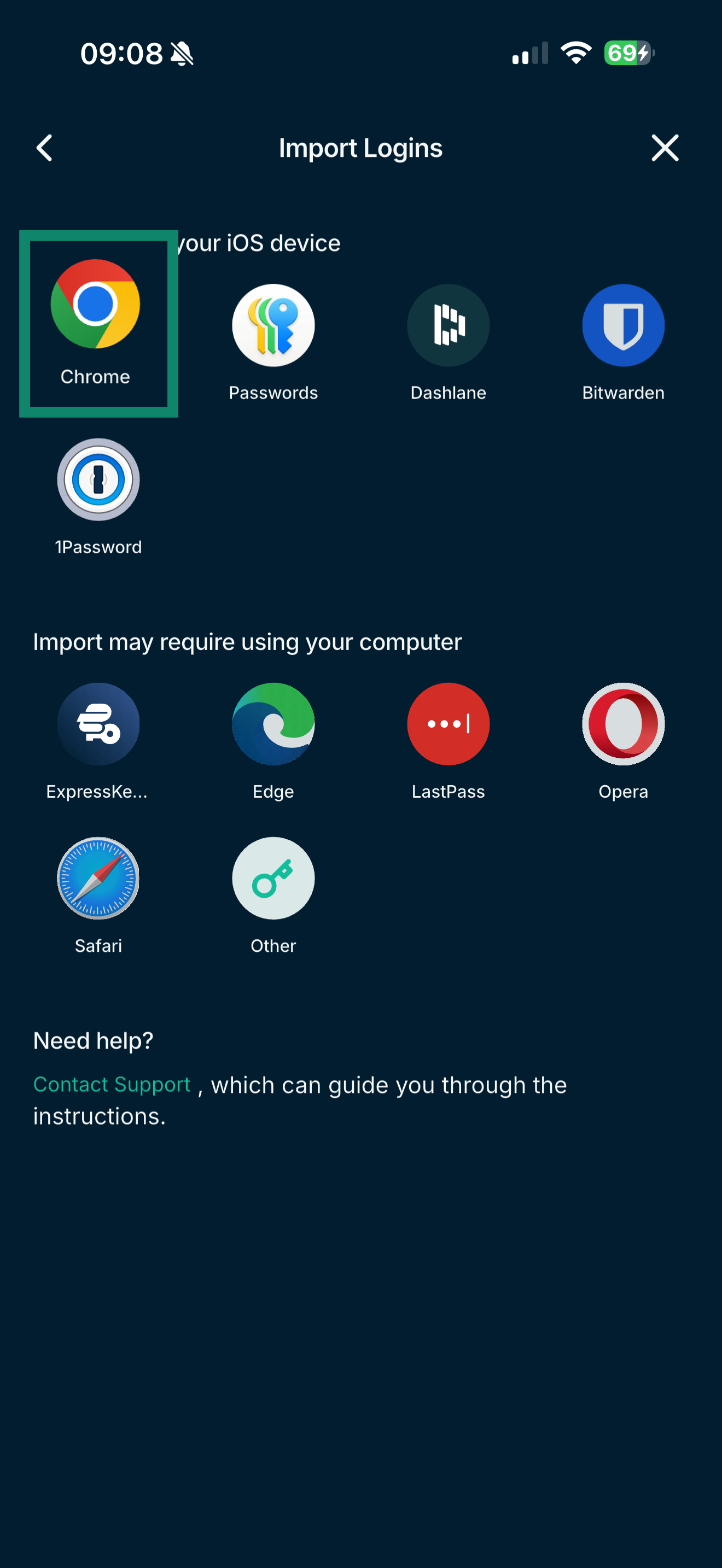
- Tap Chrome > Open Chrome.
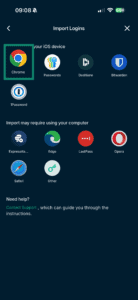
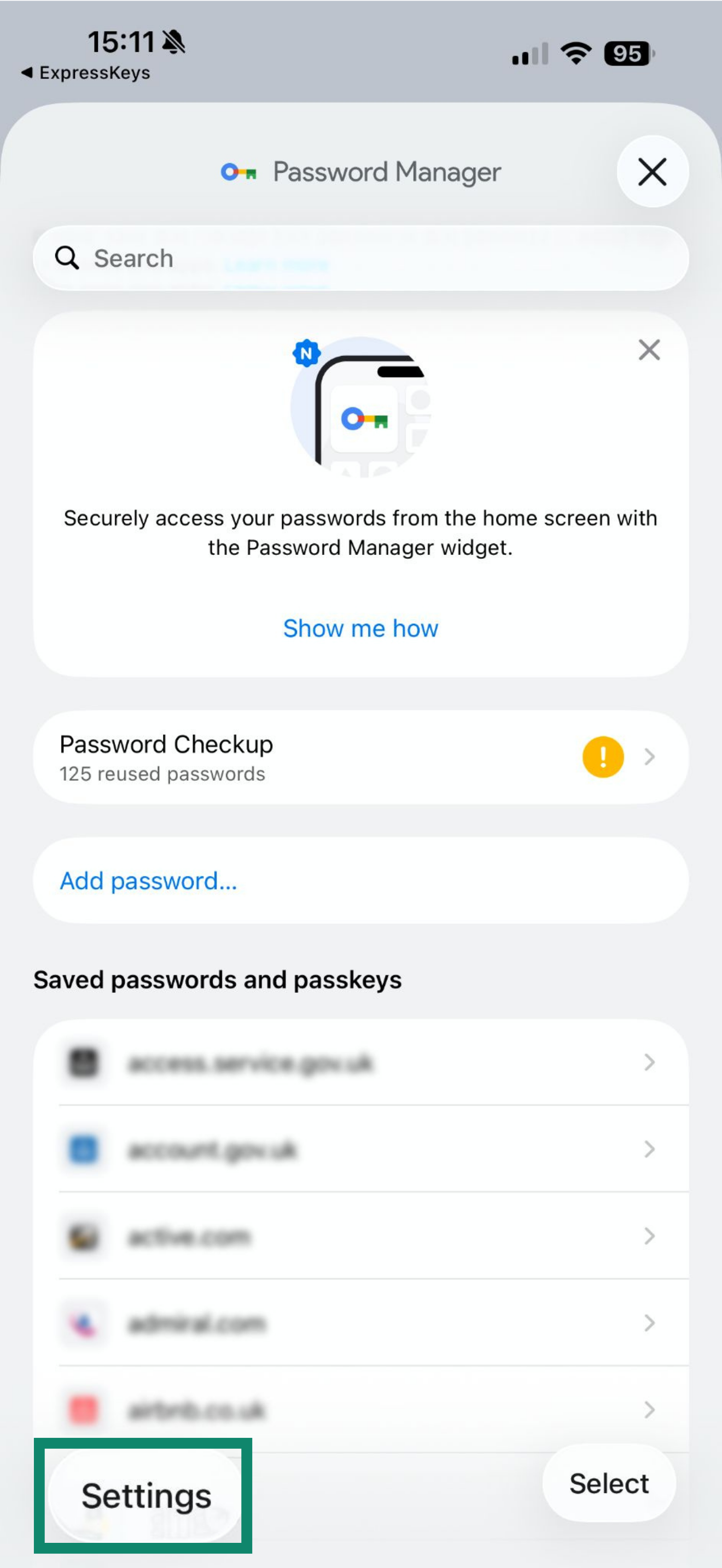
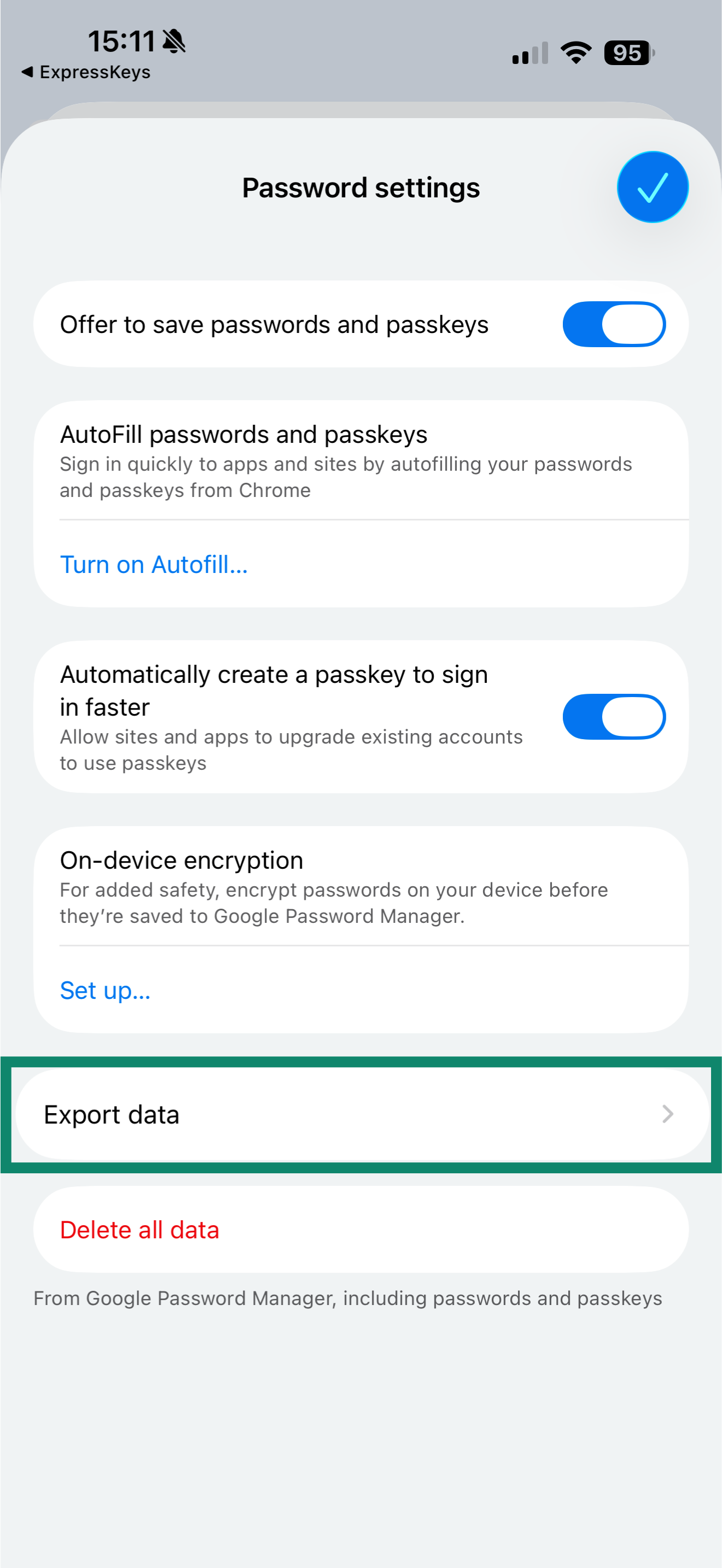
- Tap Settings.
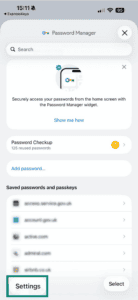
- Tap Export data.
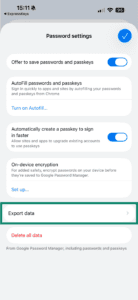
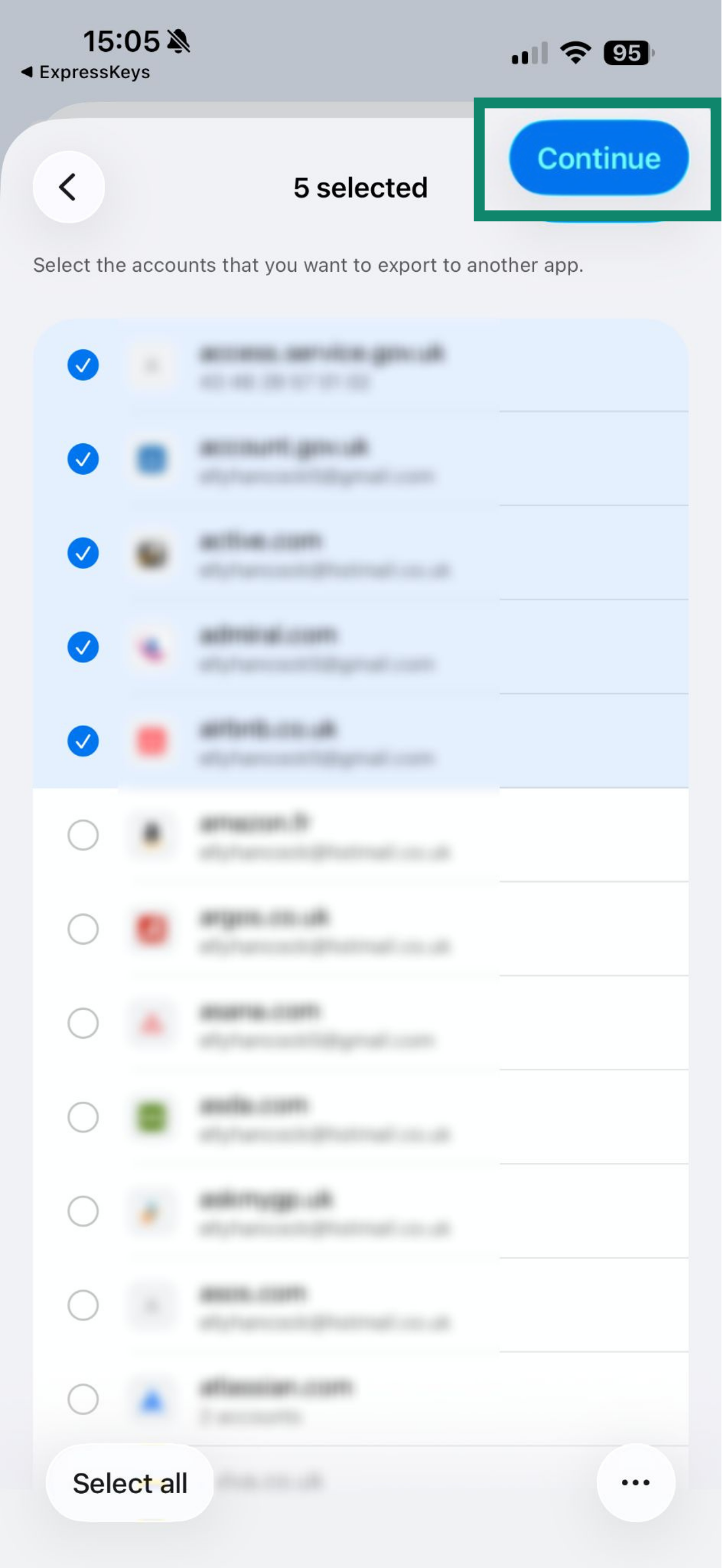
- Select the entries you want to export, then tap Continue.
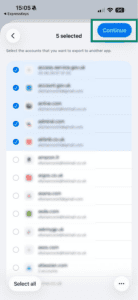
- Tap Continue.
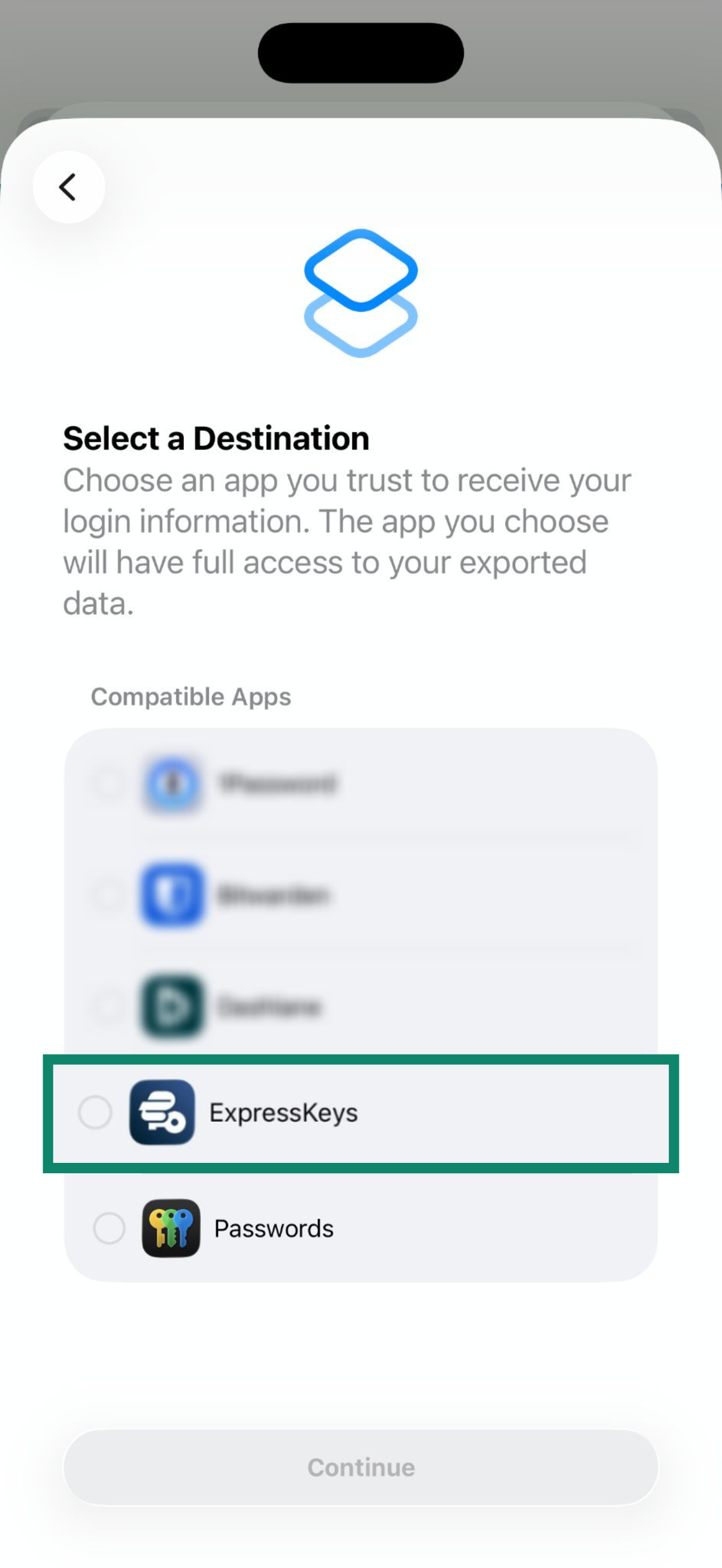
- Select ExpressKeys from the list, then tap Continue.
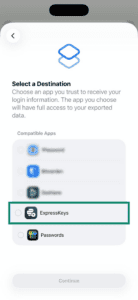
- Tap Continue in “ExpressKeys.”
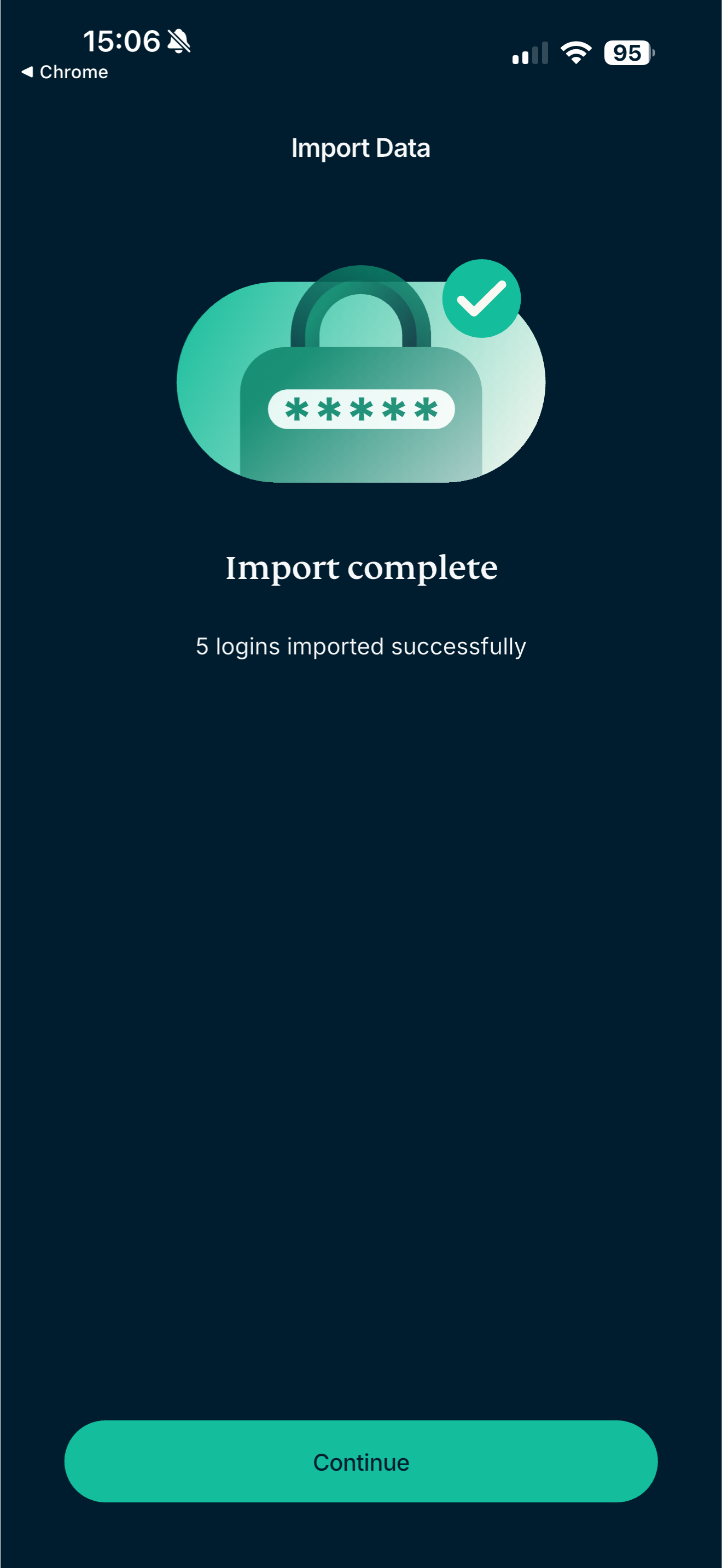
- Wait for the app to import your passwords, then tap Continue.

2. Delete your logins from Chrome
Chrome will continue to prompt you to fill your logins for sites or services, interfering with ExpressKeys. To prevent this, delete your logins from Chrome.
To delete all your logins at once, follow these steps:
- In the Chrome app, tap
 .
. - Tap Delete browsing data.
- Tap Time range > All time.
- Select only Saved Passwords.
- Tap Delete data.
To delete your logins individually, follow these steps:
- In the Chrome app, tap .
- Tap Password Manager.
- At the top, tap Edit.
- Tap the login, then tap Delete.
To prevent Chrome from asking you to save logins in Google Password Manager or filling names, emails and addresses, follow these steps:
- In the Chrome app, tap .
- Tap Settings.
- Tap Addresses and more, then toggle Save and fill addresses off.
- Go back to the Settings screen.
- Tap Password Manager.
- Toggle Offer to save Passwords off.
Need help? Contact our Support Team for immediate assistance.
Import your Chrome logins using your Android device
To import your Chrome logins on your Android device, follow the steps below:
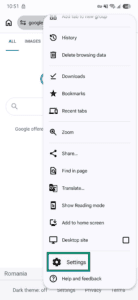
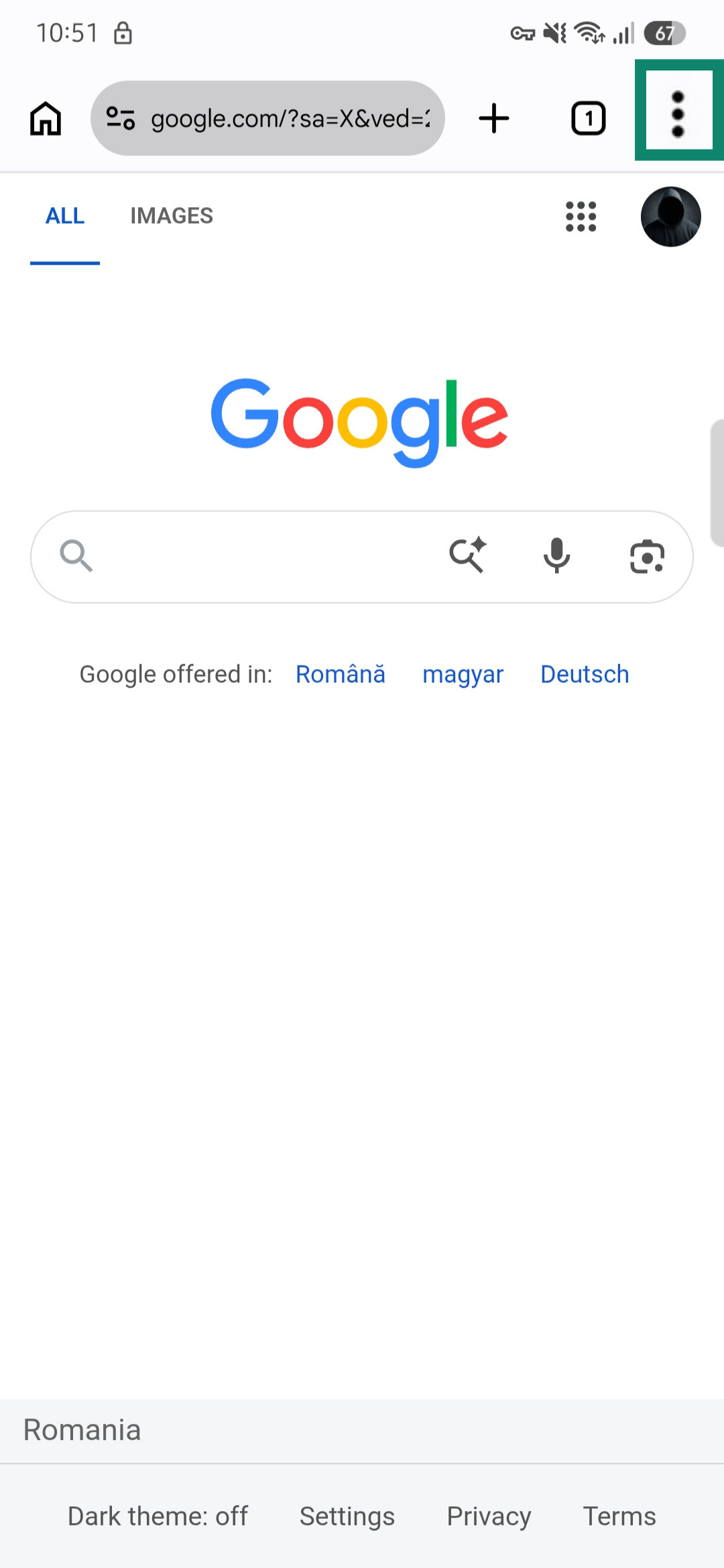
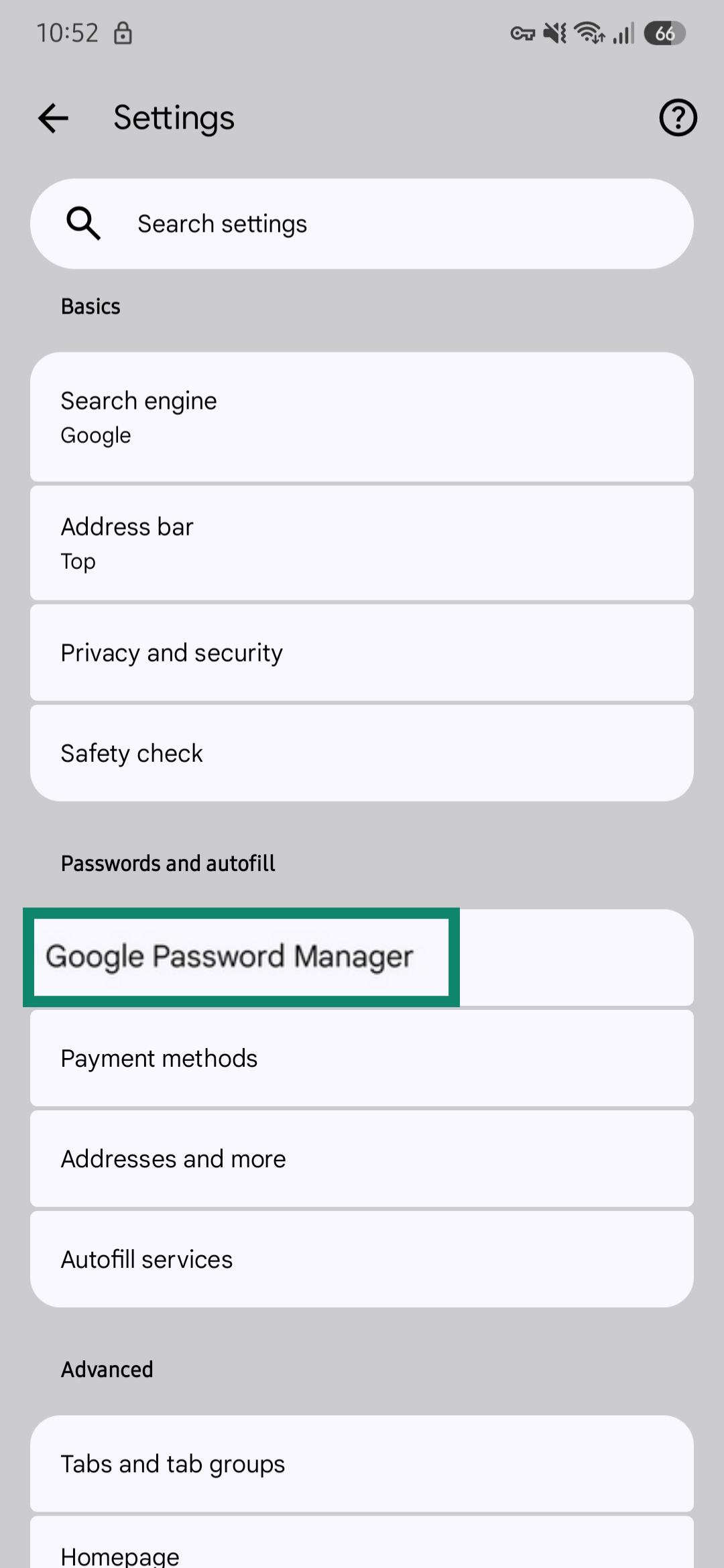
- In Google Chrome, tap the three-dot icon in the top-right corner.


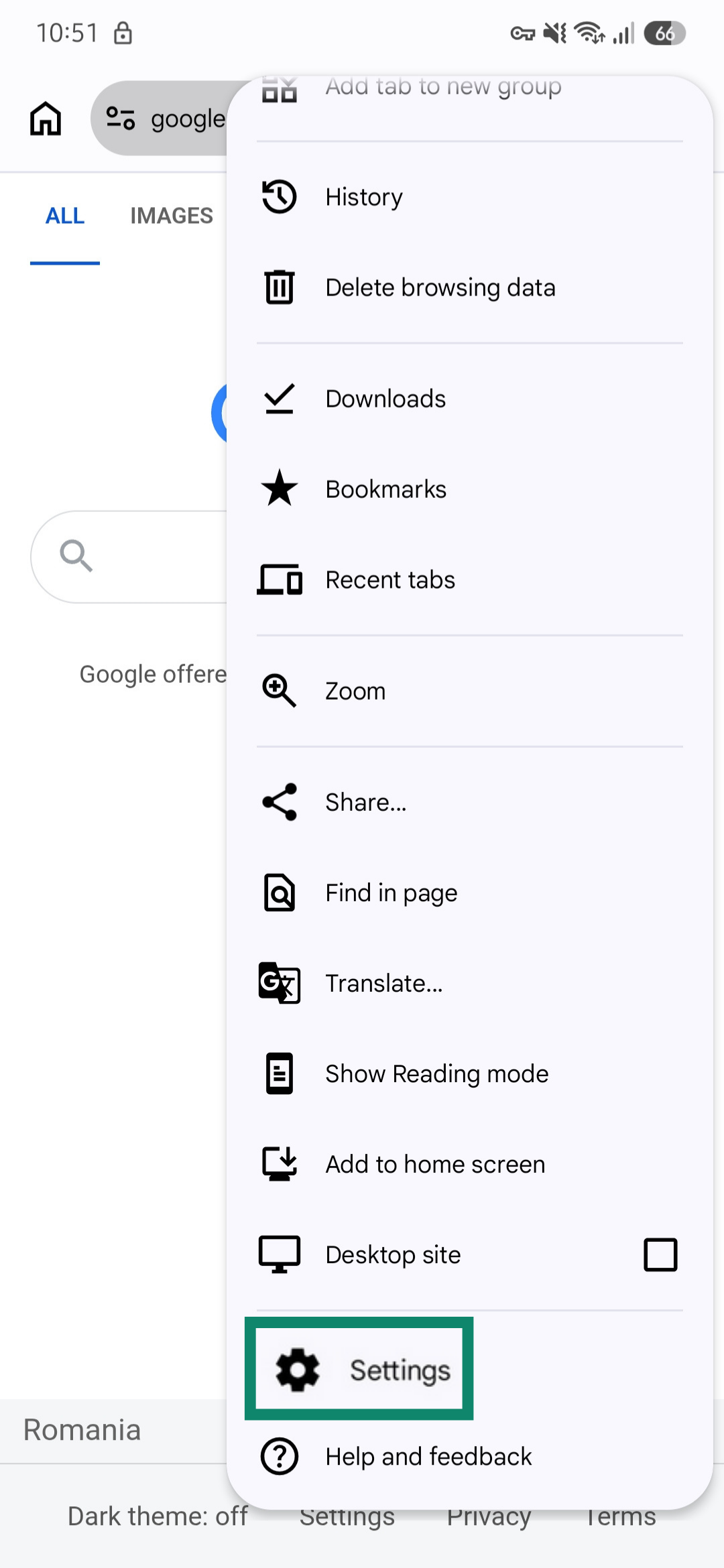
- Tap Settings.
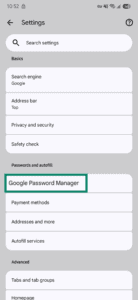
- Select Google Password Manager.
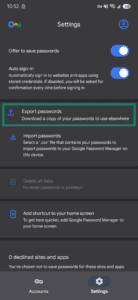
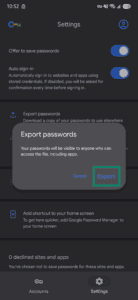
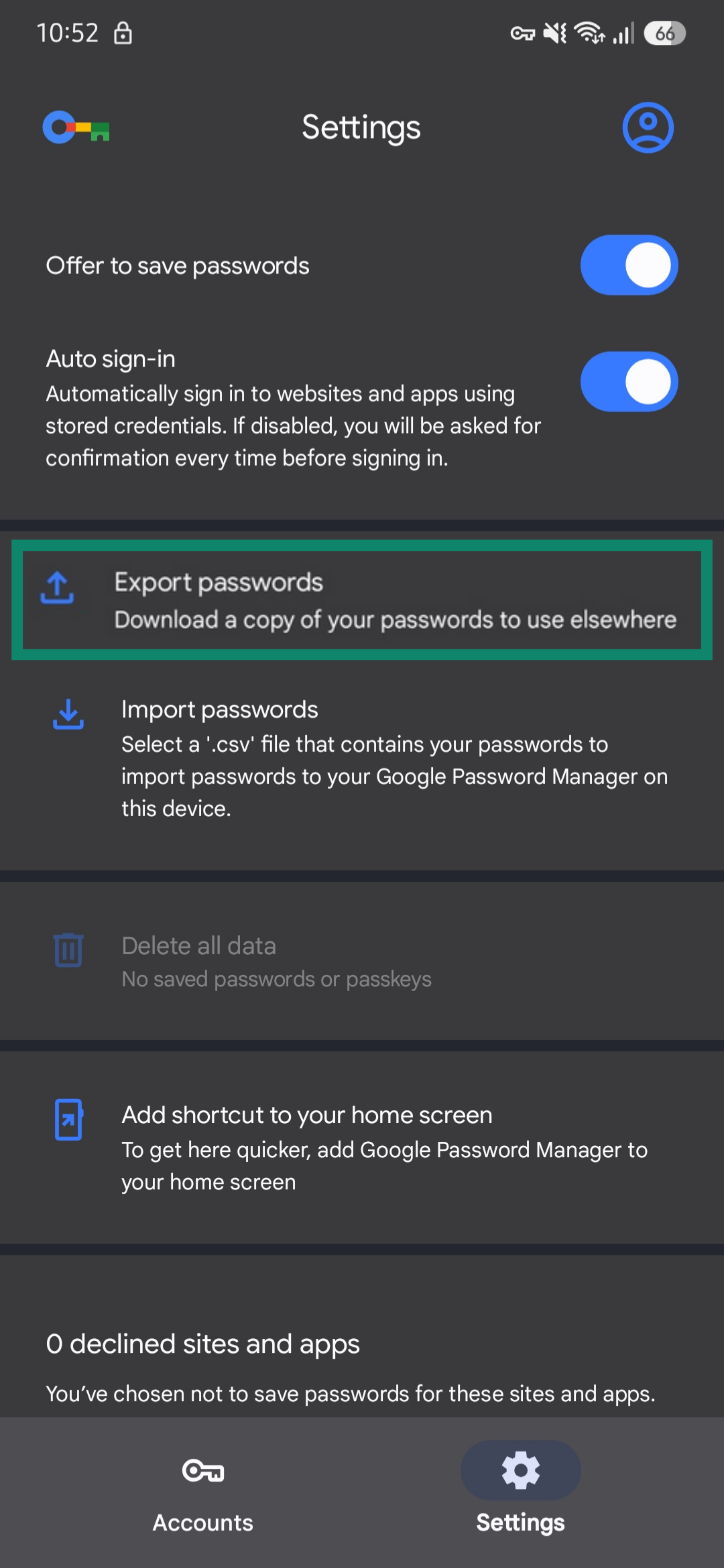
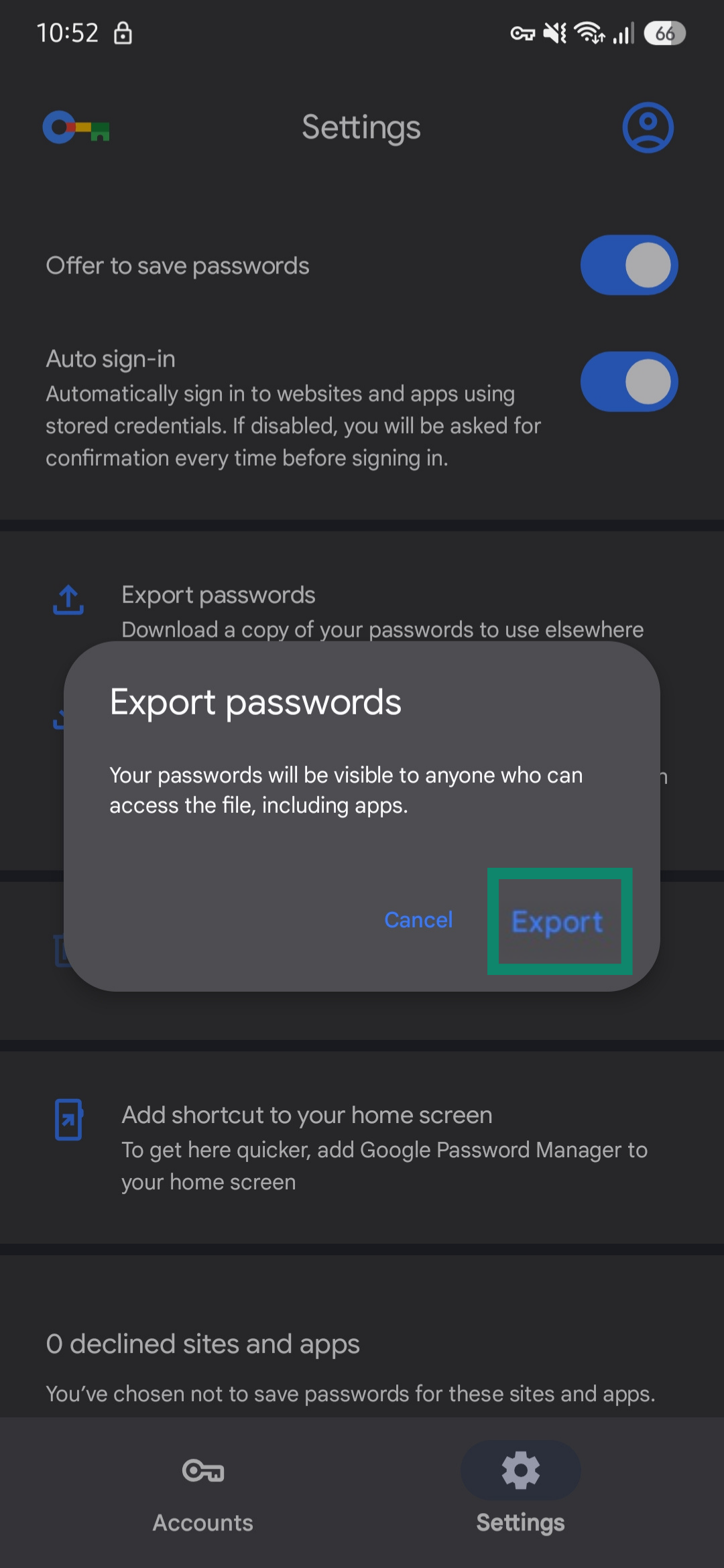
- Select Export passwords.
- Save the file on your device. Remember the location.
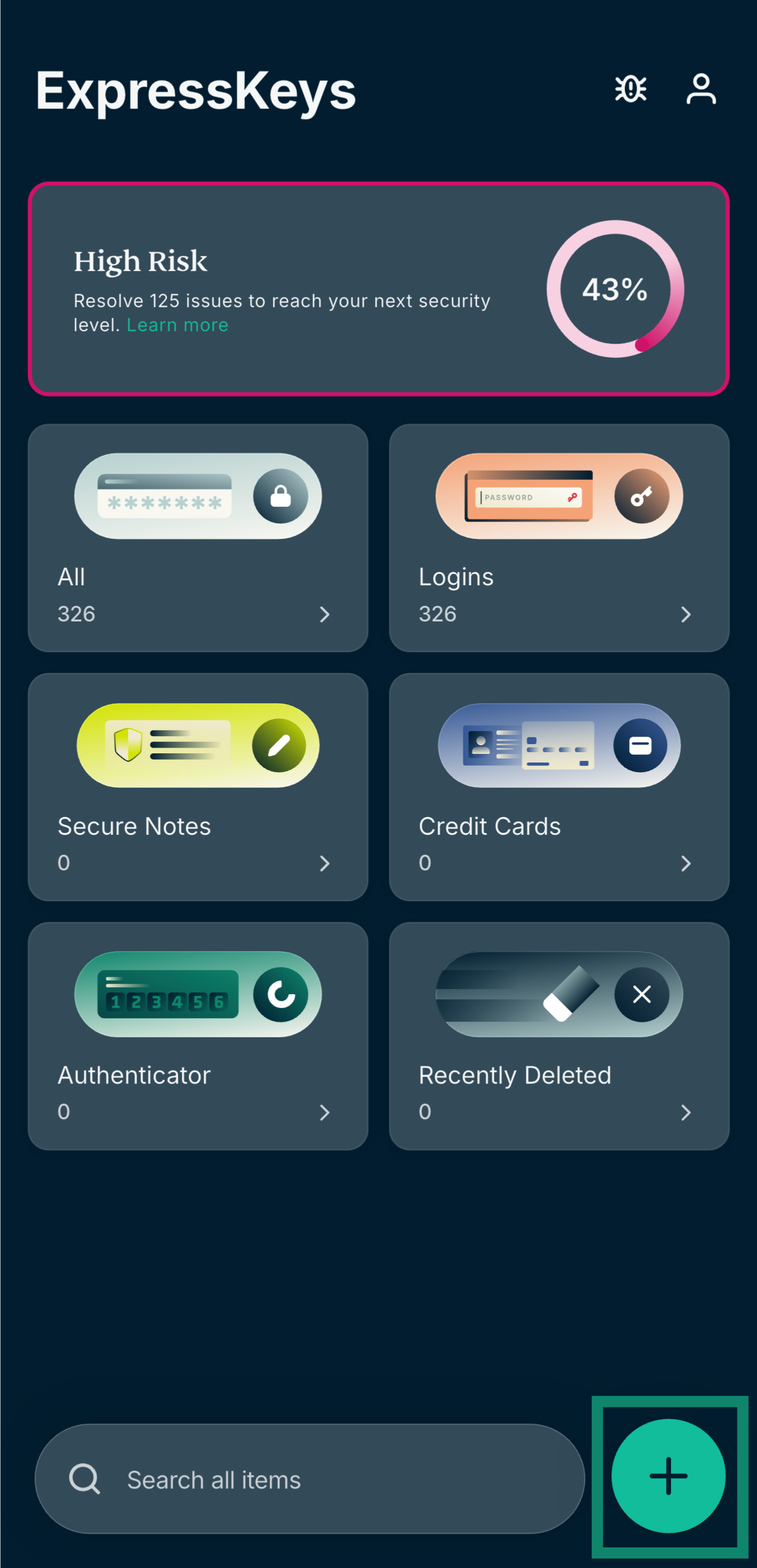
- Open the ExpressKeys app and tap the + icon in the bottom-right corner.
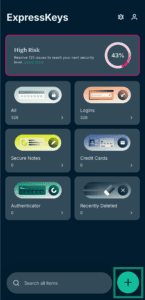

- Tap Import Logins.
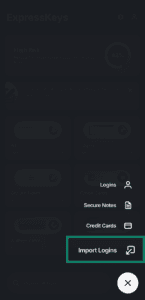
- Select Chrome.
- Tap Import CSV. Select the CSV file you just downloaded.
- Wait for the file to finish uploading and tap Continue.
Need help? Contact the ExpressVPN Support Team for immediate assistance.