



This guide will show you how to change or reset your ExpressKeys vault password. If you do not remember your vault password, you can reset it with your recovery code.
Jump to…
If ExpressKeys is locked
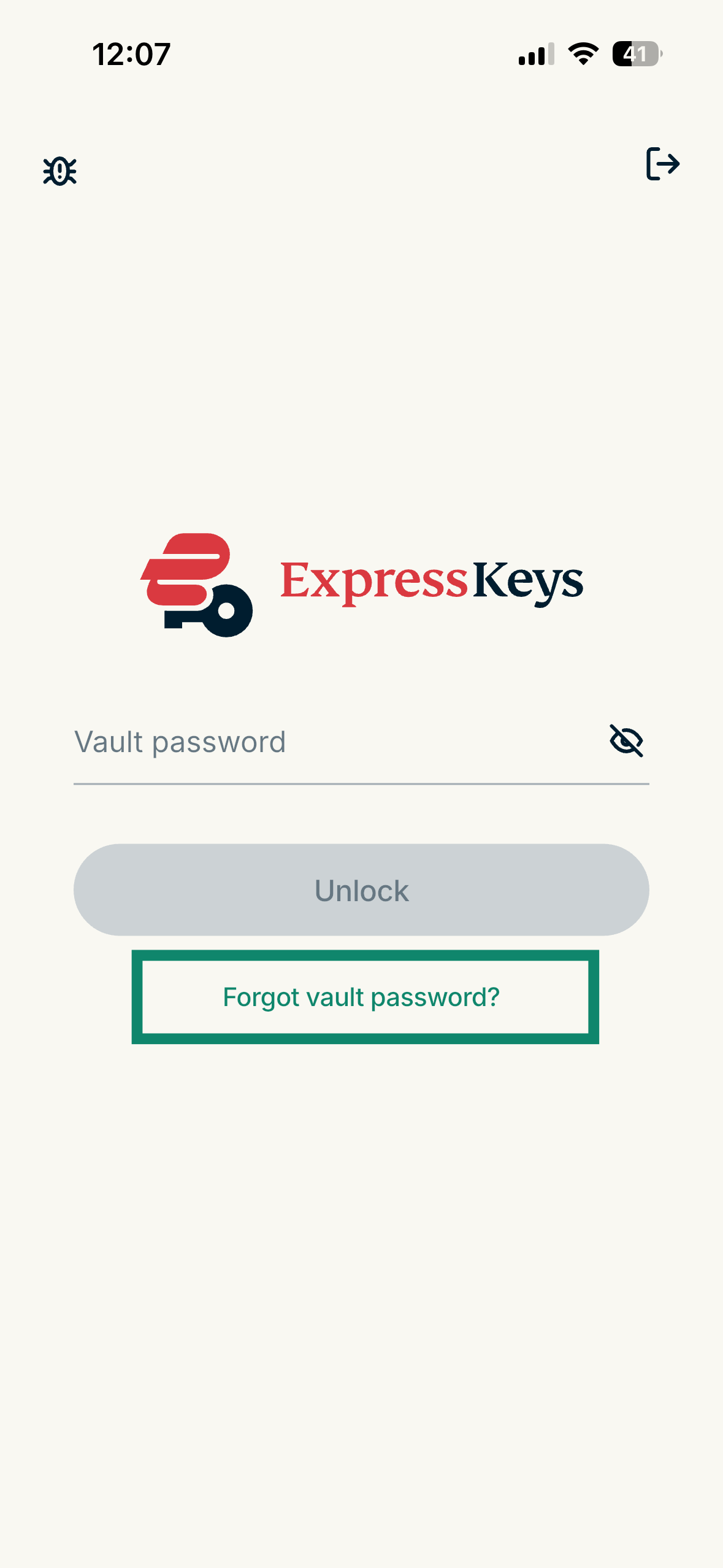
- On the ExpressKeys login screen, select Forgot vault password?


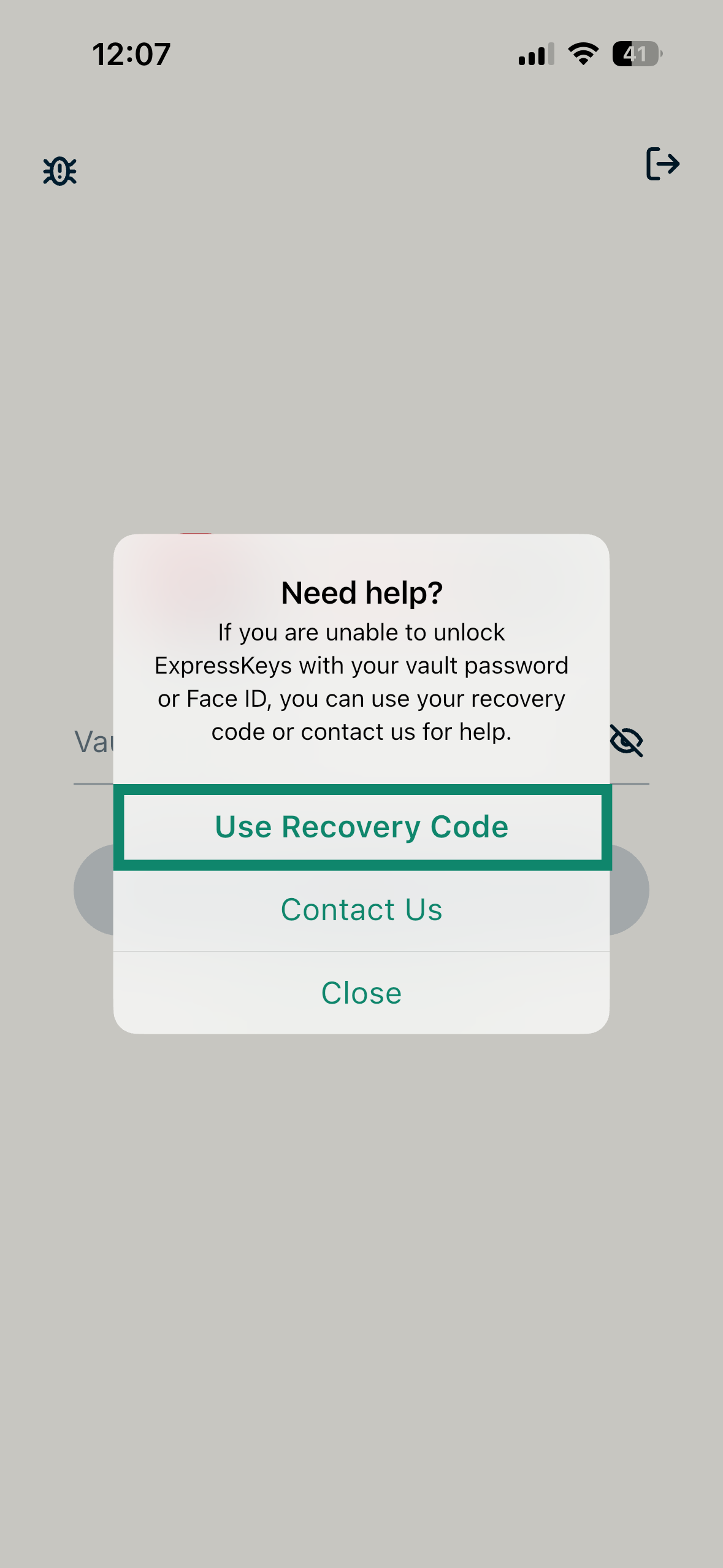
- Select Use Recovery Code.

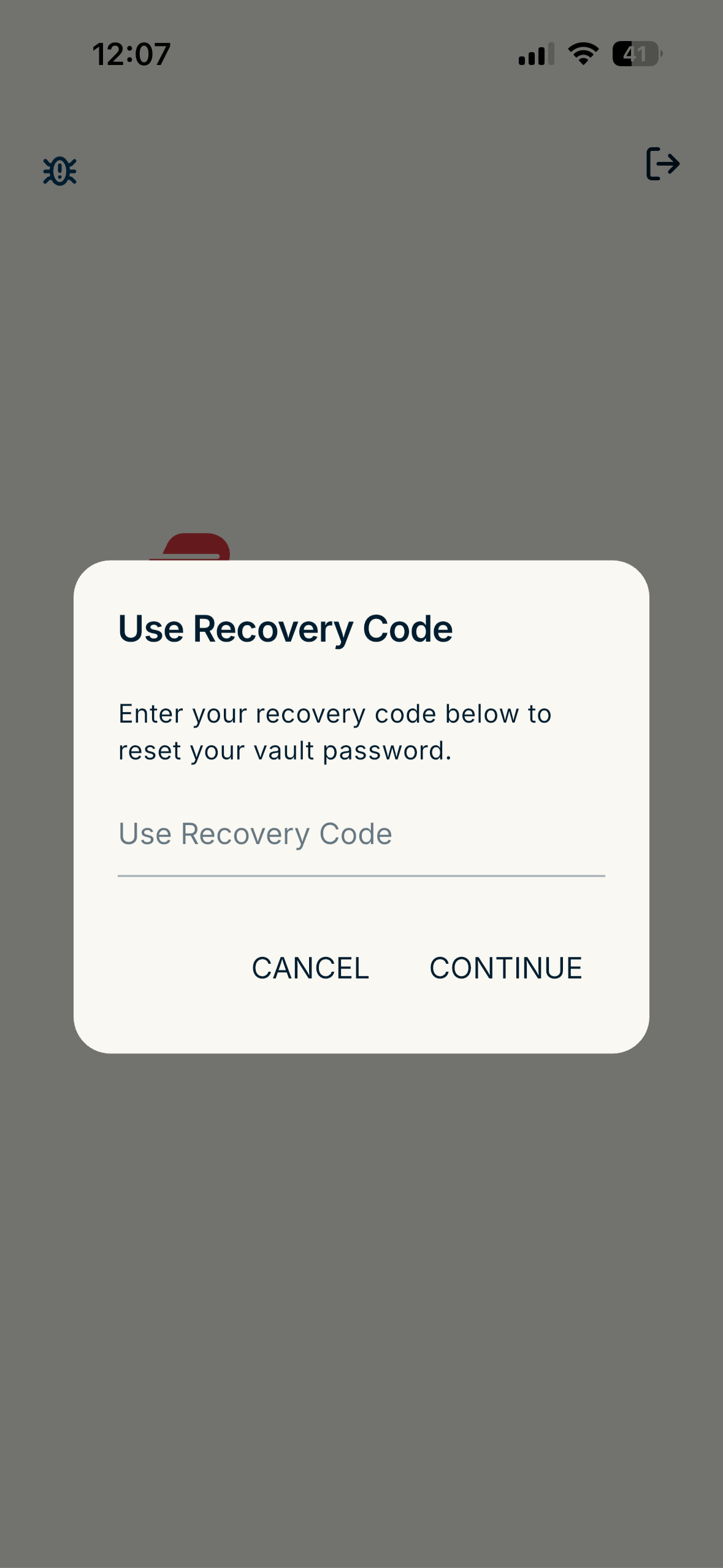
- Enter your recovery code and select CONTINUE.

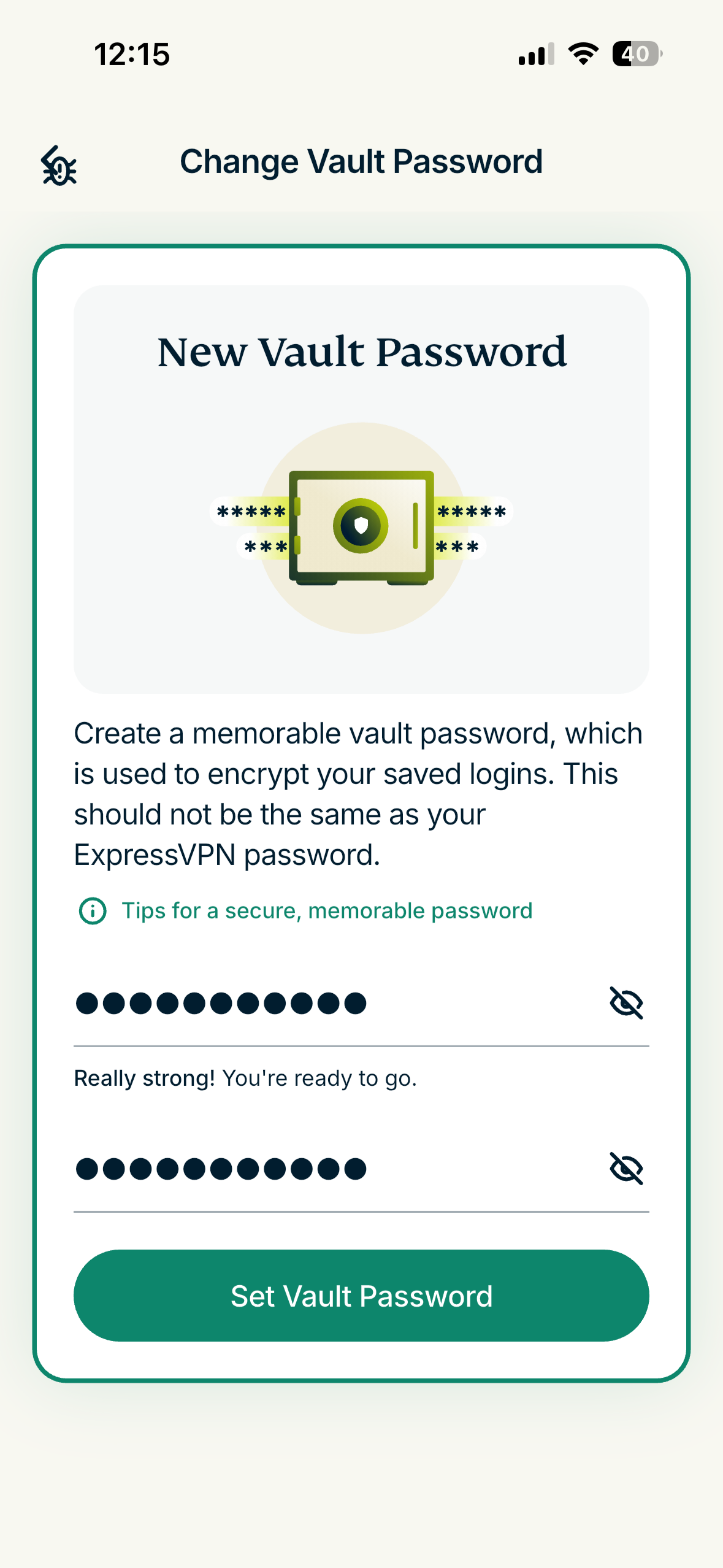
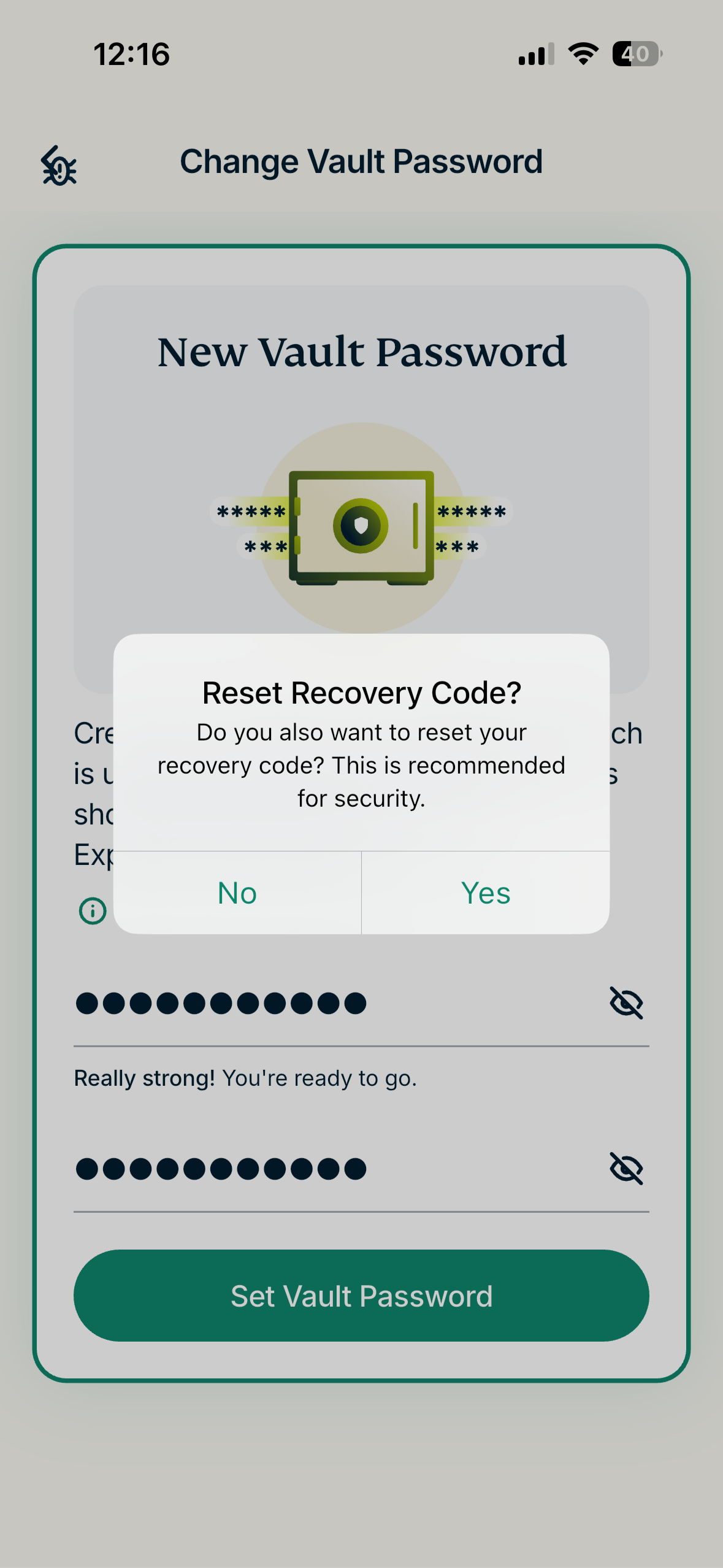
- You will then be prompted to set a new vault password for your account. Enter it twice and select Set Vault Password.

- Next, you will be asked to reset your recovery code. This is optional.

- Once done, you will gain access to your ExpressKeys account.
Need help? Contact the ExpressVPN Support Team for immediate assistance.
If ExpressKeys is unlocked
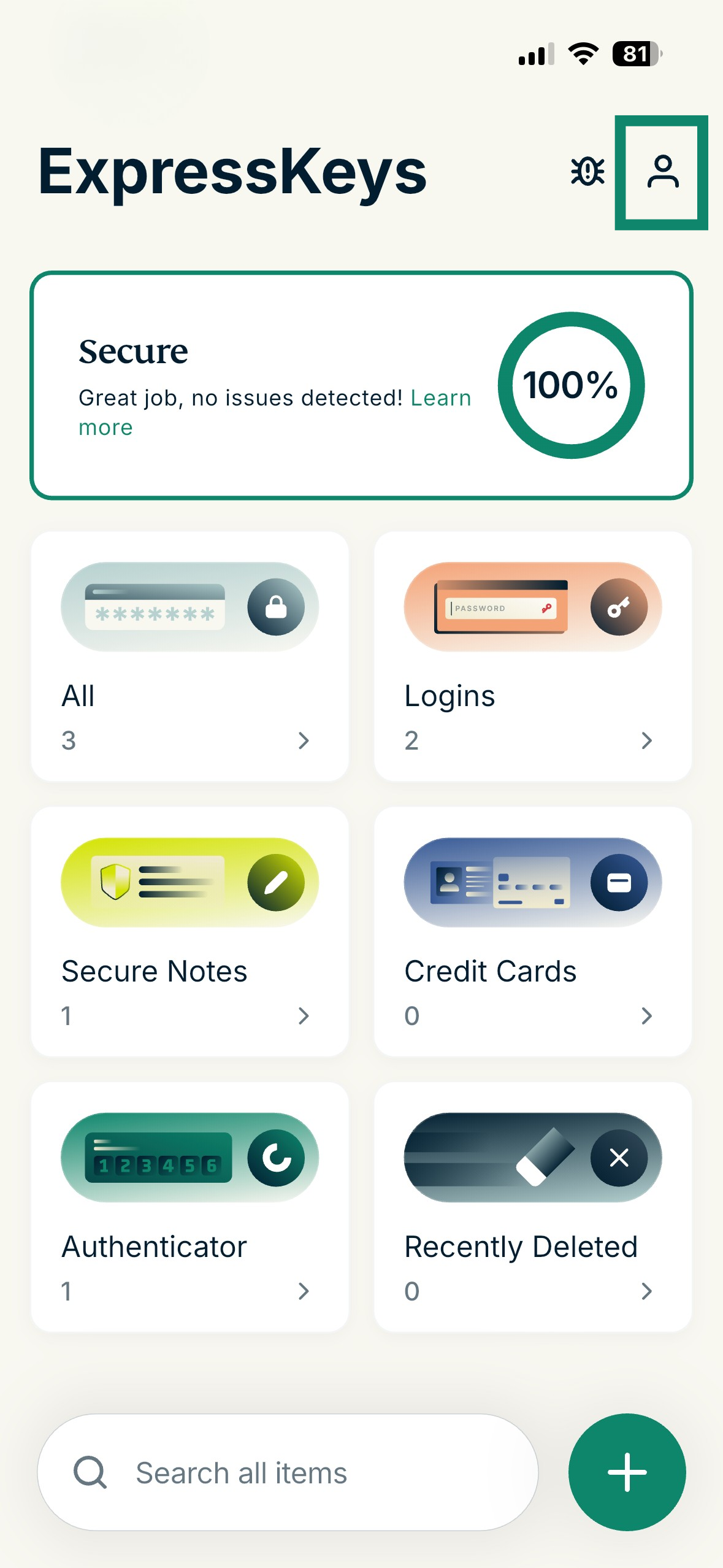
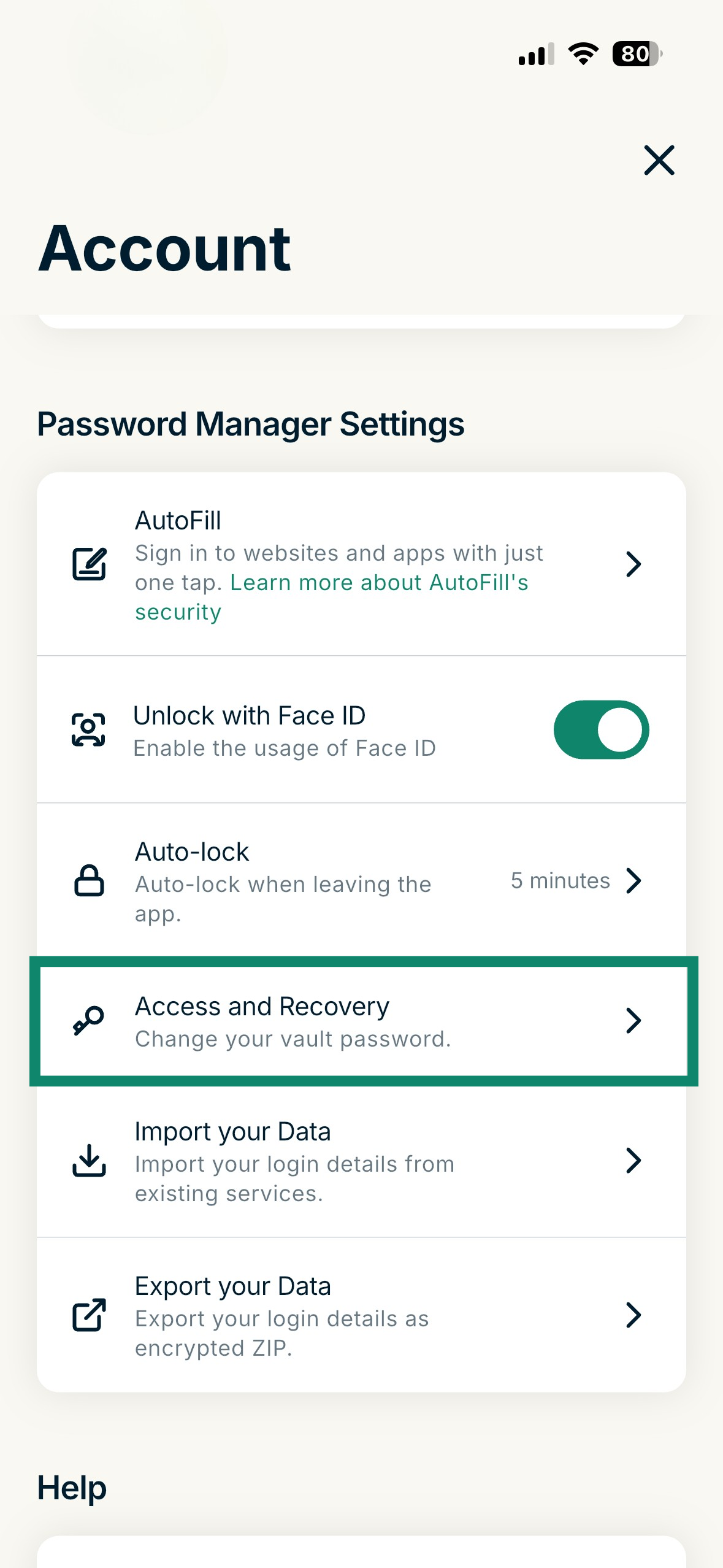
- Select Account or the profile icon (

 ).
).
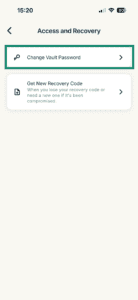
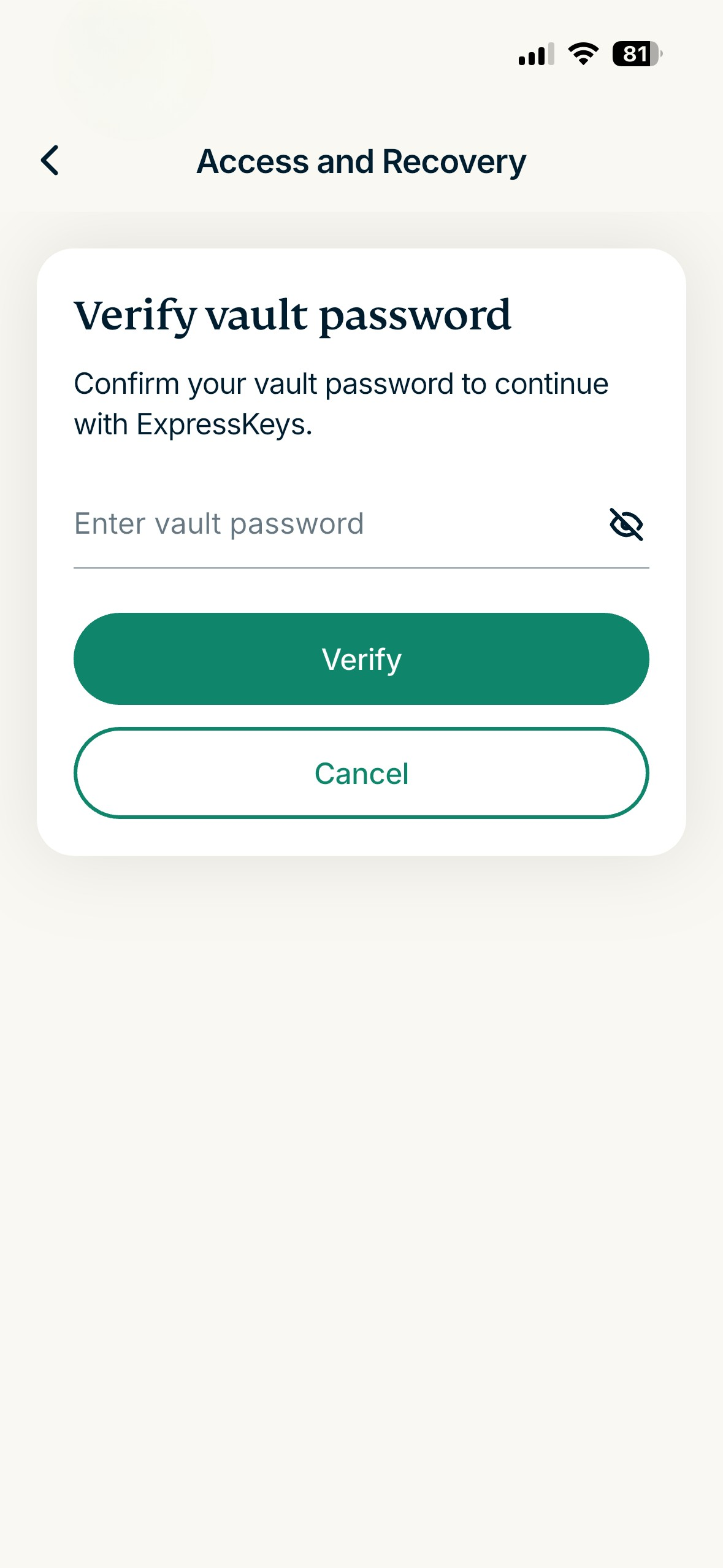
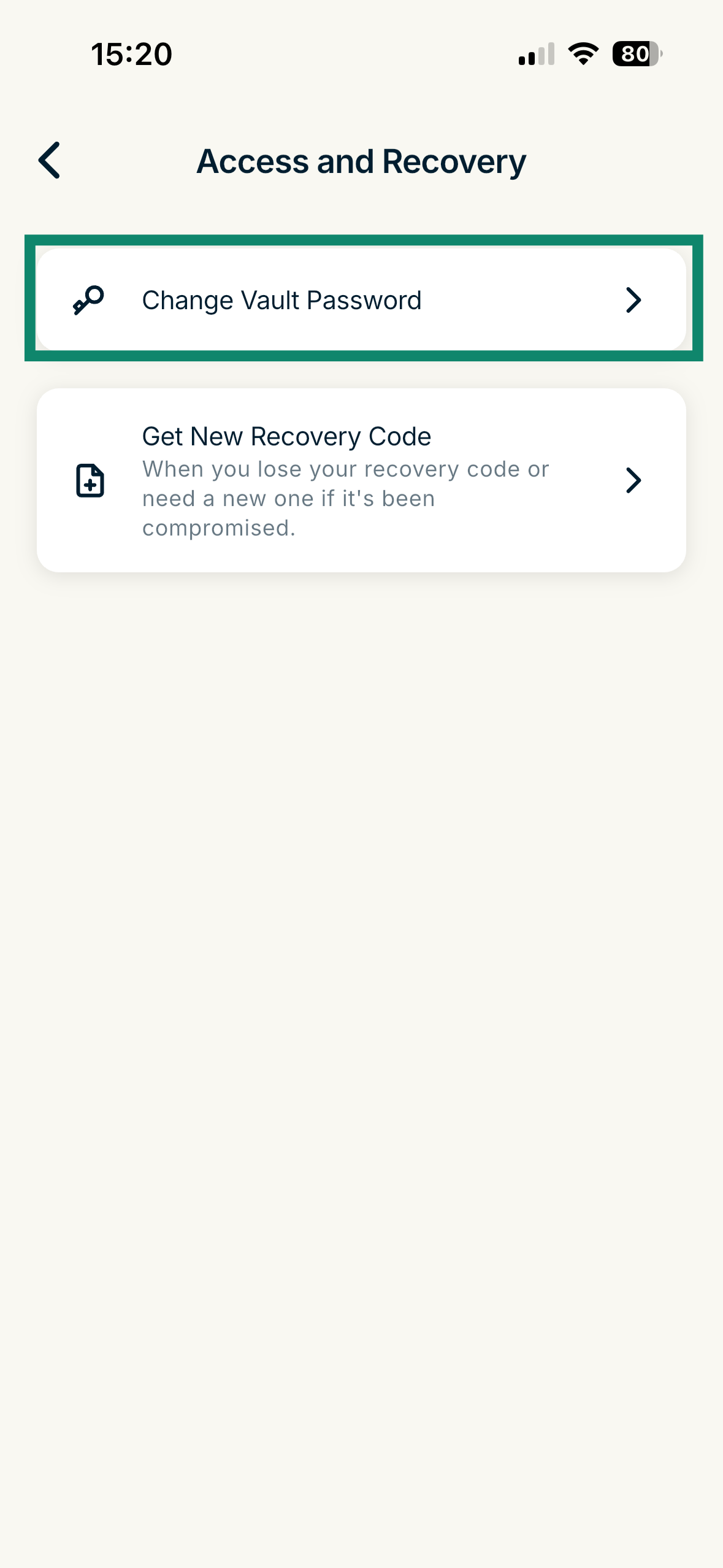
- Select Access and Recovery.

- Enter your password incorrectly and select Verify.

- Select Use Recovery Code.
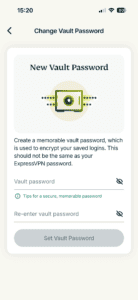
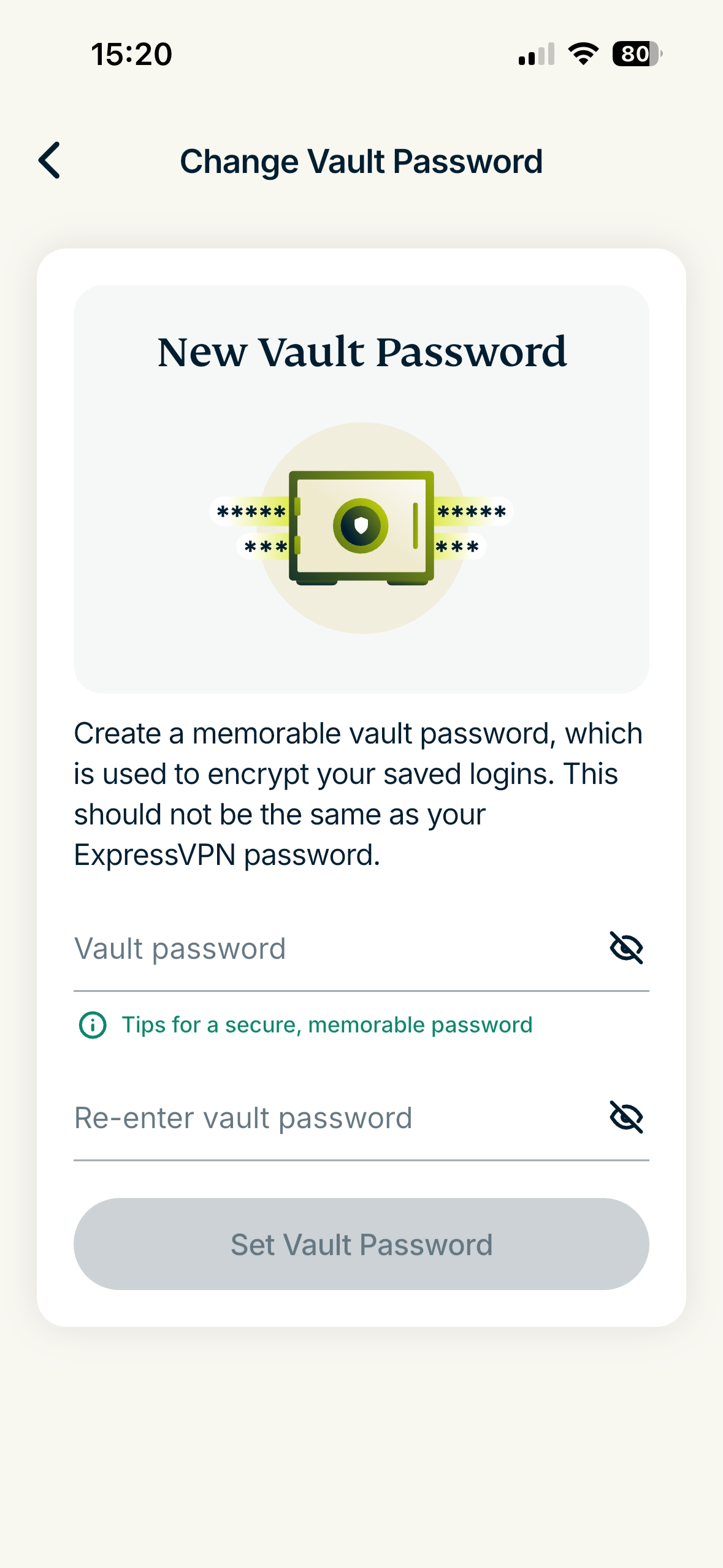
- Enter and re-enter a new vault password, then select Set Vault Password.

Need help? Contact the ExpressVPN Support Team for immediate assistance.