



Identity Defender will send you real-time notifications whenever suspicious activity is detected, enabling you to act quickly before harm is done.
Depending on your plan, you will receive alerts for:
- Changes to your credit score, new credit inquiries, or derogatory marks.
- Your personal data appearing on the dark web.
- Suspicious activity regarding your Social Security number (SSN) or home address.
- Changes to your Home or Auto Title records.
- High-risk financial transactions or 401(k) activity.
- Registered sex offenders moving into your neighborhood.
- Updates on automated Data Removal requests.
Jump to…
Check your Identity Defender alerts on ExpressVPN+
Check your Identity Defender alerts on the mobile app
What to do after you receive an alert
Check your Identity Defender alerts on ExpressVPN+
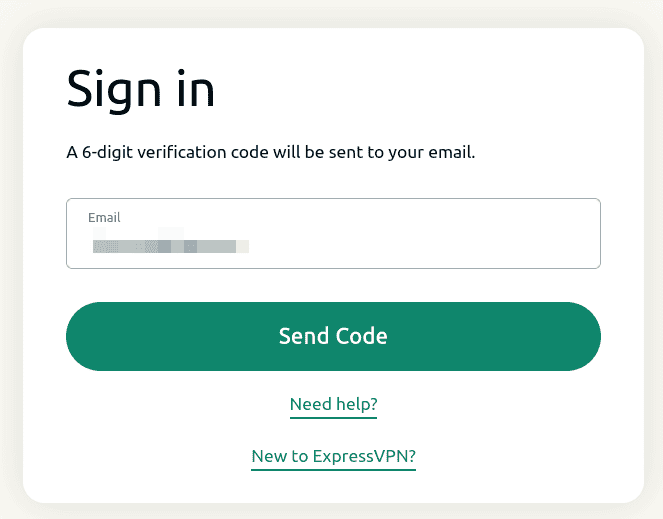
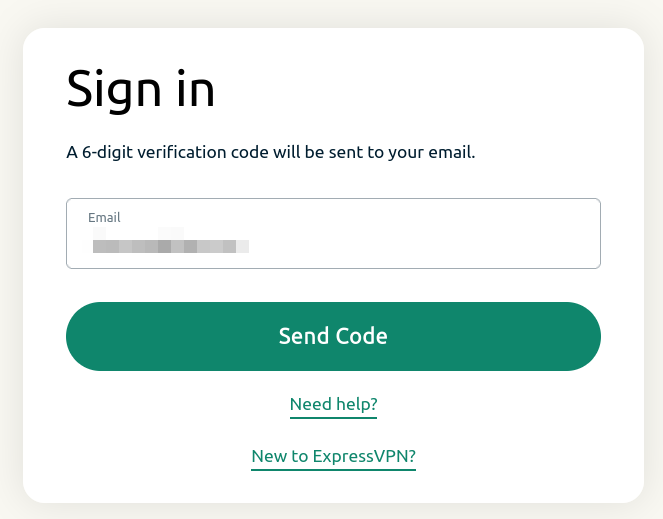
- Open the ExpressVPN+ portal and sign in if prompted.

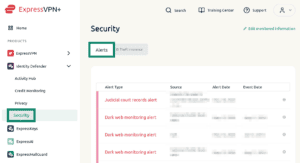
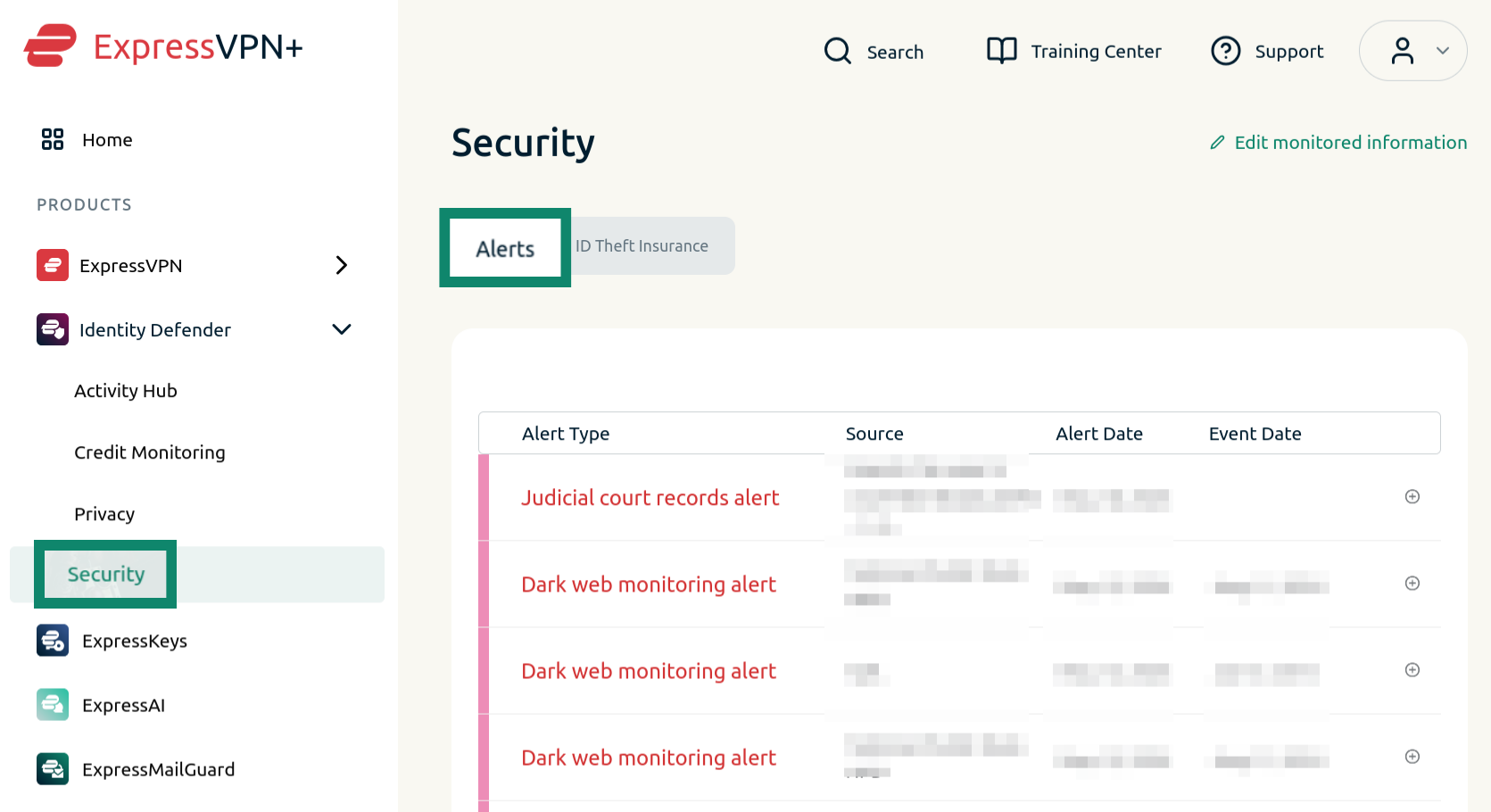
- In the left sidebar, select Identity Defender > Security, then select Alerts.

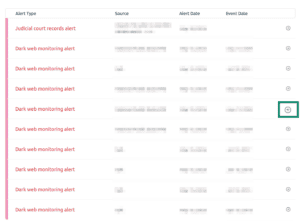
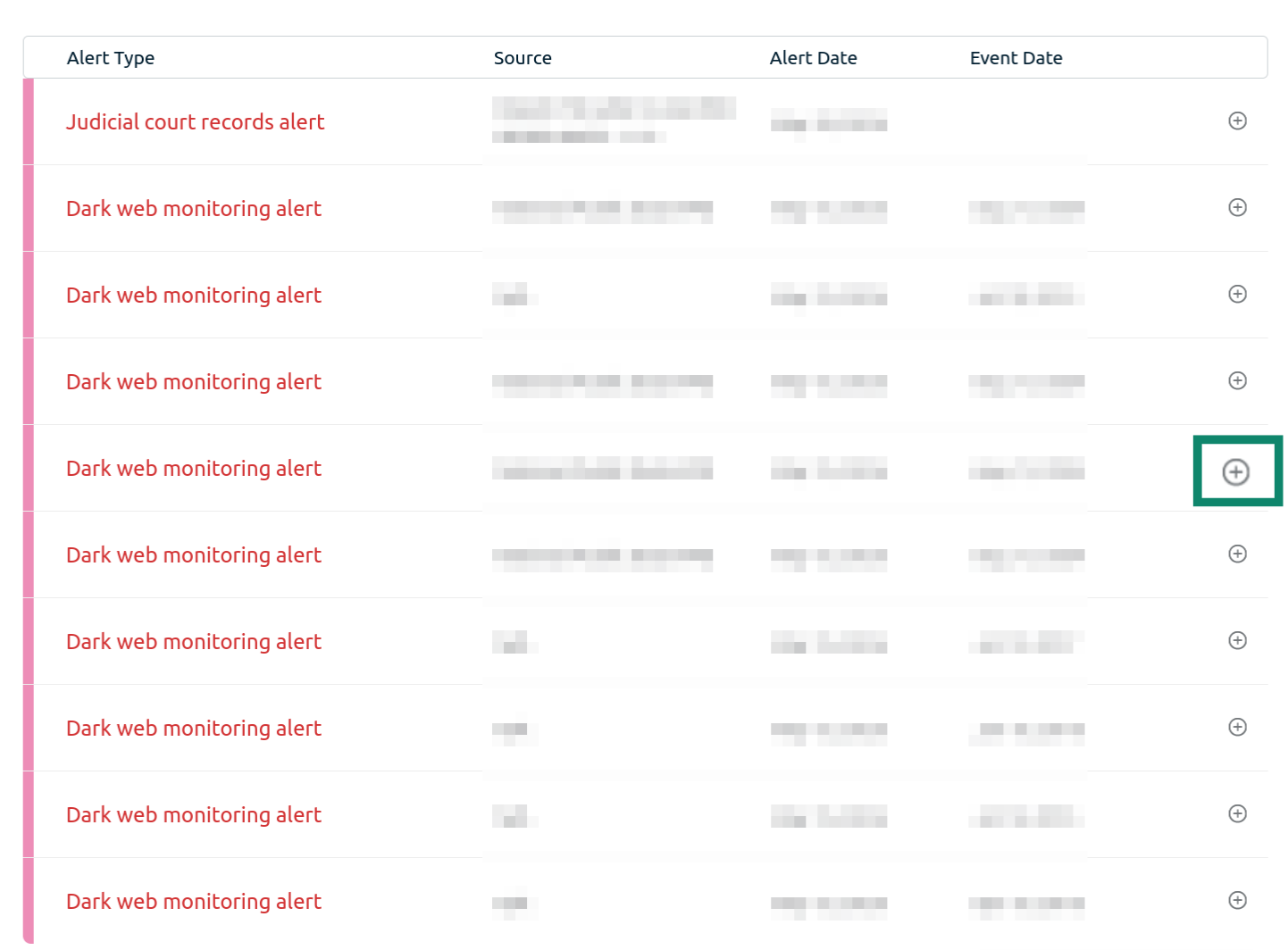
- Click the + icon next to an alert to see its details.

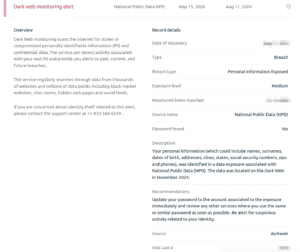
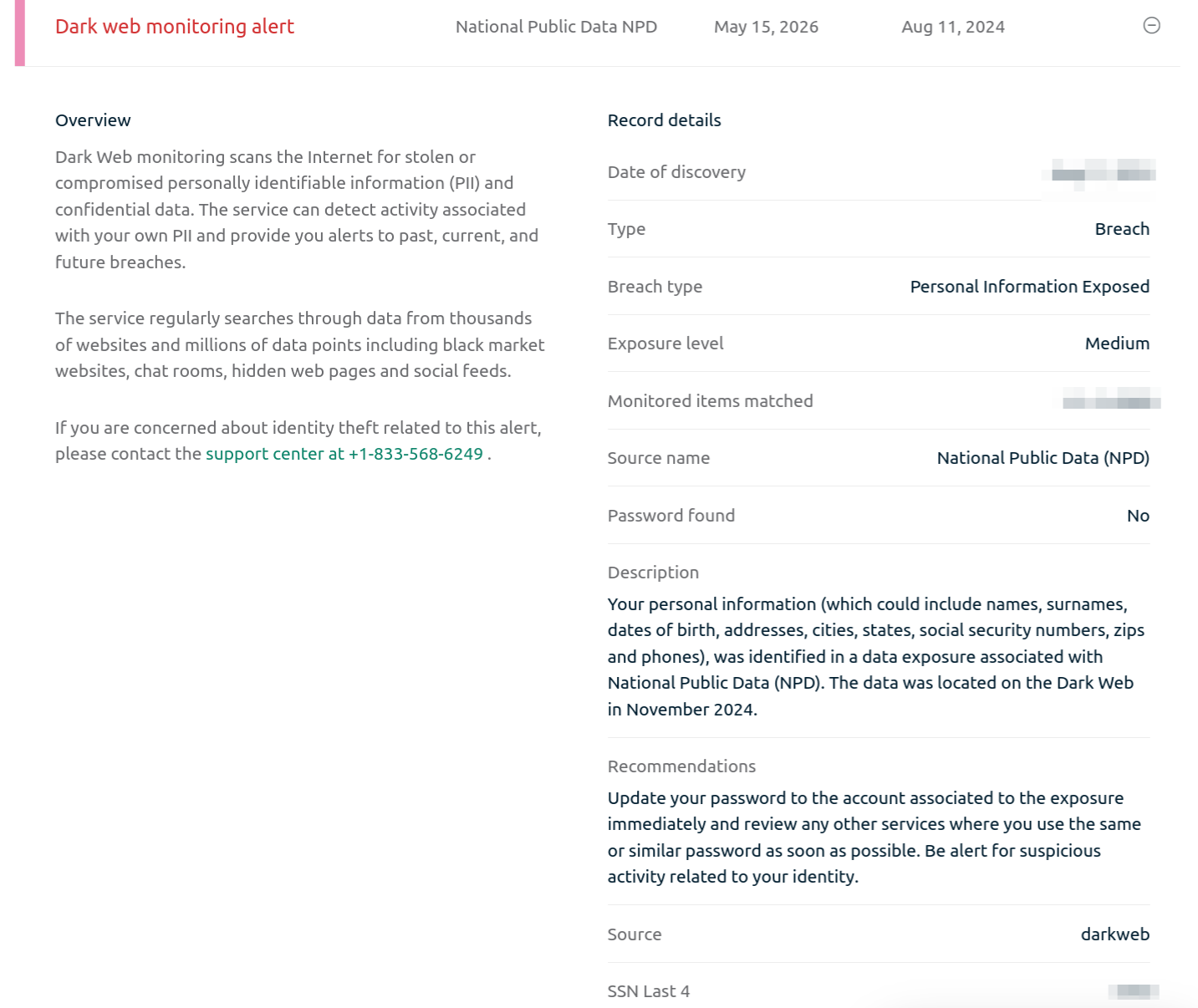
- A dropdown will open where you will see the details of the alert.

Need help? Contact the ExpressVPN Support Team for immediate assistance.
Check your Identity Defender alerts on the mobile app
To view a list of your current alerts and notifications in the Identity Defender mobile app:
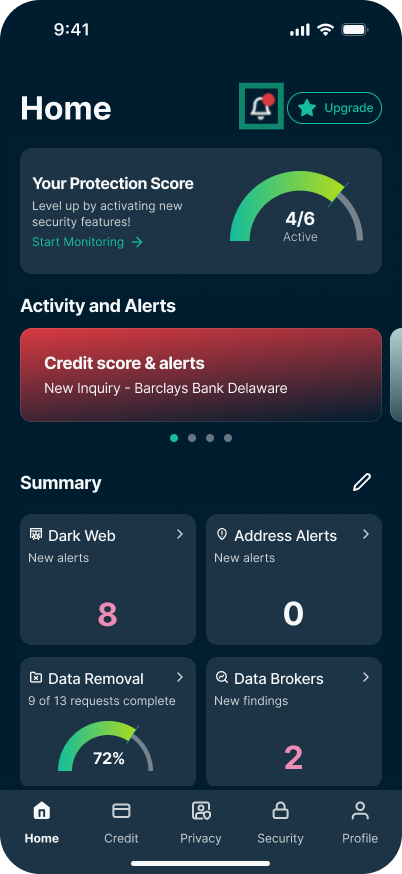
- On the Home tab, tap the bell icon in the top right.
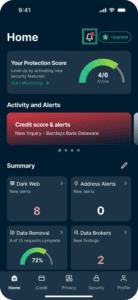

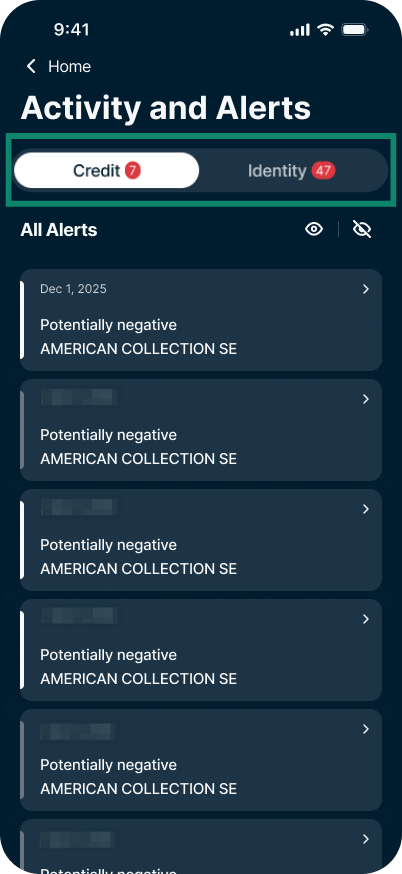
- This will open the notification center (known as Activity and Alerts). Here you’ll see two sections:
- Credit: Alerts related to your credit activity.
- Identity: Alerts related to your personal information, like your SSN and address.
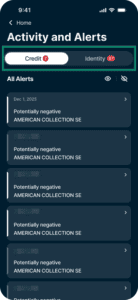
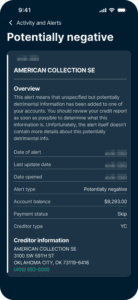
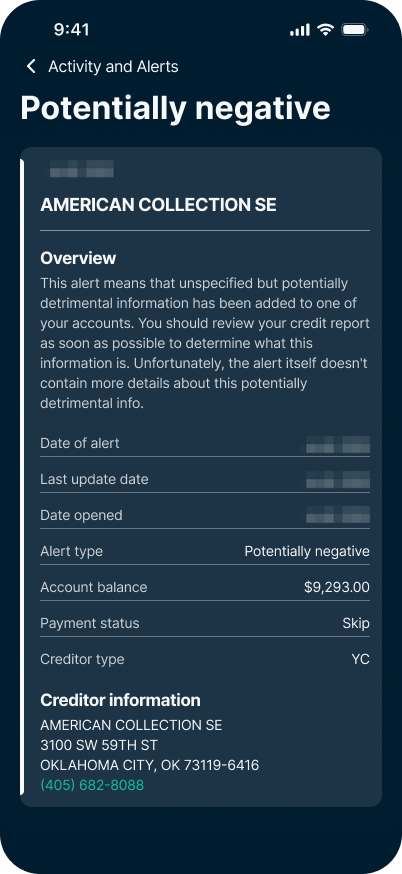
- To learn more about a specific alert, tap the alert you want to view.
Need help? Contact the ExpressVPN Support Team for immediate assistance.
What to do after you receive an alert
Not every alert means your identity has been stolen. Sometimes, it’s just a record of your own legitimate activity, like applying for a new credit card or changing your address. However, if you receive an alert for an action you did not take, you should act immediately.
- Review the alert details: Tap the notification in your app to read exactly what data was flagged and where it was found.
- Verify the activity: Ask yourself if you recently opened an account, moved, or triggered a credit check. If the answer is no, treat it as suspicious.
- Secure your accounts: If a password or email was exposed on the dark web, immediately change your login credentials for that account and any other accounts using the same password.
- Freeze your credit: If you receive a fraudulent credit or SSN alert, contact the major credit bureaus (Experian, Equifax, TransUnion) to place a freeze or fraud alert on your file.
- Contact support: If you are on an Advanced or Express Pro plan and suspect financial loss, visit the Security tab, tap Services, and call the dedicated ID Theft Insurance restoration number.
For more detailed, step-by-step guidance on securing your accounts and recovering from fraud, please read our guide on how to check if someone is using your identity on the ExpressVPN Blog.
Need help? Contact the ExpressVPN Support Team for immediate assistance.