What is piggybacking and why it matters for cybersecurity


Unauthorized network access can take many forms, and piggybacking is a common example. It can impact everyday users by weakening privacy controls or slowing down a home Wi-Fi connection when someone else joins without permission.
This article explains how piggybacking works, why it matters for cybersecurity, and practical steps you can take to detect and prevent it.
What is piggybacking?
Piggybacking refers to any situation where someone uses a network, device, or logged-in session without proper permission. A common example is Wi-Fi piggybacking, where a person connects to a private network they aren’t authorized to use.
In all cases, the defining feature is unauthorized access that relies on an already established connection, rather than creating one legitimately.
Piggybacking in cybersecurity vs. networking
In cybersecurity, piggybacking refers to this type of unauthorized use of an existing connection or session. It’s a security concern because it bypasses standard authentication and access controls.
In computer networking, the term can have a different meaning. Transmission Control Protocol (TCP) piggybacking is a standard performance optimization. Instead of sending a separate packet to acknowledge the receipt of data, a device adds the acknowledgment (ACK) to the next outgoing data packet. This reduces protocol overhead and poses no security threat.
Piggybacking vs. tailgating
Piggybacking and tailgating are often mentioned together because both involve gaining access without proper permission, but they occur in different environments. Piggybacking involves digital systems, whereas tailgating is a physical security issue where someone follows an authorized person into a restricted area without using their own credentials. Understanding the distinction helps determine whether the concern relates to unauthorized network access or to on-site entry control.
Key differences in the cybersecurity context
| Piggybacking (digital) | Tailgating (physical) | |
| Type of access | Networks, devices, online sessions | Offices, server rooms, restricted facilities |
| Method of entry | Uses an existing connection or logged-in session | Follows an authorized person through a door or gate |
| Main risks | Data exposure, unauthorized network use, bandwidth abuse, account misuse | Data theft, hardware theft, tampering with equipment, on-site safety, and security risks |
| Typical controls | Strong authorization, locked devices, session timeouts, Wi-Fi hardening | Badges, turnstiles, guards, visitor management |
How piggybacking works
Piggybacking works by reusing access that has already been granted to someone else. In practice, this usually comes down to weak or inconsistent access controls.
Common examples include predictable or shared passwords, long session timeouts, shared devices that stay logged in, and networks that don’t isolate connected devices. When these conditions exist, someone nearby may be able to join a network or use an active session without going through regular login checks.
Common methods of a piggyback attack
Piggybacking can show up in several technical scenarios, depending on how a network or device handles access and isolation. The examples below illustrate common patterns so you know what to watch for and how to protect your own systems.
Wireless network hijacking
On home and small-office networks, piggybacking often involves an extra device quietly joining the Wi-Fi. This usually happens when the wireless network is easy to join, for example, when passwords are weak or widely shared, encryption is outdated, or default settings were never changed.
Typical warning signs include unfamiliar devices in your router’s connected-device list, slower speeds at unexpected times, or usage spikes in the router’s logs that don’t match your household or office activity.
Session hijacking
In shared environments, piggybacking can take the form of someone using a device or account that’s already signed in. Instead of going through the login process themselves, they rely on a session left open by another user, such as an unlocked workstation with email, cloud storage, or admin tools still active.
The risk is higher wherever people share computers, move between desks, or step away frequently.
Unsecured public Wi-Fi exploits
Public Wi-Fi networks, such as those in cafés, airports, or hotels, often lack strong encryption or device isolation, creating opportunities for attackers to observe or intercept nearby traffic. On these networks, piggybacking can involve exploiting the shared broadcast environment to monitor unencrypted traffic, probe devices, or escalate to attacks such as Address Resolution Protocol (ARP) spoofing or sidejacking.
Warning signs are subtle, but may include unexpected login alerts, unusual account activity, or notifications about unfamiliar devices accessing the same public network.
Risks and impacts of piggybacking
The effects of piggybacking in cybersecurity depend on the environment where it occurs. At home, it may disrupt everyday network use, and in workplaces, it can weaken established security practices.
Unauthorized access to sensitive data
When someone connects through Wi-Fi piggybacking or uses an unattended device, they may gain visibility into areas never intended to be shared. This can include browsing activity, unsecured file shares, or local services running on the same network.
In corporate settings, piggybacking may enable individuals to access internal dashboards, shared drives, sensitive files, or collaboration tools.
Network performance issues
Extra devices on a private network can affect the smoothness of the connection, especially when multiple users compete for limited bandwidth. Someone connecting without permission may stream videos, download files, or run services that consume a large portion of the available speed.
The result is a noticeable slowdown for legitimate users, commonly described as bandwidth theft. In most complex environments, additional traffic may affect diagnostics, make router logs harder to interpret, or prevent admins from accurately monitoring network behavior.
Unmanaged devices as entry points
Not all piggybacking is deliberate or malicious. In many cases, people treat sharing their Wi-Fi with friends, family, or neighbors as harmless. Employees might connect their personal devices to the company network without a second thought, seeing it as "just Wi-Fi"; some companies even support bring-your-own-device (BYOD) policies. This type of “friendly” piggybacking creates opportunities for compromise.
Even when everyone involved has good intentions, each additional device on the network can become a new entry point for attackers.
If a guest or personal device is already compromised with malware, connecting it to a home or office network can make it easier for attackers to move laterally. They may be able to scan for other devices, access shared resources, or probe internal services that are not exposed to the broader internet.
This risk is especially relevant in corporate environments where organizations invest heavily in securing managed endpoints but have limited control over employees’ personal laptops, phones, or tablets. When personal devices join internal networks without the same hardening, patching, or monitoring as corporate devices, they can weaken overall defenses.
Legal and compliance risks
In many places, using someone else’s Wi-Fi without permission can fall under computer crime or unauthorized access laws, but the exact rules and how strictly they’re enforced vary by jurisdiction.
In the U.S., a federal appeals court has suggested that deliberate Wi-Fi piggybacking is “unauthorized,” “wrongful,” and “likely illegal.” In United States v. Stanley (3rd Cir., 2014), the court considered a man who repeatedly used his neighbor’s open wireless network without permission while committing other online crimes. It described him as a “virtual trespasser,” noting that the unauthorized nature of his access meant he had no reasonable expectation of privacy in that connection. Although the court did not decide whether piggybacking violates criminal statutes in all cases, it held that the illegitimate nature of the access undermined any privacy claim.
Many industries are also subject to strict regulatory requirements around data protection and physical security. Frameworks like the General Data Protection Regulation (GDPR) in the EU, the Health Insurance Portability and Accountability Act (HIPAA) in the U.S., and the Payment Card Industry Data Security Standard (PCI DSS) expect organizations to control who can access systems and sensitive information.
If piggybacking results in unauthorized access to regulated data or internal systems, it may lead to non-compliance and trigger investigations, fines, or other legal repercussions. Strong access controls and continuous monitoring help reduce these risks.
Compromise of intellectual property
Piggybacking can also put intellectual property at risk. In larger organizations, proprietary source code, product roadmaps, designs, and research often sit at the core of competitive advantage. Unauthorised access to environments where this intellectual property is stored or discussed can lead to theft or leakage.
That kind of compromise may have long-term effects on an organisation’s market position and profitability, even if no immediate outage or incident is visible.
How to detect piggybacking
Detecting piggybacking involves looking for signals that a network or device is being used in ways that don’t match normal patterns. The sections below outline some of the most common indicators.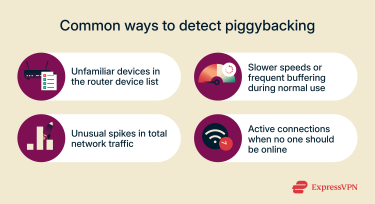
Spotting unfamiliar devices
Most routers include a “connected devices” or “client list” view that shows all devices currently connected to the network. If that list contains names, Media Access Control (MAC) addresses, or device types that no one in the household recognizes, it may indicate Wi-Fi piggybacking.
Some routers also record when a device first and last connected. Checking this list periodically helps confirm that only known users and approved hardware are joining the network.
Monitoring network activity
In addition to the live device list, many routers maintain logs of IP assignments, traffic levels, and connection timestamps. Reviewing these logs can reveal suspicious patterns, such as repeated logins from unknown devices or unusual data spikes.
Logs can also show connections appearing when no household member is online or at home. They may highlight weak points in router security, such as outdated encryption settings, that make it easier for nearby users to join without permission.
Signs of bandwidth theft
Unexpected slowdowns can suggest that another device is using parts of your connection. This is a common sign of bandwidth theft. It can be most obvious when video streaming buffers, downloads take longer than expected, or speeds drop even when few devices are active.
While these issues can also stem from normal service fluctuations, recurring slow speeds during “quiet hours” may indicate piggybacking. Conducting speed tests across multiple devices can help clarify whether the issue is local or network-based.
How to prevent piggybacking
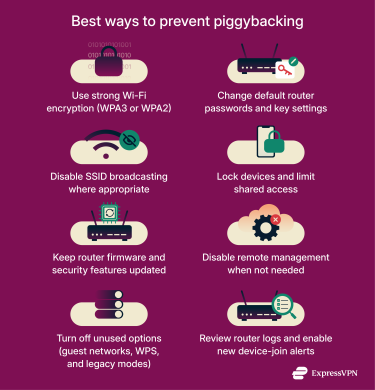
Reducing the likelihood of piggybacking involves strengthening access controls and improving device configuration. The steps below focus on simple, practical measures that limit unwanted connections.
Secure your Wi-Fi network
Tightening your router’s settings is one of the most effective ways to prevent Wi-Fi piggybacking and other forms of unauthorized network access.
- Use strong encryption: If your router supports Wi-Fi Protected Access 3 (WPA3), enable it. WPA3 provides improved security features over earlier standards, but WPA2 is still considered secure and is widely supported. Use the strongest option your router and devices support.
- Change default router settings: Router manufacturers often ship devices with default admin usernames, passwords, and configuration page addresses to simplify first-time setup. Many users never change these defaults. Updating them to unique values makes it harder for unauthorized users to access your router or join your network.
- Disable Service Set Identifier (SSID) broadcasting: Turning off SSID broadcasting stops your network name from appearing in the list of available Wi-Fi networks. This doesn’t guarantee privacy, but it can reduce visibility to casual users scanning for open or weak networks (sometimes called wardriving). To disable SSID broadcasting, open your router’s admin page, find the wireless or Wi-Fi settings, and turn off “SSID broadcast” or “broadcast network name.”
Learn more: Read our detailed guide on the best ways to protect your home computer.
Physical security and access control
Strengthening physical security reduces opportunities for piggybacking and helps ensure that system access remains limited to authorized users. This is especially true for workplaces and shared environments. Minor adjustments to daily routines can make a meaningful difference.
- Lock devices whenever you step away: Automatic screen locks and short timeout settings prevent someone from using an active session, especially in shared homes, coworking spaces, or offices.
- Limit shared device usage: Computers or tablets used by multiple people should rely on separate user accounts with individual passwords, rather than a single profile that remains signed in.
- Restrict access to workstations: In professional settings, placing devices in badge-controlled rooms or behind reception desks helps prevent visitors from accessing systems connected to internal networks.
- Avoid leaving authentication tokens accessible: Items like unlocked phones, security cards, and USB keys should not be left unattended, as they can provide indirect access to accounts or systems.
- Log out of sensitive applications: Closing browsers, email clients, and administrative tools after use reduces the risk that someone can take advantage of an active session.
- Use privacy filters in shared environments: Screen filters help prevent others from viewing sensitive information when working in public areas, reducing visual access that could support unauthorized use.
Software and firmware best practices
Regular updates
Router updates don’t just improve stability; they patch security flaws and sometimes add support for newer, more secure Wi-Fi modes. Older firmware may rely on outdated encryption or contain known vulnerabilities that attackers can exploit.
Updating the router applies essential security fixes and often lets you enable the strongest Wi-Fi security options your hardware supports in the settings. Firmware updates can also fix bugs that affect device lists, logging, or overall reliability, which you may rely on to spot suspicious connections.
Please note that some routers update automatically, while others require manual checks.
Disable remote management
Remote management features allow a router to be configured from outside the local network. However, they also expand the number of points where unauthorized access might occur. Turning off remote access prevents configuration pages from being reachable over the internet, reducing exposure to automated scans and login attempts.
Most routers place this option in the administration or security section of their settings. You can usually find it by opening the router’s admin page, navigating to “Remote Management”, “Remote Access”, or “WAN Access”, and disabling the feature.
If remote access is needed, it’s best to use a strong administrator password and limit access to specific IP addresses. Disabling Universal Plug and Play (UPnP) on older routers can also minimize unintentional openings, since UPnP may create external ports without clearly notifying the user.
Additional measures
- Review unused features: Options like guest access, Wi-Fi Protected Setup (WPS), and legacy Wi-Fi modes can create unnecessary entry points if left on or misconfigured. WPS PIN-based setup is particularly weak because the PIN can be brute-forced, and older Wi-Fi standards or ciphers are easier to break.
- Use unique administrator credentials: The router’s admin panel should never rely on default usernames and passwords, since these are widely known and easy to look up online.
- Check device isolation settings: Many routers offer “client isolation” or “access point (AP) isolation”, especially on guest networks, to keep connected devices from talking to each other or to your main local area network (LAN). Enabling this makes it harder for someone to interact with other users or internal devices on the same connection.
- Enable notifications when available: Some modern routers or mesh systems can send alerts when a new device joins the network, making it easier to react quickly if you see a device you don’t recognize.
Learn more: Find out how to set up a secure Wi-Fi guest network.
Use a virtual private network (VPN) for enhanced protection
Neither commercial nor corporate VPNs can prevent someone from joining your Wi-Fi network, but both can reduce what others on the same network can see and help keep data secure.
Below are the protections each type provides.
Commercial VPNs for home and public Wi-Fi protection
A commercial VPN, like ExpressVPN, adds a layer of privacy on shared or public networks by routing your connection through a protected tunnel.
- Encrypts your traffic: A commercial VPN encrypts data before it leaves your device, preventing others on the same Wi-Fi from reading most of your online activity (the websites you visit or the data you send.
- Masks your IP address: Prevents others on the network, including the owner of a public hotspot, from seeing your real public IP address. Sites and services you access see the VPN server’s IP instead, which helps limit tracking and reduce exposure.
- Reduces local network exposure: On open or public networks, a commercial VPN sends most of your traffic through its encrypted tunnel rather than directly across the local network, limiting what nearby devices can observe. VPNs vary depending on split-tunneling policies. For additional protection, it’s still important to disable file and printer sharing on untrusted networks.
- Improves security when router settings are outdated: If your home router uses weak or outdated security, a commercial VPN won’t stop someone from joining your Wi-Fi, but it will encrypt most outbound traffic from your device. This reduces what others on the same Wi-Fi can see until you update your router’s settings or upgrade the hardware.
- Protect your entire household: Using a commercial VPN router extends this protection to every device connected to it. All home traffic to the broader internet goes through the VPN tunnel, helping shield the household from many forms of network-level tracking and surveillance.
- Adds protection on public Wi-Fi: On shared networks, a VPN keeps your online activity encrypted even when many people use the same connection. It doesn’t change who can join the Wi-Fi, but it makes it much harder for anyone on that network (legitimate users or piggybackers) to see what you’re doing online.
Corporate VPNs for business users and internal system security
A corporate VPN protects employees by securely connecting them to company resources and ensuring business data remains private and encrypted.
- Secures remote access to internal systems: A corporate VPN encrypts the connection between an employee’s device and the organization’s internal network. This prevents internal dashboards, file servers, and administrative tools from being accessible through an unauthenticated, unencrypted channel.
- Protects sensitive business data in transit: It encrypts all traffic to and from the corporate network, preventing outsiders from intercepting or altering it. This keeps confidential information, such as customer records, financial data, and proprietary documents, private.
- Reduces exposure on public Wi-Fi: When employees connect from cafés or airports, a corporate VPN prevents local attackers from snooping on or tampering with traffic destined for internal systems.
- Supports business security policies: Organizations can enforce device requirements, access rules, and authentication standards through their VPN gateway so that only compliant devices connect.
- Split tunneling may apply: Many corporate VPNs use split tunneling to route only business traffic through the encrypted tunnel while allowing regular internet traffic to go out normally. This varies by company policy and security requirements.
FAQ: Common questions about piggybacking
What is piggybacking in networking?
In computer networking, piggybacking refers to a harmless Transmission Control Protocol (TCP) optimization in which acknowledgment (ACK) information is attached to outgoing data packets rather than sent in a separate packet. That networking use of the term is a performance feature, not a security risk.
Is piggybacking illegal?
In many places, accessing a network without the owner’s permission can be treated as unauthorized access under computer misuse or anti-hacking laws. The exact rules and penalties vary by country.
How can I tell if someone is piggybacking on my Wi-Fi?
Some of the most common signs include unfamiliar devices in your router’s device list, slower speeds during normal usage, or unusual spikes in router activity. Monitoring connected devices through the router’s admin page is the most reliable method.
Can a VPN prevent piggybacking?
A VPN can't stop someone from joining your Wi-Fi network, but it can protect your online activity if you share a network with others. VPNs encrypt your internet traffic and hide your public IP address from people on the same network, reducing what piggybackers or other users can see.
Corporate VPNs, on the other hand, are designed to secure remote access to a company's internal systems, not to provide general privacy on home or public Wi-Fi.
How does piggybacking differ from hacking?
Piggybacking exploits an existing authorized connection, such as someone’s open Wi-Fi or an active login session. Hacking typically involves breaking into a system by bypassing authentication or exploiting technical vulnerabilities.
What should I do if I suspect someone is piggybacking?
Change your Wi-Fi password, update the router firmware, review active connections, disable unused features, and switch to Wi-Fi Protected Access 3 (WPA3) or WPA2 if available. Those are the most effective tips for fighting piggybacking. For shared environments, lock devices, log out of active sessions, and tighten access controls.
Take the first step to protect yourself online. Try ExpressVPN risk-free.
Get ExpressVPN