VPN auto-connect: How to enable it across devices



A virtual private network (VPN) only protects your traffic while it’s connected. If it hasn’t connected yet or drops during a network change, your device may send traffic outside the encrypted tunnel.
VPN auto-connect can help reduce this risk by automatically establishing a VPN connection when your device goes online or, in some cases, when it joins a new or untrusted network. It removes the need to connect manually and puts protection in place as soon as connectivity is available.
This guide explains how auto-connect works, how to enable it, and what to check if you experience issues.
What is VPN auto-connect, and why does it matter?
VPN auto-connect is a feature that reconnects you to a VPN server when you join a network or return online after an interruption. It helps keep your traffic protected as you move between Wi-Fi hotspots, mobile networks, or other connections.
Benefits of VPN auto-connect
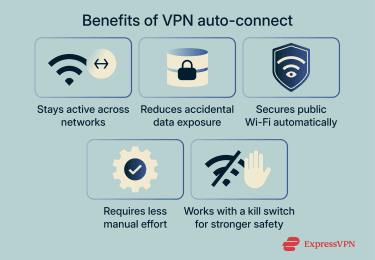 Auto-connect addresses security and privacy gaps in manual connections by:
- Maintaining protection as you switch between networks (Wi-Fi, mobile data, or hotspots).
- Reconnecting the VPN quickly after brief drops in your internet connection.
- Activating the VPN automatically on public or unfamiliar Wi-Fi networks (this feature varies by VPN provider and device).
- Eliminating the need to remember to turn on your VPN each time you go online.
- Complementing a kill switch to help limit exposure if the connection fails.
Is auto-connect on public Wi-Fi needed?
Using VPN auto-connect on public Wi-Fi is highly recommended. Public networks are at a greater risk of eavesdropping, man-in-the-middle (MITM) attacks, malware exposure, and rogue networks (malicious networks designed to steal your data).
Auto-connect sets up your VPN to activate before apps sync or web pages load, minimizing accidental exposure on unsecured networks. Many VPN apps also let you mark certain Wi-Fi networks, like your home network, as “trusted,” so the VPN turns on automatically only when you join unfamiliar or public networks.
However, iOS limits third-party apps' access to Wi-Fi network information in the background, so many VPNs can’t automatically detect or classify public Wi-Fi networks. This makes trusted-network auto-connect features on iPhones more restricted than on Android devices.
How the auto-connect feature works
Auto-connect can automatically activate your VPN when you go online, join a new network, or reconnect after a drop in network connection, reducing the chance of sending traffic before encryption is restored.
Handling network switches and drops
When your device switches networks, for example, between Wi-Fi hotspots, the VPN connection may temporarily drop. A VPN with auto-connect can re-establish a secure connection once you’ve joined the new network, minimizing the time your traffic is unencrypted.
Similarly, if your internet connection temporarily fails, auto-connect restores the VPN as soon as the network is available, reducing the chance that traffic is sent before encryption resumes.
However, even with fast reconnection, a short window of exposure can sometimes occur. That’s why a kill switch is essential: it blocks all internet traffic during disconnections or network transitions, preventing data from leaking until the VPN connection is restored.
Automatic start at system boot
Many VPNs also offer a setting to launch automatically at startup, or when the device reboots, so the VPN is active as soon as you start using your device. Without this setup, any traffic generated after your device goes online but before the VPN activates is exposed.
Always-on VPN vs. auto-connect vs. kill switch
An always-on VPN maintains a continuous connection regardless of device restarts, network changes, or idle periods. It’s a feature often used by corporate or site-to-site VPNs and usually relies on strict system policies to enforce the connection.
Auto-connect is a consumer-grade feature that triggers a VPN connection when certain criteria are met, such as when the app launches, when the device connects to a new network, or when you get back online after a temporary disconnection.
A kill switch is a critical security feature that complements auto-connect features. It blocks all network traffic if the VPN connection drops unexpectedly, such as when switching from Wi-Fi to mobile data. This can prevent unencrypted traffic from leaving your device during the short period before the VPN connection resumes.
How to enable auto-connect on your devices
You can enable auto-connect in different ways, depending on your device and VPN app. On many platforms, you can turn on auto-connect directly within the VPN app’s settings. However, some devices require adjustments in system settings to achieve a similar function.
For this guide, we’ll use ExpressVPN to demonstrate, step by step, how to set up auto-connect on all major devices.
Setting up VPN auto-connect on Android
ExpressVPN offers an Auto-connect feature on Android that automatically connects to the VPN when you start your device or connect to an untrusted network.
It’s not enabled by default; here’s how to set it up:
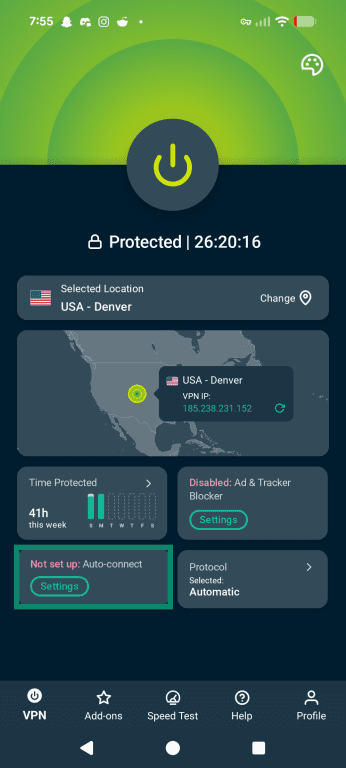
- Open ExpressVPN on your Android device, then tap the Not set up: Auto-connect box located in the bottom-left corner.
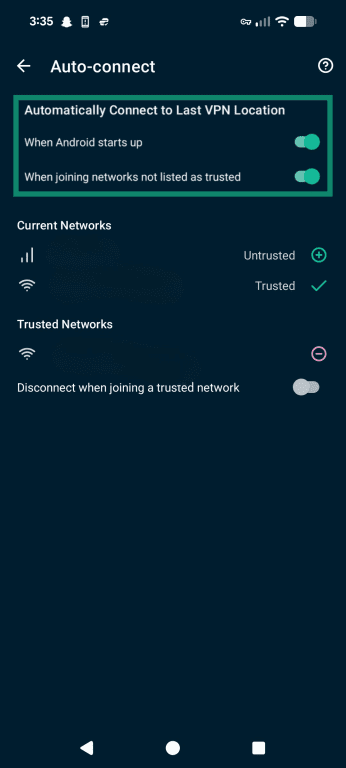
- Enable Auto-connect by toggling on When Android starts up and When joining networks not listed as trusted.
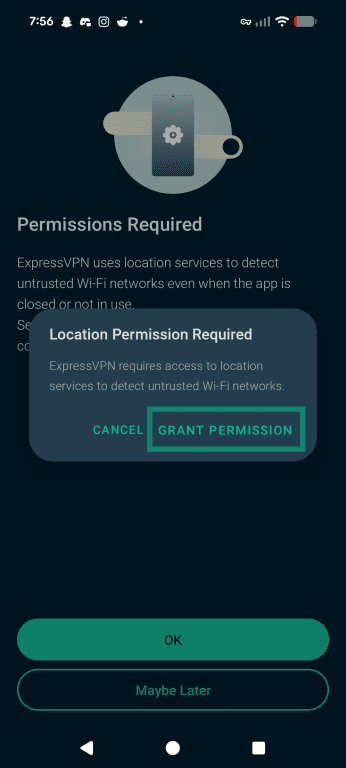
- Follow the on-screen prompts to enable Auto-connect. On Android 10 and above, location permissions are required to detect untrusted networks, so you’ll need to tap Grant permission when prompted.
Auto-connect VPN configuration for iOS
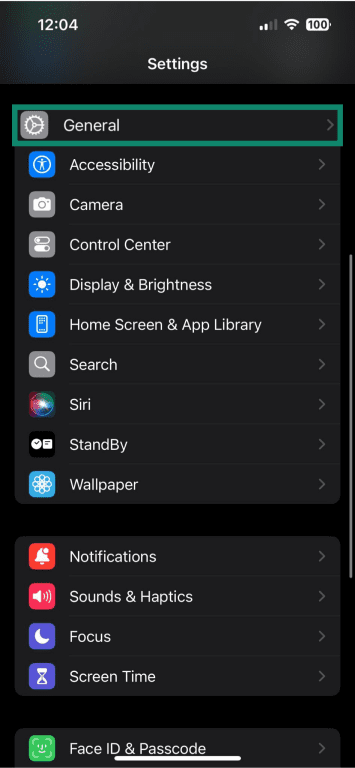
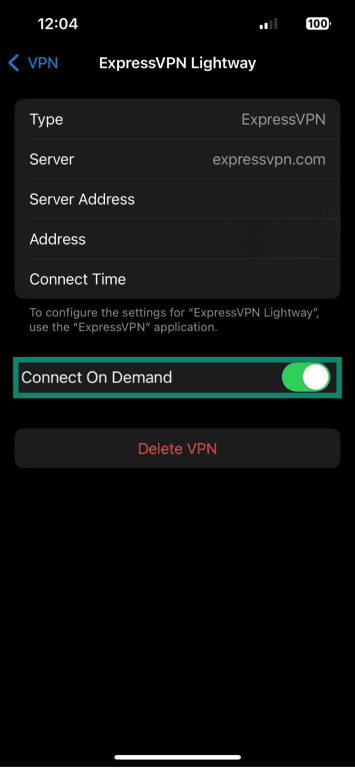
On iOS, auto-connect is handled through system-level VPN settings rather than inside the app itself. When Connect on Demand is enabled, iOS attempts to automatically restore the VPN connection after temporary interruptions.
Here’s how to enable Connect on Demand with ExpressVPN:
- Open your iPhone’s Settings menu, then choose General.
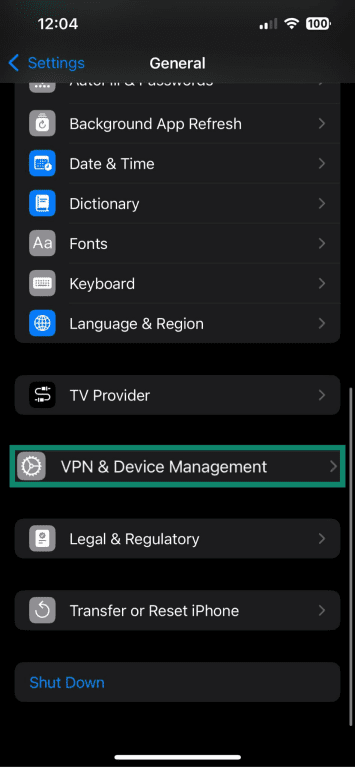
- Scroll down and tap VPN & Device Management.
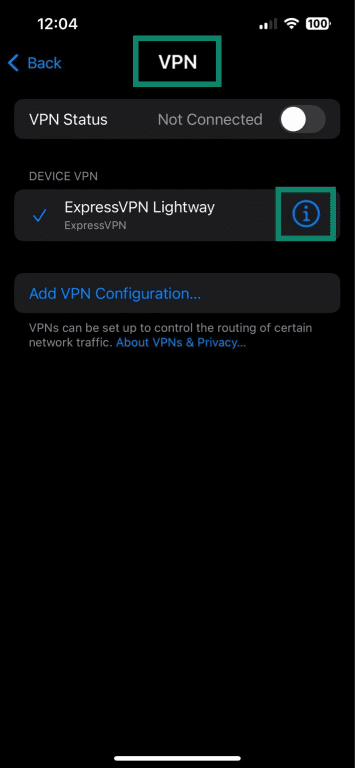
- Tap VPN and then the info button (blue i) next to ExpressVPN Lightway. Note that only VPN configurations installed on your device (such as those added by apps you’ve installed) will appear here.
- Toggle Connect On Demand to On.
VPN auto-start setup on Windows
You can configure ExpressVPN to launch automatically when Windows starts. Combined with the setting to connect to the last connected location on launch, this effectively enables auto-connect on Windows.
Here’s how to set it up:
- Open the ExpressVPN Windows app and click on Profile.
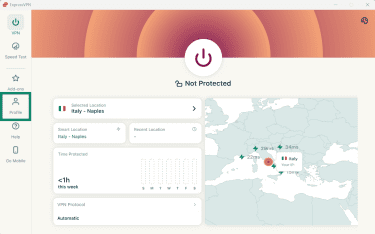
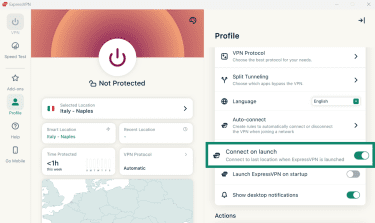
- Navigate right and toggle on Connect on launch.
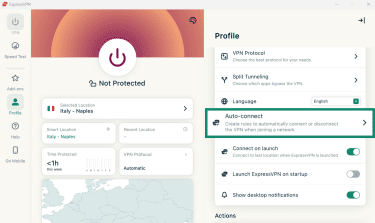
- Next, click on Auto-connect.
- Toggle on Auto-connect, then click Add Setting.
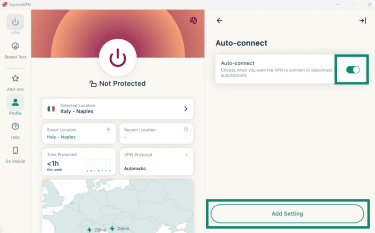
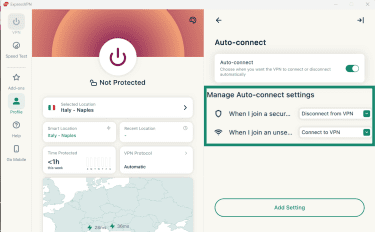
- Choose whether you want the VPN to connect or disconnect automatically on secure Wi-Fi, unsecured Wi-Fi, or Ethernet. Select Confirm to save the rule.
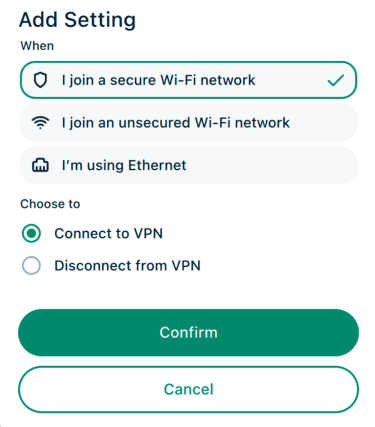
- You can create multiple rules and manage them in the Auto-connect tab.
VPN auto-start setup on macOS
You can add ExpressVPN as a login item on macOS, so it starts automatically when you start your computer. Combined with a setting to auto-connect when it detects certain networks, this enables the VPN to connect as soon as you start your device and go online.
Here’s how to set it up:
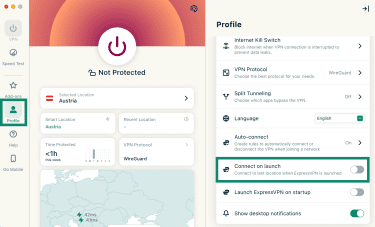
- Open ExpressVPN, select Profile, and toggle the switch next to Connect on Launch.
- Next, select Auto-connect.
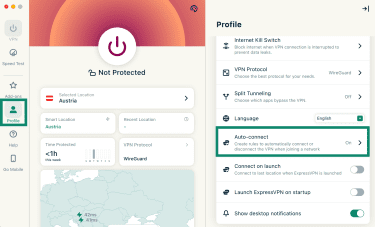
- Toggle the switch next to Auto-connect and select Add Setting.
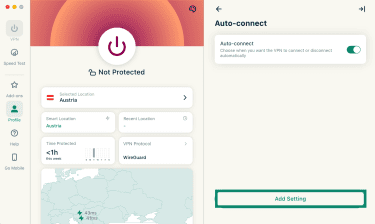
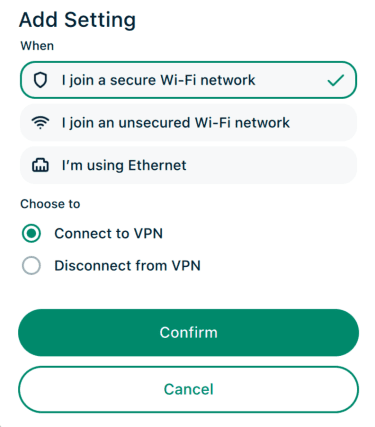
- Here, you can create auto-connect rules, specifically whether the VPN connects or disconnects on secure Wi-Fi networks, unsecured Wi-Fi networks, or Ethernet connections. Click Confirm to save the rule.
- You can create more than one rule at once and manage them from the Auto-connect tab.
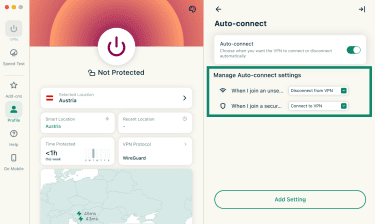
VPN auto-connect on Linux
On Linux, ExpressVPN can maintain and restore VPN connections through its command-line tools when background mode is enabled. Here's how:
- Open your Terminal.
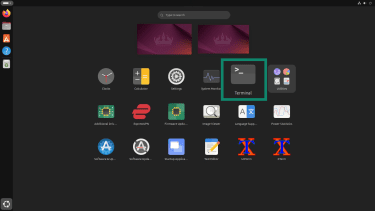
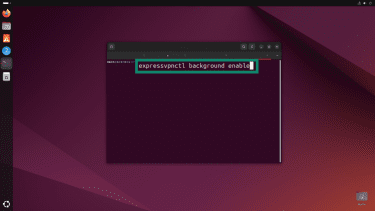
- Run: expressvpnctl background enable. This allows CLI commands (such as expressvpnctl connect) to run even when the GUI client is not active.
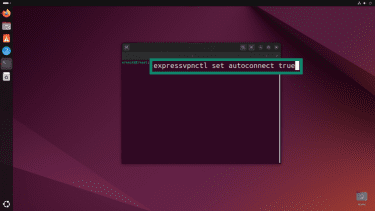
- To automatically reconnect after a reboot or network change, you can combine background mode with a startup script or system service that runs the appropriate connect command on boot. Run: expressvpnctl set autoconnect true.
- Close the Terminal.
VPN auto-connect on Fire TV or smart TV
The steps below apply to Fire TV and Android TV devices running the ExpressVPN app. Other smart TV platforms may require a different setup.
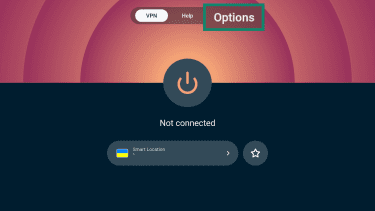
- Launch ExpressVPN on your Fire TV or Android TV and open Options.
- Open the Settings menu.
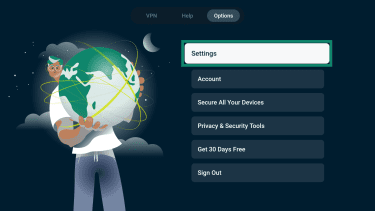
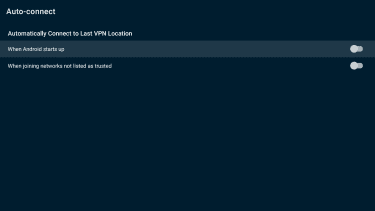
- Open the Auto-connect menu.
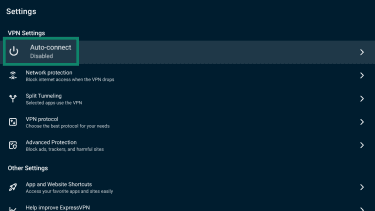
- Toggle on the way you would like the app to connect to its last VPN server location: When Android starts up or When joining networks not listed as trusted (or both).
Why use split tunneling with auto-connect?
Split tunneling lets you choose which apps use the VPN whenever it’s connected, including when auto-connect activates. This can be useful if some apps need to see your real IP address, while the rest of your traffic stays encrypted.
Split tunneling and auto-connect can be used independently, but together they can provide automatic protection without forcing every app to use the VPN.
Note: Apple restricts split tunneling to enterprise-managed "Per-App VPN" profiles, which are not available in standard consumer VPN apps. Because of this, split tunneling can’t be combined with auto-connect on iOS with ExpressVPN.
Troubleshooting VPN auto-connect
Auto-connect depends on several factors, such as the VPN app’s background permissions, your network's stability, and whether other software is interfering with the connection.
When any of these variables fail, it can cause connectivity issues, data leaks, or prevent the VPN from working. Troubleshooting steps can also vary widely, depending on the operating system (OS), device version, network rules, firewall, antivirus software, and broader network conditions.
Understanding the various conditions that a VPN relies on helps you isolate the cause of potential issues you might be facing.
Note: This guide focuses on issues associated with the auto-connect feature; for additional help on connecting your VPN more generally, see our troubleshooting guide.
VPN not connecting automatically
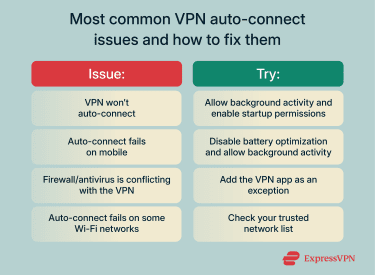
If the VPN won’t activate on its own, it often means the background service is not allowed to run. Auto-connect can fail when the app is force-quit or the device restarts without an auto-start rule set up.
Try locating your device’s background activity settings and make sure the VPN app is allowed to run in the background without restrictions. Once background access is enabled, test your auto-connect feature again.
The problem may also be device-specific:
- On Windows: Startup settings can override in-app preferences. If the VPN app is disabled in Task Manager’s Startup tab, it may not launch to auto-connect.
- On macOS: The system controls what apps open at login via Login Items and Extensions. Removing or disabling the VPN client here prevents it from auto-starting.
Auto-connect doesn’t work on mobile
If VPN auto-connect isn’t working reliably on a mobile device, first check whether the network you’re connected to requires a captive portal login, such as accepting terms on public or hotel Wi-Fi. Auto-connect may not activate until this step is completed.
On Android, power-saving features like Doze, App Standby, or manufacturer-specific battery controls can delay or block reconnection. If you’re having issues with auto-connect on Android, try excluding the VPN app from battery optimization and allow it to run without background restrictions.
If problems continue, switching networks, restarting the device, or reinstalling the VPN app can also help reset connectivity and permissions.
Conflicts with the firewall or antivirus
Local firewalls and antivirus tools sometimes block VPN traffic or interfere with the drivers that handle encryption. When this happens, the VPN may start normally but fail to establish a secure tunnel, or it may disconnect repeatedly as the security software filters packets.
To test what is causing the error, try disabling your antivirus or firewall, then running the VPN. If it only runs while the service is disconnected, you've likely located the source of the conflict. Be sure to re-enable both immediately, or you lose vital device protections.
Fortunately, you can typically correct this by creating an exception or a new rule for the VPN within your security software.
Customizing rules for Wi-Fi networks
If the VPN doesn’t activate on a public network or turns on unexpectedly, review your trusted-network list to make sure networks are classified correctly. Adjusting these settings can help ensure auto-connect triggers only on the networks you intend.
Some VPN apps (such as ExpressVPN) let you customize how auto-connect behaves on different Wi-Fi networks. This allows you to automatically connect when joining untrustworthy networks, such as a risky public hotspot, without forcing a VPN connection on trusted networks.
FAQ: Common questions about VPN auto-connect
Why does my VPN turn on by itself?
Your VPN's auto-connect feature is likely enabled. Depending on your settings, it may occur whenever you connect to a new network or when you turn on your device. To toggle this feature on or off, follow these steps.
Is it okay to keep a VPN on all the time?
Yes. Keeping a trusted VPN on helps ensure your internet traffic is encrypted and your IP address is masked continuously. However, keeping your VPN on all the time may have minor downsides, such as slightly faster battery drain or slower speeds on some connections. If you're using a restricted network, such as at workplaces and schools, you may also need to disable the VPN to get internet access.
How do I verify VPN auto-connect is working?
Start by disconnecting your VPN and visiting an IP-checking website; it should display your real IP address. Next, trigger an event that should activate auto-connect, such as joining a new network, switching between Wi-Fi and mobile data, or restarting your device, and confirm that your VPN app shows an active connection. You can also check your device’s VPN status indicator to ensure the system recognizes the connection. Finally, revisit the IP-checking website to verify that your IP address is now masked.
If the VPN does not reconnect as expected, you may need to troubleshoot for network restrictions, background activity limits, or software conflicts.
Take the first step to protect yourself online. Try ExpressVPN risk-free.
Get ExpressVPN


















 Support Center
  FAQ
FAQ  VPN Setup Tutorials


