iPhone stolen device protection: How to enable and use it


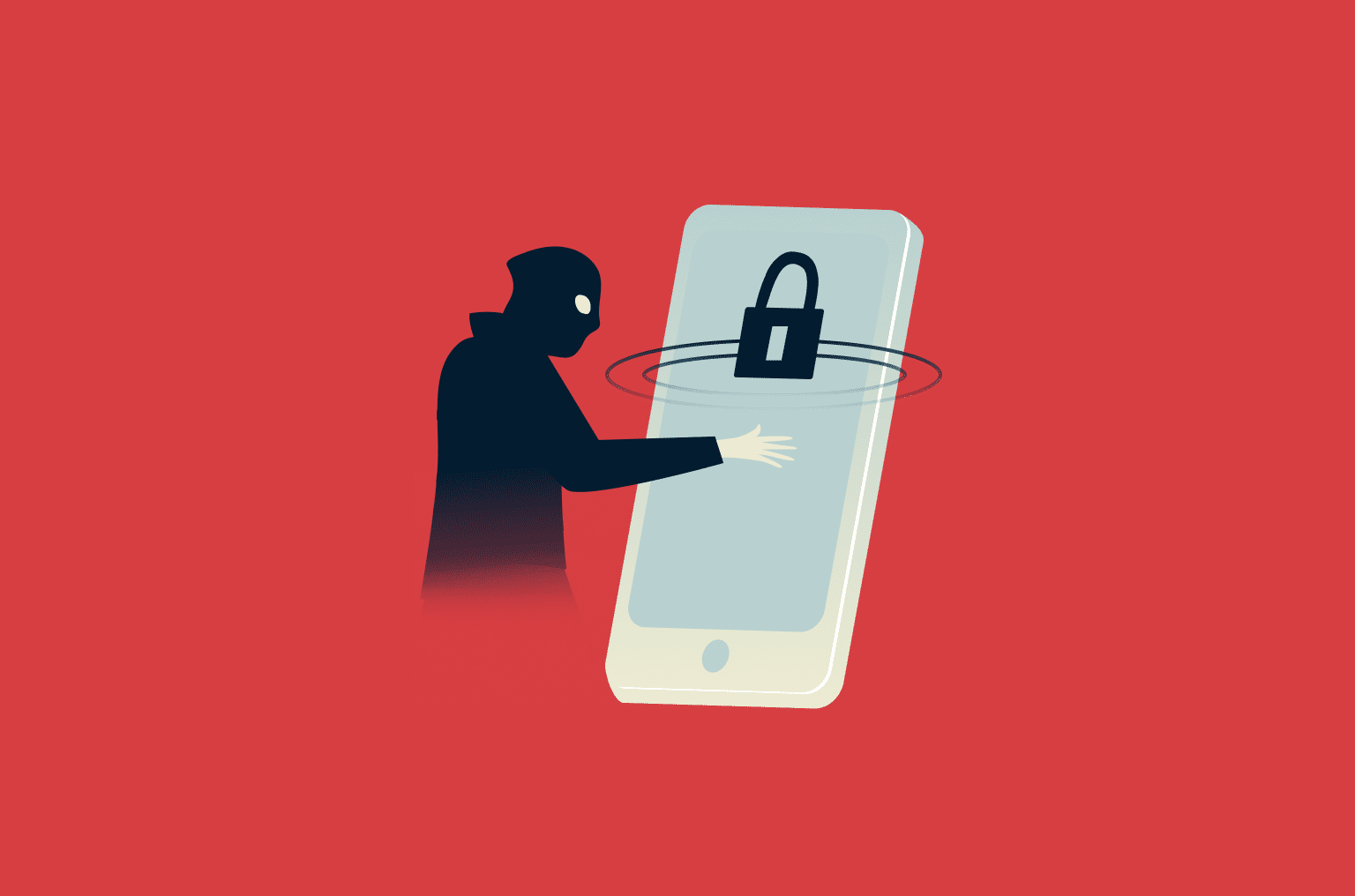
If someone steals your iPhone, the biggest risks arise from the actions the thief can take once they unlock it.
That’s where Apple’s Stolen Device Protection comes in. This iPhone feature adds extra checks before anyone can change key account settings, turn off Find My, or make sensitive updates, even if they know your passcode. It uses Face ID or Touch ID, a one-hour delay for certain changes, and familiar location checks to slow down high-risk account changes.
Here, we explain what Stolen Device Protection does and how to turn it on. We also cover how it affects everyday use and share some general iPhone security tips.
What is iPhone stolen device protection?
iPhone Stolen Device Protection is a feature that addresses a specific problem: someone steals your iPhone after learning your passcode. When it’s active, certain sensitive actions can’t be approved with a passcode alone. Instead, iPhone requires Face ID or Touch ID, and for some critical changes, it adds a one-hour security delay. This slows the thief down and gives you time to protect your account.
The feature is built into iOS and is available on iOS 17.3 or later. If you want to use it, you need to turn it on before your iPhone is lost or stolen.
How Stolen Device Protection works
Stolen Device Protection changes the rules for a small set of actions when your iPhone is away from familiar locations.
Biometric authentication for sensitive actions
Normally, your passcode can be used if Face ID or Touch ID don’t work. Stolen Device Protection changes that for certain high-sensitivity actions when your iPhone is away from familiar places. In those cases, there’s no passcode fallback.
Examples of sensitive actions include:
- Accessing passwords or payment details.
- Turning off Lost Mode.
- Setting up or transferring an eSIM.
Apple lists other actions too, but these are some common ones. Note that you can still use your passcode for Apple Pay purchases.
Security delay for critical changes
Some changes matter more than others. If someone can make them quickly, they can be hard to undo. With Stolen Device Protection, certain critical changes trigger a one-hour wait when your iPhone is away from familiar places. iPhone asks for Face ID or Touch ID, starts the timer, then asks for biometrics again after the hour is up.
In case your iPhone is stolen, the one-hour delay gives you time to respond from another trusted device, such as marking the iPhone as lost or erasing it using Find My. Note, however, that your iPhone may end the delay before a full hour has passed if it detects you’ve arrived at a familiar location.
Familiar locations explained
As mentioned, Stolen Device Protection doesn’t apply the same rules everywhere; the extra protections are designed to activate when your iPhone is away from places you use it often.
Apple calls these “familiar locations.” They typically include home, work, and other places you visit frequently. When you’re in a familiar location, the extra steps usually don’t apply, and your iPhone behaves as usual.
If you want, you can also set your phone to require the same protections all the time; Apple includes an “Always” option for the security delay setting.
What Stolen Device Protection protects (and what it doesn’t)
Stolen Device Protection adds extra requirements for a specific set of high-impact actions, while everything else works as usual.
Apple ID and account security changes
If someone takes control of your Apple account, the damage goes far beyond a single device. They can lock you out of your other Apple devices, access iCloud data tied to your account, and change how your account is recovered.
Stolen Device Protection puts extra safeguards around these changes. When your iPhone is away from familiar places, these changes can be put on a delay or require biometric authentication.
These protections apply to changes like:
- Changing your Apple account password.
- Signing out of your Apple account.
- Updating account security details, such as recovery options.
- Changing your iPhone passcode.
- Adding or removing Face ID or Touch ID.
- Turning off Stolen Device Protection itself.
Find My and device ownership protections
One of the first things a thief may try to do is stop the phone from being tracked by turning off Find My. With Stolen Device Protection turned on, this change can’t be made without Face ID or Touch ID when your iPhone is away from familiar locations .
Instead, iPhone requires biometric authentication and enforces a one-hour security delay before the setting can be changed. After the delay ends, Face ID or Touch ID is required again to complete the action. Essentially, without your biometrics, the change can’t go through at all.
Payments and Wallet-related actions
Stolen Device Protection doesn’t cover every payment scenario, but it does tighten control around saved payment details and Wallet features. When your iPhone is away from familiar places, these actions require Face ID or Touch ID.
Your passcode won’t work as a fallback for:
- Using payment methods saved in Safari AutoFill.
- Viewing the virtual number of your Apple Card.
- Applying for a new Apple Card.
- Transferring Apple Cash or Savings in the Wallet app.
What still depends on your passcode
Even with Stolen Device Protection turned on, the passcode still unlocks a lot. If someone knows your passcode, they can unlock your iPhone and access anything that doesn’t have its own extra protection.
These actions don’t get extra biometric checks or a security delay:
- Unlocking the iPhone: Once the device is unlocked, messages, email, photos, and other content can be viewed.
- Apple Pay in stores: If Face ID doesn’t work, a passcode can still approve a payment at a physical terminal.
- Using third-party apps: Apps like email, social media, or payment apps aren’t covered unless they use their own biometric lock.
- Logging into some websites: If a login depends on a password saved outside Keychain, it isn’t protected by this feature.
Requirements before you turn it on
You won’t see the option to turn on Stolen Device Protection unless a few basics are already set up on your iPhone. First, your Apple Account needs two-factor authentication (2FA), and your iPhone must be protected with a device passcode. You’ll also need Face ID or Touch ID, since this feature relies on biometrics for certain actions. Find My has to be turned on as well.
Stolen Device Protection also uses location awareness to detect familiar places, which requires Location Services and Significant Locations to be enabled. Significant Locations helps your iPhone recognize places where you use it often, such as home or work, and can be found under System Services in your Privacy & Security settings.
As mentioned before, Stolen Device Protection is available on iOS 17.3 or later, so your phone will also need to meet this requirement.
How to turn on Stolen Device Protection
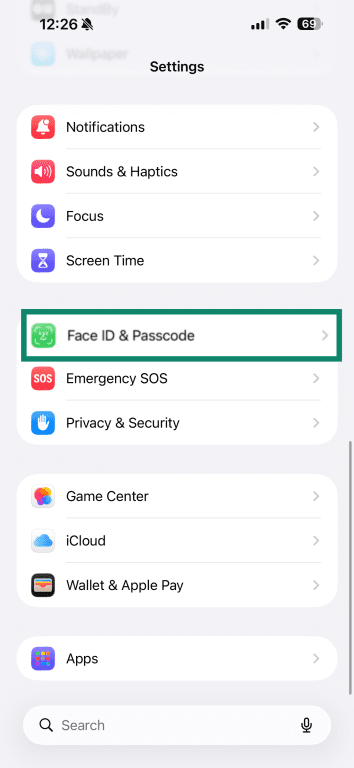
Turning on Stolen Device Protection only takes a few taps in your Settings.
- Go to Settings on your iPhone and tap Face ID & Passcode (or Touch ID & Passcode).
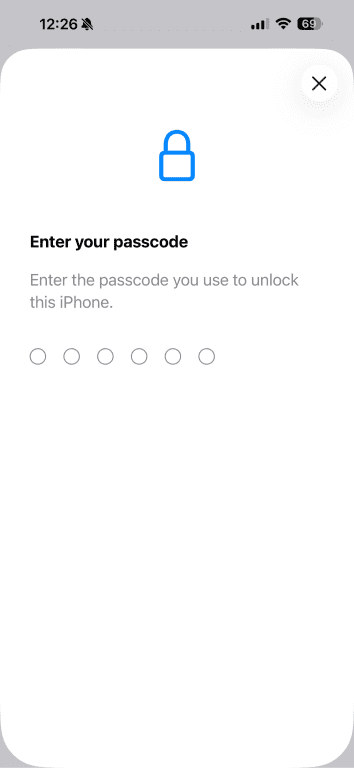
- Enter your device passcode.
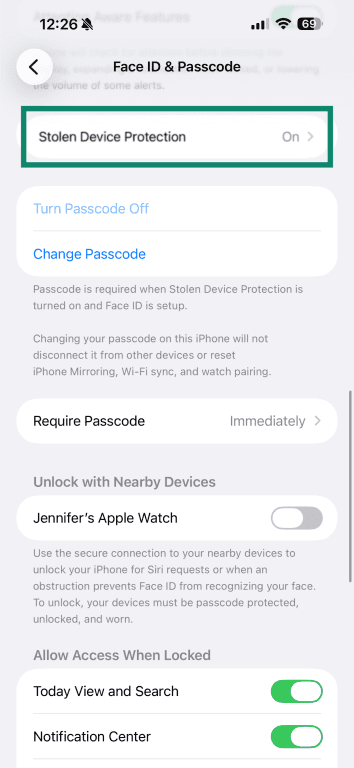
- Scroll down and tap Stolen Device Protection.
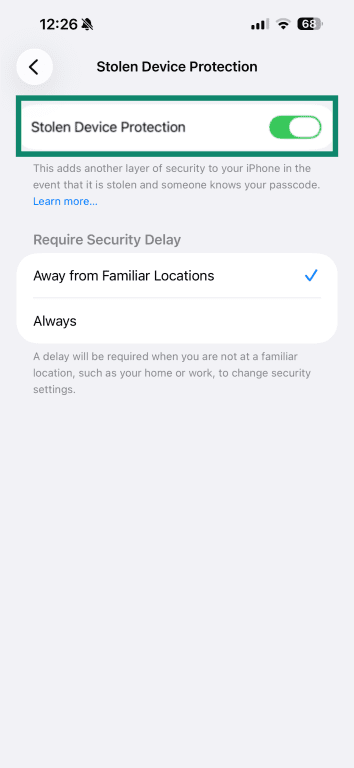
- Turn on Stolen Device Protection.
How to confirm it’s enabled
Once it’s turned on, the status will show as On. You can also tap Stolen Device Protection again to check how the security delay is set up.
Under Require Security Delay, you’ll see two options:
- Away from Familiar Locations: This is the default setting. Extra security steps apply only when your iPhone is in places you don’t use regularly.
- Always: With this option, the security delay can apply everywhere, including at home, which means waiting an hour before making certain account changes.
Stolen Device Protection limitations
Once it’s turned on, Stolen Device Protection mostly stays out of the way. However, you will likely notice it when travelling, since this typically means you’ll spend days away from any locations your phone recognizes as familiar.
To minimize disruption, it’s advisable to make important changes ahead of time: if you plan to update your Apple account password or security settings, it’s easier to do it before you leave home or work. That way, you won’t run into delays while you’re elsewhere.
It’s also important to understand what this feature isn’t designed to handle. Stolen Device Protection helps in cases of physical theft, not against phishing scams, spyware, or account access that happens through a web browser or another device.
Over time, familiar locations can include those that are not necessarily private, like a café or store you visit frequently.
In those situations, the extra security steps may not apply, even though the environment isn’t as controlled as home. This doesn’t mean the feature isn’t working, but it highlights why Stolen Device Protection is most effective when combined with other safeguards, such as keeping your passcode private and using Find My if your device goes missing.
Also, Stolen Device Protection works best when your iPhone has a clear sense of where you usually use it. When that context is missing, the feature may apply more broadly than expected.
If you’ve recently moved or started spending time in new places, your iPhone may not recognize them as familiar right away, which can cause the security delay to trigger more often than expected.
Stolen Device Protection vs. Find My vs. Activation Lock
These three iPhone security features often get mentioned together, but they don’t do the same job. Each one protects a different part of your device or account.
- Find My: Helps you locate your iPhone if it’s lost or stolen. You can see its location on a map, play a sound to find it nearby, or remotely lock or erase the device if you don’t expect you’ll be able to retrieve it.
- Activation Lock: Protects the device itself; even if someone erases your iPhone data and resets it to factory settings, they can’t set it up again without your Apple account. The device stays linked to your Apple account until you remove it.
- Stolen Device Protection: Focuses on account control; it’s designed for cases where someone has both your iPhone and your passcode. It adds extra checks before key account changes, making it much harder for someone in possession of your device to change account settings when they’re away from your familiar locations.
| Feature | What it helps prevent | What it relies on |
| Find My | Losing track of a lost or stolen device | Find My and Location Services enabled |
| Activation Lock | Unauthorized reuse or resale after a reset without the owner’s Apple ID | Find My enabled on the device |
| Stolen Device Protection | Unauthorized account changes if someone has your device and passcode | Face ID or Touch ID, iOS 17.3 or later, and Significant Locations enabled |
Other ways to improve your iPhone security
Stolen Device Protection covers a very specific risk. Outside of that, there are other ways to improve your iPhone security. None of these are comprehensive on their own, but together they make your device harder to misuse.
Strengthen your passcode
Your passcode is still the first thing someone needs to unlock your iPhone.
By default, iOS uses a 6-digit numeric passcode, which offers basic protection, but for stronger protection, iOS also lets you set a longer numeric passcode or switch to a custom alphanumeric passcode that includes letters and numbers. These options make brute-force and shoulder-surfing attacks much harder.
It’s also important to avoid passcodes based on simple patterns or personal information. Codes tied to birthdays, phone numbers, or obvious sequences (like 123456) are much easier to guess.
Lock Screen privacy settings
Even before your iPhone is unlocked, the Lock Screen can reveal more than you might expect.
Apple allows several features to work while an iPhone is locked. Reviewing your iPhone privacy settings can help reduce that risk if the phone falls into the wrong hands. You can reduce this risk by limiting what’s allowed on the Lock Screen and turning off features you don’t actually use:
- Control Center: Prevents quick changes to Wi-Fi, cellular data, or Airplane Mode.
- Siri: Stops voice commands from working without unlocking.
- Reply with Message: Prevents someone from responding to texts from the Lock Screen.
Also, setting notification previews to show only when unlocked keeps verification codes, messages, and other sensitive content hidden from anyone else who picks up your iPhone.
Account recovery setup
Extra security checks are helpful, but it’s also worth thinking ahead about how you’d get back into your account if something goes wrong.
Apple gives you a couple of ways to do that. One option is adding a recovery contact (someone you trust who can help you confirm your identity if you need to reset your Apple account password). They don’t get access to your data or your account; they just help you recover it.
Another option is setting up a Recovery Key. This is a long, unique code that lets you regain access if you’re locked out. It significantly enhances your account’s security by ensuring only someone with the Recovery Key can regain access if you’re locked out, but it also comes with responsibility. The key needs to be stored somewhere safe, like a password manager or a physically secure location. If it’s lost and you can’t sign in normally, Apple can’t step in to recover the account.
Backup and recovery planning
If your iPhone is lost or stolen, what really matters is whether your data is safe and recoverable. One important step is making sure iCloud Backup runs automatically. When it’s on, your photos, messages, app data, and settings are saved regularly. If the phone is lost or damaged, you can restore everything on a new device instead of starting from scratch.
For added privacy, Apple also offers Advanced Data Protection. When it’s enabled, backups and other sensitive data are end-to-end encrypted.
It’s also worth knowing how Lost Mode works before you actually need it. If you sign into iCloud from a computer once or twice to see where the controls are, you won’t be figuring things out under pressure if your phone goes missing.
FAQ: Common questions about iPhone Stolen Device Protection
Should I enable Stolen Device Protection?
Stolen Device Protection is meant for cases where someone might steal your iPhone after learning your passcode. If you’re concerned this might happen to you, you should enable the feature. It adds biometric checks and, for some changes, a one-hour delay that helps slow down account takeovers. For most people, it runs quietly in the background without affecting everyday use.
Can someone use my iPhone if it’s stolen?
It depends on your settings. Once you mark your iPhone as lost, it’s locked with your passcode, and Apple Pay is suspended. If Stolen Device Protection is on, turning off Lost Mode while the device is away from familiar locations requires Face ID or Touch ID even if someone knows your passcode.
Does Stolen Device Protection help if someone knows my passcode?
Yes. Stolen Device Protection is designed for cases where someone has both your iPhone and your passcode. When your iPhone is away from familiar locations, some sensitive actions won’t work with the passcode alone and require Face ID or Touch ID instead. Certain high-risk changes also trigger a one-hour delay, giving you time to react.
What counts as a familiar location?
Familiar locations are places where you regularly use your iPhone, such as home, work, or other locations you visit often. Your iPhone uses this information to decide when extra security steps should apply.
How do I turn off Stolen Device Protection?
You can turn off Stolen Device Protection in your Face ID & Passcode settings. If your iPhone is away from a familiar location when you try to turn it off, a security delay may apply before the change goes through.
Where do I find Stolen Device Protection in settings?
You’ll find Stolen Device Protection in the Face ID & Passcode (or Touch ID & Passcode) section of Settings. After entering your device passcode, scroll down until you see Stolen Device Protection, where you can turn it on, turn it off, and check how the delay is configured.
Take the first step to protect yourself online. Try ExpressVPN risk-free.
Get ExpressVPN