Is hotel Wi-Fi safe? How ExpressVPN protects your browsing


Hotel Wi-Fi isn’t inherently safe because some networks use weak encryption or none at all, which can leave important data exposed. Connecting to ExpressVPN encrypts traffic shared between your device and the VPN server, making it difficult for Wi-Fi operators or malicious actors to monitor your online activities.
But ExpressVPN can’t hide or protect against everything. It can’t stop network admins from seeing details about your VPN connection, secure your data if you enter it on phishing pages, or protect your device from malware infections.
How ExpressVPN increases security and privacy
on hotel Wi-Fi
There are several common security and privacy issues associated with hotel networks. Using ExpressVPN on hotel Wi-Fi helps protect against threats like these.
Traffic monitoring
Some hotels use open networks to streamline the guest login experience, as users don’t need to authenticate with passwords. This is convenient, but it also means the network doesn’t use encryption, which could leave some traffic exposed to monitoring. Some networks may require authentication via a separate captive portal. However, that doesn’t automatically mean the Wi-Fi is encrypted.
While it’s unlikely hotel networks actively monitor guests’ browsing traffic, some users may still have privacy concerns because someone can see the websites they access and potentially read anything that isn’t protected by HTTPS or Transport Layer Security (TLS) encryption.
With ExpressVPN, network administrators can only see that you’re connected to a VPN server. They can still see the VPN server’s IP address, connection timestamps, and how much data you use, but they don’t see the actual websites you visit.
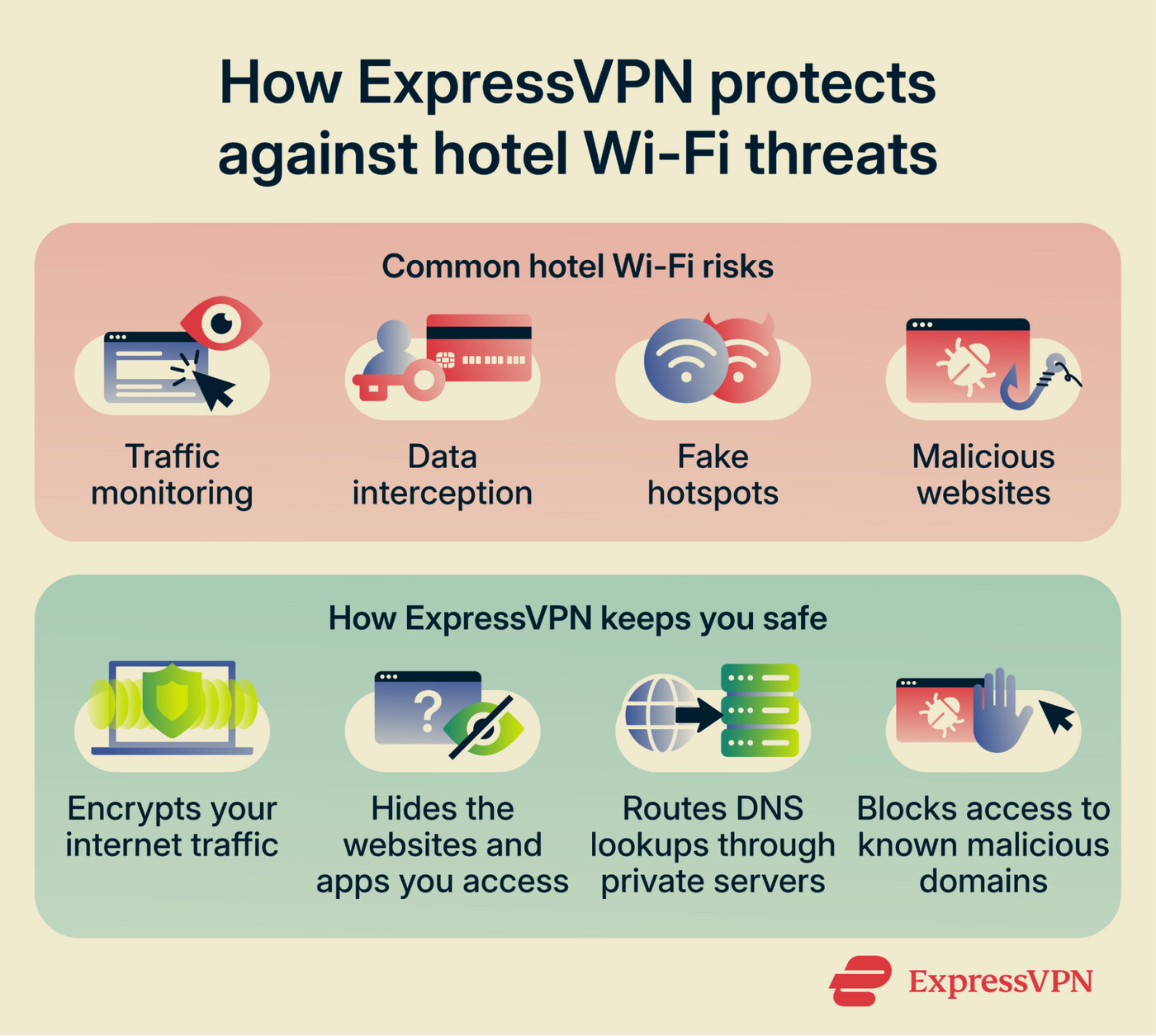
Data interception
On hotel Wi-Fi with nonexistent or weak encryption, cybercriminals may use different methods to eavesdrop on unprotected user connections and capture sensitive data. For example, they could launch a man-in-the-middle attack to intercept or alter communications between two parties, like a device and an online service.
Note that attackers can’t read data shared with websites or apps that use HTTPS or TLS, which encrypts the contents of user connections even if the underlying hotel Wi-Fi isn’t secure. However, malicious actors could still see which websites or apps are accessed.
ExpressVPN protects against such threats by encrypting data between your device and the VPN server. It also limits visibility into which online services you access, as attackers only see you’re connected to a VPN server.

Note: Attackers may capture encrypted traffic now and try to decrypt it later. ExpressVPN’s proprietary Lightway protocol uses perfect forward secrecy, generating new encryption keys for each connection and rotating them every 15 minutes or when you switch networks. This limits the potential impact of a compromised encryption key to the traffic protected by that key, rather than exposing traffic from other key periods.
Fake hotspots
Some malicious actors set up fake networks with names that seem legitimate. A lazier attacker might just go with "Free Hotel WiFi," while cybercriminals with more time on their hands might create a network with a name and password identical to those used by a real hotel.
Attacker-controlled networks typically don’t use encryption, so guests who accidentally connect to them are at risk of being spied on or having their data stolen. The rogue hotspot may also interfere with Domain Name System (DNS) lookups, which help devices find and connect to website addresses, and attempt to redirect users to malicious pages.
If a user is connected to ExpressVPN, even if they end up on a fake network, visibility into their online activities will be limited by the VPN’s encryption. ExpressVPN also routes DNS lookups through private DNS servers. This way, even if the rogue hotspot has a malicious DNS resolver, your device will communicate with ExpressVPN’s DNS server instead.
Important: Even if ExpressVPN can provide some protection on fake hotspots, you should immediately disconnect from a Wi-Fi network if you suspect it’s not legitimate.
Malicious websites
Hotel guests don’t need to be on a fake hotspot to end up on malicious pages. They could also get redirected to dangerous websites by accidentally clicking phishing links found in emails, messages from compromised accounts on booking sites, social media comments, or video descriptions.
ExpressVPN limits exposure to malicious pages through its Advanced Protection suite. The tool protects users against malicious sites by checking the destination against a list of known phishing and fraudulent domains and blocking the connection before the page loads. Note that Advanced Protection only blocks websites that have already been identified as malicious and are part of the blocklist. You can read more about our blocklists in the Knowledge Hub.
ExpressKeys, ExpressVPN’s password manager, also provides some protection. It securely stores logins in an encrypted vault and autofills them on trusted pages. If you’re redirected to a familiar-looking sign-in portal but don’t get an autofill prompt from ExpressKeys, this can be a sign that something’s not right.
Set up ExpressVPN to protect your browsing on hotel Wi-Fi
1. Install the app on the devices you use to browse
ExpressVPN offers apps for a wide range of devices, including Windows, Mac, Linux, iOS, Android, Chromebook, and some smart TVs and streaming devices. It also has browser extensions on supported browsers, such as Chrome, Edge, Brave, Vivaldi, and Firefox.
For full setup instructions on desktop and mobile, refer to our ExpressVPN download and installation guide. For other devices and platforms, use the guides on the VPN setup page.
2. Connect to a VPN server
After you download and install ExpressVPN, launch the app and click the power button to connect to a VPN server. By default, ExpressVPN automatically connects to the optimal server for your current location and network conditions. Below is how the process looks in the Windows app.
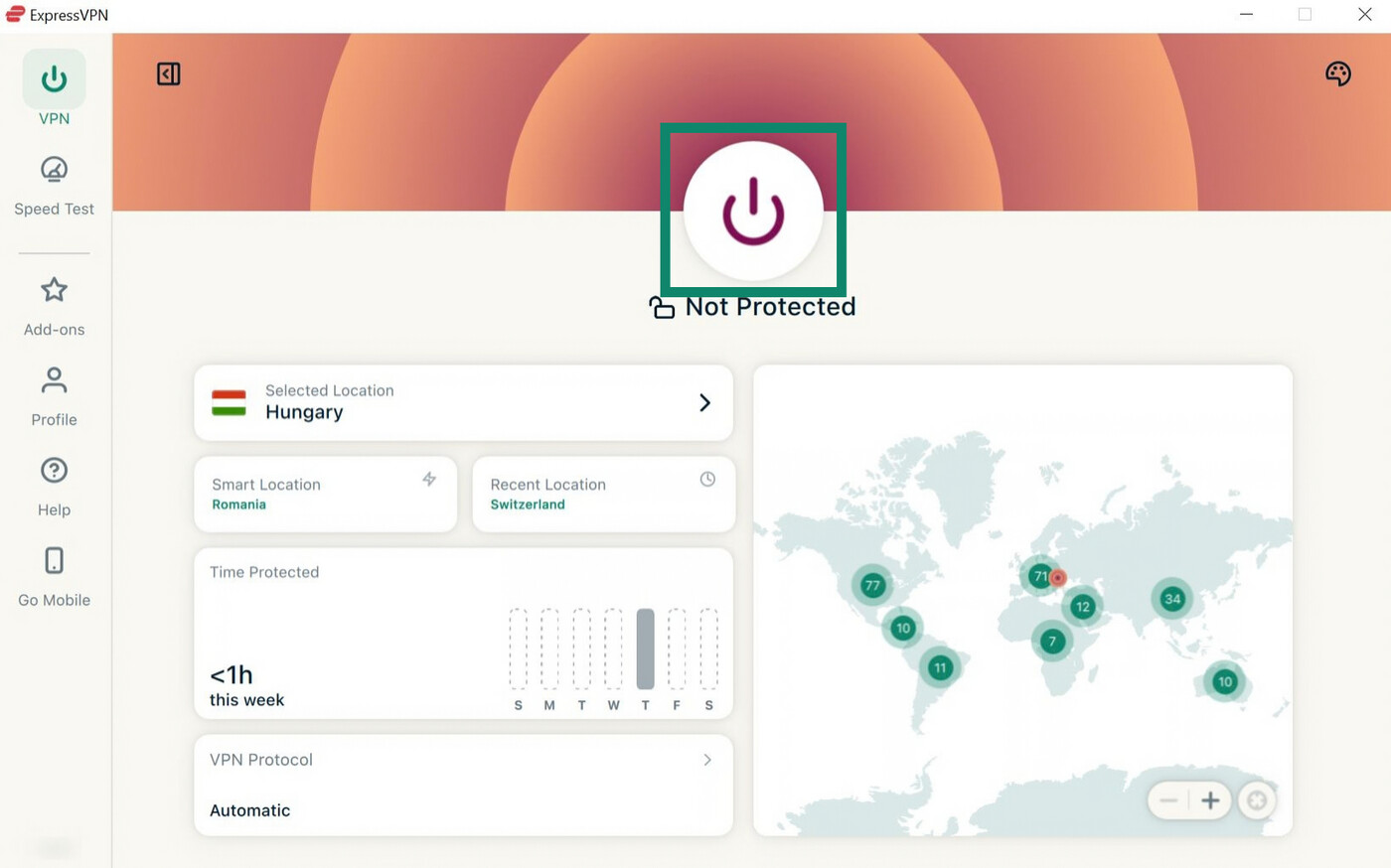
If the VPN connection is successful, you’ll see Protected displayed under the power button.
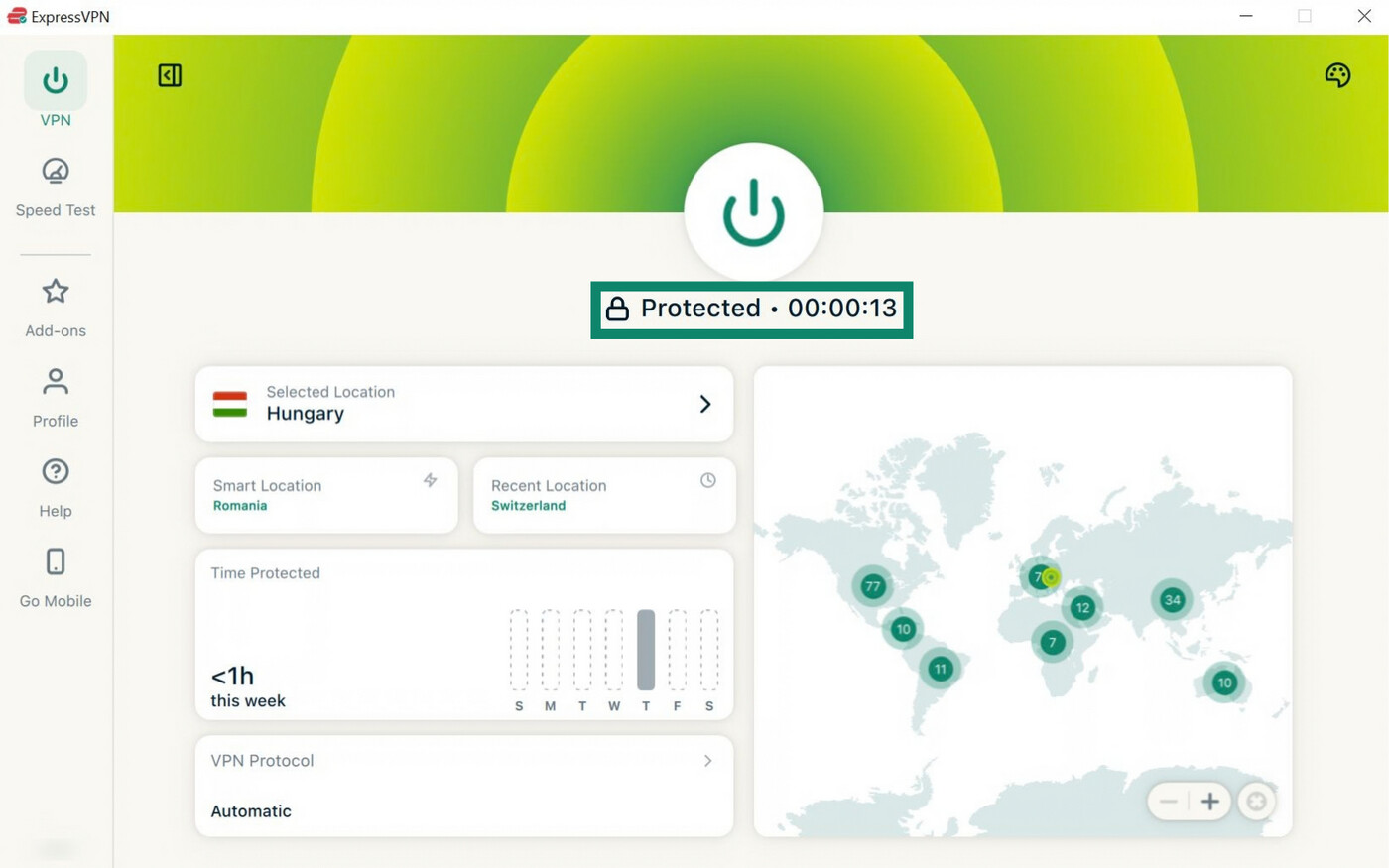
To select a different server, click the server location widget to open the full list of VPN servers. Choose your desired server location, and ExpressVPN will automatically connect to it. Wait for the Protected message to confirm the connection is active. For optimal speeds, it’s best to choose a nearby server location.
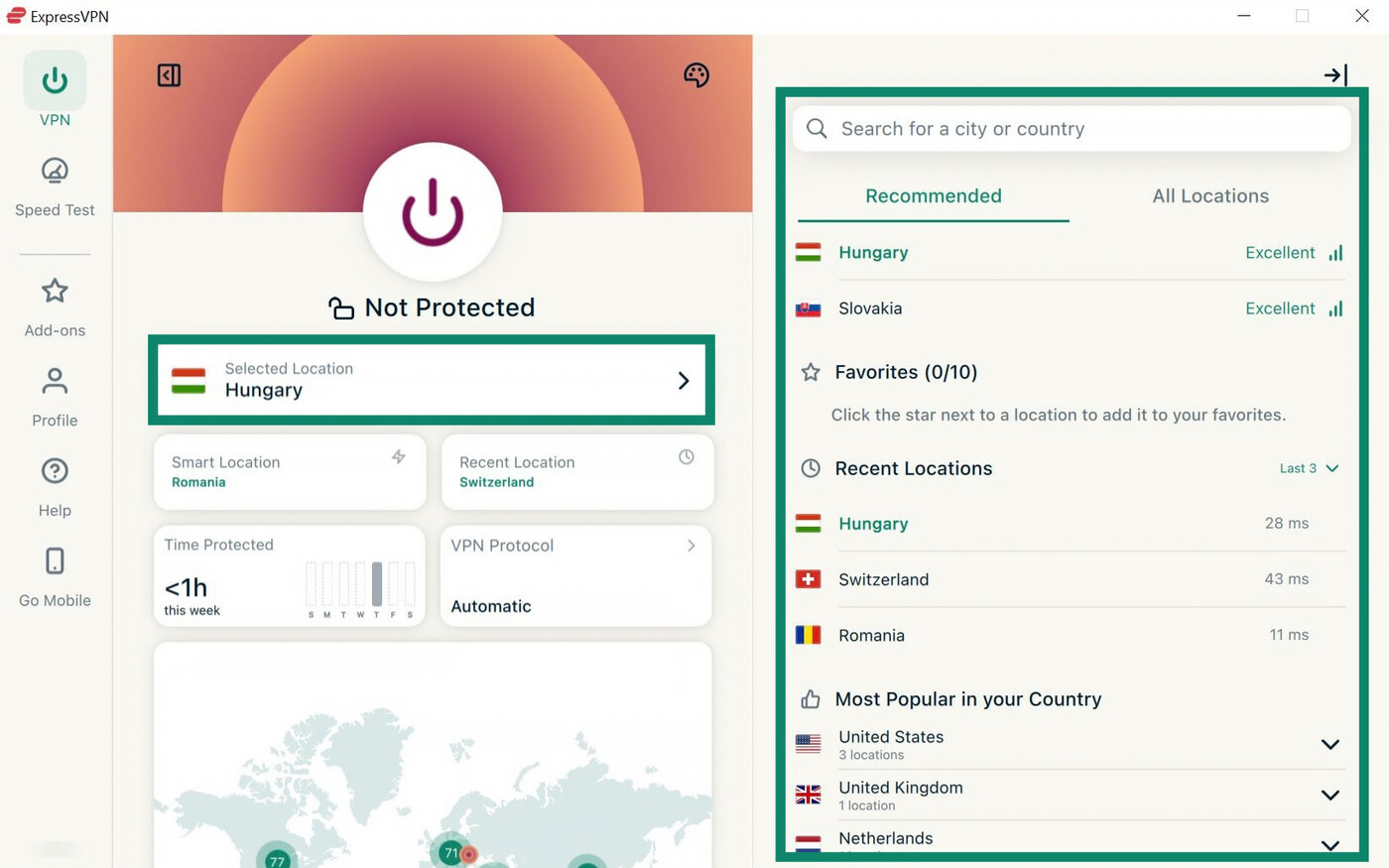
For full instructions on how to select different servers on other devices, read our guide on changing server locations.
When the VPN connection is active, all traffic traveling through it is encrypted and secured.
3. Check your kill switch settings
ExpressVPN has an Internet Kill Switch feature that blocks internet access if the VPN unexpectedly disconnects. This ensures traffic doesn’t become visible on the hotel network while ExpressVPN reconnects. The kill switch is enabled by default on the ExpressVPN desktop and mobile apps.
Here’s how to check if the kill switch is on using the Windows app:
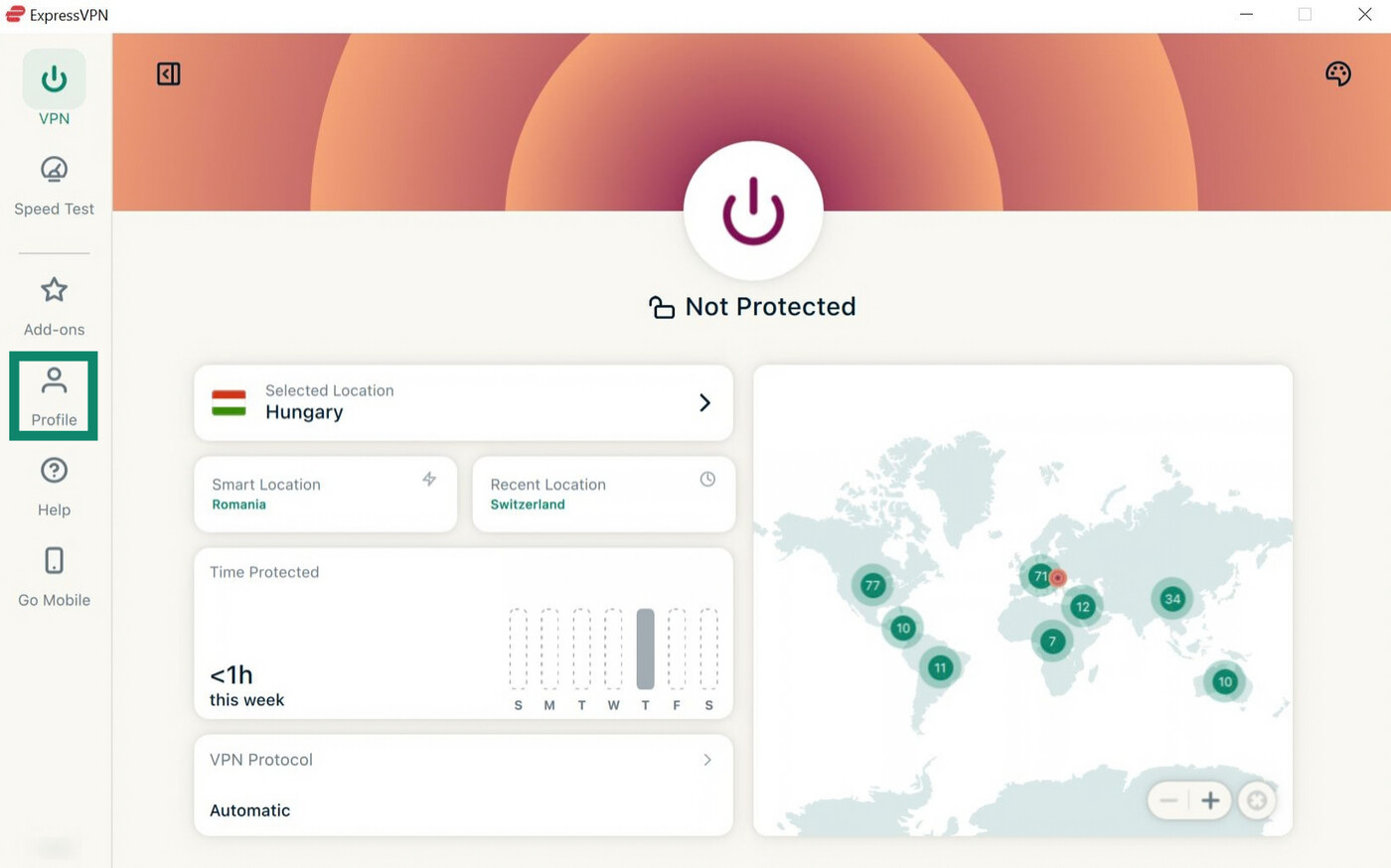
- Open the ExpressVPN app and click Profile on the left.
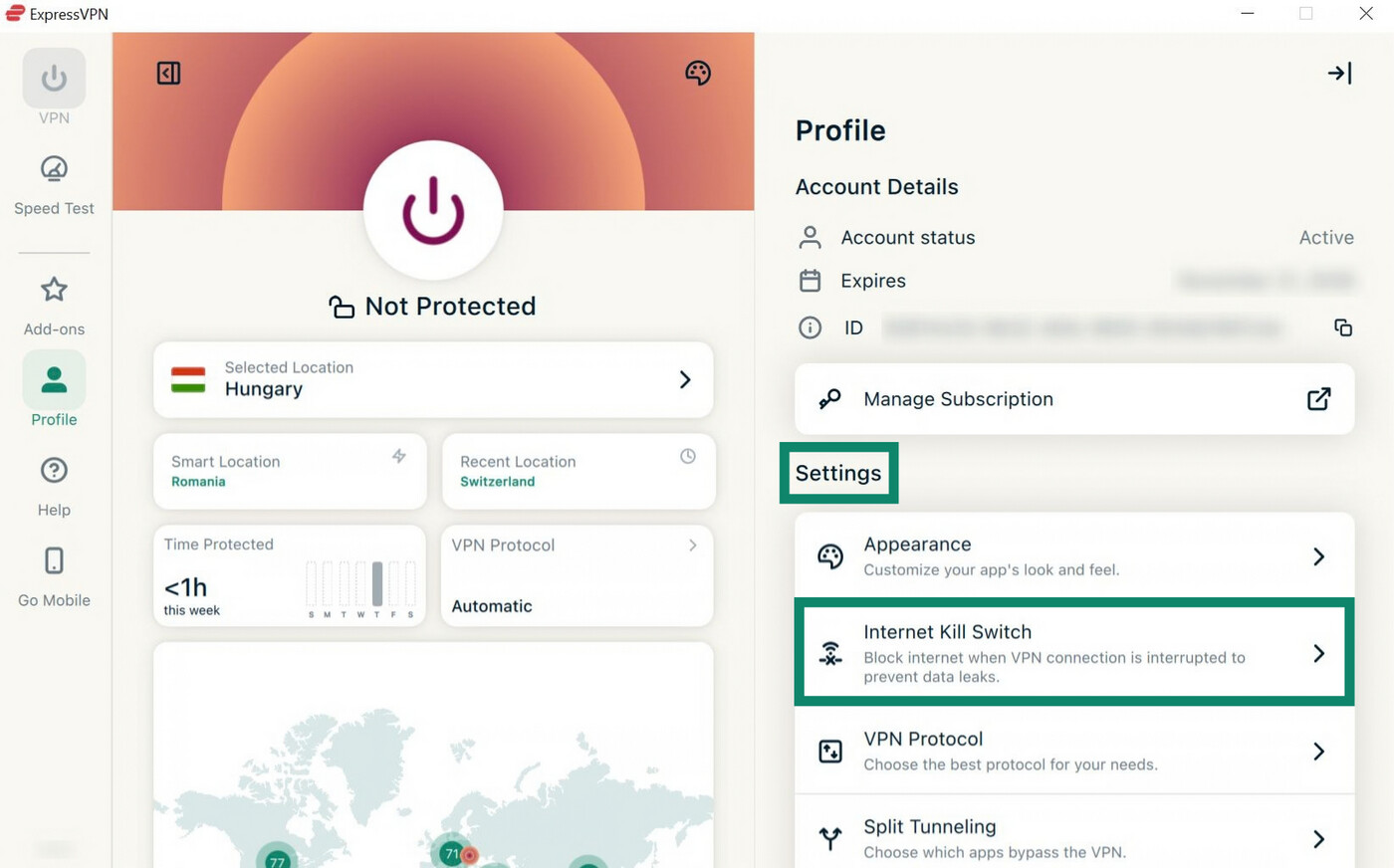
- Under Settings, select Internet Kill Switch.
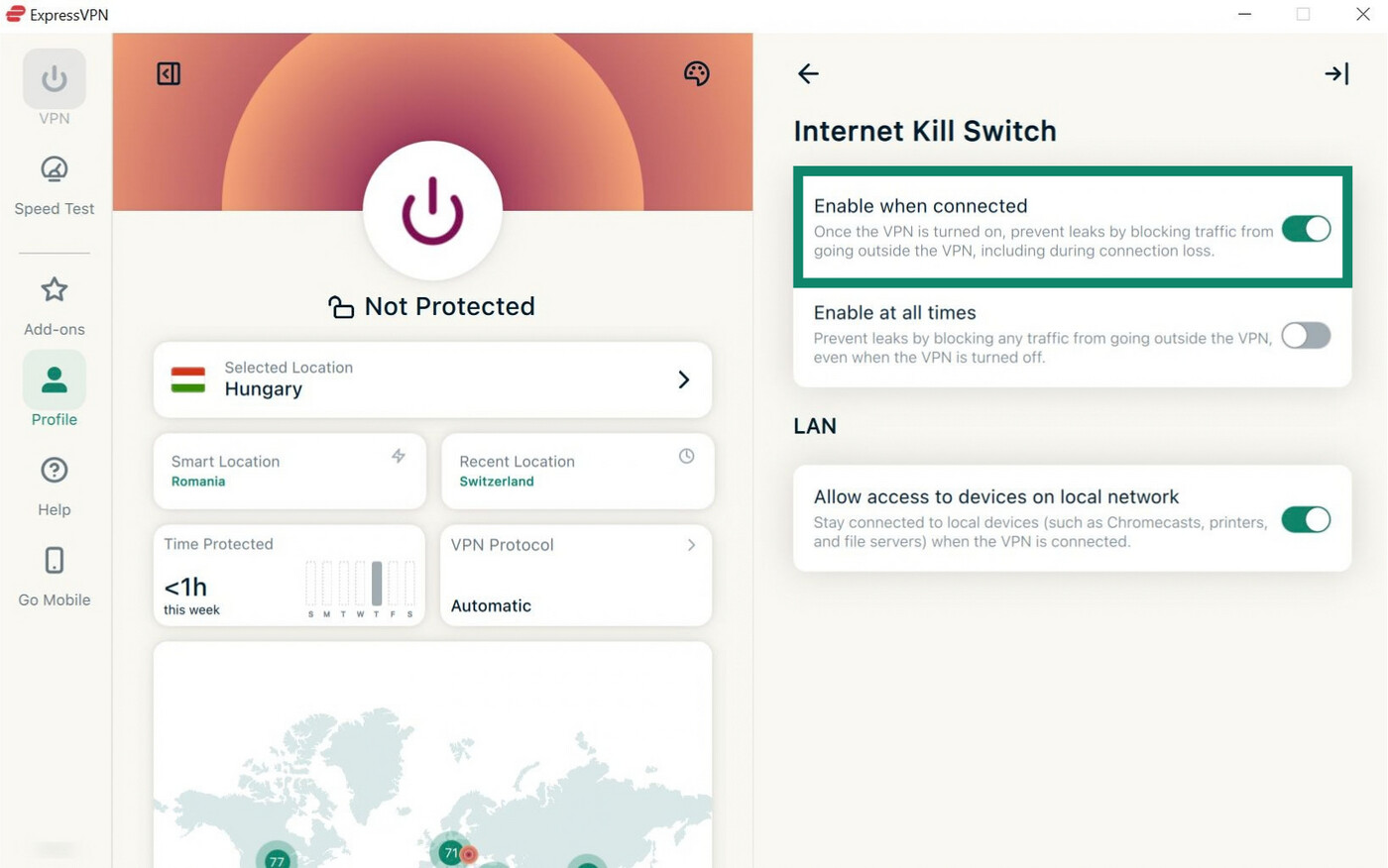
- Make sure Enabled when connected is toggled on. This disables online access if ExpressVPN unexpectedly disconnects.
For more information, refer to our guide on using the kill switch on desktop.
For mobile-specific instructions, read our Android and iOS guides.
4. Enable Advanced Protection
ExpressVPN’s Advanced Protection suite is available on desktop and mobile and includes the following online tools:
- Tracker blocker: Prevents visited apps and websites from tracking your online activities.
- Malicious site blocker: Blocks known malicious websites before they load.
- Ad blocker: Prevents most display ads from loading when browsing the web.
- Adult site blocker: Blocks access to most adult sites. Can help protect your kids from inappropriate content on hotel networks with no adult content restrictions.
All tools are included with all ExpressVPN subscription tiers, except the tracker blocker, which is only available on the Advanced and Express Pro plans.
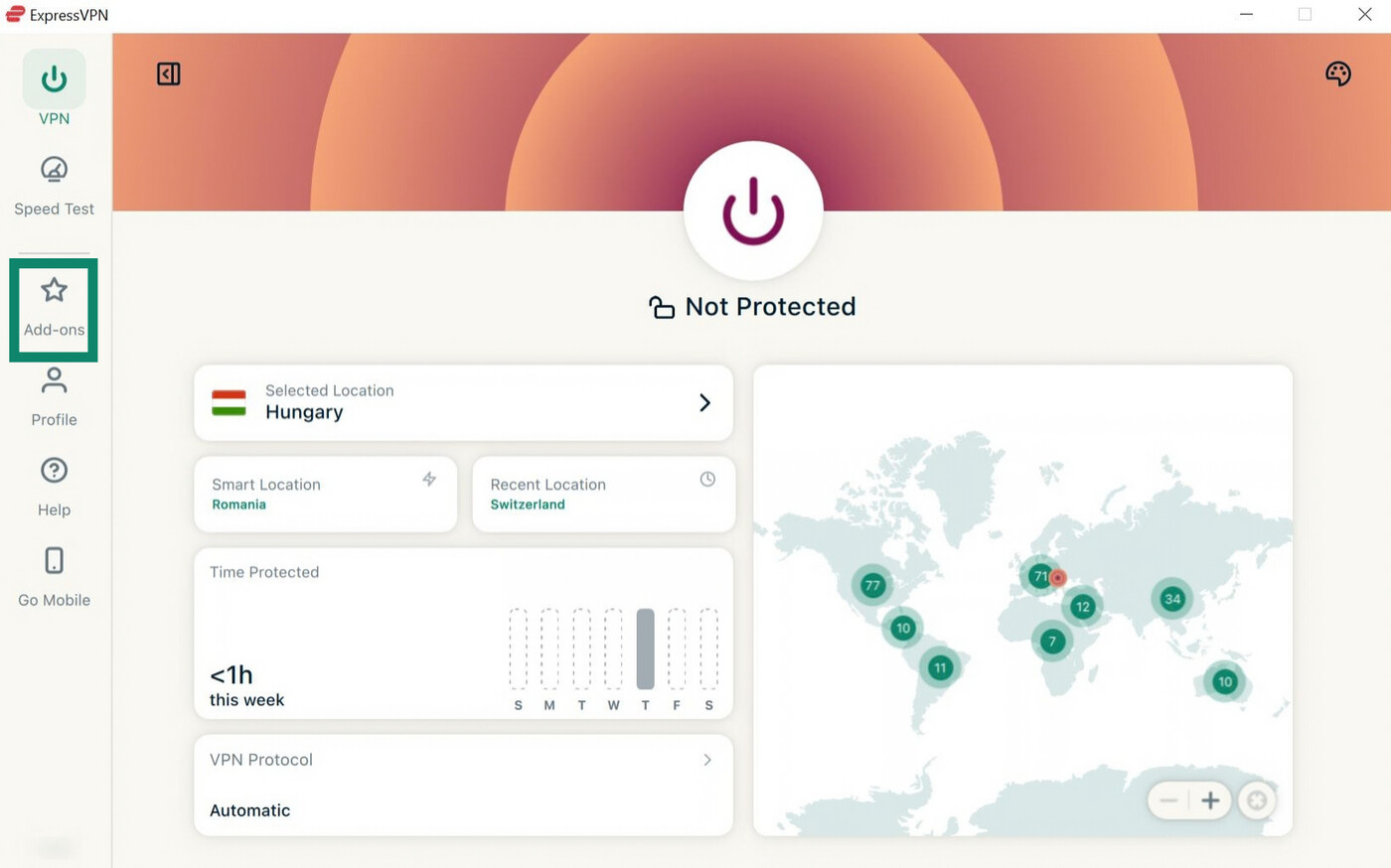
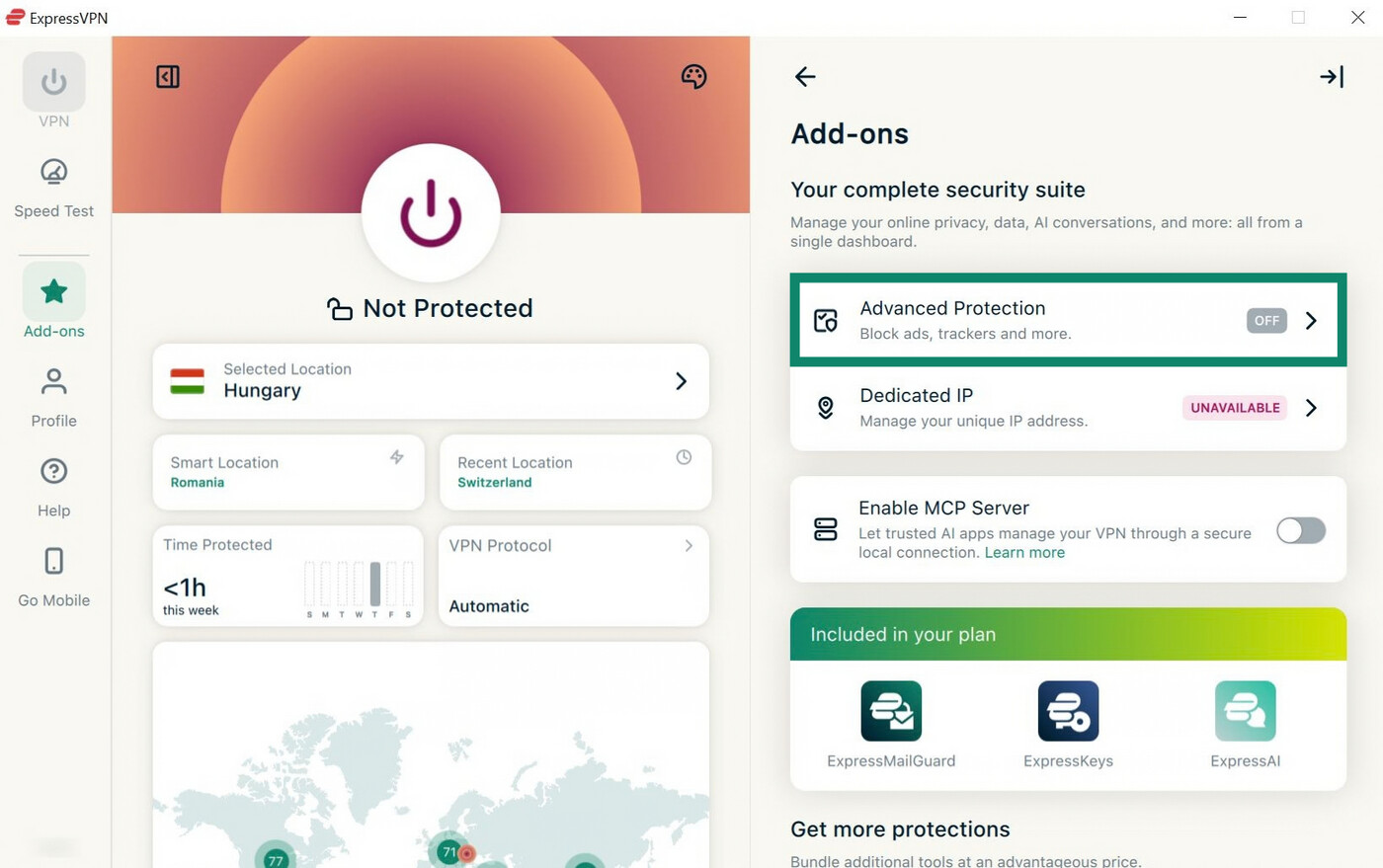
Here’s how to turn on Advanced Protection tools on the ExpressVPN Windows app:
- Open the app and click the Add-ons tab.
- Select Advanced Protection.
- Enable the available tools as you see fit.
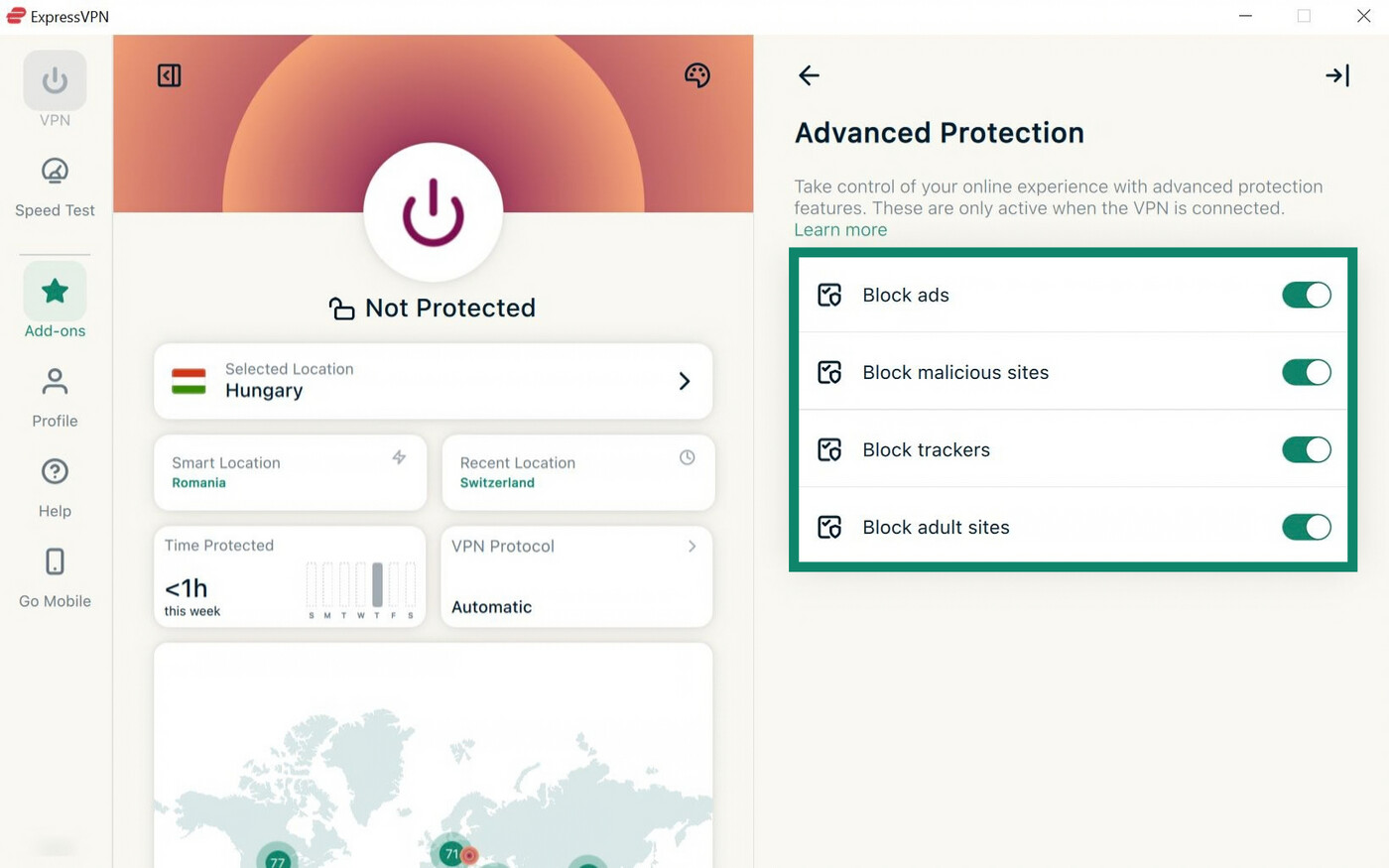
Once you’ve adjusted the settings to your liking, you need to reconnect to apply them.
For full instructions on how to use Advanced Protection on other devices, read our Advanced Protection Knowledge Hub article.
Note: Advanced Protection is only active when you’re connected to ExpressVPN. It also doesn’t work with the IKEv2 protocol.
5. Use ExpressKeys for added account protection
ExpressKeys is ExpressVPN’s password manager that stores your credentials, credit cards, and secure notes in one encrypted vault. It provides secure access to your accounts while traveling and helps you avoid malicious pages by not autofilling your credentials on sites where the domain doesn’t match the one saved in your vault.
ExpressKeys is available as a standalone app for Android, iOS, and Mac and as a browser extension. It’s included with the ExpressVPN Advanced and Express Pro plans and is also available as a standalone in-app subscription.
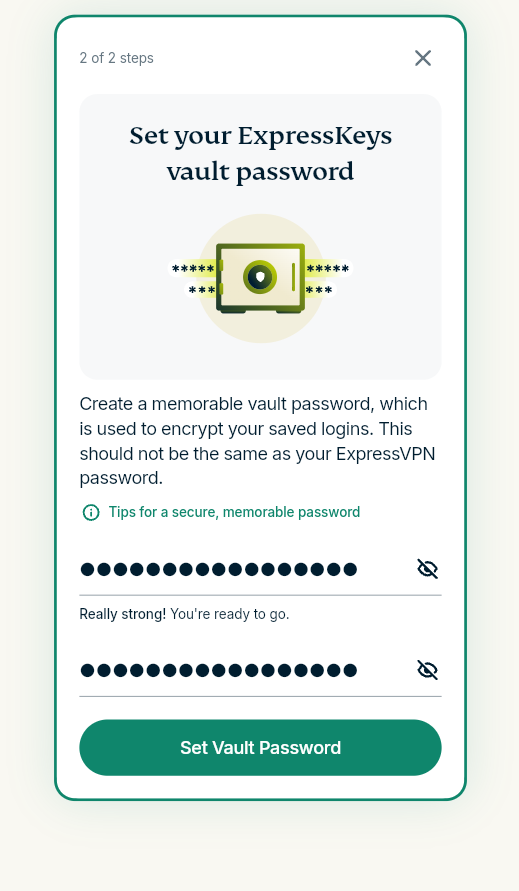
To set up ExpressKeys, you need to download and install the mobile app or browser extension and follow the on-screen instructions to sign into your ExpressVPN account. You also need to create a master password to access all stored data, like shown below in a screenshot of the browser extension.
For detailed setup instructions, please refer to our ExpressKeys Android, iOS, and Chrome guides.
Check that ExpressVPN is working properly
ExpressVPN has two online tools that let you quickly check if the VPN connection is working as intended.
Check your public IP address
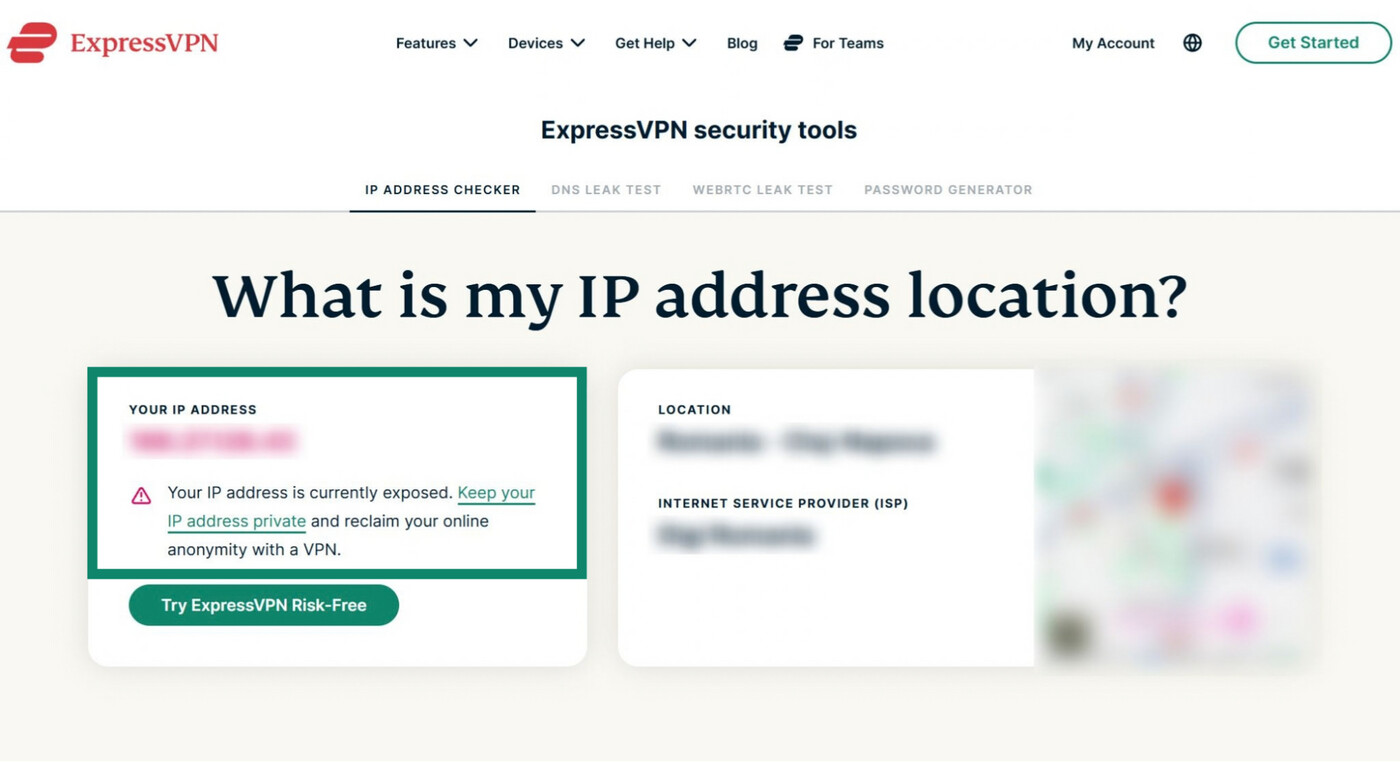
ExpressVPN’s IP address checker lets you test if your traffic appears to come from an ExpressVPN IP address. To use the tool:
- Access the IP address checker before connecting to ExpressVPN. You’ll see your hotel network’s public IP address, alongside a warning that your IP is currently exposed.
- Connect to ExpressVPN and open the IP address checker again. Check that the displayed IP address matches your ExpressVPN IP and that the status shows it’s secured.
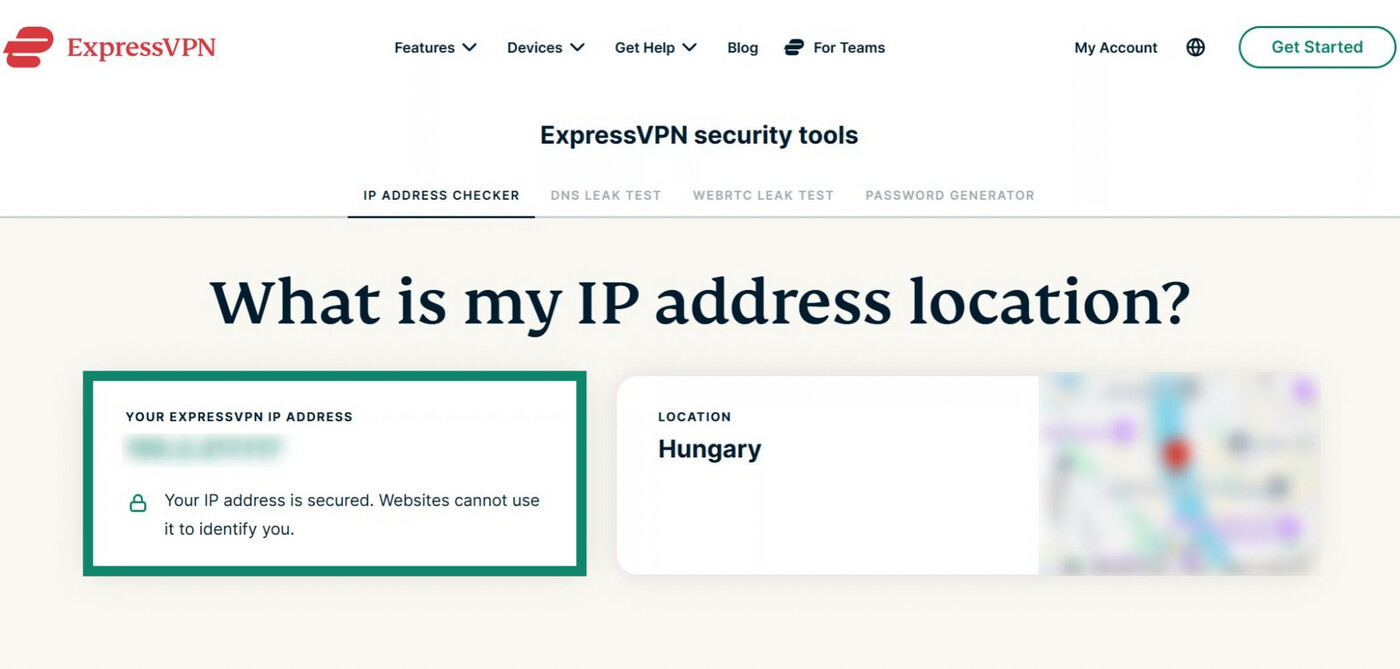
Note: This test checks the IP address your browser shows to online services. Hotel Wi-Fi operators will still see the IP address assigned to your connection.
Check your DNS requests
ExpressVPN also has a DNS leak test that checks if your DNS traffic is going through ExpressVPN’s private DNS servers.
Connect to ExpressVPN and open the DNS leak checker. Look for the CONNECTED and No DNS leaks detected messages to confirm you’re using ExpressVPN’s DNS servers.
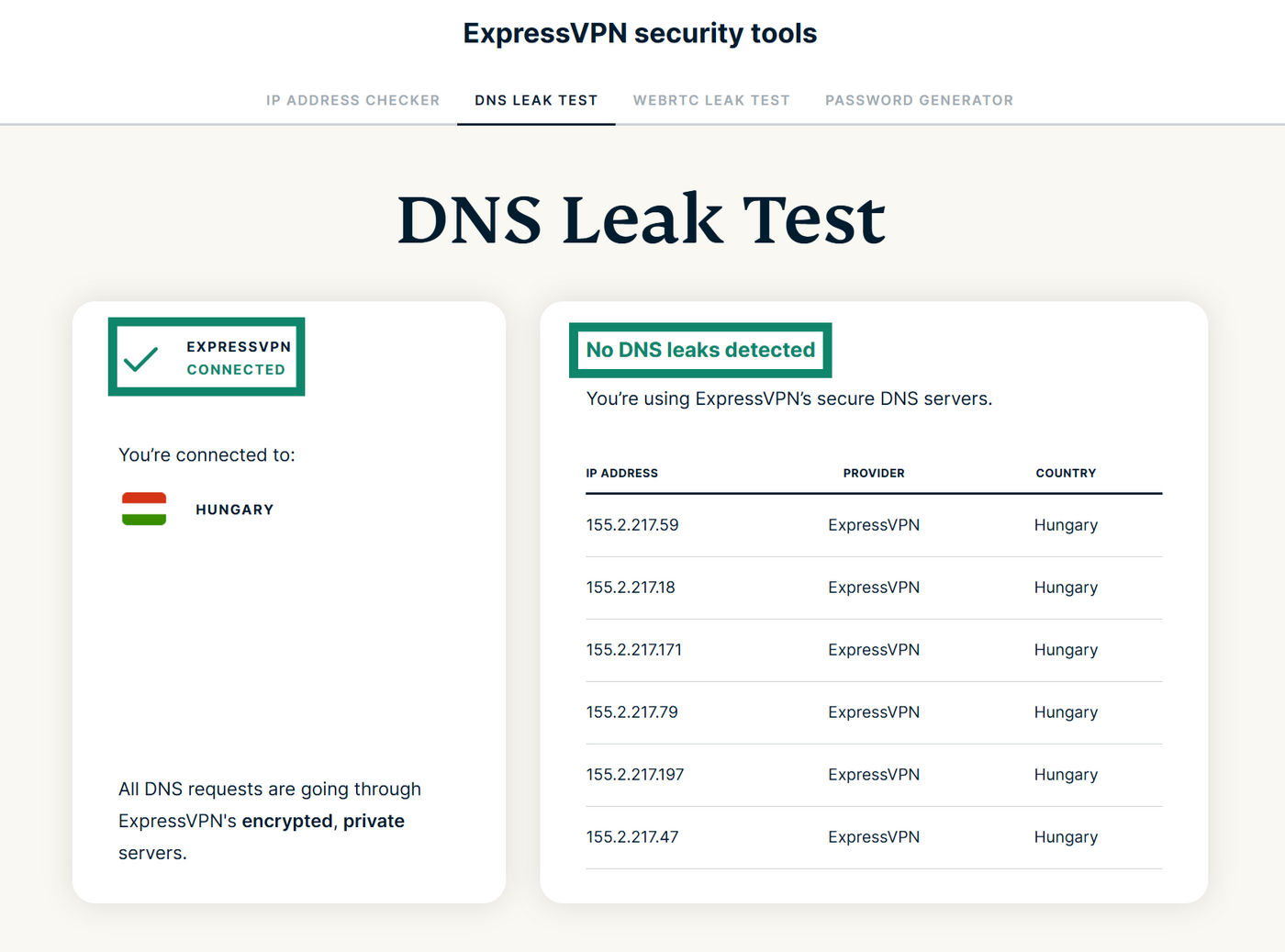
If you see a DNS provider you don’t recognize, your browser may be using its own encrypted DNS service instead of ExpressVPN’s DNS servers. This doesn’t automatically mean your DNS traffic is exposed, as it may still be encrypted. However, if you’d like to change these settings, read our guide on disabling DNS over HTTPS (DoH).
Troubleshoot ExpressVPN on hotel Wi-Fi
Hotel Wi-Fi can sometimes interfere with VPN connections. Two common issues users report are being unable to connect to ExpressVPN on hotel Wi-Fi or being unable to browse the web after connecting.
If you encounter either problem, check that you’ve completed the hotel’s Wi-Fi login process and any required acceptance steps before connecting to the VPN. If you’ve already done this, try switching to another VPN server location or changing the VPN protocol in the app settings.
You can also disconnect from the VPN temporarily to check whether the hotel connection itself is working.
If the problem persists, contact ExpressVPN support for further troubleshooting.
What can't ExpressVPN protect against on hotel Wi-Fi?
While ExpressVPN can secure your online traffic and mask your web browsing, there are some threats it can’t protect against.
For example, attackers could take over hotel captive portal gateways and attempt to trick guests into downloading malicious software or browser updates, certificates, troubleshooting tools, or security utilities. ExpressVPN can’t defend against malware-infected downloads that compromise user devices.
Some hotels may use outdated network hardware and software, which lack vital security patches. The accommodation could also have weak security policies, like poor password management, that make cyberattacks more likely to succeed. This may leave the network exposed to critical vulnerabilities that ExpressVPN has no control over.
Additionally, ExpressVPN’s Advanced Protection only blocks malicious sites included in the blocklists it uses. Users who end up on phishing pages that are not part of these blocklists and enter sensitive information into them are still at risk of data theft.
Finally, while ExpressVPN protects the contents of your web traffic, certain details about your connection are still visible to the network operator. This includes the VPN server you’re connected to, your device’s local network information, and traffic metadata, such as session duration, connection timestamps, and data volumes.
Other tips for staying safe on hotel Wi-Fi
Here are a few additional steps you can take to protect your data on hotel Wi-Fi:
- Before you connect to the hotel Wi-Fi, verify the network name with staff members or check the welcome documentation in your room. This can help you avoid fake Wi-Fi hotspots with names that look official.
- Avoid logging into important sites, like online banking platforms or government portals, while connected to hotel Wi-Fi. If you must access sensitive accounts, make sure ExpressVPN is enabled first.
- Keep devices and programs up to date, as software updates often bring improvements and fixes for security vulnerabilities.
- Switch Bluetooth, file sharing, and related features, like auto-connect, off on all of your devices before connecting to hotel Wi-Fi. Such settings are safe to use on secure, private Wi-Fi but may introduce unnecessary, unwanted risk on public networks.
- Use antivirus software to protect your devices against malware infections.
Why trust ExpressVPN on hotel Wi-Fi?
ExpressVPN’s proprietary server technology, called TrustedServer, prevents data from being written to the hard drive. Instead, servers run entirely on RAM. This ensures that, whenever a server shuts down or restarts, all data stored in the RAM is erased. TrustedServer’s privacy protections have been confirmed by KPMG, a leading independent auditing and advisory firm.
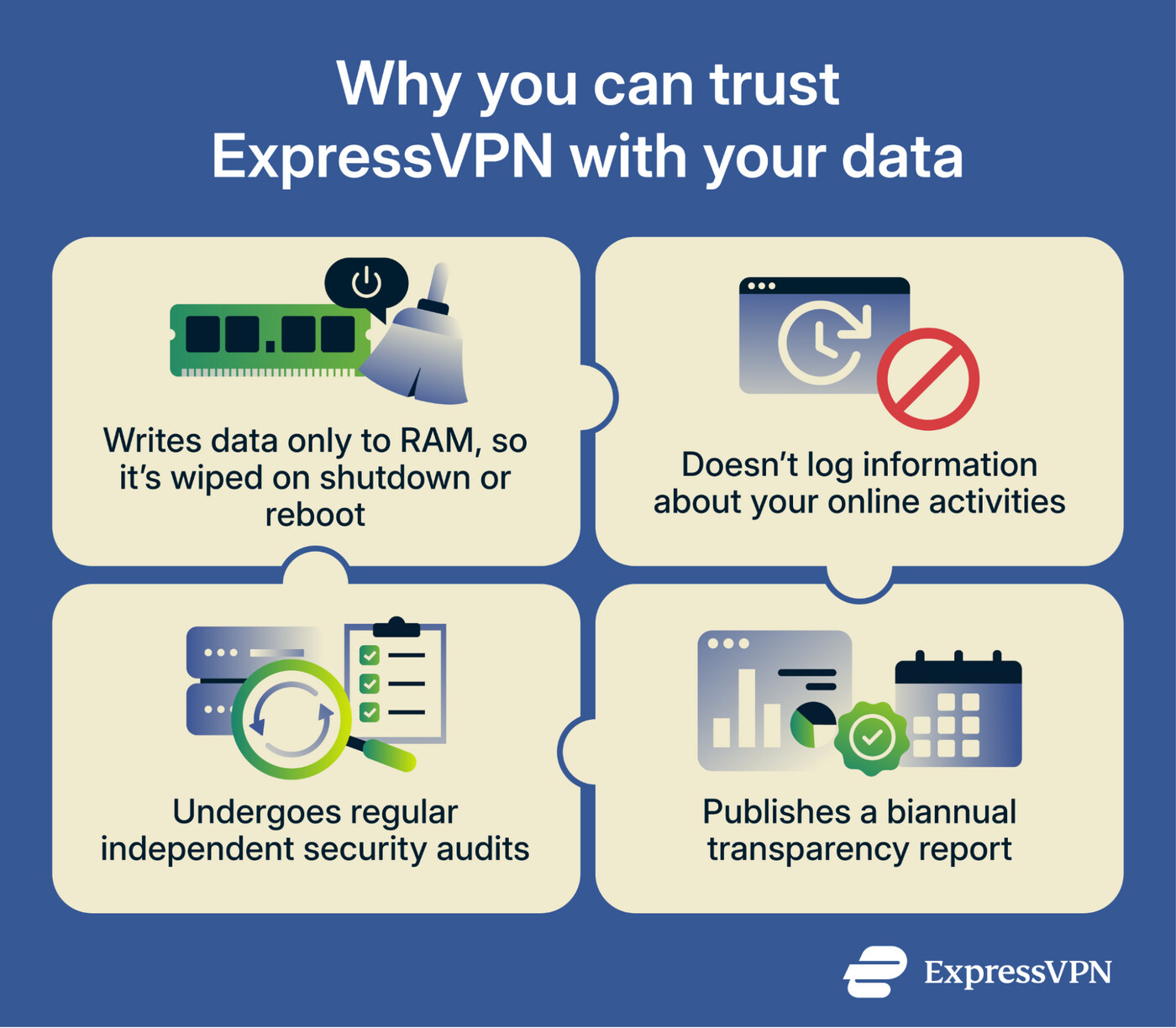
ExpressVPN also has a strict no-logs policy, meaning it doesn’t log or retain information related to your online activities, such as browsing history, DNS lookups, or traffic destinations. The no-logs policy has undergone multiple audits by independent security firms that have tested and confirmed its privacy practices.
Additionally, ExpressVPN has a biannual transparency report that details what requests for user data, such as DMCA requests or warrants from government institutions, our legal department has received.
To learn more about how ExpressVPN is independently audited, refer to our Knowledge Hub article.