Is Google Chat safe? A complete guide to staying protected online


Google Chat is designed to help you stay connected at work, school, and home, and it includes various built-in security features to protect users, such as encryption, spam detection, and account-level safeguards. However, like any online communication tool, how secure your experience is also depends on how the service is used and how well accounts are protected.
In this article, we’ll explain how Google Chat works from a security and privacy perspective, outline its key protections, and note important considerations for safe use. We’ll also look at common threats users may encounter, such as scams or compromised accounts, and compare Google Chat with other popular messaging platforms.
What is Google Chat?
Google Chat is a messaging app available for users with personal Google accounts and for businesses via Google Workspace. It was built to support both personal use and team collaboration, with features such as threaded conversations, searchable history, and shared spaces for projects.
For personal users, Google Chat provides a free way to message contacts, create group conversations, and share files directly within the Google ecosystem. For businesses and organizations, it’s Google's answer to platforms like Slack and Microsoft Teams, serving as a central hub for workplace collaboration with additional administrative controls and Google Workspace security features.
Google Chat’s core features include:
- Direct messages and group chats: One-to-one and group conversations with file sharing and reactions.
- Spaces for ongoing conversations: Persistent chat rooms for topics, projects, or teams.
- Threaded conversations: Replies stay organized within threads to reduce noise.
- Searchable history: Find messages, links, and files across chats and spaces.
- Advanced message formatting: Inline formatting, emoji reactions, media previews, and code blocks.
Google Chat is also tightly integrated with Google Workspace, which allows teams to communicate and collaborate without switching between tools. Chats and Spaces connect directly to other Google Workspace tools, such as Drive, Docs, Sheets, Meet, and Calendar, so conversations, files, tasks, and meetings stay in one place.
It’s also accessible from Gmail, sends Drive activity notifications, supports quick Meet “Huddles,” reflects calendar-based availability, and supports task creation from messages, AI-powered summaries via Gemini, and a wide range of third-party app integrations.
How secure is Google Chat?
Google Chat uses the same core security infrastructure that supports other Google services. Data is encrypted in transit and at rest, account protections apply across all Google products, and Workspace organizations can enforce additional controls regarding data retention, sharing, and reporting. These features create a stable baseline, but Chat isn’t designed as a privacy-first messaging app, and its protections depend largely on the security of each user’s Google account.
Built-in Google Chat security measures
Google Chat includes several built-in protections that help secure your account, safeguard message data, and reduce common threats across the platform.
Google Chat encryption explained
Google Chat encrypts data in transit and at rest, meaning messages are protected while they move between your device and Google’s servers and while stored on Google’s systems. However, there’s no end-to-end encryption (E2EE).
Two-factor authentication in Google Chat
There’s no separate two-factor authentication (2FA) setting for Google Chat. Instead, Chat relies on the security of your overall Google Account. If you turn on 2FA in your Google Account settings, it applies to all connected Google services, including Chat.
Google offers several ways to strengthen account security. For example, passkeys provide a more secure alternative to passwords because they reduce the risk of phishing, can’t be reused, and can’t be shared (the user doesn’t know their passkey). Passkeys can function as a single factor or as part of a multi-factor setup, depending on how you configure your account.
Google supports 2FA options such as:
- Google Prompt
- Authenticator apps
- Physical security keys
Using 2FA adds an additional verification step during sign-in, making it far harder for attackers to take over your account even if they obtain your password.
Malware and spam detection
Google applies its threat detection systems across Chat, blocking or flagging content associated with spam, phishing, or malware. It automatically scans all files, and if it detects malware, the attachment is blocked.
Admin controls
Organizations using Google Workspace have access to detailed security and usage controls. Admins can set external messaging rules, configure data retention, apply data-loss-prevention policies, and review usage reports. The latest reporting tools provide insights such as:
- Access and authentication controls (e.g., single sign-on (SSO) and 2FA).
- External messaging policies that determine whether users can chat with people outside the organization.
- Data loss prevention policies that restrict sensitive information from being shared.
- Security and compliance alerts that notify admins of unusual or high-risk activity.
- Audit logs that track message activity, file interactions, and administrative changes.
- Endpoint management controls that help secure devices accessing Google Chat.
- Integration with Workspace security tools, including reporting dashboards and threat-prevention systems.
These metrics help administrators monitor adoption, identify unusual behavior, and enable safety features when needed.
Known limitations of Google Chat privacy
Google Chat has several privacy limitations that users should understand before relying on it for sensitive communication.
No end-to-end encryption
Google Chat encrypts messages in transit and at rest, but it doesn't use E2EE. That means the contents of your message are secure while it moves across the network and on Google’s servers, but Google’s systems can access message content during processing to provide features like search, spam detection, and compliance. In Workspace environments, administrators may retain or review stored conversations depending on organizational settings.
Metadata and admin access affect user privacy
Google Chat generates metadata such as who you communicate with, when messages are sent, and how features are used. In Google Workspace environments, admins can view certain metadata through usage reports and audit logs, including message volume, space activity, external participant interactions, and some access-related signals. These reports don’t include message content.
Access to actual chat content is managed through Google Vault. When Vault is enabled and appropriate permissions are granted, Workspace admins can search, retain, and review Chat messages according to organizational policies. Personal Google accounts aren’t subject to Vault-based administrative access.
Account takeover risks
Because Google Chat is a part of your overall Google account, any compromise of that account grants an attacker access to your messages and related data. One common risk is password reuse or weak passwords, which allow attackers to use credentials leaked from other sites to sign in to your Google account.
Phishing is another major risk. Attackers may send emails or messages designed to look legitimate, but certain details can serve as red flags. These may include links that don’t match Google’s official domains, unexpected security alerts, or requests for you to “verify your account.” If you enter your credentials on a spoofed page, an attacker can sign in to your Google account and access Google Chat.
Authentication token and cookie theft is another factor in account compromise incidents. In these cases, malicious software may collect session cookies or authentication tokens stored in a user’s browser.
Because these tokens represent an active, already-authenticated session, their misuse can allow unauthorized access without requiring a password or additional sign-in steps. Since Google Chat shares account sessions with other Google services, an account compromise of this kind can affect access to chats, Drive files, and related data until the session is invalidated.
Common Google Chat scams to be aware of
Scammers can use Google Chat to impersonate coworkers or administrators, send malicious links, or start conversations that lead to phishing attempts. Once they have your Gmail or Workspace email, all they need is a Gmail account to send you a message. These scams typically try to create urgency, push you to click a link, or convince you to share personal information.
Workspaces can lower the risk by blocking chats with users from outside the organization. However, for businesses that rely on external communication, this isn’t an option.
Examples of scam attempts on Google Chat
Attackers may try to deceive users in different ways depending on whether the account is personal or part of a Workspace organization.
Scam examples targeting personal Google accounts include:
- Fake alerts claiming your Google account is compromised and urging you to “verify” your login.
- Links pretending to be shared Google Docs or Drive files that redirect to fake login pages.
- Unsolicited Chat invites from accounts using names similar to real contacts.
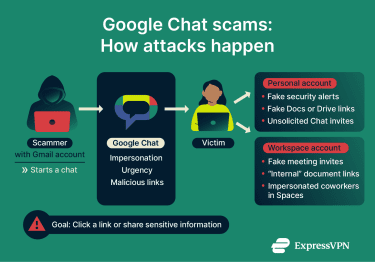
Scam examples targeting Google Workspace accounts include:
- Fake meeting invitations linking to phishing pages or malware sites.
- Credential-harvesting links disguised as internal documents.
- Accounts joining Spaces to pose as colleagues or managers and request confidential information.
These scams typically rely on creating trust quickly and steering you toward an unsafe action, such as entering account details or clicking a malicious link.
How to recognize suspicious messages in Google Chat
It used to be easier to recognize suspicious chats because they generally had spelling and grammar mistakes. However, the widespread availability of AI tools has made it easier for scammers to send professional-grade messages.
Instead of just focusing on the contents of the message, be wary of message requests from people you don’t know, links that don’t match Google’s official domains, or requests that ask for personal information.
If someone asks for sensitive information through Google Chat, such as passwords, authentication codes, or payment details, it’s safe to assume it’s a scam. If you’re not sure, contact the sender through another channel.
Best practices for securing your Google Chat account
A secured Google account leads to a more secure Chat experience. Here’s what to do.
Create strong passwords and enable 2FA
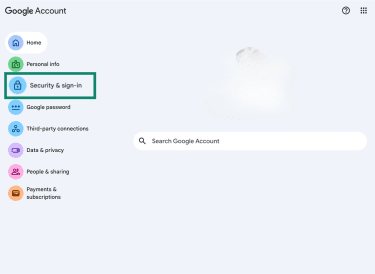
- Go to myaccount.google.com and click Security & sign in on the menu.
- Click 2-Step Verification.
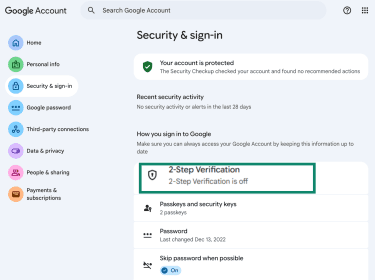
- You’ll be prompted to sign into your account. There are four options for adding a second step:
- Passkey / Security key: Sign in using a device-based credential, such as your fingerprint, face scan, or device screen lock. Passkeys are stored on your device and don’t require a password.
- Google prompt: Connect your phone to your Google account, and it will send a code or message to your phone for the second factor.
- Authenticator app: Get verification codes through an authenticator app and enter them each time you log in.
- Phone number: Add a phone number and get SMS or voice calls with a code.
Choose your preferred second factor (we’ve chosen Add a security key in this example), and press the button that says Turn on 2-Step Verification.
- To create a Passkey, click on Add a security key.
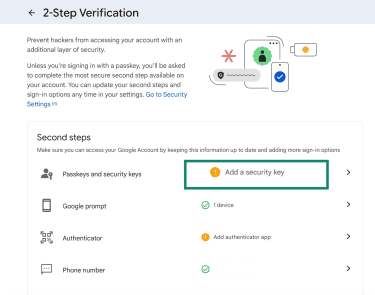
- Click Create a passkey on the window that opens.
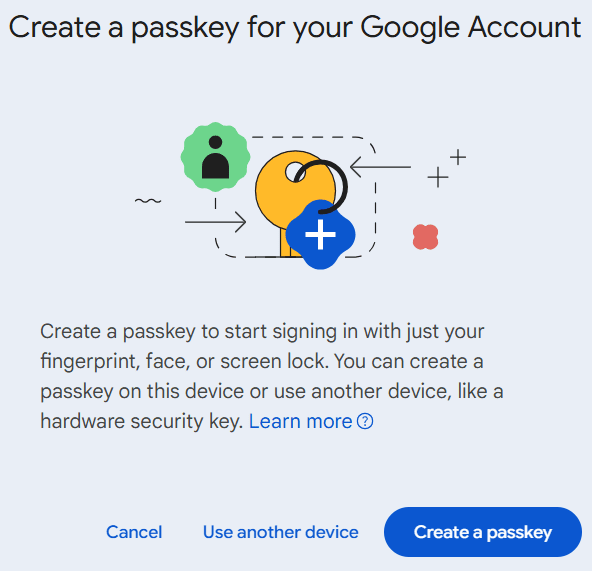
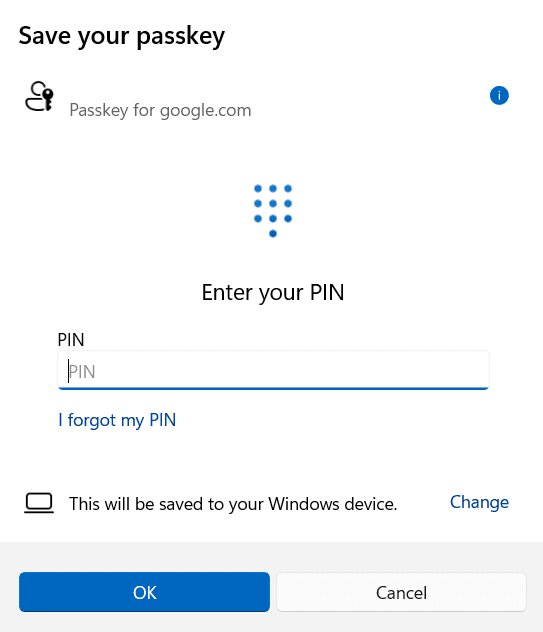
- Depending on your device, you can add a PIN, fingerprint, or face scan to create the passkey.
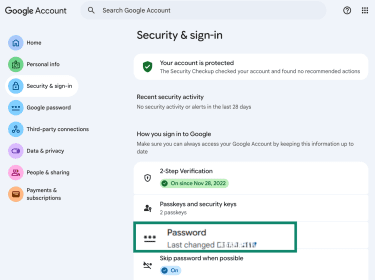
- To change your Google password, go back to the Security & sign-in page and click on Password.
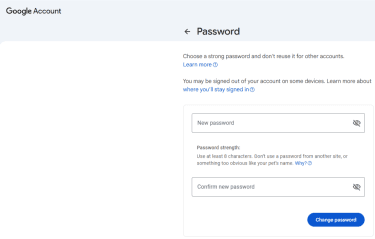
- Confirm it’s you with your passkey or your current password. Then, type your new password and confirm it. It must be more than 8 characters, and you should make sure to follow the best practices for a strong, unique password.
Manage chat history
You can adjust message history settings for each contact separately. On a computer, Chat is integrated with Gmail, while on mobile you need to download the Google Chat app for full functionality. The steps are virtually identical on all platforms once you’re in the chat, though the interface may look slightly different. Here, we’ll show the steps for desktop.
To turn off the chat history, follow these steps:
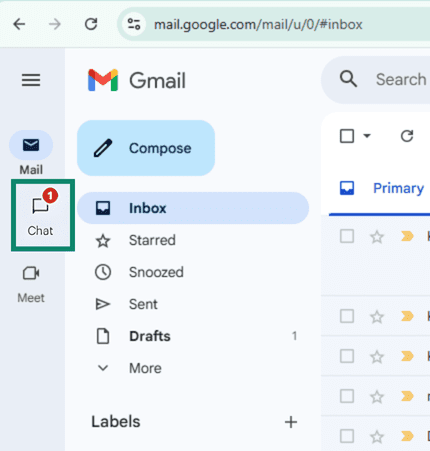
- Open your Gmail and click on the Chat icon on the sidebar.
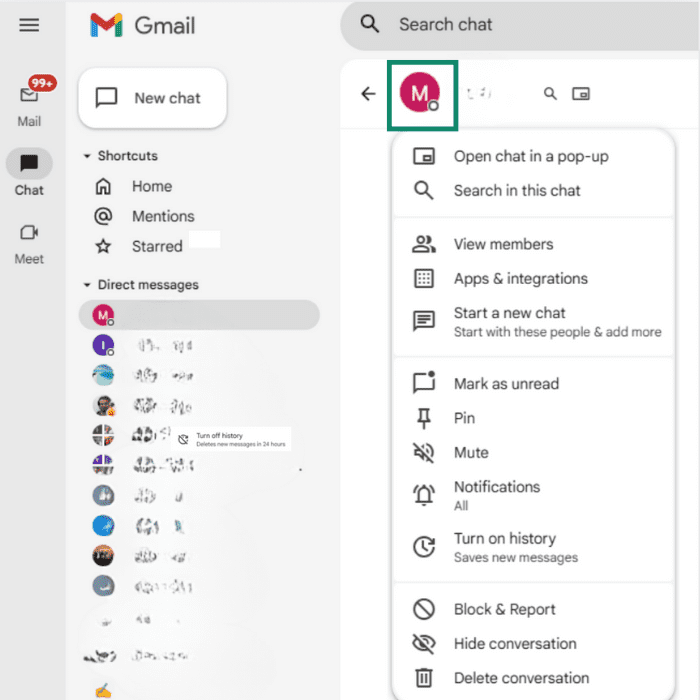
- Select the conversation you want to turn off history for. Click on the contact name at the top of the chat box to open the menu.
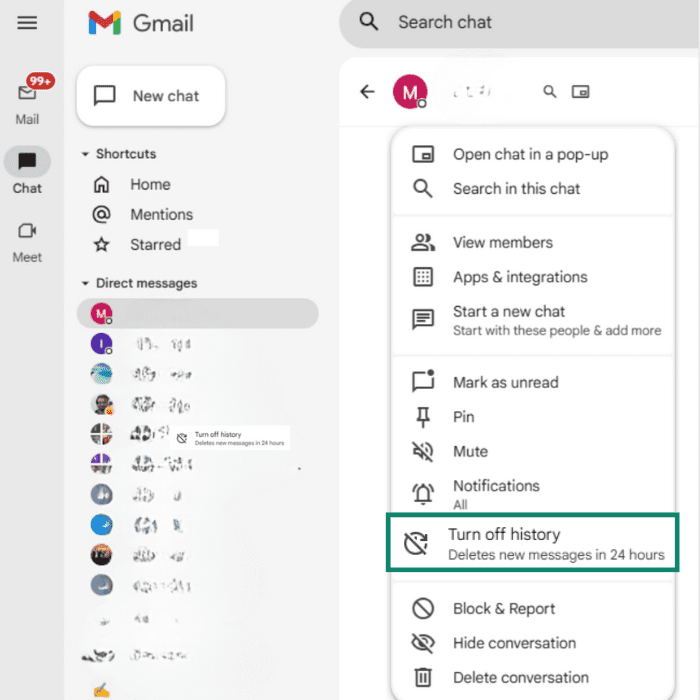
- Click Turn off history, and all messages sent will be deleted after 24 hours. This only deletes new messages; it won’t affect messages that were sent before turning off the history.
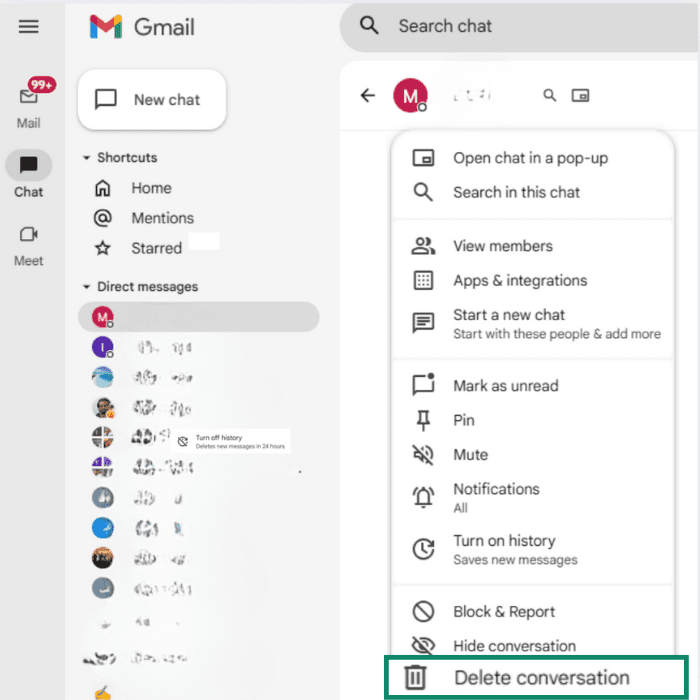
- If you do want to delete old messages, you can do it manually. Click on the 3 dots next to the contact's name and select Delete conversation.
Avoid interacting with strangers
Only your organization's administrator can decide whether to allow external users to message you through a Workspace account when you use Google Chat. If external chat is permitted, the first message from someone outside the organization always appears as a chat request, with a yellow warning banner indicating that the sender may be unfamiliar or suspicious. If you don’t know the person, it may be better to select Block instead of accepting the request.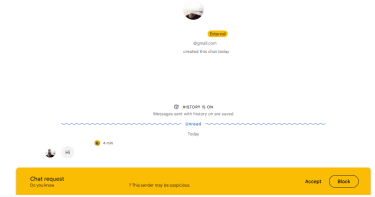
You have the option to restrict chat requests to known senders. Just follow these steps, which are the same for Workspace and personal accounts.
- Open the Chat interface and click on the Settings gear.
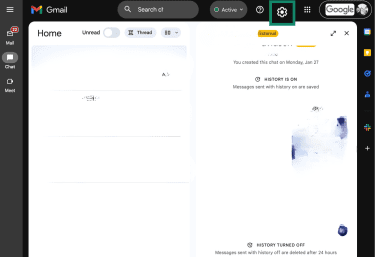
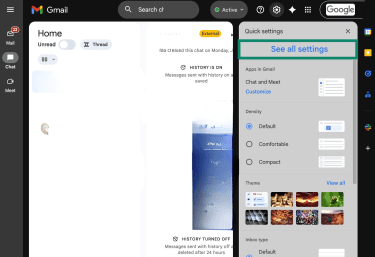
- Press the See all settings button.
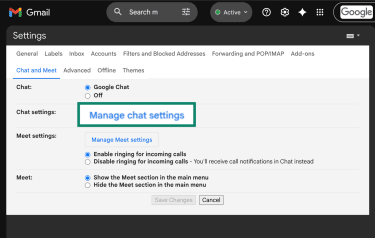
- Select Chat and Meet.
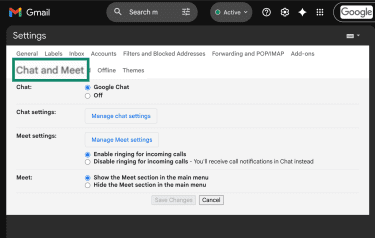
- Next to Chat settings, press the Manage chat settings button.
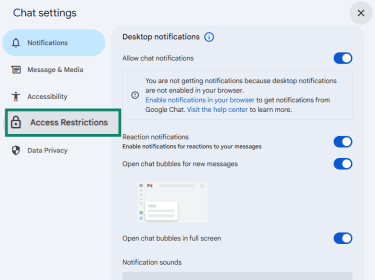
- A new window will open. Select Access Restrictions.
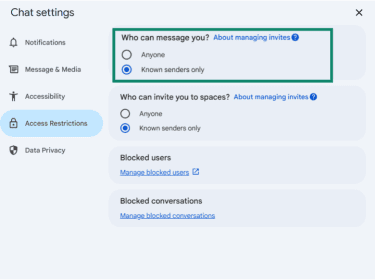
- Under Who can message you, select Known senders only.
Keep your software up to date
Keeping your browser, operating system, and apps updated helps close security gaps that attackers could exploit. Updates often patch vulnerabilities, improve security detection, and strengthen built-in protections.
Google products follow the same principle. Updating Google Chrome, Android, iOS apps, and Google Workspace tools ensures you receive the latest security fixes and threat-mitigation features. Whenever possible, enable automatic updates so your devices and apps stay protected without manual checks.
Google Chat vs. other messaging apps
The Google Chat security model differs from other messaging apps. Comparing it with popular apps like WhatsApp, Signal, and Telegram can help clarify whether it’s the best choice for your needs.
Google Chat vs. WhatsApp
Unlike Google Chat, WhatsApp uses E2EE by default for all messages, which means message content stays locked between the sender and recipient. That said, it collects some metadata and can share it with other Meta companies and third parties, per its privacy policy. Google Chat stores similar metadata, and, in workplace environments, administrators can access message history, too (depending on the organization’s settings).
Google Chat vs. Signal
Signal is an encrypted messaging app built for privacy from the ground up. It uses E2EE, and the only personal information it requires is a phone number. Another notable difference is that Signal doesn’t link conversations to an external account, reducing the impact of account takeovers. Google Chat, as we’ve seen above, depends entirely on the security of your Google login. If someone gains access to your account, they gain access to everything tied to it, including Chat.
Google Chat vs. Telegram
Telegram offers a mix of encrypted and non-encrypted communication. Standard chats are encrypted between your device and Telegram’s servers, similar to Google Chat’s approach. For E2EE, Telegram requires users to switch to secret chats, which aren’t enabled by default.
Telegram also provides features like disappearing messages and more granular privacy controls, while Google Chat focuses on consistent collaboration across productivity tools rather than detailed privacy settings.
Can a VPN improve Google Chat security and privacy?
Using a virtual private network (VPN) with Google Chat doesn’t hide or protect your Chat data from Google, since you’re signed in and Google still needs to process your account activity. A VPN also doesn’t change how Google Chat encrypts messages or the way Google stores data, but it can strengthen your overall privacy while you use the service:
- Limits internet service provider (ISP) visibility: A VPN prevents your ISP from seeing the specific services or domains you access (such as Google Chat), though the ISP can still see that you’re using a VPN.
- Reduces local network exposure: By encrypting traffic between your device and the VPN server, a VPN helps protect against local network threats like eavesdropping or man-in-the-middle (MITM) attacks on public Wi-Fi in cafés, hotels, airports, and shared office spaces.
- Masks your IP address: A VPN replaces your public IP address with that of the VPN server, which can reduce IP-based tracking across apps and services while you’re signed in to your Google account.
These benefits apply to most secure online communication tools, not just Chat, and they help reduce your overall exposure while messaging.
FAQ: Common questions about Google Chat
Can Google Chat messages be hacked?
Google Chat uses encrypted connections, which protects messages from interception during transmission. However, chats can still be exposed if someone gains access to your Google account. In practice, this usually happens through account compromise, such as phishing attacks, weak passwords, or reused credentials, rather than by breaking Google Chat’s encryption itself.
Is it safe to chat with strangers on Google Chat?
It’s safer to avoid chatting with people you don’t know. Scam attempts often start with unsolicited message requests or links sent by unfamiliar accounts. If someone claims to be a colleague or friend but the message feels unusual, verify their identity through another channel before responding.
What are the limitations of Google Chat security?
The main limitation is the lack of end-to-end encryption (E2EE), which means Google’s servers can access message content while storing or processing it. Google Chat also collects metadata, and Workspace administrators may retain or review messages depending on the organization’s policies.
What to do if you receive a phishing message on Google Chat?
If a message looks suspicious, don’t respond in any way. Block the sender, report the message through Google’s built-in tools, and delete the conversation. If you interacted with the message, change your password immediately and review your account’s recent activity for signs of unauthorized access.
Take the first step to protect yourself online. Try ExpressVPN risk-free.
Get ExpressVPN