Can you find an IP address from an email?



When an email looks suspicious, it can be difficult to determine whether it’s legitimate. Email headers can provide context, such as showing which mail servers handled a message, but they rarely reveal a sender’s personal Internet Protocol (IP) address. In most cases, whether you’re using a browser-based platform or a desktop or mobile app, the visible IP addresses belong to the email servers, not to your device.
However, modern email providers include authentication checks that let you verify whether a message was sent from an authorized server and whether it’s been tampered with. In this article, we’ll show you how to access authentication results in popular email platforms, explain what these results mean, and offer tips to reduce the risk of exposing your IP address when sending or opening emails.
Can you really trace an IP address from an email?
Many email platforms include technical metadata, such as IP addresses, in the email header. However, the IP address shown usually belongs to the mail server or email provider that delivered the message, not the sender’s personal device. Modern email services typically don’t include the sender’s endpoint IP at all.
In other words, while you can see which servers delivered the message and their general locations, tracing an IP address from a header rarely identifies an individual sender.
For most users, the most reliable way to assess whether an email is legitimate is by checking Sender Policy Framework (SPF), DomainKeys Identified Mail (DKIM), and Domain-Based Message Authentication, Reporting, and Conformance (DMARC) authentication results rather than trying to interpret IP addresses.
What an IP address can reveal (and what it can’t)
Email headers sometimes include IP addresses. However, as stated above, these almost always belong to the mail servers handling the message, not the sender’s personal device. Here’s what that server IP can and can’t tell you.
A server IP address can reveal:
- The mail server or email provider that delivered the message.
- The general geographic region of the server.
- Basic information about the network type, such as whether it belongs to a cloud provider or an internet service provider (ISP).
A server IP address can’t reveal:
- The sender’s exact physical address or precise location.
- Personal details like their name, phone number, or identity.
- The specific device used to send the email.
- The sender’s browsing history or online activity.
Because headers hardly ever include a sender’s personal IP address, tracing an IP is generally not a reliable way to determine if an email is legitimate anyway.
Step-by-step guide: How to find a server IP address from an email
Most email platforms don’t display the header along with the content of the email; you’ll need to follow the steps to find it and then interpret the results.
In this section, we’ll walk through how to access email headers in popular email services, explain which parts of the header matter and why, and show how analysis tools can help interpret the data.
How to access email headers
Gmail
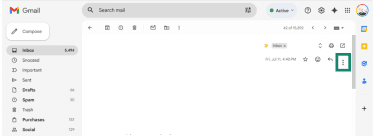
- Open the email you want to check and select the three dots in the top-right corner of the message.
- A menu window will open. Choose Show original.
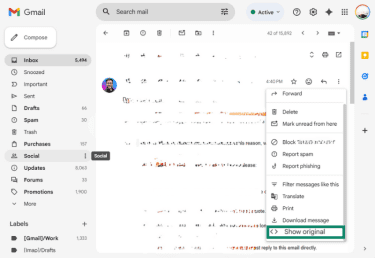
- A new tab opens with the full header and authentication results.
Outlook
Outlook steps can vary slightly between web, desktop (classic vs. new Outlook), and mobile. The screenshots below were made using the web-based version of Outlook.
- Open the email and click the three dots in the top-right corner.

- Hover the mouse over View and click View message source.
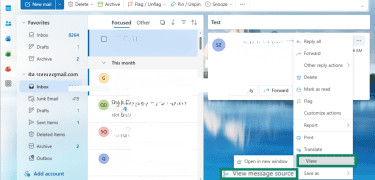
- A window will open with the complete header information.
Yahoo Mail
- Open the email and click the three dots at the bottom.

- Select View raw message.
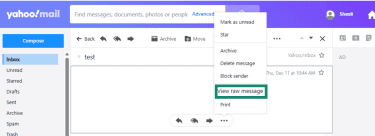
- A new tab will open with the email header.
Understanding email headers and authentication
Email headers can look overwhelming, but each section has a clear purpose. Understanding the structure can help you decide whether the message followed a normal route or shows signs of manipulation.
Received lines
These entries in the Simple Mail Transfer Protocol (SMTP) header record each server that handled the message. They appear in reverse order. The newest entry sits at the top, and the earliest hop is at the bottom. When you want to trace where an email came from, scroll to the lowest Received line. That’s the first server that accepted the message and is usually where you’ll find the sending service’s IP address.
If the sender’s personal IP address is included, it may appear in the header in specific fields, depending on the email service. However, most modern email platforms don’t expose the sender’s device IP, so in practice this information is rarely visible.
Look out for routes that jump between countries or regions without a clear reason and consumer ISP IP addresses where you would expect a major mail provider.
Authentication results
Headers list the outcomes of SPF, DKIM, and DMARC checks:
- SPF tells you which mail servers the domain allows you to send mail from. It can also indicate how strictly to treat unauthorized senders, with -all signaling a hard fail and ~all signaling a soft fail. The receiving server can decide whether to warn, quarantine, or mark the message as spam.
- DKIM confirms that the message has not been altered in transit.
- DMARC uses the results of SPF and DKIM to determine whether an email aligns with the domain’s policies. It allows the domain owner to instruct recipients on how to handle messages that fail these checks, such as accepting, quarantining, or rejecting them.
A pass doesn’t guarantee legitimacy, but a fail is a sign that the message might not be from the sender it claims to represent.
ARC entries
Authenticated Received Chain (ARC) headers appear when an email passes through one or more trusted intermediaries, such as mailing lists, forwarding services, or corporate email gateways.
ARC records how authentication checks like SPF, DKIM, and DMARC evaluated the message at each step. This helps receiving mail servers decide whether an email that was modified or forwarded should still be trusted, rather than being rejected outright. ARC entries don’t prove an email is legitimate on their own, but they provide useful context about how it was handled in transit.
X headers
X-headers are non-standard email headers added by mail servers, email providers, or security tools. They often contain internal information about routing, spam filtering, malware scanning, or policy decisions made during delivery.
Because X-headers are not standardized, their meaning varies between providers. They’re mainly useful for troubleshooting or forensic analysis, rather than for end users trying to judge whether an email is safe.
Return Path
The Return-Path header shows the email address designated to receive bounce messages if delivery fails. It’s typically set by the sending mail server and may differ from the visible “From” address.
This field plays a role in SPF checks and can offer clues about how an email was sent. A mismatch between the Return-Path domain and the sender’s domain isn’t automatically suspicious, but unexpected or unrelated domains can be a red flag when combined with other warning signs.
Use an email header analysis tool
As we’ve seen above, email headers contain a lot of technical detail, and interpreting them manually can be challenging if you’re not familiar with mail infrastructure. Email header analysis tools can help by breaking the raw header into readable sections and highlighting key fields such as SPF, DKIM, DMARC, and the originating mail server.
Most tools work by pasting the full header into a text box. They then map the message’s route, flag authentication failures, and point out unusual patterns, such as unexpected sending domains or suspicious server locations.
It’s best to treat the results as context rather than proof. A clean header doesn’t guarantee an email is safe, but failed authentication checks or unusual routing are strong warning signs.
MXToolbox
 MXToolbox offers an Email Header Analyzer that makes it easy to review the authentication results in an email header. Simply paste the full header into the tool, and it parses the data into a clear, readable format. You can quickly see whether the email passed SPF, DKIM, and DMARC checks and which mail servers handled the message.
Google Admin Toolbox
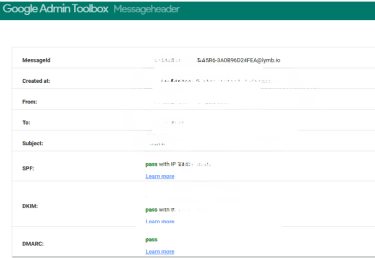 Google’s Messageheader tool makes it easy to analyze the authentication results inside an email header. You paste the full header into the tool, and it organizes the data into readable sections. The most helpful part is its breakdown of SPF, DKIM, and DMARC, which show whether the email was sent through servers authorized by the sender’s domain.
How to protect your IP address from being traced via email
Most modern email platforms automatically protect you by removing your personal IP address from outgoing messages. When you send an email through a provider’s web interface or mobile app, the message usually travels through the provider’s own mail servers. That means the header will show the provider’s server IP rather than one tied to your home network.
This setup gives you built-in protection. Even if someone inspects your email header, the only IP they’ll find belongs to the service itself. Providers like Tuta Mail design their systems this way to limit tracking and reduce the amount of identifying information attached to your messages. As long as you send email through the provider’s official platform, you’re already gaining an extra layer of privacy without changing how you communicate.
But even though email headers rarely reveal your personal IP address, there are ways your connection can be exposed using an email:
- Tracking pixels in emails: These are tiny, practically invisible images embedded in an email. When your email client loads that image, it sends a request to the sender’s server. That request can reveal more than just the IP address making the request: it can also reveal the time the email was opened, the email client or device type, and whether the email was opened more than once. This happens automatically as part of loading remote images.
- Clicking links: Following a link in an email can reveal your IP to the destination website, sometimes as part of tracking or phishing attempts.
Thankfully, there are several things you can do to stop email-based tracking.
Disable email image loading (helps block trackers)
Tracking pixels can be stopped from revealing your IP and other information by disabling automatic image loading in emails.
This doesn’t affect the content of your emails, and you can still choose to load images manually if needed. It simply prevents senders from collecting some types of background data without your knowledge.
Avoid clicking suspicious links in emails
Avoiding unfamiliar or unexpected links reduces the possibility of exposing your IP to someone who intends to collect or misuse that information.
When in doubt, visit the site directly rather than clicking the link in the message. This avoids accidental exposure and protects you from phishing and malware pages that rely on luring users into clicking.
Tip: You can also limit how widely your real email address circulates online. Tools like ExpressMailGuard create email aliases that forward messages to your inbox. If an alias starts receiving spam or suspicious messages, you can simply disable it.
Use a VPN
A virtual private network (VPN) is one of the best ways to keep your IP address private. When the VPN is active, all your internet traffic routes through the VPN server first. If your connection IP is exposed through tracking pixels or link clicks, it will reflect the VPN server rather than your real location. This adds a valuable buffer between your personal network and the outside world.
As we mentioned earlier, web-based email services like Gmail mask your IP address by default. In those cases, a VPN improves your general online security by encrypting your traffic, making it harder for anyone on the same network, especially if you’re on an unsecured public Wi-Fi network, to intercept or analyze what you’re doing. It’s a simple step that meaningfully reduces the chance of being targeted with IP address-based tracking or attacks.
Learn more: Protecting your IP address is just one aspect of email security. See our step-by-step guide for a broader look at how to stay safe.
FAQ: Common questions about IP addresses and email
Can I find someone’s exact location via an email IP address?
An email IP address can only reveal the general region or the network that handled the message. It doesn’t show an exact physical address or identify a specific person. At most, it points to the city or area where the server operates. Modern email providers remove or mask the sender’s personal IP entirely, which limits the amount of detail available.
Why is the IP address missing in Gmail headers?
Gmail removes the sender’s personal IP address when you send email through the web interface or mobile app. The header will show Google’s own mail server IP instead. This is a standard privacy measure that prevents others from tracing your connection through your outgoing messages.
What does “SPF Pass” mean in an email?
Sender Policy Framework (SPF) Pass is one of the data points in the email header, and it means the message was sent from a server that the domain owner has authorized. The SPF record lists which servers are allowed to send mail on behalf of the domain. A passing result indicates that the message followed one part of the domain’s authentication policy, although it doesn’t guarantee that the email is safe.
Can email IP address tracing be used in legal investigations?
Law enforcement can request email and connection records from providers and internet service providers (ISPs) as part of an authorized investigation. An IP address alone can’t identify a person, but when combined with subscriber information held by the ISP, it can help build a larger picture of activity. These requests follow strict legal procedures and aren’t accessible to the public.
Take the first step to protect yourself online. Try ExpressVPN risk-free.
Get ExpressVPN