What is encrypted DNS, and why does it matter?


Every time you visit a website, your device asks a Domain Name System (DNS) server to find the website's IP address. But here’s the catch: traditional DNS requests travel in plaintext, so anyone intercepting your network traffic can read those DNS queries and learn which websites you're trying to reach.
Encrypting DNS requests helps keep this information private from third-party observers, but setting it up can be complicated. In this guide, we’ll break down how DNS works, what encryption does to protect your requests, and how you can enable it.
What is DNS, and how does it work?
The DNS is essentially the internet’s address book. The real address of a website isn’t what you see in the browser; it’s a string of numbers called an IP address. DNS saves you from having to remember those numbers by translating domain names into the correct IP addresses behind the scenes.
When you enter a site like “expressvpn.com,” your device sends a DNS request to look up its IP address. Once it gets the answer, your browser connects you to the right server.
DNS privacy risks and surveillance
While DNS is essential for navigating the internet, it also comes with serious privacy risks: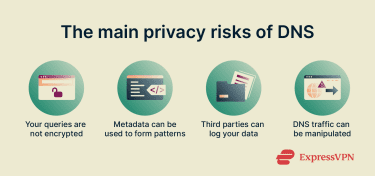
- Unencrypted queries: Traditional DNS traffic isn’t encrypted, which means your internet service provider (ISP), public Wi‑Fi operators, or malicious actors with access to an on-path connection can see the domain names you look up and log them.
- Metadata correlation: Because almost every online action begins with a DNS request, patterns in your queries can be analyzed to figure out what websites, apps, or services you use.
- Manipulation or restriction: Unencrypted DNS traffic exposes queried domain names to intermediaries. DNS Security Extensions (DNSSEC) helps protect against tampered DNS responses by rejecting invalid data, but it doesn’t hide DNS queries themselves, meaning access to certain domains can still be blocked by preventing valid responses from being delivered.
Unless properly secured, your DNS traffic can leave a detailed trail of your online activity. Fortunately, many of these vulnerabilities can be addressed by using encrypted DNS.
What is encrypted DNS, and how does it protect your browsing activity?
Encrypted DNS refers to protocols such as DNS over TLS (DoT), DNS over HTTPS (DoH), and DNS over QUIC (DoQ), which encrypt DNS queries. Protocols vary in terms of privacy protection, features, speed, and more.
How DNS encryption prevents ISP tracking
ISPs can see unencrypted DNS queries and, in some cases, may log or analyze this data to manage networks, enforce restrictions, or support advertising and analytics systems. Encryption stops this by scrambling your DNS traffic and then unscrambling it once it reaches the correct destination.
When you use encrypted DNS, observers only see an encrypted connection to the resolver’s IP address; they can’t read specific domain names. However, your ISP can still see the IP addresses you connect to after the lookup, meaning just having encrypted DNS isn’t enough to keep you completely private online.
It significantly reduces the visibility of your browsing activity at the DNS level, but it doesn’t prevent ISPs from collecting other connection data. For stronger privacy, you could consider pairing encrypted DNS with a good virtual private network (VPN). A VPN encrypts your traffic and routes it through a VPN server, hiding both your DNS queries and the destination IP addresses, though websites and services you log into can still identify you.
Does 1.1.1.1 encrypt DNS?
Yes. Cloudflare’s 1.1.1.1 public resolver supports DoT, DoH, and oblivious DoH (ODoH). For DoT, clients connect to 1.1.1.1 on port 853, perform a TLS handshake, verify the server certificate, and then send encrypted queries. With DoH, queries become a part of your HTTPS requests over port 443, so they blend in with ordinary web traffic.
Is DNS 8.8.8.8 encrypted?
Google Public DNS 8.8.8.8 and 8.8.4.4 offer optional but effective encryption. They support DoT on port 853 and DoH on port 443. However, the default setting on Google is to use unencrypted UDP.
Google also logs IP addresses for 24-48 hours before deleting that data. While Google Public DNS is secure, its data retention practices hold it back from being the safest option.
Encryption layers and handshake process
Encrypted DNS protocols rely on something called the TLS handshake. The process is as follows:
- Client connects to a resolver over a port using encryption.
- Client sends a ClientHello message indicating supported TLS versions and cipher suites.
- The server responds with a ServerHello, selects the cipher suite, and includes its certificate.
- The client verifies the certificate and sends a secret that’s encrypted with the server’s public key.
- Both parties then generate a session key using client- and server-generated random values.
After exchanging ChangeCipherSpec messages, subsequent DNS queries and responses are encrypted within this TLS session.
How DNS resolvers manage encrypted traffic
Many systems use a local DNS resolver (basically, a helper program) to handle encrypted lookups more efficiently. With DoT, for example, the resolver takes regular DNS requests from your computer and then forwards them securely over an encrypted channel.
This setup means your apps don’t need to change how they send DNS requests. They still use the standard port 53, while the resolver handles adding encryption in the background. Some tools or plugins can also reduce the likelihood that your DNS traffic falls back to less private options by routing it through the secure servers you’ve chosen.
Difference between encrypted and unencrypted DNS
Unencrypted DNS sends plaintext queries over UDP port 53. Anyone on the network path can read, log, or modify these data packets, leaving you vulnerable to both surveillance and DNS spoofing.
Conversely, encrypted DNS wraps your queries in a TLS or HTTPS tunnel. This scrambles your data to prevent others from reading it.
However, DNS encryption typically doesn’t hide the destination IP addresses you connect to or prevent network-level metadata from being observed. To strengthen your privacy, you may need an encrypted DNS approach, such as ODoH, which helps prevent the DNS resolver from seeing your IP address by routing queries through a proxy, or a VPN that uses secure protocols to encrypt your internet traffic and hides your destination IP address.
Types of DNS encryption protocols
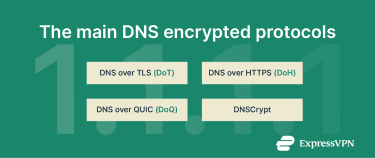 The main encrypted DNS protocols include:
- DoT: Encrypts DNS traffic using TLS over TCP port 853. It prevents someone from reading your DNS queries or tampering with your data.
- DoH: Sends DNS queries inside regular HTTPS traffic over port 443, hiding them alongside normal web browsing. This helps bypass traditional network restrictions.
- DoQ: Uses the QUIC protocol to encrypt DNS traffic with faster connection setup and lower latency.
- DNSCrypt: An early standard for encrypting and authenticating DNS queries, which was built to run efficiently and to simplify the encryption process.
Pros and cons of each method
Each mode has unique strengths and weaknesses, so it’s important to know what security features you need before choosing one.
- DoT: Has low overhead and is easy to deploy across an entire system. However, its dedicated port (853) can be easily blocked by networks.
- DoH: Difficult to block because it uses port 443 and blends with standard web traffic. However, it can slow down during heavy traffic.
- DoQ: Offers performance benefits through QUIC’s reduced handshake and connection migration. While fast and secure, it’s an emerging technology that hasn’t yet achieved widespread adoption.
- DNSCrypt: Provides strong authentication and uses port 443 to avoid restrictions. However, it hasn’t been widely adopted due to its lack of standardization.
How to set up encrypted DNS on your devices
Configuring encrypted DNS usually involves selecting a resolver that supports DoH or DoT, then enabling secure DNS in your operating system or browser.
Enable encrypted DNS on desktop
You can easily enable encrypted DNS on Windows. While each OS and some devices have their own ways of turning them on, here’s a general guideline.
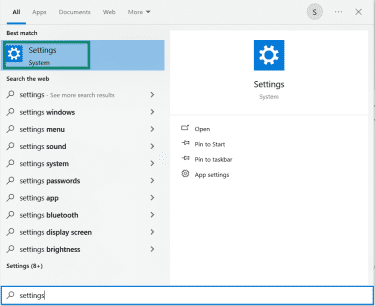
- Open Settings from the Start menu.
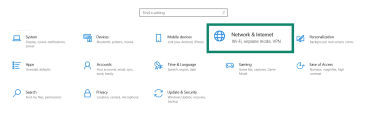
- Click on Network & Internet.
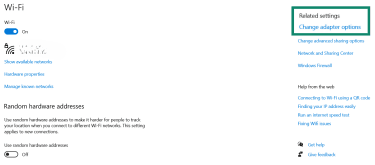
- Choose Change adapter options.
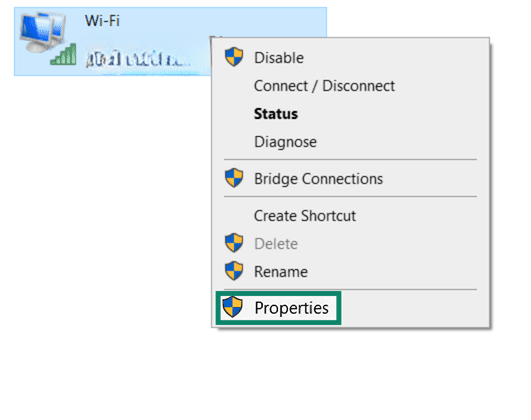
- Right-click the network you’re using and select Properties.
- Scroll until you find IPv4, click on it, then select Properties.
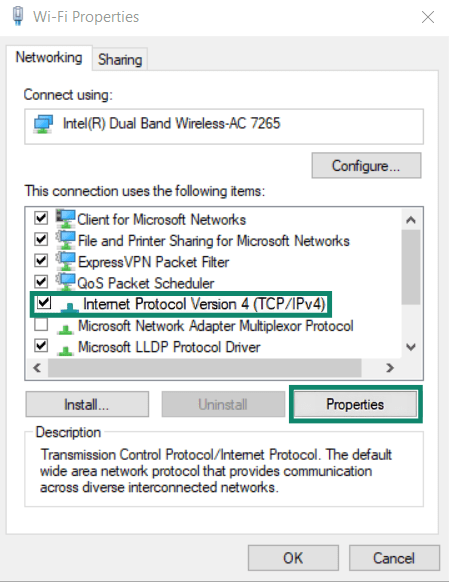
- Select Use the following DNS server addresses.
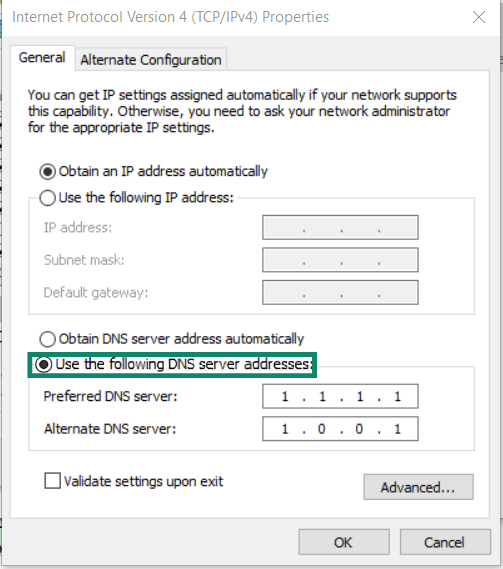
- Type the encrypted resolvers' addresses, such as 1.1.1.1. Your primary DNS server is the DNS server that your queries are sent to first, while the alternate DNS server is where your queries are sent if the first server fails for any reason.
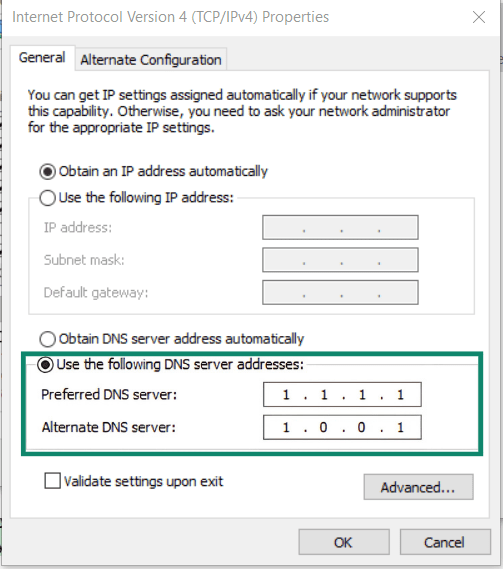
- Save your changes and test it to make sure it’s working.
Resolvers like Cloudflare (1.1.1.1) and Google Public DNS (8.8.8.8) support encrypted DNS. If your DNS supports encryption, modern Windows devices will automatically use the encrypted options, but on some machines, you may need to manually enable DoH or DoT.
Enable encrypted DNS on Android
Here’s how you can set up encrypted DNS on Android 9 or later. Note that Android 8 and older versions don’t support system-wide encrypted DNS.
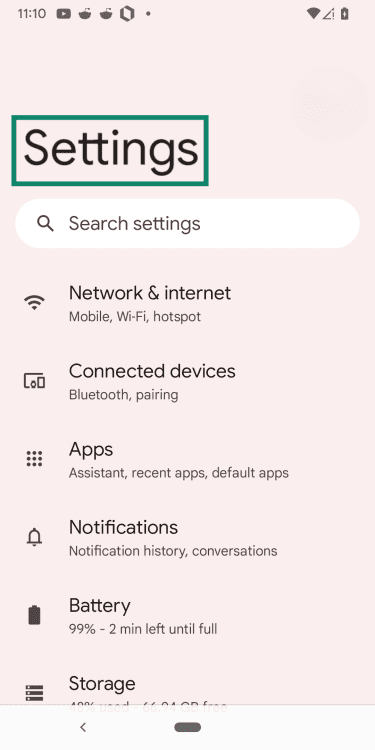
- Tap Settings.
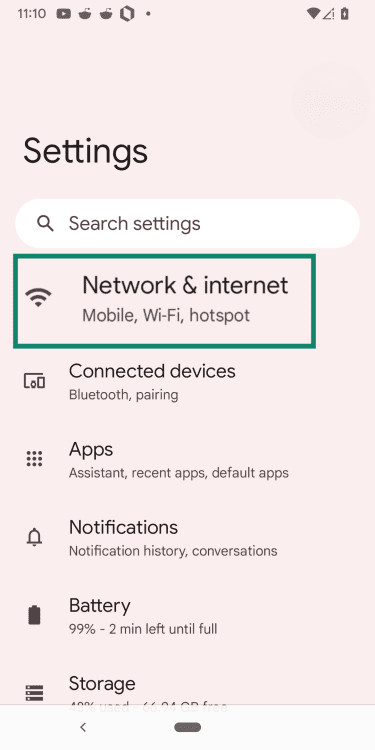
- Click Network & internet.
- Open Advanced or Private DNS, depending on your phone’s model.
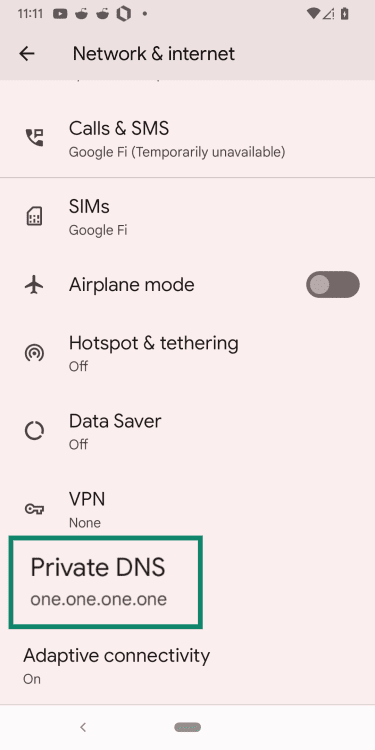
- Select Private DNS provider hostname.
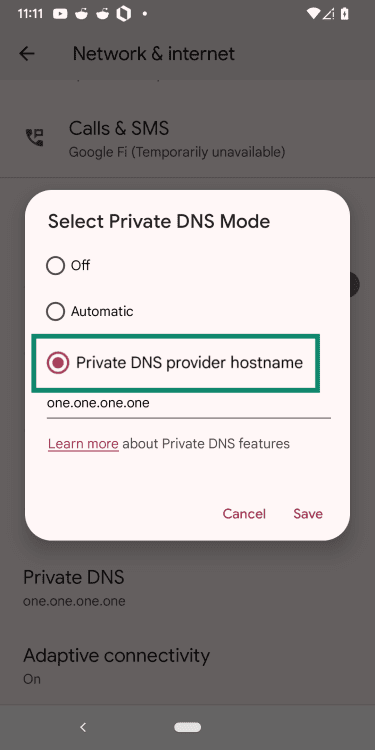
- Enter hostname: type your resolver’s hostname, such as “one.one.one.one”. Most encrypted resolvers publish their hostname, so you’ll need to check the official documentation. In this example, we’re using Cloudflare’s hostname, one.one.one.one.
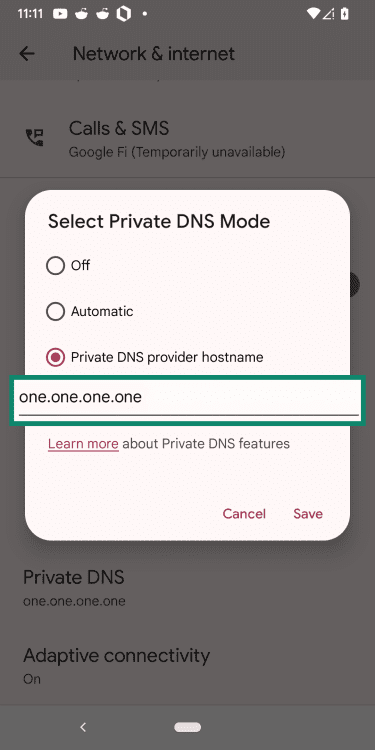
- Choose Save, then test to make sure it’s working.
Enable encrypted DNS on iOS
Setting up encrypted DNS on iOS is slightly more complicated and typically requires an app. The easiest option is to use a DNS app, like Cloudflare’s, by installing it and following the on-screen setup instructions. You can also download a configuration profile from trusted DNS providers like Cloudflare and Google.
If you don’t want to download anything, you can still change your DNS resolver in Settings. This won’t provide encryption, but it stops your queries from being routed through your ISP.
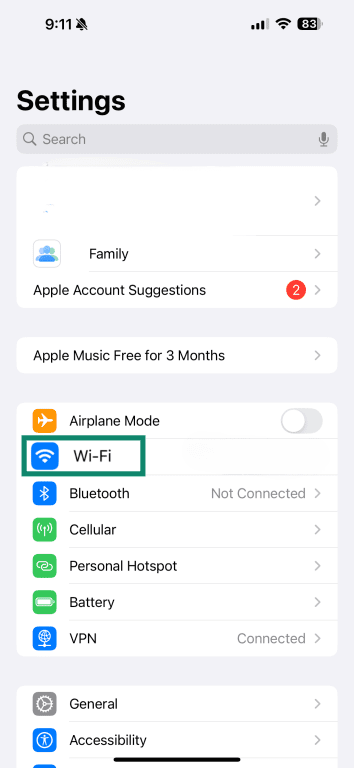
- Open Settings.
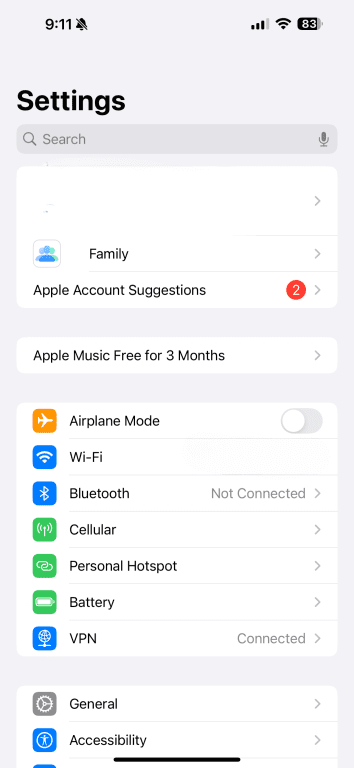
- Tap Wi‑Fi.
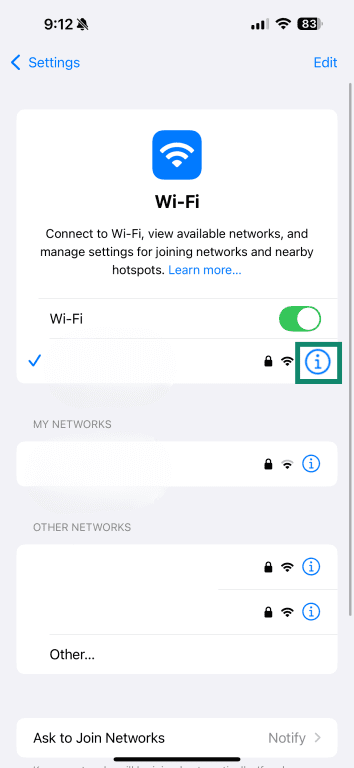
- Press the information icon (i) next to your network.
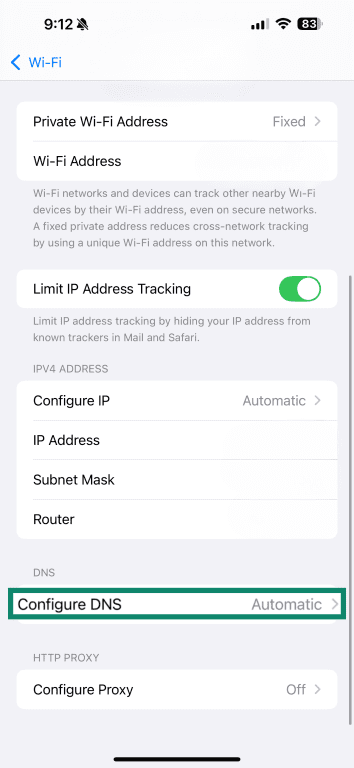
- Tap Configure DNS.
- Select Manual.
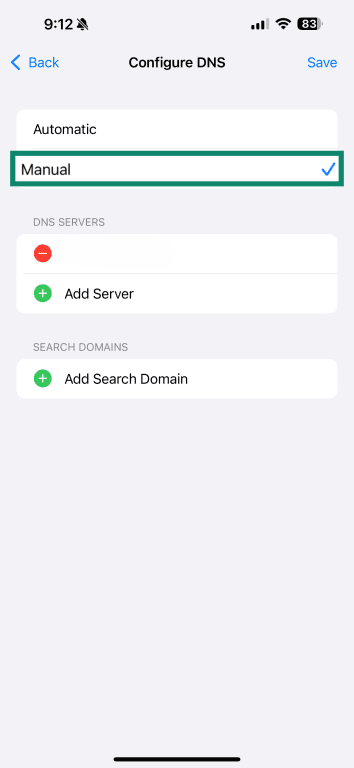
- Delete any existing DNS servers.
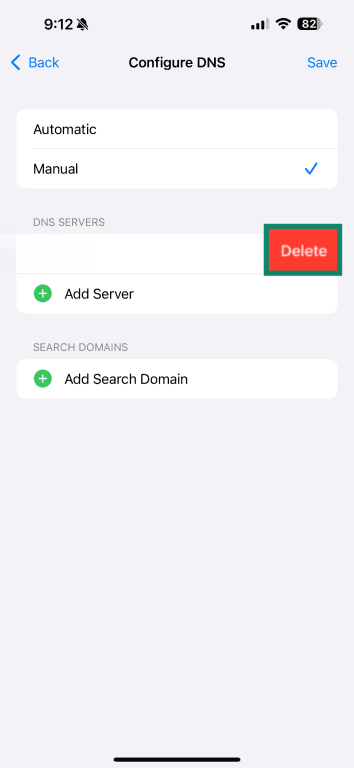
- Add encrypted DNS addresses like 1.1.1.1 and 1.0.0.1.
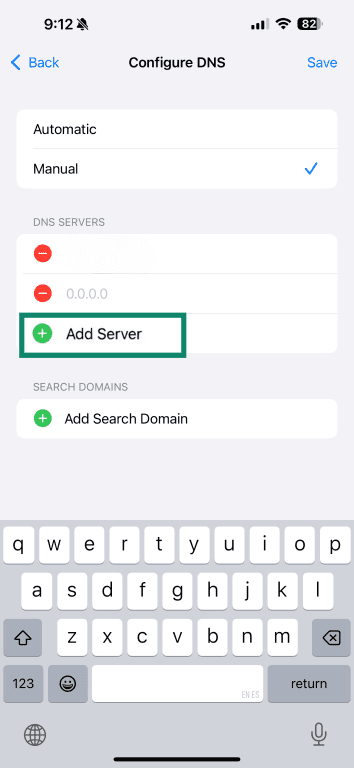
Enable encrypted DNS on routers
The process for encrypting your DNS will vary significantly depending on your router and the type of DNS you want to use. Here is a general guide, but you’ll need to check your router manufacturer for exact steps.
- Access your router’s web interface.
- Navigate to the WAN configuration page.
- Select Internet Connection or a similar option, depending on your router.
- Choose your encrypted DNS protocol.
- Enter your DNS provider’s IP address, TLS hostname, and port.
- If required, type the server’s certificate fingerprint.
- Save or apply the configuration so the router forwards queries over encrypted channels.
How to enable encrypted DNS in Firefox
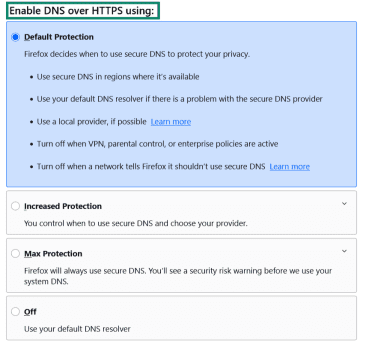
In some regions, Firefox has encrypted DNS enabled by default, but if it isn’t, you should still be able to turn it on. Here’s how:
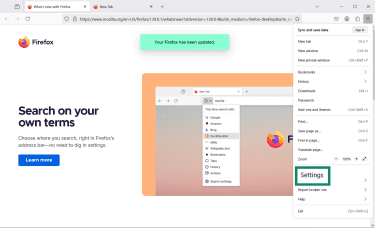
- Click the menu icon and choose Settings.
- In the sidebar, select Privacy & Security.
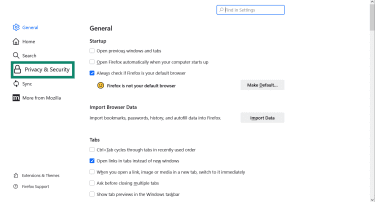
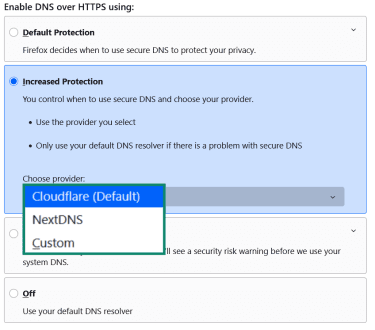
- Scroll to Enable DNS over HTTPS using: and select your security level.
- You can choose your provider from a dropdown list when you select Increased Protection.
How to enable encrypted DNS in Chrome
Enabling DNS encryption in Chrome is straightforward; here’s how you do it.
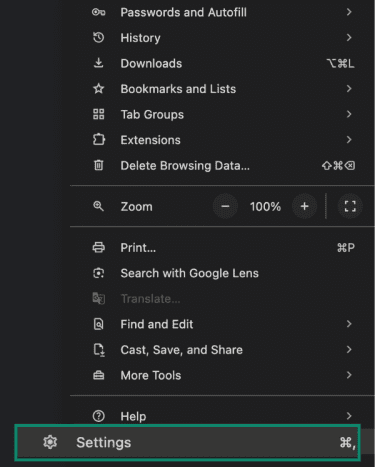
- Click the three‑dot menu and choose Settings.
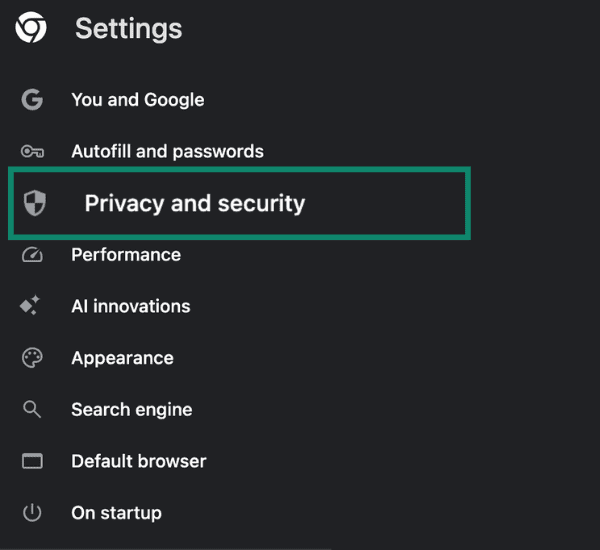
- Open Privacy and security.
- Select Security.
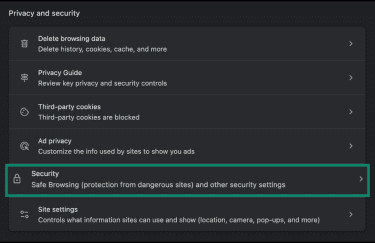
- Under Use secure DNS, turn the toggle on.
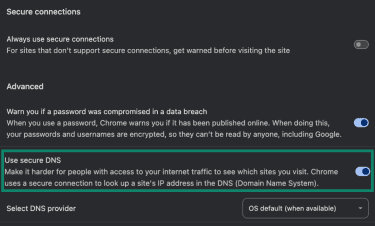
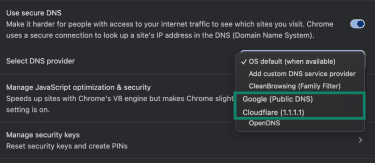
- Choose a provider such as Cloudflare or Google from the list so that Chrome sends queries via DoH.
Troubleshooting encrypted DNS and blocked networks
Encrypted DNS sometimes fails because networks deliberately block or intercept your traffic.
Why some networks block encrypted DNS
Corporate networks, public Wi‑Fi hotspots, or ISPs may block encrypted DNS protocols to enforce content filters, monitor internet activity within their networks, or because encrypted DNS is incompatible with their own DNS.
Why you may see the “network is blocking encrypted DNS traffic” warning
On iOS and macOS, Apple displays a warning when a network can’t use secure DNS. This message indicates that the Wi‑Fi network or router rejects encrypted DNS traffic, forcing devices to fall back to unencrypted DNS.
How to fix encrypted DNS blocking on iPhone
If your encrypted DNS is blocked on iPhone, try these common fixes. First, restart your iPhone. If it still isn’t working, restart your router and rejoin the Wi‑Fi network. Make sure your router and phone are up to date.
If none of that works, try changing your DNS settings manually in iOS or use something like the 1.1.1.1 app to encrypt your queries.
Fixes for Android or desktop encrypted DNS issues
On Android and desktop systems, problems often stem from incorrect server entries or outdated software. Try restarting your device and router, re‑entering the DNS provider’s hostname or IP addresses, and installing the latest system patch. If a network blocks DoT, try switching to DoH in your browser.
How to test if encrypted DNS is working
Here is a simple test to ensure your encrypted DNS is working and doesn’t have a leak.
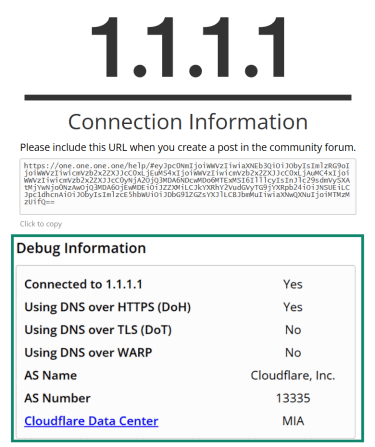
- Go to the test site: On any device configured with encrypted DNS, open a web browser. Visit 1.1.1.1/help or use any reputable DNS leak test tool.
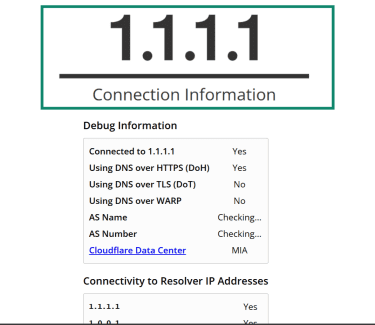
- Wait for the results: This page shows whether DoH or DoT is active and which resolver you’re using.
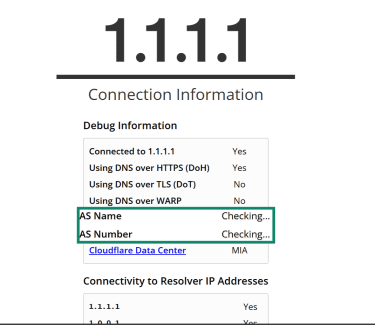
- Check the conclusion: If the results indicate that DoH or DoT is enabled, your encrypted DNS setup is functioning properly. If not, try to reconfigure your secure DNS.
Is encrypted DNS enough for privacy?
Encrypted DNS is an important part of a comprehensive solution for protecting your privacy online, but it isn’t enough on its own. Because encrypted DNS doesn’t mask your IP address, you might also want to consider using a VPN.
DNS vs. VPN: What’s the difference?
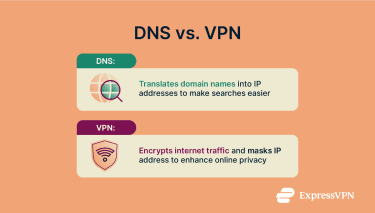 DNS and VPNs serve different but complementary purposes. DNS resolvers translate domain names into IP addresses so your browser knows where to connect. Traditional DNS, however, offers little privacy. Encrypted DNS helps prevent your ISP from directly seeing your DNS queries, though it doesn’t fully hide which sites you visit.
A VPN routes all your traffic through a secure server, encrypting your incoming and outgoing data while concealing your IP address. This offers better privacy protection but typically introduces some latency.
Encrypted DNS is a lightweight option when you mainly want to reduce DNS-based visibility rather than encrypt all traffic.
How VPNs enhance DNS encryption
A VPN wraps all of your internet traffic, including DNS queries, inside an encrypted tunnel. When you connect to a VPN, your DNS requests are typically sent to the provider’s resolvers through the encrypted tunnel. This prevents your ISP from seeing the destination IP addresses you connect to, helping preserve your online privacy.
Some VPNs partner with secure DNS providers or build DNS protection into the VPN itself. This lets you benefit from encrypted DNS and IP address masking. Advanced VPNs, like ExpressVPN, provide built-in private DNS on every server and protect against trackers and online threats.
When to use encrypted DNS vs. full VPN protection
You should use encrypted DNS when you want to prevent ISPs or public Wi‑Fi operators from seeing which domains you visit, but don’t mind your IP address being shared.
Conversely, a VPN is a better option when you want to hide your IP address or to secure all the traffic on your device. ExpressVPN operates under a no-logs policy and uses strong encryption to secure your traffic.
What is the best encrypted DNS service?
There is no single “best” service for everyone.
Comparing top providers: Cloudflare vs. Google vs. NextDNS
Cloudflare, Google, and NextDNS offer encrypted DNS, but each service provides unique features and handles user data differently.
Cloudflare’s 1.1.1.1 states that it doesn’t store your IP address in persistent logs and deletes any temporary debugging data within 25 hours. It supports DoH and DoT, and participates in ODoH, which requires a compatibility proxy setup. Cloudflare’s public DNS service has undergone independent audits by KPMG to verify its stated logging practices.
Google Public DNS also supports DoH and DoT, but it temporarily logs full IP addresses for 24-48 hours and retains anonymized, aggregated data for longer-term analysis and service improvement.
NextDNS offers DoH, DoT, and DoQ. NextDNS also offers more granular user controls over logging, retention periods, and optional analytics, giving it more customization options than many public DNS providers.
Overall, each product appeals to a different type of user. NextDNS focuses on user-configurable privacy controls, while Google and Cloudflare operate larger global networks with more resolver infrastructure.
What to look for in a secure DNS provider
When comparing secure DNS providers, it's helpful to check whether they support the encrypted protocols you plan to use, such as DoH, DoT, or DoQ. Privacy policies are also worth reviewing, as some services back up their data-handling claims with independent audits.
You may also want to consider features such as query name minimization, malware blocking, and optional content filtering. Performance can vary between providers, so having resolvers located closer to your region may improve response times. Finally, it’s useful to make sure the provider’s apps or configuration options are compatible with the devices you use.
FAQ: Common questions about encrypted DNS
What does encrypted DNS mean?
Encrypted Domain Name System (DNS) means that the process of translating a readable domain name into an IP address is handled over a secure channel. Protocols like DNS over TLS (DoT) and DNS over HTTPS (DoH) wrap DNS requests in Transport Layer Security (TLS) or HTTPS to prevent on-path observers from reading or manipulating your DNS queries. It doesn’t hide your IP address, but it helps protect the confidentiality of your DNS queries while they’re in transit.
Is an encrypted Domain Name System (DNS) worth it?
Yes, using encrypted DNS is worth it for most users. It prevents your internet service provider (ISP) or other people on your network from monitoring the websites you visit. However, it doesn’t prevent your IP address from being shared, so your online privacy is at risk. Pairing it with a VPN can further reduce what your ISP can see.
Is Domain Name System (DNS) encryption legal?
You can use it in most jurisdictions, but you should still check local laws before setting up an encrypted DNS. Some organizations or governments may restrict or block encrypted DNS traffic on their own infrastructure.
Can an encrypted Domain Name System (DNS) be hacked?
Vulnerabilities in Transport Layer Security (TLS) implementations, misconfigured resolvers, or compromised certificate authorities could expose your data, even if the underlying encryption has never been cracked before. That said, encrypted DNS is significantly safer than unencrypted DNS.
Will an encrypted Domain Name System (DNS) slow down my internet?
Encrypted DNS can introduce some latency due to the Transport Layer Security (TLS) handshake and the additional processing required compared to standard DNS. In some cases, DNS over HTTPS (DoH) may be slightly slower than DNS over TLS (DoT) because it adds an HTTP layer. That said, the difference is usually pretty negligible in practice.
Take the first step to protect yourself online. Try ExpressVPN risk-free.
Get ExpressVPN