This guide will show you how to disable DNS over HTTPS in your browser.
Why turn off DNS over HTTPS?
When connected to ExpressVPN, your device uses ExpressVPN’s DNS servers to run DNS queries. However, some web browsers have enabled a feature called DNS over HTTPS (DoH). This feature allows DNS queries to bypass ExpressVPN’s DNS servers and run outside the VPN tunnel, causing DNS leaks.
DNS over HTTPs is enabled by default in some browsers. To make sure your device uses ExpressVPN’s DNS servers, disable DNS over HTTPS in your browser.
Note: The DNS over HTTPS feature is not available on Safari and the mobile version of certain browsers.
Jump to…
Google Chrome
Mozilla Firefox
Microsoft Edge
Opera
DuckDuckGo
Google Chrome
Note: The DNS over HTTPS feature is not available for Chrome on iOS.
- Open your browser and enter chrome://settings/security.
- Under Advanced, toggle Use secure DNS off.


- Open Google Chrome. Tap

 .
. - Tap Settings > Privacy and security.


- Tap Use secure DNS.


- Toggle Use secure DNS off.


Need help? Contact the ExpressVPN Support Team for immediate assistance.
Mozilla Firefox
Note: The DNS over HTTPS feature is not available for Firefox on iOS.
- Open your browser and click
 in the top right corner.
 - Click Settings.
- Click Privacy & Security.
- Scroll down to the DNS over HTTPS section and select Off.


- Open your browser and tapin the top right corner.
- Tap Settings.
- Scroll down and tap DNS over HTTPS.
- Tap Off.
Need help? Contact the ExpressVPN Support Team for immediate assistance.
Microsoft Edge
Note: The DNS over HTTPS feature is not available for Edge on iOS and Android.
- Open your browser and enter edge://settings/privacy.
- Under Security, toggle Use secure DNS to specify how to lookup the network address for websites off.


Need help? Contact the ExpressVPN Support Team for immediate assistance.
Opera
Note: The DNS over HTTPS feature is not available for Opera on Android and iOS.
- Open your browser and enter opera://settings/privacy.
- Click Advanced.
- Under System, make sure Use DNS-over-HTTPS instead of the system’s DNS settings is off.


DuckDuckGo Privacy Browser
Note: The DuckDuckGo browser currently doesn’t allow users to manually disable DNS over HTTPS (DoH) within its settings. It’s on by default, and user configuration isn’t offered for this setting.
- Currently, DuckDuckGo doesn’t provide a setting to manually disable DNS over HTTPS (DoH).
- Because of this, if you run a DNS leak test, it may show a third-party DNS resolver instead of ExpressVPN’s DNS servers.
- Rest assured, as long as your ExpressVPN connection is active, your traffic remains fully encrypted and secure within the VPN tunnel.
A quick note about DNS leaks
If you’re here because a DNS leak test showed unexpected results, it’s important to understand what that usually means.
A true “leak” happens when your internet traffic escapes the VPN tunnel entirely. That’s the core risk VPNs are designed to prevent.
However, many DNS leak reports aren’t caused by traffic leaving the VPN at all. Instead, they’re triggered by DNS over HTTPS (DoH) or DNS over TLS (DoT). These features send DNS queries directly to a chosen third-party DNS provider (like Cloudflare), bypassing your VPN’s DNS.
This bypass can happen at two levels:
- Browser-level: Features built into modern web browsers (like Chrome, Firefox, or DuckDuckGo).
- OS-level: System-wide settings configured directly within your operating system (such as Windows 11 or macOS).
When DoH or DoT is enabled, your traffic still travels securely through the encrypted VPN tunnel. However, test tools may show a third-party resolver, which looks like a leak even though your connection remains protected.
Here’s a breakdown of how this works:
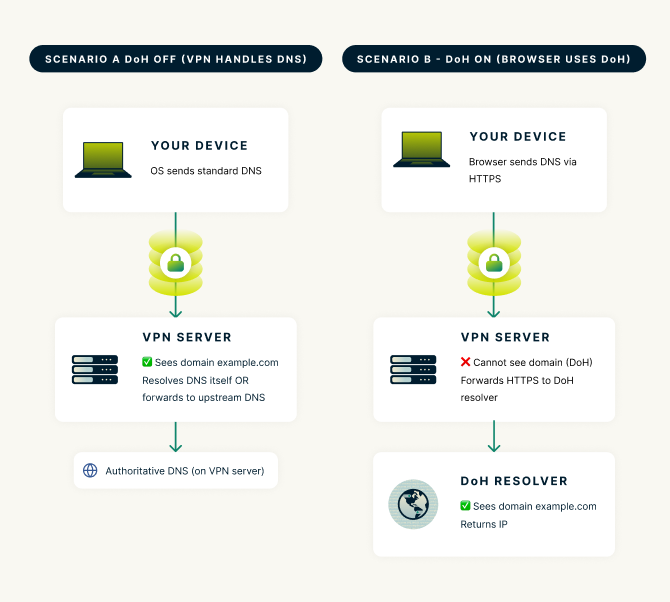
Scenario A: DoH OFF (VPN Handles DNS)
- Your device’s OS sends a standard DNS query (port 53) to the VPN’s DNS server.
- The request travels securely through the encrypted VPN tunnel.
- The VPN server, which also runs a DNS server, resolves the DNS query directly, as the VPN server has been set as the DNS server to use while on VPN.
Scenario B: DoH ON (Browser or OS Uses DoH)
- Your device sends the DNS query via HTTPS (DoH).
- The request still travels securely through the encrypted VPN tunnel.
- The VPN server can’t see the domain because it is hidden by DoH.
- The VPN server forwards the HTTPS request to a third-party DoH resolver (like Cloudflare), which sees the domain and returns the IP address.
Disabling DoH ensures your DNS requests are handled exclusively by ExpressVPN, giving you consistent leak test results and keeping your activity entirely within our infrastructure.
Need help? Contact the ExpressVPN Support Team for immediate assistance.