What is remote access? A complete beginner-to-pro guide


Remote access is a technology that lets you connect to and control a computer, server, or network from another location using an internet connection. It’s widely used for remote work, IT support, system administration, and accessing files or applications while away from the office.
In this guide, we’ll cover what remote access is, how it works, and where it’s used, from simple desktop connections to enterprise setups. We’ll also cover common tools, security risks, and best practices.
What is remote access?
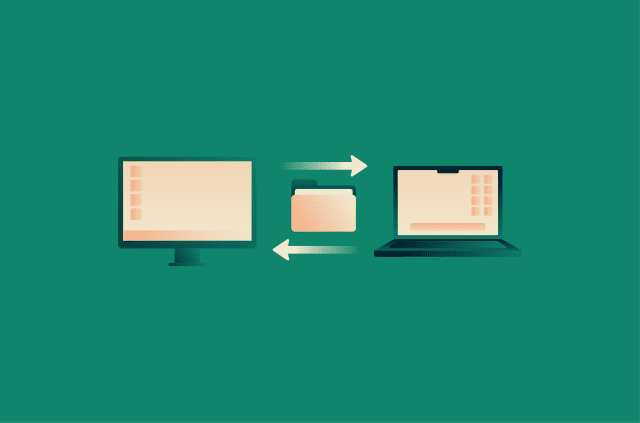
Remote access is the ability to use a computer or network without being physically present. Instead of sitting in front of a specific machine, you connect to it over the internet or another network.
Once connected, you can view the screen, run programs, open files, or manage systems as if you were there in person.
There are two main models of remote access: accessing an entire network using tools like virtual private networks (VPNs) and remotely controlling a specific machine using Remote Desktop Protocol (RDP), Virtual Network Computing (VNC), or remote desktop applications.
Common uses of remote access today
Remote access supports a wide range of everyday and professional scenarios. According to Eurostat, in 2024, approximately 60% of EU enterprises with 10 or more employees offered remote access to email, documents, and business applications. Below are some common examples of how remote access technology is used:
- Remote work enablement: Employees can access work computers and internal systems from home or other locations, staying productive without being physically present in the office.
- IT support and troubleshooting: Support teams can remotely view and control devices to diagnose issues, apply fixes, and provide assistance without on-site visits.
- Travel and on-the-go access: Users can connect to office systems while traveling, maintaining access to files, applications, and tools regardless of location.
- Education and shared environments: Students and staff can connect to shared computers or systems remotely, making specialized software and resources available outside physical classrooms or labs.
- Centralized system management: Businesses can manage servers and infrastructure from a single location, reducing the need for physical access and simplifying administration.
- Secure vendor or contractor access: Organizations can provide time-limited, controlled access to specific applications or resources for external partners without compromising security.
- Remote administration of cloud workloads: IT teams can manage cloud servers and services using jump hosts, bastion servers, or Secure Shell (SSH), allowing secure administration without direct network exposure.
How does remote access work?
At a basic level, remote access establishes a secure connection between two devices, so one device can interact with the other from a distance. Behind the scenes, this process follows a series of clear steps designed to verify identity, protect data, and control what the user can do.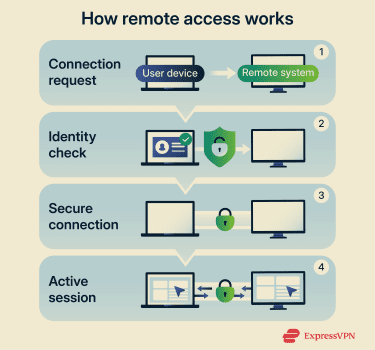
- The user starts the connection: The user opens a remote access tool, such as a remote desktop application or an enterprise VPN, and requests access to a specific system or network.
- The system verifies identity and permissions: The remote system checks the user’s credentials and may require multi-factor authentication (MFA), such as a one-time code. It then determines what the user is authorized to access, based on predefined roles and policies.
- The system secures the session: After approving the request, it establishes an encrypted connection (for example, using Transport Layer Security (TLS) or SSH) to protect the data exchanged between devices.
- The session begins, and activity is monitored: The user interacts with the remote system according to their assigned permissions. Screen updates, inputs, and file requests are transmitted securely, and the system may log activity to support security monitoring and compliance.
Throughout the session, information such as screen updates, keyboard input, and file requests travels back and forth over the network. Aside from minor delays, the experience closely resembles using the system in person, even though everything is happening remotely.
Key components involved in a remote session
A remote session typically involves the following components:
- Client device: The device you use to connect, such as a laptop, desktop computer, tablet, or phone. It sends your inputs and displays what happens on the remote system.
- Host system: The computer or server you want to access remotely. It receives your commands and carries out the actions as if you were using it directly.
- Remote access software: Software runs on both the client and the host to manage the connection, handle permissions, and translate actions like typing or clicking into usable commands.
- Network connection: The internet or a private network links the client and host, allowing data to travel back and forth during the session.
- Supporting services: Additional services help keep the connection stable and responsive so the remote session feels smooth to the user. Examples include directory or identity providers, gateways, brokers or relays, logging and monitoring systems, and endpoint security tools.
Types of remote access
Remote access isn’t a single tool or method. It comes in several forms, each designed for different needs and levels of control. Some types focus on fully controlling another computer, while others are limited to accessing files or applications.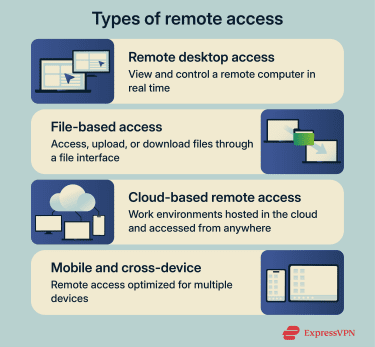
Remote desktop access
Remote desktop access lets one device display and control the graphical interface of another computer over a network. The remote system sends screen updates to the connecting device, while mouse movements, clicks, and keystrokes are transmitted back in real-time.
Tools such as the Microsoft Windows App (formerly the Microsoft Store Remote Desktop client) use this approach. It lets users launch applications, change settings, and interact with the operating system remotely. This type of access is commonly used for remote work and IT support, where full, interactive control of a system is required rather than limited file access.
File-based access
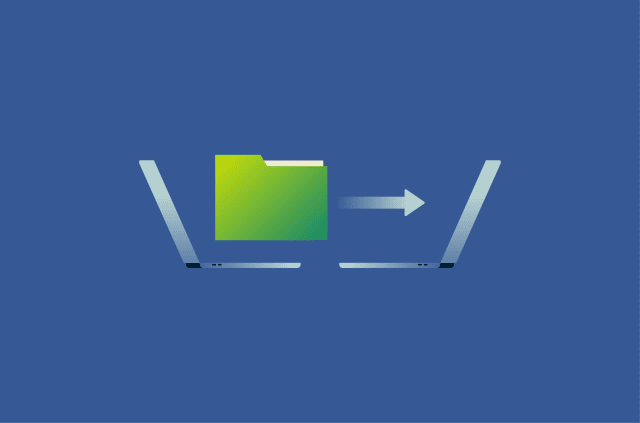
File-based access focuses solely on retrieving, uploading, and managing files, rather than controlling an entire system. Instead of viewing a remote desktop, users interact with folders and documents through a file interface.
For example, Secure File Transfer Protocol (SFTP) over SSH clients use this model to move data between systems. This approach is useful when only specific files are needed, such as downloading work documents or creating backups. This system is generally lighter, faster, and easier to use than full remote desktop access.
Cloud-based remote access
Cloud-based remote access relies on systems and services hosted on remote servers rather than a specific physical computer. Users connect through a web browser or app to access applications, files, or full work environments stored in the cloud. Access is typically controlled using identity-based authentication, conditional access policies, and secure gateways rather than direct network exposure.
Platforms such as Microsoft Azure Virtual Desktop, Amazon Web Services (AWS), and Google Cloud Platform follow this model, allowing users to sign in and work from almost any device with an internet connection. This approach reduces reliance on a single machine and simplifies access across different locations.
Learn more: Explore our detailed guide to cloud VPNs.
Mobile and cross-device remote access
Mobile and cross-device remote access is designed for connecting from phones, tablets, or different types of computers. Remote access apps such as Chrome Remote Desktop adapt desktop connections for smaller screens and touch controls, making them usable on the go.
This allows users to check systems, access files, or perform basic tasks even when away from a traditional computer. Because these connections happen on personal or unmanaged devices, it’s important to consider mobile security basics. This includes device lock, OS updates, and the risk of saving credentials on unmanaged devices.
Common remote access protocols and technologies
Remote access technologies enable users to securely connect to systems and networks from outside a physical office location. Some of these technologies are standalone protocols, while others are broader frameworks that rely on multiple underlying protocols.
Different approaches are designed for different purposes, such as connecting entire networks, controlling a desktop, or managing systems through text commands. Each one balances usability, performance, and security in a slightly different way.
Virtual private network (VPN)
A remote access VPN establishes an encrypted tunnel between a user’s device and the organization’s private network. Once connected, the device behaves as if it’s physically inside the corporate network, subject to internal routing rules, firewall policies, and access controls.
In practice, the remote system must be reachable within that private network, and the connecting device connects to it via the VPN. VPNs can be configured in two ways:
- Split tunneling: Routes only specific traffic through it. It can reduce bandwidth usage and improve performance, but it requires careful security policies to prevent the exposure of sensitive data.
- Full tunneling: Sends all traffic through the VPN. This is simpler to manage and generally safer than split tunneling, but it can increase bandwidth use and may slow down general internet access.
Remote access VPNs are best suited for allowing remote users to securely access internal resources, such as file servers, intranet portals, network printers, and development and staging environments.
Remote Desktop Protocol (RDP)
Developed by Microsoft, RDP enables viewing and controlling a remote computer’s desktop. It sends screen updates from the remote system to your device and returns your keyboard and mouse inputs back to it.
This allows full interaction with applications and settings, much like sitting at the machine. This makes it a suitable option when you need full graphical control of a remote system’s desktop and applications.
One drawback is that RDP is often targeted when exposed directly to the internet. To stay safe, it’s recommended to use VPNs or zero-trust network access (ZTNA), deploy a Remote Desktop Gateway, enable MFA, and avoid exposing systems to the internet.
Learn more: If you’re deciding between a VPN and a remote desktop, check out our guide to VPN vs. RDP.
Virtual network computing (VNC)
VNC is another protocol for remotely viewing and controlling a computer’s screen. Like RDP, it transmits visual data and user input between devices. VNC is often valued for its simplicity and broad cross-platform compatibility.
From the user’s perspective, it provides a straightforward way to interact with a remote desktop without deep system integration. However, VNC security depends heavily on the implementation; many deployments require tunneling through a VPN or SSH to ensure safe use.
Once secure, the system is great for cross-platform GUI access, especially for mixed OS environments where RDP isn’t available.
Secure shell (SSH)
SSH is a protocol used to remotely access and manage systems through text-based commands rather than a graphical interface. Instead of seeing a screen, users type commands and receive text responses.
This makes SSH lightweight and efficient, especially for managing servers or network devices. It’s commonly used where speed, automation, and precise control are more important than visuals.
SSH supports key-based authentication for secure logins and can also be used for tunneling or port forwarding, enabling encrypted connections to other services. This makes it suitable for both admin work when you need command-line control of a system, automation, or secure tunneling.
Benefits of remote access
Remote access delivers measurable operational and security advantages by enabling secure connectivity beyond physical office environments. These include:
- Business continuity and resilience: Organizations can maintain operations during travel disruptions, emergencies, or distributed work arrangements without relying on physical infrastructure access.
- Workforce mobility: Teams remain productive across locations, time zones, and devices without compromising access to essential systems.
- Operational efficiency: IT teams can diagnose, maintain, and manage systems remotely, reducing downtime and eliminating unnecessary site visits.
- Scalability: Businesses can expand teams or support external partners without building new physical infrastructure.
Risks and security challenges
While remote access is convenient, it also introduces security challenges. Allowing systems to be reached from outside a physical location increases the number of ways they can be targeted.
Unauthorized access
Unauthorized access occurs when someone gains unauthorized entry to a system. This often happens through stolen login details, reused passwords, or poorly protected accounts. Common attack paths include phishing to steal credentials, credential stuffing, brute force attacks on exposed RDP or SSH services, and the use of unapproved remote access tools (shadow IT).
Once inside, an attacker may view sensitive information or interfere with system operations. To a non-technical user, this is like finding a spare key and entering a locked building unnoticed.
Data breaches and malware risks
Remote access can increase the risk of data breaches and malware infections because it expands the surface attackers can target and places sensitive resources outside traditional network boundaries.
According to the National Institute of Standards and Technology (NIST) Guide to Enterprise Telework, Remote Access, and Bring Your Own Device (BYOD) Security, accessing internal systems remotely generally poses a higher risk than internal-only access, making proper security controls essential to reduce potential threats.
Many organizations report cybersecurity incidents related to remote work and distributed endpoints: a 2025 review by DeepStrike found that 42% of workers log in remotely at least once a week, widening the attack surface for cybercriminals and increasing exposure to threats such as phishing and malware on remote devices.
As such, if an attacker gains access, they may copy sensitive files or install malicious software that spreads further. Remote endpoints can serve as entry points into internal networks, and malware can move laterally once credentials or access tokens are stolen. Malware itself can run quietly in the background, collect data, or disrupt systems over time. Simply put, one weak remote connection can expose far more information than intended.
Other security risks
Remote access systems are frequent targets because they provide direct entry into internal devices and networks. These risks are often exploited through automated attacks, which is why exposed remote access is so attractive to attackers. When protections are weak or misconfigured, attackers can exploit these access points with relatively simple techniques. The most common risks include:
- Weak or reused credentials: Simple passwords or credentials reused across services make brute force and credential-stuffing attacks more effective.
- Exposed remote services: Remote desktop or access ports left open to the internet without a VPN, gateway, or similar access layer significantly increase the attack surface and attract automated scanning.
- Outdated software: Unpatched remote access tools and operating systems may contain known vulnerabilities that attackers can exploit.
- Unsecured endpoints: Infected or poorly protected devices can serve as a bridge into otherwise secure systems, allowing attackers to move laterally within the network.
- Insufficient monitoring: Without logs or alerts, suspicious activity may go unnoticed until damage is already done.
These risks are often preventable with basic hygiene and regular reviews, which is why even simple security measures can significantly reduce exposure.
How to secure remote access
Securing remote access means ensuring only the right people can connect and that data remains protected while in use.
Best practices for individuals
Best practices focus on consistency and caution. Below are simple steps you can take to improve your remote access security.
- Use only trusted devices: Access remote systems from your own secured device or a company-approved device. Avoid logging in from shared or public computers.
- Avoid sharing credentials: Never share your login details, access links, or one-time authentication codes with anyone.
- Enable MFA: Turn on MFA wherever possible to add an extra layer of protection beyond your password.
- Keep your device updated: Install operating system and software updates promptly to patch known security vulnerabilities.
- Secure your network: Use strong Wi-Fi encryption, change default router passwords, and avoid using unsecured public Wi-Fi without a VPN for sensitive remote sessions.
Best practices for businesses
- Define clear access policies: Specify who can connect, what systems they can access, and under what conditions.
- Apply least-privilege access: Grant users only the permissions required for their role rather than broad system-level access.
- Use secure access layers: Place remote services behind remote access VPNs, ZTNA, or secure gateways, rather than exposing ports directly to the internet.
- Monitor and log activity: Track remote sessions to detect suspicious behavior and support compliance requirements.
- Review access regularly: Audit user permissions periodically to reflect role changes, remove inactive accounts, and reduce unnecessary exposure.
Technologies used to secure remote access
Remote access security is typically achieved through multiple layers of protection. These controls may be built into remote access tools or enforced at the network and device level, so users don’t always need to implement them separately. Understanding these layers can help when choosing or configuring remote access solutions.
Multi-factor authentication (MFA)
MFA adds an extra step to the login process beyond just a password. Because an attacker would need access to multiple factors simultaneously, MFA makes it much harder to gain access using stolen credentials alone, even if a password is compromised.
Encryption and firewalls
Encryption protects data by turning it into unreadable information while it’s being sent between devices, preventing outsiders from understanding it even if they intercept it. This includes encryption in transit (for example, TLS or SSH when data moves between devices) and encryption at rest (for stored files and databases).
Firewalls act as filters that control which connections are allowed in or out of a system. They help block direct inbound exposure, ensuring that remote access is permitted only through secure layers such as a VPN, ZTNA, or access gateway.
Endpoint security tools
Endpoint detection and response (EDR) and extended detection and response (XDR) tools build on firewalls by protecting individual devices used for remote access, such as laptops or servers, from malware, unauthorized changes, and risky behavior. They typically include tools that scan for malicious software, monitor system activity, and block suspicious actions before they can cause harm.
By securing each endpoint, organizations reduce the risk that a compromised device can serve as a foothold for accessing wider systems via remote connections.
Zero-trust network access (ZTNA) model
ZTNA is a security approach that assumes no device or user should be trusted by default, even if they are already inside the network. Instead of granting broad access, ZTNA verifies identity, device health, and context every time a connection is requested. Access is granted only to specific applications or resources, not the entire network.
ZTNA differs from traditional VPNs by limiting access to specific apps rather than entire networks. This limits the impact of stolen credentials or compromised endpoints and helps contain threats before they can spread through remote access connections.
Choosing the right remote access solution
The right remote access solution depends on who will use it and how it will be used. Some tools are suited for occasional personal access, while others are built to support larger teams or complex business environments.
Key features to consider
- Cross-platform support: Works on multiple operating systems and devices to ensure flexibility.
- Strong security: Includes encryption, access controls, and role-based permissions to protect remote sessions.
- Ease of use: Simple interface and clear documentation help users connect safely without confusion.
- Access management: Supports role-based access to limit users to only the systems and resources they need.
- Performance and reliability: Features like adaptive bitrate, automatic reconnects, and relay availability help maintain smooth, consistent access.
Comparing VPNs vs. remote desktop tools
| Feature | VPN | Remote desktop tools |
| Primary purpose | Connects your device to a private network securely | Lets you control a specific computer remotely |
| Access type | Network-wide access to multiple resources | Direct access to one machine’s desktop and applications |
| Typical use | Access internal files, servers, or business applications | Work on a computer as if you were sitting in front of it |
| User experience | Appears as if your device is inside the network | You see and control the remote computer’s screen in real time |
| Security focus | Encrypts network traffic between your device and the network | Protects the connection between the client and the host device |
When choosing a remote access solution, consider your specific needs. If you only need to access a single machine with a graphical interface, a remote desktop tool is the best choice. If you need to reach internal applications, files, or multiple network resources, a VPN or ZTNA solution is more appropriate.
For IT teams supporting many endpoints, remote support tools combined with MFA and logging provide the most effective coverage.
Free vs. paid tools
Free remote access tools can be useful for basic or short-term needs, but they often come with limitations. Common missing features include administrative controls, auditing and logging, single sign-on (SSO), device posture checks, and formal support or service-level agreements (SLAs).
Paid tools typically offer stronger safeguards, regular updates, and customer support. For users who regularly rely on remote access, paid options are often more reliable over time.
FAQ: Common questions about remote access
What is the difference between remote access and remote desktop?
Remote access is a broad category that covers any method of connecting to systems, applications, or networks from another location. Remote desktop is a specific type of remote access that lets a user view and control a computer’s screen, keyboard, and mouse as if they were sitting in front of it.
What is unattended remote access?
Unattended remote access allows a user to connect to a system without someone being present at the remote device to approve the session. The host computer is configured to stay available for incoming remote connections and is protected by authentication controls such as passwords, encryption, or multi-factor authentication (MFA).
This setup typically requires stricter security controls to prevent unauthorized access. It is commonly used for remote IT administration, servers, and personal devices that need to be accessed at any time.
Is remote access more secure than VPNs?
Remote access and VPNs can’t be compared directly in terms of security because they solve different problems. A VPN provides encrypted network-level access, making a remote device appear as if it’s on the internal network.
Other remote access tools provide direct access to specific systems or applications. In both cases, security depends on how the solution is implemented, including authentication methods, internet exposure, access scope, and monitoring.
What are the best tools for remote access?
When selecting a remote access tool, prioritize ease of use, device compatibility, and robust security features. Tools that include built-in encryption, user access controls, and session logging generally offer the safest experience for personal, educational, or business use.
How do I set up secure remote access?
Secure remote access starts with strong authentication, including unique passwords and multi-factor authentication (MFA). Connections should be encrypted, and access should be limited to only the systems and users that need it. Keeping software up to date and regularly reviewing who has access are just as important, helping ensure old accounts, outdated tools, or unnecessary permissions don’t become security gaps.
Take the first step to protect yourself online. Try ExpressVPN risk-free.
Get ExpressVPN