What is threatware? A complete guide to risks and protection


Threatware is a catch-all term representing any malicious software or tool designed to harm, exploit, or compromise systems, data, or networks. It includes viruses, ransomware, spyware, Trojans, worms, rootkits, and more.
Understanding threatware and how it operates is essential for protecting your devices and data in today's digital landscape. This guide explores what threatware is, how it works, and how you can secure yourself against it.
What is threatware, and how does it spread?
"Threatware" is an informal umbrella term for software designed to harm, exploit, or compromise systems, including viruses, Trojans, worms, spyware, adware, ransomware, and rootkits. In practice, the term is often used interchangeably with "malware," which remains the standard term across cybersecurity research and industry frameworks.
How threatware operates and why it’s dangerous
Threatware operates by gaining unauthorized access to systems, stealing sensitive information, disrupting operations, or extorting victims. It follows a multi-stage attack lifecycle from initial infection to execution of the final action. The key steps of this lifecycle are as follows:
- Reconnaissance: Attackers research targets and gather information that will help them initiate the cyberattack.
- Delivery: Attackers deliver malicious payloads to their targets, aided by the information collected during reconnaissance.
- Exploitation: Malicious payload exploits the vulnerabilities in an application or system, providing the initial entry point.
- Installation: Malware conducts steps like escalating its privileges or replicating itself to establish persistence.
- Command and control (C2): Malware establishes communication with cybercriminals who can now orchestrate the next stages of the attack.
- Action: Attackers can use their access to conduct malicious actions like stealing data or disrupting services.
Note that the lifecycle described is a generalized model and won’t apply perfectly to every attack, but it’s the common general trajectory.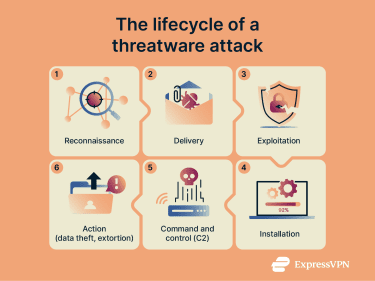
How threatware spreads
Attackers deploy multiple infection vectors to maximize their reach. Understanding these methods can help you to recognize and avoid potential threats.
Email attachments and phishing links
Phishing scams can deceive users into clicking malicious links or downloading infected files. Attackers might impersonate friends, coworkers, or trusted brands to mislead recipients into opening malicious emails with threatware attachments.
Infected software downloads
Pirated software, cracked applications, and freeware can contain hidden threatware. These downloads appear normal but execute malicious code during installation. Additionally, pirated software doesn’t get regular updates, which leaves unpatched security vulnerabilities that increase the risk of malware infections, unauthorized system access, and data breaches.
Compromised websites and drive-by attacks
Drive-by attacks occur when visiting a compromised website automatically downloads threatware to your device without any interaction. These attacks exploit browser or OS vulnerabilities to initiate the threatware download, and you might not even notice the infection until significant damage starts to occur.
Malvertising and script injection
Malvertising is the use of online ads to spread threatware. Cybercriminals can use legitimate advertising networks and embed both pre-click and post-click threatware into their ads. Pre-click threatware is embedded into the ad's script and runs without user interaction, like a drive-by download. Post-click threatware requires user interaction, like clicking on an ad that redirects to a malicious webpage.
Types of threatware
Threatware consists of various malicious software types, each with distinct behaviors and objectives. Here are a few prominent examples.
Ransomware
Ransomware encrypts a victim's files and demands a ransom to restore access. Otherwise, the files remain encrypted, and the victim can potentially lose access to their data forever. Some ransomware infections also lead to cyber extortion. This is known as a double extortion attack, where attackers don’t just encrypt data but also exfiltrate it and threaten to release it if the ransom isn’t paid.
Spyware
Spyware collects users' data without their knowledge, ranging from web browsing data to personal information like logins and passwords.
Types of spyware include keyloggers that record every keystroke to capture passwords and credit card numbers, adware that monitors browsing activity and serves malicious advertisements, and even employee surveillance tools that track computer activity, including login times, apps used, and websites visited. When used without consent, these tools can function like spyware.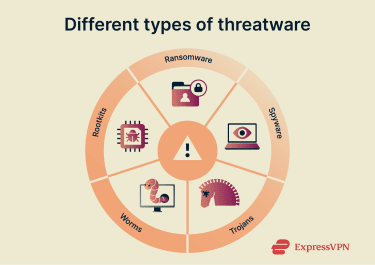
Trojans
The defining characteristic of a Trojan is that it disguises itself as a legitimate program to trick users into installing it. Once installed, Trojans can perform many malicious tasks, like silently gathering sensitive data, encrypting files for ransom, or even downloading additional threats from external servers.
Worms
Worms are self-replicating threatware capable of spreading across networks and systems, typically while remaining invisible and without needing user interaction. They’re usually only spotted when the replication becomes a significant enough drain on resources to slow a system down. They can also contain malicious payloads that let attackers remotely control an infected computer.
Rootkits
Rootkits are malicious programs that are built to give attackers unauthorized access to systems, which they can use to extract sensitive data. They’re capable of remaining hidden for long periods due to their ability to embed themselves deeply within a system, rendering traditional detection methods less effective. Some key rootkit types include:
- Kernel level: These modify the kernel, which is the heart of the OS, to hide their presence and perform malicious tasks.
- User-mode: Designed to work at the application layer by modifying system libraries and executables.
- Memory-based: These operate stealthily within a system’s RAM and disappear on system reboot.
- Bootkit: These modify a system’s boot records, allowing them to establish control of a system early on in the boot sequence.
- Firmware: Built to operate at a low level by targeting network cards, hard drives, and system BIOS.
How to detect threatware
Learning the symptoms of an infection is key to identifying a threatware attack before it can start causing irreversible harm.
Behavioral and system symptoms
Devices infected by threatware often show noticeable signs of compromise, like running slower or frequently crashing without warning, due to the malicious software consuming system resources. They may also exhibit symptoms like increased battery drain and overheating.
Threatware such as certain Trojans can turn off security features to continue malicious activity, so an infected device’s built-in security tools might get disabled. Unusual pop-ups or notifications demanding immediate action may also suddenly appear. Some other similar symptoms include redirects to websites you never visit or your browser installing unfamiliar extensions.
Threatware is a wide category, so the symptoms are also wide-ranging; if you notice anything out of the ordinary, it’s worth investigating to rule out a threatware infection.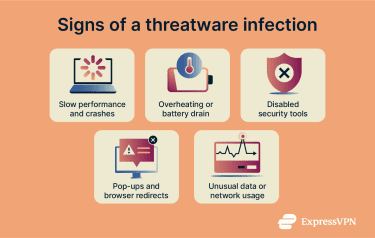
Network indicators and unusual traffic
Many types of threatware connect to remote C2 servers, which is why monitoring network activity can help spot a threatware infection. Keeping visibility over IP addresses and Domain Name System (DNS) queries in your internet traffic can potentially help single out malicious traffic indicators. Additionally, sudden network congestion or a slower-than-usual network can indicate threatware activity consuming bandwidth.
You might notice increased data usage compared to your normal level, which can be due to threatware downloading additional malicious payloads onto your system. Less storage space is another symptom to look for, as it could be caused by threatware like worms replicating themselves across your system.
Tools for detecting threatware on Windows, Mac, and mobile
There are various tools for detecting threatware on both desktop and mobile devices. Antivirus programs offer features like malware removal and real-time monitoring to remove threatware and deter further infections.
Modern antiviruses also use heuristic analysis to detect previously unknown threatware by analyzing its code or behavior rather than relying solely on known threat signatures. This enables the detection of new threats before they're officially cataloged.
There are also many mobile security apps, but they work differently depending on the platform. Android security apps can scan for malware and monitor app behavior, while iOS apps focus on web protection and phishing detection due to Apple's security restrictions.
Alongside the above, there are file integrity monitoring utilities that track critical system files and alert you if threatware makes unauthorized changes. If something like ransomware begins encrypting files, file integrity monitoring tools can immediately detect these modifications and enable a rapid response that can help prevent significant damage.
How to remove threatware
Removing threatware requires immediate action to ensure the threat is dealt with before it deals serious damage.
Immediate steps after a suspected infection
Below are some steps you should take immediately upon suspecting a threatware infection to prevent further damage:
- Disconnect from the internet: Disconnecting from the internet stops threatware from communicating with other devices or spreading across systems in the same network.
- Run a virus scan: Use your device’s built-in virus scanner to check for threatware, or download a trusted antivirus to initiate a full scan of your system.
- Back up your data: Back up important data like pictures and documents before removal attempts, as threatware can react unpredictably during removal and could damage your system.
- Change account passwords: Change important passwords, like banking and email accounts, immediately, as spyware might have already captured your login credentials. Ensure you do so from a different device that you know isn’t infected.
Manual cleanup (advanced users only)
Typically, manual cleanup serves as a final option when antivirus tools fail to eliminate threatware. It should only be attempted by advanced users, as incorrect changes could break the OS. The general manual cleanup process consists of the following steps:
- Boot into safe mode: This limits background processes and can prevent threatware from actively running during removal.
- Identify suspicious processes: Use built-in system tools to look for unfamiliar or unusually resource-intensive processes and stop them cautiously, ensuring you don’t end any critical system processes.
- Remove malicious startup entries: Check startup programs and system services for entries created by the threatware and disable or delete them.
- Delete associated files: Locate and remove files and folders linked to the infection, typically found in system directories or user app data locations.
- Review system configuration changes: Advanced threatware may alter registry entries, browser settings, or network configurations that will need to be restored manually.
- Rescan the system: After cleanup, perform a full antivirus scan to confirm there’s no malicious software left over.
If you’re not an advanced user and you’re struggling to fully remove a threatware infection, you should consult an IT professional for assistance.
When a full system reset is necessary
Threatware like firmware-level rootkits can persist even after you’ve attempted virus scans and performed a full manual cleanup. For infections like these, a full system reset is the best option. Note that this will erase all data, applications, and personal settings on your device, restoring it to factory defaults.
If you’ve determined that a full reset is necessary, perform a clean OS reinstall on desktop devices using external media that you’re certain are uninfected. If you need to save important files, only keep files like documents, photos, or videos on a cloud storage service. Avoid backing up apps or any system files, as these may contain hidden threatware.
How to prevent threatware infections
Proactively defending against threatware is a better option than attempting to remove it once it’s on your system. The methods below help reduce the chance of threatware infections.
Safe browsing and download practices
Avoid clicking suspicious links or downloading attachments from unknown sources. Also, don’t download pirated media or cracked software, as these can come bundled with threatware.
Always be cautious with suspicious links and attachments in emails, too. Email attachments may contain malicious code that executes threatware on devices, while unrecognized links may take you to malicious domains that could infect your system with malware.
Finally, be careful with any browser extensions you install, as malicious extensions are capable of stealing sensitive data like cryptocurrency wallet details, passwords, and bank account details. Always download extensions from your browser’s official store after verifying that they have positive reviews.
Antivirus and firewall
Trustworthy antivirus software can detect, quarantine, and remove threatware when kept up to date. It’s also essential to have your system’s firewall enabled, as this blocks suspicious traffic and can help to prevent threatware from communicating with C2 servers.
OS hardening
Disable unnecessary services to reduce the attack surface for threatware. If you’re on Windows, keep the User Account Control (UAC) functionality enabled, as it prevents malicious software from gaining administrative access without your consent. When you see prompts asking for escalated privileges, always carefully check which program is requesting access before clicking “yes.”
Regardless of your device, ensure you always have your OS and all apps up to date. An outdated OS or apps can have unpatched vulnerabilities that attackers can exploit to gain unauthorized access to a system. Keeping everything up-to-date ensures you always have the latest security patches.
Develop social engineering awareness
Learning to recognize the warning signs of social engineering can help prevent phishing attacks and subsequent threatware infections. Phishing emails create a sense of urgency, fear, or panic to pressure you into acting before thinking clearly, often claiming financial emergencies, unusual account activity, or unpaid invoices that require immediate action.
Look for things like poor grammar, misspellings, and inconsistent formatting, which are indicators of possible phishing attempts. That said, AI tools are making it easier for criminals to craft highly convincing emails, so you should take extra care to check the sender address and reach out to the organization or individual via another established channel to double-check anything you’re not sure about.
Email filtering
Filter emails via the spam and phishing filters in your email account to automatically catch suspicious messages before they reach your inbox. It’s also worth marking any suspicious emails you receive as spam, as this helps your email provider’s filter improve over time.
Password managers
A password manager generates strong, unique passwords for your accounts and helps reduce phishing risks by filling credentials automatically instead of typing them manually. Using a reliable password manager also gives access to features like password health checks and exposed password monitoring to ensure your credentials are always safe.
Multi-factor authentication
Multi-factor authentication (MFA) adds an extra layer of security beyond just passwords, requiring another form of verification like a code generated by an authenticator app. With MFA enabled, attackers who steal your password through phishing or spyware still won’t be able to access your account without the second factor.
How VPNs and secure connections reduce threatware risks
While they don’t offer comprehensive protection against threatware, virtual private networks (VPNs) can add an extra layer of security. They encrypt your internet traffic, turning it into unreadable data as it travels between your device and the VPN server.
What’s more, by replacing your real IP address with the VPN server’s IP, VPNs make it harder to directly identify or target your device based on its network address. This can reduce exposure to the IP-based scanning tools an attacker may use to reveal targets on a public network.
What a VPN can and can’t prevent in threatware scenarios
VPNs protect data in transit, not the device itself. They don’t stop threatware, phishing attacks, or exploits in websites and applications. If you download malicious files, click phishing links, or install compromised software, a VPN won’t prevent infection.
That said, some VPNs offer additional security tools. For example, ExpressVPN’s Threat Manager blocks requests to known malicious domains, lowering the risk of your device being exposed to threatware in the first place.
FAQ: Common questions about threatware
What are common signs of threatware infection?
Common signs of a threatware infection include slow performance, frequent crashes, overheating, increased data usage, unexpected pop-ups, browser redirects, unknown apps or extensions, disabled security tools, and unusual network activity such as increased data usage or connections to unknown servers.
How can I protect my devices from threatware?
Using reputable antivirus software, keeping your OS and apps updated, enabling firewalls, and avoiding suspicious links and downloads are all important steps in keeping your devices safe.
What is the difference between malware and threatware?
There is little practical difference between malware and threatware, and in many contexts the terms are used interchangeably. "Malware" is the more established and widely recognized term used across cybersecurity standards, technical documentation, and incident reporting.
"Threatware" is a much less common and largely informal term that is sometimes used to describe the same class of malicious software. It does not represent a distinct technical category, nor does it have a consistent definition recognized by standards bodies, academic research, or the broader security community. When it appears, it is typically used as an alternative label rather than to indicate a different type of threat or behavior.
Which tools detect and remove threatware?
Antivirus software with real-time monitoring can detect and remove threatware. Antivirus tools are available on both desktop and mobile devices, though the exact features can vary from platform to platform.
Can mobile phones get threatware?
Yes. Android devices can be infected through malicious apps, phishing links, and compromised downloads. iPhones are more restricted but can still be exposed to spyware, phishing attacks, and malicious websites, especially through social engineering.
Can threatware spread across devices via networks?
Yes. Threatware like worms can spread across shared networks, replicating without requiring any human interaction.
Take the first step to protect yourself online. Try ExpressVPN risk-free.
Get ExpressVPN