What is a drive-by attack and how do you prevent it?


When you open a website, your device doesn’t just display a page. It also loads scripts, media, and other components in the background. In some cases, that background activity can be abused. A drive-by attack exploits this background behavior to expose devices to malware in ways that aren’t always immediately obvious.
This guide explains what a drive-by attack is, how drive-by downloads occur, how to recognize possible signs of infection, and what practical steps you can take to reduce the risk.
What is a drive-by attack?
A drive-by attack is a type of cyberthreat where malicious or unwanted software is downloaded automatically or unintentionally.
This often happens without the user deliberately downloading a file or approving an installation. In these cases, drive-by attacks also usually require an existing exploit. For example, they might use a browser vulnerability or a security flaw in an extension to trigger the download. Silent drive-by downloads on a modern, up-to-date browser are rare.
The software delivered through a drive-by attack can vary. It may be a potentially unwanted program, such as adware. It can also be malware designed to monitor activity, steal data, or enable further compromise.
The term “drive-by” describes how the software is delivered, not what it does after installation.
The mechanics of drive-by downloads
What happens during a drive-by attack?
A drive-by attack often starts when a device loads online content that includes invisible redirects or injected malicious scripts. In these cases, the attack begins as part of the normal loading process, not through a separate action taken by the user.
As the page loads, the content is handled by the software responsible for displaying it, such as a web browser, an in-app browser, or an app that loads web content. Any malicious code included in that content runs alongside legitimate page elements during the same process.
From the user’s perspective, this often doesn’t look unusual. The page may load as expected, or there may be a brief redirect before returning to the original view. Any download attempt or follow-on activity typically happens in the background.
In other cases, the download might be triggered after the target is tricked by social engineering or phishing techniques. For example, they might open a link in an email or click on a pop-up masquerading as a legitimate download.
Exploit kits scanning for vulnerabilities
An exploit kit is a set of malicious scripts that are sometimes used in drive-by attacks to check a visiting device for known software vulnerabilities.
When a page loads, those scripts run as part of the normal page content. They look at details the browser or app already provides, such as its type, version, or enabled features. The exploit kit compares this information against a list of weaknesses tied to specific software setups.
If the device doesn’t match anything vulnerable, the activity usually stops. If it does, the exploit kit may try to trigger a background download or redirect the device to the next stage of the attack.
Related: What is spyware and how to remove it
Common vectors for drive-by attacks
Drive-by attacks rely on distribution at scale. Instead of focusing on individual victims, attackers place malicious content in locations that receive regular traffic.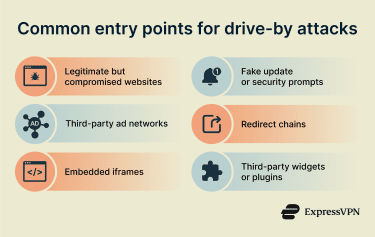
Compromised legitimate websites
One of the most common vectors is a legitimate website that’s been compromised. Attackers may inject malicious code into pages without the site owner’s knowledge, exposing visitors who trust the site and visit it regularly.
Because the site itself is familiar and appears normal, users have little reason to suspect anything is wrong.
Related: List of suspected scam shopping websites
Fake download prompts and updates
Some drive-by attacks display deceptive prompts that appear to be system or software updates after a page loads. In some cases, malicious activity may already have started before the prompt appears. In other cases, user action is required to complete the download (like clicking on a pop-up).
Malicious ads and iframes
Many websites load ads and other embedded elements from outside services. These are often delivered through iframes, which are small embedded windows that allow a page to display content from another source.
Malicious code can be delivered through ads or iframes when a third-party source is compromised or abused. They can also happen when a malicious advertiser is able to serve harmful content through an otherwise legitimate ad network (a process known as malvertising). The resulting ads or iframes show up even when the main website itself hasn’t been hacked.
Because ads and iframes are embedded into otherwise safe pages, users may be exposed while browsing well-known sites. These attacks are harder to notice and harder to trace, since the malicious content comes from a third party.
How to protect yourself against drive-by attacks
Essential device and browser security practices
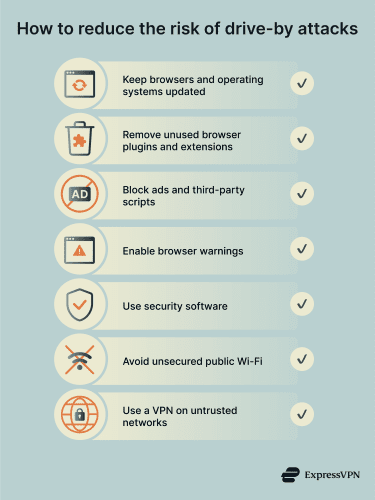
Drive-by attacks are more likely to succeed when outdated software or unnecessary features expand the attack surface. The most effective protections focus on shrinking that surface.
Keep your browser and operating system up to date
Browsers and operating systems are common targets. However, when security flaws are discovered, vendors release updates to fix them. Drive-by attacks often rely on systems that haven’t applied those updates yet.
Remove unnecessary plugins and extensions
Browser plugins and extensions can be helpful add-ons, but each one adds code that runs with access to web content. Historically, plugins like Flash and Java were common drive-by targets because they processed complex content and were slow to receive updates.
Even today, poorly maintained or overly permissive extensions can increase risk. Removing anything you don’t actively use reduces the number of components that malicious content can interact with. For extensions you do keep, it’s worth reviewing permissions and sticking to well-known developers.
Learn more in our guide to Chrome extensions.
Use ad-blocking and script-restricting tools
Many drive-by attacks are delivered through third-party content such as ads or embedded scripts. Ad blockers reduce exposure by preventing many of those elements from loading in the first place, though they can’t prevent drive-by downloads on their own.
Script-restricting tools go further by controlling which websites are allowed to run active code, like JavaScript. These tools can be disruptive at first because some pages rely on scripts to function properly. But they’re effective at stopping the background activity that many drive-by attacks depend on.
Security software and browser-based protections
Security tools don’t only scan files after they’re downloaded. Many tools also monitor activity during browsing and try to catch suspicious behavior as it happens.
On personal devices, antivirus software can block known malicious sites, prevent unexpected downloads, and flag or stop programs that try to run without clear user intent. Antivirus software can be provided by third parties or built into operating systems. For example, Microsoft’s SmartScreen is automatically enabled as part of the Windows Defender security suite.
Most modern browsers also include built-in protections. Features like Chrome’s Safe Browsing or Safari’s Fraudulent Website Warning can warn users before loading pages linked to malware or deceptive downloads, based on regularly updated threat data.
In organizational environments, endpoint detection and response (EDR) systems are used to monitor managed devices for signs of compromise. This includes activity that may follow a drive-by download.
Can VPNs reduce drive-by risks?
Virtual private networks (VPNs) aren’t designed to stop drive-by attacks, so it’s always best to rely on primary defenses like antivirus software. That said, they can help in some cases, such as when you’re connected to unsecured public Wi-Fi.
Public Wi-Fi networks are a security risk because malicious actors on the same network may be able to observe or interfere with unprotected traffic.
Man-in-the-middle attacks
Man-in-the-middle (MITM) attacks attempt to intercept the connection between a target device and the internet. If they’re successful, the attacker might be able to tamper with content before it reaches the device. This could allow them to inject scripts that lead to drive-by downloads.
Encrypted connections make this type of interference far more difficult. A VPN routes internet traffic through an encrypted tunnel, preventing third parties on a shared network from being able to interfere with traffic between a device and a website. This reduces the risk of malicious injections or legitimate content being altered in transit.
Encryption doesn’t stop drive-by downloads if you access a malicious site. However, it goes some way towards limiting one of the methods attackers can use to send you to one.
DNS hijacking
Domain Name System (DNS) hijacking is another type of risk on unsecured public networks. When you enter a URL into a browser, your device sends something called a DNS request to a DNS server. This is a service that translates the URL into the IP address for the website so your browser knows where to go.
If an attacker manages to intercept a connection on public Wi-Fi, they may be able to tamper with DNS requests. This can allow them to redirect the target to a malicious site hiding drive-by downloads.
Some VPNs encrypt and route your DNS requests through their servers instead of the internet service provider’s. This can reduce the risk of malicious redirects on unsecured networks.
It’s worth reiterating that VPNs don’t patch vulnerable software or block malicious scripts served directly by a compromised site. Their role is to protect the connection path, not to replace browser or endpoint protections.
That said, some VPNs also include additional protective measures that can prevent you from accidentally visiting malicious sites. ExpressVPN’s Threat Manager blocks connections to known malicious domains, which can reduce the risk of drive-by downloads.
How to recognize higher-risk websites
You can’t reliably tell whether a site is delivering a drive-by attack just by how it looks. Many attacks are served through pages that appear normal or familiar. That said, some situations are consistently linked to higher exposure risk.
- Unexpected redirects: Pages that automatically send you through multiple web addresses before showing content can be part of redirect chains used to deliver malicious code.
- Immediate download or update prompts: Messages that appear as soon as a page loads, claiming you need to install or update software, are a common sign of deceptive or high-risk behavior.
- Pop-ups or injected ads: Pages reached through pop-ups or intrusive ads are more likely to include abused advertising infrastructure or injected scripts.
- Unusual page behavior: Pages that reload repeatedly, block navigation, open new tabs, or interfere with normal browser controls without interaction deserve extra caution.
Related: How to check if a website is safe
Recognizing the signs of a drive-by infection
Drive-by infections aren’t always obvious. The signs below don’t confirm an infection on their own, but they’re common indicators that something may be wrong and worth investigating.
Immediate symptoms to watch for
Browser redirects or new extensions
Unusual browser behavior is often one of the earliest visible signs. This may include being redirected to unfamiliar sites, seeing your homepage or search engine change, or noticing new browser extensions you didn’t install yourself.
Sudden slow performance
A device that suddenly becomes sluggish, overheats, or struggles with basic tasks may be running unwanted background processes. Malware delivered through a drive-by attack can consume system resources.
That said, slow performance can also have harmless causes, such as pending updates or legitimate apps misbehaving. The key signal is a noticeable change without a clear explanation.
Unknown programs appearing
New programs, services, or background tasks that you don’t remember installing are another warning sign. This doesn’t include normal updates from trusted software you already use. The concern is software that appears unexpectedly or doesn’t clearly belong to anything you recognize.
If you’re unsure what a program is, searching its name online can help you determine whether it’s a legitimate component or something others have flagged as unwanted or malicious.
What to do if you suspect compromise
If you notice one or more of the signs above, the goal is to limit further risk and check the device carefully, without assuming the worst.
If your device is managed by your workplace or school, don’t try to fix the issue on your own. Follow the instructions provided by IT or report the behavior so the device can be checked using the organization’s existing security process.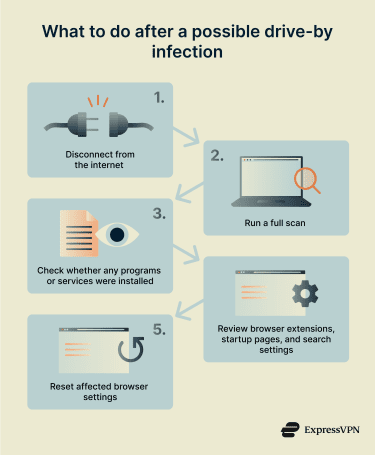
Disconnect from the internet
Disconnecting from Wi-Fi or unplugging the network cable helps stop any ongoing communication between the device and external servers. This can prevent additional downloads or data transmission while you assess the situation.
This step is temporary and is meant to create breathing room while you investigate.
Run security scans and remove suspicious files
Run a full scan using an antivirus program or the device’s built-in security software. This can identify unwanted programs or changes that aren’t immediately visible. Antivirus suites should flag and remove the drive-by download file if it matches a known malware signature or if it’s behaving suspiciously.
Check browser settings and remove unfamiliar extensions
Review your browser’s extensions, startup pages, and search settings. Remove any extensions you don’t recognize or didn’t intentionally install.
Check for changes you didn’t make. This includes a different homepage, a replaced default search engine, or redirects that pass through unfamiliar sites before loading the page you expected. Extensions with generic names or unclear purposes also deserve attention.
If you find changes like these, reset the affected settings and remove the extensions. Restart the browser and confirm the behavior has stopped. If the changes return, the issue may not be limited to the browser and should be investigated further.
FAQ: Common questions about drive-by attacks
What is a drive-by download attack?
A drive-by download attack happens when unwanted or malicious software is delivered automatically as online content loads. It can also occur when the user is tricked into downloading a malicious file.
How do drive-by attacks infect a device?
Drive-by attacks infect a device by exploiting vulnerabilities while content is being loaded, such as outdated software or insecure settings. If no usable vulnerability is present, the attempt usually fails.
Can iPhones or Android phones get drive-by malware?
Yes, it’s possible, but the risk is lower than on desktops, especially when devices are kept up to date. Modern mobile systems isolate apps from each other, restrict what downloaded content can do, and block silent installs by default, which limits how far a drive-by attack can go.
Most successful mobile drive-by attacks rely on outdated operating systems, vulnerable apps, or unsafe settings. On fully updated devices using default protections, drive-by attempts are more likely to fail or be stopped before any malware is installed.
What are the most common signs of a drive-by infection?
Common signs of a drive-by infection include unexpected browser redirects, unfamiliar extensions or programs, and noticeable changes to browser settings. Performance issues or new background activity can also be indicators, though they aren’t proof on their own.
How can I protect my device from drive-by attacks?
Keeping your browser, apps, and operating system up to date reduces most risk. Limiting unnecessary extensions and using built-in security protections also helps reduce exposure.
Does a VPN help reduce the risk of drive-by downloads?
A VPN can only reduce some network-level risks, such as malicious redirects or Domain Name System (DNS) manipulation on unsecured networks. It doesn’t block drive-by attacks on its own or replace browser and system security.
What tools detect or block drive-by attempts?
Browsers can warn you before loading known harmful pages and may block some risky downloads. Antivirus and endpoint security tools can scan files that land on the device and may stop suspicious programs from running.
On work-managed devices, endpoint detection and response (EDR) tools can also help by flagging unusual behavior after exposure, even if the original download wasn’t clearly detected.
Take the first step to protect yourself online. Try ExpressVPN risk-free.
Get ExpressVPN