How to hide your IP address with ExpressVPN


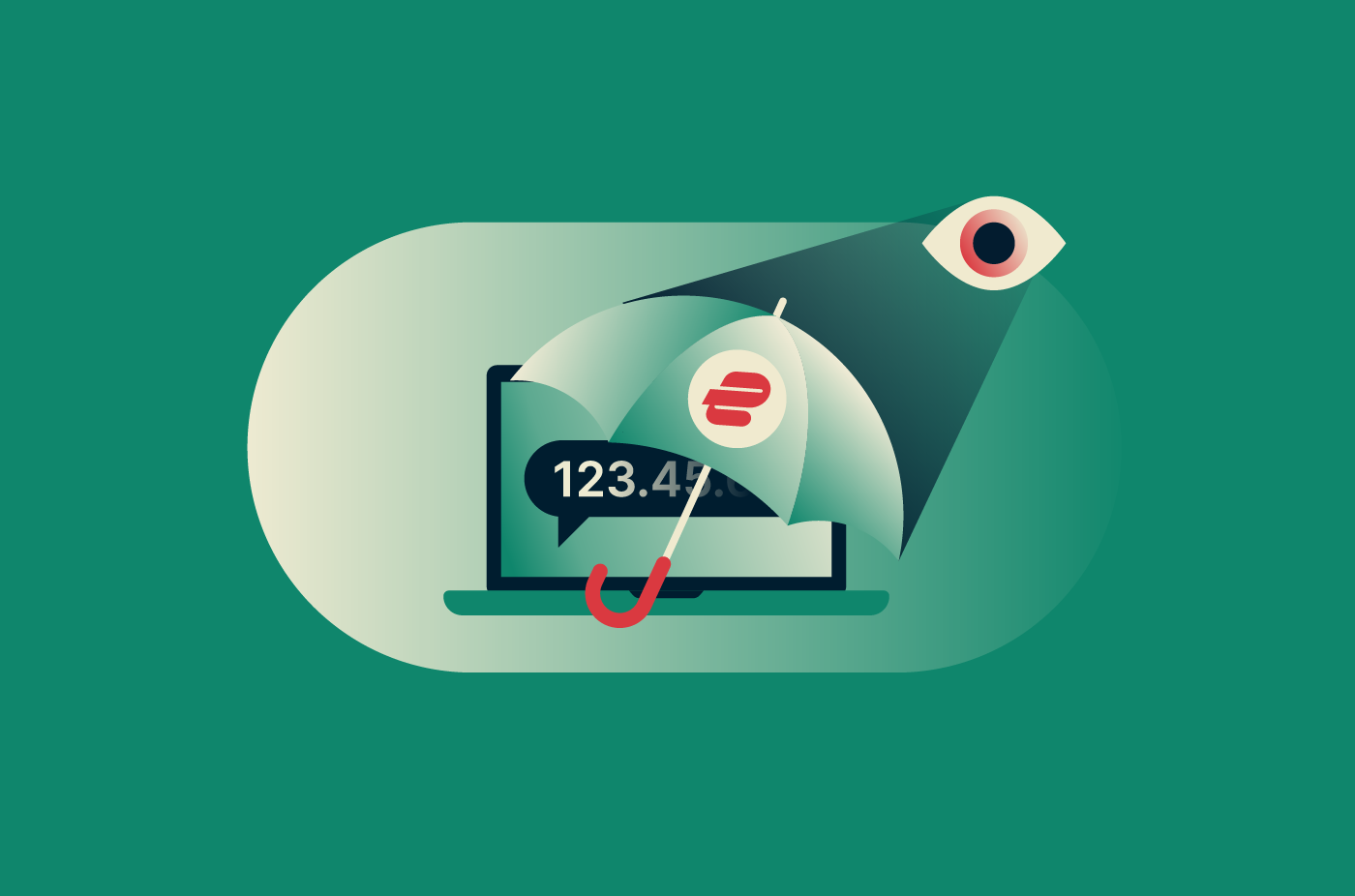
ExpressVPN helps keep your public IP address hidden from the websites and online services you connect to. Knowing it won’t give someone access to your device, passwords, messages, or exact home address, but it can reveal clues about your location and internet connection. Websites can also use it alongside other information to recognize or track a connection.
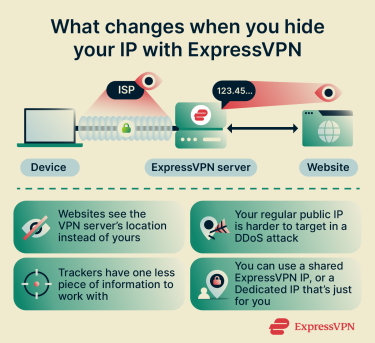
When you connect to an ExpressVPN server, websites and services see the VPN server’s IP instead of the one assigned by your internet service provider (ISP).
How masking your IP address with ExpressVPN increases your security and privacy
Websites and other third parties use your IP in various ways, so what you gain by hiding it depends on the situation. Here are some of the key benefits.
Helps prevent location tracking
IP geolocation can estimate a connection's country, region, or city and identify the ISP or network behind it. It generally doesn't pinpoint a specific street address the way GPS can (although its accuracy varies), but it can still give a general indication of where a connection is located.
When you connect to an ExpressVPN server, IP lookups return the VPN server’s location instead of the area linked to your regular public IP. You can choose a VPN server anywhere in the world (ExpressVPN has servers in 214 locations across 113 countries).
Makes IP-based DDoS targeting harder
A distributed denial-of-service (DDoS) attack floods an IP address with traffic until the connection slows down or stops working. To aim one at your home connection, an attacker generally needs your public IP address.
Also, some audio/video calling apps and multiplayer games use direct peer-to-peer connections, which can expose your IP address to other participants. With ExpressVPN connected, those participants see the VPN server’s IP address instead.
Reduces IP-based tracking
An IP address can be one of several signals that advertisers and analytics services use to recognize and track visits. Hiding your regular public IP removes that signal from connections routed through the VPN.
Other signals still work through the VPN, though. Cookies, signed-in accounts, advertising identifiers, and browser characteristics can all help recognize a person or device without relying on an IP address. The Federal Trade Commission (FTC) explains how websites and apps collect information using a mix of these technologies.
ExpressVPN's tracker blocker, part of its Advanced Protection suite, stops browsers and apps from connecting to known tracking domains on its blocklists.
Set up ExpressVPN to protect your IP address
Protecting your IP address with ExpressVPN is a simple process. The screenshots below use the ExpressVPN app for Mac. Other apps may look different, so use the linked instructions if you need platform-specific steps.
Install the app on the devices you use to browse
Install ExpressVPN on any device where you want traffic to go through the VPN. Apps are available for Windows, Mac, Linux, Android, iOS, and other supported devices and platforms.
On Windows, Mac, and Linux, download the app from the ExpressVPN website. On Android and iOS, install it from Google Play or the App Store. Each platform's download and installation steps are covered in detail in ExpressVPN's setup guides.
Connect to a VPN server
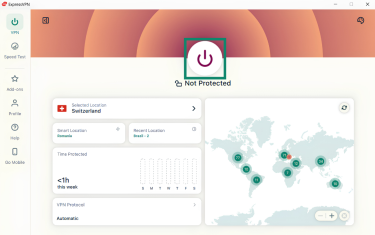
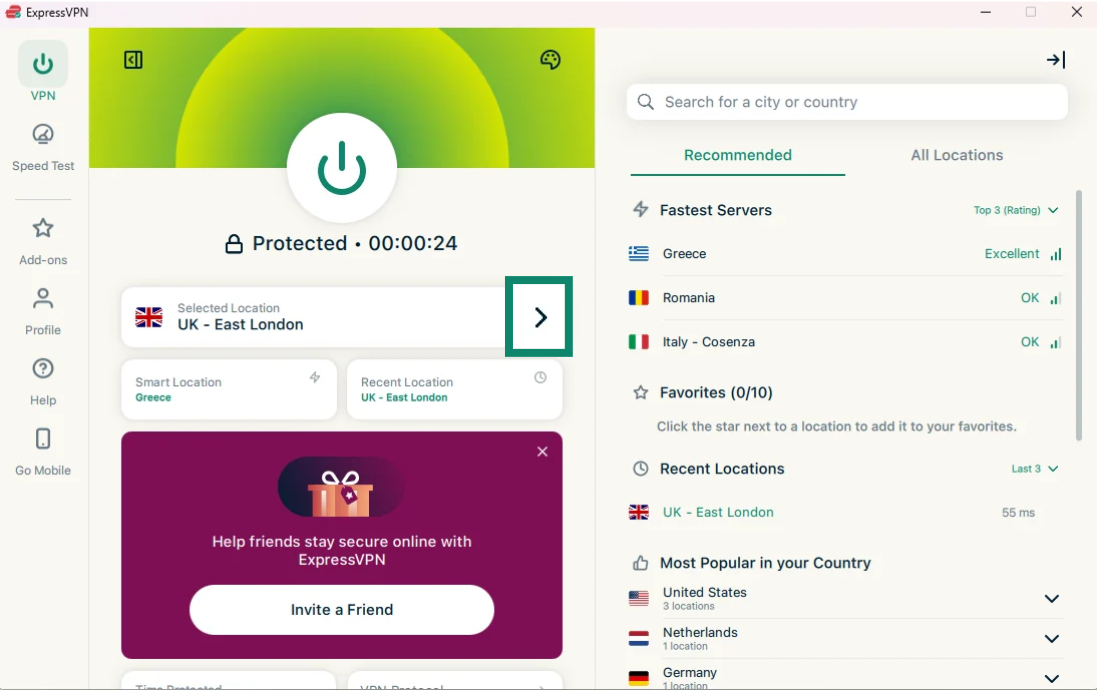
- Click the power button to connect to a server. By default, ExpressVPN will automatically connect you to the optimal server based on factors such as download speed, latency, and distance.
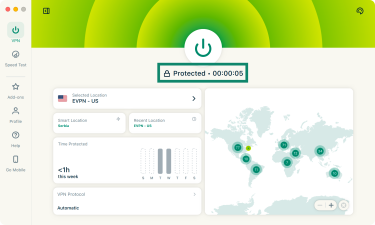
- Once connected, you should see the Protected status, confirming that you’re connected.
- If you want to choose a different server from the one ExpressVPN automatically selects, click the arrow next to Selected Location to open the full list of available locations. Select the server you want, then wait for the Protected message to confirm the connection. For faster speeds, a nearby server is generally the best choice.
Check your public IP address
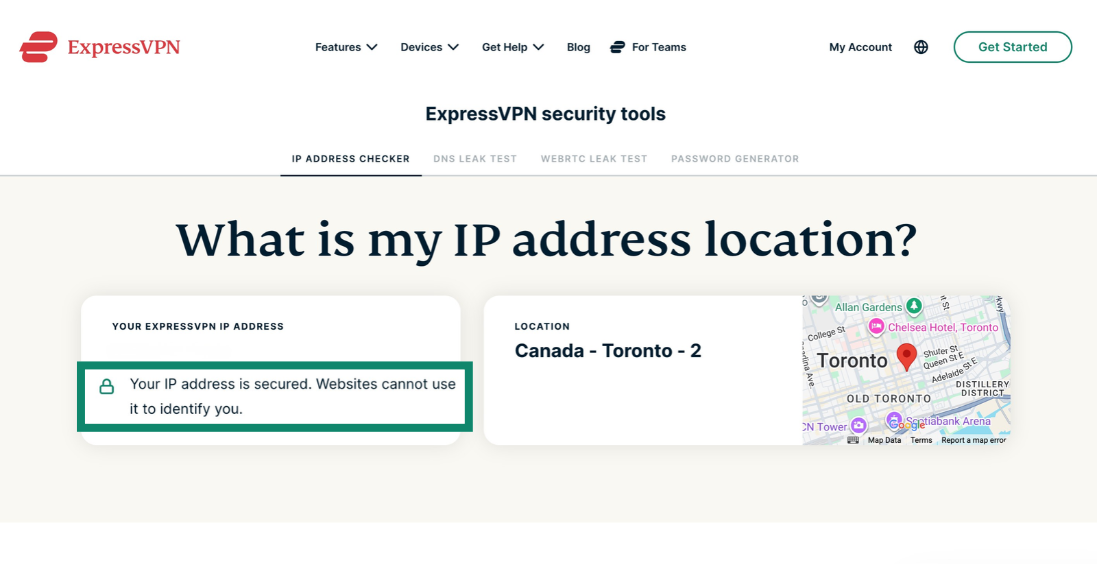
Open the ExpressVPN IP Address Checker after connecting. The IP shown there should be different from your regular public IP, its location should correspond with the VPN location you selected, and the status should show as secured. If your regular IP still appears, make sure the app shows you’re connected and try reconnecting. If the problem continues, follow ExpressVPN’s connection-checking steps.
Check your Internet Kill Switch settings
The Internet Kill Switch keeps your regular IP hidden if your VPN connection drops. Without it, your device would send traffic over your regular connection until the VPN reconnects, and the sites you use would see your regular public IP. The kill switch blocks internet traffic during that gap instead. It's on by default in ExpressVPN's desktop and mobile apps, but if you want to check it’s enabled, here’s how:
- Click the Profile tab.
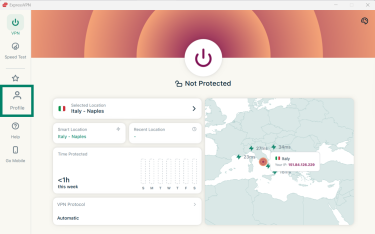
- Under Settings, click Internet Kill Switch.
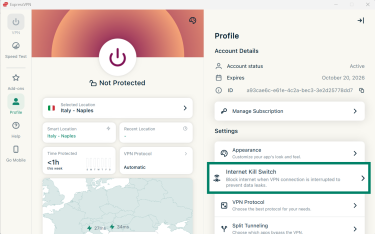
- Make sure Enable when connected is active. For stricter protection, turn on Enable at all times as well. This feature blocks all internet traffic unless you’re connected to the VPN.
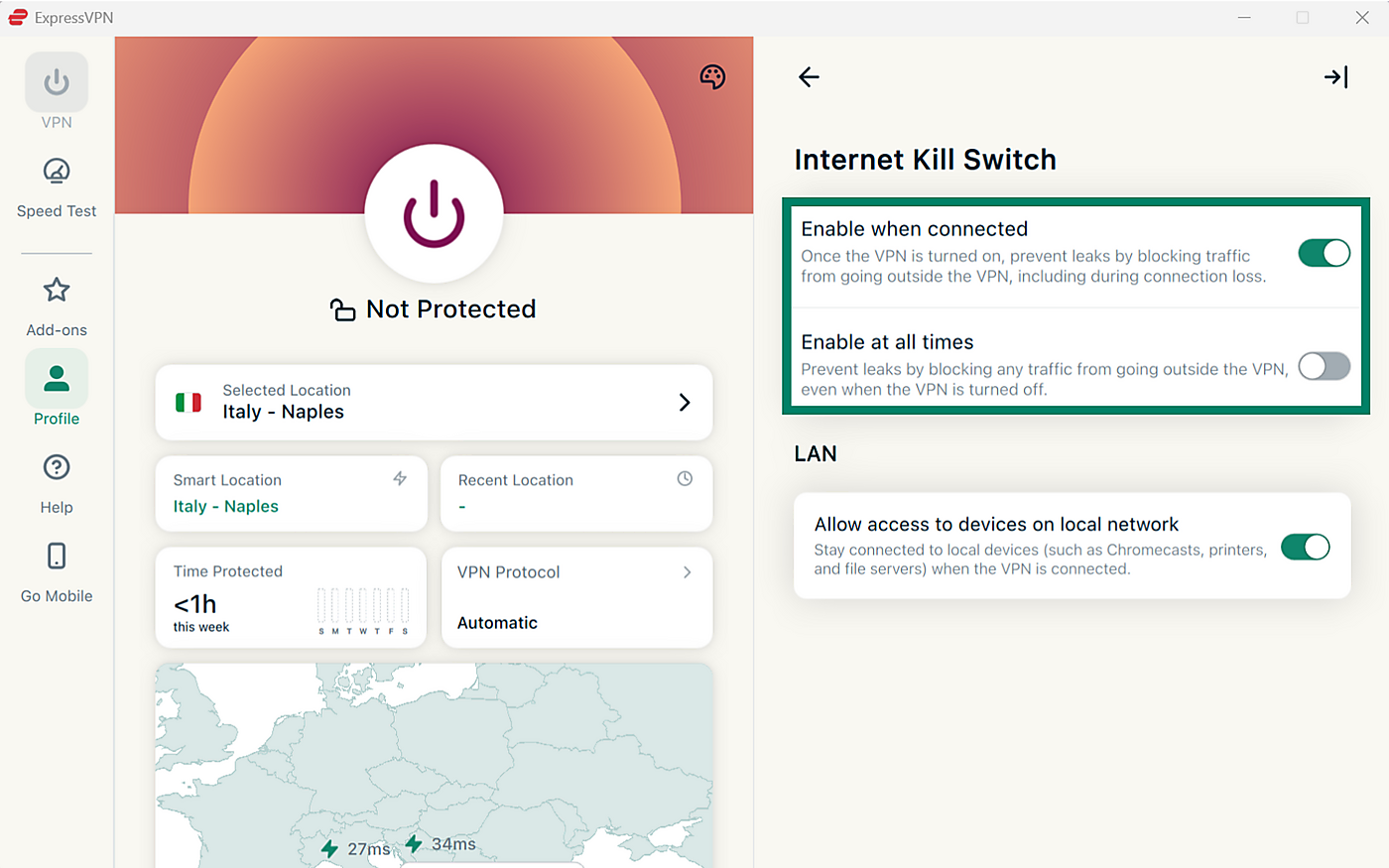
You can find the full setup and available options in the Internet Kill Switch guides for desktop, Android, and iOS.
Check your split tunneling settings
Split tunneling lets you choose apps or websites that don't use the VPN. Anything you exclude connects through your regular internet connection, so it shows your regular public IP. Check your settings to make sure only the apps and websites you intended are excluded:
- Click the Profile tab and select Split Tunneling.
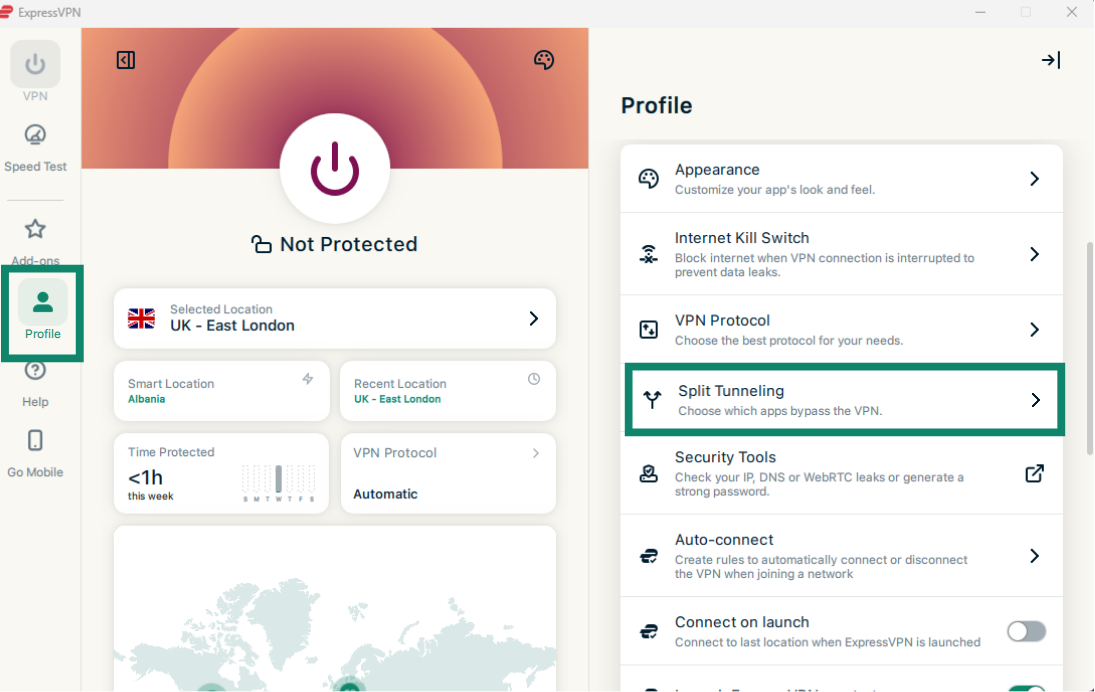
- If you’ve enabled the feature, the switch next to Split tunneling will be turned on.
- If you want an app or IP to use your regular IP address, click Bypass VPN. Otherwise, select Only VPN. If you don’t need split tunneling, leave it turned off so all your traffic goes through the VPN.
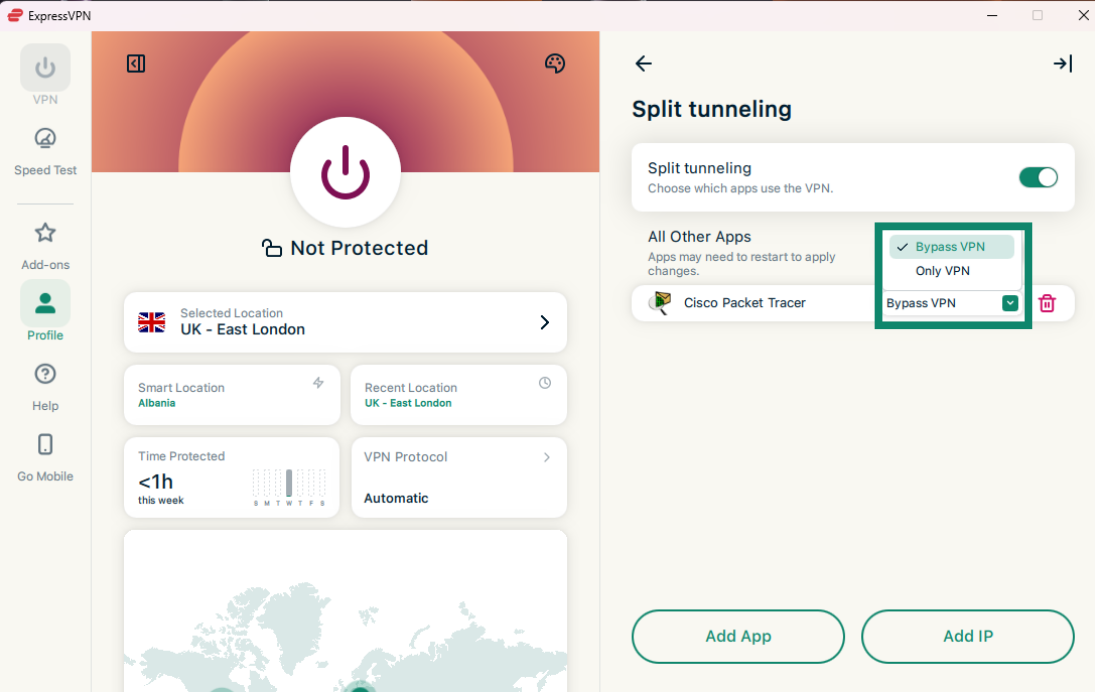
See the device-specific split tunneling guides for desktop, Android, and iOS if you need help checking or changing your settings.
Set up a Dedicated IP with ExpressVPN
You can set up a Dedicated IP using the ExpressVPN app. This can be useful when you need a consistent IP address, such as when accessing a network that uses IP whitelisting.
Dedicated IP is included with the Express Pro plan and is available as a paid add-on with the Basic and Advanced plans. It isn't available with subscriptions purchased through the Apple App Store or Google Play Store.
Here’s how to set up a dedicated IP on the desktop app. You can check our Dedicated IP support guide for detailed instructions for other platforms.
- Click the Add-ons tab. Then, under Privacy and Security, click Dedicated IP.
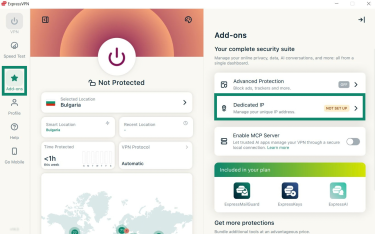
- Select Set Up Dedicated IP.
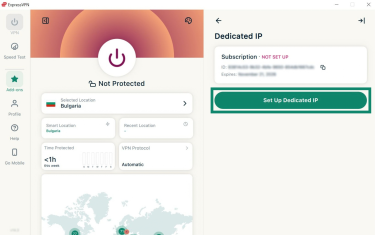
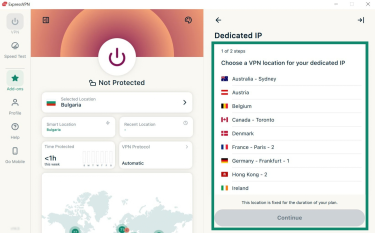
- Pick a location and click Continue.
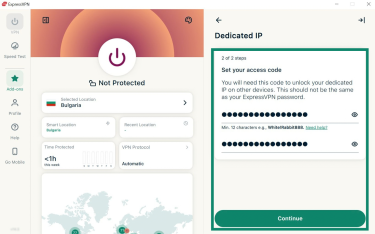
- Set an access code of at least 12 characters, enter it again to confirm, and click Continue.
- Click Copy Access Code, save the code somewhere safe, then click Done.
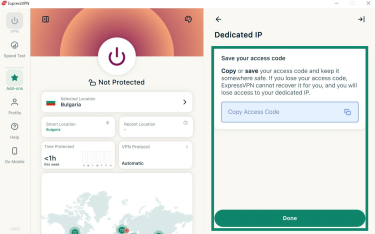
- Return to the home page, select the server location widget, pick the Dedicated IP location, and click the Connect button.
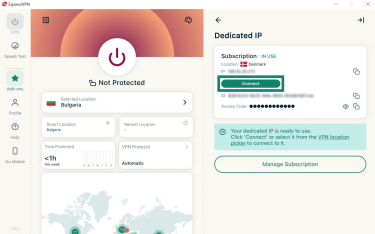

Important: You’ll need your access code to unlock the Dedicated IP on another device. If you still have the Dedicated IP unlocked on another device, you may be able to reveal the code there. ExpressVPN can’t view or retrieve it at any point.
Why trust ExpressVPN to protect your IP address?
Using a VPN means sending traffic through the provider’s servers, so it’s reasonable to look at what happens to that traffic and what information the service keeps. Here are some of the ways ExpressVPN protects your IP and your privacy online:
- Your traffic is encrypted: Data traveling between your device and the VPN server is encrypted, which keeps your ISP or local network from inspecting your traffic.
- ExpressVPN servers run on RAM: Our TrustedServer technology uses volatile memory rather than traditional hard drives, meaning that data held in RAM is wiped each time the server restarts.
- Your browsing activity isn’t logged: As stated in our Privacy Policy, ExpressVPN doesn't log browsing history, traffic destinations, or Domain Name System (DNS) queries and doesn't store connection logs such as your original IP, the VPN IP you were assigned, connection timestamps, or session duration.
- Independent reports are public: ExpressVPN’s Trust Center publishes independent audits assessing its no-logs policy, server technology, apps, and security.
- Dedicated IP assignment is separated from your account: Zero-knowledge IP address allocation and blind tokens let ExpressVPN assign you a Dedicated IP without linking that address to your account.
Want to keep your real IP address private?
ExpressVPN replaces your regular public IP address with a VPN server's IP, helping prevent websites and online services from using it to estimate your location or track your activity.
Hide your IP address with ExpressVPN
Try ExpressVPN with a 30-day money-back guarantee for new users.
FAQ
Can a website see my IP address?
Yes, websites can see your public IP address, because they need it to send data back to your device. With ExpressVPN connected, websites see the VPN server's IP instead of the one your ISP assigned you.
Can someone watch what I do online with only my IP address?
No, someone can't watch what you do online with only your IP address. Your ISP and whoever runs your local network are in a better position to see your activity, and ExpressVPN's encryption stops them from reading the traffic inside the VPN tunnel.
Does ExpressVPN completely hide my IP address?
ExpressVPN hides your IP address from websites and services you access through the VPN, but it doesn't hide it from everyone. Your ISP still knows the IP address it assigned to you, and any apps or sites you exclude from the ExpressVPN tunnel with split tunneling continue to use your regular connection.
How can someone get your IP address?
Websites and online services can see the public IP address used to connect to them. Whether another person can see that IP depends on the service and how it handles connections between users. Some calling apps and multiplayer games connect users directly, which can show your IP to other participants. Traffic routed through ExpressVPN uses a VPN IP instead of your regular public IP.
What to do if someone has your IP address?
If someone has your IP address, there's usually no need to panic, since an IP alone doesn't give anyone access to your device or accounts. Make sure your router runs the latest firmware and has a strong admin password, and turn off remote access or port forwarding for services you don't use. For DDoS attacks or harassment, contact your ISP, which may be able to change your IP or help stop the attack.