What to do if your email is hacked: Quick steps to follow


If your email account has been hacked, acting quickly can limit the damage. Email is often the reset point for banking, shopping, social media, and work tools, so a takeover can affect other accounts linked to your email.
This guide outlines how to confirm a hack and regain control, and walks you through step-by-step instructions to secure your account.
How do I know if my email has been hacked?
Email account compromises often show up through noticeable changes. If you see any of the signs below, your account may be at risk:
- You can’t log in: One of the clearest signs of a hack is suddenly being locked out of your email. If your password no longer works, a hacker may have changed it and blocked your access.
- Unexpected password reset requests: Receiving password reset emails you didn’t request may mean someone is trying, or has already managed, to access your account.
- Emails you didn’t send or missing emails: Messages appearing in your sent folder that you don’t recognize, or important emails disappearing, can indicate unauthorized activity.
- New contacts, folders, or rules you didn’t create: Hackers may add contacts, create folders, or set up inbox rules to hide their activity or redirect messages.
If you’ve noticed any of these signs, the next step is to review your account activity and settings in more detail.
How to check for suspicious activity
Email hacks aren’t always obvious at first. In many cases, the only clues are small changes inside the account that are easy to miss unless you know where to look.
Reviewing login activity
Most email providers allow you to review recent login activity, including the times, locations, and devices used to access your inbox. Check your account’s login activity or security log for any sign-ins that weren’t you. If you notice anything strange, it’s a good idea to change your password immediately.
We’ll use Gmail as the main example for steps and settings throughout this article. However, other major email providers offer similar security features. Here are the steps to follow:
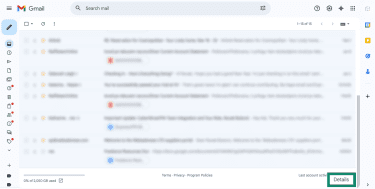
- Go to your Gmail inbox and scroll to the bottom of the page. Click the Details option in the bottom right corner.
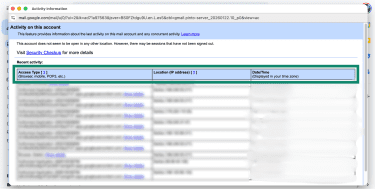
- In the Activity on this account pop-up that opens, you can see the recent logins for your account. You can check where each login happened under the Location (IP address) column and when it occurred under the Date/Time column. If you notice anything unusual or unfamiliar, you should change your password right away and secure your email account.
Many services also send alerts for unusual login attempts. For instance, Google issues a Critical Security Alert email when it blocks a suspicious sign-in or detects changes to sensitive settings.
Checking sent mail, trash, and deleted items
Next, check your email folders for anything unusual. Start with your Sent folder to see if any messages were sent that you didn’t write. When hackers gain access to an email account, they sometimes send phishing messages to all contacts, because messages coming from a familiar email address are more likely to be trusted by friends or colleagues.
You should also review the Trash or Deleted Items folder. Bad actors may delete emails they’ve opened in the compromised account to hide their activity, especially security notifications and password reset messages, so the user doesn’t notice them.
Emails from banks, social media platforms, or email providers about account changes or login activity found in the Trash or Archive folders may indicate an attempt to conceal account activity.
Checking forwarding, filters, and auto-replies
Cybercriminals often tweak forwarding, filters, and auto-reply settings to maintain access to a victim’s communications even after they regain control. You can check if any changes have been made in your account by following these steps:
- Open your Gmail inbox and select the Settings icon at the top.
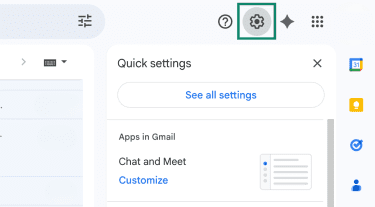
- Next, click See all settings.
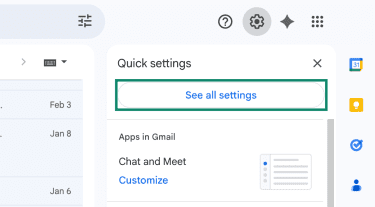
- From here, you can review your forwarding rules, filters, and auto-reply settings.
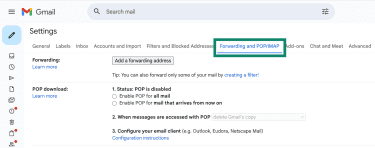
- To check forwarding, click Forwarding and POP/IMAP. There shouldn’t be email addresses you don’t recognize. If you see an address you don’t recognize, make sure to remove it.
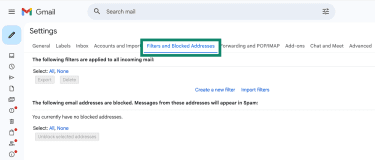
- To see your filter settings, select Filters and Blocked Addresses. Look for filters that move or delete emails containing words such as “verification” or “password reset,” or that send messages from certain senders directly to the Trash folder.
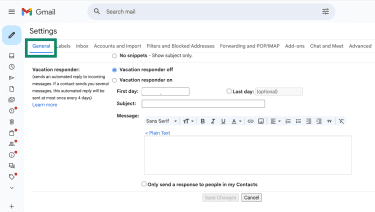
- To see your auto-reply rules, select General and scroll to Vacation responder. Hackers have been known to insert phishing links into compromised accounts’ signatures or set an autoreply that sends malicious links or attachments.
What should I do if my email is hacked?
Change your password immediately
If you still have access to your inbox, updating your password is the quickest way to limit further unauthorized use. Ideally, do this after running an antivirus scan on your device to ensure no malware is spying on you (hackers sometimes infect computers with keyloggers that record keystrokes).
When creating your new password, don’t reuse any old passwords and don’t use the same password from any other account. Choose a long password that isn’t easy to guess.
Sign out of all devices and sessions
After changing your password, you should sign out of your email account on all other devices. Most email services have a one-click option to log out of all sessions or devices. For example, Google’s account settings let you view all devices currently signed in and sign them out remotely.
Here’s where you can find those options in Gmail:
- Go to your Google Account and click on Security & sign-in.
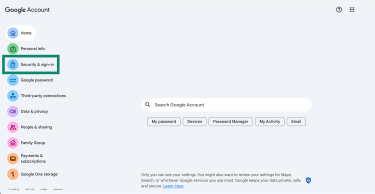
- Scroll down to the Your devices section and select Manage all devices.
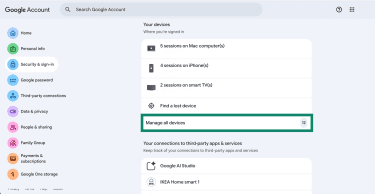
- If you see a device you don’t recognize, select it, and then pick Sign out. You may have to sign in again for this step.
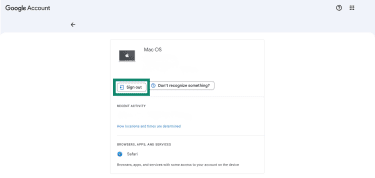
On some services, changing your password automatically invalidates other sessions, so any device or app using the old credentials is disconnected. However, it’s still important to verify that no unfamiliar devices or sessions remain active.
Enable two-factor authentication (2FA)
Once you’ve updated your password, the next critical step is to turn on two-factor authentication (2FA) on your email account if it isn’t already active. Using 2FA or multi-factor authentication (MFA) adds an extra layer of security during login. After entering the password, a second verification step is required, such as entering a one-time code sent to a phone, generated by an authentication app, or approving the login on a trusted device.
If someone obtains the password, this makes it much more difficult to access the account.
Update recovery email and phone number
Hackers may change recovery details when compromising an account and replace the backup email address or phone number with their own contact information. Here’s how to check and update your recovery info in your account settings in Gmail:
- Go to the Google Account website, select Security & sign-in from the left-side menu, and click on Recovery phone and Recovery email.
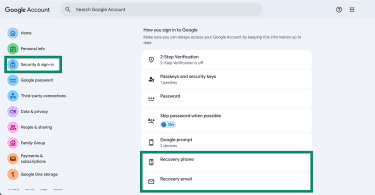
- Google will show the current recovery information under each. If you see information you don’t recognize, you can use the Trash icon to delete it.
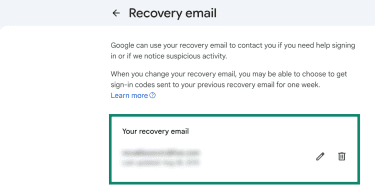
You should also consider updating these recovery details if they’re outdated, or add them if you don't have a backup method set up.
Reset security questions (if available)
If the email account uses security questions, those answers should no longer be considered secure. Anyone who gained access to the account may have viewed or changed them. In some cases, answers can also be guessed using personal information found in emails or on social media.
When updating security questions in the account settings, avoid real or easily discoverable answers. Instead, treat each response like a secondary password and choose answers that are unique and difficult to guess.
Remove unknown devices and third-party app access
Most email accounts keep a list of all devices currently or recently logged in to the account, along with third-party apps that have permission to access the account.
Over time, external apps, such as email clients, calendar tools, or browser extensions, may have been granted access to read or manage email. If an account was compromised, an attacker may have authorized a malicious app to maintain access without repeatedly signing in.
Here’s how to check and remove devices and third-party app access in Gmail:
- In the Google Account page, log in and click Security & Sign in. Scroll to Your connections to third-party apps & services and pick See all connections.
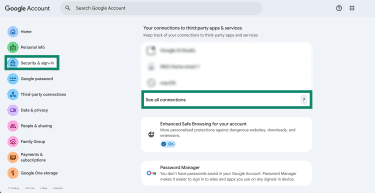
- You’ll now see a list of apps and services that have a connection with your account. If you find any you haven’t personally added or approved, click on it.
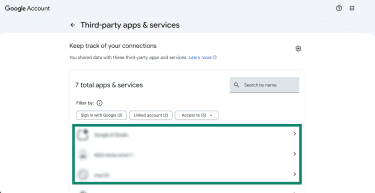
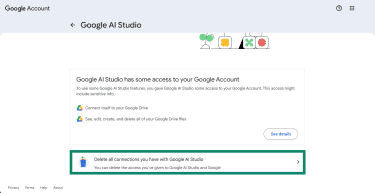
- To remove this connection, click Delete all connections you have with.
Review recent changes
Some email providers maintain a log of security-related events, such as password changes, recovery email updates, or 2FA being enabled or disabled. You can usually find this in your account’s security or history settings.
Here’s how to check these entries in Gmail:
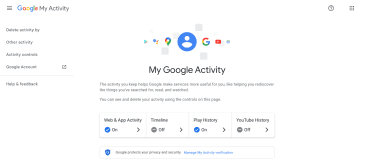
- Visit MyActivity.Google.com and enter your Google Account credentials if you’re not already logged in. You’ll land on the My Activity page.
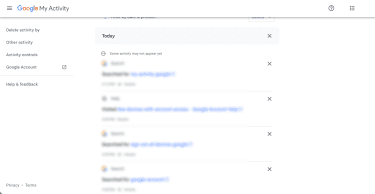
- Scroll down and you’ll see your Google Account activities. If you see anything strange, change your password immediately. This is for informational purposes only: using the X button will simply delete a specific activity’s history from your account.
Another helpful step in securing your email account is to consider having your provider perform an official security checkup if they offer one. Google’s Security Checkup tool, for example, guides you through reviewing recovery info, connected devices, 2FA settings, and more.
On Outlook, you can review your information on the Microsoft Account Security page, and if you’re using Yahoo Mail, you can check details on the Account Security page.
How to monitor for further hacking attempts
Security isn’t a one-time fix. Ongoing monitoring helps detect suspicious activity early and reduces the risk of repeated compromise.
Set up login alerts and recovery notifications
Sign-in and settings-change notifications usually depend on the recovery details tied to the account. Confirm the recovery phone number and backup email are correct and accessible, so warnings about new logins or sensitive changes actually reach you.
Review security activity regularly
Make it a habit to periodically audit your own account security. Every so often (once a month or at least a few times a year), go into your email account settings and review active devices, recent login history, and authorized apps; essentially the same checks you did when you suspected a hack.
Google users can visit the My Activity website, which shows any online activity connected to your Google Account. If you’re using Outlook, you can find similar information on the Account activity page or the Yahoo Account security page if you’re using Yahoo.
Another aspect of staying secure is keeping your account recovery information current. Periodically verify that your backup email and phone number are up to date. Also, keep your devices secure: ensure your computer and phone have the latest security updates and antivirus protection.
Spot phishing and fake login pages
Phishing messages are designed to get you to click fast, share details, or log in somewhere. They often look legitimate, but a few patterns show up repeatedly, whether it’s “send-to-everyone” spam or more tailored approaches like spear phishing and clone phishing.
Common signs a message may be phishing:
- It creates urgency or fear: “Account locked,” “payment failed,” “security alert,” or “act now” language meant to push a rushed click.
- It asks you to log in or verify details: Especially when the message includes a button or link to “confirm” your account, password, or billing info.
- The sender address looks slightly off: Extra characters, misspellings, or a different domain than the real company uses.
- The link destination doesn’t match the brand: Hover (or press and hold on mobile) to preview the URL, and watch for look-alike domains.
- It sounds unusually specific or personal: When a message references your role, workplace tools, colleagues, or recent activity to feel “legit,” that’s a common spear phishing tactic.
- It looks like a real email you’ve seen before: If a “shipping update,” “invoice,” or “password reset” message seems familiar but the links or attachments feel off, it may be clone phishing.
- It’s unexpected in context: A password reset you didn’t request, a login alert from a device you don’t recognize, or a file you weren’t expecting.
- It tries a second channel to pressure you: A follow-up text or phone call pushing you to “verify” something immediately.
One reliable rule: legitimate companies don’t ask for passwords by email, text, or an unsolicited phone call. If a message asks for a password or login code, treat it as a scam and go directly to the company’s website or app instead of using the link.
FAQ: Common questions about what to do if your email is hacked
Should I delete my email if it was hacked?
In most cases, no. A compromised email account can usually be secured by changing the password, enabling two-factor authentication (2FA), reviewing recovery details, and removing unknown devices or apps. Deleting the account should be a last resort, especially if it’s tied to banking, subscriptions, or important services.
How can I prevent my email from being hacked?
Use a strong, unique password that you don't reuse elsewhere, and turn on two-factor authentication (2FA). Be cautious with links and attachments in emails, especially from unknown senders. Avoid using unsecured Wi-Fi networks, keep your recovery options up to date, and consider using a password manager to safely store credentials.
What to do if someone resets my password via email?
Act immediately. Secure the email account first by changing its password and enabling two-factor authentication (2FA). Then check the inbox and trash for password reset confirmations from other services such as banking, social media, and shopping accounts. Reset passwords on any affected accounts and review recent activity for unauthorized changes.
How often should I change my email password?
There’s no need to change it on a strict schedule if it’s strong and unique. However, it should be changed immediately if there’s any sign of suspicious activity, if it’s been reused elsewhere, or if a data breach affects a service where that password was used.
What happens if a hacker gets your email address?
Simply knowing an email address isn’t enough to access the account. However, it can lead to phishing attempts, spam, or password reset attacks. The real risk begins if the password is weak, reused, or exposed in a breach.
Who do I contact if my email is hacked?
Start with your email provider's official support channels. If the account is tied to your employer or school, notify their IT team. If the breach involves identity theft or financial loss, consider reporting it to local authorities or a national fraud reporting center.
What is the first thing you do when you get hacked?
Change your password using a secure device. If you're locked out, go through the provider's account recovery process. Once you're back in, enable two-factor authentication (2FA), review account settings for unauthorized changes, and scan your devices for malware.
Take the first step to protect yourself online. Try ExpressVPN risk-free.
Get ExpressVPN