What is a personal hotspot, and how does it work?


A personal hotspot turns a smartphone into a portable internet access point, allowing other devices to get online through it. This guide explains how it works, the main hotspot options, how to set it up on iOS and Android, and what to expect in terms of costs, performance, and limitations.
Personal hotspot explained
A personal hotspot is a tethering feature that lets a smartphone share its internet connection, usually cellular data, with other devices, most commonly by creating a Wi-Fi network that they can join. Its core purpose is to provide a portable, controlled way to get devices online when Wi-Fi is unavailable or unsuitable.
How does a personal hotspot work?
When a personal hotspot is enabled, the phone shares its connection by creating a Wi-Fi network that nearby devices can join. Like other Wi-Fi networks, it most commonly appears with a network name, often shown as a Service Set Identifier (SSID), and typically requires a password to connect, depending on the device’s security settings.
Once connected, the phone passes internet traffic between the connected device and the mobile network, which is why it's commonly described as acting like a small router.
Practical limits vary. Many phones can support multiple connected devices, but the maximum number depends on the phone model and carrier settings. As more devices share the same connection, speeds can drop, especially during high-traffic activities like video calls, large downloads, or streaming.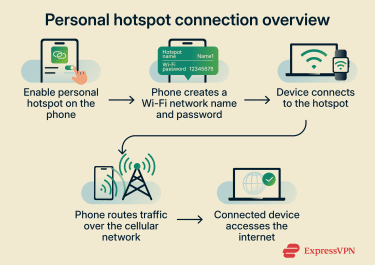
Is a personal hotspot free to use?
Turning on the hotspot feature generally doesn’t incur a separate operating-system charge; however, some mobile carriers may charge extra. Still, hotspot usage typically counts against the phone’s cellular data plan.
Mobile carriers may also handle hotspot data differently across plans. Some plans include a hotspot allowance, while others limit hotspot use, reduce hotspot speeds after a threshold, or require hotspot access to be enabled on the account.
A hotspot can still appear as a Wi-Fi option for nearby devices, but reliable internet access depends on cellular service being available at the phone’s location. If the hotspot option is missing or won’t activate, a common reason is carrier or plan restrictions.
Learn more: If you’d rather connect without using mobile data, here are a few legit ways to get free Wi-Fi from anywhere.
What is tethering, and how is it different?
These terms are often confused. Tethering is the general term for sharing one device’s internet connection with another, and a personal hotspot is a common form of tethering where other devices connect to the phone over Wi-Fi to use its cellular data connection.
Here’s a quick look at different tethering methods, other than Wi-Fi tethering (personal hotspot):
- USB tethering: A phone shares its internet connection through a physical USB cable to a computer. This cable is simply the connection method, while the phone remains the internet source.
- Bluetooth tethering: A phone shares its internet connection over Bluetooth after the devices are paired. In this setup, the connection runs over Bluetooth rather than Wi-Fi.
Types of hotspots and tethering options
A hotspot can describe different ways to access or share the internet. The sections below separate the most common hotspot types and closely related tethering concepts.
Mobile hotspots
A mobile hotspot is a portable internet source that connects to a cellular network and shares that connection with nearby devices. This category includes a phone’s personal hotspot and dedicated hotspot devices.
Both typically provide a local Wi-Fi network that nearby devices can join, using cellular data as the upstream internet connection. There are two common types:
- Smartphone hotspot (personal hotspot): A phone shares its cellular data connection with other devices, most commonly by broadcasting a Wi-Fi network. Because it's built into iOS and Android, it's often the simplest way to share a connection in the moment.
- Dedicated hotspot device: A separate, pocket-sized device with its own SIM and data plan that is designed specifically for hotspot use. Mobile Wi-Fi (MiFi) is often used as a generic label for this kind of portable hotspot device, even though it originated as a brand name.
Because access is controlled by the device owner, mobile hotspots can typically be more controlled than open public Wi-Fi, as fewer unknown users can join by default. However, security still depends on configuration, especially using a strong password and keeping the network closed.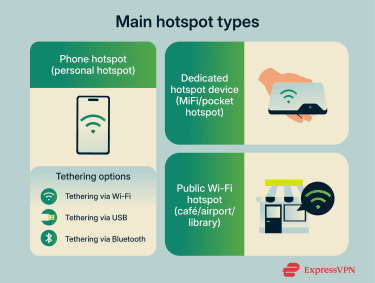
Public Wi-Fi hotspots
Public Wi-Fi hotspots are networks offered in places like cafés, airports, hotels, libraries, and campuses. They broadcast internet access over Wi-Fi for many users in range.
Some public networks use captive portals, which display a browser page that prompts users to accept terms, sign in, or enter a code before granting full access.
Convenience comes with trade-offs. Many public networks are open or use shared credentials, making it harder to know who else is connected (security and setup are dependent on the venue). Performance can also vary widely when many people are using the network at the same time.
5G and dedicated hotspot devices
For frequent hotspot use, a dedicated hotspot device can be more practical than relying on a phone every time. These devices are built for sharing data across multiple devices and for longer sessions, without tying up a phone’s battery and notifications.
Compared to a phone hotspot, dedicated devices often offer:
- Better sustained hotspot use across multiple connected devices, since hotspot sharing is the core purpose of the hardware.
- Longer standalone battery life, so hotspot use doesn’t depend on draining a phone.
- More plan flexibility in some setups, since the hotspot can have its own SIM and data plan rather than using a phone’s allowance.
Many newer models support the fifth generation of mobile networks (5G), which is designed to deliver higher speeds and lower latency than earlier generations in supported areas. In practice, results still depend on coverage, signal quality, network congestion, and any plan limits on hotspot data.
Key specs that typically matter for dedicated hotspots include supported network generation (4G/5G), the number of devices supported, and how the carrier plan treats hotspot usage.
Learn more: Read our article about a travel router.
How to enable a personal hotspot
On both iPhone and Android, setting up a personal hotspot follows the same basic flow: your phone uses its cellular connection to create a Wi-Fi network that other devices can join. Before you start, make sure mobile data is on and you have a working signal, since your hotspot can only share the connection your phone already has.
Step-by-step guide for iPhone
Enabling a personal hotspot on an iPhone (or a cellular iPad) is usually quick, and you can do it directly from the Settings:
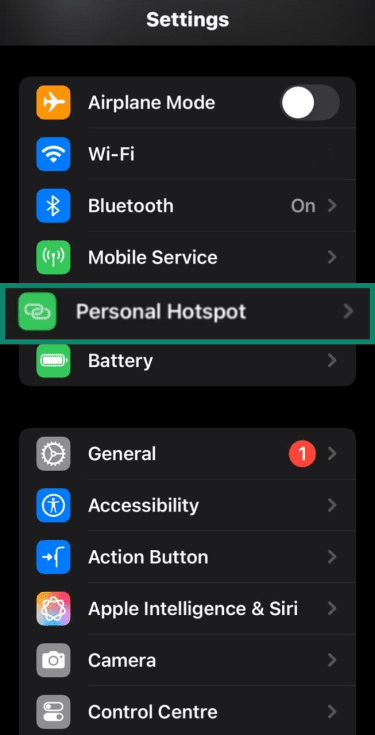
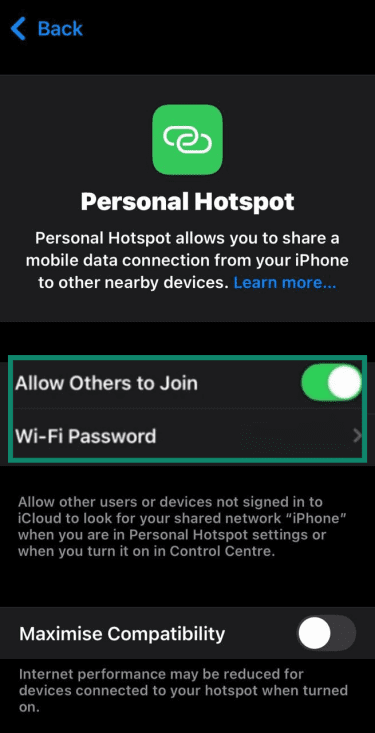
- Open Settings and tap Personal Hotspot.
- Toggle on Allow Others to Join, then tap Wi-Fi Password.
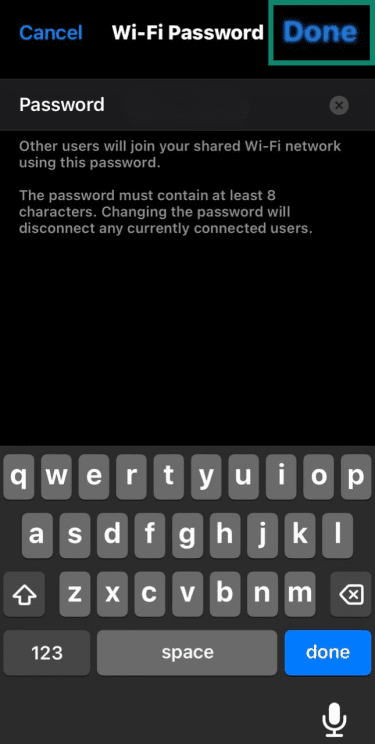
- If setting up a personal hotspot for the first time, enter the password (minimum eight characters) and tap Done.
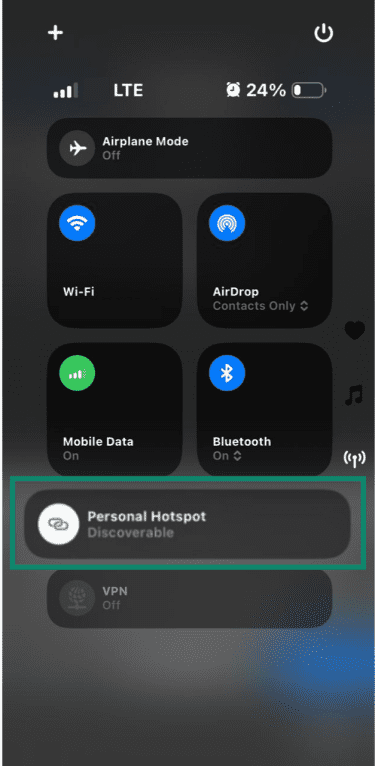
- Finally, pull down from the top-right corner to open Control Center, confirm Personal Hotspot is on, then set it to Discoverable (this step is optional).
Step-by-step guide for Android
Hotspot settings can vary by Android device and manufacturer. The steps below use a Google Pixel as an example, but similar options are typically found in the same locations on most Android phones.
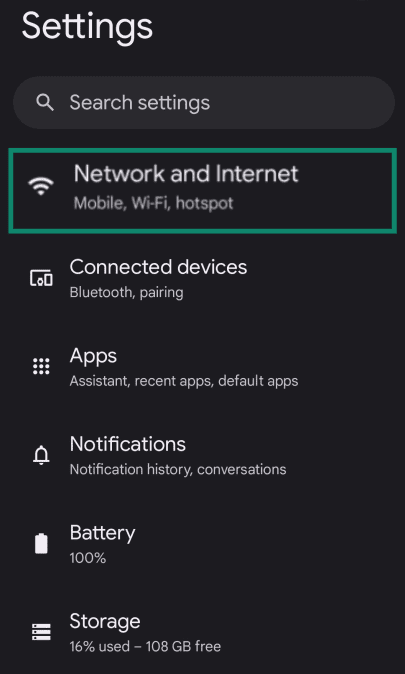
- Open Settings and tap Network and Internet.
- Tap Hotspot and tethering.
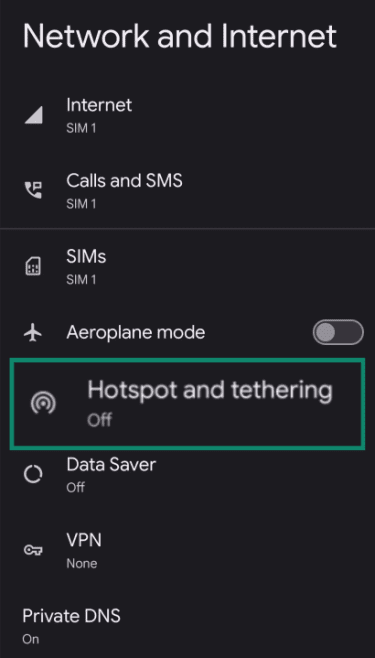
- Tap Wi-Fi hotspot to turn it on.
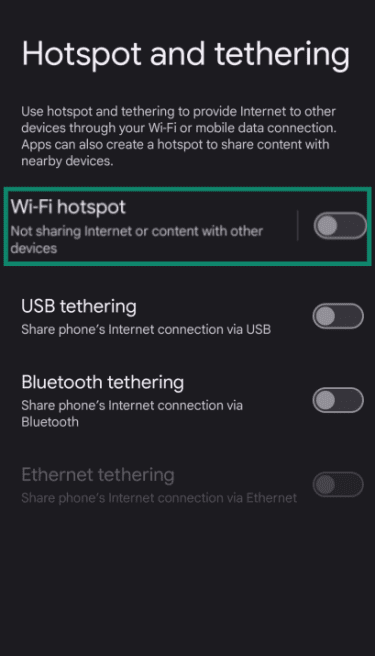
- Tap Wi-Fi hotspot again to view or change settings (such as hotspot name and password). Tap Use Wi-Fi hotspot to enable it if it wasn't enabled before.
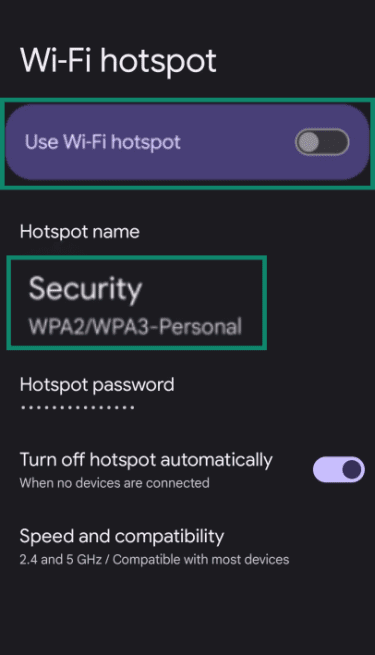
Note: You can also go to Security and choose WPA2/WPA3-Personal. This enables encryption, protecting hotspot traffic and access credentials. Setting Security to None creates an open hotspot with no encryption, which might make it easier for nearby users to join and for traffic to be intercepted. Use None only when necessary for compatibility.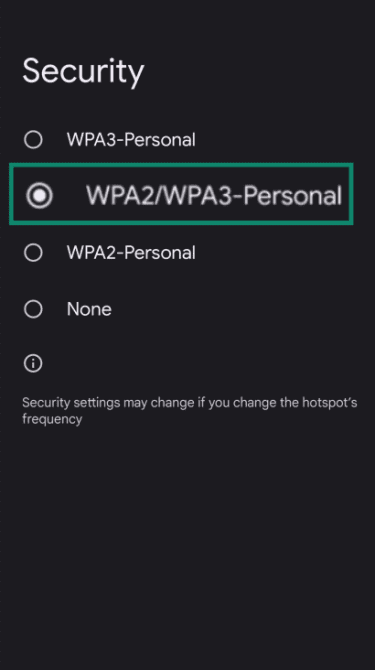
Troubleshooting common issues
Hotspot performance is usually shaped by cellular signal quality, distance to the phone, how many devices are sharing the connection, and any carrier plan constraints. Small adjustments can often improve speed and stability:
- Personal hotspot option is missing or grayed out: This can happen when hotspot access depends on your mobile plan or when cellular data is disabled. Confirm your plan supports tethering and that mobile data is turned on.
- Hotspot network name (SSID) isn’t showing up: If other devices can’t see your hotspot at all, it’s often a visibility or range issue. Keep your phone nearby, confirm the hotspot is switched on, and keep the hotspot settings screen open during setup.
- Device sees the hotspot but can’t connect: This is often due to a password or authentication mismatch. Double-check the hotspot password on your phone and reconnect using the latest one shown in settings.
- Connected, but no internet: When the connection succeeds but shows no network connection, the phone itself may not have a working cellular connection. Check that you have a signal and can browse on the phone using mobile data.
- Slow speeds or an unstable connection: Hotspot performance can drop when the signal is weak, the area is congested, or multiple devices are sharing a single connection. If speeds feel inconsistent, it’s usually tied to the underlying cellular connection and the amount of demand placed on it.
- Connection drops after a while: Some phones automatically turn hotspots off when idle or when power-saving settings kick in. If you keep getting disconnected, check hotspot settings for auto-off behavior and confirm power-saving modes aren’t interrupting the connection.
- USB or Bluetooth tethering not working: If you’re using a cable or Bluetooth instead of Wi-Fi, setup can depend on device compatibility and settings. Confirm you’ve enabled the correct tethering mode and that the other device recognizes the connection.
Benefits of using a personal hotspot
Portable and convenient internet access
The clearest benefit is simple access. A personal hotspot turns your phone into a portable Wi-Fi hotspot, so other devices can get online without needing a separate router or a fixed network.
If you already have a phone with mobile data, you can share your internet in a few taps, which is why a personal hotspot is often treated as a built-in backup for laptops, tablets, or other Wi-Fi-only devices.
A personal hotspot can also connect multiple devices simultaneously, depending on your phone and plan. In that sense, it acts like a small, more controlled network, rather than public Wi-Fi, especially when hotspot access is protected with a strong password and encryption.
Faster connection than public Wi-Fi
A personal hotspot can feel faster than public Wi-Fi in some situations, but it is not a guaranteed upgrade. Public Wi-Fi speed depends on the venue’s internet connection, the number of active users, and how the network is managed, so performance can vary widely even in the same location.
By comparison, a hotspot runs on your phone’s cellular connection, so performance depends more on your signal strength, local network congestion, and whether you’re on a 4G LTE or or 5G.
In areas with overloaded public Wi-Fi, a stable cellular connection can be more responsive. But in places with strong Wi-Fi infrastructure, public Wi-Fi may outperform cellular.
Enhanced security while browsing
A personal hotspot can reduce some common risks of public Wi-Fi because the hotspot network originates from a personal device, and access is typically restricted.
Public Wi-Fi introduces different risks, including the possibility of evil twin networks: look-alike hotspot names set up to trick people into connecting.
That said, a personal hotspot is not automatically a privacy tool. Data still travels over a mobile network and then out to the public internet, so privacy and protection depend heavily on whether the services being used encrypt traffic end-to-end (for example, HTTPS) and on the device and account security practices in place.
Tips to improve hotspot speed and signal
A slow hotspot is usually not caused by one big problem. It’s more often a mix of signal strength, distance, connection method, and plan limits. However, a few small changes can make a noticeable difference:
- Confirm the phone has a working cellular data connection: A personal hotspot usually uses the phone’s cellular data connection, so hotspot performance is constrained by mobile network conditions and the data plan in use.
- Use a Wi-Fi hotspot when speed is the priority (when available): Platforms that support sharing over Wi-Fi and Bluetooth typically list Wi-Fi as the default and generally the faster option than Bluetooth.
- Switch to USB tethering for a single computer when practical: It's a supported alternative to Wi-Fi hotspot on many devices and can be a useful option when a direct cable connection is acceptable.
- Keep the number of connected devices to what’s necessary: Some phones can share a Wi-Fi hotspot with multiple devices (for example, up to 10). Fewer connections can help keep more capacity available for the devices that matter most.
- Check whether the mobile plan imposes tethering limits or charges: Some carriers limit tethering or charge extra, and plan terms can set allowances that effectively cap performance.
Common concerns and limitations
A personal hotspot is easy to rely on once it’s set up, but it comes with a few trade-offs that are worth understanding up front.
Does a hotspot use mobile data?
Yes. A personal hotspot usually shares the phone’s cellular data connection with other devices, so activity on connected devices counts as mobile data use.
This is true even when a laptop shows a normal Wi-Fi connection. Underneath, the internet connection is still coming from the phone’s data plan.
Some plans also treat hotspot data differently from on-phone data. For example, a plan may include a specific amount of high-speed hotspot data and then reduce hotspot speeds after that allowance is used, even when the plan is marketed as “unlimited.”
How to protect your hotspot from unauthorized access
A personal hotspot is more controlled than public Wi-Fi because you decide who can join, but it still needs basic safeguards to reduce unwanted access and exposure.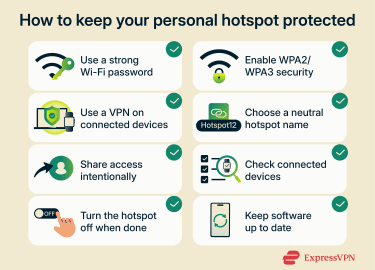
- Set up a strong Wi-Fi password: A strong password reduces the chance of guessing or casual reuse.
- Keep hotspot encryption on: Use Wi-Fi Protected Access 2 (WPA2) or WPA3 where available, and avoid running an open hotspot without a password.
- Use a virtual private network (VPN): A VPN like ExpressVPN can encrypt traffic between your device and the VPN server, which can help protect your traffic against monitoring by other users on the same network.
- Change your hotspot network name (SSID) if needed: If the default name includes your name or device model, switch it to something neutral to reduce mix-ups when multiple hotspots are nearby.
- Only share access intentionally: Treat your hotspot password like home Wi-Fi. Share it directly with the person or device that needs it.
- Check what’s connected while you’re using it: iPhone can show the number of connected devices, and many Android phones show connected devices inside hotspot settings. If something looks unfamiliar, turn the hotspot off and change the password.
- Turn the hotspot off when you’re done: This stops your phone from broadcasting the network name and prevents devices from reconnecting automatically later.
- Keep your phone’s software up to date: Updates can include security fixes that affect networking and hotspot behavior.
Learn more: Are mobile hotspots secure? Read our complete guide to staying safe.
Battery drain and data usage
In most cases, a personal hotspot works best in on-demand mode rather than always-on mode. Keeping it running can drain the battery faster than normal phone use, since the phone is maintaining a mobile data connection while also sharing it over Wi-Fi.
Data usage can also add up quickly, especially when you connect a laptop. A computer may sync files, refresh apps, or run background activity that’s easy to miss when you’re focused on a task. Even if you’re only doing basic work, the data pull can be higher than expected because the connected device behaves as if it’s on a typical internet connection.
Auto-reconnect settings can make hotspot use more “sticky” than expected. Some devices can be set to auto-join known hotspots, which makes it easier for previously connected devices to reconnect.
FAQ: Common questions about personal hotspots
Can a personal hotspot replace home internet?
For short-term needs, it often can. A personal hotspot can cover basic browsing and work tasks when home internet is unavailable, often without requiring additional equipment beyond the phone. For a full replacement, it depends on the data volume and the level of consistency required. Many mobile plans apply hotspot allowances or reduce hotspot speeds once a threshold is reached, which can make always-on use less practical than home broadband.
Dedicated hotspot devices or cellular home internet options may handle long sessions more comfortably, but performance still depends on local coverage and plan terms.
What’s the difference between Wi-Fi and a hotspot?
Wi-Fi is the wireless technology that connects devices to a nearby network. A hotspot is an access point or feature that shares an internet connection to other devices, most commonly by creating a Wi-Fi network that nearby devices join.
Do I get charged for using a hotspot?
Usually, there’s no separate fee to turn it on, but hotspot use counts against the data included in your carrier plan. Some carriers charge extra for tethering or apply hotspot-specific limits, and plan support can affect whether hotspot options appear or work.
How fast is a personal hotspot?
A personal hotspot is only as fast as the underlying mobile connection at that time. Speed can vary with network type (4G vs. 5G), signal strength, congestion, and plan limits.
Can I use a hotspot without a cellular signal?
It depends on what “use” means. For internet access, usually no, because a personal hotspot normally shares the phone’s cellular data, so no signal typically means no internet. For a local network, it may still be useful: if the phone can keep the hotspot Wi-Fi running, nearby devices may be able join the hotspot and communicate with each other even without internet access.
Some phones can also share an existing Wi-Fi connection instead of cellular, but support varies by device and carrier.
Can I use a personal hotspot for gaming or streaming?
Yes, but results depend on connection quality and plan limits. Hotspots can support streaming and gaming, but performance can vary with connection strength and network conditions, and high-bandwidth activities can be more sensitive to plan limits.
Take the first step to protect yourself online. Try ExpressVPN risk-free.
Get ExpressVPN









 Support Center
  FAQ
FAQ  VPN Setup Tutorials


