How to stop virus pop-ups quickly and safely


You may see virus pop-ups as you visit specific web pages, launch your browser, or just by switching on your PC or smartphone. Whatever the case may be, the most important thing is to stay calm and not click on the pop-up. Then, it’s time to diagnose the cause and get rid of them.
In this guide, we’ll show you exactly how to identify where fake pop-ups come from so you stop them efficiently and safely. Find out what they are, what they are after, why they keep appearing, and how to avoid some of the most common pop-up scams.
What are virus pop-ups?
Virus pop-ups are notifications or alerts designed to trick you into falling for a scam or downloading malicious software by using misleading messages. They’re commonly called “virus” pop-ups for two reasons. First, they often mimic security warnings that claim your device is infected. Second, many people assume they’re caused by an actual virus. As we’ll explain below, some pop-ups can indeed be linked to malware, but many are triggered by other factors as well.
Either way, you may encounter these pop-ups in your browser, on specific web pages, in the notification tray, or while simply using your device for everyday tasks.
Common types of virus pop-ups
Malicious pop-ups make a wide variety of claims. New variants emerge all the time, so no list can cover all the types you may see. Two broad categories of messages include fake security warnings or offers that are too good to be true.
Fake infection and antivirus alerts
These pop-ups look like antivirus alerts, warning you that your device is already infected and urging you to take immediate action to contain or eliminate the threat. They usually make claims like “critical threat detected” or “X viruses found” with a call to action like “clean your device now.”
To make the pop-up seem more official, they will often include an operating system or antivirus software badge as well as fake counters or progress bars.
System damage or operating system warnings
Similar to fake antivirus alerts, some pop-ups may display notifications about made-up issues regarding your operating system. Some typical examples are “Your Windows system files may be corrupted,” “Critical system updates are needed,” or “Storage full.”
The warnings often urge you to resolve the issue immediately or risk experiencing crashes, system instability, or irreversible damage. Often, these pop-ups instruct you to contact technical support using a phone number or email provided in the pop-up.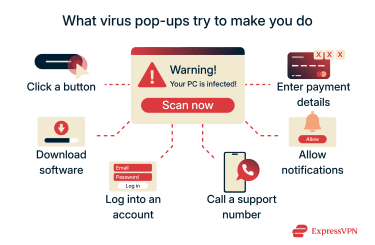
Account security and identity threat alerts
Another common variant is pop-ups that behave like account alerts from popular online services, like Facebook, Amazon, or X (Twitter). They may make claims like “Suspicious activity detected on your account” or warn that your Google, Microsoft, or Apple ID has been compromised.
The notification may ask you to log into your account and verify your identity or take security actions.
Unauthorized payment warnings
This type of pop-up scam attempts to convince you that someone made an unauthorized payment using your credit card or account. Then, it may prompt you to check the charge or secure your account via a link in the pop-up.
Fake offers, giveaways, or discounts
Instead of trying to scare you, some virus pop-ups try to entice you with exclusive or limited-time deals. They are often framed as prize giveaways or free trials to make the offer seem more trustworthy.
Are virus pop-ups dangerous?
They can be, but the potential for harm depends on the cause of the pop-ups and what actions you take. At the minimum, virus pop-ups can disrupt your browsing and be frustrating to deal with.
Scammers and hackers typically use fake pop-ups as a way to lure victims into deeper and potentially more harmful scams. Pop-ups typically do this by trying to get users to interact with them by clicking on a button or link.
They may direct the potential victim to fake spoofed websites that try to convince them to download software, provide account credentials, or enter financial information. If successful, these scams may lead to financial loss, identity theft, or infecting the device with a more serious virus or malware.
Experiencing pop-ups could indicate that your device is already compromised, although this is less common. Either way, simply seeing a pop-up is typically less dangerous than interacting with one.
Why do virus pop-ups keep appearing?
Once you encounter a fake pop-up, they usually keep showing up until you deal with the cause.
Common causes and triggers
Virus pop-ups can come from many different sources:
- Malicious websites: Scam websites mimic legitimate pop-ups, like newsletter signups, advertising, or notifications. However, even trustworthy sites may display malicious pop-ups if they were hacked or their ad network compromised.
- Browser notification abuse: Many fake virus alerts rely on browser notifications. If you accidentally allow notifications from a suspicious site, it can send warning-style messages directly to your screen, even when the browser isn’t actively open.
- Adware or other grayware: Unwanted programs installed alongside free software can generate persistent pop-ups, banners, or redirects. This type of grayware may run in the background, launch at startup, or inject ads into your browser, causing repeated “virus detected” warnings.
- Compromised browser settings or extensions: A malicious or poorly vetted browser extension can change your homepage, search engine, or startup behavior. In some cases, it repeatedly opens pages that display fake security alerts or injects warning messages into otherwise normal websites.
- Modified shortcuts or startup entries: On computers, attackers sometimes alter browser shortcuts or startup items so a specific website opens automatically when you launch your browser or restart your device. This can make it seem like the pop-ups are coming from your system rather than a web page.
What to do if you see a fake virus warning
The most important thing is not to panic, interact with the pop-up, or use any of the contact details (e.g., email or phone number) provided. Depending on how the pop-up got on your device, it may be a very simple fix. Even more severe cases, like a malware infection, are fixable if you follow the right steps.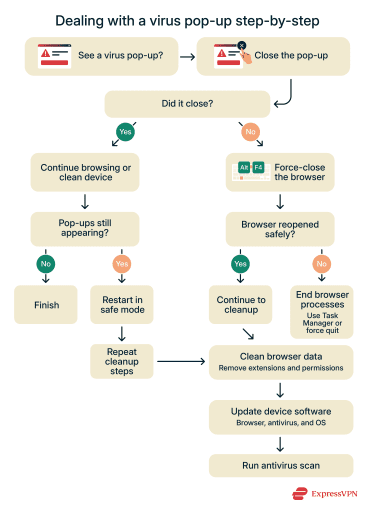
Walk through these troubleshooting steps until the pop-ups stop appearing:
- Stay calm and avoid interacting with the pop-up. If possible, close the tab or browser window instead of clicking buttons inside the alert (the “X” can also trigger more pop-ups).
- Try to close the webpage; if the pop-ups stop, the website is likely the cause. An ad blocker may prevent some of the pop-ups, but the most effective solution is to simply not visit the site again.
- Close the browser and see if the notifications disappear. If this is the case, the most common fix is to remove browser notification permissions from offending websites.
- Run the Task Manager and terminate the browser process if the pop-ups prevent you from closing it.
- If pop-ups are still showing up, restart your device in safe mode and run an antivirus scan. Also, uninstall any suspicious programs or apps.
- Optional steps that can help in some cases include clearing your browser’s data and checking that your operating system, browser, and antivirus software are fully up to date.
How to remove virus pop-ups from your device
The most effective way to get rid of a virus pop-up depends on what device you use and their origin. Unwanted pop-ups exploit weaknesses or features unique to specific platforms, and different operating systems offer different ways to deal with them.
How to remove virus pop-ups on Windows
Some pop-ups intentionally prevent you from closing the browser, making it difficult to complete these steps. You can try terminating the browser manually by pressing the “Alt” and “F4” keys simultaneously on a Windows PC.
Use Safe Mode and run a malware scan
Running Windows Safe Mode is useful if you’re unable to close your browser or pop-ups instantly return after you restart your PC. It starts your computer with only essential drivers and services running, so you can resolve the issue without interference from third-party software.
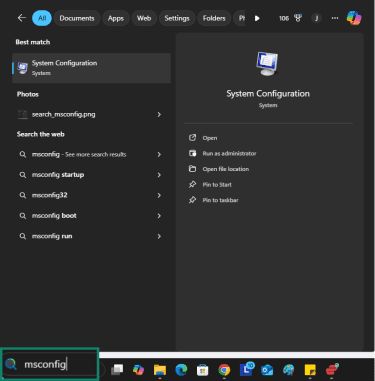
- Press the Windows key and search “msconfig.” Select System Configuration to open the dialog box.
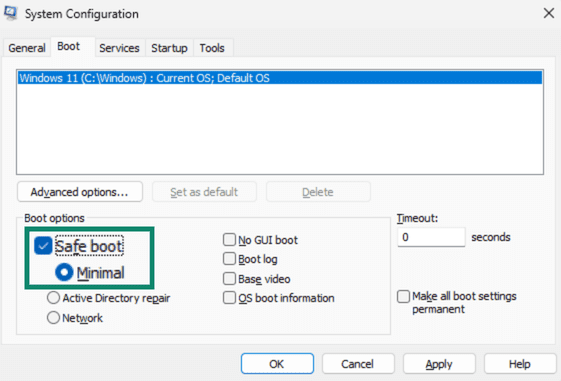
- Navigate to the Boot tab. Then tick Safe boot under Boot options and click OK or Apply.
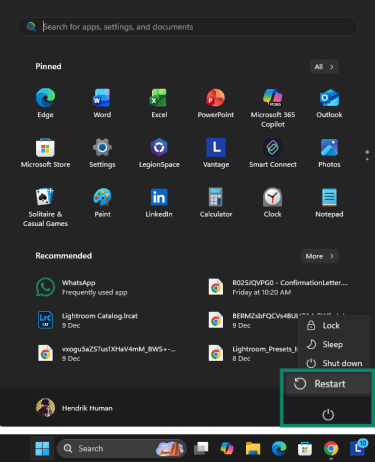
- Restart your PC normally by clicking the Windows icon in the taskbar, clicking the power icon, and choosing Restart.
- Wait for your PC to complete shutting down and booting back up in safe mode. Then, log into your account.
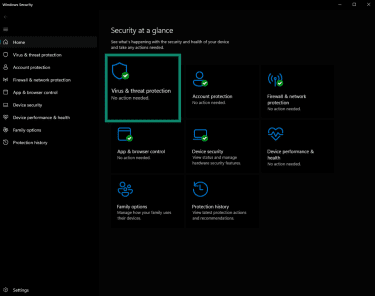
- Now, run a full system virus scan using Windows Defender or your third-party antivirus software. You can use Windows’s built-in anti-virus by opening Windows Security from the Start menu. Go to Virus & threat protection > Scan options and select Full scan.
- Run System Configuration again, like in Step 1, and disable Safe mode in the Boot tab. Click OK or Apply.
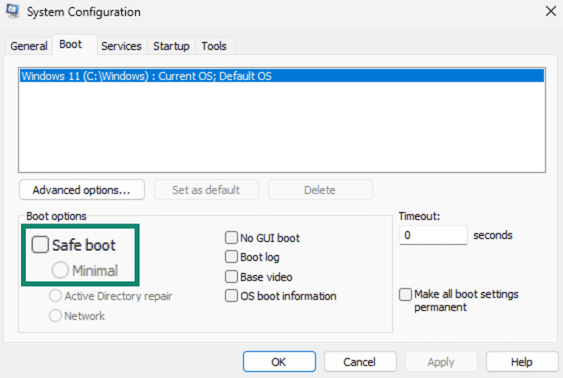
- You can now restart your PC, and it will boot back up in normal mode.
Uninstall suspicious programs
Some adware can appear to be legitimate software, which means they may not be flagged by your antivirus. You may be able to catch potential offenders by inspecting the software you have installed and removing the ones that don’t belong.
Here are some tips that may help you identify software that causes unwanted pop-ups:
- Programs you don’t recognize: This software may have been bundled with other programs you installed, or you were tricked into clicking a download link without realizing it.
- Nondescript names: Programs with generic feature names may come with adware.
- Not from a reputable publisher: If the publisher is blank, “Unknown,” a name you don’t recognize, or oddly formatted, it may not come from a trustworthy source.
To uninstall software from Windows:
- Open the Start menu and search for “Add or remove programs.”
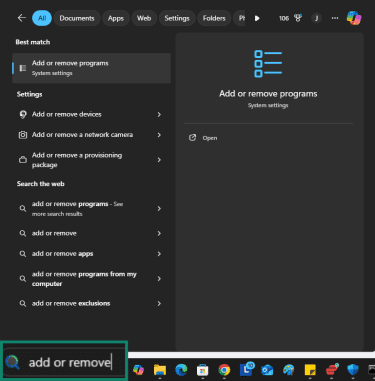
- Browse through the list and uninstall programs by clicking on the three dots and selecting Uninstall.
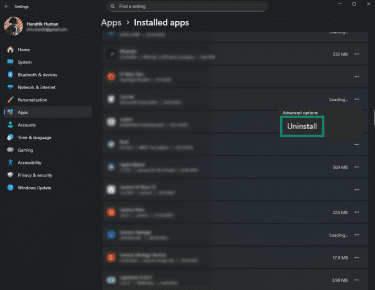
If a program refuses to uninstall, scanning for malware and using trusted removal tools is safer than trying to delete files manually.
Reset or change browser settings
If virus pop-ups only appear in a specific browser, the issue is likely caused by browser settings, extensions, or permissions. The fix varies by browser, but you should generally follow these settings. Here's an example using Chrome:
The first step is to try and disable notification permissions for offending domains:
- Run Chrome, type chrome://settings/content/notifications into the address bar and press Enter.
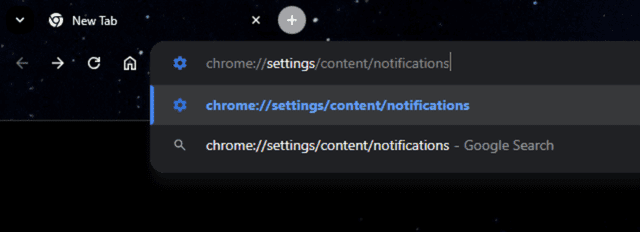
- Click on a specific site under Allowed to send notifications.

- Scroll through the site’s Permissions and disable Notifications, Pop-ups and redirects, and Intrusive ads.
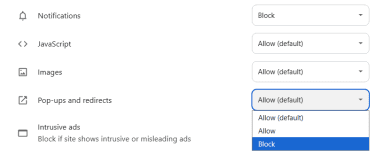
Secondly, you should remove any extensions that may cause virus pop-ups. Do this by typing chrome://extensions/ in the address bar and then disabling or removing suspect extensions.
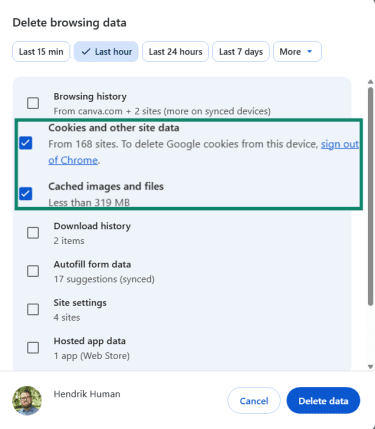
Optionally, you can clear your browser data, as it may help stop pop-ups caused by stored website data or permissions:
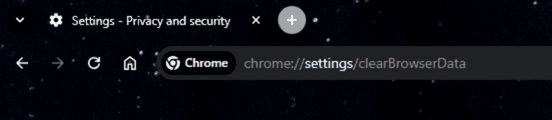
- Go to chrome://settings/clearBrowserData and select a timeframe that includes when pop-ups started appearing.
- Make sure Cached images and files and Cookies and other site data are selected. There’s no need to delete Browsing history or Autofill form data.
If the issue persists, there’s also the option to reset the browser to default settings. This will remove all settings, data, extensions, and more, returning the browser to its original state.
How to remove virus pop-ups on Mac
macOS doesn’t include a traditional “on-demand” antivirus scanning interface like Windows. Instead, it comes with features like Gatekeeper and XProtect that protect against unwanted software that might cause malicious pop-ups. However, you can also use third-party antivirus software to run scans.
If the pop-ups originate from the browser, you can follow steps similar to Windows to remove problematic extensions and permissions.
That being said, there are some steps you can take if you find virus pop-ups on your Mac.
Remove malicious login items
Login items on a Mac are apps or background processes that automatically open or run when you sign into your user account. If malware or background processes are causing the pop-ups, deleting unwanted login items may help.
Managing login items involves accessing the Mac boot menu and starting the operating system in safe mode. The process is slightly different for Apple Silicon and Intel-based Macs, but both options are described in detail here.
- Once you’re in safe mode, go to System Settings > General > Login Items and Extensions and remove apps or background items you don’t recognize.
- Use Finder’s Go to Folder (Command + Shift + G) to review /Library/LaunchAgents, /Library/LaunchDaemons, and ~/Library/LaunchAgents. Check each for suspicious entries.
- Delete only items you’re sure are malicious, empty the Trash, and note their names in case they appear again.
Reset Safari
Resetting a browser will remove saved site permissions, disable extensions, and clear cached data that may enable pop-ups. The steps will look slightly different depending on what browser you use.
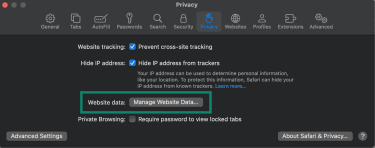
- Go to Safari > Settings.
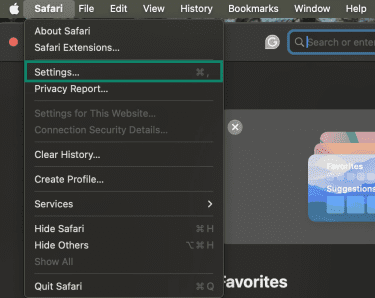
- Click the Privacy tab, then Manage Website Data, then Remove All.
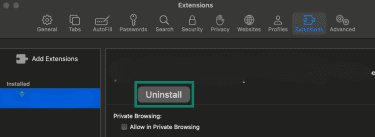
- Go to Extensions and uninstall any extensions you don’t recognize.
How to remove virus pop-ups on iPhone or Android
Browser settings or third-party apps are two of the most likely causes of virus pop-ups on smartphones. Like Windows or Mac, you can use third-party antivirus software to look for malware, or you can follow these steps to try and resolve it yourself.
Delete suspicious apps
Some apps may abuse notification permissions on your smartphone to create fake pop-ups. More rarely, a malicious app may even generate pop-ups without device permissions.
Auditing your installed apps and removing anything unfamiliar or suspicious is one of the easiest ways to stop unwanted pop-ups.
On Android, go to Settings > Apps or to Settings > General > iPhone Storage on iPhone.
Look through the list of apps and uninstall fishy apps one by one.
Consider deleting apps with generic names/icons, missing or shady developer names, or that appear in your settings but don’t have a UI. If you don’t remember installing the app or granting it certain permissions, it’s also a cause for concern.
Android devices also have a safe mode feature that may help identify whether a third-party apps is the cause. If you boot your device in safe mode and the pop-ups disappear, it’s very likely that an app caused them. If you still see notifications, it’s most likely coming from the preinstalled browser, carrier apps, or system services.
Use safe mode on Android
By disabling third-party apps, safe mode makes it easier to uninstall them. These steps are for Samsung but will work similarly on other Android variants.
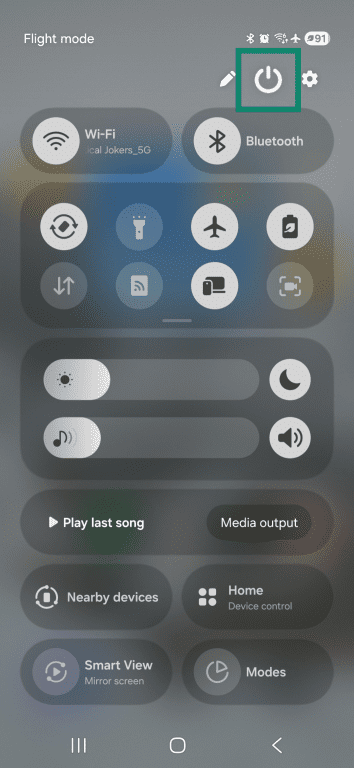
- Swipe down and press the power icon.
- Tap and hold Power off until Safe mode appears.
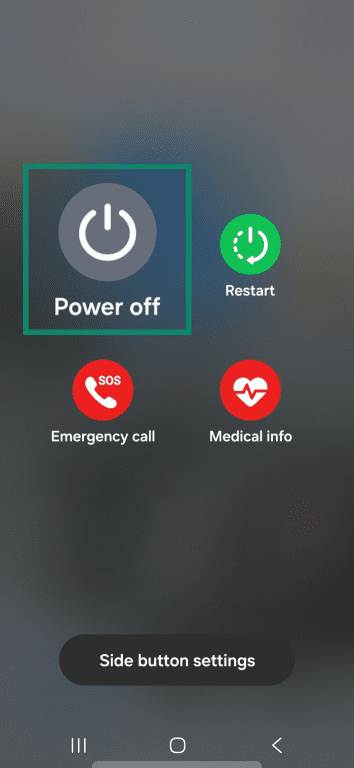
- Tap the screen to restart in Safe mode.
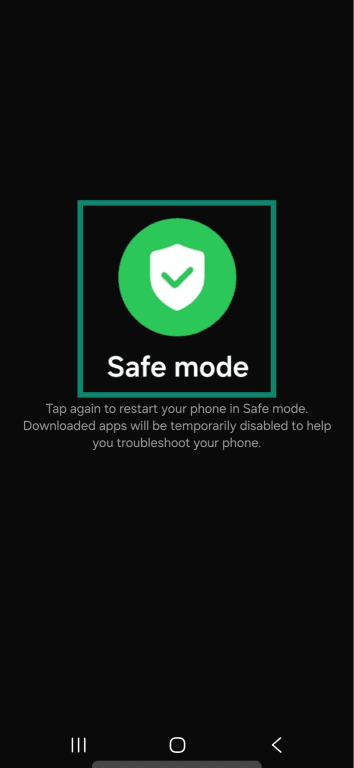
Your phone will restart with third-party apps disabled. With the app inactive, Android will usually allow you to uninstall it normally, even if it was interfering before.
Reset Safari settings on iPhone
If the pop-ups seem isolated to the Safari browser, resetting some of its settings may help them go away. Some Safari pop-ups mimic notifications from the iOS UI, which can make it difficult to tell the difference.
However, if they only appear with Safari open, the best fix is to check the browser settings:
- Open the Settings app and go to Apps.
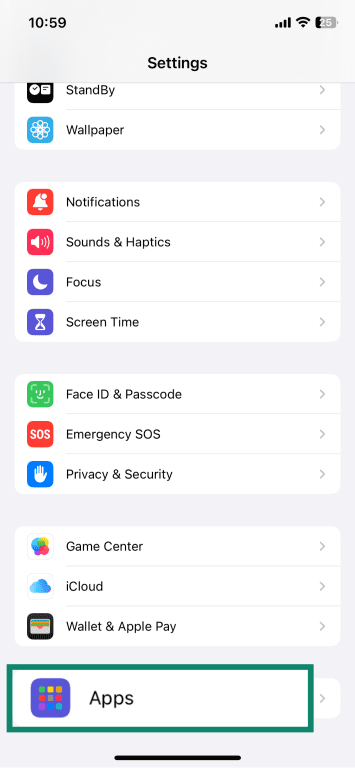
- Scroll down and tap Safari.
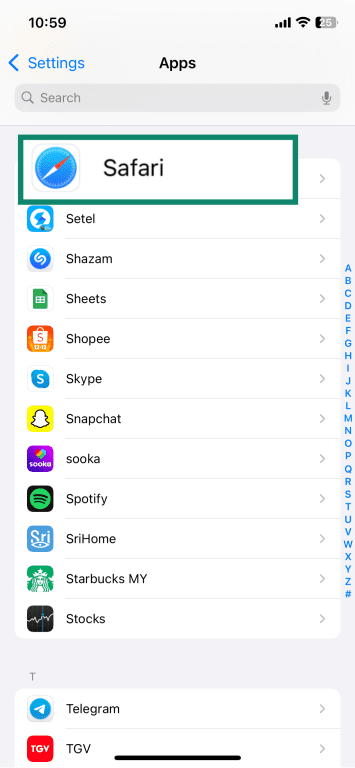
- Tap Clear History and Website Data and confirm.
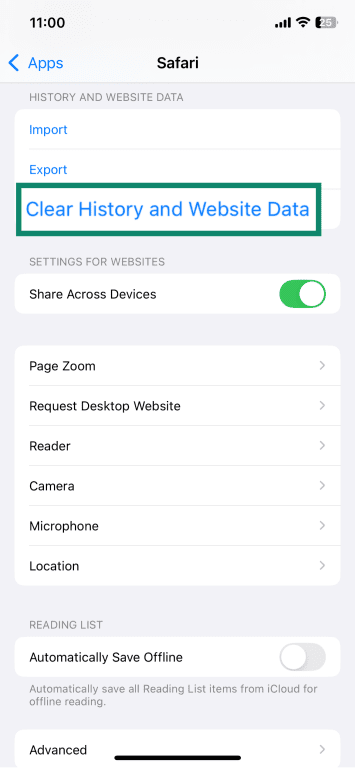
- Turn on Prevent Cross-Site Tracking and Fraudulent Website Warning.
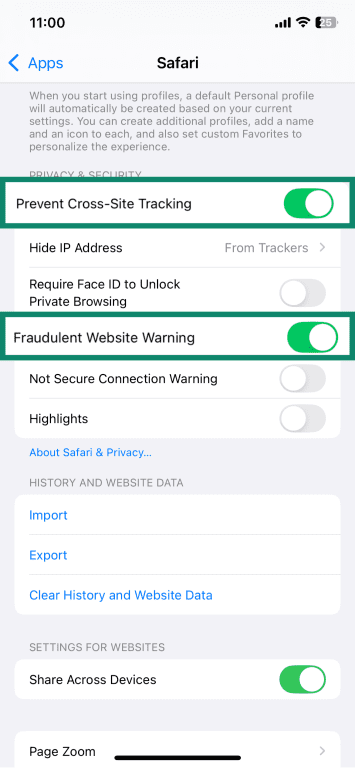
If the pop-ups still appear, a third-party app is the most likely cause.
How to prevent virus pop-ups in the future
Although pop-ups have many different origins, you can prevent many of the malicious ones by following some best practices.
Use a trusted anti-malware tool
Antivirus software will check your computer and attempt to block or quarantine virus pop-up software before they’re installed. You can also run scans periodically to do a more intensive search for malware on your device.
Many antivirus products today come with some form of web protection as well that may warn you or block connections to suspicious domains known for using malicious pop-ups.
Other cybersecurity products you may already use also come with additional features that can help you reduce the risk of virus pop-ups. For example, ExpressVPN uses Domain Name System (DNS)-based filtering to block known malicious domains when the virtual private network (VPN) connection is active. This type of blocking is most effective against pop-ups delivered through ad or redirect networks. However, it won’t stop pop-ups caused by browser extensions, allowed websites, or malware already on the device.
Adjust your browser security settings
In Chrome, you can go to chrome://settings/content/popups and select “Don’t allow sites to send pop-ups or use redirects.” Or, prevent all browser-based website notifications entirely by checking “Don’t allow sites to send notifications” at chrome://settings/content/notifications.
FAQ: Common questions about virus pop-ups
Why does McAfee keep popping up?
McAfee software uses legitimate pop-ups for software notifications. If you granted notification permissions to the website, McAfee-branded pop-ups may also appear in the browser. If you find the number of pop-ups distracting, you can revoke its browser notification permissions.
Is the "Microsoft Virus Warning" real?
No, this is a common technique used in customer support scams. Often, these pop-ups appear unexpectedly, requesting you to provide personal information or call a specific phone number. Microsoft itself states that it doesn’t make any unsolicited requests for sensitive information. If you see this message, don’t interact with it. Instead, close the window and run a full virus scan.
How do I get rid of the pop-up virus on my phone?
Most phone “pop-up viruses” aren’t real viruses. They’re usually caused by a website or app that’s sending ads or notifications. If the pop-ups only appear while you’re browsing, a website is likely responsible, so close the page and clear your browser’s data. If they appear on your home or lock screen, remove notification permissions and uninstall any unfamiliar apps.
If the pop-ups won’t stop or block you from removing an app, restart your phone in safe mode. Safe mode disables third-party apps, making it easier to identify and uninstall the one causing the problem. Once it’s removed, restart your phone normally.
Can a pop-up infect my computer just by being viewed?
No, but it might be a sign that your computer has an existing virus or adware infection. That said, the biggest risk actually comes from interacting with the pop-up, such as clicking links, using the pop-up’s contact details, downloading files, or providing sensitive information to untrusted sites. If you see a suspected fake virus pop-up, don’t interact with it in any way and focus on finding and removing its source.
How can I stop virus warnings from coming back?
Fake virus warnings usually return because a website, browser permission, or app is still allowed to send alerts. To stop them permanently, remove notification permissions from unfamiliar websites or apps, uninstall suspicious software, and clear your browser’s data.
Keeping your device and browser up to date, avoiding sites that trigger scareware pop-ups, and being cautious with permission requests can help prevent these warnings from coming back.
Can a VPN block fake virus alerts?
A VPN with an ad blocker may be able to block some pop-up ads and redirects linked to known malicious domains. While useful for pop-ups delivered via ad networks, it won’t work against all fake pop-up types, like adware on the device or browser/OS-level notifications. It’s best to use a VPN as an extra security layer, alongside safe browser settings and a reputable antivirus.
Take the first step to protect yourself online. Try ExpressVPN risk-free.
Get ExpressVPN