Can Chromebooks get viruses? A comprehensive guide


Chromebooks are widely regarded as some of the most secure consumer laptops available. Their streamlined, cloud-first design and built-in security features reduce exposure to many threats that commonly affect Windows and macOS devices.
That said, users can still face risks from intrusive browser extensions, compromised Android apps, and sophisticated phishing attacks.
This guide explores how Chromebook security works, the threats you should watch out for, and practical steps to detect, remove, and prevent malware on your device.
Common security risks for Chromebook users
Chromebooks can’t get viruses in the traditional sense, but they’re not immune to all security risks.
Phishing attacks and scam websites
Phishing is one of the most significant Chromebook threats. Since ChromeOS effectively blocks traditional malware, attackers increasingly focus on tricking users into voluntarily surrendering their credentials or personal information.
Modern phishing attacks can include:
- AI-generated emails that mimic legitimate communications from banks, employers, or tech companies.
- Fraudulent websites with authentic-looking designs and valid security certificates.
- Targeted spear-phishing campaigns that use personal information to appear more credible.
- Fake browser pop-ups claiming your device is infected or compromised.
While ChromeOS helps by warning users about dangerous sites, new phishing pages appear constantly and may not be flagged immediately.
Risky Android apps and sideloaded software
The ability to run Android apps gives Chromebooks versatility, but it also introduces risk. Android malware is very common, and malicious apps regularly get past the Google Play Store's automated review process.
Common tactics used by malicious app developers include:
- Uploading benign apps that pass initial review, then delivering malware through later updates.
- Disguising malware as legitimate utilities, games, or productivity tools.
- Requesting excessive permissions that allow data harvesting or device monitoring.
- Creating convincing clones of popular apps with slightly different names.
Google removes vast numbers of problematic apps from the Play Store annually, but some can reach users before detection. Apps installed from outside the Play Store (sideloading) carry even greater risk, as they bypass Google's safety screening entirely.
Malicious or over-permissive browser extensions
Browser extensions can also represent a potential security vulnerability for Chromebooks. Extensions with overly intrusive permissions can:
- Read and modify data on any website you visit.
- Track your browsing history and online behavior.
- Inject advertisements or malicious code into web pages.
- Capture sensitive information, including passwords and financial data.
While there are legitimate and safe uses for all permissions, they can easily be misused. You'll always be asked to agree to an app's permissions when you install it, so it's a good idea to check that they make sense. For instance, an app that has no camera features shouldn't be asking for permission to use your camera.
Developer Mode and weakened security controls
Developer Mode gives advanced users root access to their Chromebook, allowing system-level modifications, installation of alternative operating systems, and access to advanced tools. However, enabling it removes most of ChromeOS's security protections.
When Developer Mode is active:
- Verified boot no longer prevents modified system files from loading.
- Sandboxing protections are weakened.
- Malicious software can gain deeper system access.
- The device displays a warning screen at every startup.
Switching to Developer Mode triggers a complete data wipe, erasing all local files. For most users, Developer Mode represents an unnecessary risk. If you need Linux applications, ChromeOS's built-in Linux Development Environment (Crostini) provides a safer alternative.
How Chromebook security works
Rather than relying on antivirus software to detect threats, ChromeOS has multiple defensive layers built directly into the operating system.
Automatic updates and built-in security protections
ChromeOS handles updates automatically, downloading and installing them without interrupting your work:
- Installation typically completes during restarts, with brief update screens appearing when required.
- Automatic updates help protect against the latest known Chromebook vulnerabilities, though zero-day flaws can still pose a risk before patches are released.
Google's Safe Browsing technology also runs continuously, warning you when you attempt to visit sites known for phishing, malware, or social engineering attacks.
How verified boot protects ChromeOS
Every time your Chromebook powers on, it performs a verified boot process that checks the integrity of the operating system before loading it.
Here's how it works:
- The firmware checks itself for tampering.
- It then verifies that ChromeOS hasn't been modified.
- If corruption or unauthorized changes are detected, ChromeOS automatically restores the system to a known good state.
Note: Users who want to modify ChromeOS must explicitly enable Developer Mode, which disables verified boot protections.
Even if malware somehow modified your system files, a simple restart could repair the damage. It's a stark contrast to a traditional operating system like Windows, where removing deeply embedded malware requires an antivirus, professional intervention, or a complete system reinstall.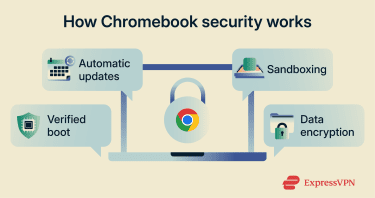
How sandboxing limits malware impact
ChromeOS sandboxing is a core safety feature that isolates every web page, browser tab, and application in its own environment. This design is similar to the isolation models used by other locked-down platforms, such as iOS, and helps prevent individual processes from accessing the wider system.
If you accidentally visit a malicious website, the damage is contained within that single tab. The malware cannot:
- Access files from other tabs or applications.
- Modify system files.
- Install permanently on your device.
- Spread to other parts of your Chromebook.
This containment strategy means that even if malicious code executes, closing the affected tab or restarting your browser typically eliminates the threat entirely.
Data encryption
One of the strengths of Chromebooks is that data encryption is baked in by default. On ChromeOS, your local data is automatically encrypted and tied to your account credentials, which means that if someone steals your Chromebook, they can’t simply pull out the storage and read your files. As long as you’ve set a screen lock (like a password or PIN), your data at rest is protected without you having to think about turning encryption on or managing separate settings.
Account protection
Because Chromebooks are tightly tied to your Google account, compromising that account can give attackers access to your data, settings, and synced services across devices. Protecting your Google account is therefore a key part of Chromebook security.
- Use a strong, unique password for your Google account.
- Enable two-step verification so a password alone isn’t enough to access your account.
- Regularly review your Google account security settings and activity for unfamiliar sign-ins or devices.
- Remove old or unused devices from your account to limit what an attacker could access if a device is lost or stolen.
- Set up and keep account recovery options up to date (recovery email, phone number) so you can regain access if needed.
How to check for suspicious activity on a Chromebook
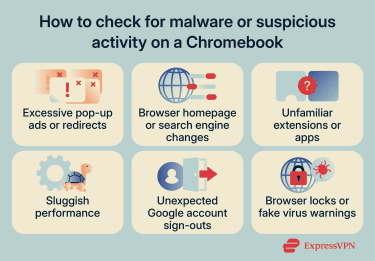
Below are some of the most common indicators that something may be wrong on a Chromebook.
- Excessive pop-up ads or redirects: Unwanted advertisements appearing frequently, especially when you haven't clicked anything, often indicate a problematic extension or notification permissions granted to a malicious site.
- Browser homepage or search engine changes: If your default settings change without your permission, a malicious extension may be responsible.
- Unexpected Google account sign-outs: Google may automatically sign you out or require additional verification before allowing you to sign back in if it detects suspicious activity on your account.
- Browser locks or fake virus warnings: Fraudulent websites may freeze the browser or display alarming messages claiming the device is infected. These messages often attempt to pressure the user into paying a fee, calling a fake support number, or installing malicious software. Closing and restarting the browser typically resolves the issue. If prompted to restore previous tabs, declining the restore option helps prevent the scam page from reopening.
Reviewing Chrome extensions and installed apps
Regularly auditing your extensions and apps also helps identify potential threats. You can use the safety check feature in the Chrome settings, but it's also recommended to manually check your extensions and apps.
As well as removing any unfamiliar or unused software, make sure to assess the permissions of the apps and extensions you use. Often, the more permissions an app or extension has, the more likely it is to be suspicious.
If you don't think a permission is really necessary, you can disable it. This will either cause no trouble at all, or it will limit the app or extension's abilities. In this case, you can choose whether you want to keep the permission disabled or restore the app or extension's full capabilities.
How to review extensions
To review extensions, do the following:
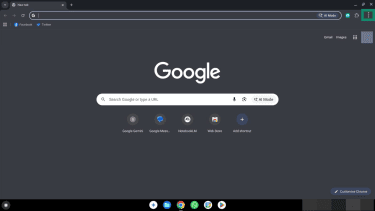
- Click the three-dot menu in Chrome.
- Select Extensions > Manage Extensions.
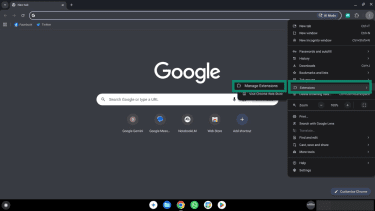
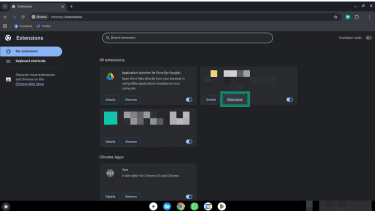
- Review each installed extension and remove any you don't recognize or no longer use by clicking the Remove button.
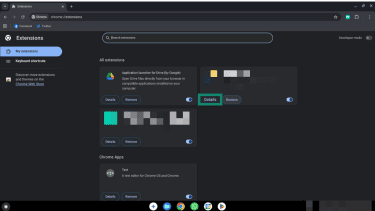
- Check the permissions for the remaining extensions by clicking Details (next to the Remove button).
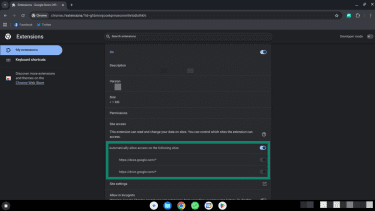
- Turn off any permissions you don’t want enabled using the toggles.
How to review installed apps
To review installed apps:
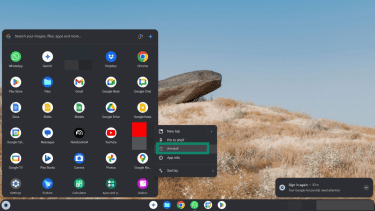
- Open the Launcher (click the circle in the bottom-left corner).
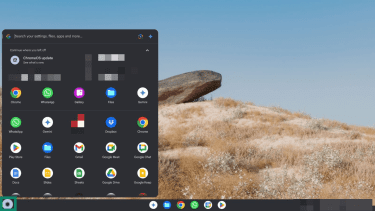
- Go through the list of installed applications and uninstall unfamiliar or suspicious apps by right-clicking on them and pressing Uninstall. Confirm your selection when prompted.
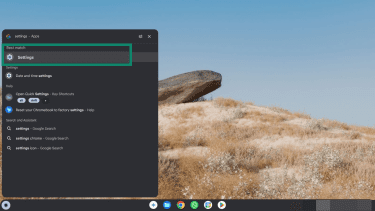
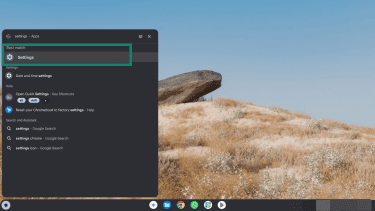
- Check app permissions by opening the Settings. You can do this by searching for the Settings app in the Launcher.
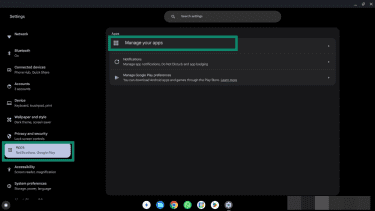
- Click Apps, then Manage your apps.
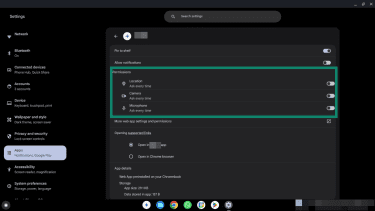
- Click an app you want to check, click Manage Permissions, and adjust any unwanted permissions using the toggles.
Resetting your Chromebook with Safety Reset or Powerwash
If suspicious behavior persists and can’t be resolved, a Safety Reset or Powerwash can return a Chromebook to a clean state.
Safety Reset
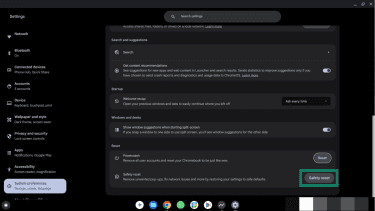
A Safety Reset resets Chrome settings, disables extensions, and clears temporary browser data without deleting user files. It can help resolve issues like persistent pop-ups, unwanted redirects, or network-related problems.
To run Safety Reset on a Chromebook, do the following:
- Go to Settings.
- Under Reset, click Safety reset.
- Follow the on-screen instructions to reset your Chromebook while keeping your user files intact.
Powerwash
Once Safety Reset is finished, if you’re still having problems, you should consider running Powerwash.
Powerwash is ChromeOS’s built-in factory reset feature. It erases all user-installed apps, extensions, settings, and files stored locally. Your Google account remains unaffected, and you can restore synced data after signing back in.
Before performing a Powerwash, ensure important files are backed up to Google Drive or another cloud service.
- Go back to the Settings menu and click System Preferences, then Reset.
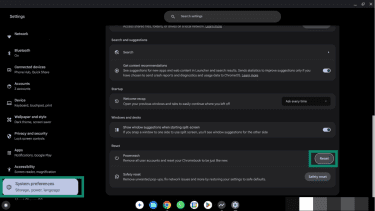
- Confirm your selection and set up your Chromebook with your Google account when the reset process has completed.
Using recovery mode to repair ChromeOS
If your Chromebook still won't start properly after a reset or you suspect system-level corruption, recovery mode is a good option. The main difference between Powerwash and recovery mode is that Powerwash restarts from your current installation of ChromeOS, whereas recovery removes the operating system and reinstalls a new copy.
Here’s how to use recovery mode:
- Create a recovery drive using another computer and the Chromebook Recovery Utility.
- Turn off your Chromebook.
- Press and hold Esc + Refresh, then press Power.
- Release the keys when the recovery screen appears.
- Follow the on-screen instructions to reinstall ChromeOS.
Depending on the Chromebook you have, there are up to two recovery methods you can use: recovery using an internet connection and recovery using a USB drive. The internet method is typically quicker and less involved, so it's a good idea to try this option first if it's available.
Whichever method you choose, your Chromebook will provide detailed instructions on what to do. The recovery process reinstalls a clean version of the operating system while erasing all local data.
How to protect your Chromebook from future threats
These practices help keep your Chromebook secure.
Safe browsing and download habits
- Verify website authenticity: Before entering credentials, confirm you're on the legitimate site. Check the URL carefully for subtle misspellings or unusual domains. For websites you use regularly, add the legitimate site to your bookmarks and access it from there rather than going through a search engine or email links.
- Be skeptical of urgent messages: Phishing attempts often create false urgency by using claims that your account will be closed or that immediate action is required. Avoid interacting with these messages and verify any claims through trusted, official sources.
- Don't click suspicious links: Hover over links to preview destinations before clicking, especially in emails.
- Ignore fake virus warnings: Pop-ups claiming your Chromebook is infected are almost certainly scams. Close them without clicking anything inside the pop-up.
- Use a password manager: Password managers such as ExpressKeys help generate and store unique passwords and only autofill credentials on legitimate websites, which reduces the risk of phishing and credential theft.
Keeping ChromeOS and apps up to date
ChromeOS updates automatically, but you can verify you're running the latest version:
- Go to Settings.
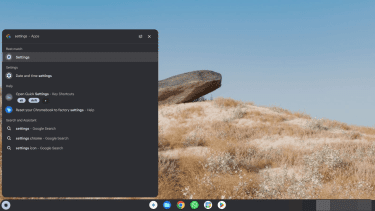
- Click About ChromeOS, followed by Check for updates. If an update is available, it will download and install automatically.
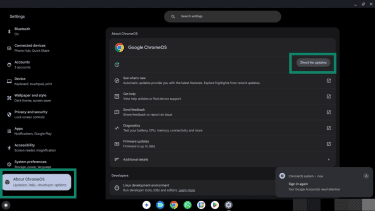
- Restart when prompted to complete the installation.
Do Chromebooks need antivirus software?
Chromebooks don’t need traditional antivirus software because ChromeOS includes built-in protections that block most forms of malware. That said, some antivirus tools are available for Chromebooks, typically as Android apps or browser extensions, and may offer extra features like phishing protection or account monitoring.
Some users may benefit from additional security tools in specific situations:
- Enterprise environments: Organizations may deploy endpoint security solutions for compliance or centralized management.
- High-risk users: Those handling extremely sensitive information might consider additional layers of protection.
- Android app scanning: Some security apps can provide extra screening for Android apps before installation.
For most personal users, practicing safe browsing habits, being cautious about extensions and apps, and keeping ChromeOS updated provides adequate Chromebook virus protection without additional software.
FAQ: Common questions about Chromebook viruses
How can I tell if my Chromebook is infected?
Look for these warning signs: excessive pop-up ads, browser redirects to unexpected sites, unfamiliar extensions or apps installed on your device, significantly slower performance, or unexpected Google account sign-outs. If you're experiencing suspicious pop-ups, the most likely cause is that you've inadvertently allowed notifications from a malicious website rather than an actual infection.
Does Powerwash remove malware from a Chromebook?
Yes, Powerwash effectively removes malware by completely erasing all local data, user-installed apps, extensions, and settings from your Chromebook. It restores your device to factory condition, eliminating any malicious software that may have been installed. Your Google account remains intact, and you can restore synced data after completing the reset and signing back in.
Can Chromebooks be hacked?
Yes. In most cases, this can happen as a result of social engineering, where attackers trick users into revealing passwords or personal information, often through phishing websites designed to steal login credentials.
Are Chromebooks safer than Windows or macOS devices?
For most users, yes. ChromeOS is designed with security built in by default, which reduces many common risks. However, all platforms remain vulnerable to phishing and social engineering attacks.
What should I do if I installed a malicious app or extension?
If a suspicious app or extension was installed, removing it is usually enough to stop further issues. Extensions can be removed through Chrome’s extension manager, and Android apps can be uninstalled directly from the launcher.
Take the first step to protect yourself online. Try ExpressVPN risk-free.
Get ExpressVPN