Is Face ID safe? A deep dive into biometric safety



Face ID is a biometric authentication method available on modern iPhones and iPad Pros. It’s used to unlock your device and approve certain sensitive actions, like approving a payment or downloading an app. It’s a convenient alternative to a passcode, but it naturally raises the question: how secure is Face ID in practice?
Phones now hold banking apps, medical information, private conversations, and access to online accounts. When a single glance can unlock all of that, it’s reasonable to want a clear answer about how much protection Face ID really provides.
This guide explains how Apple’s Face ID works, how safe it is in everyday use, and what it can and can’t protect from a security and privacy standpoint.
Note: Some Android devices use facial recognition technology known as Face Unlock. This feature differs significantly from Apple’s Face ID system and is not covered in this article.
What is Face ID, and how does it work?
Developed by Apple and released in 2017, Face ID is a biometric authentication system that uses facial recognition to unlock selected iOS devices and authorize actions like protected app access and payments.
It works by scanning your face and comparing that scan to a securely stored facial model created during setup. If the match meets Apple’s thresholds, the device allows the action; if not, iOS requires your passcode instead.
The technology behind Face ID
Face ID activates when you try to unlock your device or approve an action that requires authentication. At that point, the iPhone or iPad’s front-facing camera captures depth information from your face, meaning it works out how far different parts of your face are from the screen. This information is used to confirm that the person holding the device matches the enrolled user. Apple calls this the TrueDepth camera system.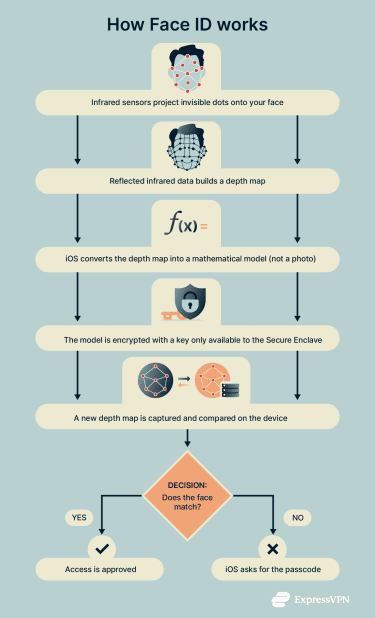
When setting up Face ID, the sensors project thousands of invisible infrared dots onto your face and read how they reflect back. This allows the device to build a three-dimensional depth map of your face. That depth map captures contours and distances, which are less affected by lighting, makeup, or background.
iOS then turns this depth information into a mathematical model. You can think of it as a set of numbers that describe the shape of your face. It isn’t stored as a photo or image.
That model is encrypted and protected with a key only available to the Secure Enclave, a secure component isolated from the main processor to provide an extra layer of security. This hardware-based enclave is designed to keep biometric data (among other sensitive data) on the device rather than uploading it to Apple’s servers.
When you try to unlock your phone or approve access, the device scans your face again and creates a new model. That new model is compared with the stored version. If they match closely enough, the system allows the action to go through. If they don’t, Face ID fails and iOS falls back to asking for your passcode.
Face ID also includes checks to confirm your attention, such as whether your eyes are open and directed at the device. Over time, Face ID can adapt to normal changes in appearance, like growing facial hair or wearing glasses. If Face ID is reset, the stored data is deleted and the process starts over.
Devices that support Face ID
Face ID only works on devices that have the necessary front-facing sensors to capture depth information. It was first introduced on the iPhone X and is now used across all newer iPhone models (excluding SE models), along with supported iPad Pro models.
Devices without those sensors can’t use Face ID and rely on other authentication methods instead. Apple maintains an official list of supported models, which is the most reliable way to confirm whether your device includes Face ID.
How safe is Face ID in practice?
Face ID is designed to protect against everyday physical access, like someone picking up your phone, a co-worker glancing at it on a desk, or a thief trying to unlock it quickly. Its role is limited to controlling physical access to the device at that moment.
It isn’t designed to protect against remote attacks, account takeovers, or situations where your passwords are already compromised. Those threats fall outside the scope of device-level biometric authentication.
Can you trick Face ID?
It may technically be possible in rare situations, but not through common tricks like photos or videos. Face ID checks whether a real, three-dimensional face is physically present in front of the phone. Because of that, showing a picture, a screen, or a basic replica isn’t enough to unlock the device.
The situations where Face ID is more likely to make a mistake involve people who genuinely look very similar. Apple notes that identical twins, siblings with highly similar facial structures, and children under 13 may be at higher risk of false matches. If you’re in one of those categories, relying on a passcode instead may be more appropriate.
Face ID also limits repeated attempts. After five failed matches, it stops and requires the passcode. You can further reduce risk by enabling attention checks, which require your eyes to be open and directed at the screen for Face ID to work.
Is Face ID safe for banking and payments?
Face ID is generally considered safe for banking apps and payments when it’s used as designed. In most banking apps, Face ID doesn’t replace your account credentials. Instead, it’s used as a local check on your device after you’ve already signed in with a password, PIN, or passkey.
The app decides how Face ID is used, but in practice it usually confirms that the person opening the app or making a payment is the authorized user. If Face ID fails, the app typically falls back to asking for your normal login details or another verification step.
Payments with Apple Wallet and Apple Pay include additional security measures: you must deliberately initiate a payment by double-clicking the side button, then confirm it with Face ID or your passcode, even if your phone is already unlocked. This separation between intent and authentication is part of Apple’s design and helps prevent accidental or unauthorized payments.
Is Face ID safe for healthcare apps and sensitive data?
Face ID is generally considered safe for healthcare apps that display personal medical information, such as test results, prescriptions, or appointment details.
Face ID helps ensure that this information isn’t casually visible if someone else picks up your phone. The level of protection also depends on how each app implements biometric authentication and how the device itself is secured.
Related: How to secure your iPhone
Face ID vs. other security methods
Security methods like Face ID, Touch ID, passcodes, passwords, and two-factor authentication (2FA) each serve distinct roles within a layered security framework. It’s important not to compare these methods as direct substitutes for each other. Below is an overview of how Face ID compares with or complements other common security measures.
Face ID vs. Touch ID
Touch ID is Apple’s fingerprint-based biometric authentication system. Like Face ID, it’s used to unlock devices, authorize app access, and confirm payments. It’s used on older iPhone and iPad models without Face ID, as well as on some MacBook Pro and MacBook Air laptops, where it is integrated into the power button or Touch Bar.
Touch ID captures a high-resolution image of your fingerprint using a capacitive sensor built into the device’s home button or power button, depending on the model. The fingerprint data is then converted into a mathematical representation and secured by the device’s Secure Enclave.
Apple reports that Face ID has a lower chance of unlocking for the wrong person in the general case. According to Apple, the probability that a random person could unlock a device is about 1 in 1,000,000 with Face ID, compared to about 1 in 50,000 with Touch ID.
Each method has situations where it works better than the other. Touch ID can fail if your fingers are wet, dirty, injured, or covered. Face ID can fail when the camera can’t get a clear view of your face, such as when it’s fully blocked or outside its normal viewing range.
Face ID vs. passcodes and PINs
A passcode or PIN is a numeric or alphanumeric code that you enter to unlock your iPhone. It serves as the fundamental method for controlling device access, and setting one is required before enabling Face ID. When Face ID is unavailable, such as after a device restart, extended inactivity, or multiple failed unlock attempts, iOS defaults to requiring the passcode.
Unlike passcodes, which require manual entry each time, Face ID unlocks the device automatically when it recognizes your face. This reduces how often you need to enter your passcode but doesn’t replace it entirely.
Passcodes provide strong security when they’re long and complex, but they can be vulnerable to being observed or guessed if they are simple or frequently entered in public. Face ID complements passcodes by offering a secure, convenient way to unlock your device without exposing your code.
Face ID vs. passwords and two-factor authentication (2FA)
Passwords and 2FA protect your accounts by verifying your identity to the service you’re accessing, regardless of which device you use. They help protect against unauthorized account access by requiring something you know (a password) and something you have or are (a second factor, like a verification code or hardware key).
Face ID doesn’t replace these account-level protections. While Face ID secures what’s stored locally on your iPhone, it doesn’t directly protect your accounts from compromises. Strong passwords combined with 2FA are still essential for account security.
Advantages of using Face ID
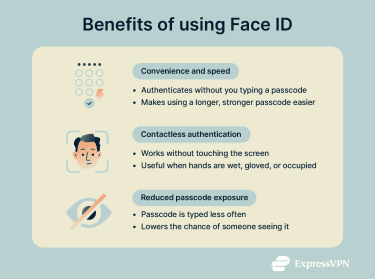
Convenience and speed
Face ID makes it easier to keep a longer, stronger passcode in place without changing how you use the phone day to day. You unlock, approve, and move on, without interacting with the lock screen every time. The passcode is still there. Face ID just removes the friction of having to type it repeatedly.
Contactless authentication
Since Face ID works without touch, it helps when your hands are wet, gloved, or occupied, and in any other situation when typing isn’t practical. It also allows approvals without obvious interaction, such as confirming an app action without tapping or entering a code in public.
Reduced risk of shoulder surfing or snooping
A passcode has to be typed. If someone is shoulder surfing and sees a short code entered, they could potentially remember it for later use. Face ID reduces how frequently the passcode is exposed to potential onlookers.
This doesn’t eliminate all on-screen risks. Notifications, lock-screen previews, and unlocked devices still require attention (consider privacy screen protectors). But Face ID does reduce a common vulnerability: someone learning your unlock code by watching it being entered.
Limitations and privacy concerns
What happens if someone looks like you?
Face ID isn’t affected by minor similarities. Sharing a hairstyle, glasses, or individual facial features doesn’t make another person likely to unlock your phone.
The cases Apple identifies as slightly higher risk involve very close facial similarity, such as identical twins or siblings whose overall facial structure is extremely similar. That’s when Face ID is more likely to make a mistake.
If you’re not in that situation and Face ID behaves normally, there’s nothing you need to change. If you are, the safer option is to use a strong passcode instead of Face ID.
Does Apple store or share your face data?
No. According to Apple, Face ID data is encrypted and securely stored within the device’s Secure Enclave. This data is processed and stored locally on the device; it’s not included in backups or shared with third parties. If you reset Face ID or erase your device, all related biometric data is deleted.
Apps that use Face ID don’t have access to your facial data or other biometric information; they only receive a confirmation of authentication success or failure.
Related: iPhone privacy settings for better security
Can hackers or malware access Face ID data?
Face ID data isn’t accessible to apps or typical malware. iOS doesn’t provide any way for apps to read, copy, or extract facial data, and authentication requests only return a yes or no result.
There’s also no stored face data in user-accessible files or cloud services that malware could target. From a system design perspective, Face ID data isn’t exposed in a form that attackers can retrieve. This makes stealing or copying Face ID data significantly more difficult and not a practical attack path under normal operating conditions.
Related: Easy ways to improve your online privacy and security
Expert tips for secure Face ID usage
Face ID is designed to be secure by default, but you can fine-tune how and where it’s used.
Set up an alternative appearance
Face ID can adapt to consistent, repeatable variations in how you look. If you often change your appearance, such as by wearing a face mask or glasses or changing your facial hair, setting up an alternate appearance can help Face ID recognize you more reliably. This is meant for stable, repeatable differences in how you look, not temporary or one-off changes.
To set it up, go to Settings, select Face ID & Passcode, then Set Up an Alternative Appearance.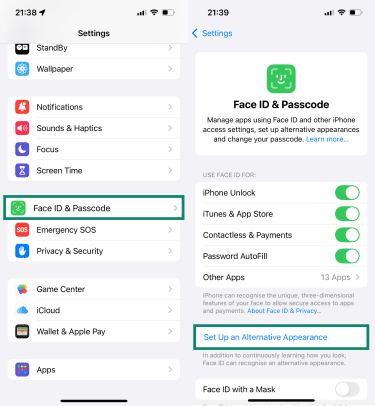
Enable attention awareness features
Face ID includes an option called “Require Attention for Face ID.” When this is enabled, Face ID only works when your eyes are open and directed at the screen. This can reduce the chance of the device unlocking without your awareness (for example, when you’re asleep or not directly engaging with the screen).
This setting is typically enabled by default, but to confirm it’s active, go to your Face ID & Passcode settings and ensure the switch next to Require Attention for Face ID is toggled on.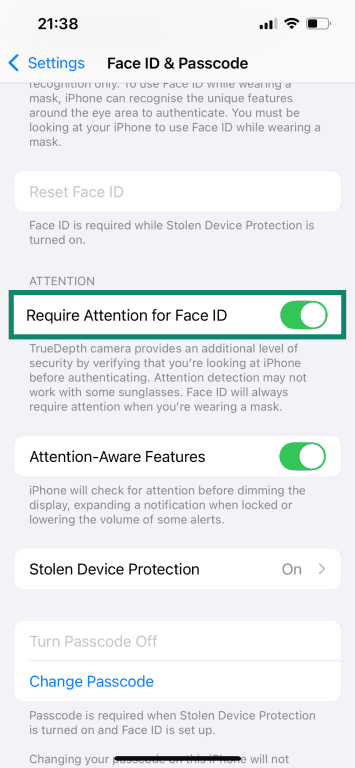
Keep your iOS updated
Face ID depends on both hardware and system-level software to operate reliably and securely. Apple periodically releases iOS updates that include security fixes, broader system improvements, and occasional enhancements to biometric handling and anti-spoofing models. Staying on the latest iOS version ensures you’re using the most current protections Apple supports for your device.
To check for available updates, go to Settings, choose General, and tap Software Update. From there, you can download and install any available updates or enable automatic updates (recommended).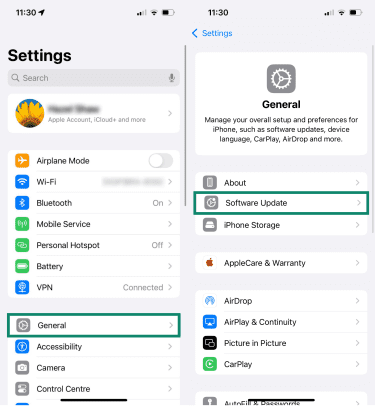
Disable Face ID for certain apps or actions
Face ID doesn’t have to be enabled everywhere. iOS allows you to control where it’s used, including device unlocking, Apple Pay, autofill, and supported third-party apps that offer biometric authentication.
For apps or actions where you want an extra pause or explicit confirmation, turning off Face ID forces a passcode instead. This can be useful for high-sensitivity apps or situations where you might be at higher risk of a false match.
To customize which apps and services use Face ID, go to your Face ID & Passcode settings, locate Use Face ID For, and toggle the switches on or off for each item (for third-party apps, select Other Apps).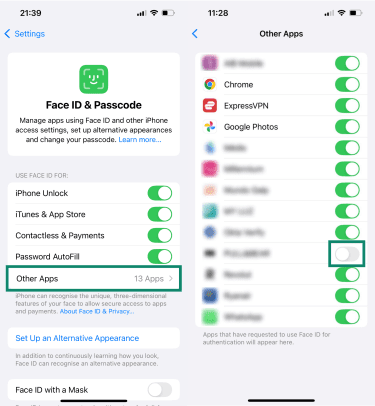
How Face ID fits into your overall digital privacy strategy
What Face ID protects and what it doesn’t
Face ID governs whether actions that are already permitted on a device can proceed at that moment. As mentioned, its protection is limited to device-level authentication and does not extend to your online accounts or services.
Face ID does not influence how your accounts behave on other devices, such as computers or other phones, nor does it protect against external threats like compromised passwords, phishing, or insecure networks.
Face ID isn’t a substitute for account security or network protections. It’s a device-level control that limits what can be accessed when someone has physical possession of your iPhone or iPad. Protecting your broader online privacy still depends on things like strong account credentials, careful browsing habits, and secure network connections.
Where VPNs actually help
A virtual private network (VPN) doesn’t affect how your device is unlocked; it comes into play after your device is already in use.
When a VPN is on, your internet traffic is encrypted between your device and the VPN server. This helps protect your data and is especially important on public or shared networks, like cafe or airport Wi-Fi, where other people on the same network could potentially see or interfere with traffic. A VPN also masks your IP address, showing websites the VPN server’s location instead of your own, which helps limit location tracking and reduces cross-site tracking.
A VPN doesn’t protect data stored on your device, and it doesn’t stop someone from using apps if they already have access to it. In the same way, Face ID doesn’t protect data once it leaves your device or travels across the internet.
FAQ: Common questions about Face ID
Can Face ID work with a picture or video?
No. Face ID uses depth sensors to check for a real, three-dimensional face in front of the device. A photo, video, or image on another screen doesn’t provide the depth and movement signals Face ID looks for, so it generally won’t unlock an iPhone or iPad.
Is Face ID safe for kids or elderly users?
It depends on the situation. Face ID is generally safe, but Apple notes that it may be less reliable for children under 13, since their facial features are still developing and can be more similar to others, increasing the chance of recognition errors.
For older adults, Face ID typically works well. However, natural changes in appearance over time (such as variations in skin texture or facial structure) and certain medical conditions that affect facial features may sometimes impact Face ID’s accuracy or require occasional reconfiguration.
Can Face ID be used while sleeping or unconscious?
By default, Face ID requires your eyes to be open and looking at the screen. That means it shouldn’t unlock if you’re asleep, unconscious, or looking away. If the “Require Attention for Face ID” setting is turned off, this protection is reduced.
What if Face ID stops working?
If Face ID fails repeatedly, iOS automatically falls back to asking for your passcode. This can happen if the camera can’t get a clear view of your face, lighting conditions are poor, or your appearance has changed. You can also reset Face ID and set it up again by going to your device settings and selecting “Face ID & Passcode” and then “Reset Face ID” (you may need to temporarily disable Stolen Device Protection first).
Take the first step to protect yourself online. Try ExpressVPN risk-free.
Get ExpressVPN