How to spot DocuSign email scams and avoid phishing attacks


If you’ve ever received an email asking you to “review and sign” a document, there’s a good chance it mentioned DocuSign. Because it’s widely used by businesses to send contracts and agreements, we’ve learned to trust it.
That familiarity is exactly why scammers use it. They copy DocuSign’s branding so perfectly that their fake requests feel like just another routine task on your to-do list.
This guide explains how DocuSign actually works, how to see through the disguise, and what to do if you’ve already clicked.
What are DocuSign scams?
DocuSign scams are phishing attacks: fake emails or documents designed to look like official electronic signature requests. They mimic the branding and layout of a real notification to trick you into acting quickly.
These emails blend into your everyday workday. Most people click “Review Document” on autopilot, especially when they’re busy. The goal is to get you to hand over your login details, download a file that hides a virus, or authorize a payment you don’t actually owe.
Common types of DocuSign phishing attacks
At a high level, these scams fall into two broad categories: completely fake DocuSign emails and real DocuSign requests that are abused for malicious purposes. Understanding the difference helps you quickly narrow down where the real risk is.
Spoofed DocuSign emails
In this category, attackers send emails that pretend to come from DocuSign but have no connection to the real service at all. The goal is to stand in for DocuSign, not to use it.
These messages rely on email spoofing, a technique where attackers falsify visible sender details so the message appears legitimate. While the display name might say “DocuSign,” the underlying sender address often comes from unrelated or look-alike domains. Legitimate DocuSign notifications are typically sent from addresses ending in @docusign.net, not random or misspelled domains.
From there, the attacker tries to recreate just enough of the DocuSign experience to trick you into acting.
Common tactics include:
- Fake DocuSign login pages: Links in the email lead to look-alike sign-in pages that mimic DocuSign’s branding and layout, designed to capture your email address and password.
- Malicious attachments: PDFs, HTML files, or ZIP files that imitate a document viewer or claim to contain the document itself. DocuSign does not ask you to sign documents via email attachments. Signing normally happens in your browser through a secure link.
- Urgent messaging: Claims that a document will expire, block a payment, or require immediate action: pressure meant to prevent you from stopping to verify anything.
At no point are you interacting with the real DocuSign platform, even though it may feel like you are.
Real DocuSign accounts used for scams
Not all DocuSign scams use fake/spoofed emails. Some come from real DocuSign accounts. Scammers sign up for free trials or developer accounts and use them to send genuine notifications. That means the message comes from @docusign.net and includes your name. Nothing looks obviously broken or fake at first glance.
In this case, the danger isn’t the email; it’s what’s inside the document. Common abuse patterns include:
- Fake invoices or payment requests: The document (not the email) asks you to send money, update banking details, or approve a payment you don’t expect.
- Links inside documents: Buttons or links that send you outside DocuSign to “complete” a task, verify information, or download additional files.
- QR codes embedded in documents: These make inspecting the link harder, especially on mobile devices. Scanning a malicious QR code will typically lead you to a phishing page.
- Phone-number pressure (callback scams): The document instructs you to call a phone number to “resolve an issue,” “confirm a payment,” or “verify the document.” Once on the call, scammers pose as support staff, vendors, or internal teams and pressure victims into sharing financial data.
In a standard DocuSign flow, all signing and data entry happen securely within the platform. In some legitimate DocuSign workflows, the sender may redirect you to a simple confirmation or “thank you” page after signing. This is common when DocuSign is integrated into other systems; however, it will never ask you for passwords, two-factor authentication (2FA) codes, or banking details. DocuSign is for collecting signatures, not passwords or payment details.
Impersonation and social engineering in DocuSign email scams
Unsurprisingly, scammers most often impersonate roles that routinely send documents or handle payments:
- Finance, billing, or invoicing teams: The message may claim that an invoice requires immediate review, a payment failed or needs confirmation, or a document has already been signed.
- HR and payroll departments: These scams often use DocuSign-themed emails that reference payroll updates, benefits changes, onboarding or policy documents, or tax or employment forms.
- Government offices and procurement authorities: Messages claim to come from city offices, procurement departments, or regulatory bodies, creating urgency and discouraging verification.
What are the signs of DocuSign phishing?
DocuSign has a particular structure. So, if something feels off, it probably is. These are the most common phishing red flags to watch for.
A sender address that doesn’t quite match
Legitimate DocuSign emails are sent from addresses ending in @docusign.net. Scammers often hide behind display names like “DocuSign” or “DocuSign Support” while using look-alike addresses such as docusign-support@gmail.com, docs@docusign-contracts.net, or noreply@docusign.cc.
To check the real sender, tap or hover over the sender’s name to see the full email address. If it doesn’t end in @docusign.net, be cautious, especially if the message asks you to act quickly.
Vague or impersonal greetings
Many scam emails avoid using your name and instead rely on greetings like “Dear customer,” “Hello user,” or “Valued member.” If you see any of these generic phrases, treat them as a warning sign, especially when paired with other red flags.
Real DocuSign requests almost always use your full name because the sender has to enter it to create the document.
Links that don’t lead to DocuSign
Before clicking the “Review document” button, hover over the link and look at the bottom left-hand corner of your browser.
A legitimate DocuSign link will start with https://www.docusign.net. In some cases, the URL may include a subdomain that reflects DocuSign’s regional or environment servers, such as na2, na3, na4, au, ca, eu, or demo. However, if the link starts with bit.ly, tinyurl.com, a string of numbers (an IP address), or anything else that isn’t an official DocuSign domain, don’t click it.
Pressure, threats, or sloppy writing
Scam messages often:
- Create urgency or fear
- Threaten account closures or payments
- Contain spelling or grammar mistakes
Real DocuSign notifications use a neutral, consistent format. While a sender can add a short message, the system itself doesn’t threaten consequences or demand immediate action.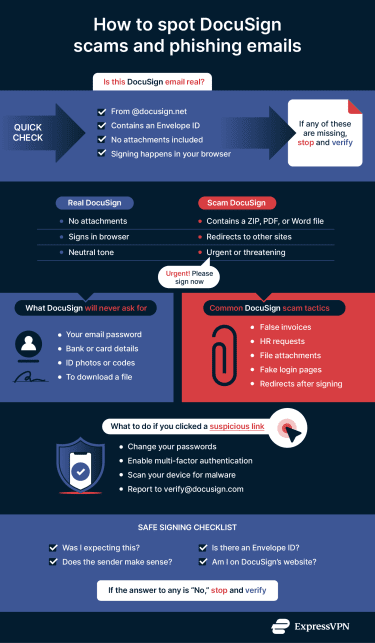
Reporting and responding to suspicious emails
Knowing how to report suspicious messages helps protect you and others. DocuSign provides specific reporting options depending on what you’ve received and where it came from.
- Real DocuSign email, scam document: Within the scam DocuSign document, click the three vertical dots > Report Abuse or click Report this email in the footer of the notification message.
- Fake email pretending to be DocuSign: Forward the whole email as an attachment to verify@docusign.com.
- Fake website, link, or social media page impersonating DocuSign: Email the link to verify@docusign.com.
- Unexpected verification code: Ignore and delete the message. If you shared your password, change it immediately on that site and anywhere else you use it, and turn on 2FA.
- Personal data concerns: Submit a request through DocuSign’s Privacy Request Portal.
- Anything else: Contact DocuSign Support directly or visit the DocuSign Safety Center for up-to-date guidance and reporting options.
What to do if you already clicked a DocuSign scam
If you’ve already interacted with a suspicious DocuSign message, follow these steps:
- Disconnect: This stops any potential malware on your device from interacting with the scammer.
- Change passwords: If you entered a password, change it immediately on the real site. If you use that password anywhere else, change it there, too.
- Check forwarding rules: Scammers often set your email to “auto-forward” to them so they can see your bank alerts. Check your email settings to ensure your mail is only going to you.
- Run a security scan: Use a trusted antivirus to scan your device for keyloggers.
Best practices for protecting against DocuSign phishing
Phishing works best when people feel rushed or unsure. Awareness and a few basic safeguards go a long way.
- Verify before clicking: Open DocuSign in your browser and access the document there instead of clicking unexpected email links.
- Use real examples: Show common scams and explain what gives them away.
- Set clear internal rules: Require HR, Finance, and Legal to give advance notice before sending signing requests. Verify unexpected documents through another channel, like Teams or Slack.
- Practice safely: Run safe phishing tests to give people practice spotting fake requests.
- Use a password manager: These tools won’t autofill your password on a fake site because the web address doesn’t match the real one.
Additional security measures
Training helps, but a few basic technical protections add another layer of safety.
- Use multi-factor authentication (MFA) wherever possible: Even if your password is stolen, a malicious actor can’t log into your account without the second verification method, such as a one-time code sent to your phone or an authentication app approval.
- Be careful on public Wi-Fi: Avoid reviewing contracts or sensitive documents on unsecured networks. Use a protected connection, such as a trusted virtual private network (VPN), to encrypt your traffic and reduce the risk of someone intercepting your session.
- Block risky links early: Basic browser or email security tools, such as link scanning or phishing protections, can stop known phishing sites from loading, even if you click on a link by mistake.
FAQ: Common questions about DocuSign email scams
Is there a DocuSign scam email?
Yes. Many scam emails pretend to be DocuSign requests. They often look like legitimate “review and sign” messages but are designed to steal login credentials or spread malware.
Why am I receiving DocuSign emails?
You’re receiving DocuSign emails because someone has used DocuSign to send you a document for review, signature, or notification. Even if you don’t have a DocuSign account, anyone can send you a document for signature or review using the service as long as they have your email address.
In many cases, the email is legitimate, even if you weren’t expecting it. You may have been added as a recipient by a colleague, a business you interact with, or a third party you’ve dealt with before.
However, note that scammers also imitate DocuSign emails to try to steal information. If you don’t recognize the sender or weren’t expecting a document, it’s safest to avoid clicking links in the email. Instead, go directly to DocuSign’s website and sign in to check whether a document is actually waiting for you. If you don’t have a DocuSign account, verify the request through another trusted channel, such as contacting the sender directly.
How do you verify a DocuSign email?
Real DocuSign emails have clear identifiers. Check the sender’s email address (it must end in @docusign.net) and look for an Envelope ID. If you’re unsure, don’t interact with the email. Access the document directly through DocuSign rather than using email links.
What is the best way to report a phishing attempt?
Don’t interact with any suspicious emails. Forward fake emails to verify@docusign.com or use the built-in reporting tools if the email is real.
Can I trust emails from DocuSign?
DocuSign is a legitimate service, but not all emails that look like DocuSign are real. That’s why it’s important to check sender details, links, and the overall context of the message, especially if you weren’t expecting a document.
How can I protect my information when using DocuSign?
The safest approach is to stay calm and follow basic security habits. Avoid clicking links in unexpected emails, only sign documents through official DocuSign pages, and report anything that seems off.
Should I provide the Envelope ID when reporting a DocuSign scam?
If you have it, yes, but it’s optional. The Envelope ID helps DocuSign support teams look up whether a document request actually exists and how it was used. This can speed up investigations, especially for scams that involve real DocuSign accounts.
If you don’t have an Envelope ID, you can still report the message. Fake DocuSign emails often don’t contain a real ID, and support teams can investigate using the email content, sender details, or links instead.
Take the first step to protect yourself online. Try ExpressVPN risk-free.
Get ExpressVPN