How to optimize your VPN data usage


Using a VPN adds a layer of encryption to your internet traffic, which can slightly increase data usage. The difference isn't generally substantial, but it can add up over the course of a month or become more noticeable when you have a strict data allowance.
ExpressVPN can help you manage VPN data usage through certain built-in options, such as lightweight protocols, a pause function, and control over which apps or sites go through the VPN.
Does ExpressVPN use more data?
ExpressVPN encrypts your online traffic, and this encryption process adds a certain amount of overhead to your connection. It’s a modest increase, but it can become more significant during high-volume online activities, such as streaming, gaming, or downloading large files.
This is normal and is something that all VPNs do, but ExpressVPN also offers some built-in options that can minimize this VPN-related data usage.
How ExpressVPN can help minimize VPN data overhead
There are several ways you can manage VPN data usage within ExpressVPN. Firstly, you can ensure that you’re using a lightweight VPN protocol, such as Lightway, WireGuard, or IKEv2/IPsec.
These newer protocols are designed to minimize VPN overhead and generally use less data than older protocols such as OpenVPN. ExpressVPN’s Automatic protocol setting is selected by default and usually chooses Lightway, its proprietary protocol designed to be lightweight and provide optimal performance.
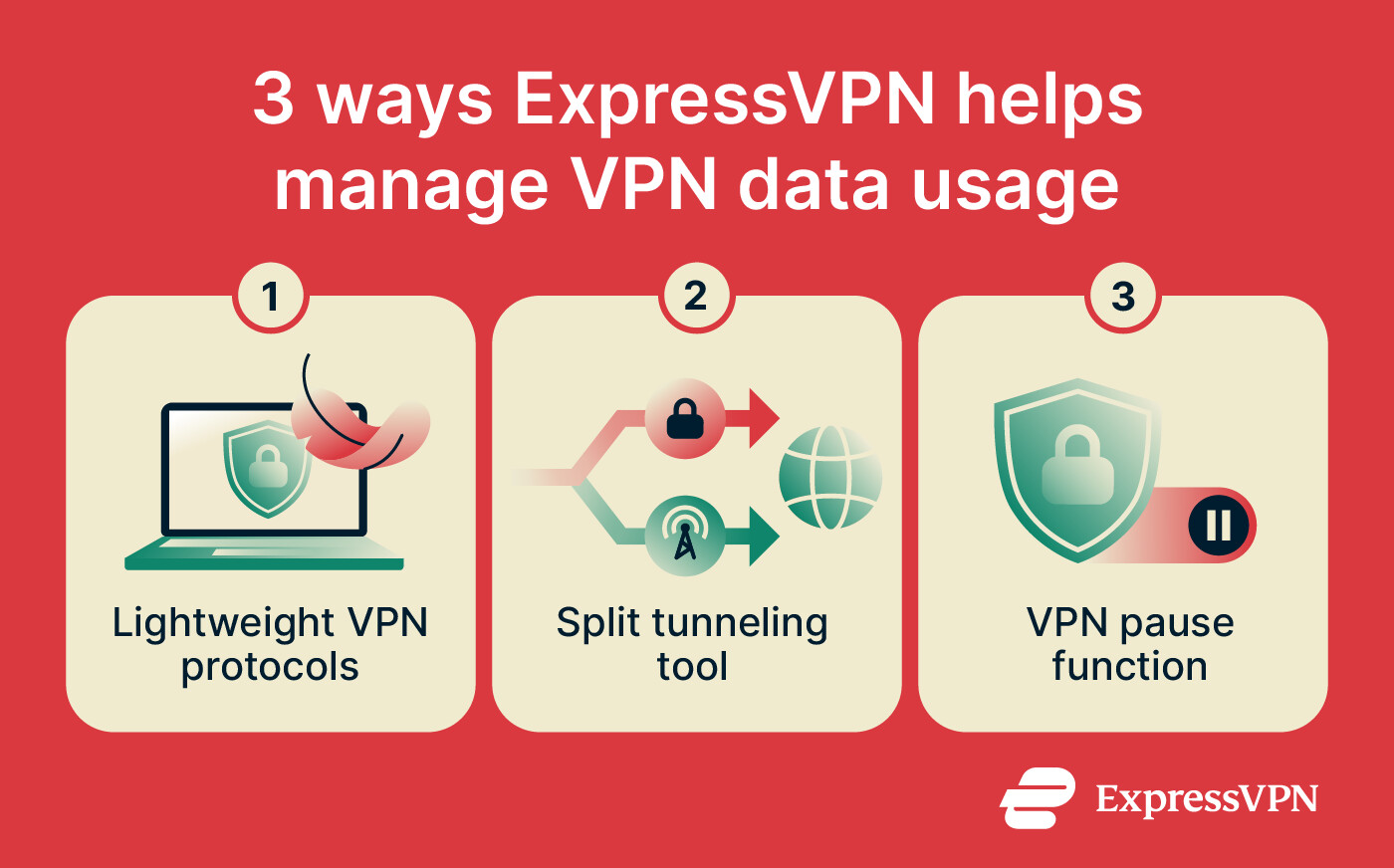
ExpressVPN also offers split tunneling, a feature that lets you choose which apps or sites use or don’t use the VPN connection. You could use split tunneling to exclude high-volume but low-risk online activities from the VPN to reduce the amount of data sent through the VPN and its associated overhead.
Additionally, ExpressVPN’s mobile apps let you pause the VPN connection for a predefined amount of time. This can help reduce VPN data usage when you need to temporarily disconnect but don't want to risk forgetting to reconnect later. For example, you might pause ExpressVPN when taking a short break from securely accessing work files to answer a call or attend an appointment.
Set up ExpressVPN to manage data usage
The following sections detail how to use settings and features built into the ExpressVPN apps to optimize VPN data usage.
Manage your protocol settings
By default, the ExpressVPN app uses the Automatic protocol option, which picks the most appropriate protocol for your current network conditions by default (usually the Lightway protocol).
We generally recommend sticking to the Automatic setting. However, if you want to make changes for any reason, you can follow the steps below to adjust protocols. Note that the tutorial includes Android app images, but the process is similar across most ExpressVPN apps.
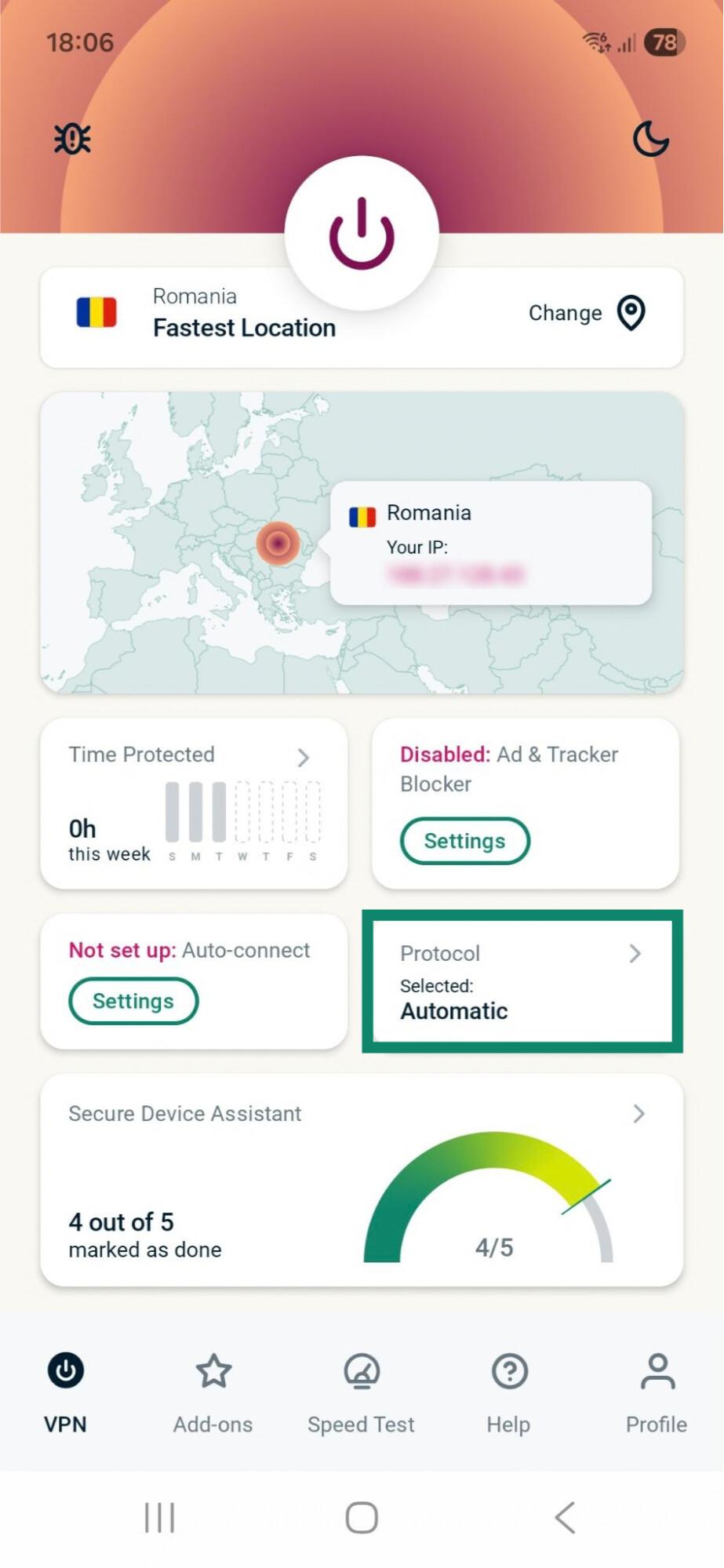
- On the VPN tab, tap the VPN protocol widget.
- Select your desired VPN protocol. ExpressVPN will apply it when you next connect.
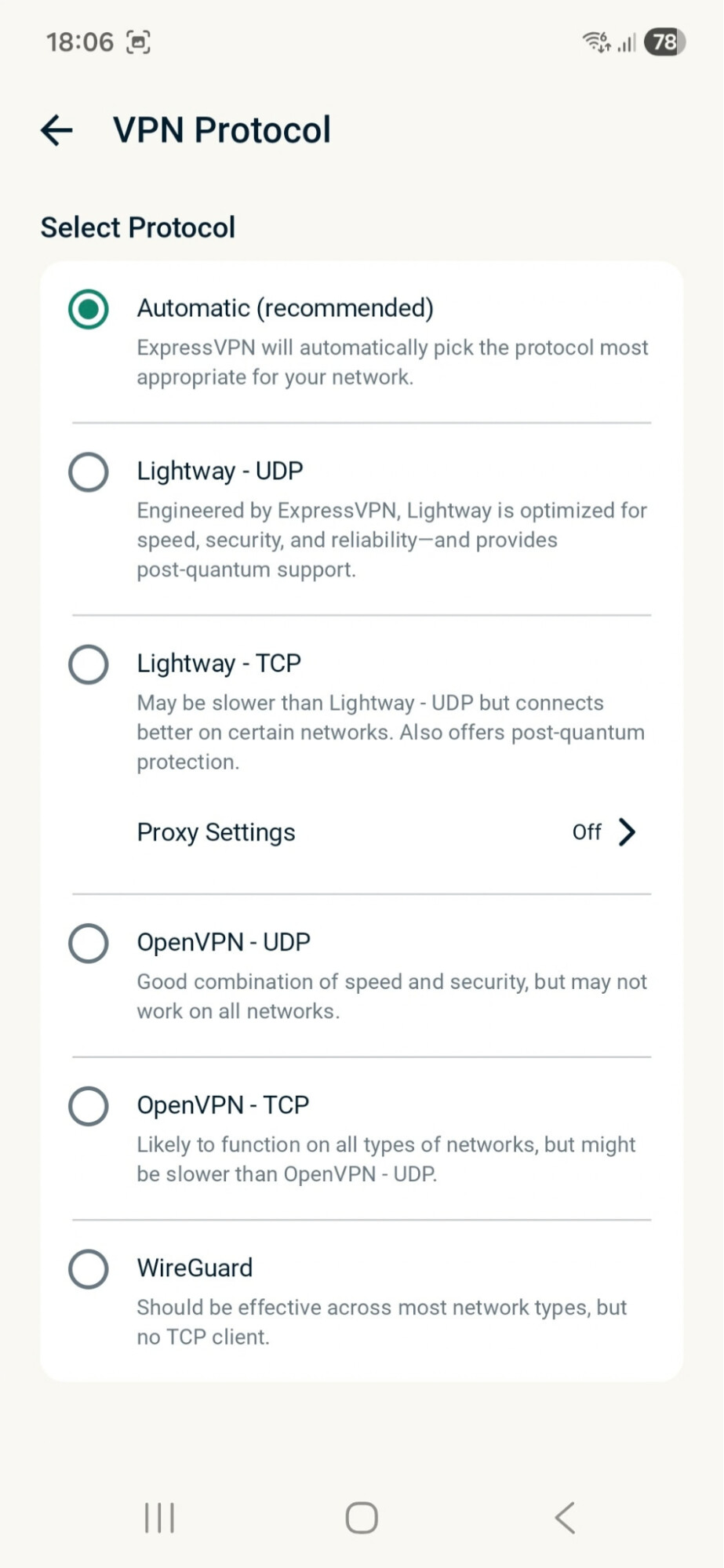
Try switching to Lightway first. Lightway - UDP is typically faster than Lightway - TCP, but the second option may work better on certain networks. Alternative lightweight protocols include WireGuard, which is available on most apps, and IKEv2/IPsec, which is only available on the iOS app.
For more information on how to change VPN protocols on different ExpressVPN apps, check our Android, iOS, Windows, macOS, and Linux guides.

Note: Switching protocols can impact battery life on mobile in addition to data usage. Lightway can offer reduced battery drain compared to other protocols, as it uses fewer system resources.
Set up split tunneling
If you exclude apps that don’t need VPN protection from the VPN connection, the encryption overhead isn’t added to their traffic.
The split tunneling feature is available on most ExpressVPN apps, including Android, iOS, Windows, macOS, and Linux. Note that, on iOS, you can only exclude individual IPv4 addresses, not apps. However, excluding high-volume platforms, like streaming and social media sites, can still help reduce data usage. For more details, read our iOS split tunneling guide.
The steps below show you how to use split tunneling to exclude apps on the ExpressVPN Android app, but the process is similar on desktop.
- Open the ExpressVPN app and select the Profile tab.
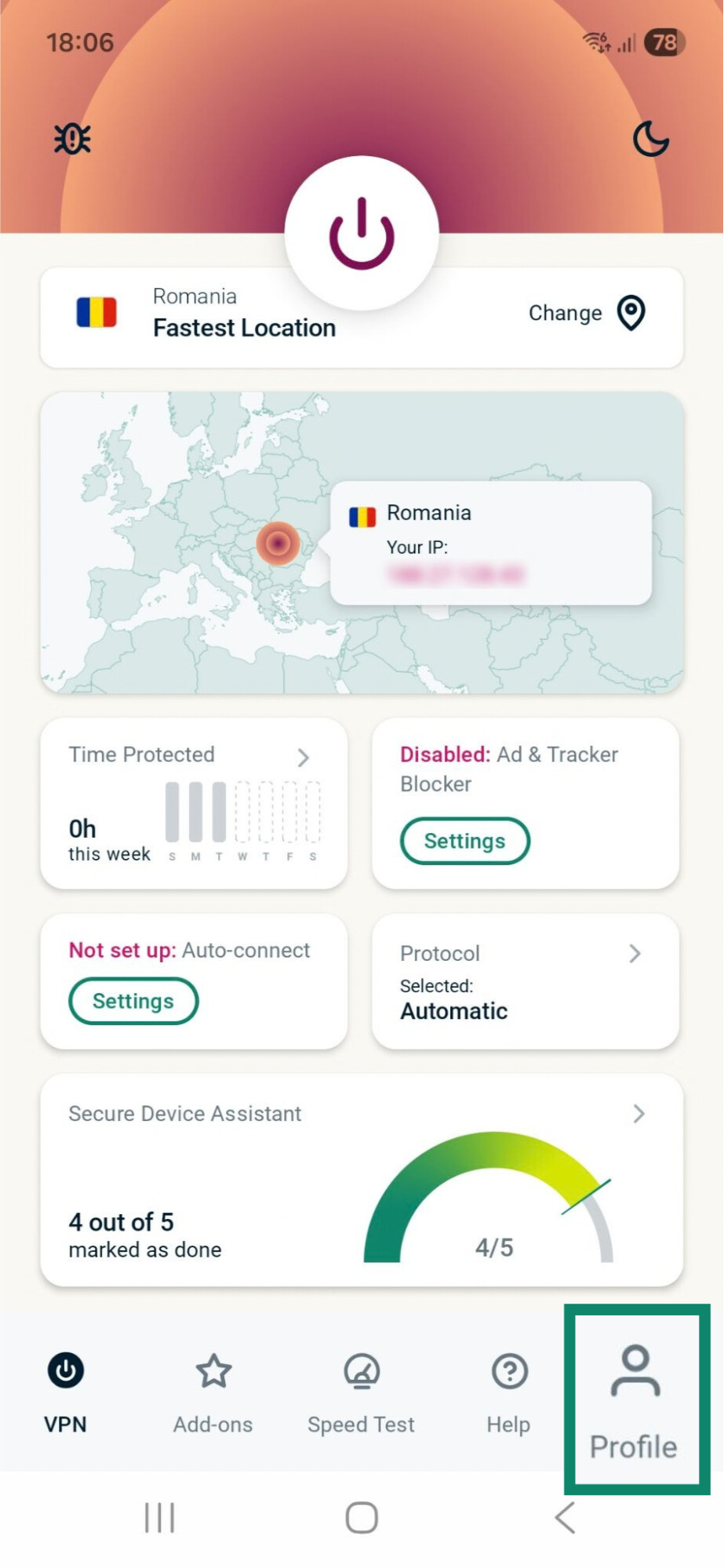
- Next, tap Split Tunneling.
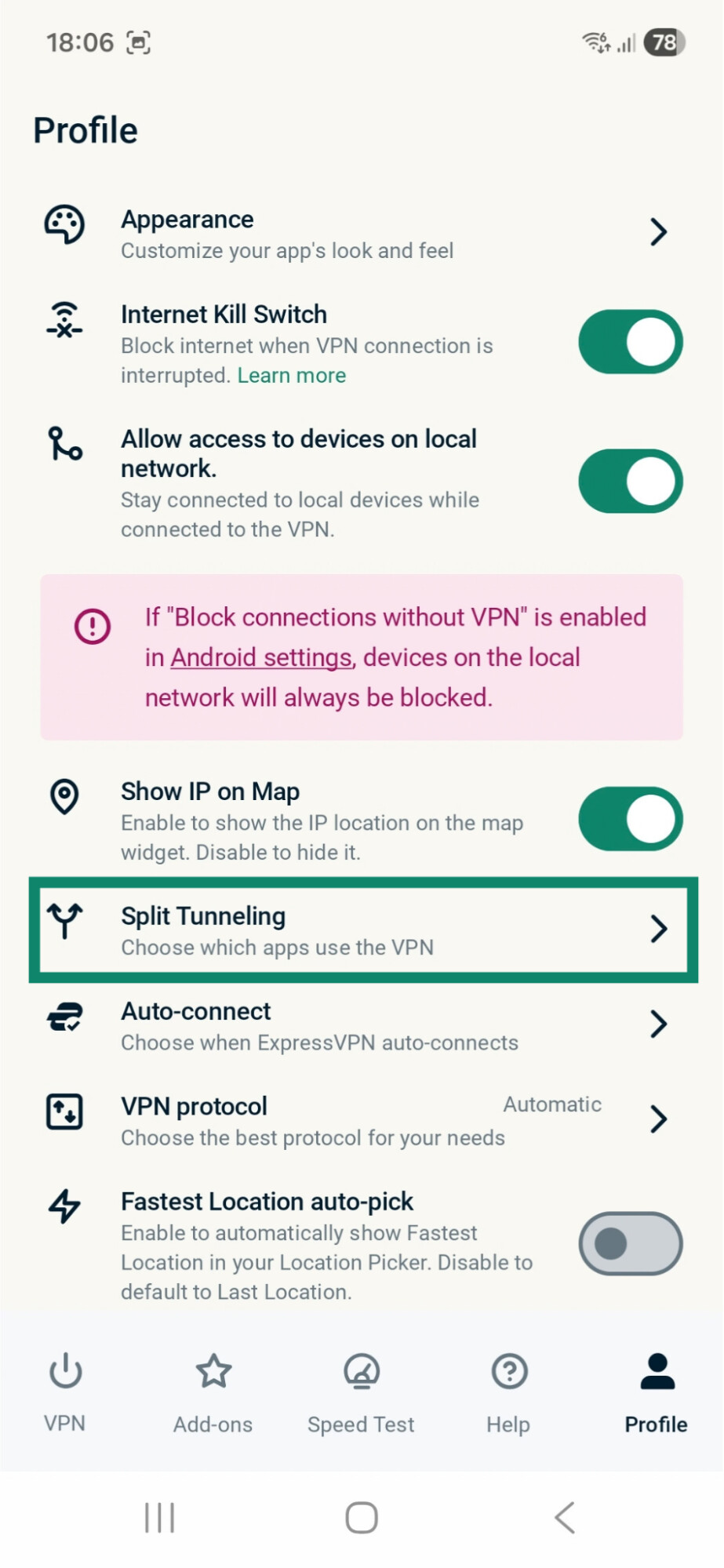
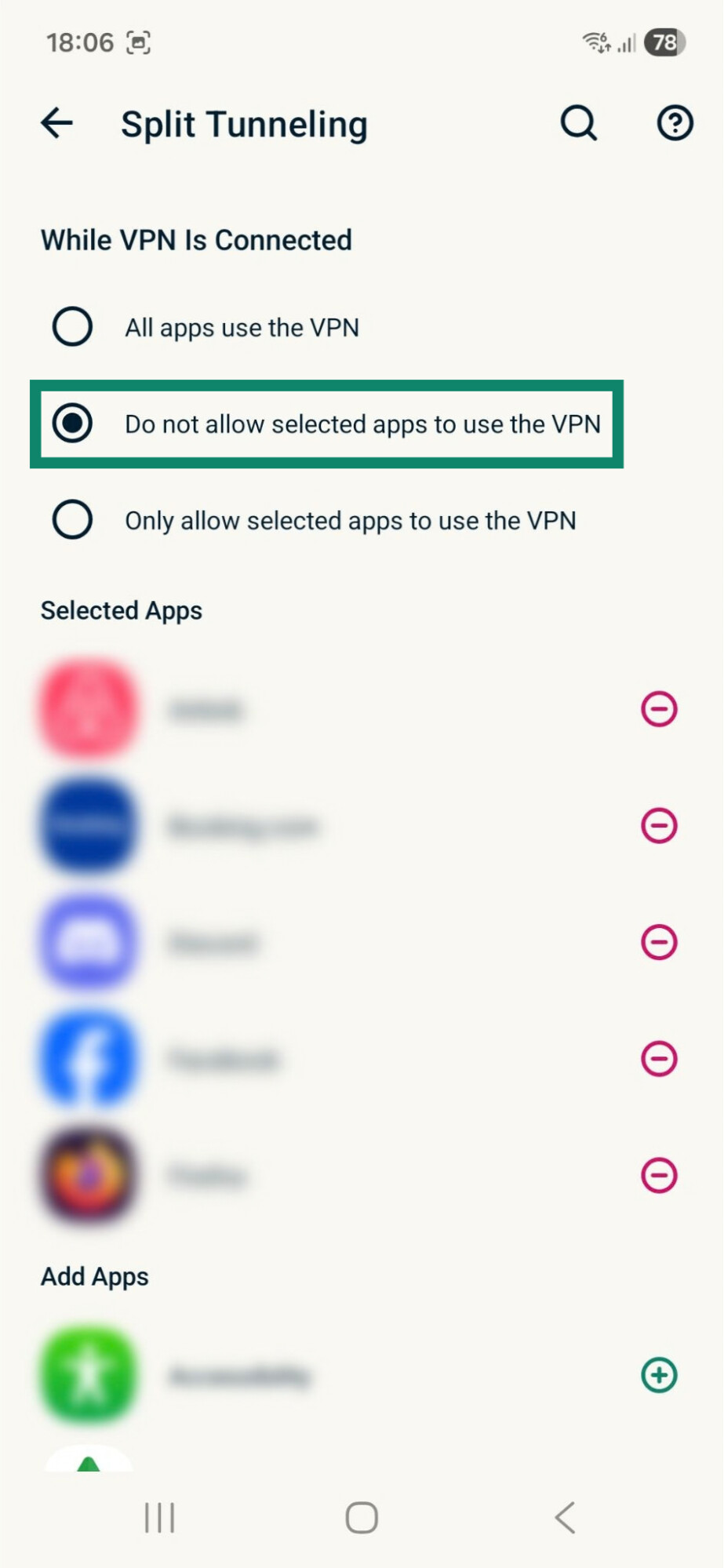
- Tap Do not allow selected apps to use the VPN and add the apps you want to exclude. On desktop, you need to add apps or IPs and set them to bypass the VPN.
For more detailed instructions, refer to our Android and desktop split tunneling guides.
Pause the VPN
On Android and iOS, ExpressVPN lets you pause an active VPN connection, temporarily disconnecting the VPN. Encryption overhead isn’t added to your data during the pause interval.
To use the pause feature:
- While connected to ExpressVPN, tap the pause icon.
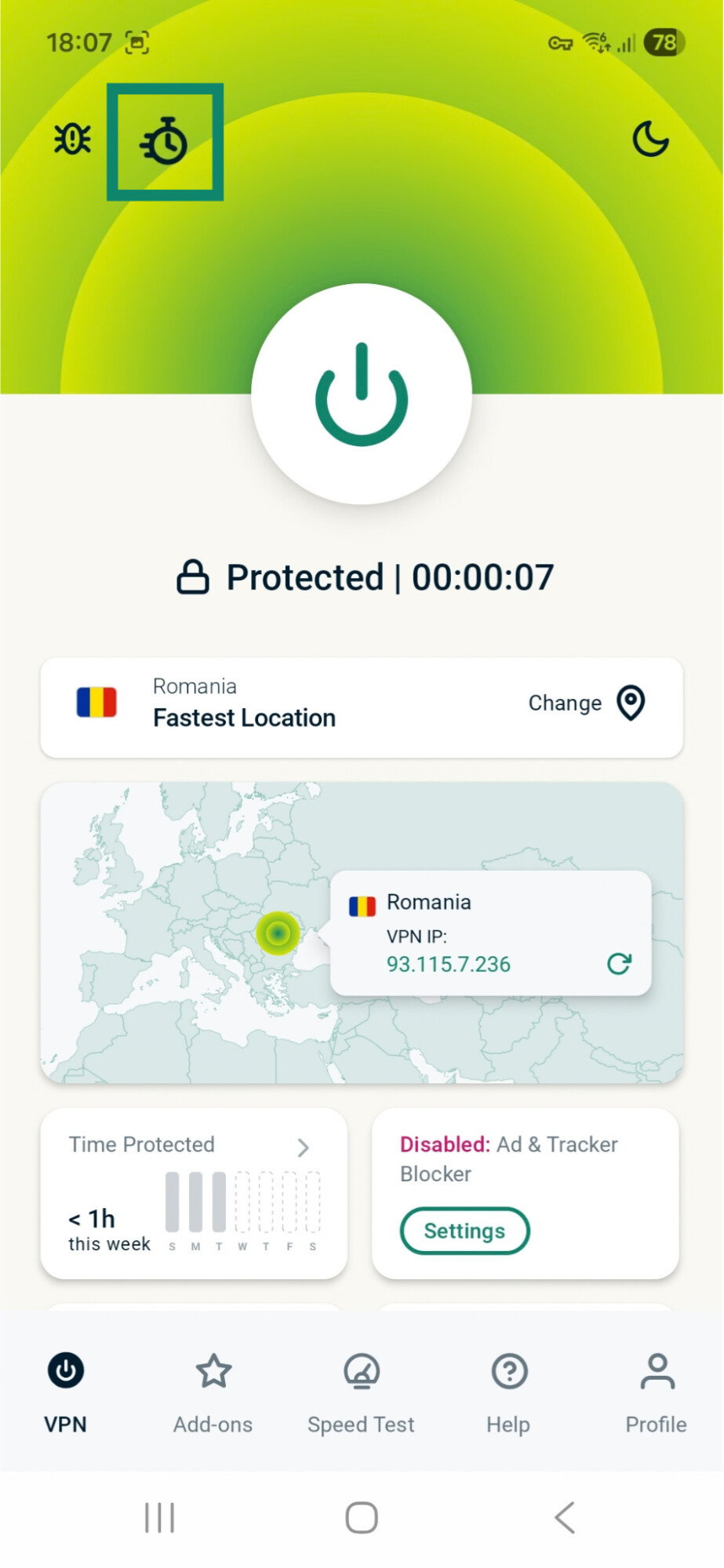
- Tap the desired pause interval. Available options include five, 10, 15, 30, and 45 minutes, or one hour.
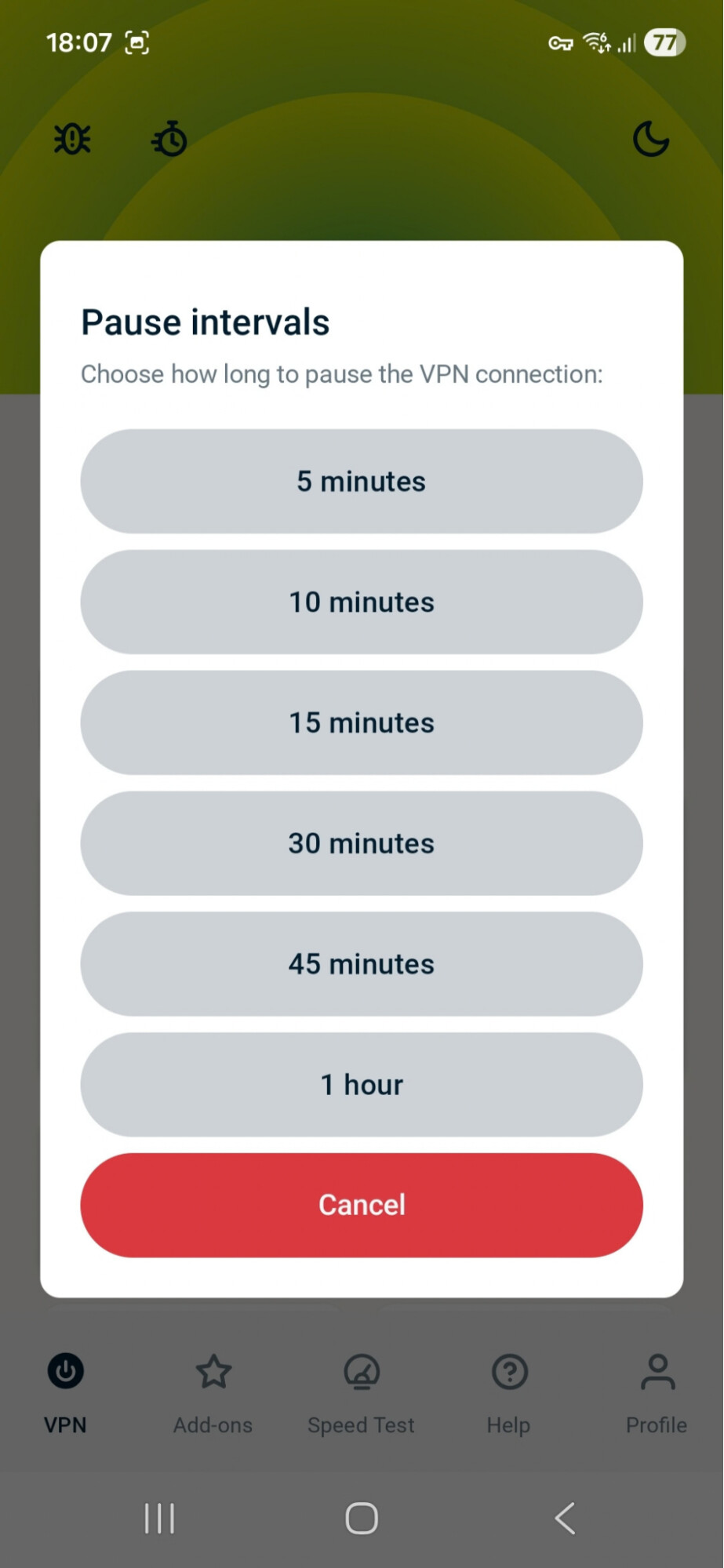
- ExpressVPN will automatically reconnect when the pause interval finishes.
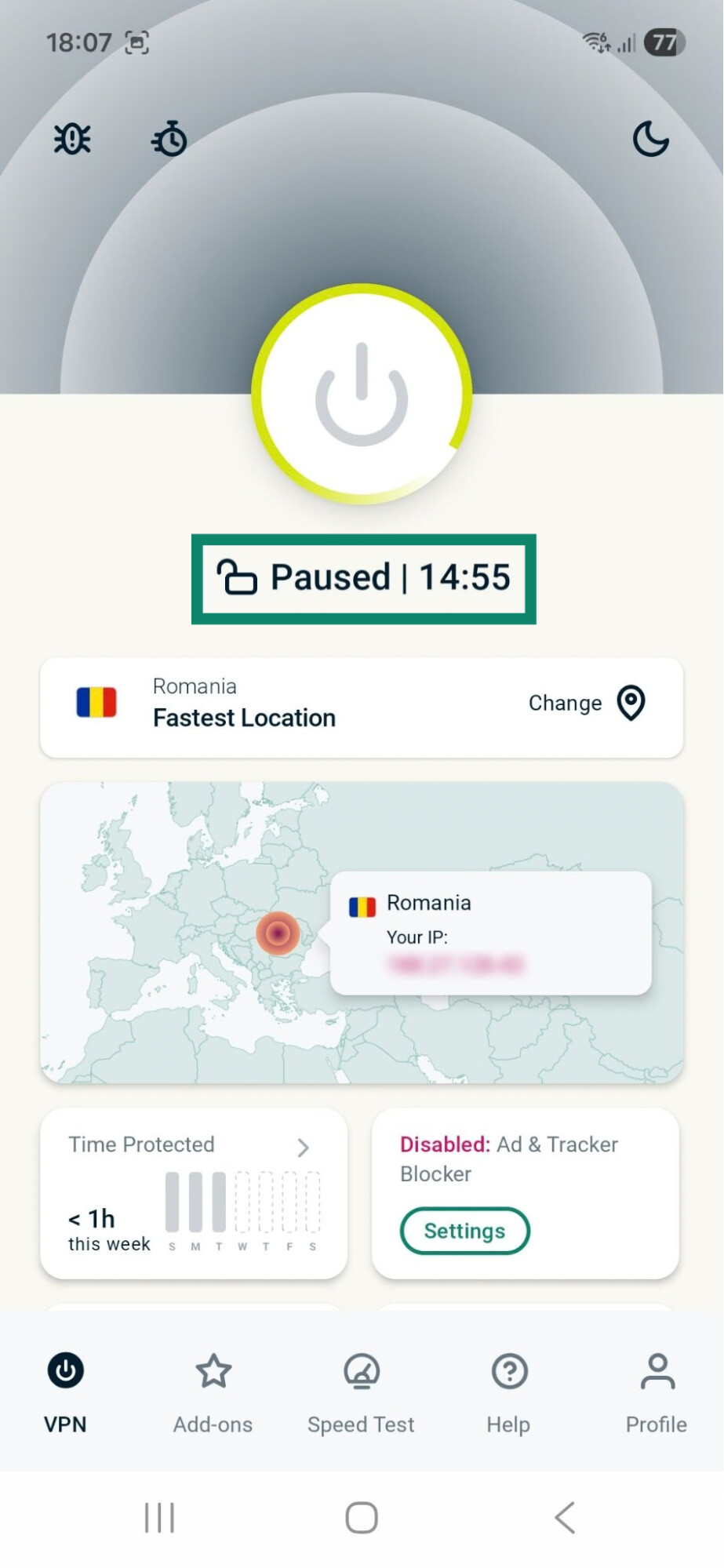
For more information, read our pause feature guide.
Note: If you need to disable ExpressVPN for more than an hour, disconnect and reconnect later when needed.
Other ways to manage data usage
In addition to following the advice mentioned above, here are a few other ways that you can optimize data usage:
- Lower video resolution when streaming: Streaming at a higher resolution can eat through your data quickly.
- Turn off autoplay in video and social media apps: Videos that play automatically can noticeably increase data usage.
- Disable automatic cloud backups: Limit backups to Wi-Fi connections to avoid unexpected data usage.
- Stop background app refreshes: Apps that refresh without your input can increase background data usage.
- Enable data-saving modes: Turn on Data Saver on Android or Low Data Mode on iOS to save network usage.
Lightweight and secure VPN connections
ExpressVPN encrypts your internet traffic, reducing eavesdropping and interception risks, and provides built-in settings and tools that help optimize VPN data usage.
Try ExpressVPN with a 30-day money-back guarantee for new users.
What ExpressVPN can't do to reduce your data usage
Like any VPN app, ExpressVPN adds a small amount of data overhead because it encrypts and encapsulates your traffic before sending it through the VPN tunnel. The amount varies depending on factors like the VPN protocol and the type of traffic, but ExpressVPN can't compress your data to reduce overall usage. Any data-saving or compression provided by a website or app happens separately from the VPN, as part of how that service delivers or processes its data.
It’s also important to know that ExpressVPN doesn’t bypass data caps. While connected to the VPN, your internet service provider (ISP) or mobile carrier can’t see which services you access, but they can still see how much data you use. All traffic, even encrypted traffic, counts toward your internet plan's allowance.
ExpressVPN also doesn’t provide you with additional data allowance. While it offers unlimited bandwidth, this just means ExpressVPN doesn’t impose limits on how long you can stay connected or how much data you can send through its servers.