How to hide your browsing activity from your ISP


Your internet service provider (ISP) carries your internet traffic, but that doesn’t mean it needs to see which websites and services you use. Connecting to ExpressVPN encrypts the traffic traveling between your device and the VPN server, which hides the destinations of traffic routed through that connection from your ISP.
But not everything is invisible. Your ISP still knows you’re connected to the internet and can see how much data you use. It may also recognize that you’re using a VPN.
How ExpressVPN limits what your ISP sees
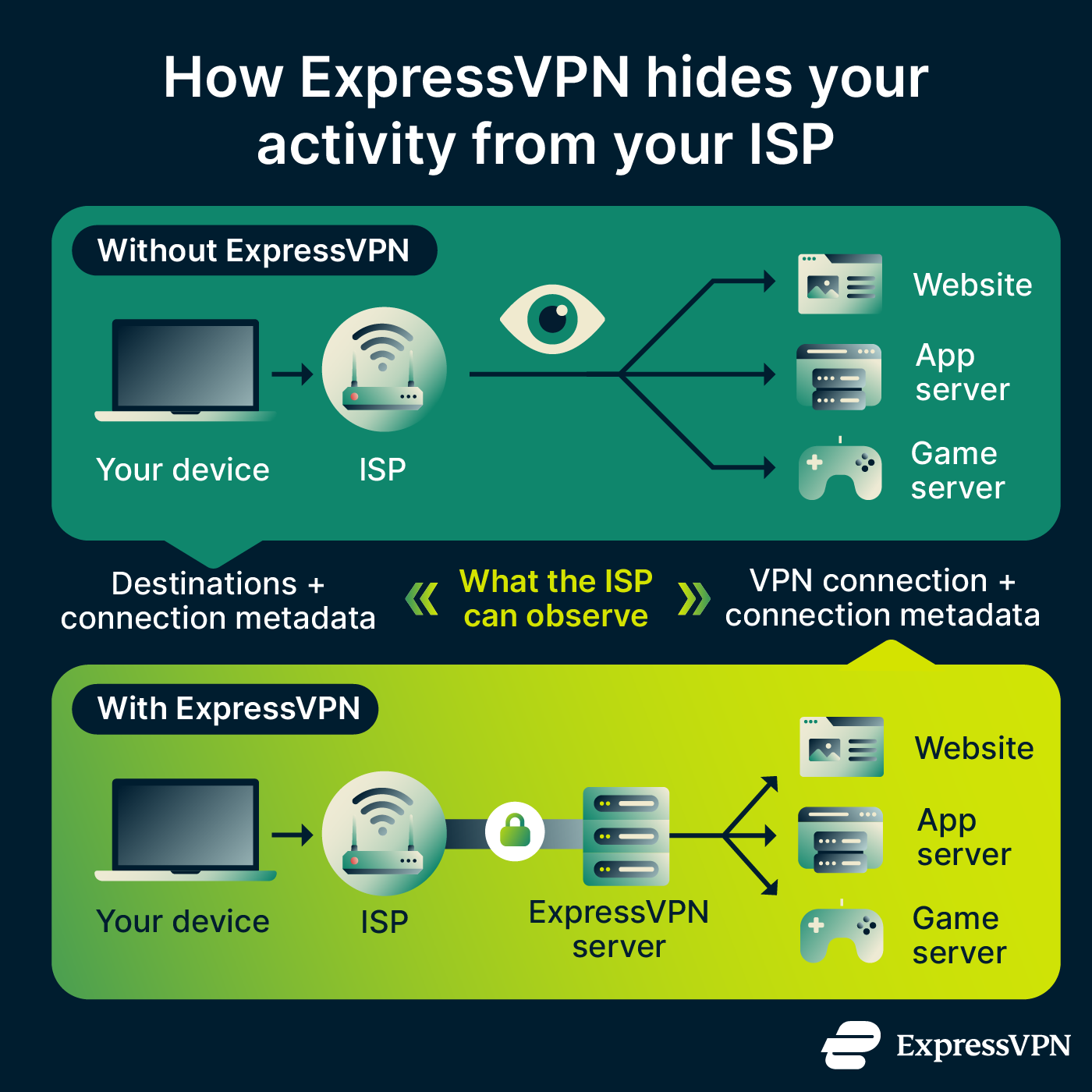
HTTPS encryption already protects the contents of your web traffic, including search terms and the contents of uploads and downloads, from your ISP. However, without a VPN, your ISP can still see which websites or domains you connect to, along with connection metadata such as when you connect and how much data you transfer.
Websites you visit (browser traffic)
When you enter a web address, your device needs to find the website you’re trying to visit. It usually does this by sending a Domain Name System (DNS) query, which works a bit like looking up a website’s address so your device knows where to connect.
With ExpressVPN, DNS queries are routed through private DNS servers. Without a VPN, your device may use a DNS server provided by your ISP. If the DNS query isn’t encrypted, your ISP can see the website you’re trying to visit, even though HTTPS prevents it from seeing what you do on that website.
With HTTPS, your ISP generally can’t see the exact pages you visit (like example.com/sensitive-topic), but they may see the domain (example.com). That alone can reveal a lot about your interests, habits, or intentions.
Apps you use (direct traffic)
When your app traffic goes through ExpressVPN, your ISP sees a connection to the VPN server instead of the services your apps connect to.
Without it, whenever you use an app or play an online game, your ISP sees the IP address of the server you’re connecting to and may be able to tell which service you’re using and who owns the server.
The same principle applies to websites, but apps can make direct connections to a wider range of servers and services. Some apps also communicate periodically in the background, which can provide additional information about your activity.
Traffic patterns
Even when you’re connected to ExpressVPN, your ISP can observe the volume of data being transferred and some basic details like the timing of your connection. However, because ExpressVPN encrypts your traffic and routes it through a VPN server, it becomes much harder for your ISP to work out which websites or services are generating that traffic.
Without a VPN, your ISP can combine this general connection information with the destinations and services associated with your traffic to infer certain types of online activity. This information can potentially be used for traffic management, including throttling particular services or types of traffic, depending on the ISP and its network policies.
| Without a VPN | With ExpressVPN |
|---|---|
| Websites you visit may be visible to your ISP | Websites you visit are obscured |
| Apps you use may be visible to your ISP | Apps you use are obscured |
| Your ISP can see connection timing and data volume | Your ISP can still see connection timing and data volume |
Set up ExpressVPN to protect your browsing from your ISP
Install the app on the devices you use to browse
ExpressVPN supports a wide range of devices and platforms, including Windows, Mac, iOS, Android, Linux, Chromebook, and some streaming devices and smart TVs. You can also use its browser extension with supported browsers like Chrome, Firefox, Edge, Brave, and Vivaldi.
For full download and installation instructions, see our guide: How to download and install ExpressVPN.
Want to protect multiple devices at once without installing a VPN on each one? ExpressVPN’s Fortify GL-MT6000 router has ExpressVPN built in and can protect up to 86 devices and smart home gadgets simultaneously. It comes with 1 year of the ExpressVPN Advanced plan included.
Connect to a VPN server
Once you’ve downloaded and installed ExpressVPN, get started by clicking or tapping the "Connect" button, which will automatically connect you to the optimal server. Here’s how it looks on the Windows app.
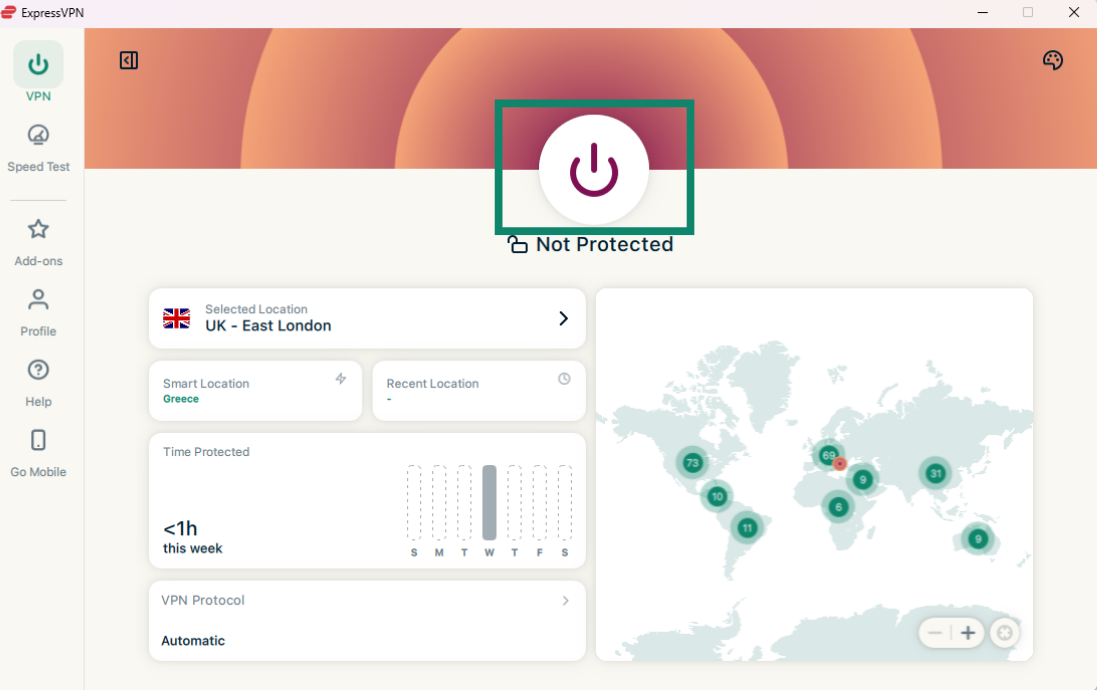
Once you see the Protected message, you know you’re connected to a VPN server.
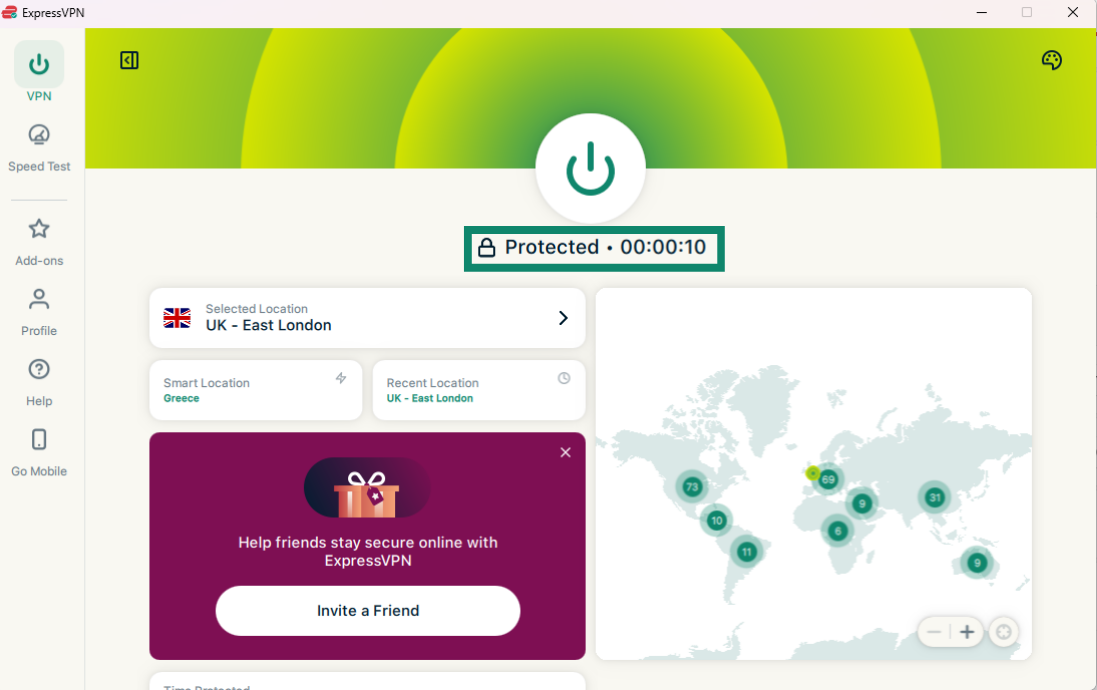
If you want to select a different server from the one ExpressVPN automatically selects for you, click the arrow next to the Selected Location field. This will bring up the full list of servers on the right-hand side, and you can just click the one you want to connect to and wait for the Protected message to confirm you’re connected. For faster speeds, it’s generally best to choose a nearby one.
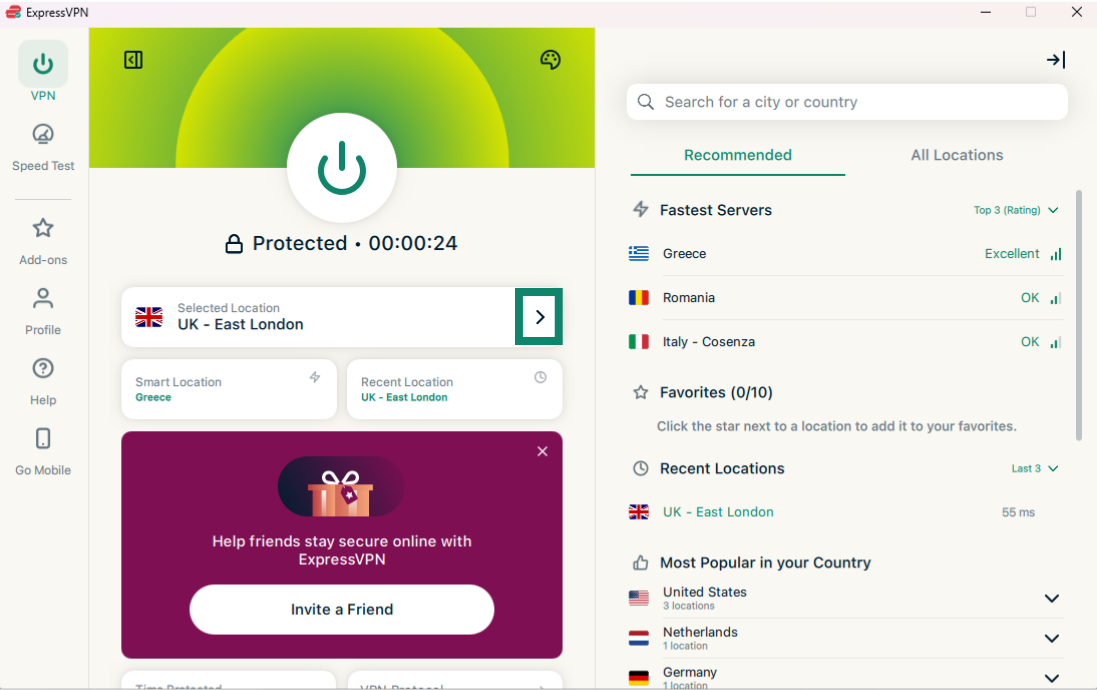
Traffic routed through the VPN now travels through the encrypted tunnel, hiding its destinations from your ISP.
Check your kill switch settings
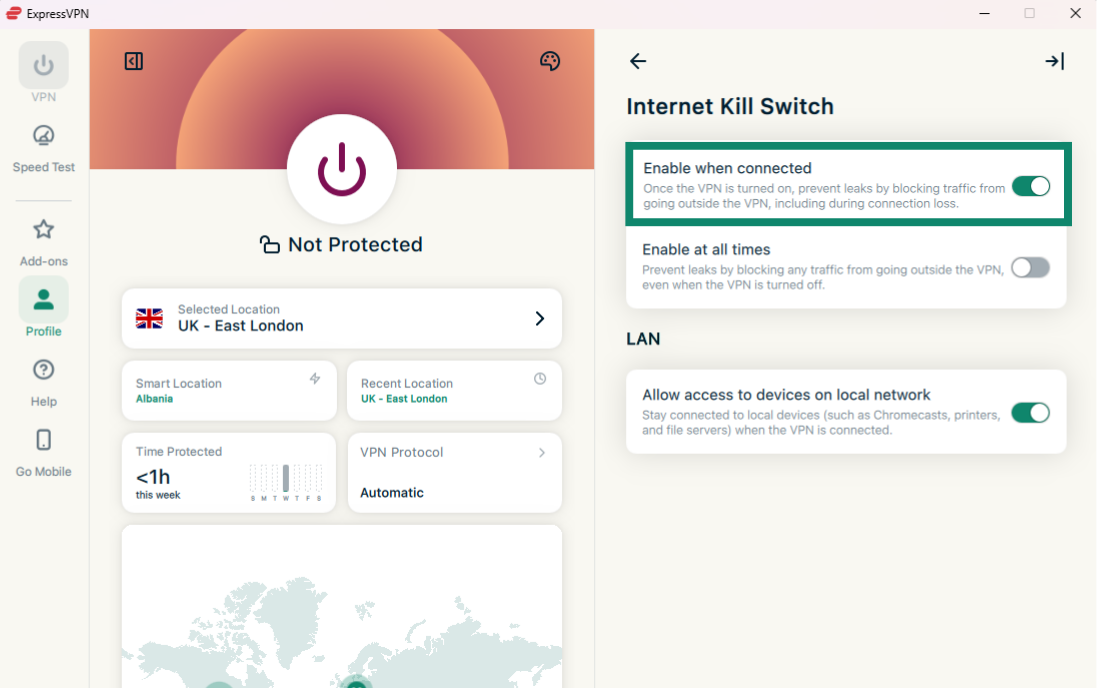
ExpressVPN offers an Internet Kill Switch that blocks internet traffic if your VPN connection drops, helping to prevent your browsing activity from being exposed to your ISP. It’s enabled by default on desktop.
To check whether it’s on:
- Open the ExpressVPN app and select Profile from the left-hand menu (we’re using the Windows app in this example).
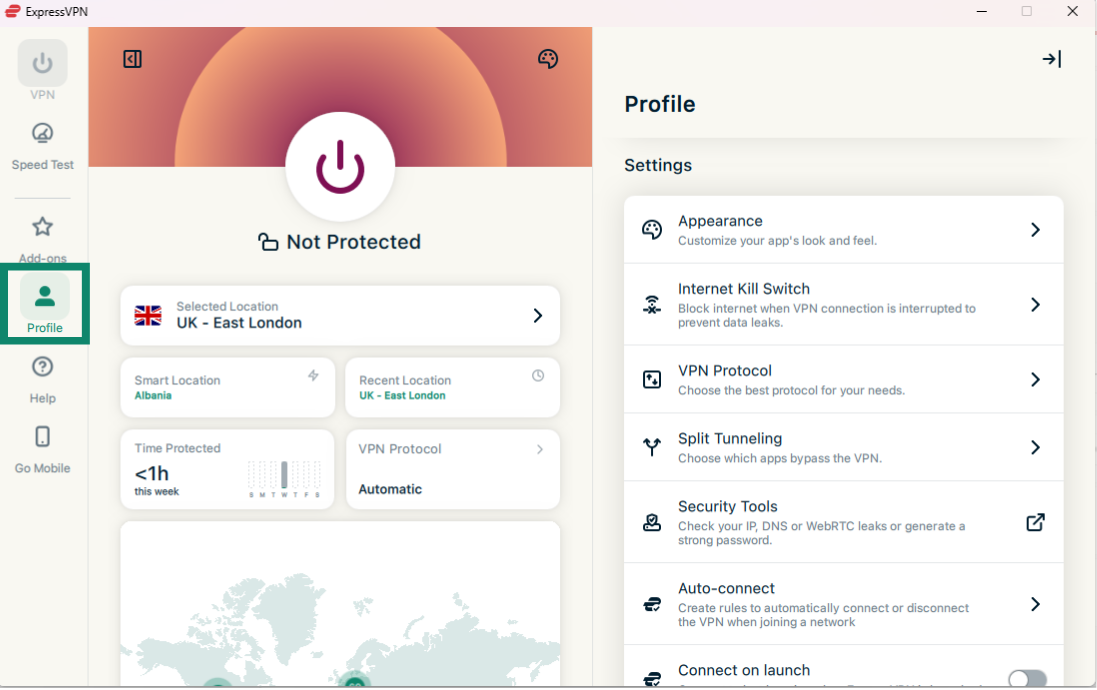
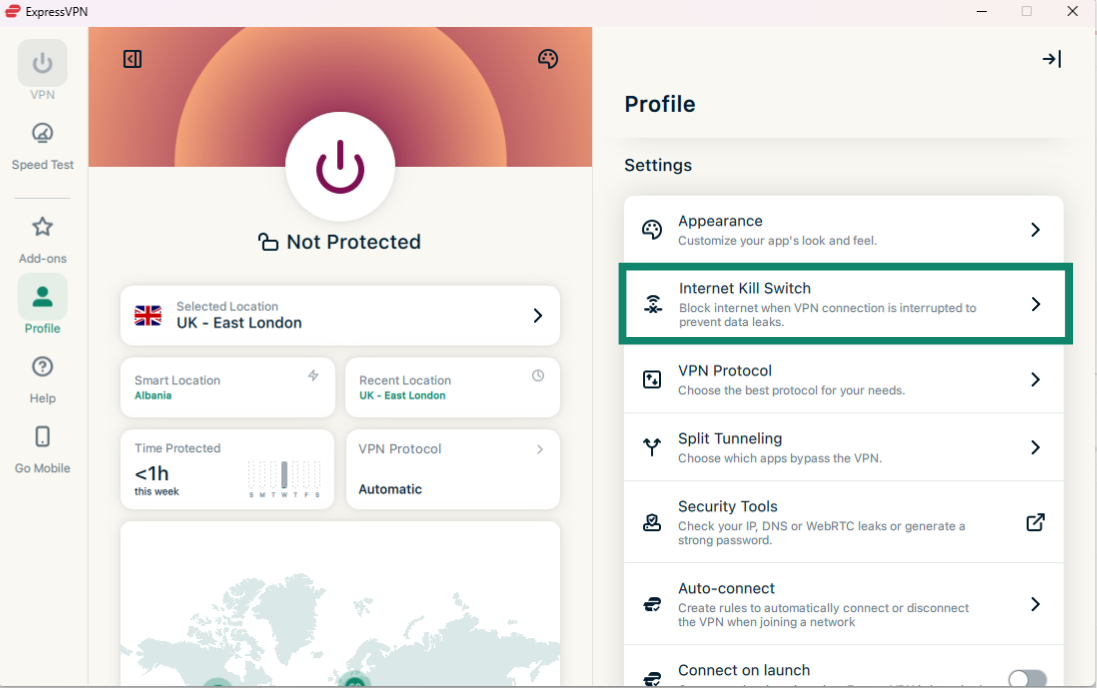
- On the right, under Settings, select Internet Kill Switch.
- Check that Enable when connected is switched on. This blocks internet traffic if your VPN connection unexpectedly drops.
For more information, see the support guide: How to use the Internet Kill Switch on the ExpressVPN desktop apps.
For mobile-specific kill switch instructions, see the Android and iOS guides.
Check that your apps and services are using the VPN
ExpressVPN offers split tunneling, which gives you the option to choose which apps or sites use the VPN tunnel and which connect directly. Any apps or traffic configured to bypass the VPN won’t be routed through the VPN connection, so your ISP may still be able to see their destinations.
Split tunneling is useful when you need some traffic to connect directly, but you should know which apps and services are bypassing the VPN. To check your settings:
- Open the ExpressVPN app and select Profile from the left-hand menu.
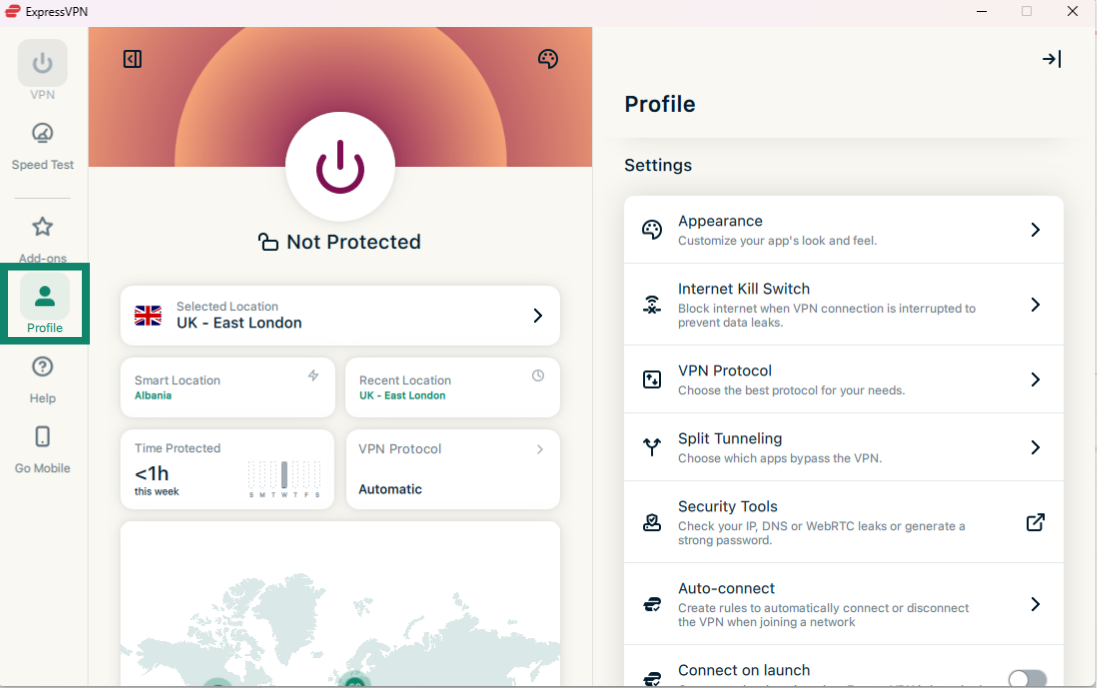
- On the right, under Settings, select Split Tunneling.
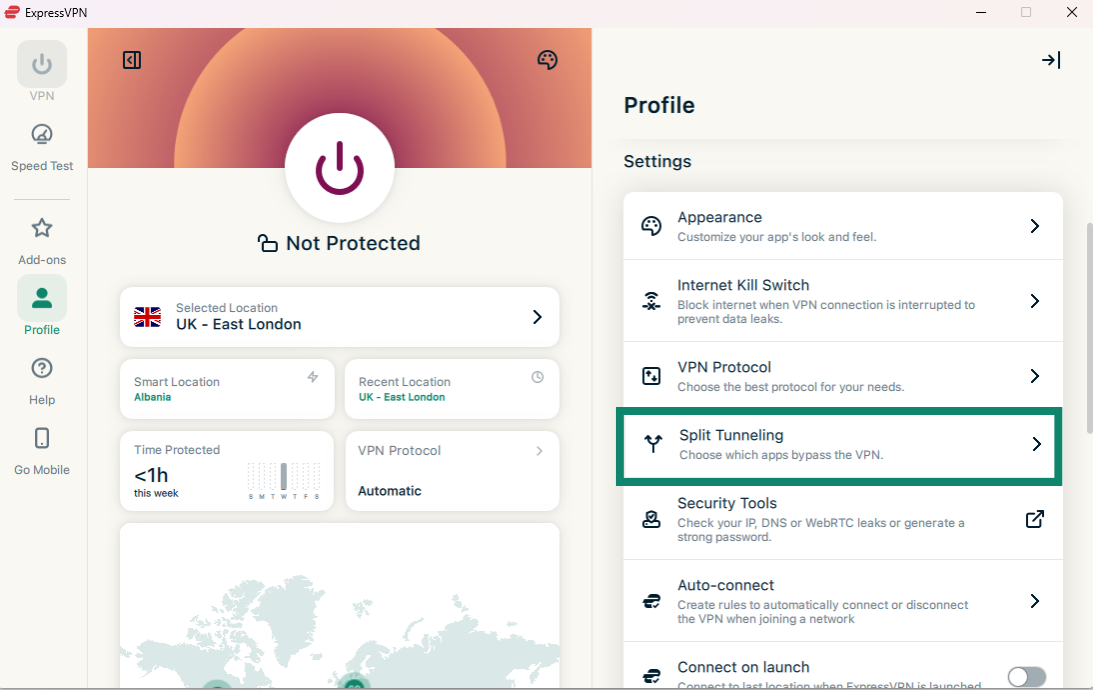
- There, you can enable or disable split tunneling, check which apps or IPs are configured to bypass the VPN, and adjust as needed.
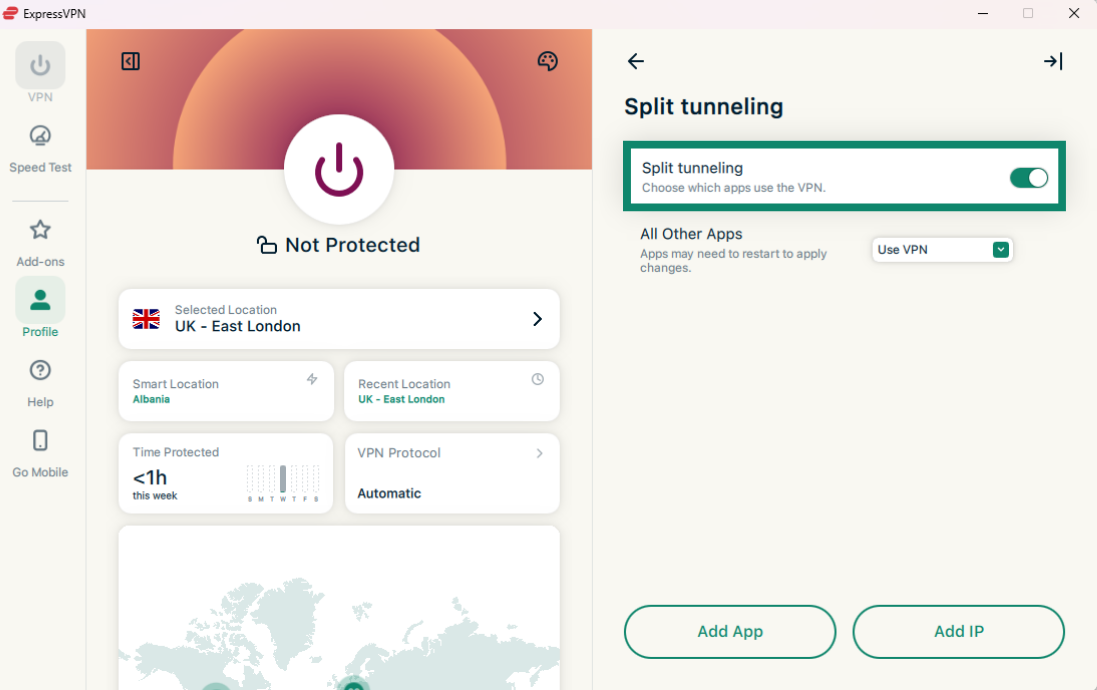
For more information on split tunneling, see our support guides:
- How to use the split tunneling feature on desktop
- How to use split tunneling on iOS
- How to use split tunneling on Android
Check that your connection is using ExpressVPN
ExpressVPN offers two quick tests to help you check whether your connection is using the VPN as expected.
Check your public IP address
To check your public IP address and verify that your traffic is appearing to come from an ExpressVPN IP address, you can use ExpressVPN’s IP address checker. If you visit the site before connecting to ExpressVPN, you’ll see your ISP-provided IP address, with a warning that your IP is currently exposed.
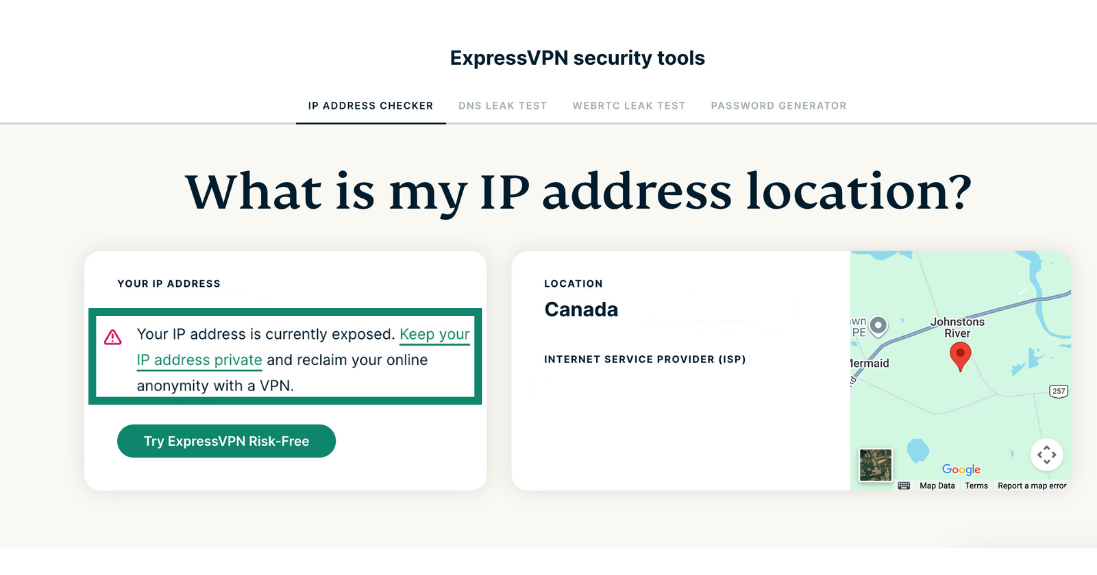
Once you’ve connected to an ExpressVPN server, you can visit the site again. This time you should see that the IP has changed to an ExpressVPN server address, and the status should show as secured.
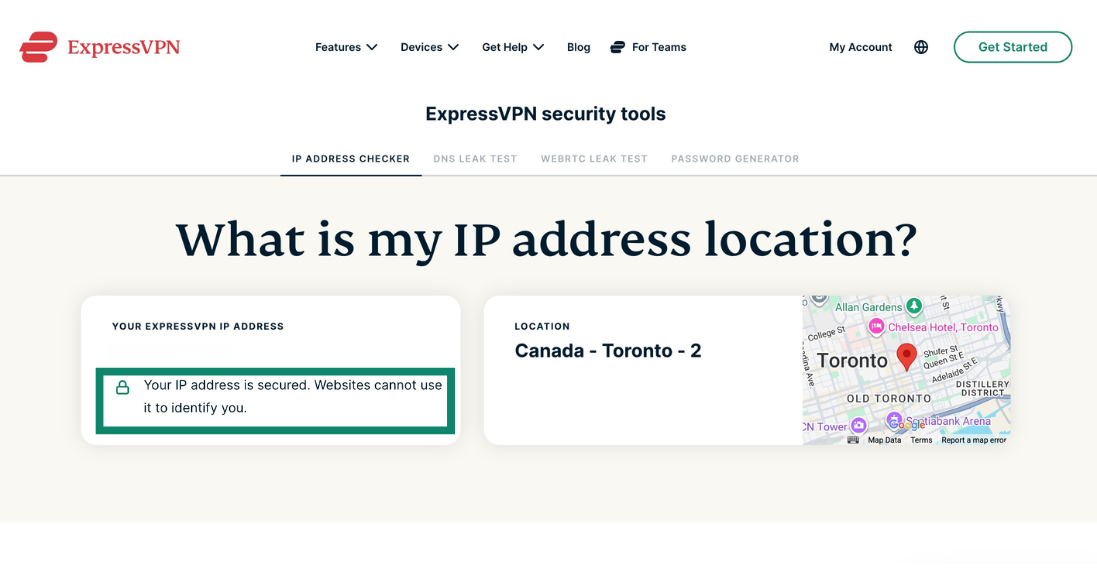
This checks the address your browser shows to websites. Your ISP still knows the IP address it assigned to your connection.
Check your DNS requests
ExpressVPN also offers a DNS leak test.
With ExpressVPN connected, open the DNS leak test, which lets you check which DNS servers your device is using to look up websites.
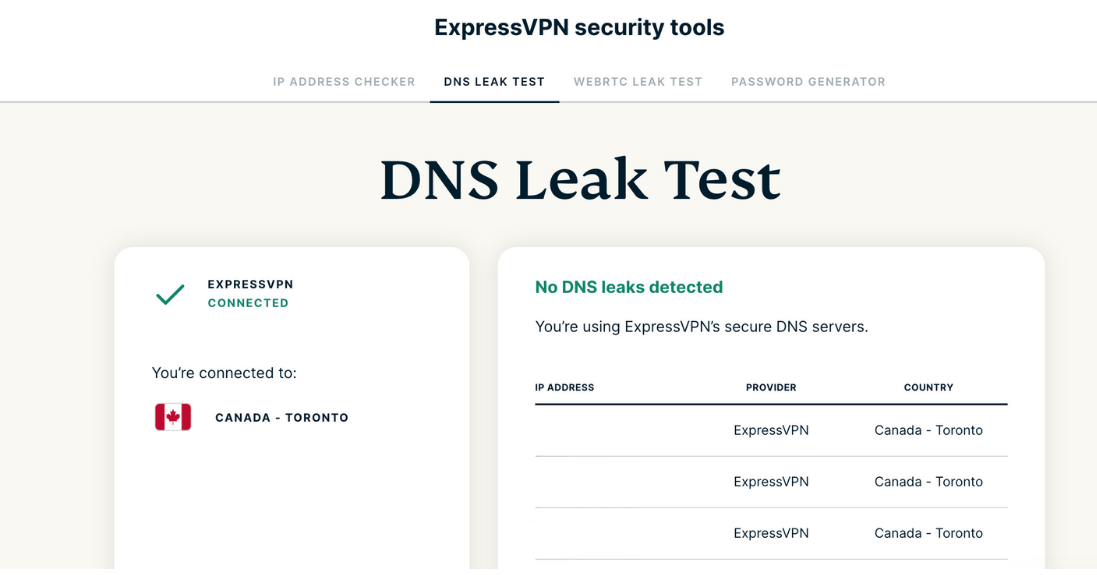
If you see a DNS provider you don’t recognize, your browser may be using its own encrypted DNS service instead of ExpressVPN’s DNS servers. This doesn’t necessarily mean your DNS requests are visible to your ISP. They may still be encrypted and sent through the VPN tunnel.
For more information and instructions on changing this setting, see our support guide: How to disable DNS over HTTPS (DoH) and prevent DNS leaks.
What can your ISP still see?
While ExpressVPN helps hide your browsing activity, there are some things your ISP will be able to see.
Your ISP can generally identify or infer that you’re using a VPN based on known VPN server IP addresses and other traffic characteristics. Some ISPs also use deep packet inspection, a technique that analyzes patterns in internet traffic, to detect or identify VPN traffic. However, while you’re connected to ExpressVPN, your ISP generally can’t see the content of your traffic or the ultimate destinations it’s connecting to.
No VPN can prevent your ISP from seeing some basic metadata, such as when you connect to the VPN or how long your session lasts, or the volume of data that you use. Your ISP also still knows your subscriber account and the IP address it assigned to your connection.
If you’re using apps outside the VPN tunnel, such as via split tunneling, that traffic won’t be routed through ExpressVPN. This means your ISP may be able to see the destinations associated with that traffic, although the traffic might be protected by HTTPS or the app’s own encryption.
Does ExpressVPN see your browsing activity instead?
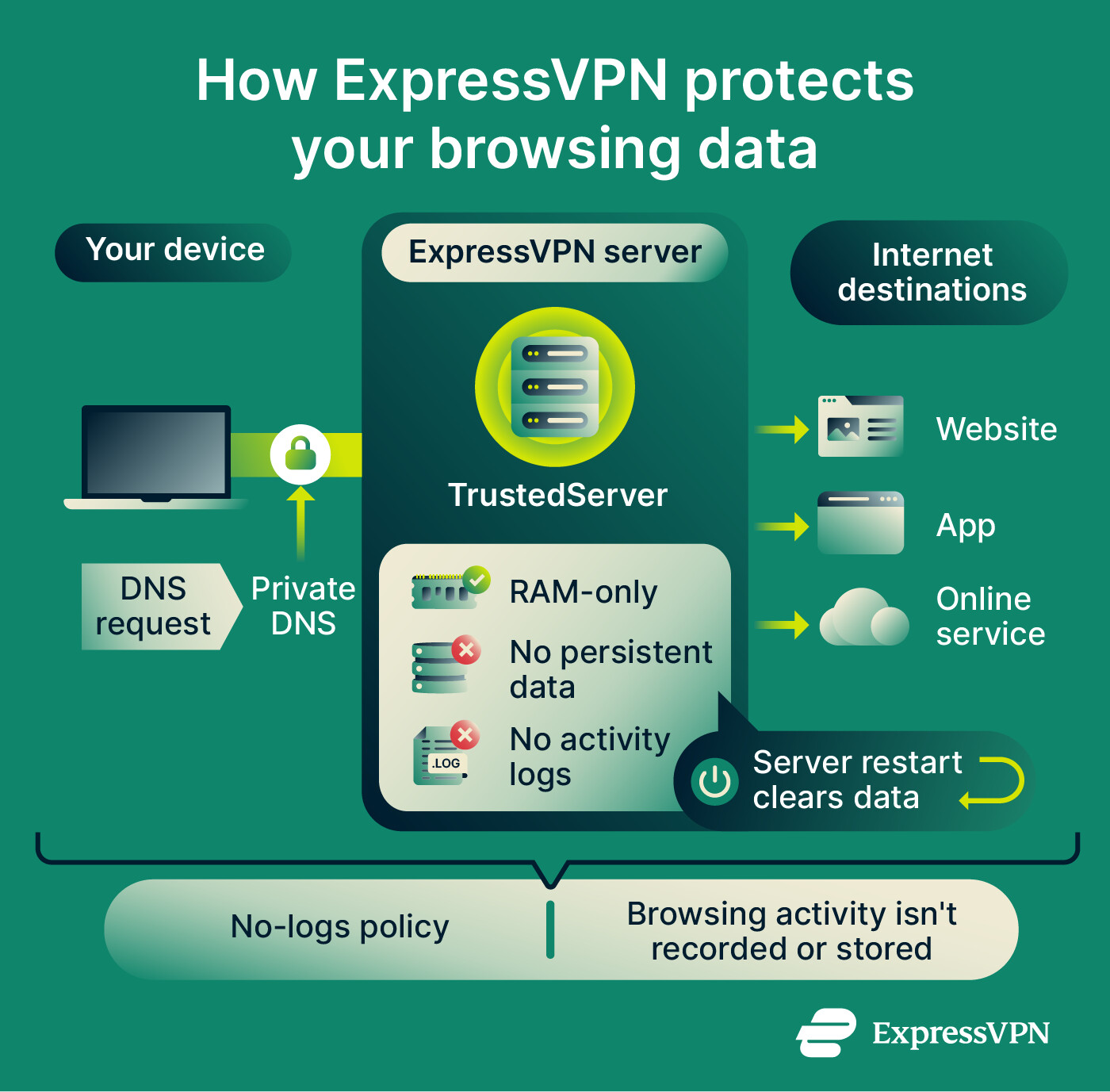 TrustedServer, ExpressVPN’s proprietary server technology, prevents data from persisting on its servers. It runs entirely on volatile memory (RAM), rather than persistent storage. So when a server is powered off or restarted, data stored in RAM is lost, wiping remaining data from the machine. ExpressVPN also sends your DNS queries through its own private DNS servers instead of your ISP's.
We also have a strict no-logs policy, meaning we don't collect or retain information about your online activities, such as browsing history, DNS queries, or traffic destinations. This policy has undergone multiple audits by independent security firms, which have assessed and confirmed our privacy practices and controls.
Want to keep your browsing activity private from your ISP?
ExpressVPN encrypts your internet traffic, helping prevent your ISP from seeing the websites you visit and what you do online.
Keep your browsing private with ExpressVPN
Try ExpressVPN with a 30-day money-back guarantee for new users.
FAQ
Can my ISP see my download history?
When your downloads go through ExpressVPN, your ISP can’t see the destination server directly. It can still see that data is being transferred and how much, but the VPN makes it harder to associate that traffic with a particular service.
Does incognito mode hide activity from my ISP?
Do I need to change my DNS settings when using ExpressVPN?
Is my ISP blocking my VPN?
Why can’t I browse the internet when ExpressVPN is connected?
Will ExpressVPN stop my ISP from slowing my connection?
ExpressVPN can help prevent activity-based throttling by encrypting your traffic so it’s harder for your ISP to monitor your activity. However, a VPN can’t prevent slowdowns caused by data caps, general network congestion, or throttling that applies to all traffic.