Can a Wi-Fi owner see what websites you visit on your phone?



A Wi-Fi owner can often see which websites or services your phone connects to, but HTTPS usually prevents them from seeing the specific pages you view or what you type or search on those sites.
ExpressVPN hides the websites and services, too. When you connect, your phone sends its internet traffic through an encrypted tunnel to an ExpressVPN server, so the Wi-Fi owner can’t see which websites you visit or which services your apps connect to. It can still see that your phone is connected to the ExpressVPN server, when it sends data, and roughly how much data it sends.
Note that with work or school phones managed by an organization, traffic excluded through split tunneling, and traffic sent before the VPN connects or after it drops, your internet activity may still be visible to the Wi-Fi owner.
What Wi-Fi owners can see with and without ExpressVPN
A website’s name and IP address usually travel outside HTTPS encryption, because your phone needs them to find the website and set up the secure connection. The same applies to the online services your apps connect to. With ExpressVPN connected, this information travels inside the encrypted tunnel, and the Wi-Fi owner sees the ExpressVPN server’s IP address instead.
| Information | Without a VPN | With ExpressVPN connected |
|---|---|---|
| Your phone on the network: Media Access Control (MAC) address and possibly its device name | Visible | Visible |
| Connection times and amount of data sent | Visible for each website or service | Visible only for the connection to the ExpressVPN server |
| Websites you visit and services your apps use (domain names) | Often visible | Hidden |
| IP addresses of websites you visit and services your apps use | Visible | Hidden (the Wi-Fi owner sees only the ExpressVPN server’s IP address) |
| Pages and content on HTTPS sites | Not readable | Not readable |
| Pages and content on HTTP sites | Readable | Not readable |
| VPN connection | N/A | Visible |
How Wi-Fi owners log the websites you visit
How much a Wi-Fi owner records depends on their equipment and settings. Some home routers can log the websites that connected devices visit or try to visit. However, the log may only record entries when a feature such as site blocking is turned on, and it may only keep a limited number of entries. So a router doesn’t necessarily give the Wi-Fi owner a complete browsing history.
The Domain Name System (DNS), which matches website names to IP addresses, is another source. If your phone uses the Wi-Fi network’s DNS service, the network can log the names of the websites you look up.
Workplace and school networks can also use firewalls or web filters that read a website’s name when your phone starts a secure connection with it and log it. To see the specific pages you view on an HTTPS site, these tools would need to decrypt the traffic.
How to set up ExpressVPN on your phone so your browsing stays protected
ExpressVPN has dedicated apps for iOS and Android, making it easy to protect your mobile traffic wherever you connect to the internet. For help downloading and setting up the app on your device, refer to our download and installation guide.
Connecting to ExpressVPN sends your internet traffic through an encrypted tunnel. You can adjust a few settings to help prevent traffic from bypassing the VPN, for example, when you join a new network or when the VPN connection drops.
Set ExpressVPN to connect automatically
Until ExpressVPN connects, your phone may send traffic over Wi-Fi directly, allowing the Wi-Fi owner to see it as if you weren't using a VPN (though some device or VPN settings can block traffic until the VPN connection is established).
For Android
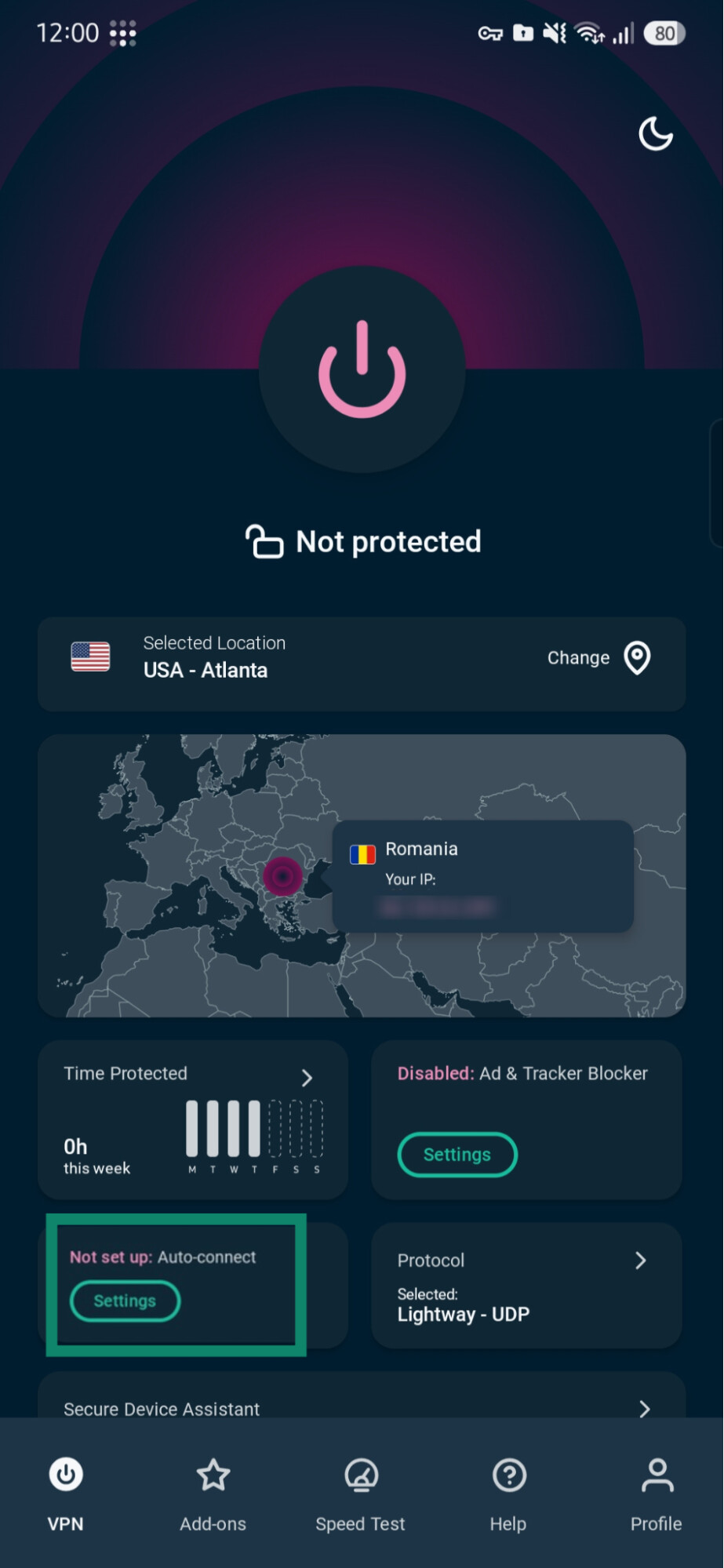
On Android, ExpressVPN can connect automatically when your phone joins a new network. This feature is disabled by default. To turn it on:
- Open the VPN tab and tap Not set up: Auto-connect.
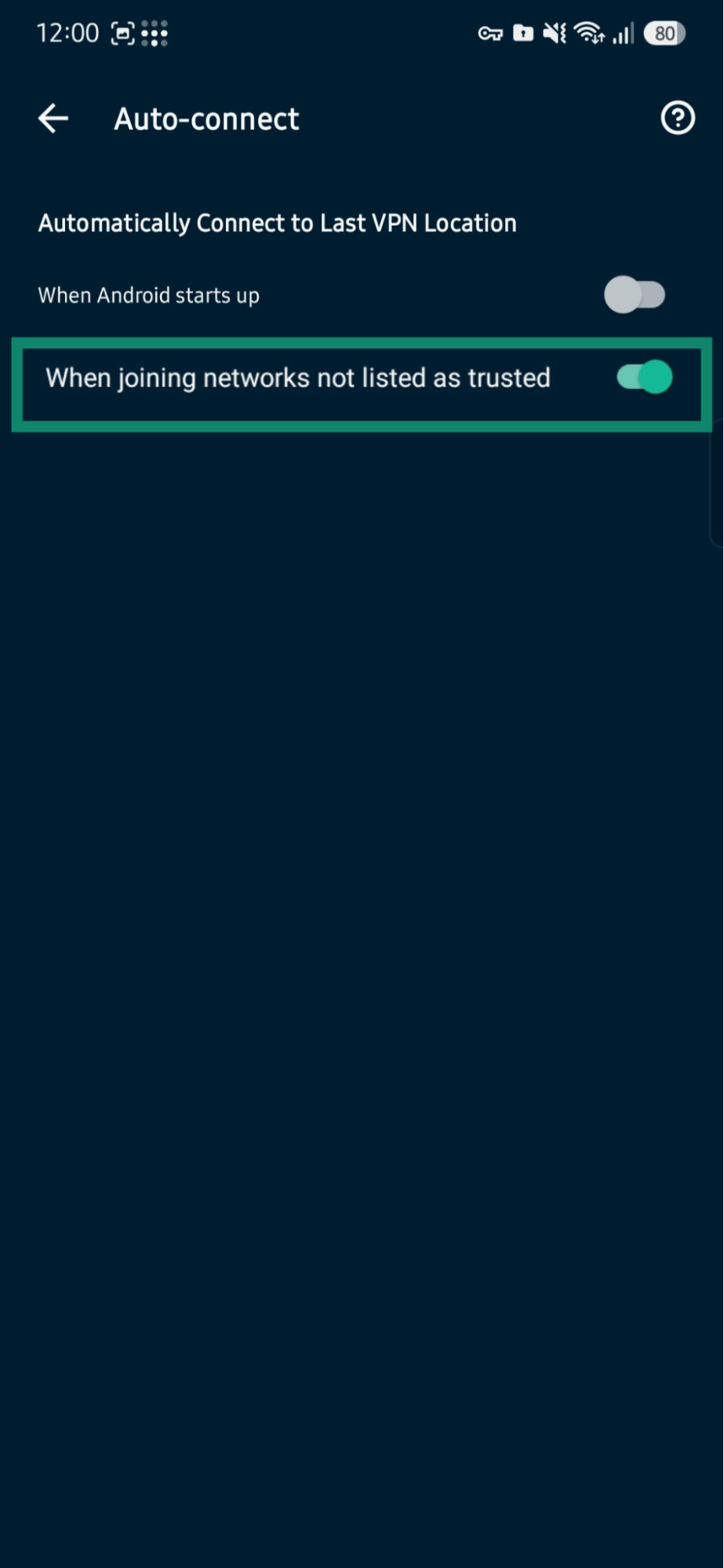
- Turn on When joining networks not listed as trusted.
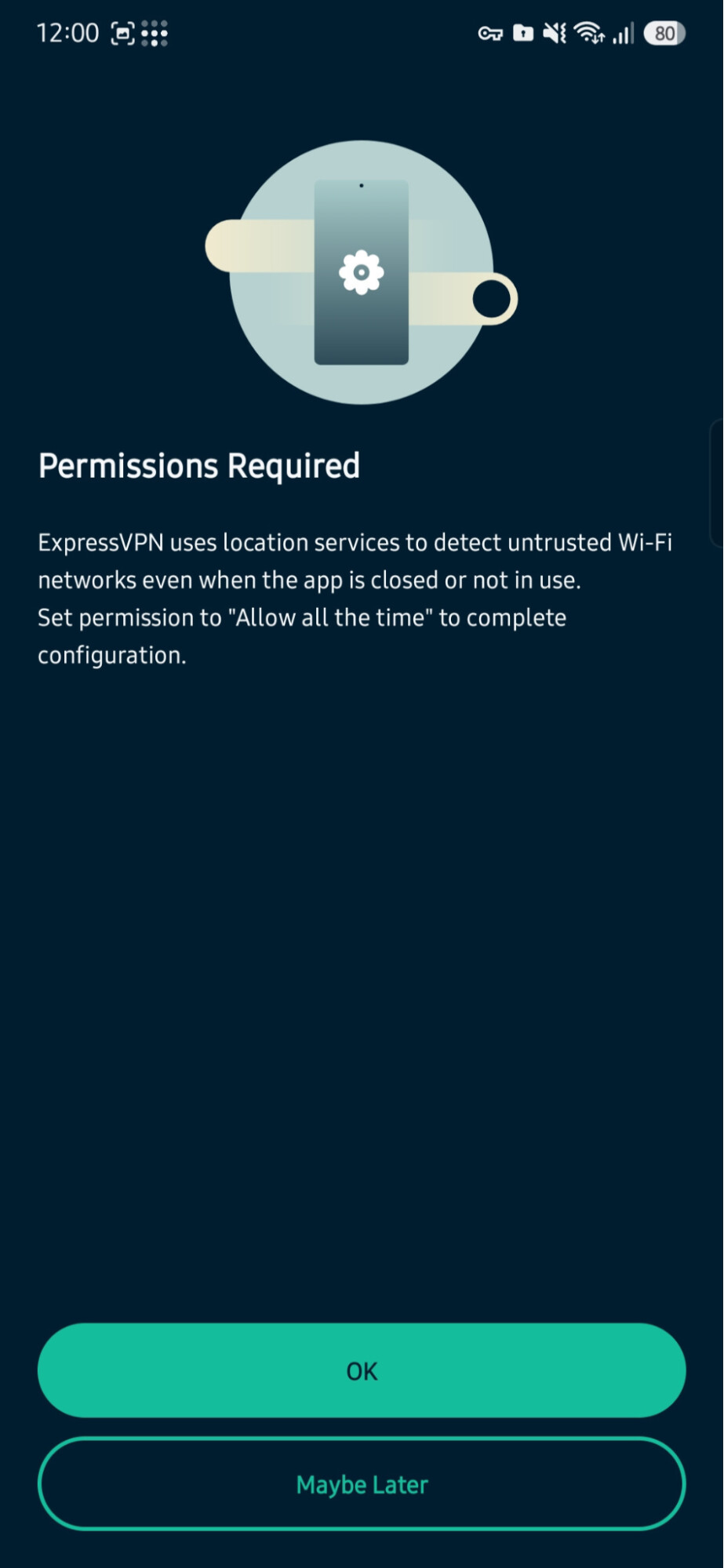
- On Android 10 or later, give ExpressVPN location access when prompted: choose Precise, then Allow all the time. Android requires this so the app can detect which network you’ve joined.
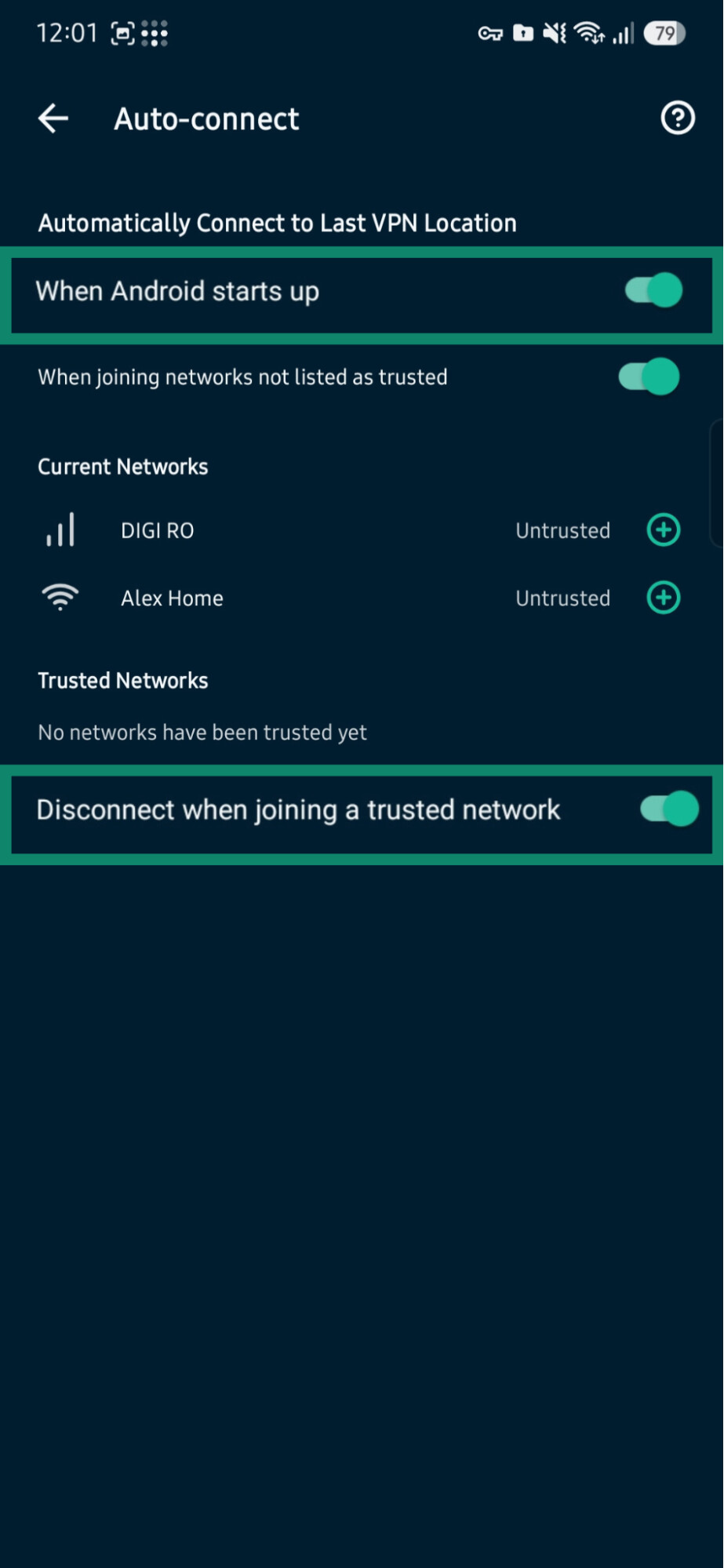
Auto-connect treats every new network as untrusted. You can also turn on When Android starts up so ExpressVPN connects after your phone restarts. If you mark a network as trusted (by tapping the + next to it) and turn on Disconnect when joining a trusted network, ExpressVPN turns off on that network, and its owner can see the websites you visit again.
For iOS
On iPhone, automatic reconnection is handled by iOS rather than the ExpressVPN app.
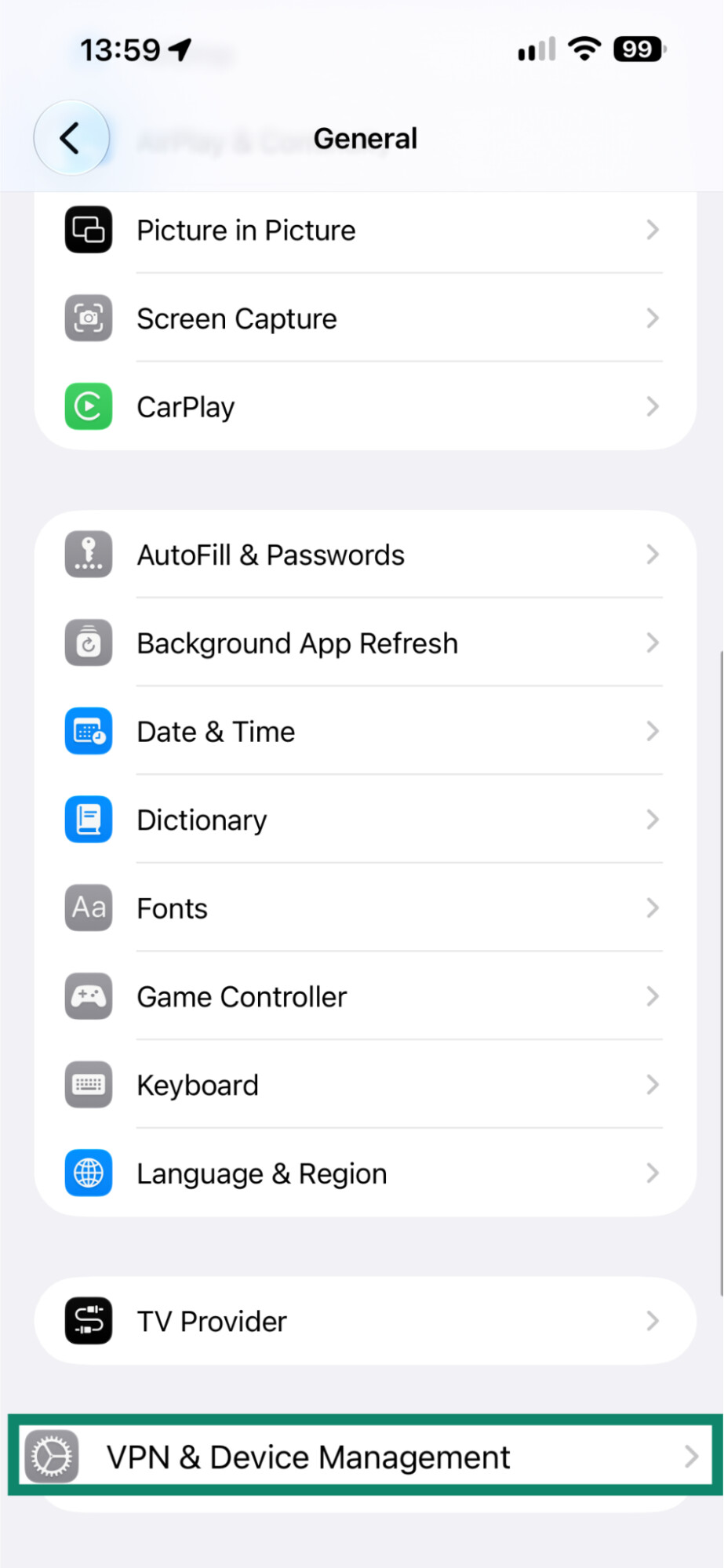
- Go to Settings > General > VPN & Device Management.
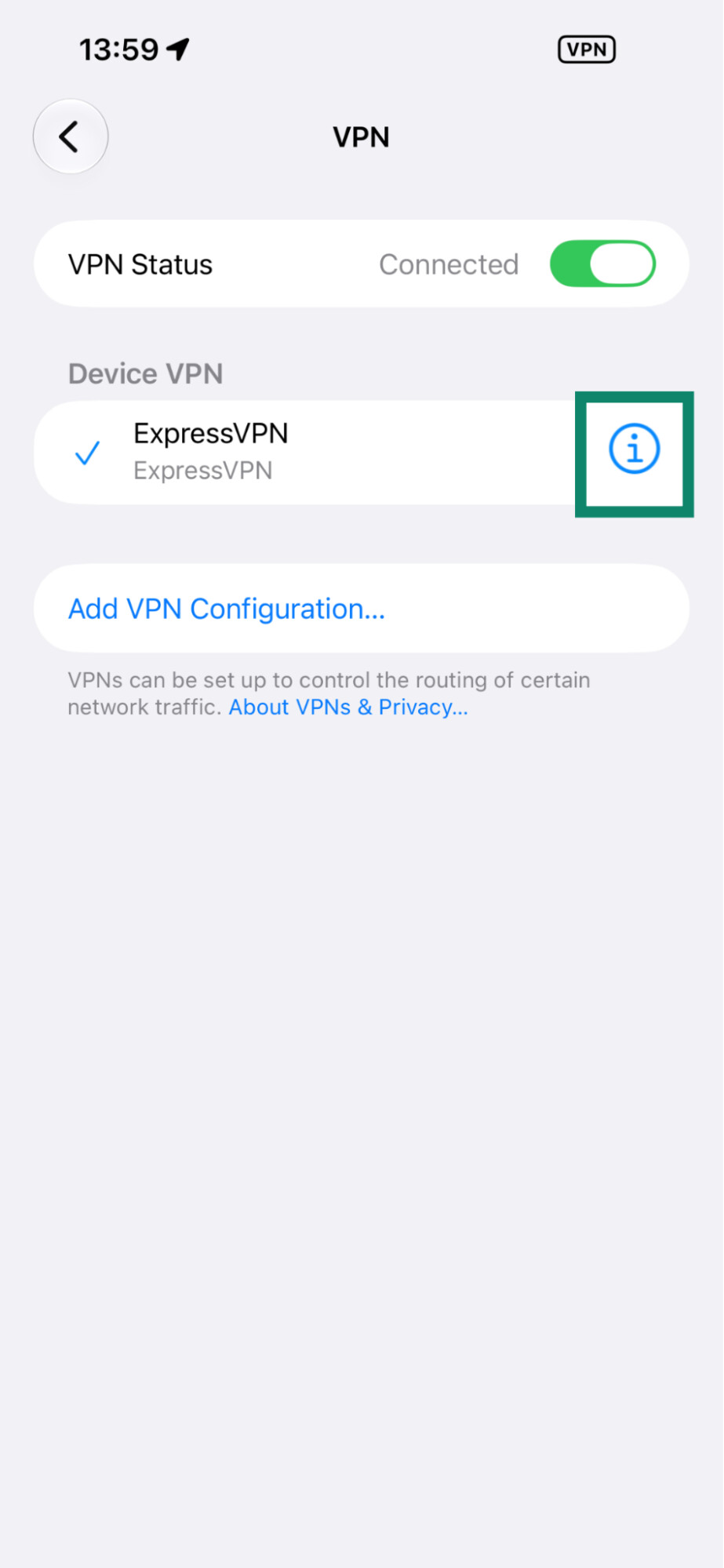
- Under VPN, tap the info button next to ExpressVPN.
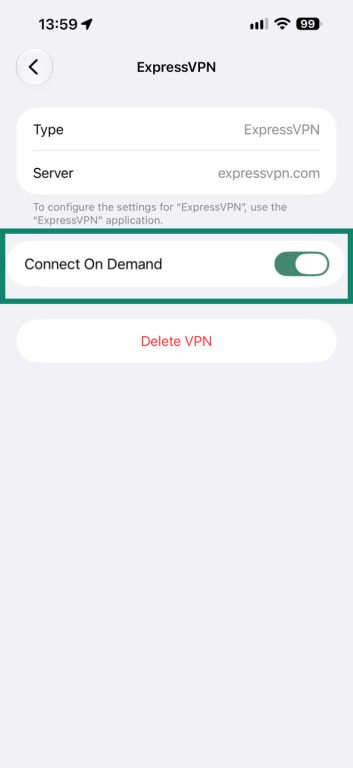
- Toggle on Connect On Demand. iOS then tries to restore the VPN connection automatically after interruptions.
Keep the kill switch on
If your VPN connection drops unexpectedly, the Internet Kill Switch blocks your traffic instead of letting it go out over the Wi-Fi without VPN protection.
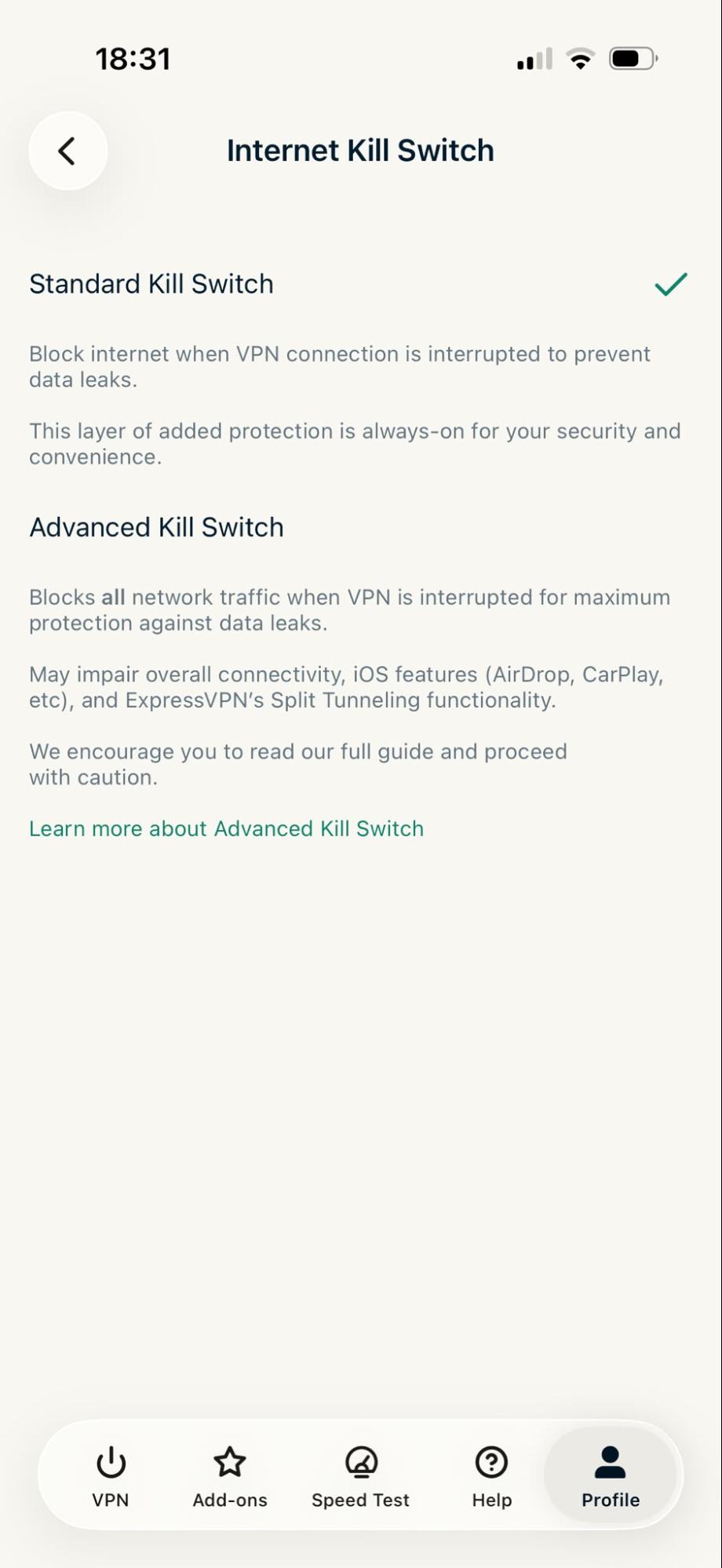
On iPhone, you can choose between two kill switch options under Profile > Internet Kill Switch:
- Standard Kill Switch is on by default. It blocks internet access if the VPN disconnects unexpectedly.
- Advanced Kill Switch blocks all network traffic, so your phone doesn’t send any outside the VPN tunnel while the VPN reconnects. Note that this setting can interfere with features like AirDrop, CarPlay, and Apple Music, especially on older versions of iOS.
On Android, the kill switch is on by default. You can check it under Profile > Settings > Internet Kill Switch.
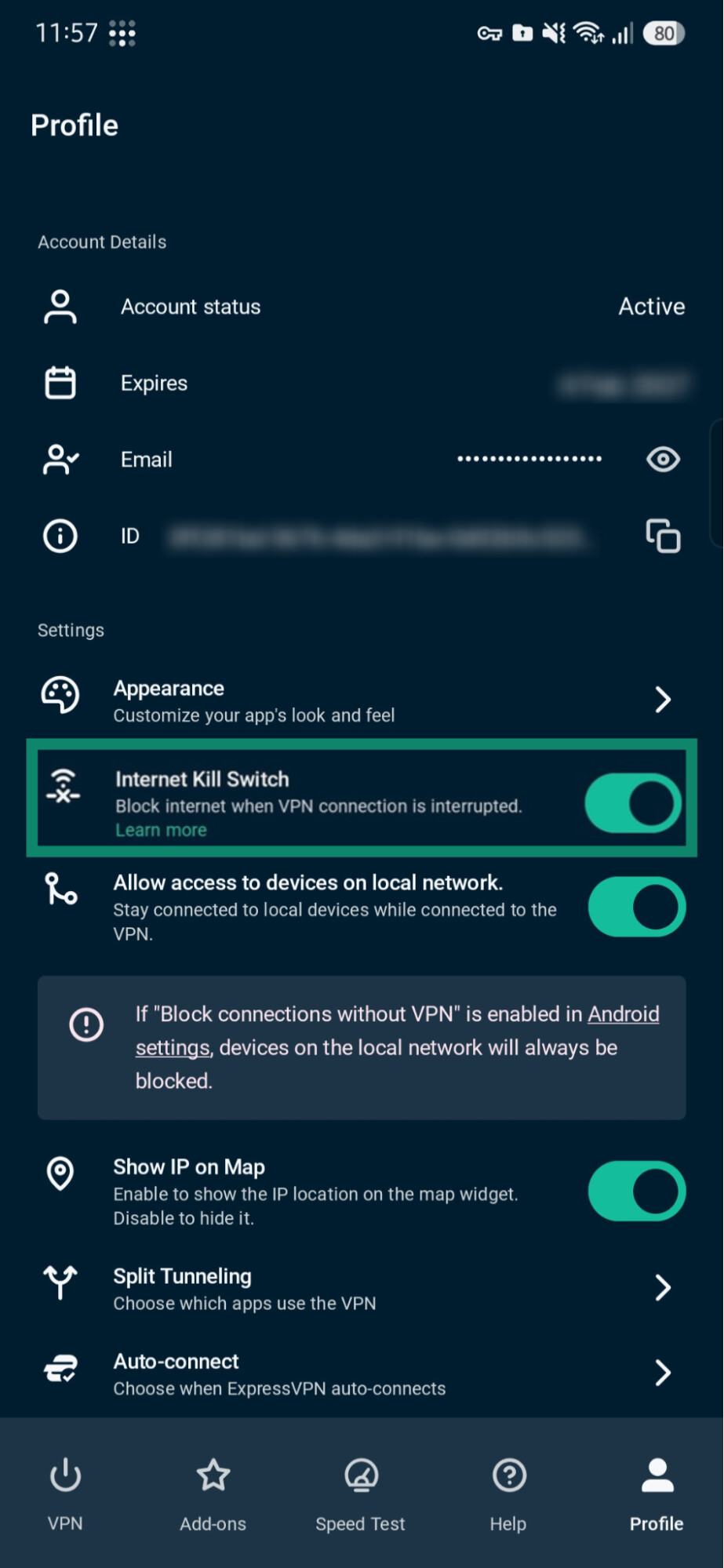
Android 8 and later also offers two system settings: Always-on VPN and Block connections without VPN. For information on how to use these settings, see our guide to blocking connections via Android system settings.
Check what you’ve excluded with split tunneling
Split tunneling allows you to exclude apps (Android) or IP addresses (iOS) from your VPN connection. Whatever you select will use your regular connection, meaning the Wi-Fi owner can see it as if ExpressVPN were turned off.
On Android, tap Profile > Split Tunneling and check which mode is selected.
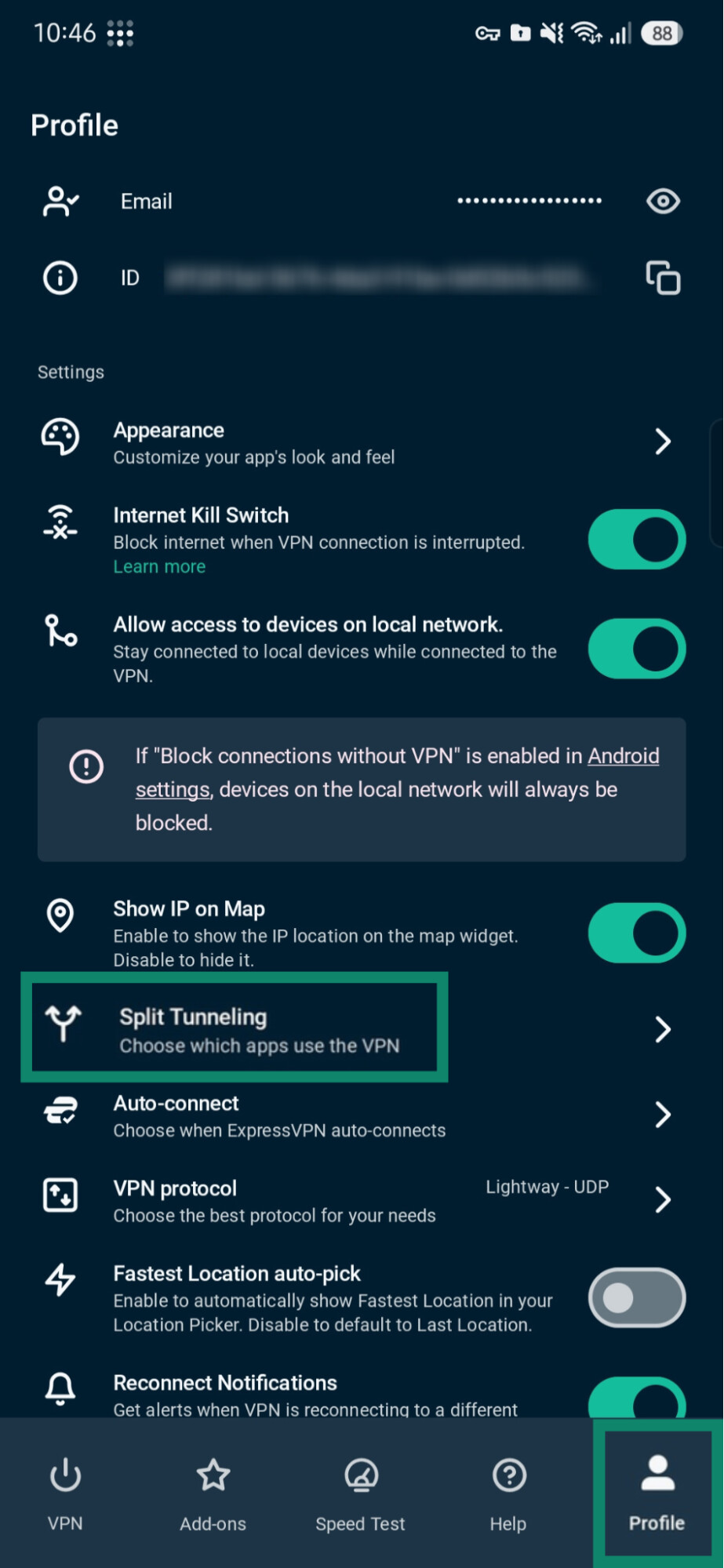
With Do not allow selected apps to use the VPN, the apps on your list bypass the VPN. With Only allow selected apps to use the VPN, every app that isn’t on your list bypasses it.
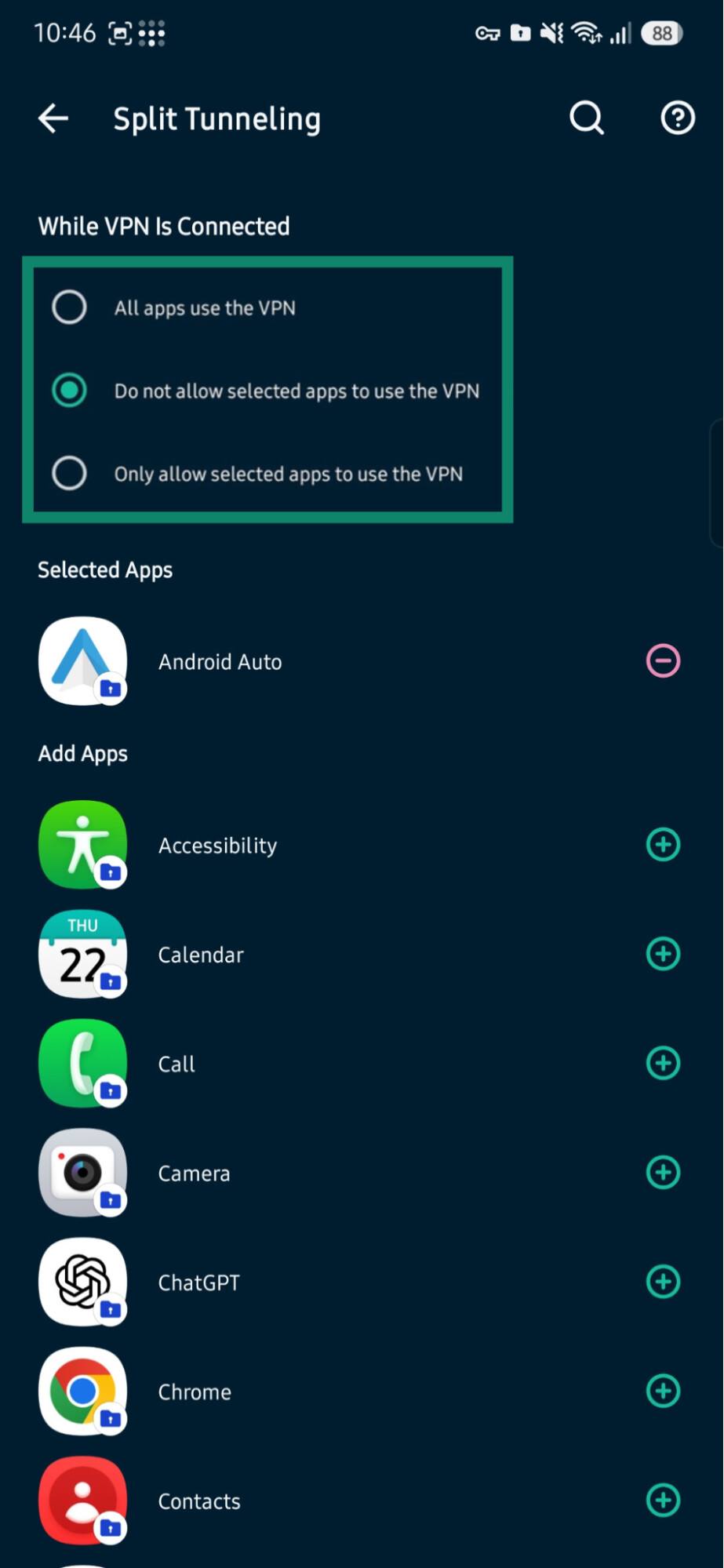
On iPhone (iOS 15 or later), split tunneling works by IP address instead. Open Profile > Split Tunneling and review the list under IP addresses not using VPN.
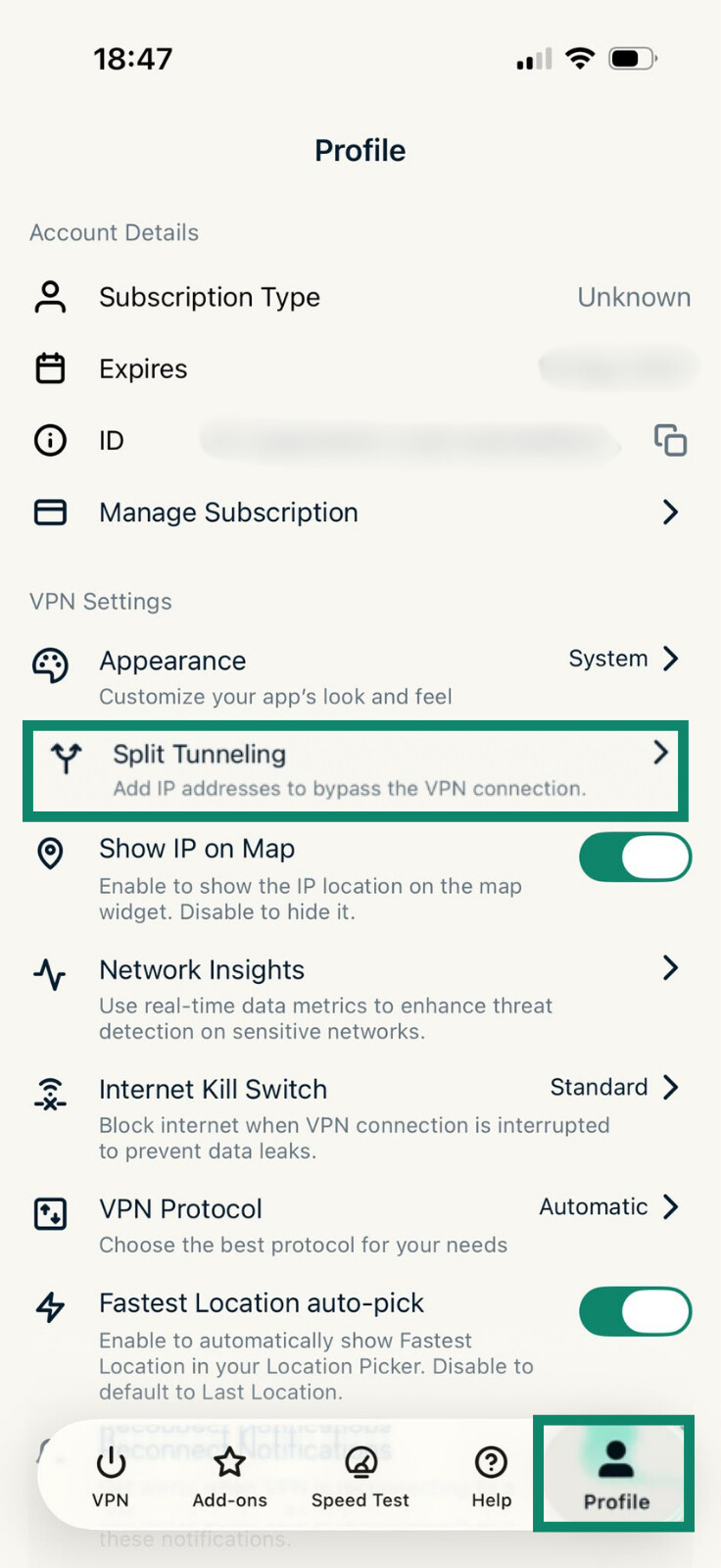
The app accepts only single IPv4 addresses, not domain names, URLs, or IP ranges. Large websites don’t use one fixed IP address, and unrelated websites can share one, so an exclusion can apply to sites you didn’t mean to exclude. Note also that split tunneling on iPhone only works with the Standard Kill Switch enabled.
How to check that ExpressVPN is hiding your browsing
You can use ExpressVPN’s online tools in your phone’s browser to check that your traffic is going through the VPN:
-
Connect to ExpressVPNWait until the app shows you’re connected.
-
Open the IP lookup siteCheck that it shows the ExpressVPN server’s IP address and location, not your Wi-Fi network’s.
-
Run the DNS Leak TestCheck that all the DNS servers in the list belong to ExpressVPN. If any don’t, your browser may be using DNS over HTTPS. Follow our guide to turning off DNS over HTTPS and run the test again.
If either test still shows your regular connection while ExpressVPN is connected, contact ExpressVPN Support.
When ExpressVPN can’t hide your activity from the network owner
If the organization that runs the Wi-Fi also manages your phone, it can monitor and control activity on the phone itself, which a VPN can’t hide. For example, device management can route the phone’s web traffic through the organization’s proxy or apply its own web filters.
Work and school networks also have rules about how they can be used, and following them is your responsibility.
Who sees your traffic instead: ExpressVPN’s no-logs policy
With ExpressVPN connected, the Wi-Fi owner can’t see which websites you visit, but your traffic passes through ExpressVPN’s servers instead. That raises a fair question: what does ExpressVPN record?
Our Privacy Policy states that we don’t log browsing history, traffic destinations, data content, or DNS queries. We also don’t store connection logs, so we have no record of your source IP address, your outgoing VPN IP address, connection timestamps, or session duration.
Our VPN servers also run on our TrustedServer technology, which runs entirely on RAM instead of hard drives. Every reboot wipes the server’s memory, so no data stays on it.
The auditing firm KPMG has assessed whether our VPN servers comply with our Privacy Policy. An audit checks our servers at one point in time, so it can’t confirm how they’ve worked since. That’s why we regularly invite independent auditors to review the claims in our Privacy Policy.
Don’t want the Wi-Fi owner seeing which websites you visit?
ExpressVPN encrypts your phone’s traffic, so the Wi-Fi owner sees only a connection to an ExpressVPN server, not the websites and services you use.
Keep your browsing private on every Wi-Fi network
Try it risk-free with our 30-day money-back guarantee for new users*.
FAQ
Can the Wi-Fi owner see what I search on my phone?
Does incognito mode or deleting my history hide my browsing from the Wi-Fi owner?
Can a Wi-Fi owner see what I do in apps?
Can the Wi-Fi owner see my browsing if I use mobile data?
Can ExpressVPN see the websites I visit?
*Users who purchased their subscriptions through the Apple App Store or Google Play Store are not eligible for the ExpressVPN 30-day money-back guarantee. Refund requests must be submitted to Apple or Google and are granted at their discretion.