Safe online browsing guide: Protect your online privacy with ExpressVPN


ExpressVPN makes browsing safer by encrypting your internet traffic and masking your public IP address. Its Advanced Protection features can also block connections to known malicious sites and tracking domains, while its ad blocker reduces the number of display ads that load. There’s also a password manager to help secure your online accounts.
Its browser extension offers Web Protection, which can block known malicious and phishing URLs even when you're not connected to the VPN.
ExpressVPN can’t, however, make you anonymous, stop threats that aren’t on its blocklists, or clean up a device that’s already infected.
How ExpressVPN keeps your browsing connection and lookups private
Connecting to ExpressVPN changes what the network, your internet service provider (ISP), and the websites you visit can learn about your browsing activity.
Encrypt your traffic
ExpressVPN routes your internet traffic through an encrypted VPN tunnel between your device and the VPN server. This makes it unreadable to your ISP or other people on the same Wi-Fi network, although they can still see that you’re connected to a VPN server.
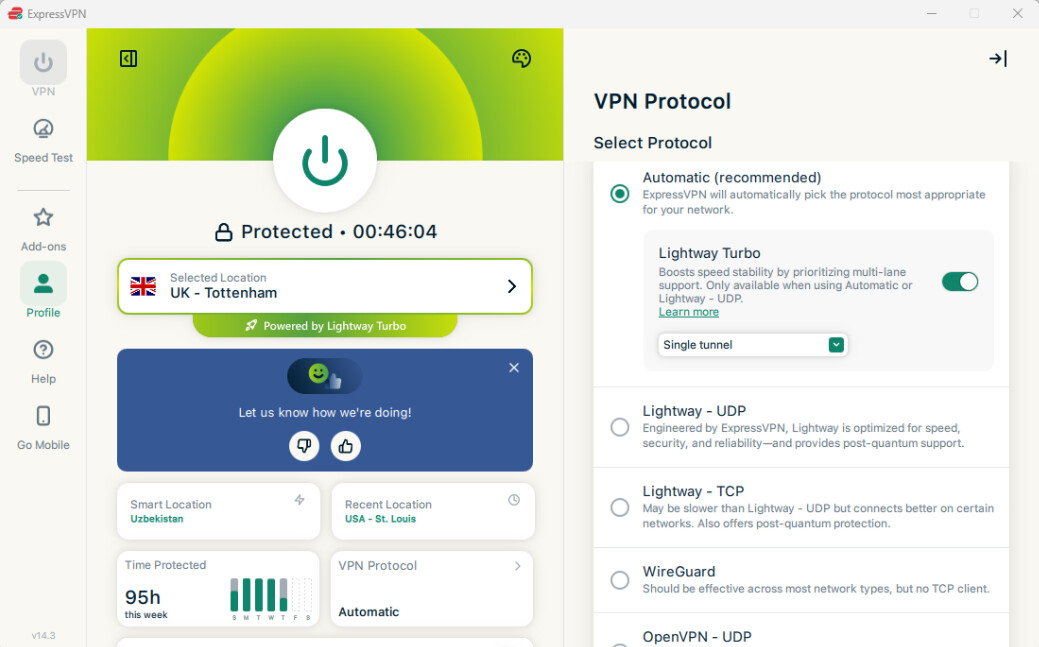
The encryption depends on the protocol. ExpressVPN supports Lightway, WireGuard, and OpenVPN, all of which use modern encryption algorithms to protect your traffic. If you’re unsure which protocol to choose, leave the setting on Automatic, so the app can select the best protocol for your connection. Most people don’t need to change the setting, but our protocol guide explains the options.
ExpressVPN’s encryption ends at the VPN server. Beyond that point, protection depends on the destination and how the connection is handled. HTTPS encrypts data between your browser and the website, helping protect information such as login details even after it leaves the VPN server.
Keep DNS requests private
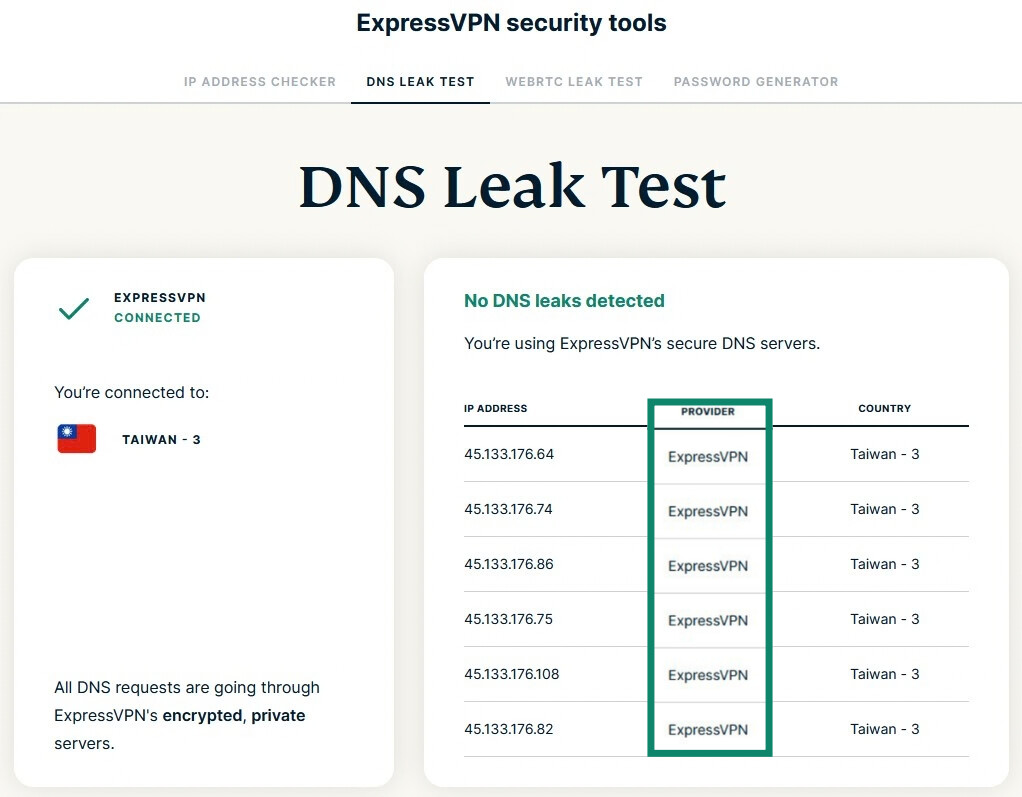
Domain Name System (DNS) lookups translate website names, such as expressvpn.com, into the IP addresses your device uses to connect. Without a VPN, they normally go to your ISP's DNS servers, which lets your ISP see which sites you look up. While you're connected, ExpressVPN's servers handle them instead, inside the encrypted tunnel.
Run the DNS Leak Test while connected to ExpressVPN to see which DNS servers are answering your lookups.
Reduce IP address exposure in your browser
While you're connected, websites see an ExpressVPN server’s IP address instead of the one your ISP assigned to you. You can see the change by running the IP Address Checker once before connecting and once after. However, browser features can sometimes expose information about your connection or physical location.
Block WebRTC leaks
WebRTC is the browser technology behind video calls and live streaming, but in some circumstances it can expose your real IP address even when you’re using a VPN. ExpressVPN’s apps protect against this on pages you open after connecting, but a tab you opened before connecting may still hold your real address.
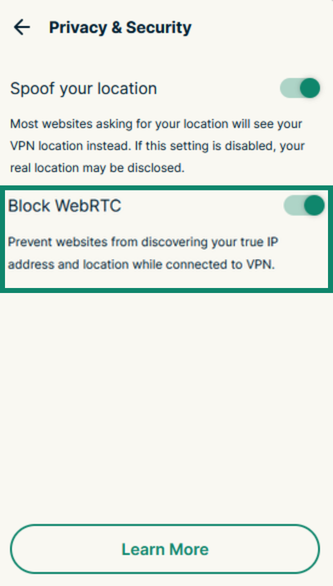
ExpressVPN’s browser extensions close that gap and help prevent your IP address from being exposed through WebRTC. To enable it, open the extension’s menu, go to Privacy & Security, and toggle on Block WebRTC. A public IP address may mean your real address is exposed.
Spoof your browser’s location
ExpressVPN's browser extension also includes Spoof your location, which can help prevent websites from obtaining your physical location through HTML5 geolocation requests while you're connected.
This works on most, but not all, websites. It doesn't prevent all forms of location tracking, such as location information you voluntarily share, account details, or browser fingerprinting. For full setup instructions, see our tutorials on using the ExpressVPN browser extension.
Block ads, trackers, and malicious sites
ExpressVPN’s Advanced Protection stops the apps and browsers on your device from connecting to domains on its blocklist. This can reduce exposure to known malicious sites, unwanted advertising, and certain third-party tracking services. The lists are compiled from open-source lists and updated weekly.
- Ad blocker: Stops most display ads and pop-ups from loading by blocking known ad-serving domains. Besides cutting clutter, it limits exposure to malicious ads that may lead to phishing or malware sites.
- Block trackers: Blocks connections to known advertising and analytics domains, making it harder for advertisers and analytics services to follow you from site to site.
- Block malicious sites: Prevents connections to known malware and phishing domains before they load. This helps protect you from sites designed to steal passwords or payment details, or deliver malware.
To enable Advanced Protection, open the ExpressVPN app, go to Add-ons > Advanced Protection, and turn on the blockers you want.
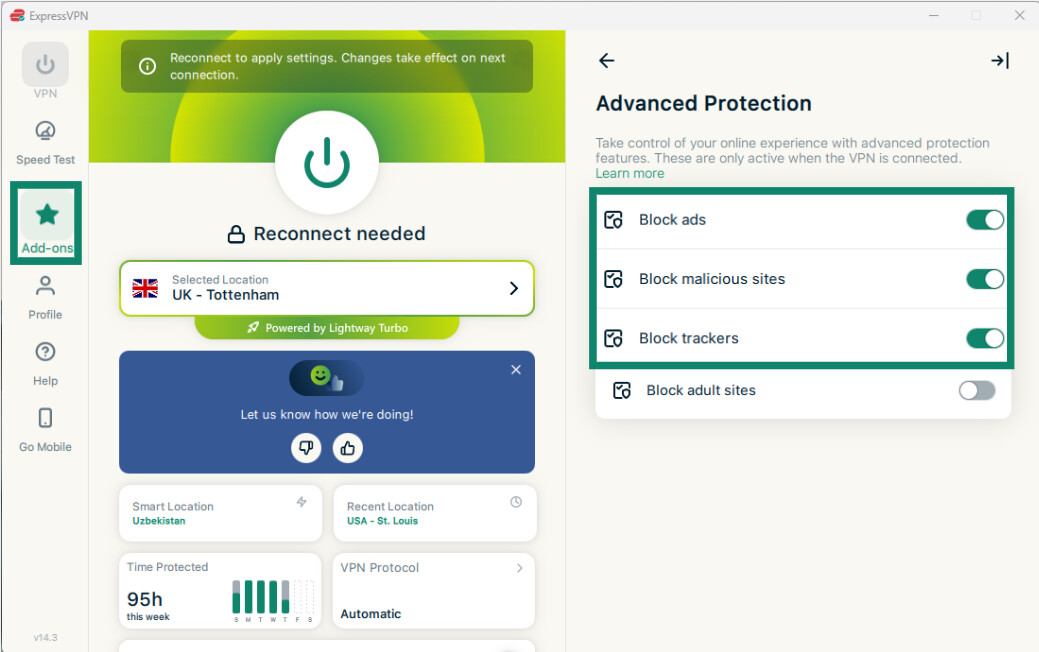
These features work while connected to ExpressVPN. See our Advanced Protection support guide for the full setup instructions and availability details.
Browse more safely with Web Protection
ExpressVPN's browser extension includes Web Protection, which blocks known malicious, phishing, and scam URLs even when you're not connected to the VPN. Unlike Advanced Protection, which blocks entire domains, Web Protection can also block specific harmful pages and resources, such as malicious scripts, without blocking the entire website.
When Web Protection detects a known threat, it displays a warning explaining why the page was blocked. You can also create custom allowlists and blocklists to control which websites are accessible.
Web Protection is included with all ExpressVPN plans but is disabled by default. To enable it, sign into the ExpressVPN browser extension and turn on Web Protection in the extension's settings.
Protect your online accounts
ExpressKeys, ExpressVPN’s password manager, protects your accounts by making it easier to use strong, unique login credentials:
- Strong passwords: Create complex passwords for every account instead of reusing the same one across multiple sites.
- Passkeys: Store and use passkeys for supported services. Passkeys are designed to resist phishing because they are tied to the legitimate website or app they were created for.
- 2FA codes: Generates 2FA codes in the app. Codes from an app are safer than text-based ones, which can be intercepted or redirected in attacks such as SIM-swapping.
- Password Health: Flags weak, reused, and exposed passwords, logins saved on unsecure HTTP addresses, and accounts that don’t have two-factor authentication (2FA) turned on.
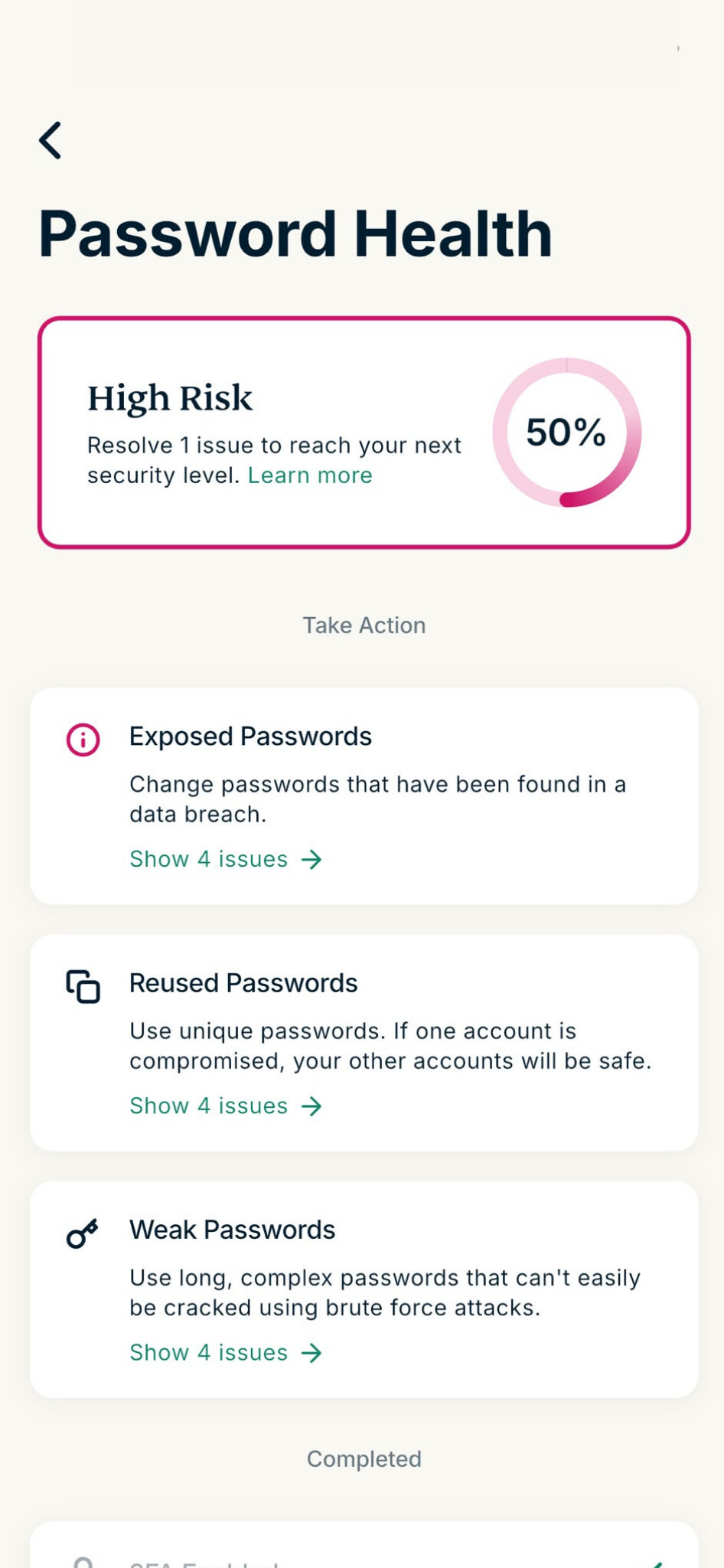
- Autofill: Fills in a login only when the website’s domain matches the one saved with it.
ExpressKeys is included with Advanced and Express Pro or available as a standalone product. To set it up, download ExpressKeys, add your logins or import them from your browser or another password manager, then replace the weak and reused passwords it flags. The ExpressKeys support guide has the full steps.
Want more privacy and protection while browsing?
Encrypt your connection, mask your public IP address, and reduce exposure to known malicious sites, trackers, and ads with ExpressVPN.
Browse more safely with ExpressVPN
ExpressKeys are included with Advanced and Express Pro plans.