Is OneLaunch malware? Risks, concerns, and how to remove it


OneLaunch isn’t malware; it’s a legitimate desktop application that provides a customizable browser experience. Some users first become aware of it after noticing changes to their browser’s homepage, default search engine, or shortcuts, changes they may not remember approving.
This guide explains what OneLaunch is, how it typically gets installed, and how it can affect a system. We also provide steps for removing the app if you choose to stop using it.
What is OneLaunch?
OneLaunch is a desktop app for Windows meant to speed up everyday tasks by providing quick access to frequently used tools and information. However, OneLaunch is no longer available for download, though the company states existing customers will continue to be supported.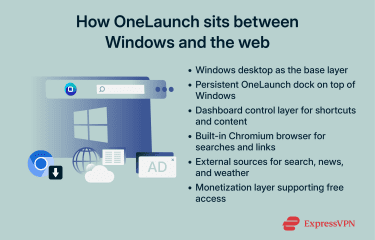
OneLaunch’s features include:
- A persistent top-screen dock with an integrated dashboard showing bookmarks, quick links, time, weather, and news (including local news based on a selected location).
- A built-in Chromium-based browser for searches and links opened from the dock.
- Mini apps for news, weather, templates, maps, and wallpapers.
- Quick access to system tools like screenshots, clipboard history, and recent files.
- An app library that lets you pin websites or tools directly to the dock.
OneLaunch was offered for free and, according to the company’s support documentation, was financially supported through advertising partnerships and affiliate relationships. Searches run through a Yahoo-powered default search engine (with ad revenue tied to ads on Yahoo-hosted results pages). OneLaunch also includes top news from MSN and weather data from AccuWeather, and monetization can include ads on the page and affiliate-provided shortcut icons.
The company also describes additional affiliate revenue sources, such as commissions tied to certain pre-pinned links (e.g., Amazon) and a preloaded Slickdeals extension, as well as other affiliate partners.
Is OneLaunch malware?
No, OneLaunch isn’t typically classified as malware. It’s created by OneLaunch Technologies in Canada, with no evidence of malicious intent.
However, it may be categorized as a potentially unwanted program (PUP), a label used for software that isn’t outright malicious but can still affect system performance, browser behavior, or user experience. That said, you can choose to disable it or remove it from your device at any time.
Privacy, security, and system considerations with OneLaunch
While OneLaunch isn’t malware, some aspects of how it operates may matter to users who are sensitive to system changes, background activity, or data collection.
Privacy
OneLaunch collects data through its desktop application and web interactions. Its privacy policy states that an embedded software "agent" can send application data to OneLaunch servers when the software is used. The policy also notes that what’s collected and how it’s used can depend on how the software and related materials are used.
The privacy policy lists examples of data that may be collected, including a Windows machine's unique identifier, IP address, geolocation, operating system version, software version, and date/time-stamped usage and statistics. This information could link activity to a specific device.
OneLaunch also discloses that it may share data with third-party providers (including advertising, analytics, and content services), so some information may be handled by multiple companies depending on which features are used.
Security
OneLaunch includes settings that can keep it running in the background and launching on startup and an option to check for updates on Windows startup.
Automatic updates are a common default across operating systems and apps, such as Windows Update, Google Chrome, and Microsoft Store apps. Updates can help patch issues, but they can also reduce visibility into exactly when changes occur, something that may matter to people who prefer tighter control over what runs on a system. OneLaunch provides release notes, which can help track what changed between versions.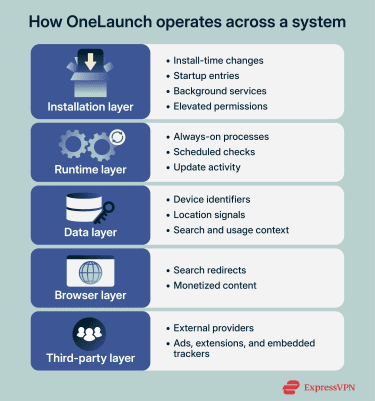
According to OneLaunch’s license agreement, the installer may request administrator permissions, although admin access isn’t required to install or use the core software. The policy explains that elevated permissions may be used to enable or adjust secondary features, including advertising-related functionality. Requesting this level of access is common for desktop apps that integrate with system settings, but some users prefer to limit which programs receive it.
Because OneLaunch includes multiple components, those components run with the same permissions once access is granted. This isn’t malicious, but it does give the app broader system reach than a simple user-level tool. If you uninstall OneLaunch, Windows may show a standard permission prompt confirming the change; this is normal and simply confirms approval to proceed.
OneLaunch bundles a Chromium-based browser and preloaded extensions, such as Slickdeals, by default. Adding a browser and extensions increases the number of components involved, potentially expanding the number of areas to review and manage.
Because OneLaunch also relies on advertising and external content sources, there’s also a broader ecosystem risk to be aware of: malicious ads can sometimes slip into legitimate ad networks (malvertising), even when the platform itself isn’t trying to distribute anything harmful. However, note that this is a general industry risk and not evidence that OneLaunch itself distributes malicious ads.
System performance
Because OneLaunch can run in the background and start with Windows, it can contribute to higher CPU and memory use depending on enabled features and system resources. OneLaunch also includes an option to launch its browser on startup, which may increase startup load.
You can check OneLaunch’s CPU and disk usage in Windows Task Manager under the Startup tab. Disabling its startup behavior may reduce background load and improve boot speed.
Browser changes
By default, OneLaunch opens searches, bookmarks, news headlines, and web apps launched from the dock in its own Chromium-based browser, unless this behavior is adjusted in OneLaunch's settings. For some people, this can look like browser hijacking, especially if the change wasn’t expected or the OneLaunch browser wasn’t the preferred browser.
Signs OneLaunch is on your system
People might not remember installing OneLaunch or approving an install prompt. Here’s how to check whether it’s active on your Windows device.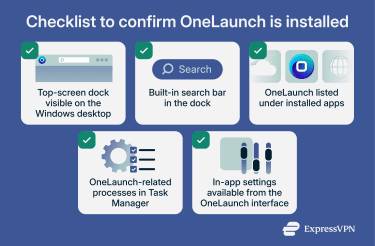
Here's how to identify OneLaunch on a Windows device:
- Dock at the top of the screen: OneLaunch adds a dock anchored at the top of your display (often with a search bar and shortcut icons). This is usually the most visible sign when the full app is installed.
- Listed in installed apps: OneLaunch may appear in Settings > Apps > Installed apps or Add or remove programs as an installed application
- OneLaunch processes in Task Manager: OneLaunch-related processes may appear under Apps or Background processes; resource usage varies by device and settings.
- New browser settings/behavior: OneLaunch can route searches and links opened from its dock to the OneLaunch browser by default, and it includes settings for the search engine and default browser.
How to remove OneLaunch from your computer
You can remove OneLaunch from your system like any other program. On Windows 11, follow these steps:
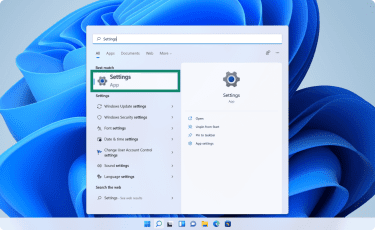
- Click the Windows icon on the taskbar, type Settings, then click to open the Settings app.
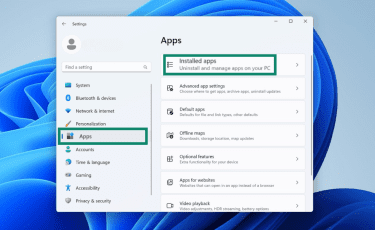
- Click Apps > Installed Apps (or search for Add or remove programs) and open it.
- Find OneLaunch in the list. Click the three dots next to it, then click Uninstall.
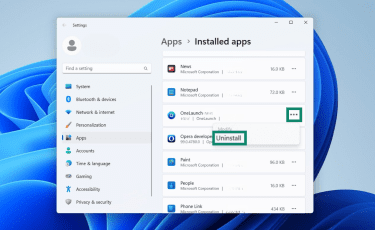
If this doesn’t work, try using OneLaunch’s official uninstall helper utility. Download it from OneLaunch’s support page, run the helper you downloaded (it’s typically in the Downloads folder), and confirm any Windows prompts. A restart may be needed to restore system settings after removal.
That said, any downloaded executable carries some risk. To reduce risk, only download the helper from OneLaunch’s official site, and consider scanning the file with Windows Security (Microsoft Defender) before running it.
Remove browser extensions
After uninstalling OneLaunch, review your web browsers for unwanted extensions. These can remain active even after the app is removed, so this step helps restore normal browser behavior. Depending on your browser, follow the applicable instructions below:
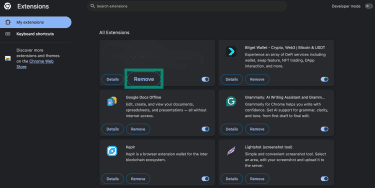
- Google Chrome: Click the three vertical dots at the top right, then click Settings and Extensions. Search for "OneLaunch," and if it appears, click Remove (or the trash can icon). You can also right-click an extension’s toolbar icon and select Remove from Chrome.
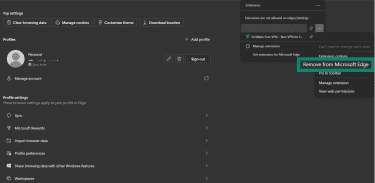
- Microsoft Edge: Click the three horizontal dots at the top right, then Extensions. Select Manage extensions, click More actions … next to OneLaunch, then select Remove from Microsoft Edge > Remove.
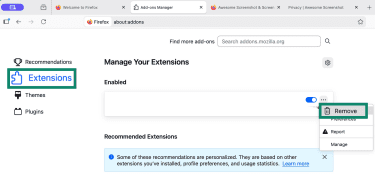
- Mozilla Firefox: Click the three horizontal lines at the top right, then Extensions and themes. Select Extensions, click the three dots next to OneLaunch, and select Remove.
Check for leftover files and registry entries
Even after you’ve uninstalled OneLaunch, leftover folders and registry entries may remain on your system. In some cases, leftover startup items or scheduled tasks can cause related components or settings to keep reappearing.
Note that editing the registry can affect system stability; proceed only if you’re comfortable, or skip this step.
For manual cleanup, press Windows + R, type %localappdata% (which opens the current user’s Local AppData folder), and press Enter. Look for folders named OneLaunch or similar and delete them. Then, empty your Recycle Bin.
Run a security scan
Once browser cleanup is complete, run a security scan to check for unwanted apps or browser add-ons that may still be present. Open Settings > Privacy & security > Windows Security > Virus & threat protection, and select Quick scan. You can also open the Windows Security app directly if preferred.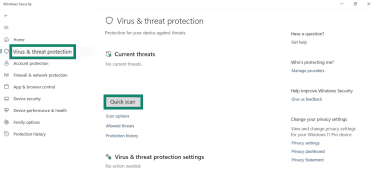
If you want a more thorough check, open Scan options and choose a Full scan. This step uses Windows’ built-in protection tools and doesn’t require third-party software. You can also run a scan with a trusted third-party antivirus, especially if you suspect something may have been missed.
Many reputable third-party antivirus products also include extras, such as firewalls, identity protection, and optimization tools. If you go this route, choose well-known products that are regularly evaluated by independent test labs.
Verify browser shortcuts haven’t been modified
Open the shortcut’s Properties > Shortcut tab and review the Target field. The Target should start with the browser’s executable path (for example, ending in chrome.exe or msedge.exe). Windows shortcuts can also include optional command-line arguments after the executable path, so extra text isn’t automatically suspicious.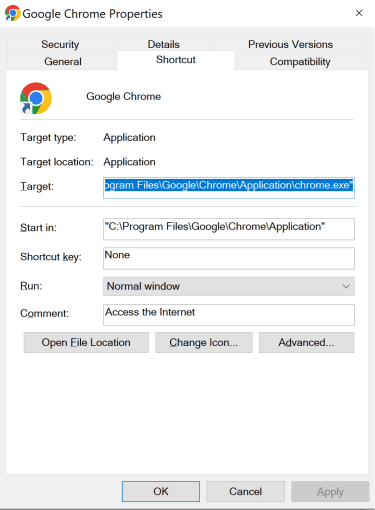
However, if the Target includes an unwanted URL (or other unfamiliar additions) after the .exe, the shortcut may force the browser to open specific pages each time it launches. Remove the unwanted URL (and any other unfamiliar additions), leaving the clean executable path and any known intentional settings.
How to prevent PUP installations
Simple habits can significantly reduce the chance of unwanted software installation.
- Slow down during installation prompts: Rushing through the steps increases the risk of approving software you didn’t intend to install. Taking time to read each prompt helps you spot optional downloads and excessive permissions.
- Download software only from trusted sources: Use official websites and reputable platforms. Untrusted sites may distribute bundled installers, outdated software, or look-alike downloads.
- Review permissions for browser extensions: Install only trusted extensions. Extensions that request broad permissions may collect data or change browser behavior.
- Use built-in security protections: Turn on PUP blocking in Windows Security (reputation-based protection) and keep Microsoft Defender SmartScreen enabled to help block suspicious apps/sites and downloads.
- Keep your system and software up to date: Updates help patch known vulnerabilities and reduce exposure to exploits and unwanted installs.
For people who regularly visit unknown or high-risk websites, additional containment measures can help further reduce exposure. One example is remote browser isolation (RBI), which runs browsing activity in an isolated environment away from the local device to help prevent web-based threats from reaching the endpoint.
FAQ: Common questions about OneLaunch
What is the purpose of OneLaunch?
OneLaunch is a desktop dock meant for Windows that lets you open a browser, apps, and shortcuts from the top of your screen. It’s designed to help you customize your desktop and access tools quickly from one place. However, the company says OneLaunch is no longer available for download, but existing users are still supported.
How do I stop OneLaunch from coming up?
OneLaunch launches automatically at system startup by default. To stop it from opening, disable “Launch on Startup” in OneLaunch settings. If you don’t need it, uninstall OneLaunch completely. After uninstalling, reset your browser settings, remove unrecognized extensions, and delete leftover files and registry entries.
How do I get rid of OneLaunch?
You can generally remove OneLaunch from your list of installed Windows apps. If this doesn’t work, you can download OneLaunch’s official uninstall helper utility from its support site, which should help complete the removal.
Is OneStart AI malware?
No. OneStart AI is an AI-focused web browser and “AI workspace” that adds built-in tools (such as summaries/answers and utilities like file/PDF features) directly into the browsing experience. It’s marketed as a browser “supercharged by AI,” designed to help with research and everyday web tasks.
What is the OneLaunch browser?
The OneLaunch browser is a Chromium-based browser integrated into the OneLaunch dock. It opens directly from the dashboard and functions as a standard web browser built on Chromium, with support for Chrome Web Store extensions.
Should I remove OneLaunch?
Removal may make sense if OneLaunch wasn’t intentionally installed or it's no longer providing value. Even when an app is legitimate, changes to browser behavior, extra background activity, or data collection practices can be undesirable for some people. Uninstalling is the most direct way to remove it.
How did OneLaunch get on my computer?
OneLaunch is often installed after someone with access to the device runs a download or clicks through an install prompt.
What are the risks of using OneLaunch?
For some users, the main concerns are changes to browsing behavior (for example, links opened from the dock launching in the OneLaunch browser), ad-supported content, and the privacy policy's usage and data collection. These aren’t necessarily harmful on their own, but they can be unwanted side effects depending on expectations and settings.
Can I disable OneLaunch without uninstalling?
Yes, you can close the OneLaunch dock, and OneLaunch includes settings to disable Launch on Startup and Run in Background. Uninstalling removes OneLaunch from the system, while closing the dock only hides it.
Take the first step to protect yourself online. Try ExpressVPN risk-free.
Get ExpressVPN