Is Discord safe? A complete guide to staying protected online


Discord isn’t inherently unsafe, but the same features that make it fun and popular can also expose you to some safety concerns. While Discord has layers of protection, they can only keep you secure if you understand how the platform works and how to take control of your privacy.
This guide explains the risks of using Discord and how to protect yourself by adjusting a few important privacy controls. You’ll also learn how to set up parental tools if you want oversight of your child’s experience on the platform.
What is Discord and why is it so popular?
Discord is a communication platform that combines voice, video, and text in one app. It started out as a convenient tool for real-time coordination for gamers and later evolved into a broader communication hub used by a wide variety of online communities.
Core Discord features
Server and community structure
Discord is organized around servers, which are user-created spaces built for specific groups or interests. Each server can be as simple or as complex as its owner wants, with dedicated areas for general discussion, coordination, announcements, support, and any other function needed.
Discord also provides a role-based access system. Server owners and administrators can assign roles that determine who can join private channels, post announcements, manage settings, or enforce rules. The platform is flexible as well. Servers can be customized with optional tools like automated moderation, integrations, and community guidelines, giving owners fine-grained control over how the space works.
Text, voice, and video communication
Discord gives you three ways to communicate: text channels, voice channels, and video calls.
- Text channels work like chat rooms where you can send messages, images, links, and files.
- Voice channels let users jump in and start talking instantly. These channels remain active all the time, and anyone who wants to join or leave the conversation can do so at any time.
- Video and screen sharing are options inside voice channels. You can stream gameplay, show someone how to fix a setting, or walk a friend through a tutorial.
Outside of servers, you can also message people directly through DMs. These work like private one-to-one or small-group chats and support the same features: text, calls, video, and file sharing.
Is Discord safe to use in 2026?
Discord is generally safe to use, but if you’re concerned about your privacy and security, here’s how the platform handles user data and what protections it has in place.
Data collection and retention
According to its privacy policy, Discord collects and keeps user information, so it’s worth understanding what that includes and how long it’s kept.
- Information collected: Discord collects the contact information you provide when creating an account, including your birthday and email/phone number, and all content you create or upload, including messages, files, and profile data, as well as actions you take, like how you use the service. It automatically gathers technical data, which may include operating system information, IP addresses, browser information, and usage logs.
- Data usage: Your information may be used to run core functions like messaging, safety monitoring, account management, and personalization features. It may also be used to track business metrics, understand how users interact with Discord, and promote Discord’s own products and services.
- Data retention: Discord keeps core account details and activity logs for as long as it needs the data for the purpose it was collected. This means it may keep this data for as long as you use it. Discord may retain certain information after the user has deleted their account for legal, safety, or operational reasons. Identifying data is removed after the 15–30 day recovery window and fully cleared from backups within about 45 days. Aggregated or anonymized data may be kept indefinitely.
- Third-party integrations: When you link external apps, bots, games, or payment services, those providers may receive the specific data required to operate their features. Integrations handle your data according to their own privacy policies, which may differ from Discord’s.
Data encryption
Discord encrypts user content, such as text messages, files, and images, in transit. This protects them from interception as they travel between your device and Discord’s servers. Once stored, your data is encrypted at rest, which helps secure it from unauthorized access. However, because Discord does not use end-to-end encryption (E2EE) for this type of content, the platform can still access that content when required for moderation, safety checks, or legal requests.
For voice and video content, Discord supports E2EE, meaning nobody except the participants in the call can decrypt it, not even Discord.
Platform-level moderation efforts
Discord uses a combination of automated systems and human review to detect harmful behavior across the platform.
- Automated detection: Discord uses machine-learning systems to scan for harmful or high-risk behavior. These tools can remove messages, disable accounts, or flag content for human review.
- Human moderation: Discord’s Trust & Safety team handles reports of harassment, exploitation, illegal content, hacked accounts, and terms-of-service violations. They investigate user reports, remove dangerous servers, and take action on accounts that repeatedly break rules.
- Server-level tools: Server owners can enable automated filters, require phone/email verification, create age-restricted spaces, and assign moderation roles.
Risks of using Discord
Even with Discord’s safety policies in place, there are certain risks, especially if you’re part of many large, busy communities and have open account settings.
Cyberbullying and harassment
Discord's open server model means users can encounter unwanted behavior, especially in large or poorly moderated communities. Cyberbullying can happen through DMs, group chats, or multiple people acting together, and while reporting tools exist, the effectiveness of moderation depends heavily on how each server is managed.
Inappropriate or explicit content
Because anyone can create or manage a server, there’s no guarantee that content is age-appropriate or safe. Users may encounter graphic material, hate speech, or other harmful content. While some spaces may be age-restricted, server owners control whether age restriction is enabled or not.
Scams, phishing, and hacking risks
Scammers often exploit Discord’s messaging features to impersonate brands and push fraudulent offers through links that mimic legitimate login pages. Some attackers may also try to distribute malware through malicious files or deceptive download links shared in chats. Discord uses automated systems and user reports to identify malicious activity, but deceptive messages can still appear.
How to stay safe on Discord
Privacy settings you should activate
You can control who can contact you on Discord and the type of media you’re exposed to.
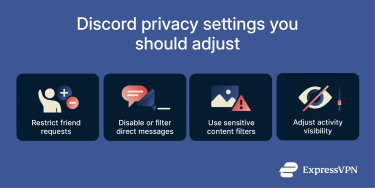
- Restrict friend requests: You can choose who can send you friend requests, like server members, friends of friends, everyone, or no one. These settings can also be adjusted per server.
- Disable or filter DMs: Turn off DMs from people you don’t know and enable Discord’s Message Requests functionality, which separates unexpected messages into a review folder. These settings can apply across Discord or per server.
- Use sensitive content filters: Activate filters that blur or block explicit or graphic media in private messages, especially from non-friends.
- Adjust activity visibility: Disable settings that show what you’re doing on Discord and regularly review authorized apps, removing anything that no longer needs access.
Security settings you should activate
- Enable multi-factor authentication (MFA): Add a second verification step to protect your account even if your password is compromised. If you run a server, require administrators to enable MFA before they can use administrative features.
- Use strong, unique passwords: Avoid reusing passwords across services, especially if your Discord account is linked to apps or payments.
- Be cautious with authorized apps: Only grant trusted apps or bots access to your account, and revoke permissions when they’re no longer needed.
Best practices for safe interaction
Avoid public servers
Large open servers can be more unpredictable and risky since there are so many people in them. That’s why you should be very deliberate in joining communities. Check if the server uses verification checks, content filters, and visible moderation. If a server becomes chaotic or starts ignoring its own rules, it’s best to leave rather than wait for problems to happen.
Don’t click on unknown links or open unknown files
Treat unfamiliar links, shortened URLs, and unexpected files with suspicion, especially if they come from people you don’t know. Use link-checking tools before opening anything unfamiliar, and avoid executing programs, scripts, or scanning QR codes sent by strangers. External sites may request or capture details you never intended to share.
Limit personal info sharing
Keep real-world details private in both servers and DMs. Avoid sharing your full name, address, school, workplace, or any financial information, since anything posted in a busy server can be copied instantly. Using neutral nicknames and being careful with screenshots helps prevent exposing more than you realize.
Using a VPN and antivirus tools
A virtual private network (VPN) adds a layer of privacy when you use Discord on public or unsecured networks. When you connect, the VPN encrypts your connection between your device and the VPN server before the data reaches Discord. This makes it difficult for your internet service provider (ISP) or network admin to see that you’re using Discord. It also makes it hard for a bad actor to intercept your Discord traffic on unsecured networks, like some public Wi-Fi.
A good antivirus program, on the other hand, can help protect you by blocking harmful files that you may accidentally start downloading by clicking on malicious links on Discord.
Control your data footprint
Discord gives you several ways to manage the information stored about your account. These don’t make you invisible, but they help you reduce long-term exposure:
- Request your stored data: You can submit a formal request to receive a copy of the data tied to your account, which Discord processes after it verifies your identity.
- Remove unused integrations: Third-party apps and bots you connected in the past keep the permissions you originally allowed until you revoke them. Regularly reviewing and clearing them limits unnecessary access to your activity.
- Adjust usage data and activity sharing: Turn off the “Use Data to Improve Discord” setting to reduce new usage data collected for product improvement, and disable Activity Status to limit what other users can see about what you’re doing.
Is Discord safe for kids?
Discord can be safe for kids when the right settings and boundaries are in place, but it’s not a child-focused platform.
Minimum age requirements and parental guidance
You must be at least 13 years old to use Discord, with higher age limits in some regions. If a user is under the minimum age, the account can be removed. You should confirm that your child meets the required age before allowing them to sign up.
How to set up parental controls
For users under 18, Discord provides a tool called Family Center that lets parents link their account to their teen’s account by using an opt-in QR code. This gives parents an insight into the following information from the last 7 days:
- New connections: A record of the people your teen has recently added to their friend list.
- Server activity: A list of servers your teen has joined and the top 5 servers they used.
- Communication history: The usernames and avatars of people your teen has messaged or called (without showing the content).
- Time spent in calls: An overview of how many minutes they’ve spent in voice or video chats.
- Purchase history: A summary of limited purchase information, such as digital items or subscriptions.
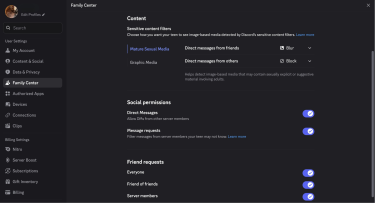
- Account supervision options: A small set of visibility and safety-related controls that parents can set up, and the teen cannot modify. You can adjust whether or how your teen sees image-based sensitive content, who can send your teen friend requests, whether other server members can send them DMs, and whether message requests are turned on. You can also choose how Discord uses your teen’s data.
If a teen reports content or another user, they have the option to send the report to the parent as well. If they choose to share the report, the parent will get an email notification; however, the details of the report aren’t shared in the email.
Linking your Discord account to your teen’s
To link your account to your teen’s on Discord, you need to use the mobile app (for the parent app).
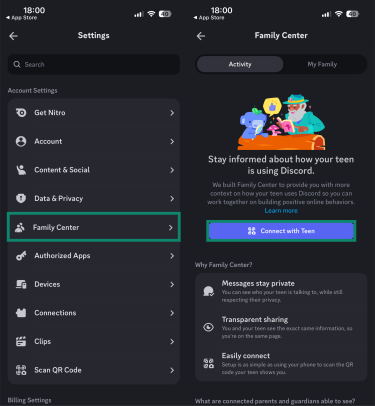
- In the parent app, go to Settings, select Family Center, and tap Connect with Teen.
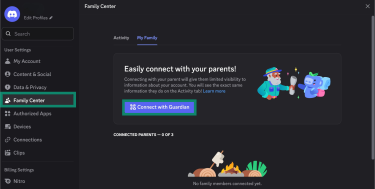
- Next, open the Discord app on your teen’s device and go to Family Center from Settings, then select Connect with Guardian.
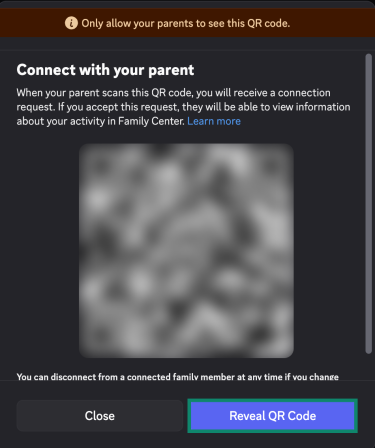
- Click Reveal QR Code, so it becomes visible.
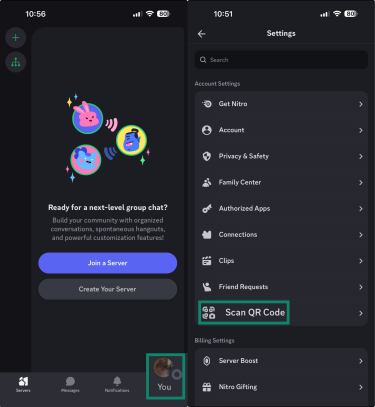
- On the parent’s device, tap your profile picture on the bottom-right to open Settings and then Scan QR Code. Your phone’s camera will open. Scan the QR code on the teen’s device from your phone.
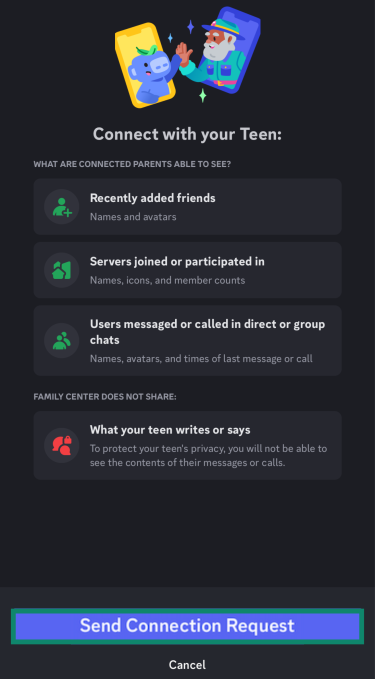
- Tap Send Connection Request. This will send a request to the teen’s device.
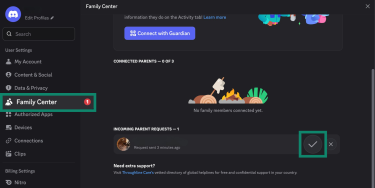
- On the teen’s device, accept the connection request in the Family Center tab by clicking the tick mark.
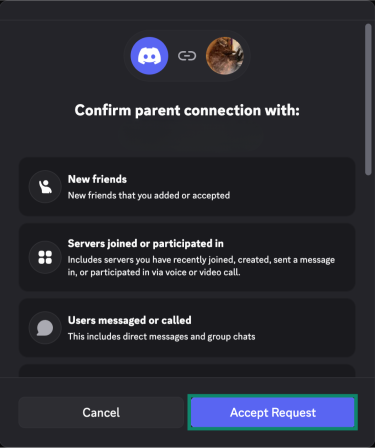
- In the window that opens next on the teen’s device, click Accept Request.
- Check if your teen’s device is showing in Family Center. You should be able to see an Activity tab.
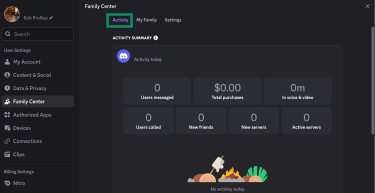
Setting controls on your teen’s Discord account
- Scroll down on the Activity page and select Content & Social.
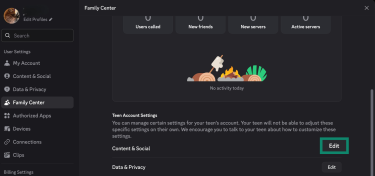
- Here, you can set a limited number of content filters and social permissions for your teen’s Discord account.
How to report abuse and misconduct
Discord lets you report harmful behavior in two ways: by reporting a specific message or by reporting a user.
Step-by-step guide to using the report feature
Report a message on Discord
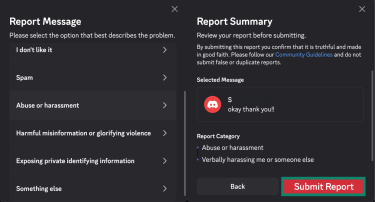
- Find the message you want to report, right-click it or long-press on your phone, and click Report Message.
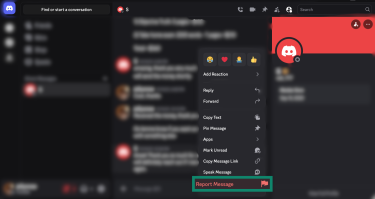
- In the box that opens, pick the category of abuse you’re reporting and click Submit Report.
Report a user on Discord
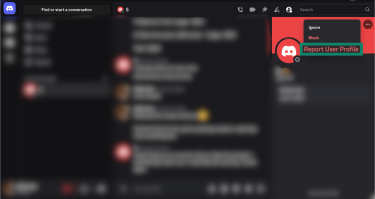
- Open the chat, and you’ll find their profile opened on the right pane. Click the three dots icon on the top right and click Report User Profile.
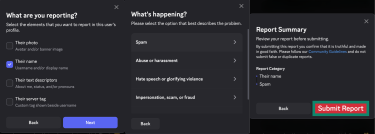
- Select what you’re reporting on the user’s profile and click Next. Pick a reason why you’re reporting the user and click Submit Report.
What happens after
After you submit a report, you’ll get confirmation that your report has been received. If a violation is confirmed, the team may remove content, restrict or disable accounts, or take down servers to enforce its policies. Your details aren’t shared with the person you reported.
FAQ: Common questions about Discord safety
Can you get hacked through Discord?
Yes, Discord accounts can be compromised if you interact with malicious links, files, or scams. Most hijacks happen when users are tricked into opening phishing pages, downloading harmful programs, or approving unauthorized apps.
How do I keep my child safe on Discord?
Discord has limited built-in parental controls for supervision. They let you set sensitive content filters for images, adjust whether server members can send your teen DMs, and choose who can send them friend requests.
Is Discord encrypted?
Yes. Discord encrypts all data in transit and at rest, and it supports end-to-end encryption (E2EE) for calls and videos.
Why are parents concerned about Discord?
Using Discord comes with some risks. The platform is generally safe, but kids can get exposed to cyberbullying, explicit content, and malicious links.
Is Discord as dangerous as people say online?
Discord is generally a safe platform, and it has plenty of safety features built in, like privacy controls, server-level moderation, reporting systems, and parental controls. However, no system can guarantee 100% safety all the time.
Take the first step to protect yourself online. Try ExpressVPN risk-free.
Get ExpressVPN