How to lock the screen for kids while using a phone or tablet


In this digital age, many parents worldwide allow their children access to devices like smartphones and tablets for educational purposes, as well as for playing games and watching movies and TV shows. But constant monitoring isn't always easy, and kids can sometimes close an app or navigate to an unexpected place. For this reason, it can be helpful to know how to lock the screen so it stays on a single app.
This guide looks at the screen-locking features available on most Android and iOS devices and explains how they work. It also outlines how these tools can support a more controlled experience when a child is using a phone or tablet.
What is screen locking and when should you use it?
Screen locking for kids refers to using tools that keep a device on a single screen or within a single app or limit the actions a child can take. Locking a device's screen can reduce accidental taps that take the child out of the chosen app. This is distinct from the standard lock screen that appears after inactivity or when a button is pressed.
To lock the screen, parents have various options, from the built-in functions of modern smartphones and tablets to third-party apps. These options vary in terms of customization, usability, and setup.
Difference between screen locking and parental controls
The tools discussed in this article are designed for situations where a device needs to stay on a single app or within a limited set of actions, often when someone briefly hands their personal phone or tablet to a child.
Parental controls, by comparison, are typically used on devices intended for a child’s regular use. These controls can take the form of built-in settings or third-party apps installed on the child’s device.
Screen-locking features are generally activated only when needed, whereas parental controls typically run continuously in the background. The specific options differ by platform, but parental controls commonly include ways to limit which apps can be opened or which sites can be accessed. Many also offer activity information such as screen-time summaries, app-usage data, or browsing restrictions. Some provide scheduling features that specify when and for how long a device can be used.
Real-world scenarios: Watching videos, preventing accidental taps
Families use screen-locking tools in a variety of situations. Here are some of the most common examples:
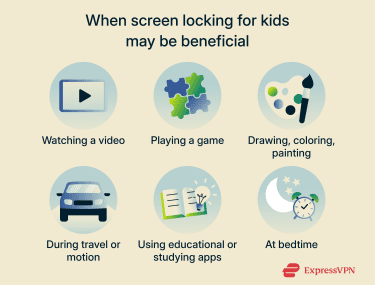
- Watching a video: Reduces accidentally skipping, pausing, exiting, or switching to unrelated content.
- Doing digital art: Helps keep the drawing app open and minimizes unintentional tool changes or exits.
- Playing a game: Helps reduce accidental taps that could pause or exit the game, or open other apps.
- Holding the phone during travel: Blocks swipes or changes to settings when your child has the phone during motion, for example, in a car.
- Doing homework or educational activities: Keeps them focused on the assigned learning app.
- Bedtime routine: Useful when playing calming audio or stories, so the device stays on the same screen.
How to lock the screen for kids on iPhone
iPhone users have a built-in feature called Guided Access that limits the device to a single app and temporarily restricts controls and touch areas by allowing you to highlight parts of the screen to make them unresponsive to touch. There’s also an optional setting to adjust the device's auto-locking timing for the duration of the session.
Setting up Guided Access for one-time locking
You first need to activate Guided Access, but the setup is only required once.
- Open Settings and tap Accessibility.
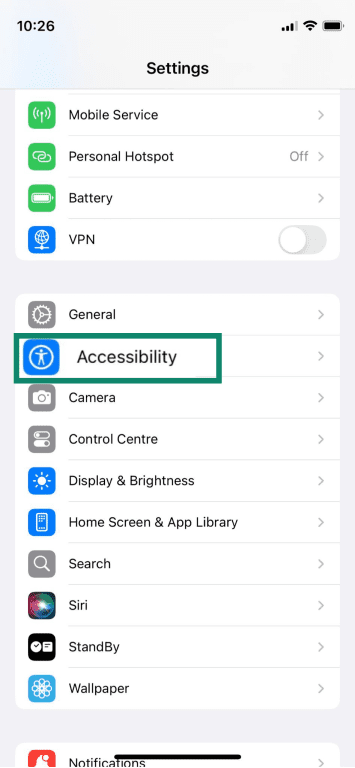
- Select Guided Access.
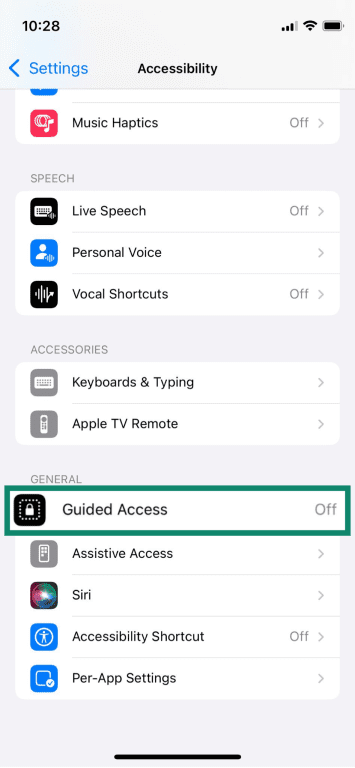
- Toggle the Guided Access switch on.
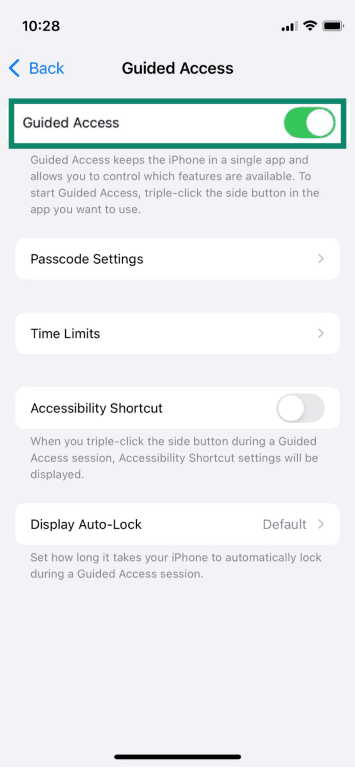
- Tap Passcode Settings and look for Set Guided Access Passcode.
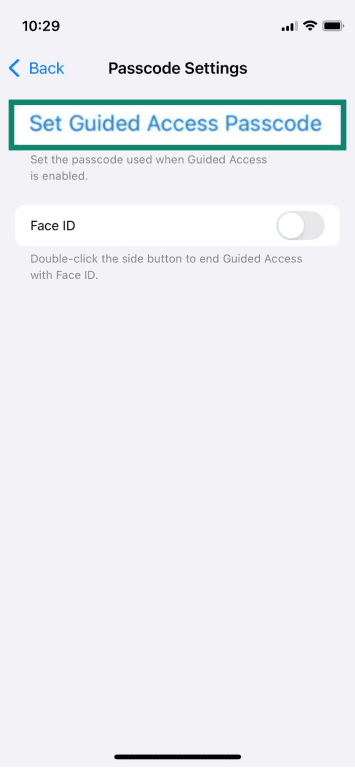
- Enter and confirm a passcode that will be used to start or end a Guided Access session. After setting a passcode, you can also enable Face ID to control Guided Access sessions.
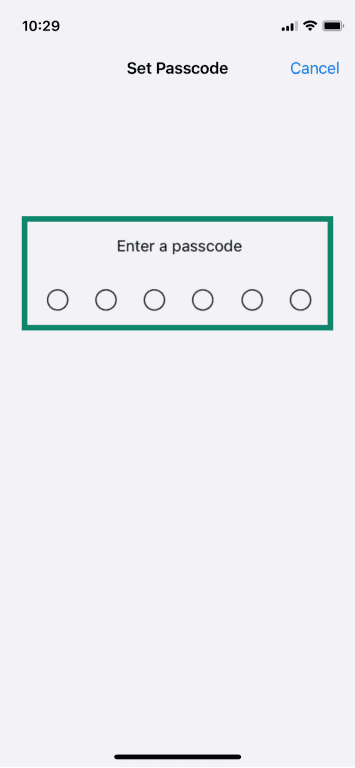
Activating the triple-click shortcut
Once you’ve enabled the feature, you can turn Guided Access on at any time. Here’s what to do:
- Open the app you want your child to use.
- Triple-tap the Side or Home button, depending on your iPhone model.
- Circle any areas of the screen you want to disable, if needed. You can also tap Options to turn off features like sound or set the duration for which Guided Access will remain enabled.
- Once you’ve configured Guided Access to your liking, tap Start to turn it on.
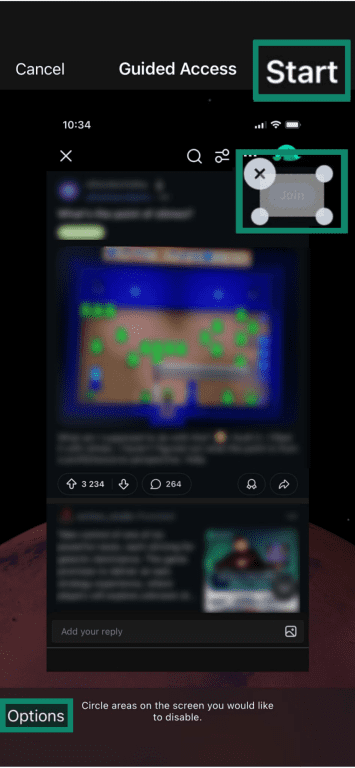
- When you’re ready to turn the feature off, simply tap the Home or Side button three times again, enter your passcode (or show your face if Face ID is enabled), then tap End.
Temporarily disabling touch input
If you want to stop your child from tapping the screen entirely, Guided Access lets you disable touch input in just a few steps.
- Start Guided Access in the app that you want to lock.
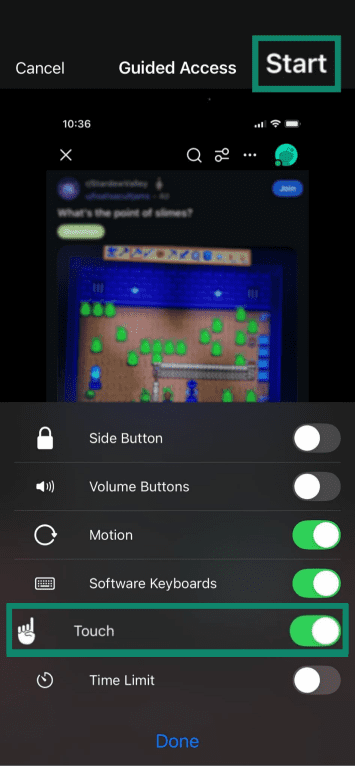
- Tap Options in the bottom-left corner of the Guided Access screen. This will open up a new panel.
- Turn off Touch to disable all screen taps.
- Adjust other controls as needed, disabling features such as Side Button, Volume Buttons, Motion, or Keyboards.
- Tap Start to apply the settings.
Compare screen locks and parental controls on iPhone
In addition to Guided Access, iOS includes several built-in features for screen locking and parental controls. Here’s an overview of screen locking and iOS parental control settings to give you an idea of what’s available.
| Feature | Description |
| Guided Access | Keeps the device on a single app and can disable touch in selected areas or turn off specific inputs during a session. Commonly used when the activity needs to stay within one app, such as watching a video or using a learning tool. |
| Screen Time/App Limits | Sets daily time allowances for specific apps or categories, often used to manage access to games, social media, or entertainment apps. |
| Screen Time/Downtime | Restricts most apps during scheduled hours, allowing only phone calls and selected “Always Allowed” apps. Often applied during nighttime or structured daily routines. |
| Screen Time/Always Allowed | Designates apps that remain accessible even when restrictions like Downtime are active. |
| Content & Privacy Restrictions | Applies system-level settings that manage explicit content, in-app purchases, and privacy controls across the device. |
| Communication Safety | Detects and blurs sensitive images in Messages and other apps and provides on-device warnings in conversations involving children. |
| Third-party parental controls | Offer additional oversight features such as usage monitoring, filtering, or time-based restrictions, typically used on devices a child uses independently. |
Screen locking on Android
Like iOS, Android phones include a feature that lets parents temporarily restrict what a child can do.
How to lock the screen for kids on Android (step-by-step guide)
The easiest way to temporarily restrict a child to a single app is to use a built-in tool. The name of this feature may be Screen Pinning or Pin Windows, depending on your phone’s model and the Android version. Similarly, the exact process for setting up this feature varies, but the steps below outline the general process on most Android devices.
- Open Settings.
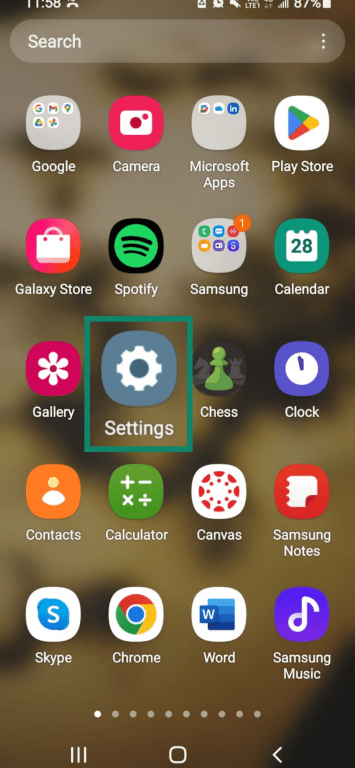
- Look for and select either Biometrics and security or Security and privacy. If you can’t find either of these, consider entering a term like “pinning” into the search bar within the Settings app.
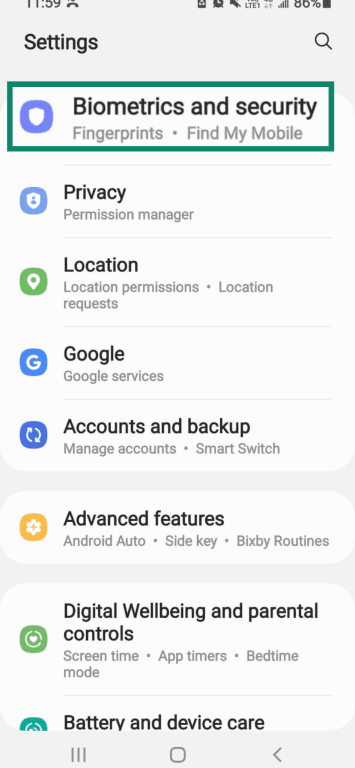
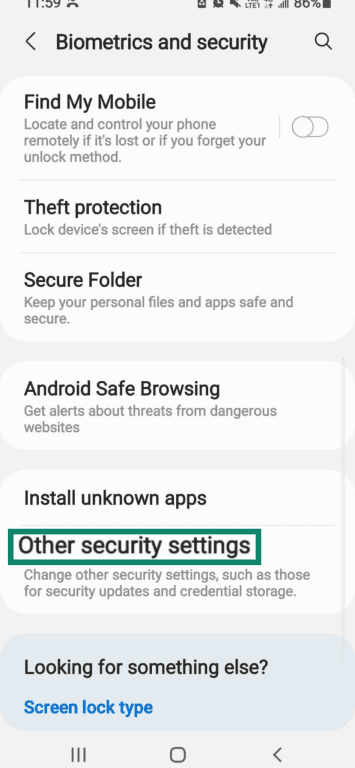
- Scroll down and select Other security settings or More security settings.
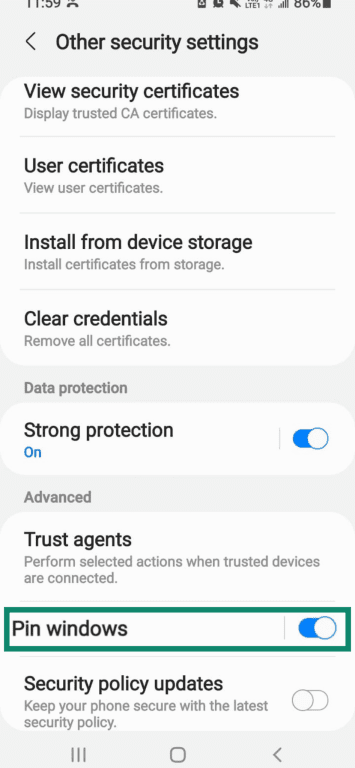
- Find Pin windows (sometimes labeled Pin app, App pinning, or Allow apps to be pinned) and turn it on.
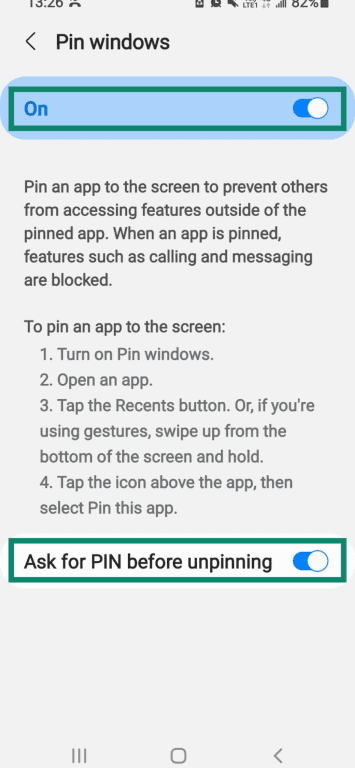
- Turn on Ask for PIN before unpinning for extra protection. On some phones, the option is instead labeled Lock phone after unpinning. In those cases, the device works slightly differently: it will lock as soon as the app is unpinned and require your PIN, password, or pattern before you can access the rest of the device.
- Access currently open apps by pressing the three-line icon or using whatever gesture you have set up. Navigate to the app you want to pin and tap the app’s icon.
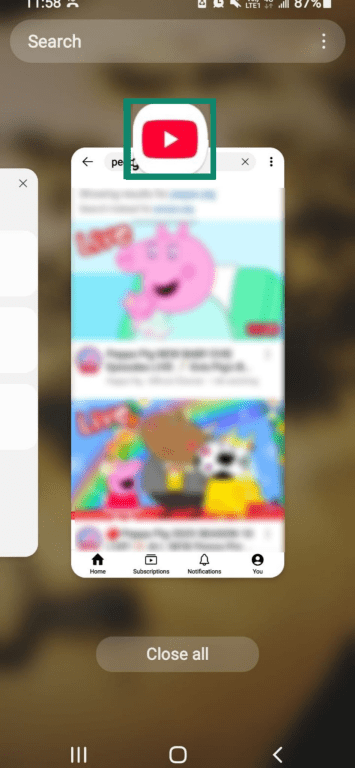
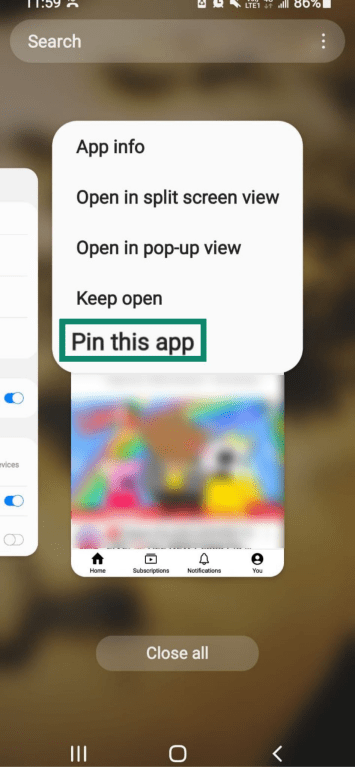
- Select Pin this app from the list of options.
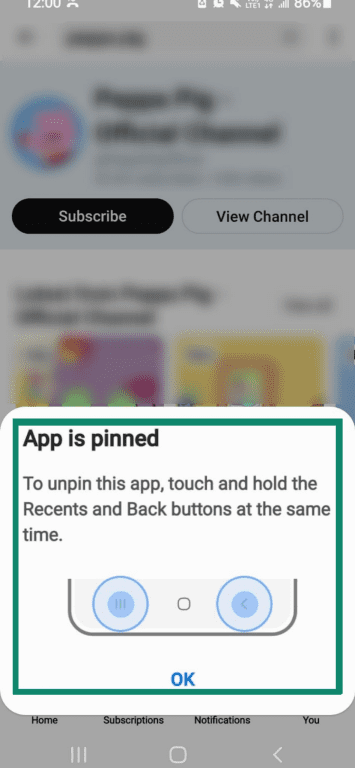
- Take note of how to unpin the app before pressing OK. Usually, you’ll need to hold the Recents and Back buttons at the same time, but the process may differ if you have navigation gestures enabled.
Locking the screen during full-screen videos
YouTube, Netflix, and some other streaming apps include a screen lock option, though availability can vary by device and account type. These tools are designed to prevent accidental taps but are easy to unlock, typically by following simple on-screen instructions.
In most apps, you can access the lock function after entering full-screen mode by tapping the screen to reveal playback controls. Netflix displays a lock icon directly on the video, while YouTube places the Lock screen option inside the settings menu (gear icon), when the feature is available.
Compare screen locks and parental controls on Android
Modern Android phones come with a variety of tools for parents. Beyond simple locking, features like Family Link and Digital Wellbeing can be set up on the child’s device to provide broader parental controls. The table below shows the various tools parents can turn to. Note that this is not comprehensive, and available tools vary between Android phones.
| Feature | Description |
| Screen Pinning/Pin Windows | Locks the device to a single app until unpinned. Commonly used to keep the screen on one activity, such as a video, learning app, or reading app. |
| Google Family Link | Provides ongoing parental controls on a child’s device, including daily screen-time limits, app approvals, bedtime schedules, content filters, and location features. |
| Digital Wellbeing: Focus Mode | Temporarily pauses selected apps to reduce distractions while still allowing calls and emergency functions. Often used during homework, mealtimes, or other focused periods. |
| Digital Wellbeing: Bedtime | Switches the screen to grayscale and silences notifications during scheduled hours, with optional Do Not Disturb. Often used as part of a nighttime routine. |
| Kids Space (Google) | A child-friendly mode available on select Android tablets, offering a curated home screen with approved apps, books, and videos tailored for younger children. |
| Third-party parental controls | Vary widely by developer, but commonly offer features such as usage monitoring, content filtering, and time-based restrictions. Often used on devices that a child uses independently. |
Third-party screen lock apps to freeze the screen
Instead of using a phone’s native features, some people use third-party apps instead. These apps may offer additional customization or features, but many rely on sensitive permissions or data collection to operate. Details about an app’s data practices are usually outlined in its app-store listing.
Safety first: Common screen-locking mistakes to avoid
Even with screen locking enabled, certain features may behave differently than expected. The examples below highlight potential challenges.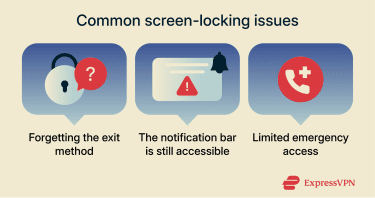
Forgetting to set an exit method
One issue that can arise is not having a straightforward way to return the phone to its normal state. Guided Access on iPhone requires setting a passcode, with Face ID or Touch ID as an optional shortcut to end a session. If the passcode is forgotten, a forced restart is typically required to exit Guided Access. On Android, app pinning may or may not use a PIN depending on how the device is configured; if a PIN is enabled, it will be required to unpin the app.
The same considerations apply to third-party touch-lock apps. If the unlock method isn’t remembered, the device may remain locked until it's restarted. It can be helpful to have a clear and easy-to-remember way to exit the locked state.
Allowing access to the notification bar
Another point to consider is whether the notification bar or quick settings remain accessible while the screen is locked. Some touch-lock apps do not completely block the pull-down shade, leaving settings, notifications, or other controls accessible.
On iPhone, Guided Access prevents leaving the app. However, depending on how it's configured, some elements of the notification bar or Control Center may still appear even with touch input disabled in those areas. On Android, most devices block the notification shade while an app is pinned, though behavior can vary across manufacturer-modified versions of the operating system. Testing how these features behave on a specific device can help you know what remains accessible before handing it to your child.
When to avoid locking: Emergency scenarios
Screen-locking tools can be helpful in many situations, but they may limit access to system controls, such as emergency call shortcuts, depending on how they're set up. For example, if a device needs to be used quickly for emergencies or essential functions, a locked or frozen screen can delay access. These screen locking tools are generally suited to situations where the environment is predictable and an adult is nearby.
FAQ: Common questions about locking screens for kids
Can I play YouTube without my child touching the screen?
Some YouTube mobile apps include a screen-locking option. You can access it by tapping the gear icon and selecting the lock option. The app can still be easily unlocked by clicking the Tap to unlock button, which appears when you tap anywhere on the screen. If your child can read and you want to make sure they stay in the app, you may find that built-in screen-locking tools offer stronger restrictions.
What’s the best way to lock one app only?
Many people use their phone’s built-in features to lock their device to a single app. On an iPhone, the relevant feature is Guided Access. Android has a similar tool, which may be called Screen Pinning or Pin Windows, depending on the model. Third-party apps are also available, though they vary in quality and data practices.
Is it possible to lock the touchscreen temporarily?
Yes, you can temporarily lock your touchscreen to block touch input. On iPhone, Guided Access lets you turn off all touch input, freezing the screen until you enter your Guided Access passcode. If you’re an Android user, you can use the Screen Pinning feature to keep your phone locked in a specific app.
Do I need to install an app to lock the screen?
No, you don’t need to install a third-party app to lock your phone's screen. Both iPhone and Android have built-in tools that lock the device to one app: Guided Access on iPhone and Screen Pinning on Android.
Take the first step to protect yourself online. Try ExpressVPN risk-free.
Get ExpressVPN