How to identify and remove grayware from your devices


Not every risky program qualifies as malware. Some software falls into a middle ground known as grayware. It often appears bundled with other downloads or as an “optional” component during installation, so it can end up on your device without you realizing.
In this post, we cover what exactly grayware is, how it differs from malware, and how to know if you have it on your device. We also explore the different types of grayware and how to keep your devices safe.
What is grayware?
Grayware is software that doesn’t meet the technical definition of malware but nonetheless behaves in ways you wouldn’t want on your device. It might slow performance, display unwanted ads, or track your activity. While it isn’t always created with harmful intent, grayware can still create privacy and security risks.
The worst part is, it’s not always easy to locate and remove. To stay hidden, it may run under generic system names or quietly add itself to your device’s startup processes, which means it keeps coming back when you restart your device.
Grayware vs. malware: What’s the difference?
The key difference between grayware and malware is intent. Malware, like ransomware, Trojans, and keyloggers, is explicitly designed to damage systems, steal data, or exploit users. It’s also illegal in most places and situations. Grayware usually lacks that clear malicious intent. Instead, it operates in a legal or ethical gray area: it might track usage, modify settings, or insert ads, often without your full awareness.
| Grayware | Malware | |
| Common types | Adware, spyware, browser hijackers, potentially unwanted programs (PUPs) | Ransomware, Trojans, keyloggers, worms |
| Why it was created | Ads, tracking, monetization | Theft, damage, or control |
| How it affects your device | Slower performance, ads, setting changes | Data theft, file encryption, system damage |
| How it gets on your device | Bundled apps, misleading installers | Phishing, malicious downloads, exploits |
| Legal status | Often within a legal gray area | Illegal |
| Privacy risk | Moderate to high | Very high |
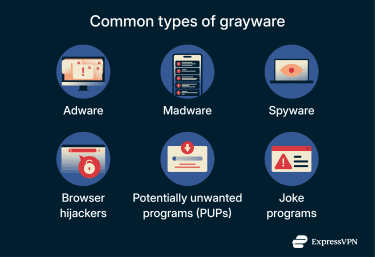
Common types of grayware applications
Grayware comes in several forms, but they all share one thing in common: they quietly interfere with your device and, often, your privacy.
- Adware: Software that floods your screen with pop-ups, banners, or sponsored results. It’s often installed alongside free apps or legitimate software without you knowing. Adware is the most common type of grayware.
- Madware: Mobile-focused adware that targets smartphones and tablets. It pushes aggressive ads, sends you unwanted notifications, drains battery life, and tracks app usage. Madware often hides inside free games or utility apps on your phone.
- Spyware: Software that monitors user activity, such as browsing behavior, search queries, or app usage, and sends that data to third parties, often for advertising or analytics purposes. Unlike overt malware, grayware-style spyware may not be completely hidden and may be disclosed in vague or hard-to-find terms. Its behavior is typically legal and commercial rather than explicitly malicious, but it raises privacy concerns because the data collection is excessive, difficult to opt out of, or hard to fully disable or remove.
- Browser hijackers: Often also classified as malware, these programs alter your browser settings and redirect searches or traffic without clear user approval. They’re usually installed alongside other software and designed to be difficult to fully remove, generating ad or referral revenue rather than directly stealing data.
- Potentially unwanted programs (PUPs): Extra software bundled with legitimate downloads. It can add toolbars, background processes, or system changes you didn’t intend to install.
- Joke programs: Prank software meant to annoy rather than seriously damage your device. It might show fake error messages, play random sounds, or display hoax system alerts. While often brushed off as harmless, it still disrupts the normal use of your device.
How grayware affects your device
Once installed, grayware can affect your devices in a handful of ways. Here’s a rundown of what to expect with grayware infections.
Performance issues
Grayware can slow your device down by constantly running background processes and competing with legitimate apps for memory and CPU power. Performance worsens when you have multiple grayware programs on your device. Different tools may conflict with one another, causing freezes, crashes, or long loading times. Over time, everyday tasks, like opening apps, switching tabs, or starting up your device, can start to feel unusually slow and unreliable.
Privacy risks and data tracking
One of the more serious risks of grayware is unwanted tracking. Grayware that behaves like spyware can monitor what websites you visit, what you search for, and how you use your device, often without your knowledge.
Advertisers can use that data to build detailed profiles about you, which can be used for aggressive targeted advertising.
Changed browser settings
Some grayware, including adware and browser hijackers, changes your browser settings without clear permission. This can mean extra extensions and toolbars you didn’t install, or changes to your default browser. These changes can redirect your traffic, track your activity, or push ads and sponsored content.
For example, you might not use many browser extensions, and suddenly several new toolbars or add-ons appear that you don’t remember installing. Or, you might have your browser settings set to use Google or another preferred search engine, and now every search is routed through an unfamiliar site filled with heaps of ads.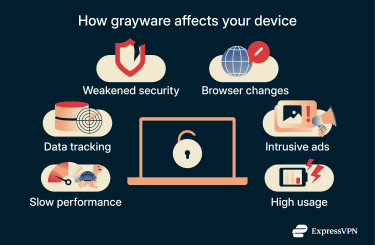
Intrusive advertisements
If you have adware, you may start seeing pop-ups, banners, or alerts even when you’re not actively browsing the web. In some cases, ads appear on your desktop or phone screen after you’ve closed your browser, or when your device isn’t connected to the internet at all.
This is never a good sign. It means adware is overriding device or browser permissions to push ads directly at the system level. This often points to adware running in the background rather than normal website ads.
Unfamiliar shortcuts and apps
Adware can also create or modify shortcuts in ways that make them appear new or unfamiliar. On computers, this often involves replacing or adding a desktop shortcut for your browser that opens a specific website instead of your usual homepage. On phones, similar behavior can appear as new utility apps or games you don’t remember installing.
Unexplained increase in CPU and data usage
Grayware can cause unusual hardware behavior. Fans may run louder than usual, devices may heat up, or battery life may drop faster than expected. You can look at task or activity monitors, which can show you all processes using CPU or memory.
Many types also quietly transmit collected data, like browsing habits or tracked activity, to remote servers. This will often lead to an unexplained spike in network data usage. This ongoing traffic quickly eats through mobile data plans or slows down your connection without any obvious reason.
How to detect and remove grayware effectively
Grayware doesn’t always announce itself, but with the right checks and tools, you can spot it early and remove it safely.
Security tools for removal
Several types of tools can help detect and remove grayware. Built-in protections offer a solid starting point, while third-party anti-malware software or extensions can be useful when grayware is harder to spot or solely browser-based.
Built-in system tools
On Windows, Microsoft Defender can detect many forms of grayware, classifying them as potentially unwanted applications (PUAs). This includes adware, software bundlers, and programs that change browser settings or push unwanted ads. When PUA protection is enabled, Defender can prevent these apps from installing or running. Windows also uses SmartScreen to warn users about suspicious downloads, unrecognized apps, and known malicious websites, which helps stop common grayware distribution methods.
However, Windows’ protections are not absolute. Grayware that is technically legitimate, relies on user consent, or is bundled with free software can still be installed if users click through prompts or disable warnings.
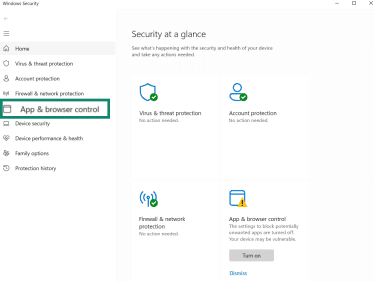
To turn on Windows PUA protection:
- Open Windows Security and go to App & browser control.
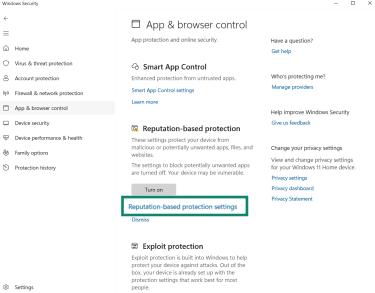
- Click Reputation-based protection settings.
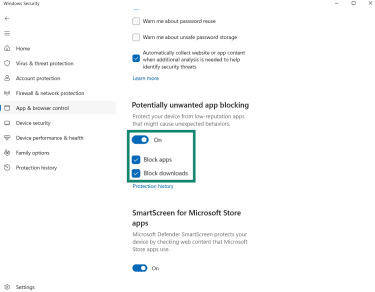
- Turn on Potentially unwanted app blocking. Make sure both options are enabled: Block apps and Block downloads.
Apple, too, includes built-in protections in macOS and iOS that help block many forms of grayware, such as adware, deceptive installers, and PUAs. Apple doesn’t use the term “grayware,” but its security features are designed to prevent the same kinds of behavior.
On macOS, tools like Gatekeeper and app notarization block unsigned or unverified apps, while XProtect can detect and remove known unwanted software. App sandboxing and system permissions also limit how much access third-party apps have, which reduces the impact of adware and browser hijackers.
iOS and iPadOS apps must go through the App Store review process, run in strict sandboxes, and request permission before accessing sensitive data. Because sideloading is restricted by default, traditional grayware is uncommon on iPhones and iPads.
That said, as with Windows, Apple’s protections aren’t foolproof. Some annoying but technically legitimate apps, aggressive browser extensions, or social-engineering-based installs can still get through if users approve them. Apple’s security model reduces risk significantly, but it doesn’t eliminate every PUP.
Anti-malware tools
Dedicated anti-malware software is designed to detect and block a wide range of unwanted and suspicious software, including grayware. These tools typically rely on frequently updated threat databases and behavioral analysis to identify PUPs before they install or run. Many also include real-time protection that can stop installers or background processes associated with intrusive or deceptive software.
Browser cleanup settings and tools
When grayware is limited to your browser, you can clean it up using built-in browser settings. Modern browsers like Chrome include native controls for managing extensions and resetting settings that grayware might abuse or reset.
You can do this on Google Chrome using the following steps:
- Open the Chrome menu (three dots) > Extensions > Manage extensions.
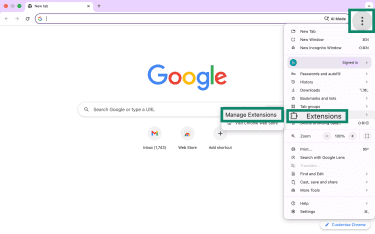
- Click Remove on suspicious extensions or anything you don’t recognize.
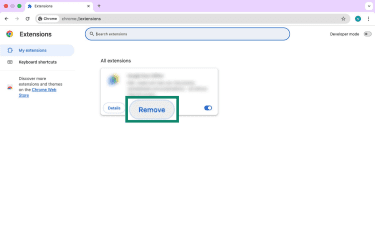
- From the Chrome menu, go to Settings.
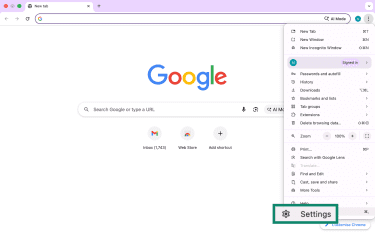
- Select Reset settings, then Restore settings to their original defaults.
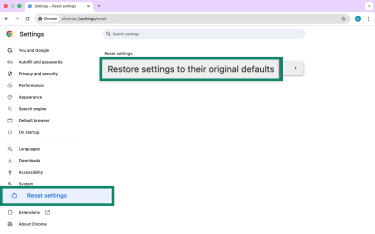
This restores your default search engine, homepage, and startup behavior without deleting bookmarks, saved passwords, or browsing history.
You can also find browser cleanup tools as third-party extensions, but these come with more risk. While some are helpful, others behave like the very grayware you’re trying to remove. Before installing anything, check reviews, the developer’s reputation, and whether the extension has excessive permissions.
Manual removal steps for Windows, Mac, Android, and iPhone
If a security scan identifies grayware, or you notice unfamiliar apps on your device, you can try removing them manually. These steps walk you through uninstalling suspicious or unwanted programs that may be displaying ads, tracking activity, or changing your settings.
Removing grayware manually on Windows
- Open Settings, then go to Apps, then to Installed apps. From there, select Sort apps by Date installed.

- Look through your programs for anything suspicious. Click the three dots beside the program you want to remove and click Uninstall.
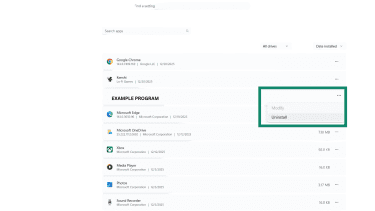
- Follow the on-screen steps to remove the app and related info.
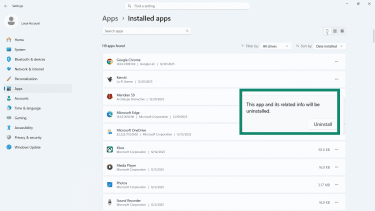
- Restart your device.
Removing grayware manually on Mac
- Open Finder and click on Applications. Look for apps you don’t recognize or didn’t intentionally install. Always double-check before deleting something to make sure it isn’t important for your system.
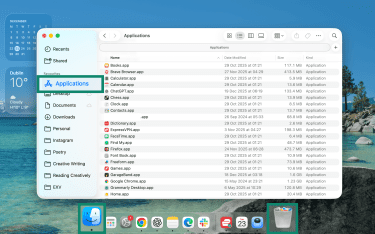
- Drag the app to Bin. Then click on Empty Bin.
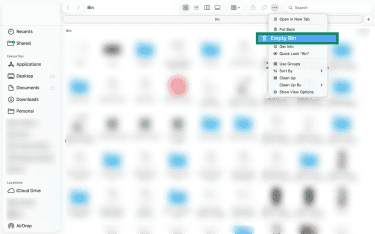
- Restart your device to consolidate the changes.
Removing grayware manually on Android
Depending on your device and Android version, the steps for removing grayware may slightly differ. The screenshots below were captured on a Samsung Galaxy A80.
- Restart your phone in safe mode by pressing the power button and then holding the Power off option.
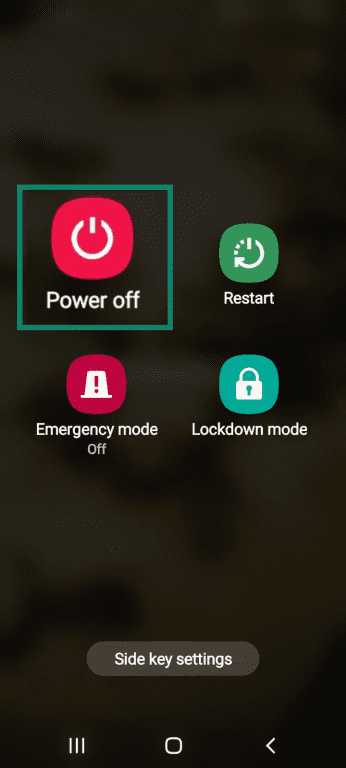
- When you're in safe mode, press and hold the app you want to uninstall.

- From your app library, press and hold the app you suspect is grayware and select Uninstall.
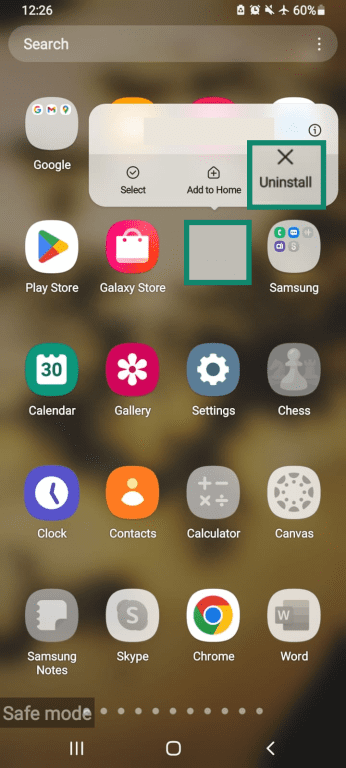
- Next, go to your Files app.
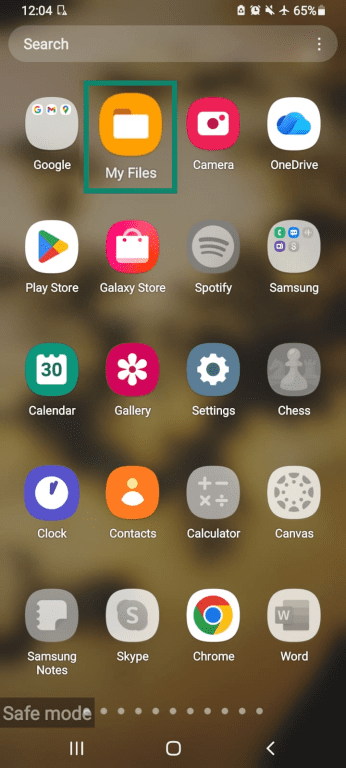
- Click into your Downloads folder.
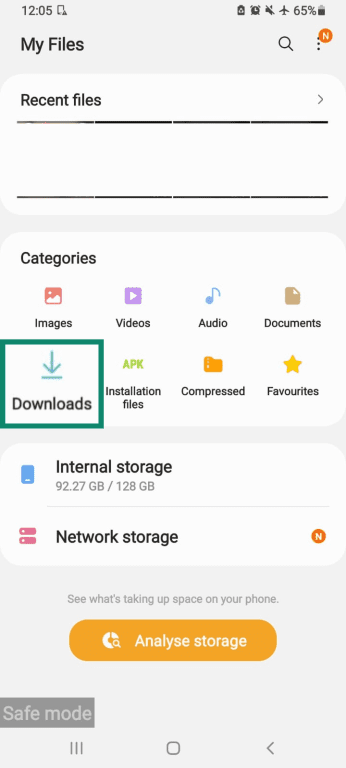
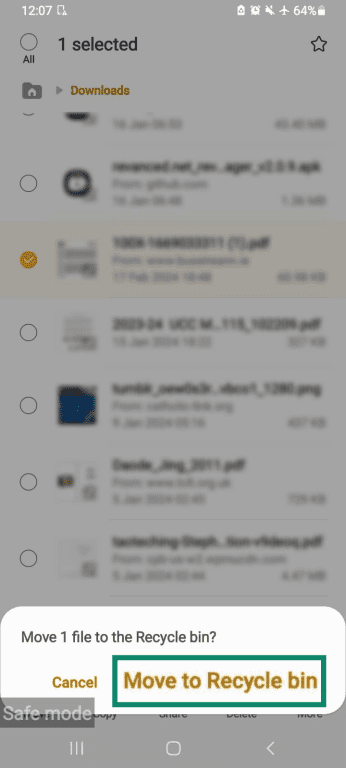
- Press and hold the suspicious file and click Move to Recycle bin.
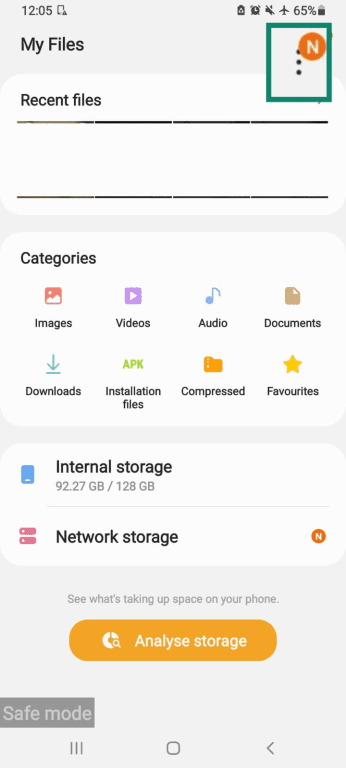
- From My Files, click the three dots in the right-hand corner.
- When the drop-down menu appears, select Recycle bin.

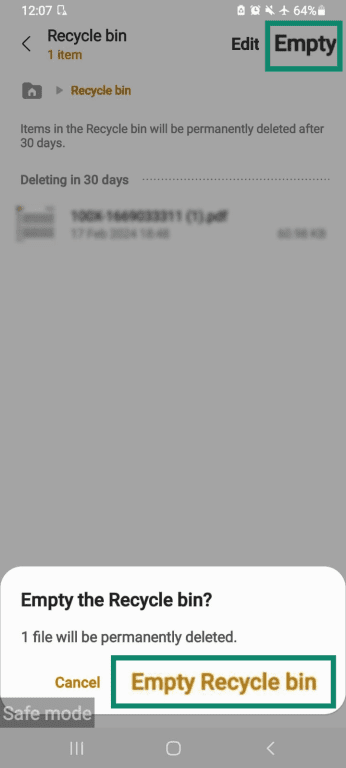
- Select Empty, then Empty Recycle bin.
Removing grayware manually on an iPhone
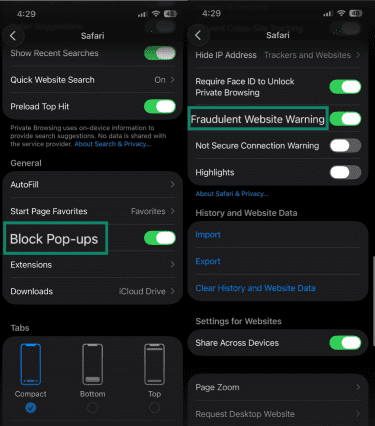
To remove grayware on your iPhone, you need to check suspicious apps, configuration profiles, and Safari settings. This is because grayware on iPhones often comes from bad apps, hidden profiles, or stored browser junk that causes pop-up ads and notifications. Here's how to manually remove it.
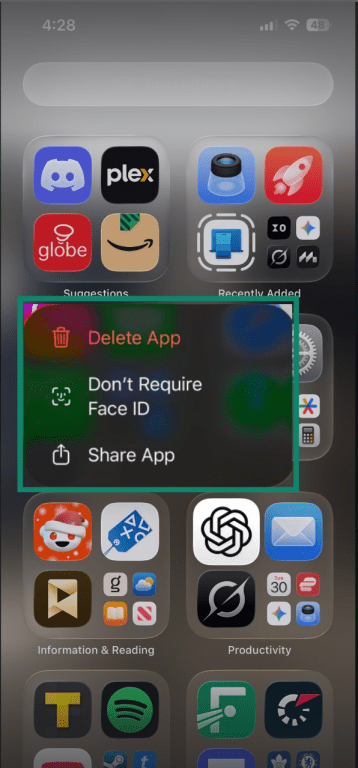
- Go to your App Library. Press and hold the suspicious app. Then tap Delete App.
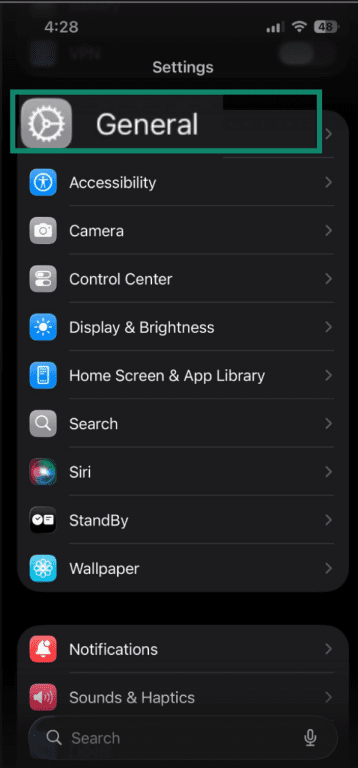
- Go to Settings and tap General.
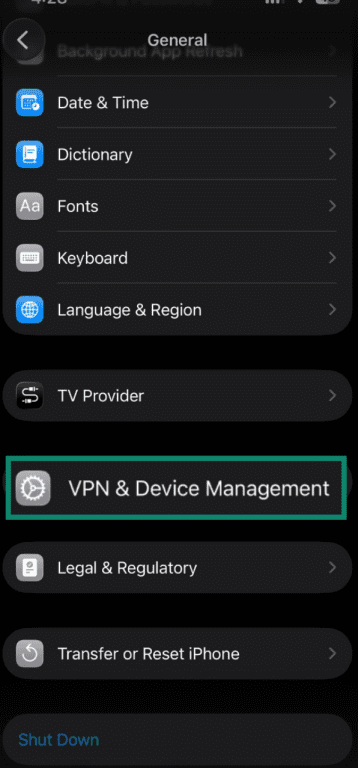
- Scroll down and tap VPN & Device Management and remove any profiles you don’t recognize.
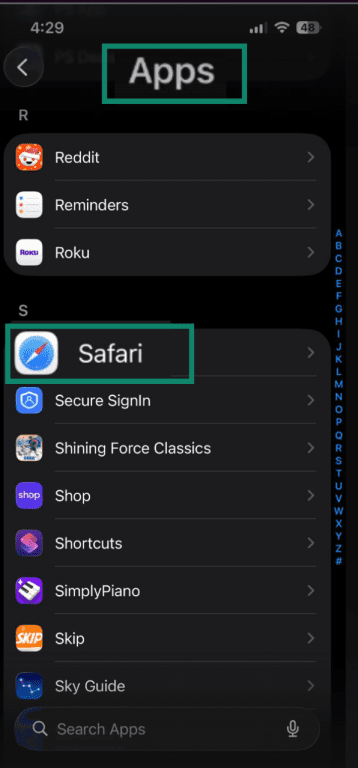
- In Settings, go to Apps, then tap Safari.
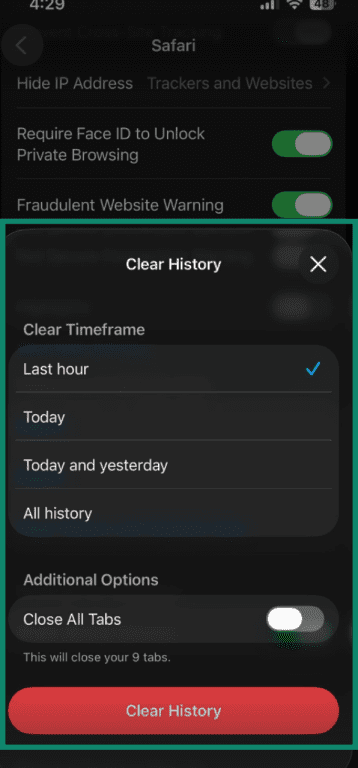
- Tap Clear History and Website Data, then confirm it.
- Turn on Block Pop-ups and Fraudulent Website Warning in the same Safari settings.
When you should consider a full system reset
If you’ve already run an antivirus scan and removed suspicious apps, but your device is still showing signs of grayware, a full system reset may be the only reliable way to fix the problem.
When you do a full factory reset, your device is wiped and restored to its original system state.
If any grayware was on your device, resetting removes it along with all installed apps, settings, and hidden background software that may be causing ongoing issues.
How to prevent grayware infections
The best way to deal with grayware is to stop it before it gets on your device. A few simple habits can go a long way in keeping grayware from messing with your device.
Be careful with what you download and install
Since grayware often slips in through bundled installers or vague user agreements, it’s always a good idea to check what you’re agreeing to before clicking “Install.” Where possible, choose custom installation options and uncheck any extras.
It’s not always feasible to read the full agreement for every single app you install. But it helps to stick to trusted developers and read reviews online to avoid surprise additions.
Keep your device and browser updated
Updates patch security holes that grayware exploits to get in. Outdated systems and browsers are easy targets. Enable automatic updates for your operating system, apps, and browser so you stay protected against new unwanted programs without having to remember to check manually.
Review installed apps and programs regularly
Take time to check your installed apps and programs. Look for anything unfamiliar, rarely used, or added without your clear memory. Scroll through and ask yourself, “Do I actually remember installing this?”
If something looks off or hasn’t been touched in months, hit uninstall. It’s a simple check that catches lurking grayware before it gets comfortable.
Use a reputable antivirus service
Reliable antimalware software spots and blocks grayware that slips past careful habits.
Read plenty of online reviews and choose a trusted tool with real-time protection and regular scans. It can detect adware, spyware, and bundled programs automatically, saving you from manual hunts and keeping threats out.
Limit browser extensions and add-ons
A lot of grayware sneaks in through browser extensions that look helpful on the surface. Stick to add-ons you actually use, download them only from official stores, and take a minute every so often to review what’s installed. If something feels unnecessary or unfamiliar, removing it can help prevent tracking, redirects, or browser hijacking.
FAQ: Common questions about grayware
How do I remove grayware from my computer?
It’s a good idea to start with a trusted antivirus to catch common adware, spyware, and bundled programs. You can also manually review installed apps and remove anything you don’t recognize or remember installing.
Is grayware the same as malware?
No, grayware and malware aren’t the same. Malware is created to cause clear harm, like stealing data, locking files, or taking control of your device. Grayware sits in between legitimate software and outright malware. It usually installs with some form of consent but uses shady tactics that hurt performance or privacy.
How can I prevent grayware in the future?
Most grayware sneaks in during rushed installs, when it’s easy to miss what’s actually being added. Extra programs often hide in default setup options or come bundled with free software from less reliable sources. Staying up to date with system, browser, and app updates helps block common entry points, and taking a quick look at installed apps and extensions now and then makes it easier to catch unwanted software before it settles in.
Which security tools help protect against grayware?
Built-in protections like Microsoft Defender on Windows and XProtect on macOS help to block known threats in the background. That said, for serious infections, it’s worth considering a dedicated anti-malware tool. It can scan more closely for adware, spyware, and bundled programs that built-in systems might miss.
Can grayware slow down my device?
Yes, grayware can slow your device by running multiple background processes, fetching ads, or tracking activity, all of which use system resources. Over time, this can lead to slower startup, laggy apps, higher CPU usage, and reduced battery life, especially if more than one grayware program is installed.
Can grayware collect my personal data without permission?
It can. Some grayware, particularly spyware, tracks browsing habits, searches, and general device activity. Even when data collection is technically disclosed somewhere in the fine print, it’s often unclear or misleading, which is why grayware poses real privacy risks.
Take the first step to protect yourself online. Try ExpressVPN risk-free.
Get ExpressVPN