Overview
The ExpressVPN MCP server (beta) allows you to connect ExpressVPN directly to your AI developer tools using the Model Context Protocol (MCP). This local integration lets your AI assistant read and control your VPN connection through natural language or programmatic commands—checking your connection state, switching server regions, changing protocols, and troubleshooting issues without you ever needing to open the ExpressVPN app.
This feature is available to 1-year and 2-year plan subscribers on Basic, Advanced, or Pro tier, and all ExpressVPN for Teams users.
Prerequisites
Before you can connect to the ExpressVPN MCP server:
- A MCP-compatible AI client. The tool must support HTTP-based MCP servers.
- An active ExpressVPN or ExpressVPN for Teams subscription.
- The latest ExpressVPN beta apps for desktop (macOS, Windows, or Linux).
- Enable MCP in ExpressVPN:
- Open the ExpressVPN desktop app.
- Go to Profile, then toggle on “Enable MCP Server”.
- The local MCP server will start automatically in the background.
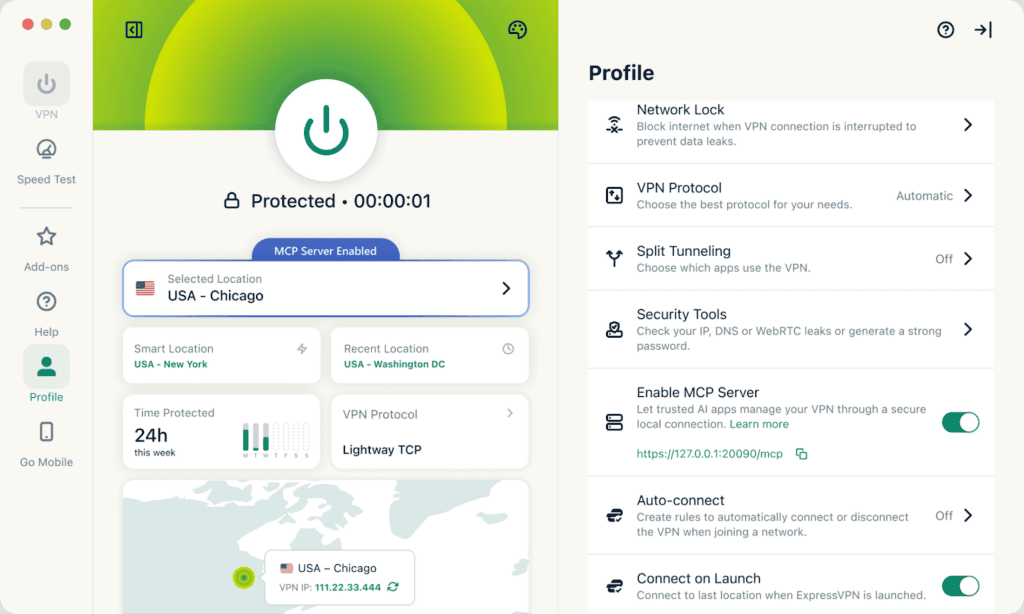
Once enabled, connect your AI tool using one of the options below.
Connect your AI tool
Note that the ports shown below are the default port for our MCP server, which may be different on your machine. When enabling the MCP server, it will show you the port being used—ensure you use that port to replace 20090 below.
Claude Code
Run this command in your terminal:
claude mcp add --transport http expressvpn http://127.0.0.1:20090/mcp
Codex
Add the following to your Codex MCP configuration file:
{
  "mcpServers": {
    "expressvpn": {
      "url": "http://127.0.0.1:20090/mcp"
    }
  }
}
Cursor
- Open Cursor → Settings
- Go to Tools & MCP
- Click + Add custom MCP
- Enter the following configuration and save:
{
  "mcpServers": {
    "expressvpn": {
      "url": "http://127.0.0.1:20090/mcp",
      "headers": {}
    }
  }
}
LM Studio
- Open LM Studio → right sidebar → Integrations tab
- Click Install → Edit mcp.json
- Enter the configuration below and save:
{
  "mcpServers": {
    "expressvpn": {
      "url": "http://127.0.0.1:20090/mcp",
      "headers": {}
    }
  }
}
VS Code
You can manually configure MCP servers by editing the mcp.json file. There are two locations for this file:
- Workspace: create or open .vscode/mcp.json in your project. Include this file in source control to share MCP server configurations with your team.
- User profile: run the MCP: Open User Configuration command to open the mcp.json file in your user profile. Servers configured here are available across all your workspaces. When you use multiple profiles, each profile can have its own MCP server configuration.
You can also run MCP: Add Server in the Command Palette (⇧⌘P) to add a server through a guided flow, choosing either Workspace or Global as the target.
Enter the configuration below:
{
  "servers": {
    "expressvpn": {
      "type": "http",
      "url": "http://127.0.0.1:20090/mcp"
    }
  }
}
Available tools
Learn what you can do with ExpressVPN MCP tools.
Now that you’ve enabled the ExpressVPN MCP server, your AI assistant can directly read and control your VPN connection through simple prompts.
These tools are designed to work together. Instead of manually opening the ExpressVPN app to check your status, switch regions, or change protocols, you can do it programmatically or through natural language inside your AI coding environment.
VPN Connection
| Tool | Description |
|---|---|
| expressvpn_connect | Connect to ExpressVPN. Without a region, uses the currently selected region. Pass a region slug (from expressvpn_get_regions) to connect to a specific location, e.g. “us-new-york” or “portugal”. The ExpressVPN GUI must be running or background mode must be enabled. |
| expressvpn_disconnect | Disconnect from ExpressVPN. Drops the active VPN tunnel. Your real IP will be exposed unless Network Lock is enabled. The DNS might take a couple of seconds to become operational, so please take that into account if running any network operations immediately after disconnecting. |
Status
| Tool | Description |
|---|---|
| expressvpn_status | Show a full ExpressVPN status summary. Returns a multi-line human-readable report including: connection state, connected server location, VPN protocol, Network Lock (kill switch) status, and advanced protection (ad/tracker/malware blocking) status. Use this for a quick overview; use individual expressvpn_get_* tools for specific values. |
Connection and Network
| Tool | Description |
|---|---|
| expressvpn_get_connectionstate | Get the current VPN connection state. Returns one of: Disconnected, Connecting, Connected, Interrupted, Reconnecting, DisconnectingToReconnect, Disconnecting. Use this to check if the VPN tunnel is active before performing network-dependent tasks. |
| expressvpn_get_dnsconfigured | Check if DNS is properly configured through the VPN tunnel. Returns “true” when DNS queries are routed through ExpressVPN’s DNS servers, preventing DNS leaks. “false” may indicate a configuration issue. |
| expressvpn_get_protocol | Get the VPN protocol currently in use. Returns one of: auto, lightwayudp, lightwaytcp, openvpnudp, openvpntcp, wireguard. Lightway is ExpressVPN’s proprietary protocol optimized for speed and reliability. “auto” lets the client choose the best protocol. |
| expressvpn_get_pubip | Your public IP address as provided by your ISP, even if connected to VPN (cached before the connection to the VPN server). |
| expressvpn_get_vpnip | IP address assigned by the VPN server (Unknown when disconnected). |
Location
| Tool | Description |
|---|---|
| expressvpn_get_region | Get the currently selected VPN server region as a slug (e.g., “germany-frankfurt-1”, “us-new-york”) or “smart” if smart location is selected. This is the region that will be used on the next connect. |
| expressvpn_get_regions | List all available VPN server regions, one slug per line (e.g., “us-new-york”, “uk-london”, “germany-frankfurt-1”). The output reflects the active server region catalog at the time of the request. Use this to discover valid region IDs for connecting. |
| expressvpn_get_smart | Get the smart (auto-selected) region. ExpressVPN picks this based on proximity and server load for the best performance. Returns a region slug like “us-new-york”. |
Settings (Read)
| Tool | Description |
|---|---|
| expressvpn_get_allowlan | Check if local network (LAN) access is allowed while VPN is connected. When enabled, devices on the same local network (printers, NAS, etc.) remain accessible even with VPN active. Returns “true” or “false”. |
| expressvpn_get_autoconnect | Check if ExpressVPN will automatically connect on system startup. Requires background mode to be enabled. Use together with Network Lock for protection from boot. Returns “true” or “false”. |
| expressvpn_get_debuglogging | Check if debug logging is enabled in the ExpressVPN daemon. When enabled, verbose logs are written for troubleshooting. Returns “true” or “false”. |
| expressvpn_get_networklock | Check if Network Lock (kill switch) is enabled. When active, Network Lock blocks all internet traffic if the VPN connection drops, preventing IP/DNS leaks. Returns “true” or “false”. |
| expressvpn_get_split_app | Get the current Split Tunnel per-app rules. Shows which apps are configured to bypass the VPN or be forced through it. Returns the rule list or empty if no rules are set. |
| expressvpn_get_splittunnel | Check if Split Tunnel is enabled. Split Tunnel lets specific apps bypass the VPN or use the VPN while others don’t. Returns “true” or “false”. Use expressvpn_get_split_app to see per-app rules. |
Settings (Write)
| Tool | Description |
|---|---|
| expressvpn_set_allowlan | Enable or disable local network (LAN) access while VPN is connected. When enabled, devices on the same local network (printers, NAS, etc.) remain reachable. |
| expressvpn_set_autoconnect | Enable or disable automatic VPN connection on system startup. Requires background mode to be active. |
| expressvpn_set_debuglogging | Enable or disable debug logging in the ExpressVPN daemon. When enabled, verbose logs are written for troubleshooting. |
| expressvpn_set_networklock | Enable or disable Network Lock (kill switch). When enabled, all internet traffic is blocked if the VPN connection drops, preventing IP and DNS leaks. |
| expressvpn_set_protocol | Set the VPN protocol. Accepted values: auto, lightwayudp, lightwaytcp, openvpnudp, openvpntcp, wireguard. Takes effect on the next connection. |
| expressvpn_set_region | Set the default VPN server region without connecting. Use a region slug from expressvpn_get_regions (e.g., “us-new-york”, “germany-frankfurt-1”) or “smart” for automatic selection. |
| expressvpn_set_split_app | Add or remove a per-app Split Tunnel rule. Value format: “bypass:/path/to/app” to exclude an app from VPN, or “remove:/path/to/app” to delete a rule. Split Tunnel must be enabled first. |
| expressvpn_set_splittunnel | Enable or disable Split Tunnel. When enabled, specific apps can bypass or be forced through the VPN. Use expressvpn_set_split_app to configure per-app rules. |
Advanced Protection (Read)
| Tool | Description |
|---|---|
| expressvpn_get_blockads | Check if ad blocking is enabled. Part of ExpressVPN’s advanced protection (Threat Manager). Blocks known ad-serving domains at the DNS level. Returns “true” or “false”. |
| expressvpn_get_blockadult | Check if adult content blocking is enabled. Part of advanced protection. Blocks access to adult websites at the DNS level. Returns “true” or “false”. |
| expressvpn_get_blockall | Check if all advanced protection features are enabled (ads, trackers, malicious sites, adult content). Returns “true” only if every individual blocker is active. Returns “false” if any is disabled. |
| expressvpn_get_blockmalicious | Check if malicious site blocking is enabled. Part of advanced protection (Threat Manager). Blocks known malware, phishing, and command-and-control domains at the DNS level. Returns “true” or “false”. |
| expressvpn_get_blocktrackers | Check if tracker blocking is enabled. Part of advanced protection (Threat Manager). Blocks known tracking domains that monitor browsing activity across websites. Returns “true” or “false”. |
Advanced Protection (Write)
| Tool | Description |
|---|---|
| expressvpn_set_blockads | Enable or disable ad blocking (Threat Manager). Blocks known ad-serving domains at the DNS level. |
| expressvpn_set_blockadult | Enable or disable adult content blocking. Blocks access to adult websites at the DNS level. |
| expressvpn_set_blockall | Enable or disable all advanced protection features at once (ads, trackers, malicious sites, adult content). |
| expressvpn_set_blockmalicious | Enable or disable malicious site blocking (Threat Manager). Blocks known malware, phishing, and command-and-control domains at the DNS level. |
| expressvpn_set_blocktrackers | Enable or disable tracker blocking (Threat Manager). Blocks known tracking domains that monitor browsing activity across websites. |
Diagnostics
| Tool | Description |
|---|---|
| expressvpn_speedtest | Run a speed test on the current connection. Measures ping latency, jitter, packet loss, and download/upload bandwidth. Can take 30+ seconds. Set json=true for structured output. Mode can be “automatic” or “manual”. Location is an optional location ID. |
Health Check
| Tool | Description |
|---|---|
| expressvpn_ping | Returns “pong”. Verify the server is reachable. |
Use cases
The ExpressVPN MCP server makes VPN state and network controls available directly inside the AI tools where you already work. This lets you automate region switching, enforce network policies, troubleshoot connectivity, and build VPN-related workflows inside LLM-based developer clients.
With the MCP, you can:
- Connect or disconnect the VPN programmatically
- Switch to specific countries or cities for testing
- Query real-time connection state and public/VPN IP
- Change VPN protocols for performance validation
- Enable Network Lock (kill switch)
- Configure Split Tunnel rules for specific applications
- Toggle advanced protection features (block ads, trackers, malicious sites)
- Run speed tests and diagnostics
- Build logic that reacts to VPN state changes
These capabilities support workflows like QA testing, CI/CD validation, geo-based testing, privacy enforcement, and automated troubleshooting.
For example, you might:
- Ask your AI client to connect to Germany before running integration tests.
- Automatically switch between US and UK regions to verify geo-restricted content behavior.
- Confirm the VPN is connected before executing network-dependent scripts.
- Run a speed test after changing protocol from OpenVPN to Lightway.
- Enforce Network Lock before running sensitive tasks.
- Temporarily bypass the VPN for a specific app using Split Tunnel.
- Toggle malware site blocking before testing threat detection behavior.
Security
The ExpressVPN MCP server is designed with your privacy and security in mind.
- Local only: The MCP server runs on localhost and is not accessible from other devices or the internet. VPN control signals never leave your machine.
- Opt-in: MCP is disabled by default. You choose to enable it explicitly in Settings.
- No credential exposure: Your ExpressVPN account credentials are never passed through the MCP interface. The server communicates directly with the local ExpressVPN daemon.
- User-confirmed actions: We recommend keeping human confirmation enabled in your AI tool for any connect or disconnect actions. Your agent will ask before making changes.
- Revoke at any time: Toggle MCP off in Settings to immediately stop the local server. Any connected tools will lose access instantly.
Troubleshooting
ExpressVPN MCP server not reachable
- Make sure “Enable MCP Server” is toggled on in ExpressVPN Profile → Settings.
- If you’ve just enabled it, restart your AI tool. Some MCP clients only discover servers on startup.
To verify the server is running, open a terminal and run:
curl http://127.0.0.1:20090/mcp
If the server is active, you’ll receive a response. If you get a connection refused error, reopen the ExpressVPN app and check the toggle again.
Speed test hangs or takes too long
expressvpn_speedtest can take 30 seconds or more to complete, depending on your network conditions and the number of servers being tested. This is expected behaviour as the tool is running real throughput measurements, not a ping check.
My AI tool isn’t listed in the setup guide
You can manually add the MCP server using this configuration:
{
  "mcpServers": {
    "expressvpn": {
      "url": "http://127.0.0.1:20090/mcp"
    }
  }
}
Once configured, refresh or start the server. You should see a successful connection and the available tools. If the connection fails or you do not see any tools, double-check that the MCP server is enabled in the ExpressVPN desktop app.
Alternatively, check your tool’s documentation for how to add a local MCP server by URL. If your tool doesn’t support MCP yet, consider reaching out to the developers to request MCP support.
My AI tool is using curl instead of MCP tools
If your AI tool, like Claude Code tries to use curl instead of the ExpressVPN MCP tools, or says a tool like expressvpn_speedtest doesn’t exist, the MCP transport may not have loaded correctly.
What a correct setup looks like
After adding the transport and restarting your AI tool:
- Check if your transport is available. For example, from your terminal, run claude mcp list – Claude should show you the MCP is loaded, like expressvpn: http://localhost:20090/mcp (HTTP) – ✓ Connected
- Run expressvpn_ping. You should get pong back successfully.
- Ask your AI tool to show you all ExpressVPN MCP tools. You should see a full list of tools like expressvpn_connect and expressvpn_set_protocol.
If you don’t see them, the transport likely wasn’t registered correctly.
Fix
If the AI still defaults to curl or does not recognize ExpressVPN MCP tools:
- Restart your AI client
- Re-run the MCP add command
- Confirm you’re using the correct port shown in your ExpressVPN app
- Run expressvpn_ping again, then ask your AI to list available ExpressVPN MCP tools
- Additionally, Claude and many AI tools suggest you work in per project directories. Ensure you’re working in a new directory for your project and add the transport to the current projects settings again.
Connection refused on 127.0.0.1:20090
The local MCP server only runs while the ExpressVPN desktop app is open and MCP is enabled. Check:
- The ExpressVPN desktop app is running
- Profile → Settings → Enable MCP Server is toggled on
- No firewall or security tool is blocking connections on port 20090
How to unblock port 20090 (Firewall guide)
The ExpressVPN MCP server communicates locally with your AI developer tools using port 20090 at the localhost address 127.0.0.1.
Because some operating systems and security programs block local port connections by default, your AI client might return a “connection refused” error. If the MCP server is enabled but your tool can’t connect, you will need to whitelist the port in your system’s firewall.
Windows Defender Firewall
Windows Defender often blocks new local port connections on strict or public network profiles. To manually allow the connection:
- Click the Start menu and search for Windows Defender Firewall with Advanced Security.
- Select Inbound Rules on the left panel, then click New Rule on the right panel.
- Select Port and click Next.
- Choose TCP, specify 20090 in the “Specific local ports” field, and click Next.
- Select Allow the connection and apply the rule to your active network profiles.
- Name the rule (e.g., “ExpressVPN MCP Server”) and click Finish.
macOS privacy settings and firewall
macOS requires explicit permission for terminal applications to communicate over your local network. It may also block the port via the built-in application firewall.
- Fix local network permissions: Go to System Settings > Privacy & Security > Local Network. Find your terminal application (such as Terminal, iTerm2, or Cursor) in the list and ensure the toggle is switched to the ON position.
- Fix the macOS firewall: Go to System Settings > Network > Firewall. Click Options and ensure that ExpressVPN is set to Allow incoming connections.
Linux UFW and iptables setups
If you’re running a strict firewall configuration on Linux, you must allow local loopback traffic on port 20090.
- For UFW (Uncomplicated Firewall): Open your terminal and run the following command to allow localhost traffic on the specific port:
sudo ufw allow from 127.0.0.1 to 127.0.0.1 port 20090 proto tcp
- For iptables: Open your terminal and append the following rule to your input chain:
sudo iptables -A INPUT -p tcp -s 127.0.0.1 -d 127.0.0.1 --dport 20090 -j ACCEPT
Third-party antivirus software
If you use third-party antivirus or endpoint protection software, it may feature a “Web Shield” or “Local Network Monitor” that intercepts localhost traffic. If you still can’t connect after configuring your OS firewall, check your antivirus settings and add an exclusion for 127.0.0.1:20090.
FAQs
Which operating systems and devices are supported?
To automate your VPN state and network routing with AI, you’ll need to run the latest beta version of the ExpressVPN app on one of the following operating systems:
- macOS
- Windows
- Linux
This means you can’t enable, configure, or use the MCP server on the following devices:
- Mobile phones or tablets (iOS and Android)
- Network routers (including ExpressVPN Aircove and manually configured routers)
- Smart TVs or streaming devices (Apple TV, Android TV, Fire TV)
Does the MCP server give the AI tool access to my account password?
No. The ExpressVPN MCP server doesn’t give your AI developer tool (such as Claude Code or Codex) access to your account password, email address, or billing details.
How authentication works with MCP
The MCP server functions as a local bridge that communicates directly with the ExpressVPN desktop app already running on your machine. Because your desktop app is already authenticated and securely logged into your ExpressVPN account, the AI tool doesn’t need to process your login details. Your raw credentials aren’t passed through the MCP interface and are never exposed to your terminal environment or the AI agent.
What the AI tool can access
The ExpressVPN MCP server is built with a fixed allowlist of permitted commands. It can only execute specific network tasks and diagnostic checks.
The AI tool can read or configure network settings such as:
- Your connected server region
- Your active VPN protocol
- Your Network Lock status
- Your current VPN IP address
The MCP server doesn’t have the programmatic endpoints or technical capability to query, read, or export your account profile data.
Can I connect multiple AI tools?
Yes. Multiple clients can connect simultaneously as long as they use the same localhost port.
Does this work in CI/CD?
No. The MCP server requires the ExpressVPN desktop app and runs locally.
Does the ExpressVPN MCP server support Dedicated IP?
Yes. If your ExpressVPN subscription includes Dedicated IP, the MCP server can control connections to that Dedicated IP location in the same way it controls any other region.
Dedicated IP must already be activated and available in your ExpressVPN desktop app.