We’re excited to announce the ExpressVPN Keys feature will be sunsetting on 5 March 2026, making way for our new standalone password manager app: ExpressKeys.
After this date, you will only be able to access your passwords and vault from the new ExpressKeys app.
This guide will show you how to migrate all of your saved ExpressVPN Keys data from the ExpressVPN app to the new, standalone ExpressKeys app.
Jump to…
For customers who purchased ExpressVPN via expressvpn.com
For customers who purchased ExpressVPN via the App Store or Google Play
For customers who purchased ExpressVPN via expressvpn.com
If you purchased your ExpressVPN subscription from the ExpressVPN website, follow these steps to migrate your ExpressVPN Keys data to the new ExpressKeys app:
- Download and install the ExpressKeys app:
- App Store
- Google Play
- Open the ExpressKeys app:
- If you are signed in to the ExpressVPN app and have used ExpressVPN Keys on your current device, you will be automatically signed in to ExpressKeys.
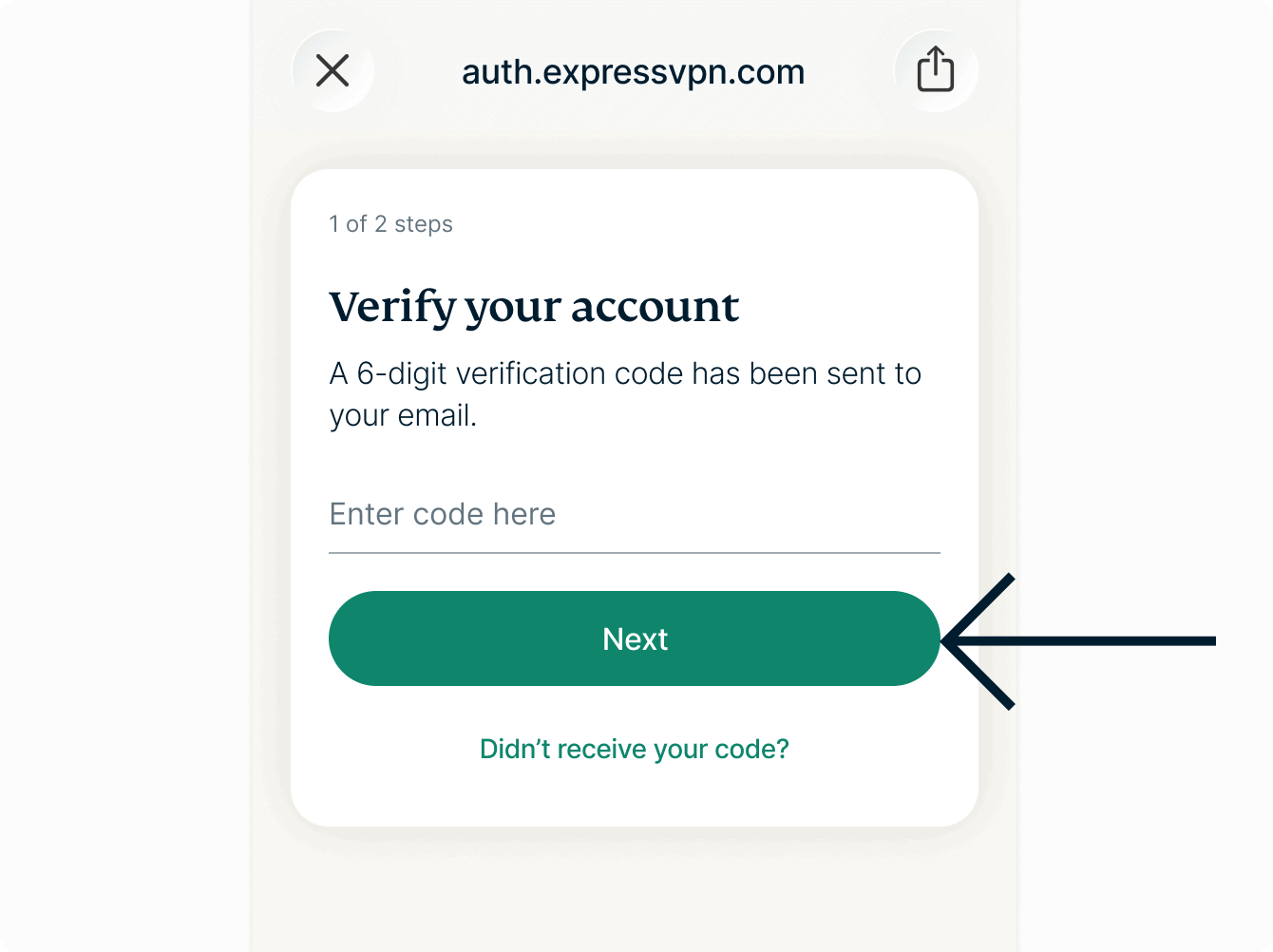
- You might be asked for a six-digit verification code. You can find the code in an email titled ExpressVPN verification code sent to the email address tied to your ExpressVPN account. Enter the code and tap Next to continue.

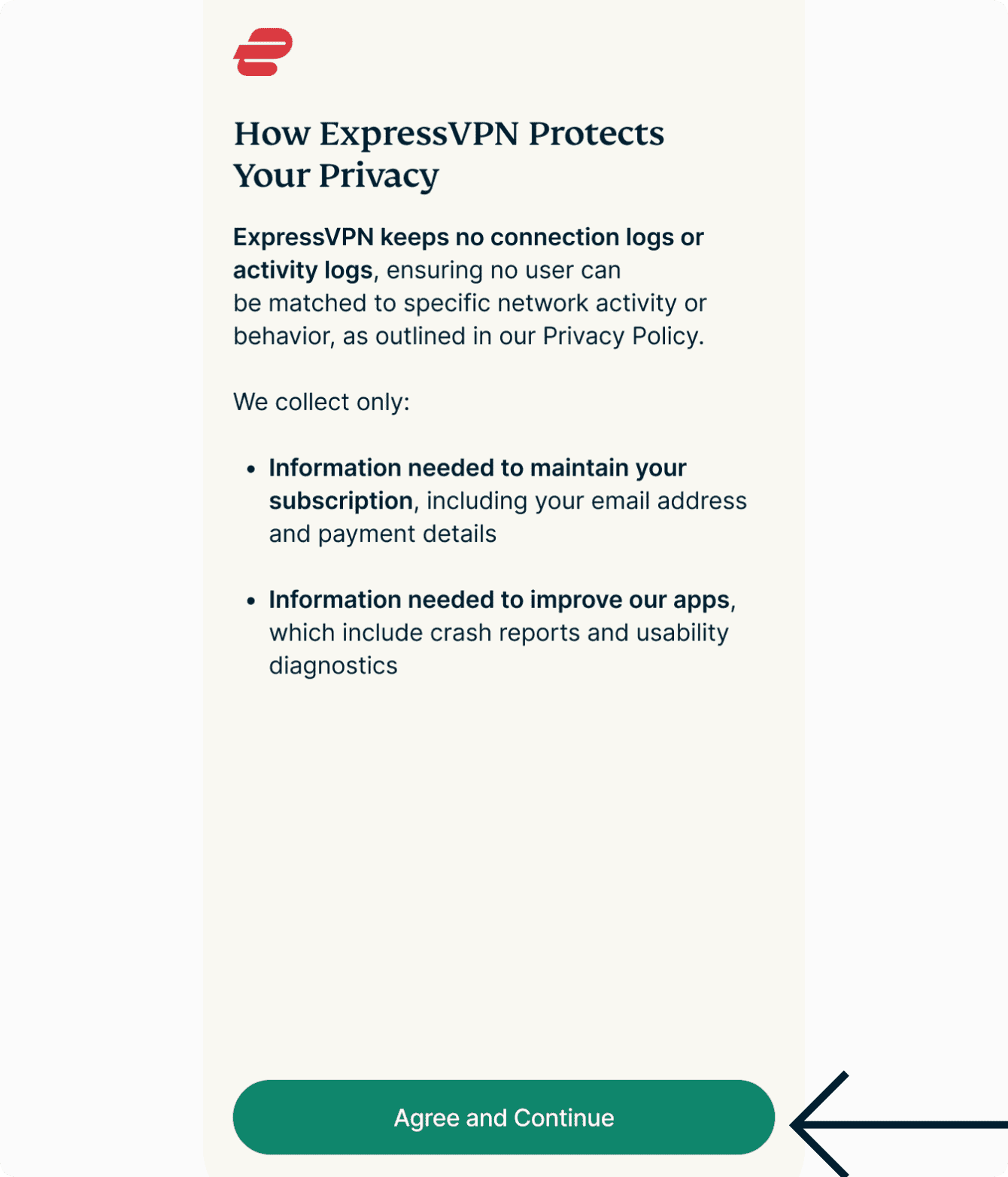
- Tap Agree and Continue.

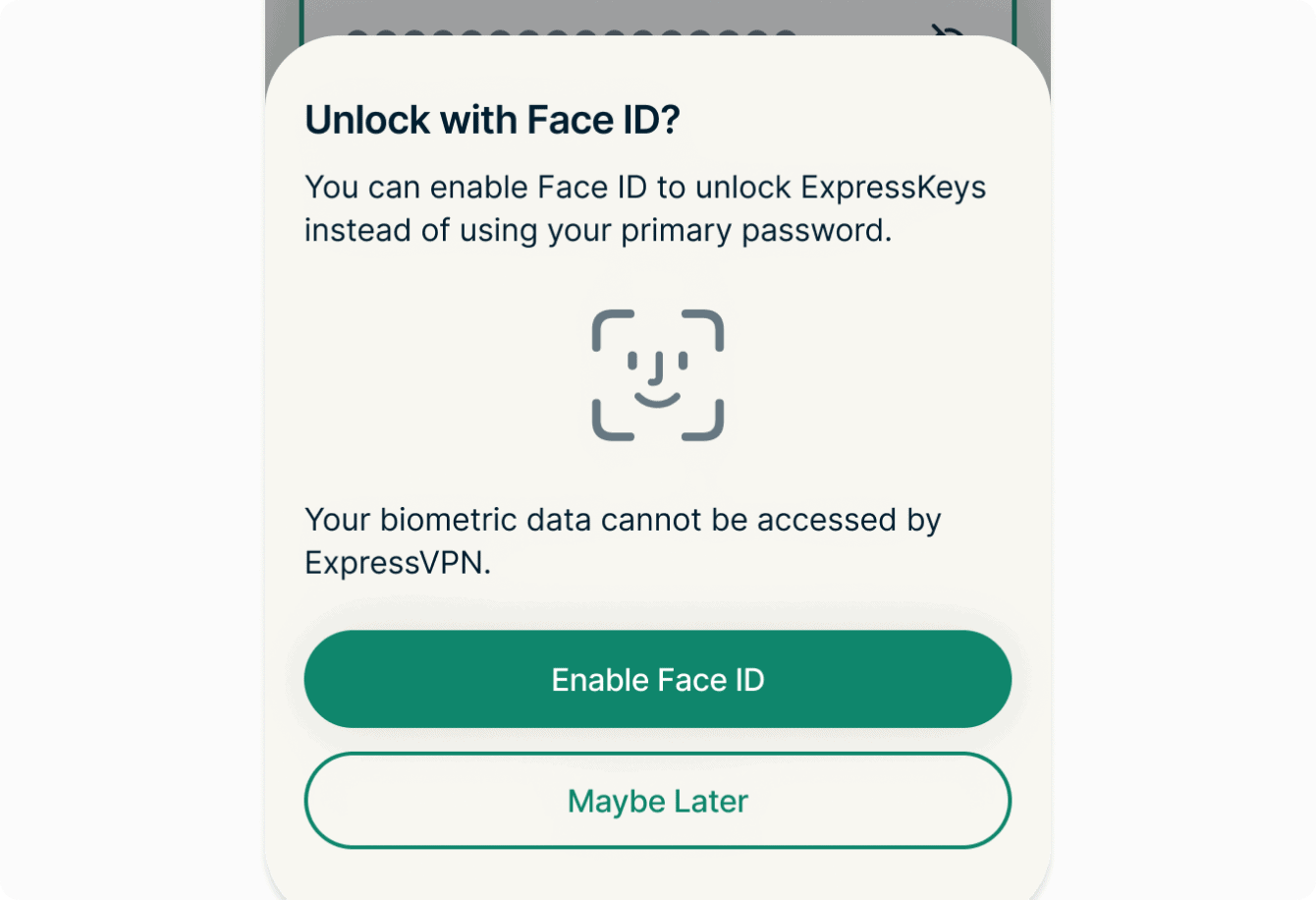
- To unlock ExpressKeys, either:
- Use biometrics such as Face ID or your fingerprint.

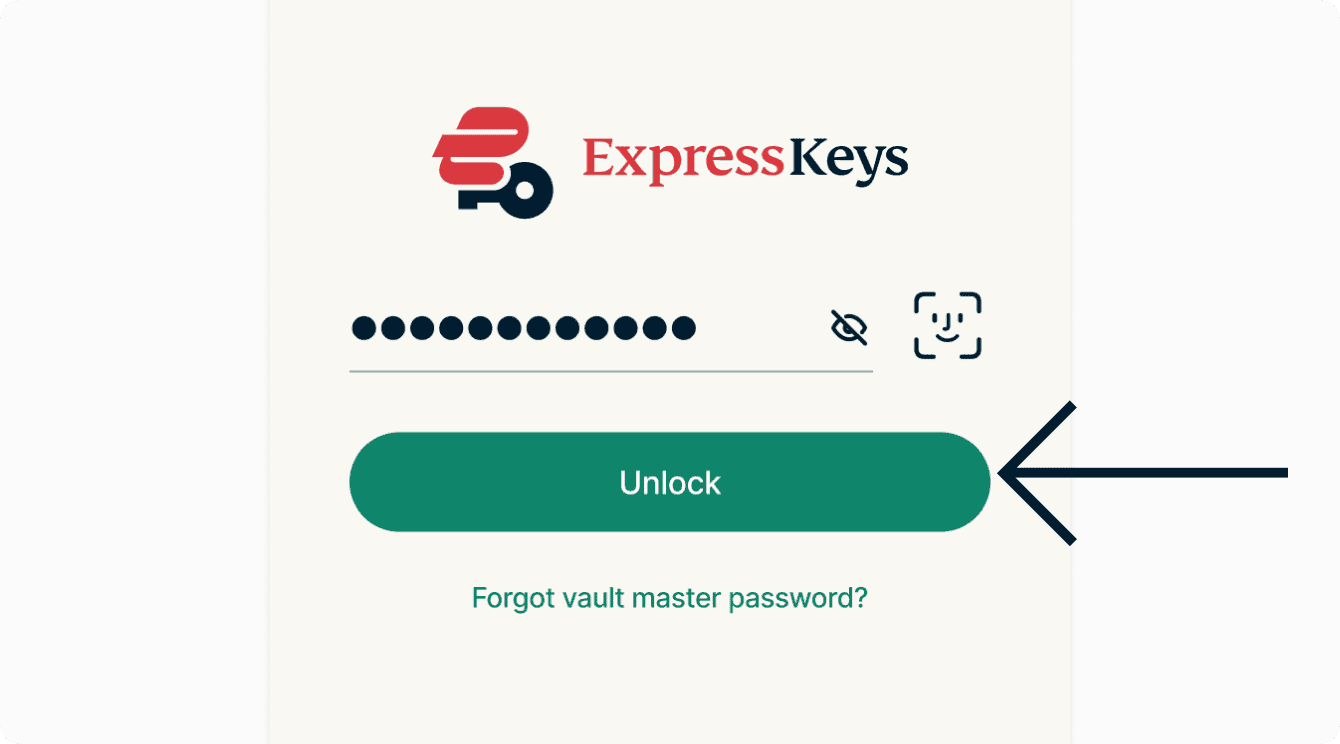
- Or input your primary password (now known as your vault password), then tap Unlock.

- Use biometrics such as Face ID or your fingerprint.
- Once unlocked, you will find all your existing logins, credit cards, and secure notes in the new ExpressKeys app.
Need help? Contact the ExpressVPN Support Team for immediate assistance.
For customers who purchased ExpressVPN via the App Store or Google Play
If you purchased your ExpressVPN subscription from the App Store or Google Play, you were not required to set a password or an email address for an ExpressVPN account.
If you have not done so already, we recommend you set up an email and password for your ExpressVPN account so you can use ExpressKeys on all support devices, including Android and iOS, as well as desktops via the ExpressKeys browser extension.
Note that you do not need to set up an email and password for your ExpressVPN account if you only intend to use ExpressKeys on the same mobile device you used to purchase your ExpressVPN subscription.
To migrate your ExpressVPN Keys data to the new ExpressKeys app:
- Download and install the ExpressKeys app:
- App Store
- Google Play
- Open the ExpressKeys app:
- If you are signed in to the ExpressVPN app and have used ExpressVPN Keys before on your current device, you will be automatically signed in to ExpressKeys.
- You may be asked to provide a six-digit verification code. You can find the code in an email titled ExpressVPN verification code sent to the email address tied to your ExpressVPN account. Enter the code and tap Next to continue.
- Tap Agree and Continue.
- To unlock ExpressKeys, either:
- Use biometrics such as Face ID or your fingerprint.
- Or input your primary password (now known as your vault password), then tap Unlock.
- Use biometrics such as Face ID or your fingerprint.
- Once unlocked, you will find all your existing logins, credit cards, and secure notes in the new ExpressKeys app.
Need help? Contact the ExpressVPN Support Team for immediate assistance.