Is TeamViewer safe? Complete guide for home and business users


When you need to access a computer from another location, few tools are as convenient as TeamViewer. But convenience isn’t the only factor that matters. Whether you’re a home user helping family members or a business handling sensitive information, you want to ensure the session is as secure as possible.
In this guide, we look at how TeamViewer works, the risks to be aware of, and the settings that make the most significant difference to your security.
What is TeamViewer?
TeamViewer is a tool that lets you remotely access and manage another device in real time over the internet, without the two devices needing to be on the same network. When both devices are running the app, the user on the controlling device can view the remote screen, use the remote device's keyboard and mouse, transfer files, and perform any system-level tasks.
How does TeamViewer work?
TeamViewer establishes an end-to-end encrypted session between the two devices. The connection process follows these steps:
- Both devices open the TeamViewer app: Launching the app automatically assigns each one a unique ID and generates a temporary session password (though users can optionally set a personal password for easier future access).
- Users authenticate the session: The controller enters the remote device’s ID and password, which TeamViewer’s servers use to match the two endpoints.
- TeamViewer verifies the request: The servers validate the entered ID and password and confirm that both devices are reachable and running legitimate clients. If these checks succeed, the connection is authorized.
- TeamViewer establishes the connection: The app first attempts a direct, encrypted link between the two devices. In case of network restrictions in between, TeamViewer routes the session through the relay servers instead.
- The remote control session begins: Once the encrypted connection is established, the remote device’s screen is streamed to the controlling device.
Key features explained
TeamViewer includes a range of features designed to make remote access and support flexible and secure. In addition to remote access and control, here’s what the app can do:
- File transfer: Share files between the two devices without using email or cloud storage. This helps avoid typical upload delays or size limits.
- Unattended access: Connect to a device even when no one is around, useful for handling office PCs or your own personal devices remotely.
- Multi-platform support: It works across Windows, macOS, Linux, Android, and iOS, and even supports sessions in your web browser.
- Multi-monitor support: If the remote device has multiple displays, you can switch between them or view them side by side. This makes remote work or troubleshooting more efficient.
- Clipboard sharing: You can copy text or images on one device and paste them on the other. It’s a simple feature, but it speeds up many everyday tasks.
- Session recording: Allows you to record sessions for later review, training, or compliance.
- Built-in communication tools: These include voice, video, and text chat to make it easier to get remote support.
Core TeamViewer security features
As TeamViewer allows deep access to a device, its built-in security measures matter. Here are the protections the app relies on to secure each connection.
End-to-end encryption
TeamViewer secures each session with end-to-end encryption (E2EE), meaning only the sender’s and recipient’s devices can decrypt and view the data being exchanged. TeamViewer’s servers, including relay servers used when a direct connection isn’t possible, never have access to the session key.
In terms of cryptographic strength, TeamViewer uses 4096-bit Rivest-Shamir-Adleman (RSA) to securely establish trust between the two devices, a key size considered highly resistant to brute-force attacks. All session data is then encrypted with 256-bit Advanced Encryption Standard (AES), a widely trusted standard used in high-security environments because of its proven resilience against modern cryptographic attacks.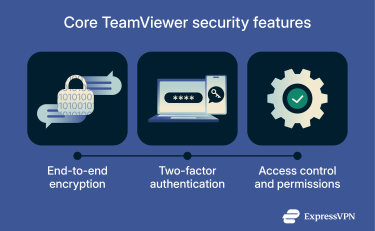
Two-factor authentication
Two-factor authentication (2FA) is an optional security feature that protects a TeamViewer account from unauthorized access. When 2FA is enabled, the account holder must provide their password and a temporary verification code from an authentication app to sign in. This added step prevents attackers from accessing the account even if they get the password through a data leak or reuse it on another site.
Access control and permissions
TeamViewer uses a role-based permission system that lets organizations control who can access devices and what actions users can perform. Administrators can assign roles that enable or restrict capabilities, such as managing users, viewing event logs, or assigning policies.
For managed devices, TeamViewer also supports manager-level permissions that define precisely which actions a user can perform on a device, such as editing device details, applying policies, or initiating remote connections. This prevents users from accessing or modifying devices beyond what their role allows.
Compliance with industry standards
TeamViewer’s infrastructure and internal processes are certified under the International Organization for Standardization and International Electrotechnical Commission (ISO/IEC) 27001, an international standard that defines how organizations should build and maintain an effective information-security management system. In practical terms, this certification means that TeamViewer is regularly audited to ensure it adheres to strict controls for data handling, risk management, documented procedures, and security incident response.
TeamViewer also complies with the General Data Protection Regulation (GDPR), ensuring that personal data is processed lawfully and transparently. This helps organizations meet their own regulatory obligations when using TeamViewer for remote access or device management.
Is TeamViewer safe?
TeamViewer is generally safe to use thanks to strong encryption, access controls, account-level protections, and compliance with established security standards. The main point of caution is not the technology itself but how it’s used.
For personal users, problems usually stem from sharing access with the wrong person or using weak credentials that may have been compromised elsewhere.
In corporate environments, the most significant risks usually come from misconfiguration and inconsistent oversight. These issues can expose systems even if the underlying platform is secure.
How to make TeamViewer safer
TeamViewer includes several features that can strengthen security, but they work best when combined with good setup and ongoing management.
Best practices for all users
Use strong passwords
TeamViewer allows you to set your own personal (permanent) password for device access. You can do this instead of relying only on the automatically generated temporary one. A strong password prevents attackers from guessing or reusing one stolen from another site. Follow best practices for creating a unique password, and, if needed, use a password generator and a secure password manager like ExpressVPNKeys.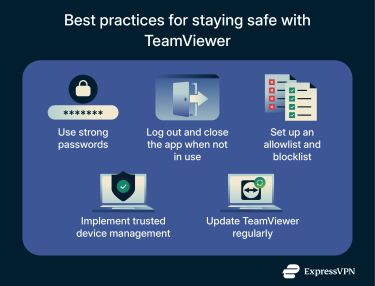
Log out and close the app when not in use
If you sign into a TeamViewer account on a shared, unattended, or always-on device, it may remain reachable even if you’re not actively using it. Logging out helps, but it isn’t enough on its own, as TeamViewer can still accept connections if the service is running or if Easy Access is enabled. For complete protection, close the app and stop the TeamViewer service, or disable Easy Access.
This is especially important on workstations, servers, or devices used by multiple individuals or employees.
Update TeamViewer regularly
Keeping TeamViewer up to date ensures you’re running the most secure version of the software. Updates often include patches for newly discovered vulnerabilities, so older installations can be more exposed to attacks.
Advanced configuration tips
These optional settings give you more control over how TeamViewer behaves, reducing the risk of unwanted access and tightening security on individual devices.
Blocklisting and allowlisting
TeamViewer lets you restrict incoming connections to specific accounts or devices. Setting an allowlist ensures only approved users can start a session, while blocklisting prevents unwanted attempts. If you regularly provide support to the same people or want to keep access limited to known accounts, configuring these lists reduces the chance of unauthorized connections.
Trusted device management
When you sign into TeamViewer on a new device, you need to approve it via email before that device can be used for remote access. Reviewing your list of trusted devices periodically helps ensure that only your systems (not an old computer or an attacker’s device) are authorized to access your account. Remove anything you don’t recognize.
Tips for business users
Businesses face additional risks because more people, networks, and devices are involved. These settings help organizations integrate TeamViewer into their broader security policy and reduce the risk of unauthorized or noncompliant access.
Enforce centralized policy management
TeamViewer’s policy management lets admins push consistent security settings to every managed device, such as requiring 2FA for account logins to company profiles or limiting remote control tools. Setting these rules centrally prevents employees from weakening protections on their own machines and ensures the entire company follows the same security standards.
Use conditional access controls
Conditional access lets administrators define when and by whom TeamViewer can be used. Administrators can restrict access based on devices, device groups, or user roles. This prevents staff from accessing sensitive systems from personal devices or unmanaged devices, reducing the chances of unauthorized sessions.
Enable session logging and auditing
TeamViewer can log each remote session, including who connected and when. Enabling logging helps security teams investigate incidents, verify legitimate activity, and meet audit requirements in regulated environments.
Segment access with groups
Assigning devices to groups and applying role-based permissions ensures employees have access only to what they need. This reduces accidental exposure and limits how far an attacker could move if an employee is compromised.
Integrate with single sign-on (SSO)
SSO centralizes authentication by restricting access to users with corporate login credentials. This lets you enforce stronger passwords and 2FA policies, automatically control the account lifecycle, and reduce weak or unmanaged credentials across the company.
Use custom branding for support sessions
Adding custom branding to support prompts helps users or customers recognize legitimate remote-support requests. This limits the risk of social engineering attacks where scammers impersonate support technicians.
FAQ: Common questions about TeamViewer
Can someone access my computer without my permission?
Someone can access your computer only if TeamViewer is installed, they have the correct credentials, or you approve their session. Strong authentication and controlled permissions make it unlikely that anyone can access your device without your knowledge. However, weak or reused passwords, or leaving unattended access enabled, can let attackers bypass these protections.
What are the real risks of using TeamViewer?
The main risks come from weak account security or giving access to someone you don’t really trust.
How does TeamViewer ensure secure remote access?
TeamViewer uses encryption, account protections, and permission controls to secure remote access sessions. This setup helps prevent third parties from spying on or hijacking your connection, but strong account security remains critical to prevent unauthorized access.
Is TeamViewer free and safe for home users?
Yes, TeamViewer is free and safe for home users, provided that you take the correct security measures. Pick a strong password, enable two-factor authentication (2FA), and manage your sessions carefully to keep your data and devices secure.
Is TeamViewer owned by a Chinese company?
No, TeamViewer is developed by TeamViewer SE, a publicly traded German company. So, TeamViewer is "owned' by its shareholders.
What’s safer: TeamViewer or its alternatives?
Safety usually depends on setup, not the tool itself. Scammers target software such as TeamViewer and its alternatives (like AnyDesk and NoMachine) to gain access to user devices. The safest option is the one you configure with strong authentication, limited permissions, and that only allows trusted people to connect.
Is it safe to leave TeamViewer running in the background?
Yes, TeamViewer can safely run in the background, but only if your account and device are properly secured. Risks arise if you leave unattended access enabled with weak credentials or stay signed in on a shared computer. Logging out once you're finished adds an extra layer of protection.
Should you use a virtual private network (VPN) with TeamViewer?
TeamViewer already encrypts its remote-access traffic end to end, so a VPN isn’t required for protecting the session itself. However, using a VPN on public or untrusted networks adds an extra layer of protection for your other internet traffic and reduces exposure to local network threats.
Take the first step to protect yourself online. Try ExpressVPN risk-free.
Get ExpressVPN