“You’ve made the Google 5 billionth search” pop-up: Is it a scam, and how do you remove it?



If you search for something on Google and then see a pop-up message claiming you’ve won a prize for making the “5 billionth search,” it’s nothing to celebrate.
Messages like this can appear immediately after a search or when visiting certain websites, which can make them seem legitimate, especially when they use familiar Google branding. In reality, this pop-up has nothing to do with Google and is part of a long-running scam.
We’ll break down what the Google 5 billionth search scam is and explain why you may be seeing it. We’ll also share advice on how to get rid of the pop-up safely and how to avoid similar scams in the future.
What is the Google 5 billionth search pop-up?
The “You’ve made the Google 5 billionth search” pop-up is a fake prize notification designed to trick users into believing they’ve won a reward simply by reaching a Google search milestone.
This pop-up has been around for years, and although the specific names may vary (“Google Anniversary,” “Google Day,” or “Google Search Reward”), the underlying message is always that the user is being rewarded for helping Google reach a major milestone. The message offers prizes such as a phone, gift card, or cash reward.
However, Google doesn’t ever run promotions of this kind, and the company recommends users close the pop-up without entering any personal information.
How the Google 5 billionth search scam works
The Google 5 billionth search scam can appear as a pop-up or as a redirect from a malicious or low-quality website. It can also be delivered through spam notifications or via potentially unwanted applications (PUAs) installed on a device.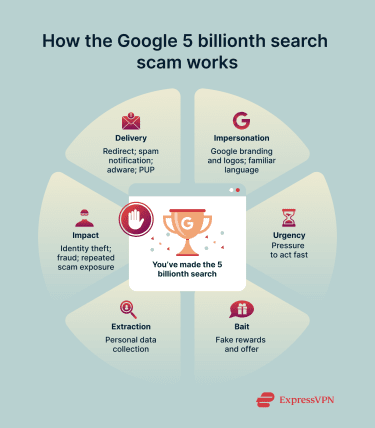
Once the pop-up appears, the scam relies on social engineering. It uses familiar Google branding, professional-looking layouts, and urgency to convince the victim that the offer is legitimate yet time-sensitive. When they interact with the pop-up, it typically guides them through a fictitious prize claim process, which may require them to:
- Enter personal details such as their name, email address, home address, or phone number.
- Complete fake surveys designed to collect data or generate affiliate revenue.
- Pay small fees for shipping, processing, or verification.
The promised prize never arrives. Instead, scammers collect personal information, payment details, or both. That data can then be used for unauthorized purchases, follow-up scams, or even identity theft.
Why am I seeing the Google 5 billionth search pop-up?
There are several reasons the 5 billionth search pop-up can appear on a computer. Understanding these can help users to avoid encountering the scam again.
Redirection from a website
Some websites load third-party ads from poorly vetted or compromised ad networks. These ads may contain malicious scripts or redirect logic that triggers scam pop-ups or redirects as soon as the page loads, even if the user doesn’t click anything.
The good news is that in many cases, closing the page is enough, as long as no information is entered and no permissions are granted. However, if site permissions, cookies, browser notifications, or injected scripts are involved, the pop-ups may reappear until those elements are removed.
Push notifications from an untrusted site
Websites can request that users allow notifications in their browser. It's easy to grant permission by accident or without really thinking about it. However, this allows the scammers to send the pop-up multiple times.
These alerts can appear even when the user isn’t browsing that site anymore. The persistence and the fact that it’s coming from the browser can make the scam feel more intrusive.
A modified browser extension or setting
Potentially unwanted programs (PUPs) are sometimes installed alongside free software and may add browser extensions or change settings such as the homepage or default search engine. These changes can cause recurring redirects or pop-ups linked to scam pages like Google 5 billionth search.
Adware is installed
Adware installed on a device can inject ads or redirect traffic across multiple browsers. This often happens after installing free software bundled with extra programs.
If an application is the root cause, pop-ups might persist until you remove the software.
Dangers of interacting with the Google 5 billionth search scam
Interacting with the Google 5 billionth search pop-up can expose users to more than just an annoying ad. Clicking through or attempting to claim the promised prize can trigger a range of security and privacy risks. These risks vary depending on how far the interaction goes, but even limited engagement can have consequences.
Personal data theft and identity fraud
Some Google 5 billionth search scams prompt users to enter personal details such as their name, email address, home address, or date of birth to “claim” a prize. Once submitted, this information can be sold, reused in follow-up scams, or combined with other leaked data to enable identity theft.
Stolen personal details are often used for targeted phishing, account takeover attempts, or fraud that may not surface until weeks or months later.
Malware and grayware download risk
Some scam pages attempt to push downloads disguised as prize confirmations, security checks, or verification tools. These downloads can contain malware such as Trojans, spyware, or other unwanted software.
Once installed, malicious software may track the victim’s browsing activity, steal saved credentials, or create additional security risks beyond the original scam.
In some cases, interacting with scam content leads to the installation of adware or other unwanted programs that persist on the device. These programs can sometimes update with new modules or algorithms to bypass antivirus detection. They continue redirecting users to scam pages, injecting ads, or degrading browser performance over time.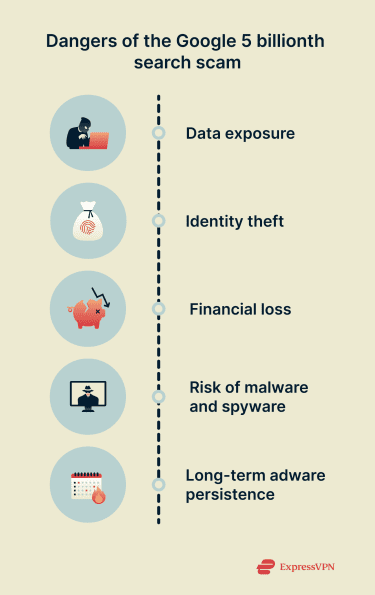
Financial losses
Another common tactic is to ask users to pay small fees for shipping the gift or processing. These amounts are typically minimal so as not to raise suspicion; however, paying this fee can give the scammer the victim’s credit card information.
Browser and data privacy compromise
Interacting with scam pages can weaken browser privacy. Users may unknowingly grant permissions, allow tracking scripts, or expose browsing behavior to third parties.
This can result in increased profiling, targeted scam campaigns, and reduced control over browser security settings, even if no money or files are exchanged.
How to remove the Google 5 billionth search pop-up safely
In most cases, stopping the scam pop-up message from coming back is a simple process.
If you see the ad, the first step is to close the pop-up or, if it’s on a webpage, close the tab.
If the page is frozen and won’t close, exit your browser.
If the browser is frozen:
- On Windows: Open Task Manager (Ctrl + Shift + Esc) and force quit the browser.
- On macOS: Use Force Quit (Command + Option + Esc) to force quit the browser.
If you don’t see the ad again, it was likely a one-time redirect, and no further action is needed. However, if it comes back, you should follow the instructions below.
Remove unwanted adware apps from Windows and Mac
If you suspect an app is causing the pop-ups, you can remove it. For many simple adware programs, removal using the standard system tools is sufficient.
Windows
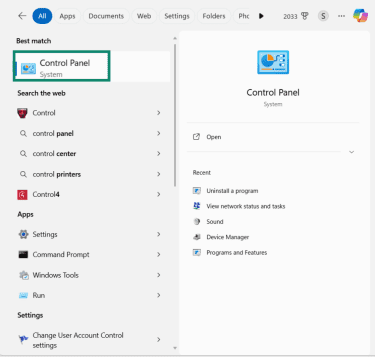
- Open the Windows Control Panel.
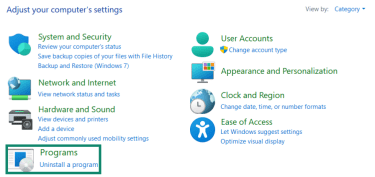
- Under Programs, click Uninstall a program.
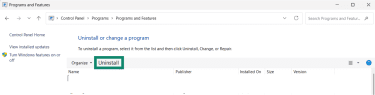
- Find the program or software that looks suspicious, and click it. Then, click the Uninstall button. Follow the on-screen instructions to remove it from your device.
Mac
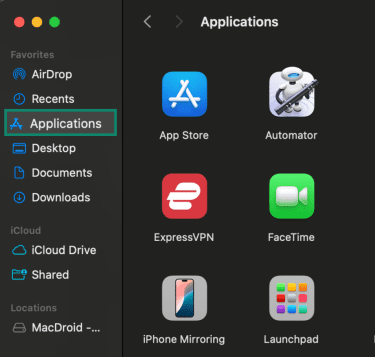
- Open Finder and select Applications from the sidebar.
- Look for any app you don’t recognize or that was installed around the time the ads started appearing. Right-click it and select Move to Trash.
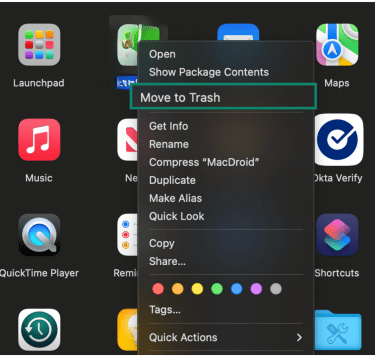
- Empty the Trash to complete the removal.
Note that while this procedure removes the visible app, some adware may include hidden components, browser extensions, or scripts that persist. If you keep seeing pop-ups after uninstalling, proceed to the additional cleanup steps below.
Remove the scam from Google Chrome
To stop the 5 billionth search pop-up in Chrome, you’ll need to ensure pop-ups and notifications are disabled, uninstall any suspicious extensions, and reset your browser. Here’s how.
- Open Chrome and go to Settings by clicking on the three dots in the top-right corner.
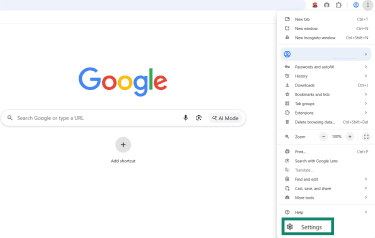
- Select Privacy and security.
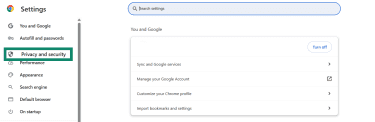
- Click Site settings.
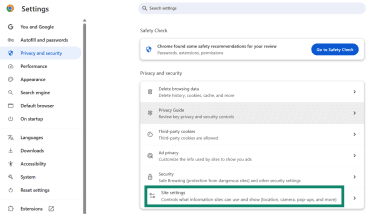
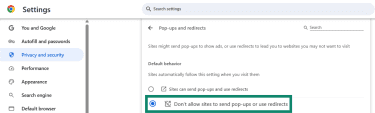
- Scroll down to Pop-ups and redirects. The default settings prevent pop-ups and redirects, but if they’ve been enabled, you can disable them by selecting Don’t allow sites to send pop-ups or redirects.
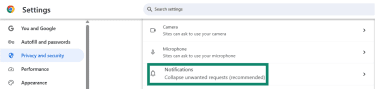
- Go back to the Site settings page and click Notifications.
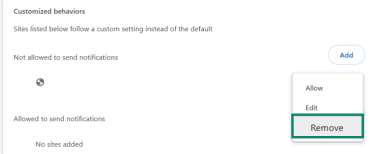
- Scroll down to Customized behaviors, and you’ll see a list of sites that have permission to send notifications. Click on the three dots next to any site you don’t recognize or wish to receive notifications from and press Remove.
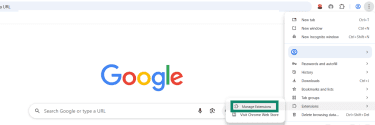
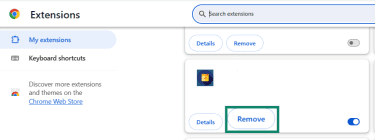
- To remove malicious extensions, click the three-dots menu, hover your mouse over Extensions, and select Manage Extensions from the side menu that opens.
- Look for any unwanted or unfamiliar extensions and click Remove.
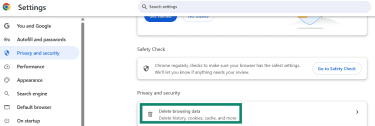
- To reset your browser, go back to the Privacy and security main page and click Delete browsing data.
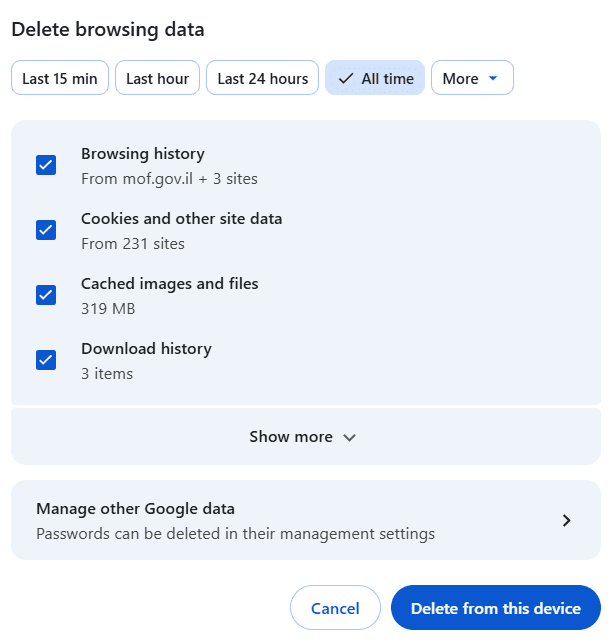
- The Delete browsing data window will open. Select All time and press Delete from this device.
- Restart Chrome to ensure the changes have taken effect.
Remove the scam from Safari
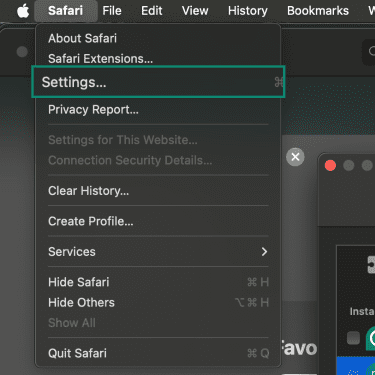
- Open the Safari menu and select Settings (Preferences on older macOS versions).
- Click the Websites tab and find Pop-up Windows in the sidebar menu.
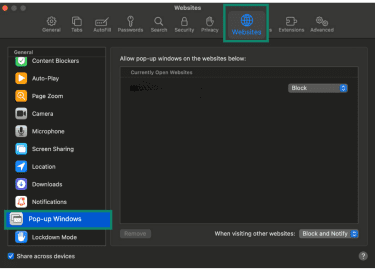
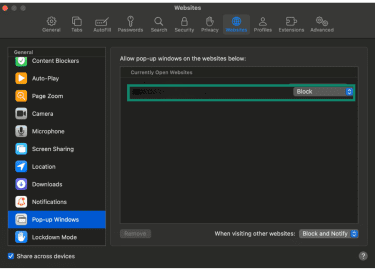
- Select Block for any unwanted site sending you pop-ups. You can also optionally choose Block and Notify at the bottom of the screen to automatically stop any other websites from sending pop-ups.
- Check your Notifications settings, which also sit under the Website tab.
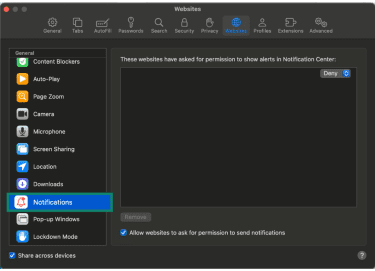
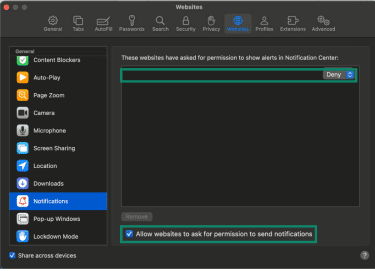
- If there are notifications enabled for any websites you don’t want to receive them from, click Deny. Optionally, you can also uncheck Allow websites to ask for permission to send notifications.
- To get rid of unwanted extensions, from the Settings, select Extensions.
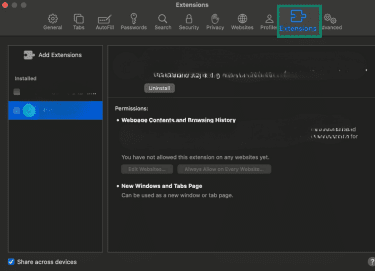
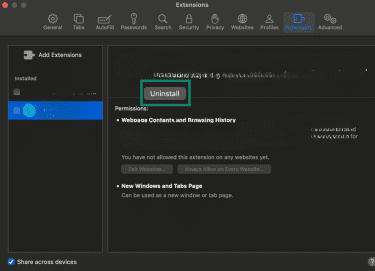
- Find the extension(s) you want to remove and tap Uninstall.
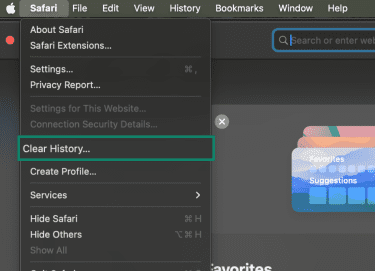
- Once you’ve done that, go to the main menu and select Clear History…
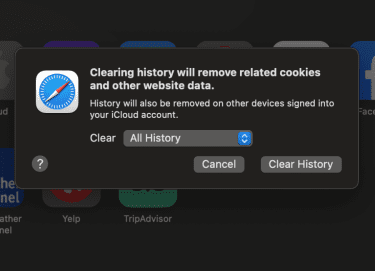
- Select All History from the dropdown and click Clear History. (Note that this removes browsing data, cookies, and site data, which can log you out of websites.)
Remove the scam from Firefox
- Click on the three horizontal lines to open the menu and choose the Settings option.
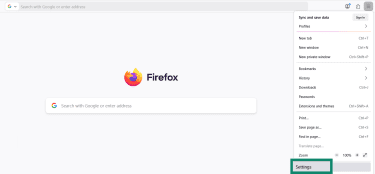
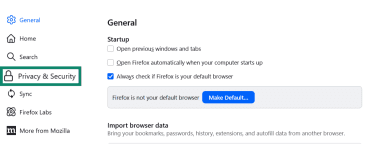
- Select Privacy & Security from the side menu.
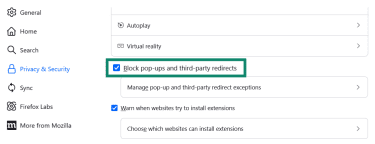
- Scroll down the privacy settings and ensure that Block pop-ups and third-party redirects is enabled.
- Check your Notifications settings, which also sit under the Privacy & Security section.
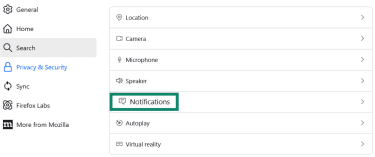
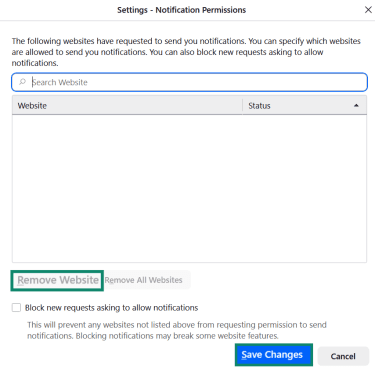
- If you see a website that you don’t recognize or don’t want to receive notifications from, click on it and select Remove Website, then press the Save Changes button.
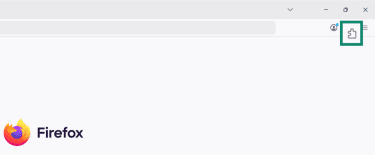
- To remove unwanted extensions, click on the Extensions icon.
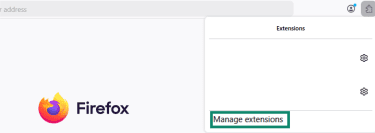
- The Extensions window will open. Click Manage extensions.
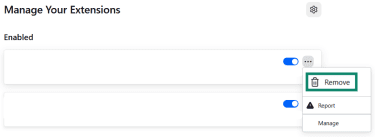
- A window will open showing all your extensions. If you see any that you don’t recognize or use, click the three dots to open the extension menu and select the Remove option. (Note that just moving the slider to disable it won’t delete it from your browser.)
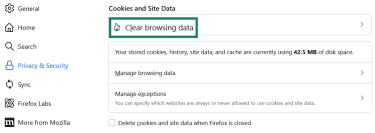
- Reset your browsing data, cookies, and site data by scrolling to the Cookies and Site Data section in the Privacy & Security section. Click Clear browsing data.
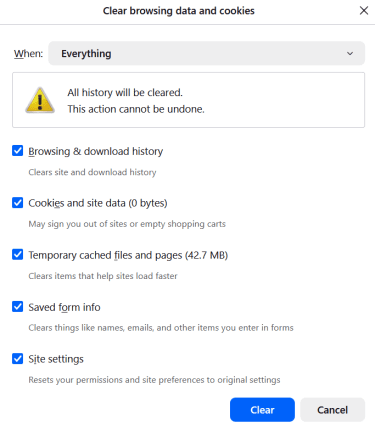
- In the When box, choose the Everything option, check all the boxes, and press the Clear button.
Remove the scam from Edge
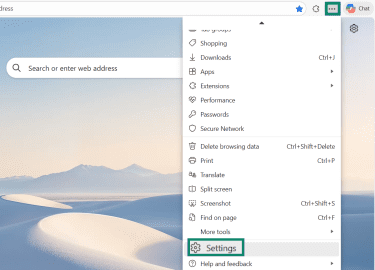
- Click the three dots menu and select Settings.
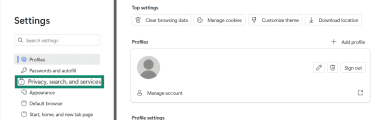
- Click Privacy, search, and services on the sidebar.
- Open Site permissions.
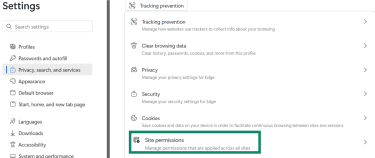
- Click All permissions.
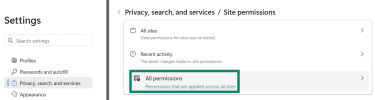
- Click Pop-ups and redirects.
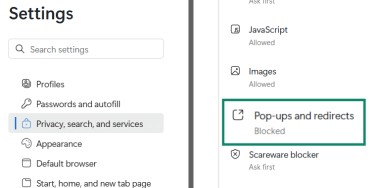
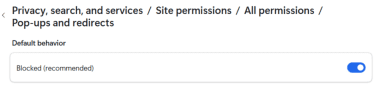
- The default setting is that pop-ups and redirects are blocked. If this setting was changed, re-enable it.
- Go back to the All permissions > Notifications.
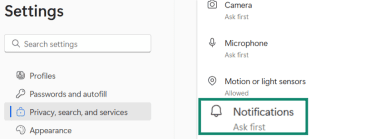
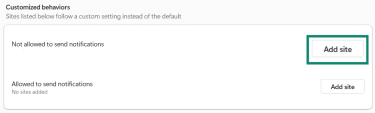
- If there are websites listed that you don’t want notifications from, click to Add site to block future notifications.
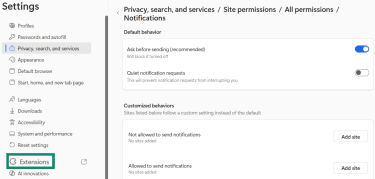
- Go back to the Settings menu and click the Extensions option.
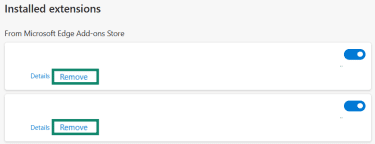
- Remove any extensions that you don’t recognize or use. (Just unchecking won’t remove them from Edge.)
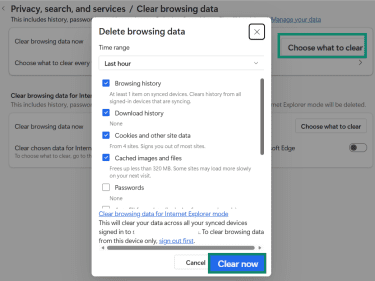
- Go back to the main Privacy, search, and services page and select Clear browsing data.
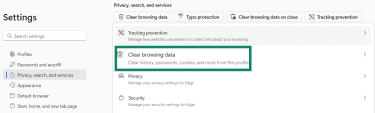
- Press the Choose what to clear button, select all the options, and press Clear now.
What to do if you clicked on the scam link
There are several steps you should take if you clicked the Google 5 billionth search scam or interacted with it further.
| IF | DO THIS |
| You clicked the link | Scan your device for malware |
| You entered payment details | Cancel the card and check transactions |
| You entered your login details on the scam page | Change passwords and enable two-factor authentication (2FA) |
| You shared personal info | Monitor for identity misuse |
| You get follow-up messages | Don’t engage; block and report |
| You want to help others | Report the scam |
Scan your device for unwanted software
Clicking the scam link alone doesn’t automatically mean that your device is compromised; if no downloads started and you didn’t give your personal or financial information, you should be OK. That said, it’s always recommended to run an antivirus or security scan on the device you used to open the page. Choose a reputable antivirus and antimalware program that can detect, quarantine, and remove any malicious files it finds.
You should do this even if you only clicked the link and didn’t enter any information, because clicking scam pages can expose you to:
- Hidden redirects to malicious sites.
- Malvertising that attempts silent downloads.
- Drive-by download attempts that exploit browser or plugin vulnerabilities (less common today, but still possible on outdated systems).
- Browser-based exploits that target outdated software.
If you interacted with the scam further, follow the relevant steps below depending on whether you entered payment details, logged into an account, or shared personal information.
Secure your payment methods
If you entered credit card or payment information, act immediately:
- Contact your bank or card issuer to cancel the card.
- Review recent transactions for unauthorized charges.
- Enable transaction alerts to catch suspicious activity quickly.
If you see any transactions you don’t recognize, contact your bank or credit card provider immediately to dispute the charges.
Change your passwords
If you entered an email address or logged into any account after clicking the scam:
- Change passwords on email, banking, shopping, and social media accounts. Email accounts should be the top priority, as they’re often used to reset other passwords.
- Use strong, unique passwords for every account.
- Enable 2FA where available.
- Get a password manager to create strong passwords and store them securely.
Don’t just change the password for accounts that were included in the scam. If you’ve reused the same password across multiple sites, attackers may go after your other accounts as well.
Monitor for identity misuse
If you shared personal information such as your name, address, or date of birth, keep an eye out for signs of identity misuse. This includes unexpected account activity, password reset emails you didn’t request, or unfamiliar financial notifications. This type of information is often reused in follow-up attacks that may happen weeks later.
Tools like Identity Defender, bundled with the ExpressVPN Advanced and Pro plans for U.S. users, can help by alerting you in real time to potential misuse of your personal data, giving you a chance to respond quickly to unauthorized activity.
Watch for follow-up scams
Scammers often reuse collected data for additional attacks. For example, they can use multiple attack vectors to appear more believable and authentic. Victims may get phone calls telling them they need to claim a prize, emails with instructions for how to get it, and more.
Report the scam
Reporting the scam may not stop the damage or recover any losses, but it can help others. You should report to:
- Your browser (for example, for Chrome you can report to the Safe Browsing service).
- Your email provider (specifically if the scam arrived via email).
- Consumer protection agencies such as the Federal Trade Commission (FTC) in the U.S., or the International Consumer Protection and Enforcement Network (ICPEN), which works with agencies in 65 countries to help stop online scams.
How to protect yourself from search and pop-up scams
The Google search scam and similar pop-up scams have been around for a long time, and there are proven methods for protecting yourself against them.
Use built-in pop-up and ad blocking
You can block pop-ups on all major browsers, as detailed above. Just taking this simple step can save you from the frustration of dealing with this kind of scam.
It’s also a good idea to have an ad blocker in place. ExpressVPN offers an ad blocker that can stop display ads, pop-ups, and tracking scripts, as well as filter out known malicious domains.
Be skeptical of “free prize” claims
Legitimate companies don’t award prizes for routine online actions like searches, page visits, or account anniversaries. If a free prize giveaway looks legitimate and you really believe that you could have won a prize, contact the company directly. Don’t click on a link or button or provide personal details before verifying the sweepstakes, and avoid entering your payment information to confirm that you are a real person.
Never allow notifications from unknown sites
There are some sites you may want to get notifications from about things like news, sports, entertainment, and celebrities. Just be careful which sites you allow to push browser notifications. If it’s not a website you recognize and trust, your best option is to block notifications and get the same updates from a more trustworthy site.
Keep your browser and operating system up to date
Attackers are always looking for vulnerabilities to exploit in popular browsers and operating systems. The good news is that once these vulnerabilities have been discovered, software companies release updates that patch them. However, if you don’t update the software, you won’t have the updated protection, giving attackers a window into your system. To ensure you don’t forget, enable automatic updates wherever possible.
Use reputable security software
Not all security tools are trustworthy. Many low-quality products claim to protect against malware but offer little real protection or introduce new risks. To identify reputable security software, look for tools that:
- Come from well-known, established security companies.
- Are independently tested and reviewed by recognized labs and organizations.
- Have transparent privacy policies and clear data-handling practices.
- Receive regular updates and security patches.
- Are available through official app stores or verified websites, not pop-up ads.
In addition to malware protection, privacy-focused tools such as ExpressVPN can help reduce tracking and limit exposure to malicious networks, especially on unsecured or unfamiliar connections.
Take a moment before clicking
Many pop-up scams succeed because they create artificial urgency by saying you can win great prizes, but you have to act now. If you really won a prize, you wouldn’t have to fight the countdown timer before the prize goes to the next person.
Take a minute to pause and look closely at the pop-up ad. Ask yourself:
- Does the content of the message make sense?
- How could you win a prize or giveaway for which you never submitted an entry?
As mentioned earlier, Google doesn’t ever run giveaways and sweepstakes of this kind.
FAQ: Common questions about Google 5 billionth search
Is the “Google 5 billionth search” message a scam?
Yes, the Google 5 billionth search pop-up is a scam. Google doesn’t give prizes based on searches, search milestones, anniversaries, or usage activity. Any message claiming Google is giving rewards for routine actions is not legitimate.
Why do I keep getting the Google 5 billionth search pop-up?
Usually, recurring pop-ups indicate that a persistent source is delivering the scam. This can include allowed browser notifications, rogue browser extensions, adware, or potentially unwanted programs. Getting rid of repeated alerts typically requires browser cleanup or permission changes.
How does Google handle fake prize scams?
Google actively works to detect and block deceptive websites, malicious ads, and fake prize scams through its security systems and Safe Browsing protections. The company also warns users about scams that misuse Google branding or impersonate Google services. However, no automated system catches every scam, which is why user awareness, cautious browsing habits, and reporting via the relevant channels are important.
Take the first step to protect yourself online. Try ExpressVPN risk-free.
Get ExpressVPN