DNS not resolving on Xbox? Here’s how to fix it step by step


The root cause of Xbox connectivity issues can vary, but the issue often lies with the Domain Name System (DNS). If the DNS isn’t working properly, your console won’t be able to connect to the servers that facilitate online gaming.
Keep reading to learn what causes these issues, how the underlying system works, and various steps you can take to fix the problem and get your console back online.
What does “DNS not resolving” mean on Xbox?
The Domain Name System (DNS) is responsible for helping devices locate the servers they need to communicate with. Specifically, it translates alphabetic addresses into the numerical codes that devices actually use. In the Xbox context, DNS allows consoles to connect to the servers that enable online play.
When an Xbox issues an error message saying that DNS isn’t resolving server names, this usually means that the console can’t translate the names of Xbox network servers into the appropriate IP addresses.
If this is the case, online gaming, multiplayer chat, cloud saves, streaming apps, and other features won’t work.
Why DNS fails on Xbox
DNS resolution issues will generally keep Xbox users offline. That said, there are many possible root causes. The issue usually comes from misconfiguration on the console, problems with the local network, or failures on either Microsoft’s end or the user’s internet service provider (ISP). More specifically:
- Microsoft or Xbox network service outages: When Microsoft’s services are down, your Xbox won’t be able to reach the servers even if it has the right IP address.
- Router misconfigurations or outdated firmware: A router with incorrect settings or old firmware can block DNS requests from reaching DNS servers.
- Wi-Fi interference or weak signal strength: Without sufficient connectivity, an Xbox’s DNS requests won’t reach the local router and will fail to be forwarded to the ISP.
- Incorrect DNS or IP settings on the console: Misconfigured network settings will prevent an Xbox from communicating with DNS servers.
- ISP-level DNS issues affecting the connection: When an ISP’s DNS servers are overloaded or malfunctioning, any Xbox relying on them will struggle to complete lookups.
How to fix DNS not resolving on Xbox
The exact process for getting your Xbox back online depends on what is causing the problem. The solutions below are the most reliable ways to get your DNS working and your console back online. Note that the process may vary depending on the model of your Xbox console, but the steps are generally the same across all models.
Check the service status of Xbox Live
Before you change any settings on your console or router, it’s worth checking whether the problem is coming from Microsoft’s side.
You can check the current status of the Xbox network (formerly called Xbox Live) by visiting the official Xbox status page. It shows real-time updates on outages, disruptions, and maintenance. If a service is marked as limited or unavailable, you’ll need to wait for Microsoft to resolve the problem before you can get back online. Changing settings may create additional problems that could prevent you from connecting once the servers are back online.
Test your Xbox’s network connection
Once you’ve confirmed that Microsoft’s services are online, the next step is to check for connectivity issues within your network. This will confirm whether the console can reach your router and the internet.
Xbox network connection troubleshooting starts with testing your network status:
- Open the Settings on your Xbox via the icon at the top of the dashboard. In the General tab, select Network settings.

- Select Test network connection and wait a moment for the results to appear.

If the test fails, this indicates that your Xbox does not have an internet connection. Various things could prevent your device from reaching the router, including a bad password, a loose cable, or an issue with the router itself. It could also reflect a wider issue within your network. If other devices are also unable to access the internet, you need to look elsewhere to restore your network connection.
If the test is successful, your Xbox does have an internet connection through your local network. Even so, DNS issues may cause the console to be effectively cut off from Microsoft’s servers. If you still can’t access online services on your Xbox but other devices are working fine, proceed to the next step.
Power cycle the Xbox console and router
Restarting your router is often enough to clear temporary network hiccups that cause DNS problems across your network. Simply unplug the device or press the off button, wait 30 seconds, then restore power.
Similarly, resetting your console will refresh its connection to the router and reconnect to your DNS server. But instead of restarting through the console’s Power Center, turn the device off completely and then unplug it. This is because a power cycle (turning the device off fully) will also clear its cache. Soft resets don’t always do this.
Cached data can interfere with the console’s network requests, including DNS lookups. A full reboot will clear the cache, potentially solving the issue. For best results, you may need to leave the device off for a full minute.
Once your router and Xbox are back on, test your network connection again to see whether the DNS issue has been resolved.
Note that a full reboot or hard reset is distinct from a factory reset, which takes far longer and should only be attempted if you have tried all other solutions.
Change the DNS settings on your Xbox
Manually setting the DNS servers your Xbox uses may fix issues preventing the console from looking up server addresses. Switching to a trusted public DNS service can sometimes clear up “DNS not resolving” errors and restore full connectivity.
To change your DNS settings on your Xbox:
- Open Settings and open Network settings from the General tab.

- Select Advanced settings.

- Go to DNS settings.

- Select Manual. You can then enter your primary and secondary DNS addresses. To use Google’s Public DNS, enter 8.8.8.8 as your primary address, then 8.8.4.4 as the secondary one. To use Cloudflare, enter 1.1.1.1 for the primary and 1.0.0.1 for the secondary.

Make sure to select Save after entering the details.
Once you’ve done this, restart your console and run the network connection test to confirm that it’s connected. If DNS errors persist, you may need to look to your router for a solution.
Update your router and manually configure DNS
In most cases, all devices on your network will default to using DNS servers tied to your ISP. While these work most of the time, they can sometimes fail, rendering Xbox consoles and other devices unable to access the internet even if they have a connection.
Setting custom DNS directly on your router will force most devices on your network (including the Xbox) to use the third-party DNS servers instead of your ISP’s. This may solve the problem and restore connectivity, not only to your Xbox, but to other devices as well.
At the same time, configuring your network-wide DNS settings will also present an opportunity to update your router’s firmware. This may also solve the issue, so it’s a good idea to check for available updates.
Here’s what to do:
- Locate your router and look for a sticker that lists the default gateway or admin page. This will likely be 192.168.0.1 or 192.168.1.1, but you can also follow this guide to find your router’s IP address.
You should also look for a username and password printed somewhere on the device. If you find this information, take a photograph or write down the details, as they will be needed later. In some cases, there may be a password but no username.
- Using a computer or phone connected to the same network that your Xbox uses, open a browser and enter the router address into the search bar.
- You’ll now need to log into the portal with your username and password.

If you couldn’t find the login information, you may be able to locate the credentials using a search engine. With some routers (including those made by Xiaomi), this may be the same as your network’s name and password. If your router was set up by your ISP, it’s possible they changed this information and you may need to reach out through their support channels.
- Within the portal, check for any alerts that indicate your firmware is out of date. These may appear automatically, but it’s also a good idea to check for options with labels like System, Advanced, or Admin Settings.
If an update is available, install it and allow your router to restart, turning it off and back on again manually if this does not happen automatically. Once the new firmware is installed, go to your Xbox and see if the update has solved the issue.
If no update is available or installing it doesn’t solve the issue, it’s time to manually configure your DNS settings.
- In the same portal, look for any of the following options:
- Advanced
- Network Settings
- Internet
- WAN
- Advanced Settings
You should see an overview of your network, with information such as your IP address, MAC address, and more.
In this example, the option for DNS status page was found under the Network tab on the Advanced page.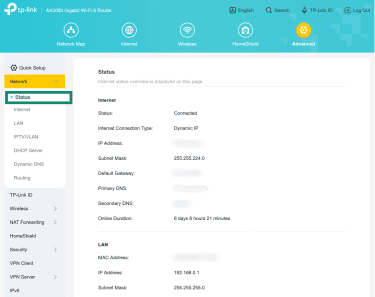
- From within the proper panel, look for a field marked DNS Settings or DHCP Server. This will likely be set to Automatic by default. You may need to switch this setting to Manual in order to enter new details. Alternatively, simply enter the primary and secondary addresses for Google, Cloudflare, or another provider. For Google, these are 8.8.8.8 and 8.8.4.4; for Cloudflare, enter 1.1.1.1 and 1.0.0.1.

- Save the changes to apply the new configuration. Your router may restart automatically, but to ensure the best results, unplug the router and wait 10 seconds before restoring power.
- Restart your Xbox and try to get online (you may need to reconnect the console to your network).
Once your device is back on and linked to your network, try to get online. If you can access Xbox network servers or other online services without seeing “DNS not resolving” errors, the problem is solved.
If your Xbox is still having trouble accessing online services, disabling IPv6 is a logical next step.
Check your IPv6 settings
Misconfigured IPv6 settings on your router could prevent your console from accessing the internet. Disabling IPv6 through your router may resolve Xbox DNS issues, particularly if your hardware is on the older side. Taking this action can reduce internet speeds across the network or impact certain services. If you experience any issues after taking this step, re-enable IPv6 using the same process.
To check your IPv6 settings, access your router gateway using a browser. Follow the same steps you took to manually configure your network DNS settings. On or near the page where you entered new primary and secondary DNS addresses, you should see an option to turn IPv6 off. As before, you will need to perform a power cycle on both your router and Xbox.
If you’re still unable to get online, it’s worth considering other solutions before taking the somewhat drastic step of performing a factory reset.
Other solutions to Xbox connectivity issues
If you’ve tried the core fixes and your Xbox is still struggling to resolve DNS, there are a few less common but still effective steps that can help stabilize your connection. They aren’t likely to solve DNS-specific problems, but it is possible that your console is displaying a DNS alert in error.
In any case, you may want to look into:
- Port forwarding: Some routers block the ports your Xbox needs for online play. Manually forwarding Xbox ports can create a clearer path for network traffic and may prevent lookups from timing out.
- Fixing Network Address Translations (NAT) restrictions: A strict or moderate NAT type can interrupt the connection between your Xbox and game servers. Doing this can remove network bottlenecks that look like Xbox DNS failures.
- Assign a static IP to your Xbox: Giving your console a fixed IP address helps it maintain more consistent communication with your router and DNS servers. You can do this from within the Xbox’s network settings menus. Simply change the last number in the current address (it’s best to pick a number between 200 and 250 to avoid conflicts with other devices).
Reset your Xbox to factory settings
If all else fails, a factory reset may be the only way to solve Xbox DNS resolution errors and restore full connectivity. This will have consequences, so it’s best to leave this as a last resort.
Performing a factory reset restores an Xbox to a clean state, which means your accounts, settings, and saved configurations will be forgotten. That said, you will have the option to keep your installed games and apps, so you won’t necessarily have to redownload everything once finished.
If you have an Xbox Series X or S, take the following path to initiate a factory reset:
- Open Settings, scroll to the System tab, and select Console info.

- Select Reset console. When prompted, choose to either keep your games and apps or remove everything for a full factory reset. Then wait for your console to reset itself.

Once the reset finishes, your Xbox should power on automatically. You will need to reconnect it to your network, so have your Wi-Fi password and other details ready. Once you’ve set everything up, try to get online and see if any DNS errors get in the way.
FAQ: Common questions about Xbox DNS not resolving errors
Why isn’t my DNS resolving?
Your Xbox may fail to resolve Domain Name System (DNS) because it can’t reach the DNS server, the server is slow or unresponsive, or due to network-level issues. There are many possible solutions. After making sure that the servers are online, a good starting place is restarting your console. From there, you may want to change the DNS settings on your Xbox or router before considering other options.
What DNS server should I use on Xbox?
If you plan to manually change the Domain Name System (DNS) settings on your Xbox, the best options are to use Google Public DNS (8.8.8.8 and 8.8.4.4) or Cloudflare DNS (1.1.1.1 and 1.0.0.1). Both are trusted providers that offer access to fast and reliable DNS resolution servers at no cost.
How do you reset your DNS on Xbox?
Beyond powering your console off and on, there isn’t really a way to reset an Xbox’s Domain Name System (DNS). To manually set its DNS settings, go to Settings > Network > Advanced Settings > DNS settings, then switch to Manual and enter new DNS addresses. After saving your changes, restart the console and test the connection.
What are common causes of DNS issues on Xbox?
Domain Name System (DNS) issues on Xbox can be caused by your internet service provider (ISP) being overloaded, router misconfiguration, outdated firmware, weak Wi-Fi signal or interference, or incorrect network settings on the console. These factors can cause lookups to fail.
How do I fix DNS name resolution failure?
To fix Domain Name System (DNS) resolution errors on Xbox, start by restarting your console and router, then test your network connection. If DNS lookups still fail, manually set your DNS to a trusted public server and, if needed, do the same in your router settings. These steps usually resolve the issue.
Take the first step to protect yourself online. Try ExpressVPN risk-free.
Get ExpressVPN











 Support Center
  FAQ
FAQ  VPN Setup Tutorials


