How to block someone on Gmail: Prevent unwanted emails


If someone keeps emailing you and you’d rather not hear from them anymore, Gmail makes it easy to block that sender. Once blocked, their future messages are automatically filtered out of your inbox.
This guide explains how to block a sender in Gmail on desktop and mobile. You’ll also learn what happens after you block someone, where those emails go, and what blocking does and doesn’t stop.
How to block someone on Gmail (step-by-step)
Blocking someone on Gmail follows the same basic process across platforms. In every case, you block a sender directly from one of their emails using Gmail’s built-in menu options.
However, the exact steps vary slightly depending on whether you’re using it on a desktop or a mobile device. Below, you’ll find platform-specific guides with screenshots for desktop and mobile, so you can follow along without hunting through menus.
How to block someone on Gmail on a computer
If you’re using a computer, you can block a sender directly through Gmail in your web browser.
- In your browser, open your Gmail inbox, then click an email from the sender you want to block.
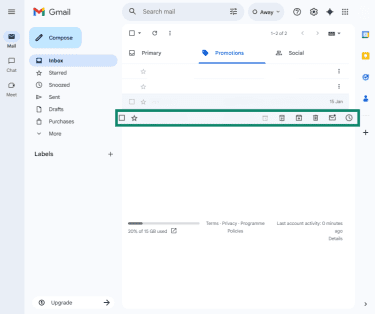
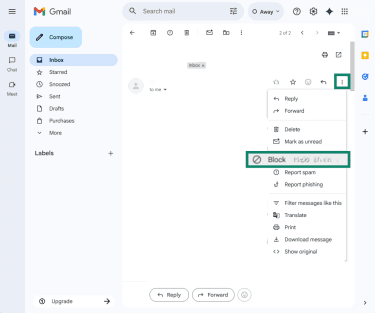
- In the top-right corner of the email message, click the three dots and select Block "[sender’s name]" from the dropdown menu.
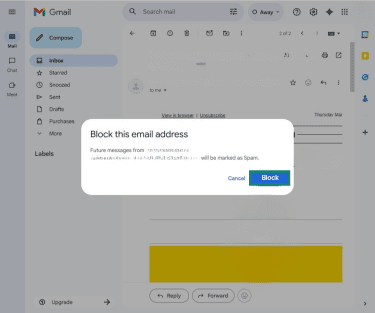
- When prompted, click Block to confirm.
How to block someone on Gmail on a mobile device
On mobile, you can use Gmail’s block feature directly in the app. The steps to follow are the same for Android and iOS. For this guide, we’re using the Android version of the app.
- Open the Gmail app and tap on an email from the sender you wish to block.

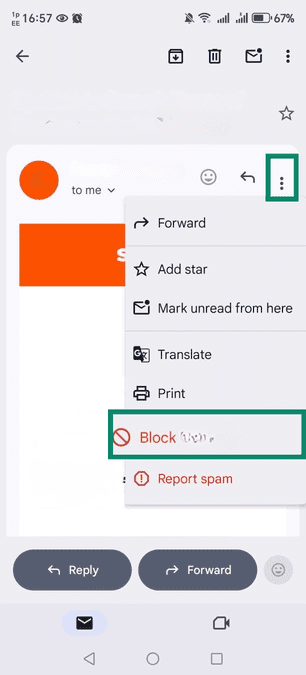
- Tap the three-dot menu in the top-right corner of the email message and select Block "[sender’s name]".
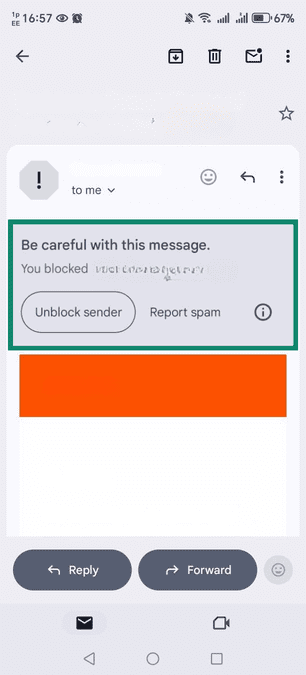
- You’ll see a message confirming that the sender is blocked.
How to block someone on Gmail who hasn’t emailed you
Gmail doesn’t let you block an email address unless the sender has already emailed you. If there isn’t a message from that address yet, the closest workaround is to use Gmail filters. Filters let you automatically delete emails from a specific address (send them to Trash) or skip the inbox and archive them (they can be found in All Mail).
Here’s how to find and use filters in Gmail on desktop:
- Open Gmail in your browser and click the Search options (filter icon) on the right side of the search bar.
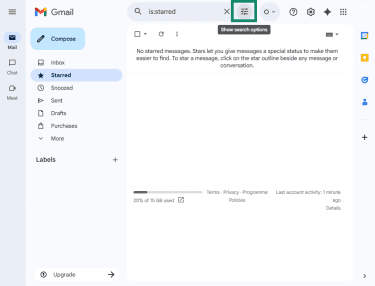
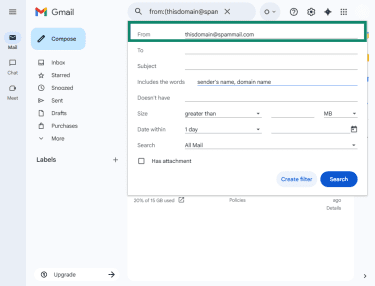
- In the From field, enter the email address you want to block, and optionally add keywords, then click Create filter.
- Select Delete it to send messages to Trash or Skip the Inbox (Archive it) to keep them out of your inbox, then click Create Filter to confirm.
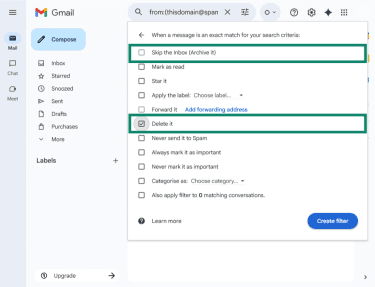
Once the filter is active, any future emails matching that address (or any other criteria selected) will be automatically filtered out of your inbox.
What happens when you block someone on Gmail
When you block a sender in Gmail, their future emails won’t appear in your inbox, but they’re not completely prevented from contacting you. Instead of stopping delivery, Gmail automatically filters future messages from that sender.
Here’s what that means in practice:
- Future emails go to Spam: Any new messages from the blocked sender are sent directly to your Spam folder instead of your inbox.
- Spam is auto-removed after ~30 days: Messages that stay in Spam are typically deleted automatically after about 30 days unless you moved them elsewhere.
- The sender isn't explicitly notified: Gmail doesn’t alert the sender that they’ve been blocked. From their perspective, messages appear to be sent as normal.
- Blocking doesn’t affect past emails: Emails you previously received from that sender remain where they already are unless manually deleted.
- Blocking doesn’t unsubscribe: If you block a newsletter or mailing list, you’ll still technically receive those emails, just routed to Spam. Because of this, blocking is often used as a quick workaround for persistent promotional emails when the unsubscribe option is unclear or ineffective.
Why blocking someone on Gmail is important
Blocking senders in Gmail gives you more control over what appears in your inbox, helping reduce exposure to unwanted content and making it easier to manage persistent communication from specific senders.
Protecting your privacy in email communication
Many emails, especially promotional and automated ones, contain tracking mechanisms. These often include invisible tracking pixels or tagged links that can register when a message is opened or a link is clicked.
From a technical standpoint, this interaction confirms that an email address is active. Over time, repeated engagement can signal responsiveness, which may result in additional outreach or inclusion in related campaigns.
Blocking a sender doesn’t remove an address from external systems, but it can reduce future messages from that sender appearing in your inbox and limit ongoing exposure to that sender’s tracked emails.
Reducing spam and unwanted messages
In addition to being an inconvenience, spam and high-volume promotional mail can increase exposure to tracking links, embedded content, or redirects, even when it isn’t outright malicious.
Blocking repeat senders helps in two practical ways:
- It routes future messages from that address to Spam, reducing inbox clutter.
- It reduces ongoing engagement with sources that generate low-value or unwanted communication.
While Gmail’s automated protections catch much of this, manual blocking gives you more control over specific senders that slip through or repeatedly resurface.
Avoiding phishing and suspicious emails
Phishing emails are messages designed to trick recipients into sharing sensitive information ( such as login credentials, financial details, or personal data) or taking risky actions. They often rely on urgency or familiarity to prompt quick action.
Blocking a suspicious sender can reduce repeat messages from that specific address, but phishing campaigns often rotate addresses or spoof sender information, so blocking alone isn't a complete safeguard.
Blocking is most effective when combined with broader account protections and safe handling practices for suspicious emails. For suspected phishing, reporting the message to Gmail is the more direct step.
Other ways to manage unwanted emails on Gmail
Blocking works well for repeat senders you simply don’t want in your inbox. However, depending on the situation, Gmail offers other tools that may be more appropriate.
How to report spam on Gmail
If a message is unsolicited, irrelevant, or clearly bulk marketing you didn’t sign up for, you can report it as spam. Gmail will move it to your Spam folder, and Google may receive a copy of the email and analyze it to help protect users from spam and abuse.
To report spam on Gmail (desktop)
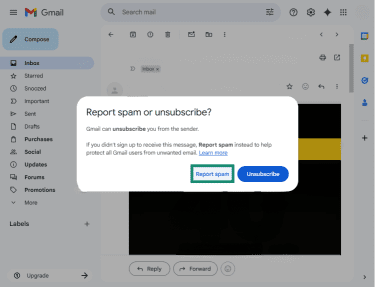
- Click and open the email you want to report as spam and select the Report spam icon at the top.
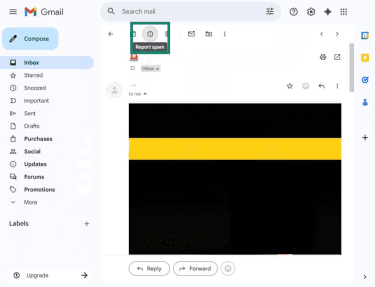
- Confirm that you want to report the message as spam by clicking Report spam.
To report spam on the Gmail mobile app (Android or iPhone)
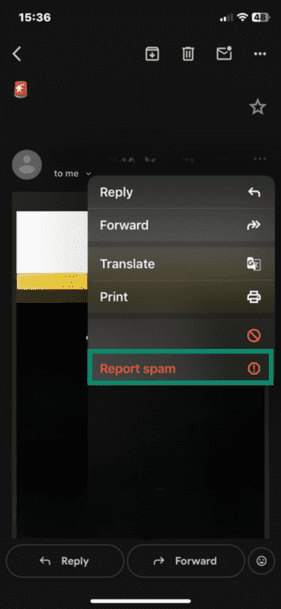
- Open the email you want to report, tap the three-dot menu in the top-right corner of the message, and tap Report spam.
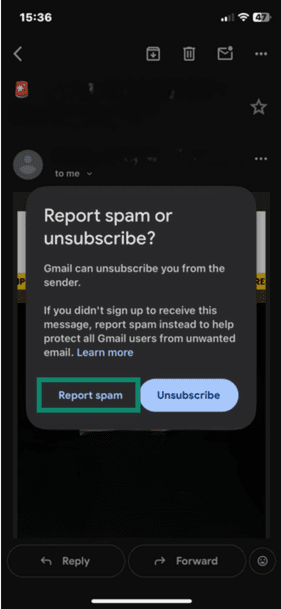
- Tap Report spam again to confirm.
When to unsubscribe instead of blocking
If the email is from a legitimate company or mailing list you previously subscribed to, using Unsubscribe is usually more effective than blocking. In Gmail, the unsubscribe option may appear in Gmail’s menu or near the top of the message, and many senders also include an unsubscribe link in the email footer.
Unsubscribing:
- Requests removal from that mailing list. This may apply to one list from that sender, not necessarily every list.
- Can reduces future marketing emails at the source, though it may take a few days to fully take effect.
- Often reduces the need to block or filter because fewer messages arrive in the first place.
How to manage your blocked sender list
Gmail keeps a list of all email addresses that you’ve blocked. You can review this list at any time and unblock senders if needed, whether that’s an individual contact or a subscription sender you want to receive emails from again.
Managing your blocked sender list is useful if:
- You blocked a sender by mistake.
- You want to reverse a block on a newsletter or mailing list.
- You’re troubleshooting missing emails and want to confirm the sender isn't blocked or filtered.
To view and manage blocked senders on Gmail (web/desktop)
- In Gmail, in your browser, click the gear icon (Settings) in the top-right corner.
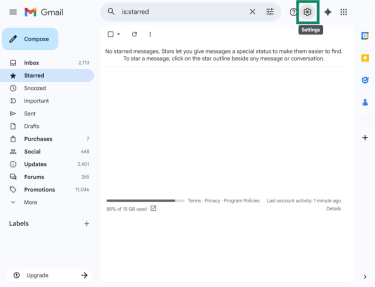
- Select See all settings.
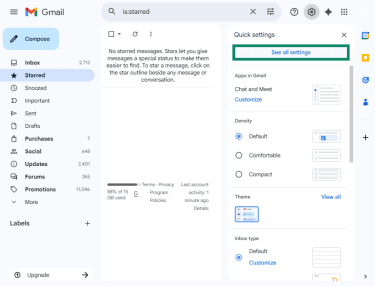
- Open the Filters and Blocked Addresses tab. There, you’ll find a list of all your blocked addresses, where you can review and unblock senders.
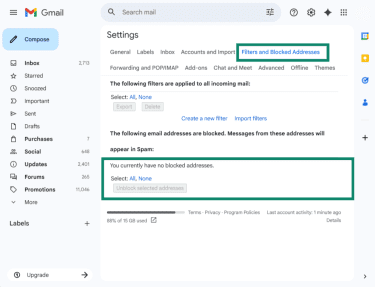
Once unblocked, future emails from that sender should go to your inbox. If messages still don’t appear in the inbox, check whether they’re being filtered by another rule or marked as Spam.
Note: If you want to manage the list from your phone, the practical workaround is to open Gmail in a mobile browser (and switch to the desktop site if needed) to reach the Filters and Blocked Addresses tab. Mobile apps don’t consistently expose that list view.
FAQ: Common questions about blocking someone on Gmail
How to manage blocked emails?
You can review and manage blocked senders in your Gmail account settings. In the Filters and Blocked Addresses tab, Gmail lists all addresses you’ve blocked and gives you the option to unblock them.
Can you unblock someone on Gmail?
Yes, Gmail lets you unblock senders at any time through the Filters and Blocked Addresses settings. After unblocking, new emails from that address should arrive in your inbox as usual, though messages can still be routed elsewhere if Gmail marks them as Spam or if other filters apply.
What should I do if the block feature isn't working?
Blocking only applies to the specific email address you’ve blocked. If messages continue to arrive, the sender may be using a different email address (common with marketing mail). In those cases, reporting the messages as spam or unsubscribing may be more effective.
Can I block multiple email addresses?
Yes, you can block multiple email addresses, but Gmail requires you to block them one at a time in the interface (there's no bulk "block" button). If you’re dealing with a lot of similar emails, using filters, reporting spam, or unsubscribing may be a better approach.
Take the first step to protect yourself online. Try ExpressVPN risk-free.
Get ExpressVPN