How to protect your Starlink internet traffic


You can use ExpressVPN with Starlink to make your internet activity more private. ExpressVPN encrypts your internet traffic before it travels over Starlink’s network and keeps it encrypted until it reaches the VPN server. Starlink can still see that your device is connected to a VPN server and some connection metadata, but it can’t normally see the websites or online services you access through the VPN.
However, the standard Starlink router doesn’t support VPN clients, so you can either install ExpressVPN directly on any devices using Starlink or use a Fortify router with built-in ExpressVPN functionality and connect it to Starlink.
How ExpressVPN protects your traffic on Starlink
Here’s what happens when you connect to an ExpressVPN server while using a Starlink internet connection:
- Your device encrypts the traffic: ExpressVPN encrypts the data leaving your device before it enters the Starlink network. This includes requests sent to websites and online services.
- Starlink carries the encrypted traffic: Starlink still provides your connection to the internet, so it can tell that your device is exchanging data and may be able to see information such as the amount and timing of that data. It can also see that you’re connecting to a VPN server. However, it can’t inspect the contents of the encrypted VPN traffic or determine its final destination.
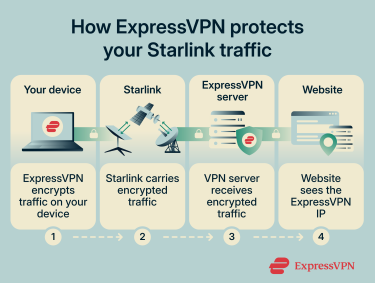
- The ExpressVPN server receives your traffic: The VPN server decrypts the traffic and forwards it to the website or service you requested. ExpressVPN uses its own private, encrypted DNS on every VPN server, so DNS requests can also be handled within the VPN connection rather than being sent to Starlink’s DNS servers.
- The website receives the request: The destination generally sees the IP address of the ExpressVPN server rather than the public IP address associated with your Starlink connection. Its response is returned through the ExpressVPN server and an encrypted tunnel to your device.
This protection applies whether you run ExpressVPN directly on a supported device or at the router level with the Fortify router. The difference is where the VPN connection is established; the ExpressVPN app protects traffic from that individual device, while Fortify can establish VPN connections for all or selected devices connected via the router.
How to set up ExpressVPN with Starlink
There are two main ways to use ExpressVPN with Starlink. For most people, the simplest option is to install the ExpressVPN app on the devices you want to protect. If you want to manage VPN connections for multiple devices at the router level, you can connect a Fortify router to your Starlink setup instead.
Option 1: Install ExpressVPN on individual devices
You don’t need to make any changes to your Starlink setup for this method. Connect your device to your Starlink Wi-Fi network as usual, then:
- Install ExpressVPN: Download and install the ExpressVPN app for your device. ExpressVPN provides apps for Windows, Mac, Android, iOS, Linux, and many other platforms. For device-specific instructions, check out the ExpressVPN setup guides.

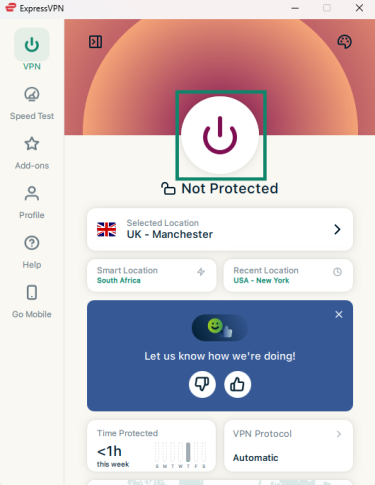
- Connect to ExpressVPN: Open the app and select the power button to connect. By default, ExpressVPN will automatically select the optimal VPN server based on factors such as your location and connection conditions.
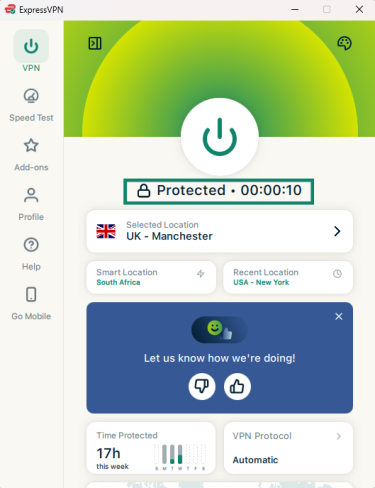
- Check that you’re connected: When the app shows Protected, your VPN connection is active.
- Verify connection status: For an additional check, open ExpressVPN’s IP address checker in your browser. If it shows an ExpressVPN IP address rather than the public IP address assigned to your Starlink connection, your traffic is going through the VPN.
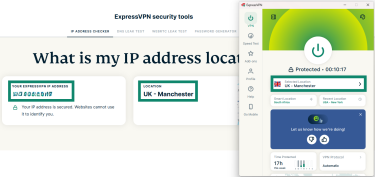
- Use the internet normally through Starlink: Once connected, you can use the internet as usual. Starlink continues to provide your internet connection, while ExpressVPN encrypts the traffic between your device and the VPN server.
This approach is suitable when you only need the VPN on devices that support the ExpressVPN app. It also lets you control the VPN connection separately on each device.

Note: If you find that connecting to ExpressVPN affects the Starlink app’s functionality, you can use ExpressVPN’s split tunneling feature on Android to exclude the Starlink app from the VPN. This lets the app connect directly to the Starlink router while other selected apps continue to use the VPN connection.
Option 2: Connect a Fortify router to Starlink
Fortify is a Wi-Fi 6 router co-branded by ExpressVPN and GL.iNet, with ExpressVPN functionality built in. An active ExpressVPN subscription is required to use its VPN features. Fortify includes 12 months of the ExpressVPN Advanced plan for new and returning users who don’t have an active subscription.
The exact way you connect Fortify depends on your Starlink kit, as Ethernet and bypass-mode requirements vary by model. For example, Standard Actuated requires a Starlink Ethernet Adapter, while the current Starlink Standard provides Ethernet through its power supply.
1. Set up Fortify
First, power on your Fortify router and connect a computer or phone to its Wi-Fi network using the network name and password printed on the router. Open 192.168.8.1 in a browser, create an admin password, and follow the prompts to complete the initial setup.
See the full Fortify setup guide for detailed instructions.
2. Connect Fortify to Starlink
Connect the Ethernet output from your Starlink equipment to the WAN port on Fortify. The exact connection varies by Starlink model, so check Starlink’s third-party router instructions for your kit before connecting the router.
Once Fortify has internet access, open its admin panel and go to VPN > VPN Client Profile > Go to ExpressVPN Dashboard.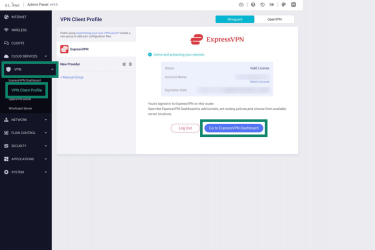
From there, you can create a VPN tunnel, choose an ExpressVPN server location, and select which devices or connections should use it.
3. Turn on Starlink bypass mode if required
If you have a Standard or Standard Actuated Starlink setup, you’ll need to enable bypass mode so Fortify can take over routing and Wi-Fi duties. Bypass mode disables the Starlink router’s Wi-Fi functionality and allows the third-party router to manage the network directly. Starlink Mini users can also enable bypass mode to disable its integrated Wi-Fi router. Some Starlink kits, including Enterprise and certain Performance models, let you connect a third-party router directly without bypassing a Starlink router.
For supported models, open the Starlink app and go to Settings > Bypass Mode, then enable bypass mode. Be aware that Starlink says a factory reset is required to turn bypass mode off again. Some Starlink kits with an external power supply and native Ethernet don’t require bypass mode, so check the instructions for your particular hardware first.
4. Use Starlink with ExpressVPN connected
Once Fortify is connected to Starlink and you’ve configured an ExpressVPN tunnel, connect your devices to the Fortify network and use the internet as normal. Starlink continues to provide your internet connection, while Fortify routes traffic from the devices you’ve assigned to the VPN tunnel through ExpressVPN.
You can check the ExpressVPN Dashboard in Fortify’s admin panel to confirm that the VPN tunnel is connected and configure the devices assigned to it.
Why use ExpressVPN with Starlink?
ExpressVPN includes several features that are particularly relevant when your internet connection is via satellite, including:
- Apps for individual devices: You can install ExpressVPN directly on supported phones, computers, tablets, and a wide range of other devices connected to Starlink. This lets you use a VPN without replacing your Starlink router or changing the rest of your network setup.
- Router-level protection with Fortify: Fortify includes built-in ExpressVPN functionality, so you can manage VPN connections for devices across your Starlink network from the router. This is particularly useful for smart TVs, game consoles, and other devices that can’t run the ExpressVPN app themselves. A Fortify router counts as one device toward your ExpressVPN device connection limit, and you can connect up to 86 devices to it.
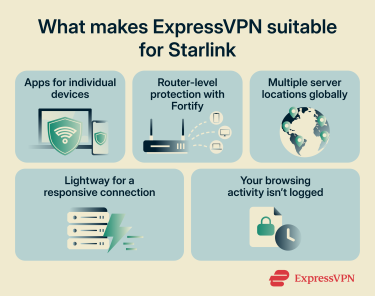
- Plenty of server locations to choose from: ExpressVPN has 214 server locations across 113 countries, giving you plenty of options when choosing where to connect. If your Starlink connection is already affected by latency or distance, choosing a nearby VPN server can help minimize the additional delay introduced by the VPN. ExpressVPN's Smart Location feature can automatically select a location based on factors such as latency, distance, and download speed.
- Lightway for a responsive VPN connection: Satellite internet already introduces latency because data has to travel between your equipment and Starlink’s satellite network. On devices running the ExpressVPN app, Lightway, ExpressVPN’s own VPN protocol, is designed to establish connections quickly and reduce connection drops, helping limit additional overhead. Fortify uses the WireGuard protocol, which is also designed for fast, efficient VPN connections.
- A no-logs policy backed by independent audits: ExpressVPN doesn’t log your browsing history, traffic destinations, data content, or DNS queries. Our privacy policy and no-logs practices have undergone multiple independent assessments.
Challenges of using a VPN with Starlink
ExpressVPN works over your existing Starlink connection, so the quality of that connection can affect your VPN experience. The issues below are common to VPNs in general rather than specific to ExpressVPN.
Slower connection speeds or higher latency
Using a VPN can reduce speeds or increase latency because your traffic takes an additional route through a VPN server. With Starlink, performance can also vary depending on factors such as network congestion, Wi-Fi bottlenecks, and the distance between your Starlink connection and the VPN server.
If ExpressVPN noticeably affects your Starlink connection, try these steps:
- Choose a nearby server: Select a recommended ExpressVPN location, or let Smart Location on desktop or Fastest Location on iOS and Android choose one based on factors such as latency, distance, and download speed. A closer VPN server generally means a shorter additional route.
- Try another protocol: ExpressVPN recommends leaving the protocol set to Automatic. If you're experiencing slow speeds or connection problems, try another available protocol to see whether it performs better on your connection.
- Use split tunneling: If you don't need every app to use the VPN, exclude selected apps from the VPN so their traffic uses your regular Starlink connection.
- Try Ethernet: Where possible, connect your device to the router with an Ethernet cable to rule out Wi-Fi performance as a contributing factor.
VPN connection drops or won’t connect
First, disconnect ExpressVPN and check whether Starlink itself has internet access. If you can’t get online without the VPN, the underlying Starlink connection is likely the issue rather than ExpressVPN.
If Starlink works normally but ExpressVPN doesn’t, make sure you’re running the latest ExpressVPN app. Using the latest version can help rule out any problems caused by an outdated app. You can also try another recommended VPN server location or a protocol change, which can sometimes resolve connectivity issues.
If you’re experiencing temporary interruptions in your Starlink connection, these can cause the VPN connection to disconnect and reconnect. ExpressVPN’s Internet Kill Switch is designed to prevent your traffic from using the regular internet connection if the VPN unexpectedly disconnects, including while it reconnects after a Starlink interruption. Check whether the Internet Kill Switch is enabled. It’s enabled by default on supported platforms, so you generally only need to check the setting if you’ve previously changed it.
If the problem persists while Starlink works normally without the VPN, use the ExpressVPN troubleshooting guides or contact ExpressVPN Support.
Why Starlink routing can affect VPN performance
Starlink dynamically routes traffic across its network. Depending on the connection, your traffic may travel through satellites, inter-satellite laser links, ground gateways, and internet points of presence (PoPs) before reaching the VPN server. You can't choose which satellite or ground infrastructure Starlink uses.
These routing decisions can affect the latency and speed of your connection before your traffic even reaches the VPN server. Starlink says it optimizes routing for latency-sensitive traffic, but congestion and the availability of satellite-to-ground connections can affect the path your traffic takes.
What can Starlink still see when you use ExpressVPN?
Using ExpressVPN changes what Starlink can see about your internet activity, but it doesn’t hide the fact that you’re connected to Starlink or using a VPN.
Because Starlink is your internet service provider (ISP), your connection has to pass through its network before reaching the ExpressVPN server. Starlink can therefore still see your Starlink-assigned IP address and connection metadata, such as when data is transferred and how much data you use. It can also generally determine that you’re connected to a VPN, including the IP address of the VPN server your device connects to.
What Starlink can’t see is what happens inside the encrypted VPN tunnel. When ExpressVPN is connected, Starlink can’t read the contents of your traffic or see the websites and online services you access through the tunnel. ExpressVPN also handles your DNS requests through its own DNS servers, so those requests aren’t sent to Starlink’s DNS servers.
In practical terms, Starlink can see that your connection is exchanging encrypted data with an ExpressVPN server, but it can’t follow that traffic beyond the VPN server to determine what you’re doing online.
Protect your Starlink connection with the right ExpressVPN setup
Install ExpressVPN on individual devices when you want to manage the VPN separately on each device, or use Fortify to manage VPN connections for devices across your Starlink network.
FAQ
Does Starlink have a built-in VPN?
Starlink’s router doesn’t have a built-in VPN, but you can use ExpressVPN over a Starlink connection. The simplest option is to install the ExpressVPN app on individual supported devices connected to your Starlink network.
If you want to run ExpressVPN at the router level, you can connect a Fortify router to Starlink. Fortify has ExpressVPN functionality built in and can route traffic from supported devices on your network through the VPN.
Does ExpressVPN make Starlink slower?
Like any VPN, ExpressVPN adds encryption and routes your traffic through a VPN server, which can reduce your internet speed and increase latency. How noticeable the difference is depends on factors such as your Starlink connection, the VPN server location, and the VPN protocol you’re using. ExpressVPN is designed to keep that additional overhead as low as possible, though: its Lightway protocol is built for speed and reduced latency.
Can I choose a different location with ExpressVPN on Starlink?
Yes. Your ExpressVPN server location is independent from your Starlink service location. When you connect to an ExpressVPN server, websites and online services generally see the VPN server’s IP address and its associated location instead of your Starlink-assigned public IP address. This can be useful if Starlink assigns you an IP address whose geolocation doesn’t accurately reflect your physical location. You can choose an ExpressVPN server location that better matches where you are.
Does ExpressVPN hide my Starlink IP address?
When you connect to ExpressVPN, the websites and online services you access generally see the IP address of the ExpressVPN server instead of the public IP address associated with your Starlink connection. Your Starlink IP address isn’t hidden from Starlink itself because Starlink still provides your underlying internet connection.