How to protect your MacBook with ExpressVPN



MacBooks come with strong built-in security features that help protect your device and locally stored data. ExpressVPN adds a different layer of protection, focused on what happens when your MacBook connects to the internet.
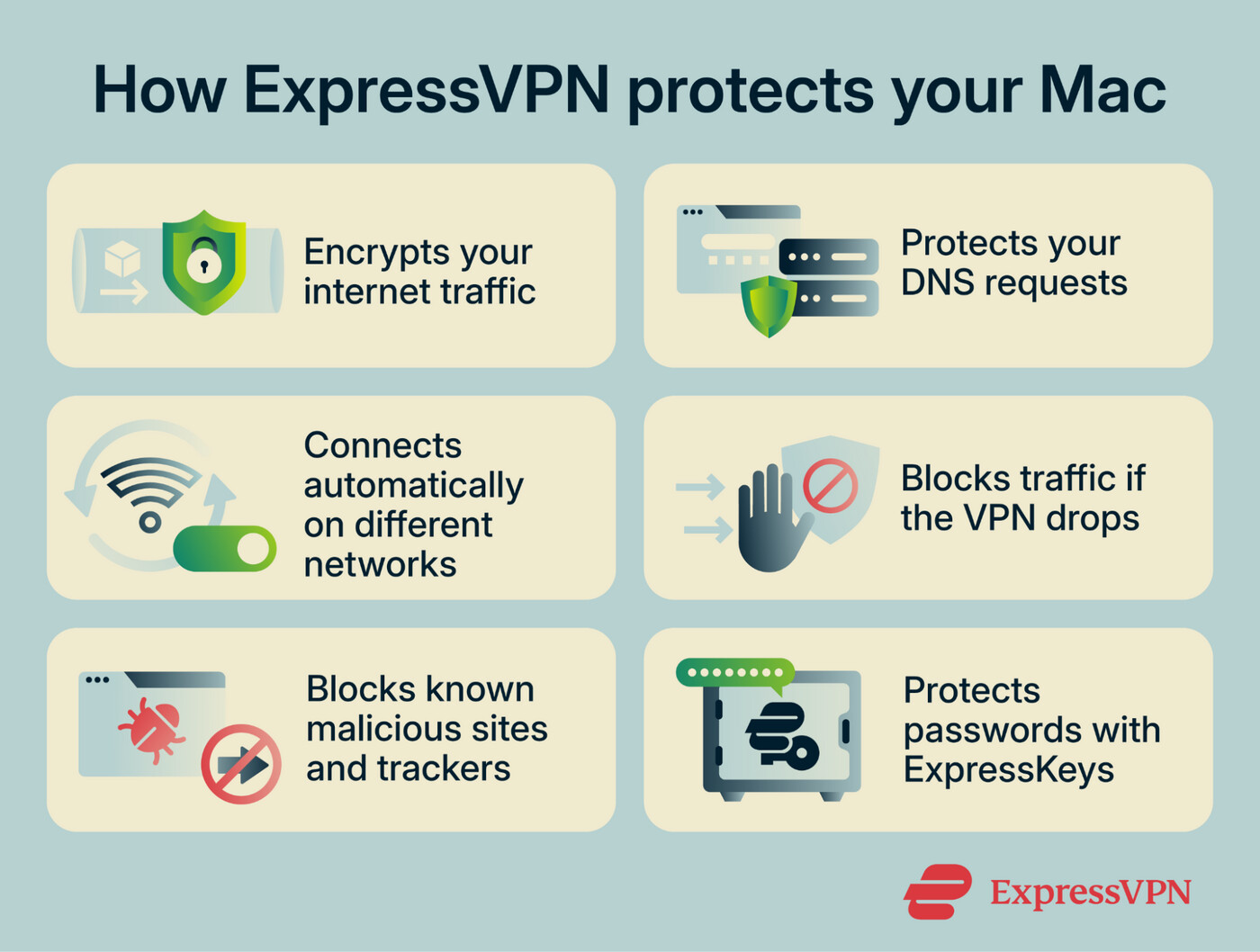
On Mac, ExpressVPN can encrypt your internet traffic, help prevent accidental traffic leaks, block known malicious sites and trackers, and help secure your passwords and other credentials with ExpressKeys. These protections complement features already built into macOS rather than replacing them.
What security and privacy protection does ExpressVPN provide on Mac?
ExpressVPN adds several protections that work alongside Apple’s built-in features.
Encrypts your internet traffic
When you connect to ExpressVPN, it encrypts your internet traffic before it leaves your Mac and sends it through an ExpressVPN server. This helps stop your internet service provider (ISP) and other people on the same network from seeing which websites you visit or which online services you use.
Apple’s iCloud Private Relay encrypts some internet traffic, but it primarily protects web browsing in Safari. ExpressVPN covers your whole Mac, protecting internet traffic from apps and services across the device, not just your Safari browsing.
Connect automatically on different networks
ExpressVPN can connect automatically when your Mac joins certain types of networks, so you don’t have to remember to turn the VPN on each time.
This is especially useful on public Wi-Fi, where other people use the same network and you may not know who runs it or whether it’s configured securely. Auto-connect can help ensure that your traffic goes through the VPN as soon as your Mac joins the network.
Prevents leaks if your VPN connection drops
A VPN connection can drop briefly, for example, when you switch networks or lose signal. If that happens, your Mac could start sending traffic outside the VPN. ExpressVPN’s Internet Kill Switch blocks internet traffic until the VPN reconnects, so your Mac doesn't send it outside the VPN connection. It’s enabled by default on Mac.
For stricter protection, the Advanced Internet Kill Switch can block all internet traffic whenever the VPN isn’t connected. This is useful if you want to make sure your Mac never goes online without the VPN.
Block known malicious sites and trackers
ExpressVPN’s malicious site blocker can help stop connections to known phishing, malware, and fraudulent sites, while tracker blocking (available on Advanced and Express Pro plans) can also stop connections to known advertising and analytics domains.
It’s important to note that these blockers only work against domains already on ExpressVPN’s blocklists, so they won’t catch every new malicious site or tracker. The blockers also don’t scan your Mac for malware or replace antivirus software.
Protect your passwords with ExpressKeys
ExpressKeys is ExpressVPN’s password manager. It can generate and securely store unique passwords for all your accounts. ExpressKeys offers autofill, which only fills saved login details when the domain matches the one stored in your vault. This can help prevent you from entering a saved password on a lookalike phishing site. It can also flag weak or reused passwords and alert you if they're exposed.
You can download the dedicated ExpressKeys app for macOS, where you can access your saved logins, secure notes, file attachments, and stored card details. Your vault syncs across supported devices and browsers, so you can also use the ExpressKeys browser extension when you want to autofill login details online.
How to set up and use ExpressVPN to protect your MacBook
Here are the simple steps you can take to use the ExpressVPN app on your MacBook.
Install ExpressVPN on your MacBook
You’ll need an active ExpressVPN subscription to use the Mac app. To install it:
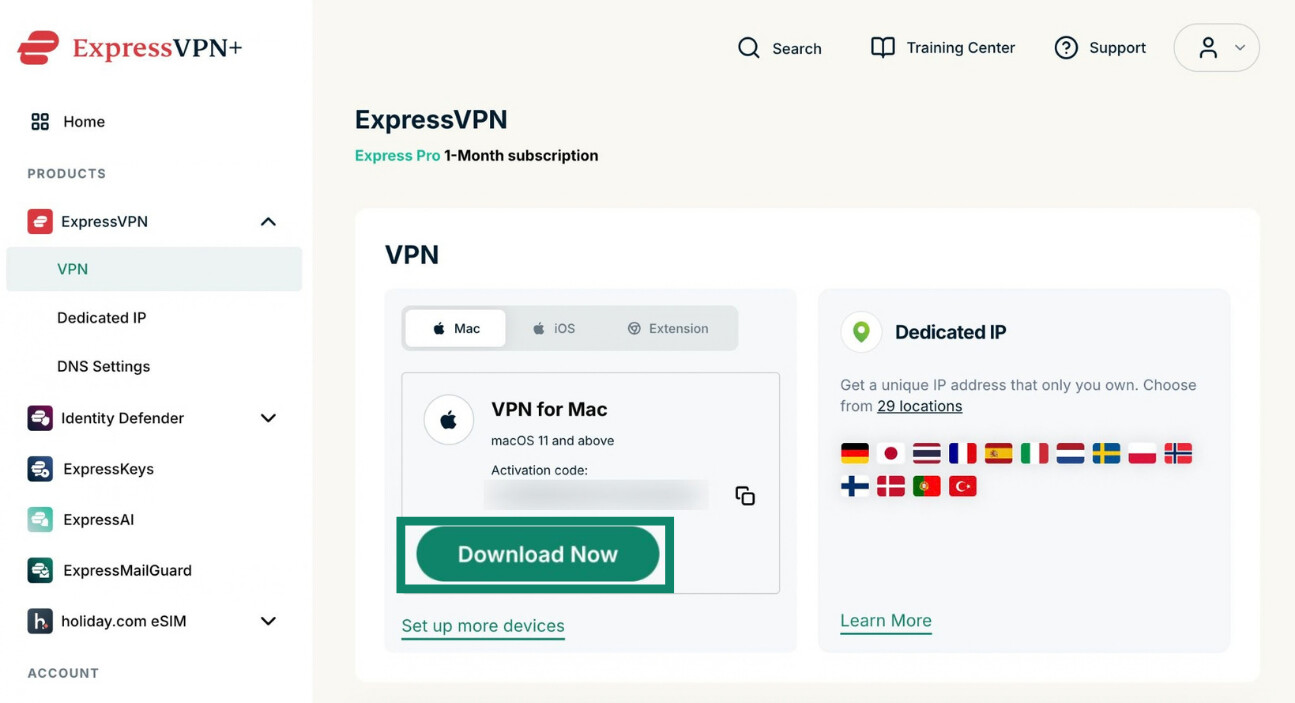
- Go to the ExpressVPN+ portal page and sign in. Select Mac, then Download Now.
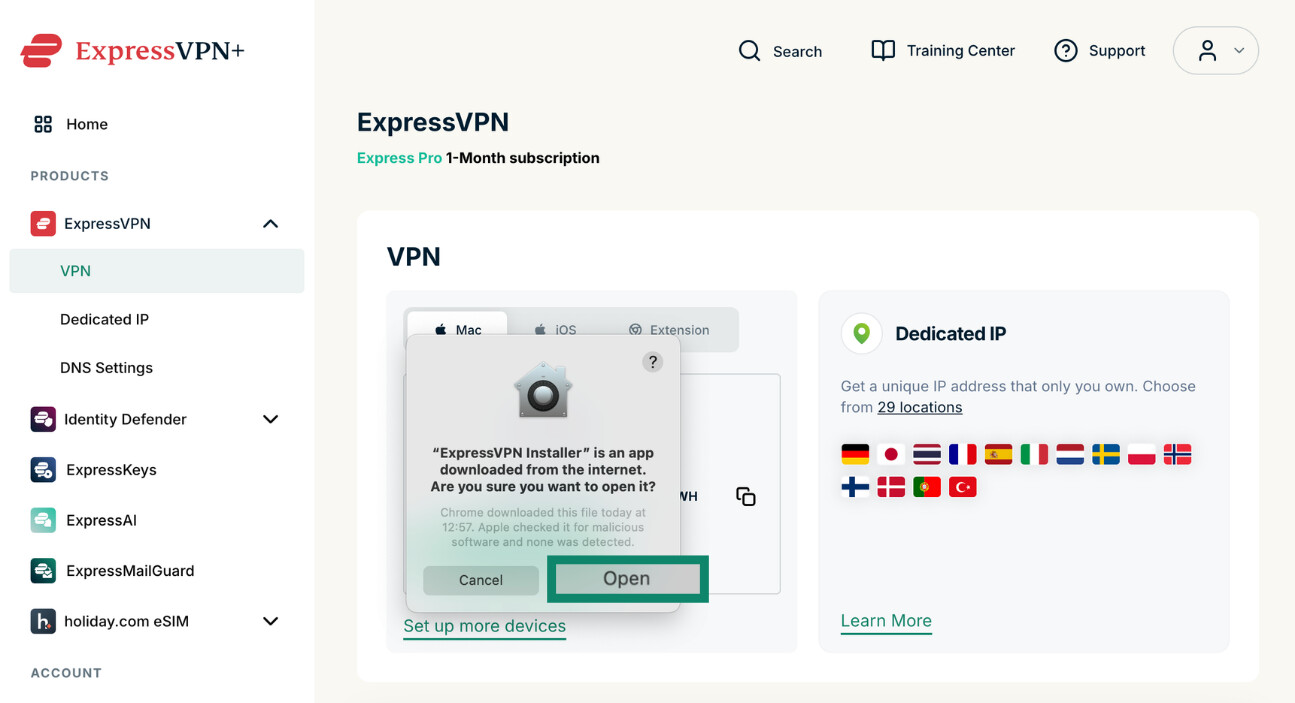
- Open the installer and select Open.
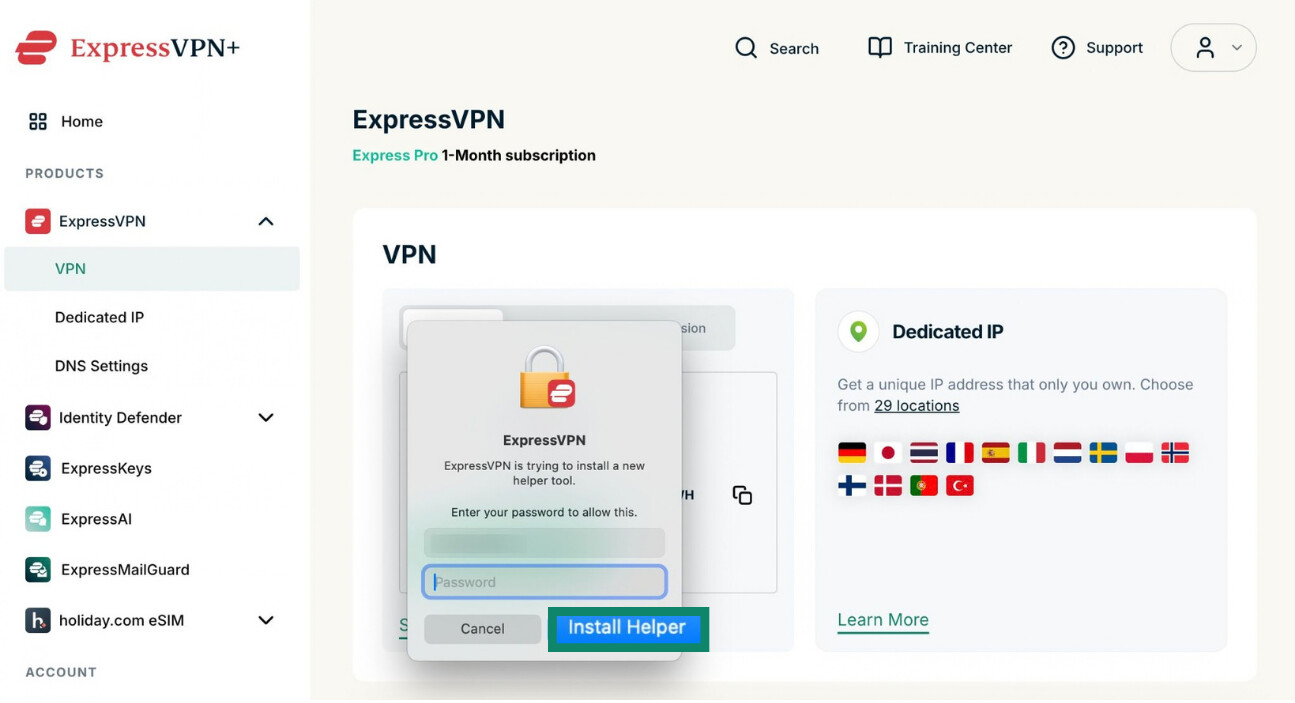
- Enter your Mac password and select Install Helper.
- Open ExpressVPN and sign in using your activation code, email link, or account password.
For further help with the setup process and using ExpressVPN’s security features, see our guide to installing the app on Mac.
Connect to a VPN server
Open ExpressVPN and select the power button to connect to a server and protect your traffic. By default, the app uses Smart Location to choose the optimal server for you. Once the app shows Protected, your Mac is connected to the VPN.
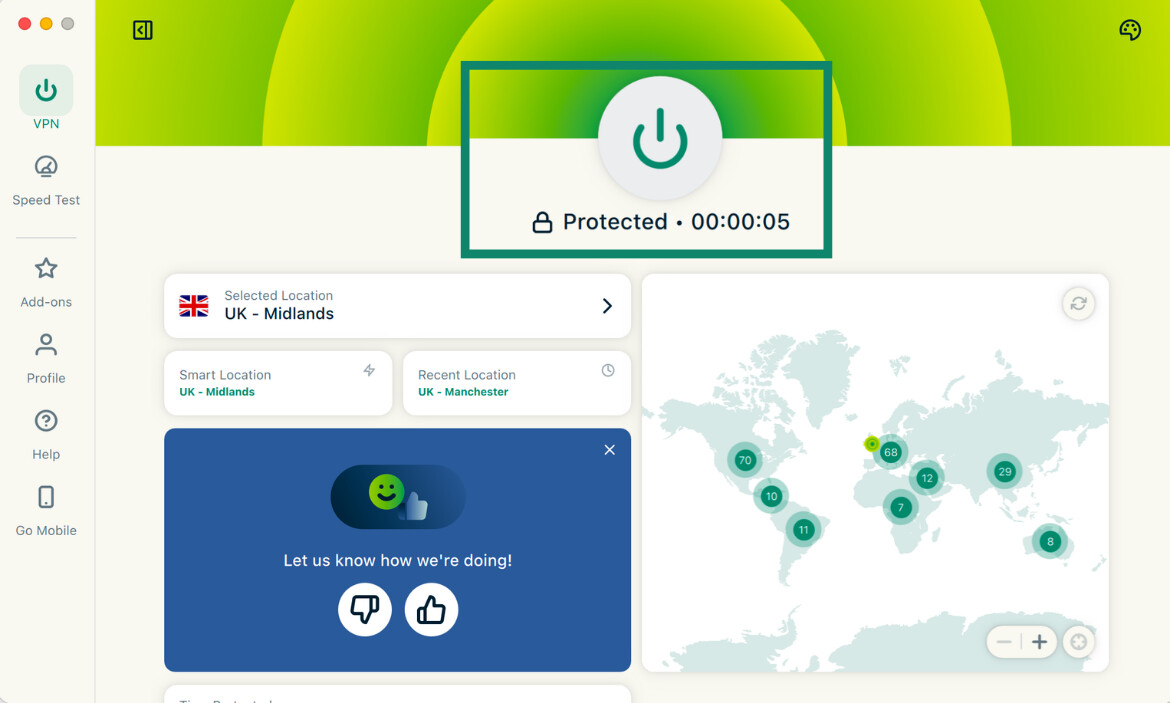
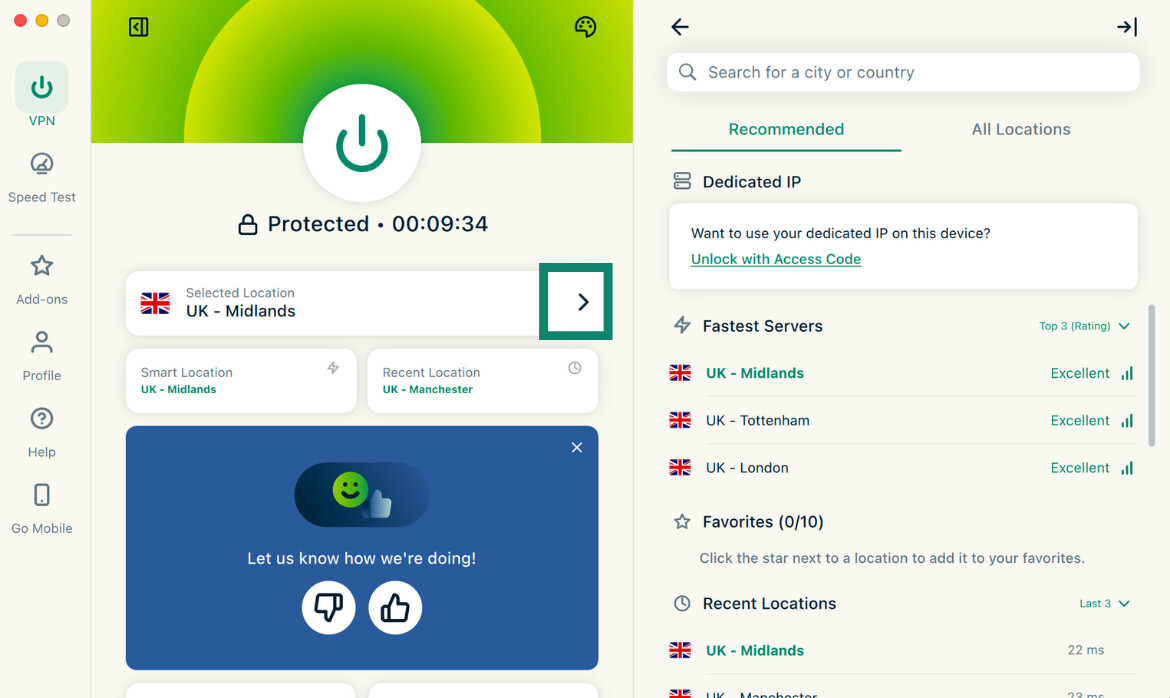
To choose another server, select the arrow (>) next to Selected Location, then pick a location from the list. We recommend choosing a server close to your location for faster speeds.
Set up auto-connect
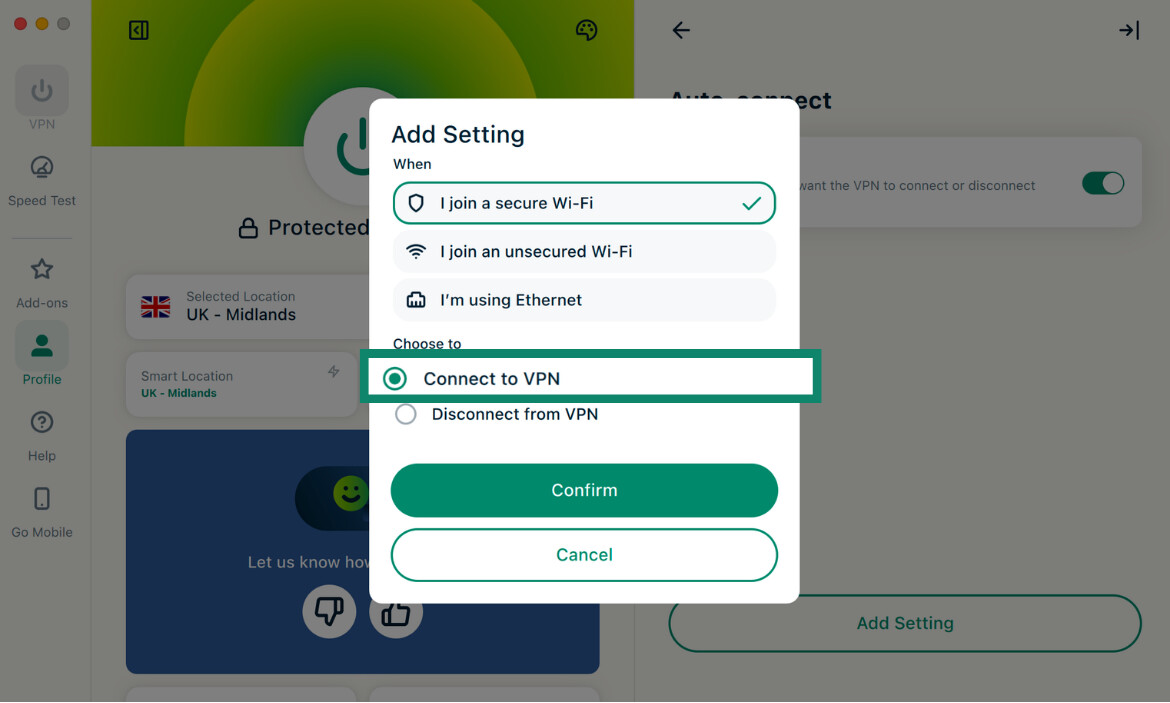
Auto-connect can connect ExpressVPN for you when your MacBook joins different types of networks. To set it up:
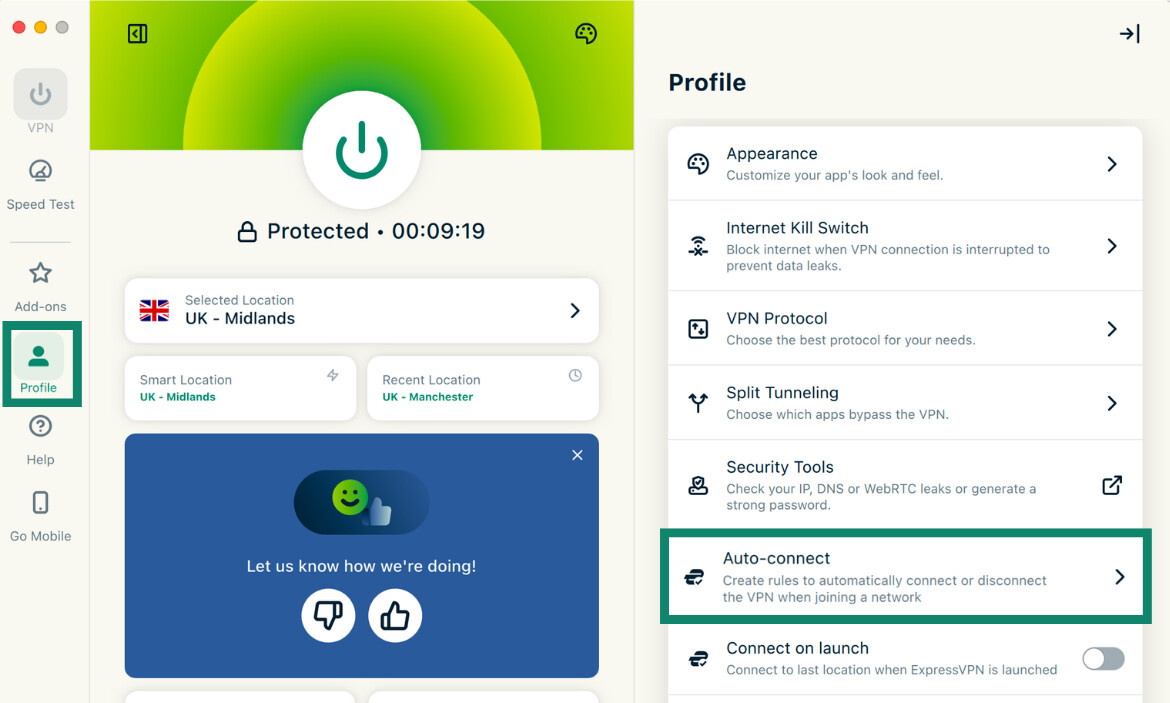
- Open the Profile tab, then select Auto-connect.
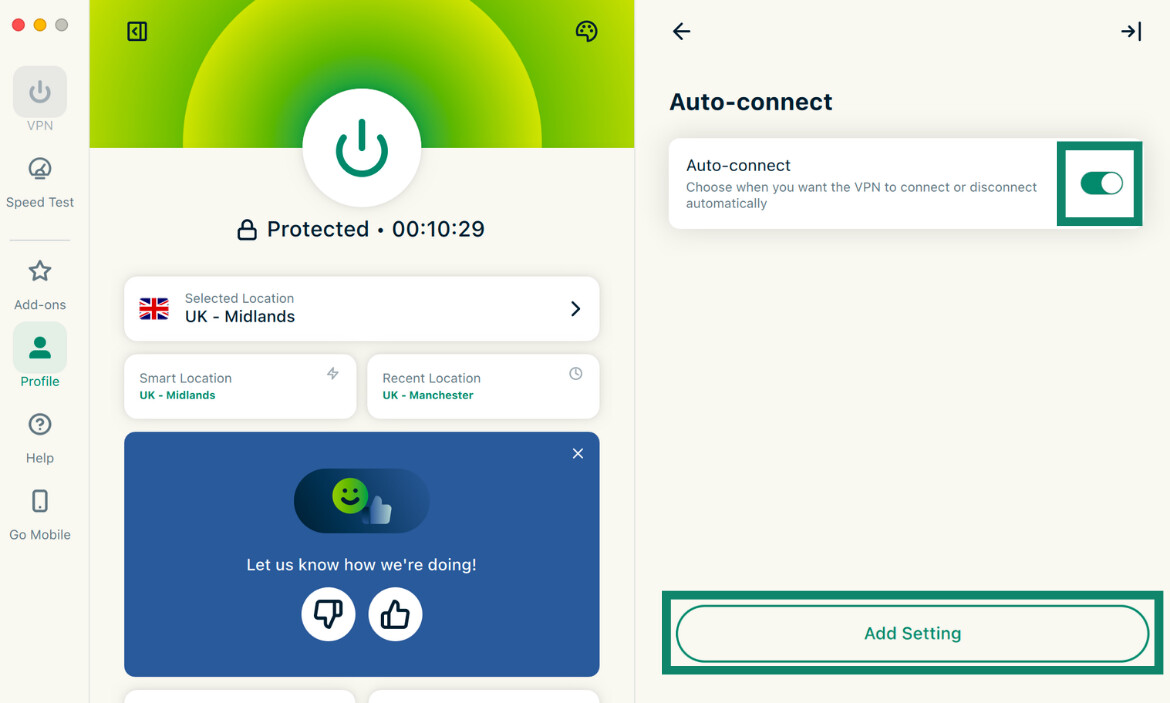
- Turn on the toggle for Auto-connect, then select Add Setting.
- Choose whether the rule should apply to secure Wi-Fi, unsecured Wi-Fi, or Ethernet. Select Connect to VPN, then Confirm.
Check Internet Kill Switch settings
The Internet Kill Switch is on by default on Mac. It blocks internet traffic if your connection drops unexpectedly, so you don’t accidentally leak traffic outside the VPN tunnel. To check it:
- Open the Profile tab, then select Internet Kill Switch.
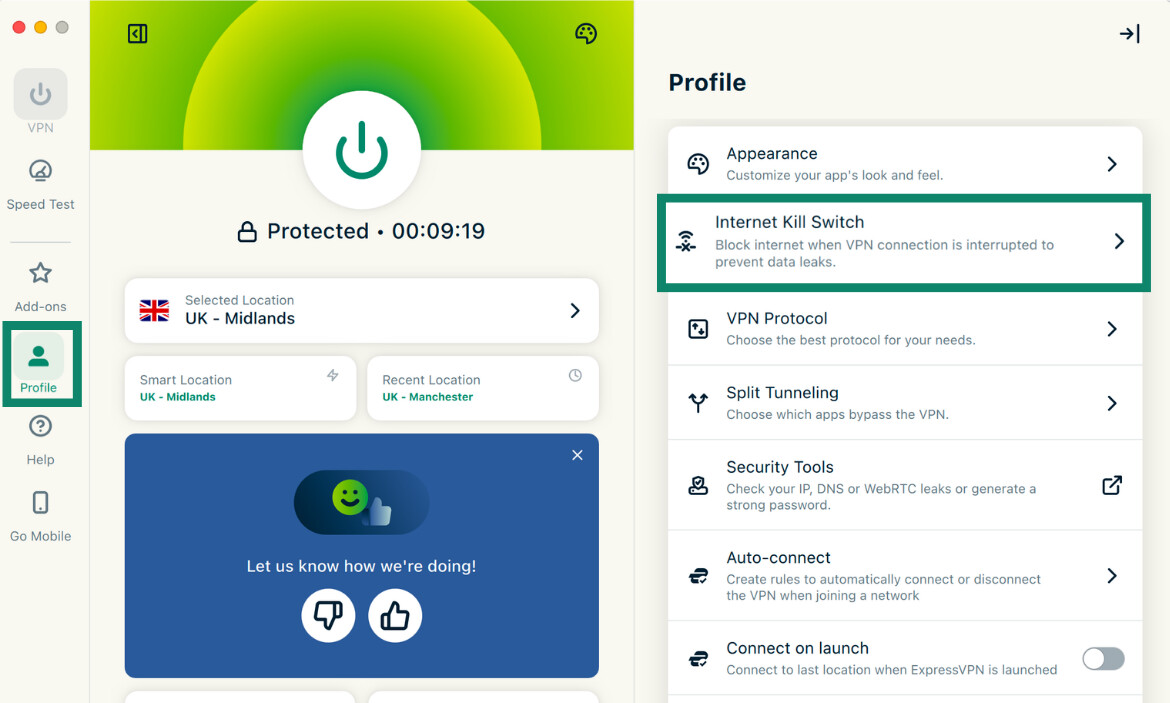
- Make sure Enable when connected is turned on.
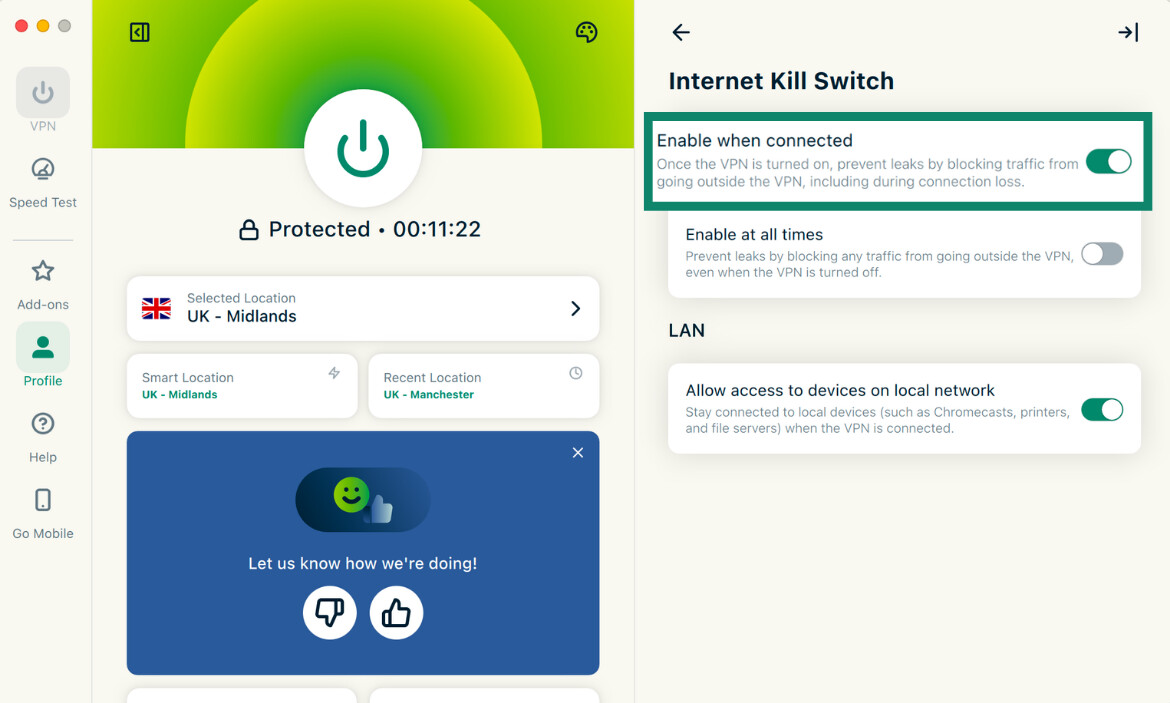
For stricter protection, turn on Enable at all times. This activates the Advanced Internet Kill Switch, which blocks internet access whenever the VPN isn’t connected. Keep in mind that apps on your Mac that need an internet connection won’t work until you reconnect to ExpressVPN if you use this setting.
Enable Advanced Protection
ExpressVPN’s Advanced Protection can block known malicious sites, trackers, ads, and adult content. These features aren’t enabled by default, but you can easily switch them on. They only work while you’re connected to the VPN.
To choose which features you want to use:
- Click Add-ons, then select Advanced Protection.
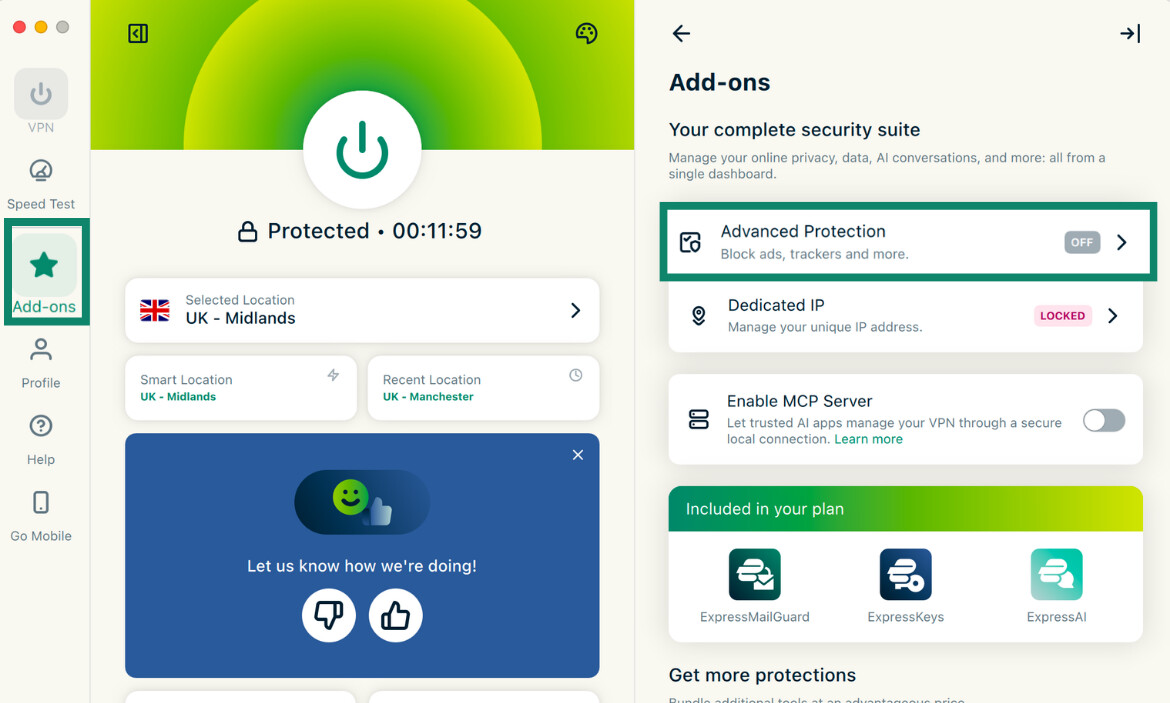
- Turn on toggles next to the blockers you want to use. Note that tracker protection is only available on Advanced and Express Pro tiers.
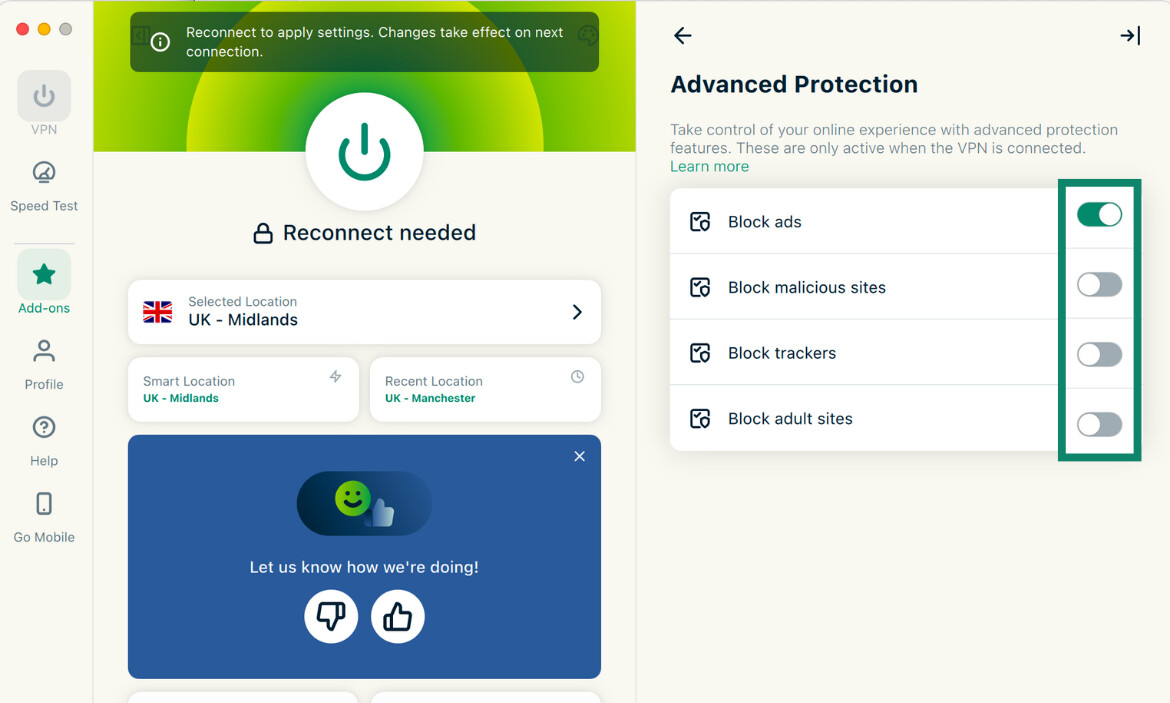
- Reconnect to the VPN to apply the changes.
Set up ExpressKeys
ExpressKeys is included with the ExpressVPN Advanced and Express Pro subscriptions. If you have a Basic subscription, you can upgrade your plan through your account page. You can also purchase ExpressKeys as a standalone subscription via the macOS app.
The ExpressKeys app requires macOS 14 Sonoma or later. To get started, install the ExpressKeys app from the App Store, then sign into your ExpressVPN account. For full instructions, see our how to set up ExpressKeys app on macOS guide. If you need help importing your data into ExpressKeys, see our guide to importing passwords.
You can also use the ExpressKeys browser extension on macOS alongside the app. To use it, install the extension in a supported browser and follow the setup steps to create your vault password and finish setting up your vault. For further help, refer to our ExpressKeys browser extension setup guide.
What ExpressVPN can't protect your Mac from
ExpressVPN protects your internet connection and offers some other security tools, but it can’t protect your Mac from these threats:
- Malware already on your Mac: ExpressVPN doesn’t scan files, downloads, or apps for malware. Advanced Protection can block connections to known malicious domains, but it can't remove malware that's already on your Mac. Keep macOS and your apps up to date, and use antivirus software if you want additional protection.
- Phishing and social engineering: A VPN can’t tell whether an email, message, or login page is genuine. ExpressVPN’s malicious site blocker can stop connections to known phishing domains, but it can’t block every threat. On Mac, browser warnings, including Safari’s fraudulent website warnings, can provide another layer of protection by warning you before you visit suspicious websites.
- Account compromise: A VPN can’t stop someone from signing in to your account if they already have your login details, for example, from a data breach. However, ExpressKeys can help reduce the risk of future compromise by creating and storing unique passwords and flagging weak or exposed ones. It can also generate two-factor authentication (2FA) codes to provide additional protection for your accounts.
- A lost or stolen MacBook: ExpressVPN can’t help you recover your device. Apple's Find My and Activation Lock features can help locate a missing Mac and make it harder for someone else to use it.
- Security flaws in macOS and apps: A VPN can't fix vulnerabilities in macOS or the apps you install. Keep macOS and your apps up to date to get the latest security fixes.
Why trust ExpressVPN for your MacBook?
When you use ExpressVPN on your MacBook, your internet traffic passes through ExpressVPN’s systems, so it’s important to understand the privacy and security measures protecting your data.
TrustedServer technology
ExpressVPN uses TrustedServer technology to run its VPN servers entirely on volatile RAM rather than writing data to hard drives. Because RAM doesn't retain data when power is removed, information stored on the server is wiped each time it’s restarted.
No-logs policy
ExpressVPN also has a strict no-logs policy. This means it doesn't keep logs of the websites you visit, your DNS queries, or the content of your internet traffic. It collects a small amount of service data, but it can’t link that information to what you do online.
Post-quantum protection
The Lightway and WireGuard protocols both include post-quantum protection. They use Module-Lattice-Based Key-Encapsulation Mechanism (ML-KEM) to help protect against "harvest now, decrypt later" attacks, where someone records encrypted traffic now and tries to decrypt it in the future with quantum computers. This gives your VPN traffic extra protection against future decryption methods, even if someone saved a copy of it today.
Independent audits
Independent security firms regularly test ExpressVPN’s apps, protocols, server technology, and privacy controls. ExpressVPN has commissioned numerous independent audits, including assessments of its macOS app, Lightway protocol, TrustedServer technology, and no-logs policy.
Try ExpressVPN with a 30-day money-back guarantee for new users.