How to reduce cross-site tracking with ExpressVPN


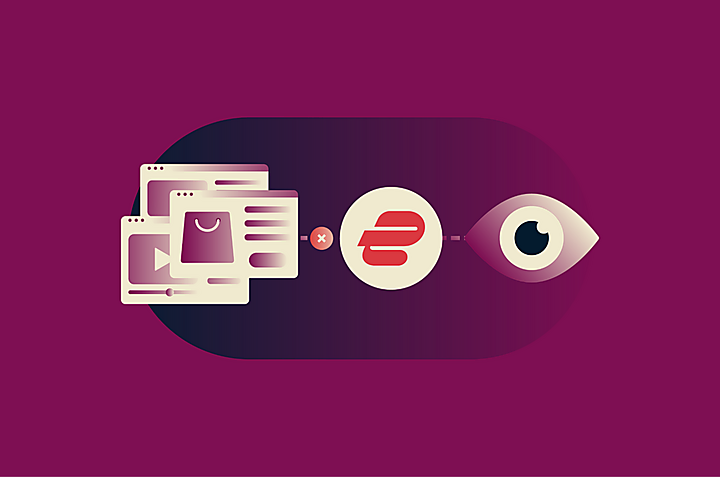
Cross-site tracking connects your activity across different sites and apps, often to build a profile for advertising or analytics. ExpressVPN’s Advanced Protection interrupts this process; when it’s enabled, it can check the internet addresses that browsers and apps try to contact. If an address appears on ExpressVPN’s list of tracking domains, it stops the connection before the tracker collects any information.
However, Advanced Protection can’t prevent tracking by domains not on its blocklist, and it can’t stop a service from linking your activity to a signed-in account, collecting information you submit, or recognizing a browser or device through other signals, such as cookies and configuration details.
How ExpressVPN helps reduce cross-site tracking
ExpressVPN offers several methods to minimize cross-site tracking. These are the main ones.
It stops connections to known tracking domains
ExpressVPN’s Advanced Protection tool, available on the Advanced and Express Pro plans, includes a feature called Block trackers, which checks the internet domains requested by browsers and other apps against lists of known trackers. The check uses the Domain Name System (DNS), which translates a readable domain such as example.com into the numerical internet address needed to connect. If the requested domain matches an entry on a tracker list, the tool stops the request on the device before it reaches the tracker.
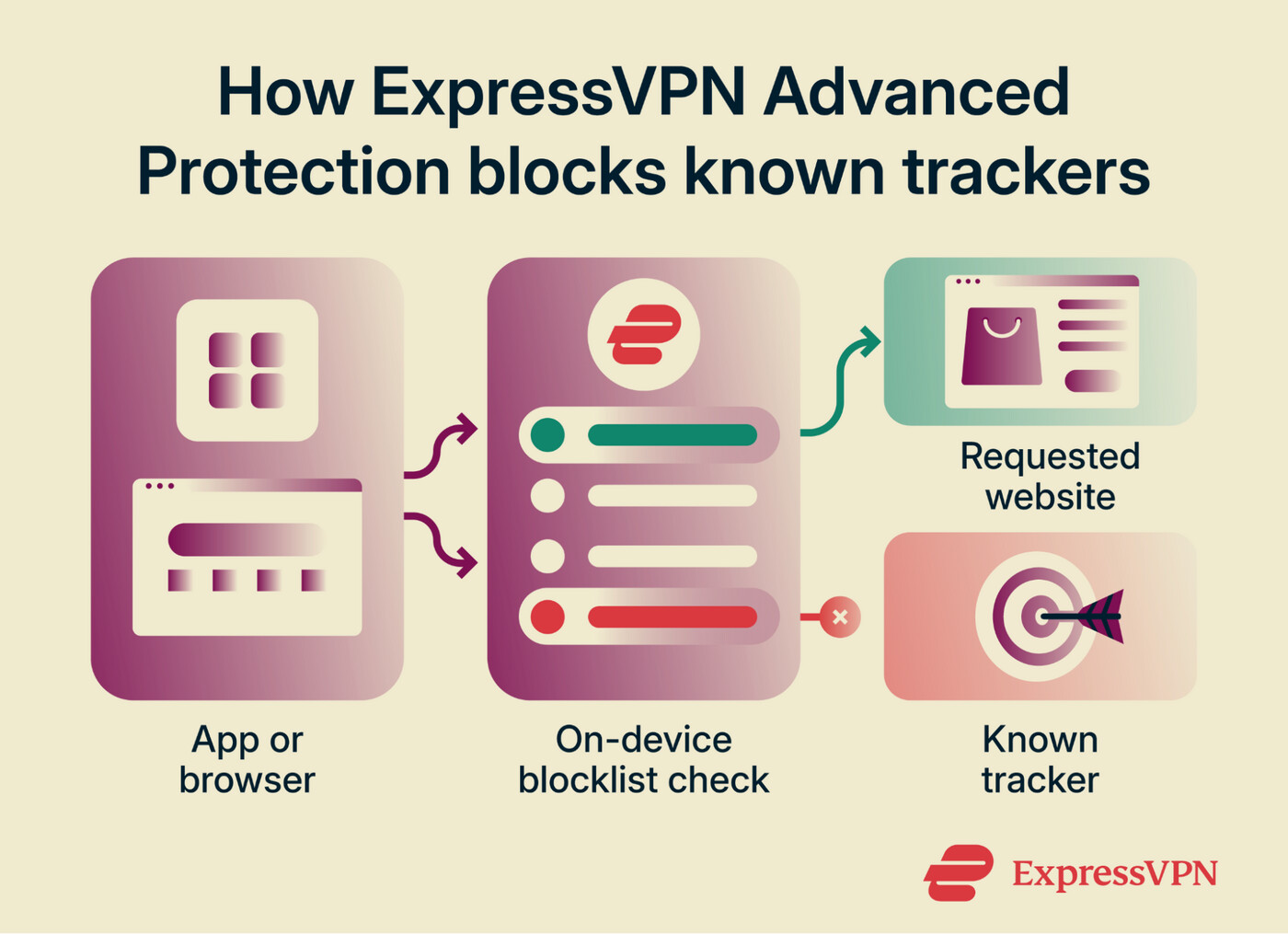
This filtering works across web browsers and other apps on your device when Advanced Protection is active and ExpressVPN is connected.
It blocks advertising domains through a separate setting
Online ads can create another route for data collection. When a website or app loads an ad from an outside domain, the company operating that domain may receive information about the request. Ads and trackers sometimes overlap, but they don’t always come from the same domains.
ExpressVPN therefore filters them through a separate setting called Block ads (available on all ExpressVPN plans). It uses a blocklist of known advertising domains to block requests to those domains before the ads load.
It masks the public IP address visible to websites
Even when no separate tracker or advertising domain loads, a website can see the public IP address associated with the connection making the request. This address identifies your internet connection and may reveal your approximate location. Repeated visits made through the same address can provide another clue for linking activity.
When ExpressVPN is connected, websites see the VPN server’s IP address instead of the address assigned to your original internet connection. This removes the original IP address as a direct link between that connection and the websites you visited.
How to enable tracker blocking with ExpressVPN
To use ExpressVPN’s tracker blocker, first make sure your plan includes the feature, then enable it in the Advanced Protection settings and connect to the VPN. The steps below walk you through the setup.
Step 1: Choose an ExpressVPN plan and install the app on your device
Advanced Protection is available across various operating systems, including Windows, Mac, Linux, Android, and iOS. The Block trackers setting in Advanced Protection is included with the ExpressVPN Advanced and Express Pro tiers, while the Block ads, Block malicious sites, and Block adult sites settings are available on all plans, including the Basic tier. Keep in mind that subscriptions purchased inside the ExpressVPN app on iOS and Android are Basic subscriptions by default, so an upgrade may be needed.
To get started, simply choose an ExpressVPN subscription plan, then download and install the ExpressVPN app onto your devices. For full details and device-specific instructions, visit our download and installation guide.
Step 2: Apply Advanced Protection blocks
The steps below show how to enable tracker blocking in the ExpressVPN app for Mac. The layout and setting names may vary slightly on other platforms.
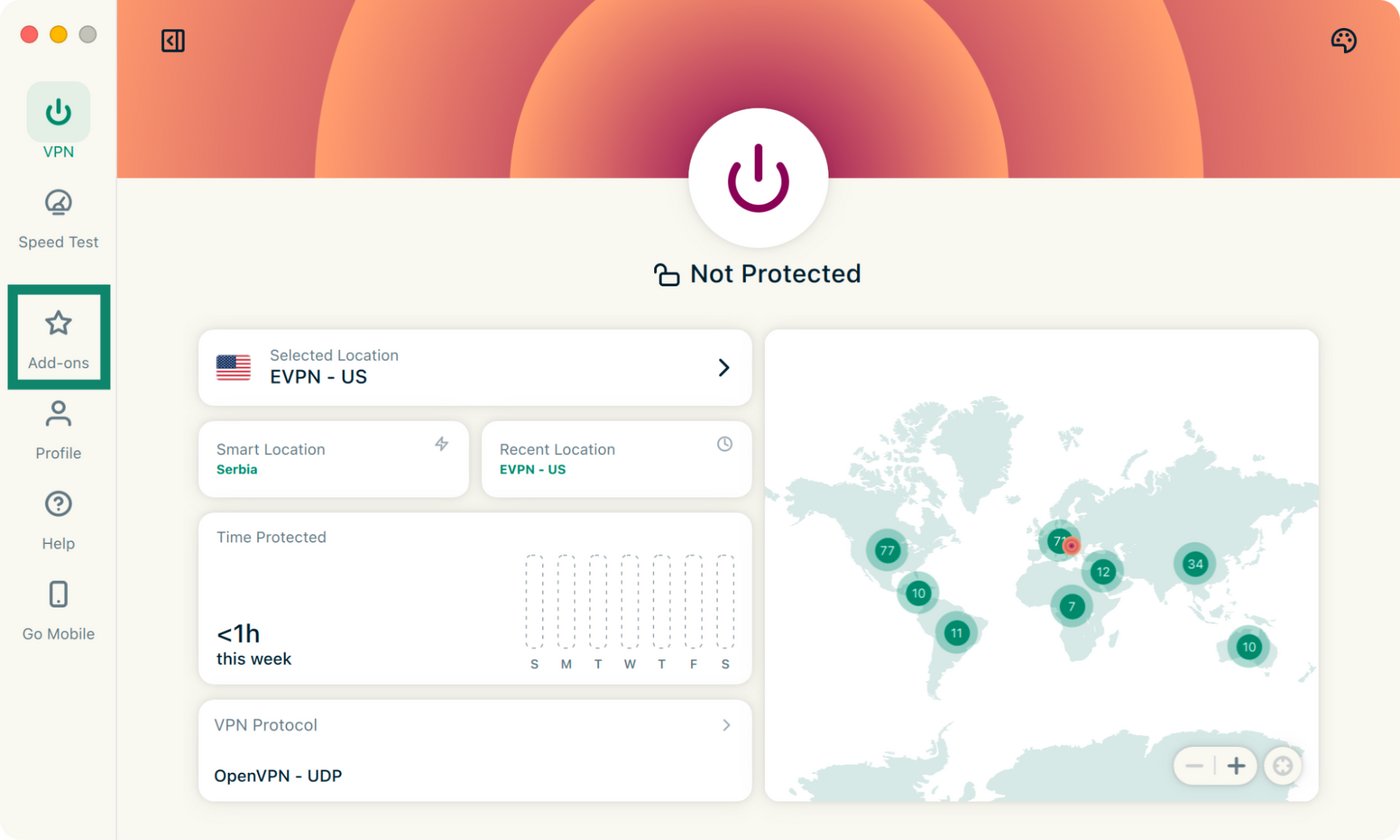
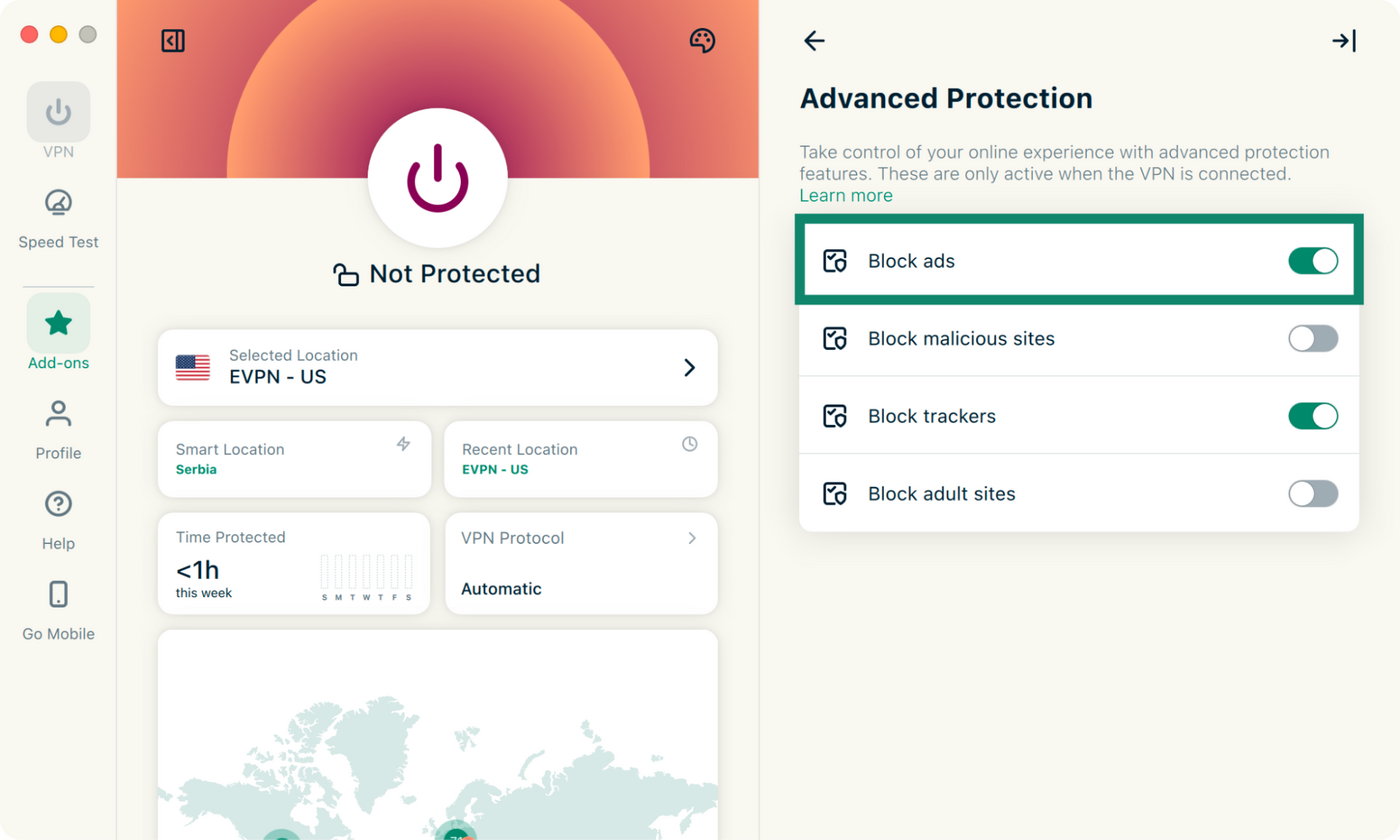
- Select the Add-ons tab in the left-hand menu of the ExpressVPN app.
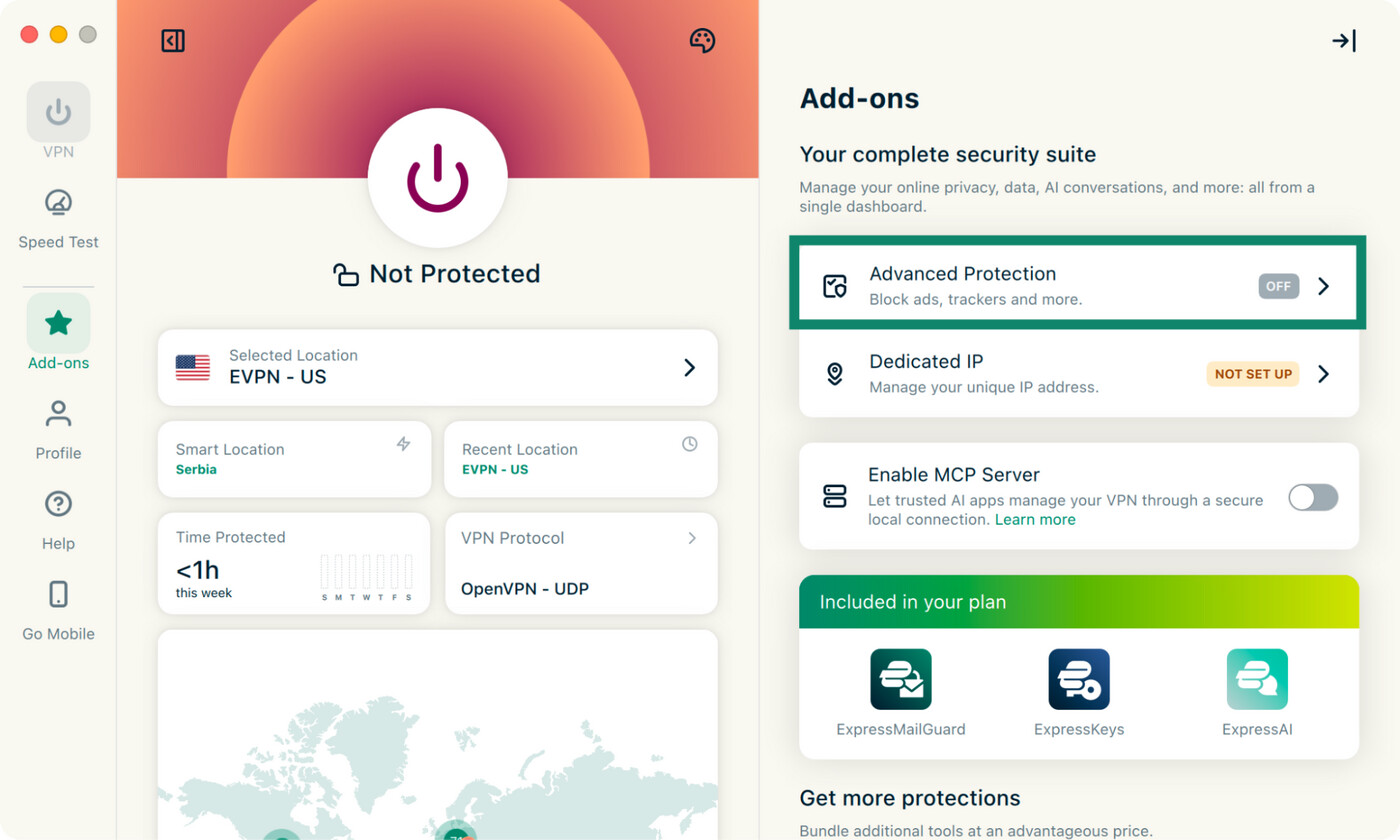
- Pick Advanced Protection from the list of options on the right.

Tip: Make sure you’re using the latest version of the ExpressVPN app to get the latest Advanced Protection features and protocol support.
- Turn on Block trackers.
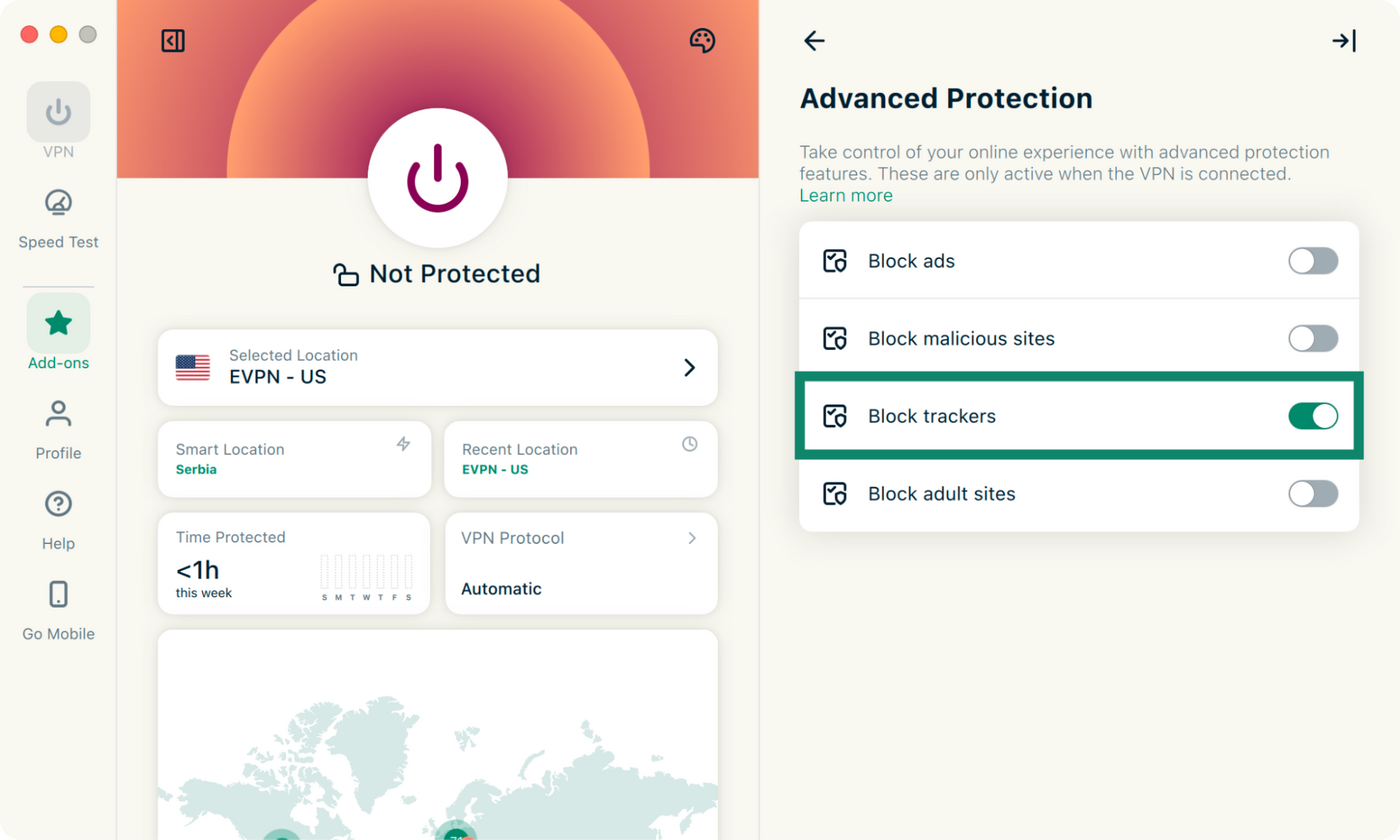
- Turn on Block ads if you also want to filter domains on ExpressVPN’s ad blocklist. This setting is an optional extra and isn’t required for tracker blocking.
For device-specific setup instructions and more detail on how Advanced Protection works, see the Advanced Protection support guide.
Step 3: Connect to a VPN server
Advanced Protection works in the ExpressVPN apps while the VPN is connected. If you enabled the blocks before connecting, connect now. If the VPN was already active when you changed the settings, reconnect to apply them.
- Click the VPN tab in the top-left corner.
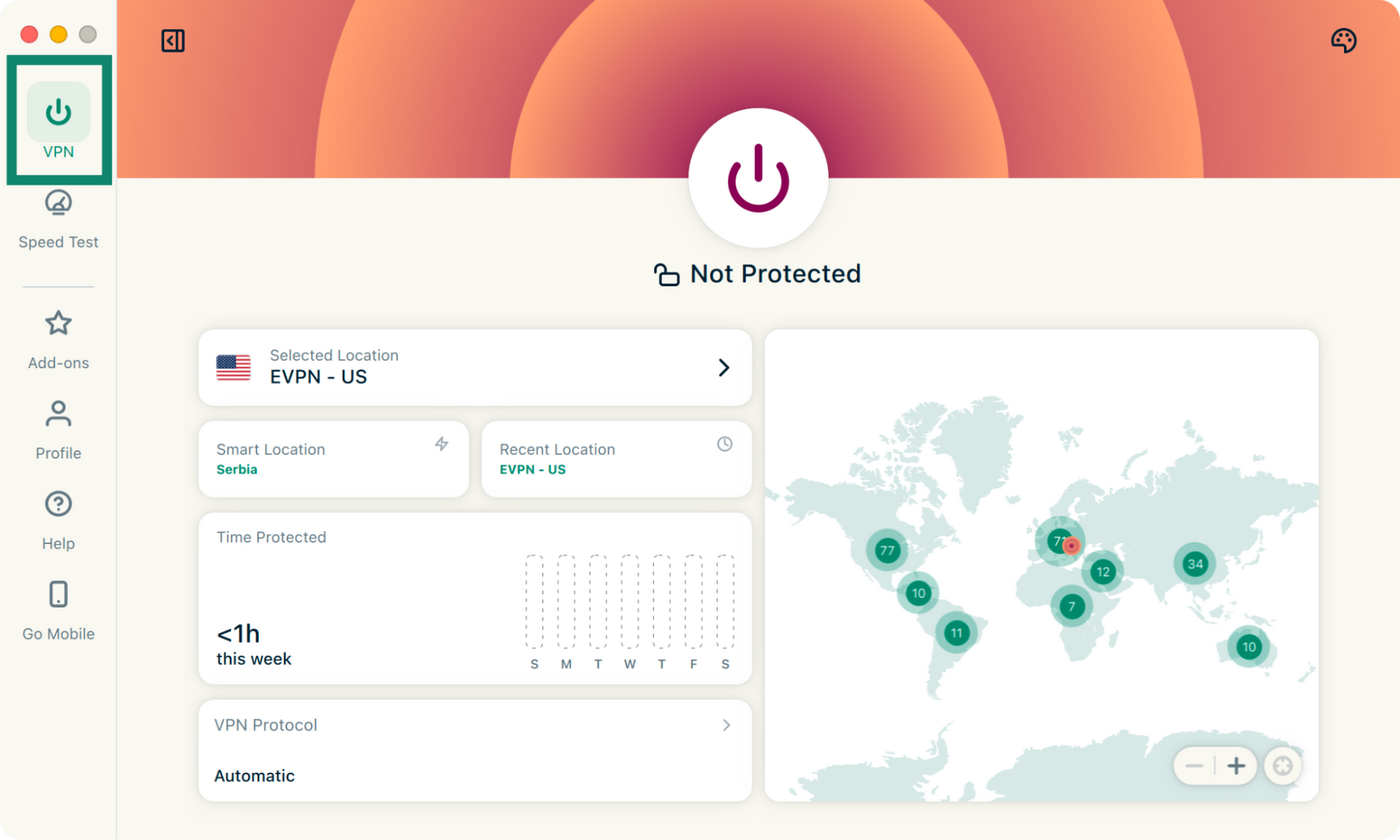
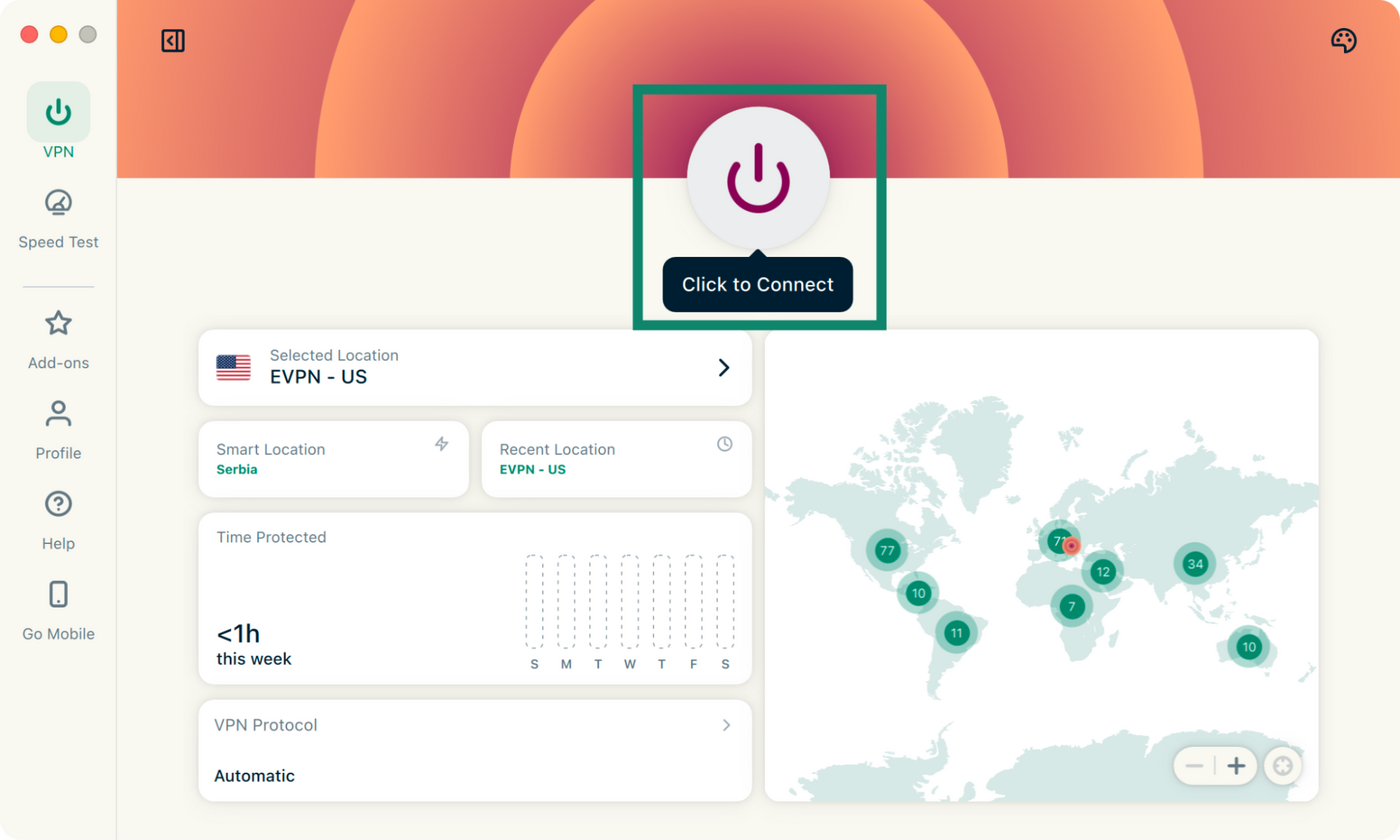
- Select the circular power button. If the VPN is already connected, select the button once to disconnect and again to reconnect.
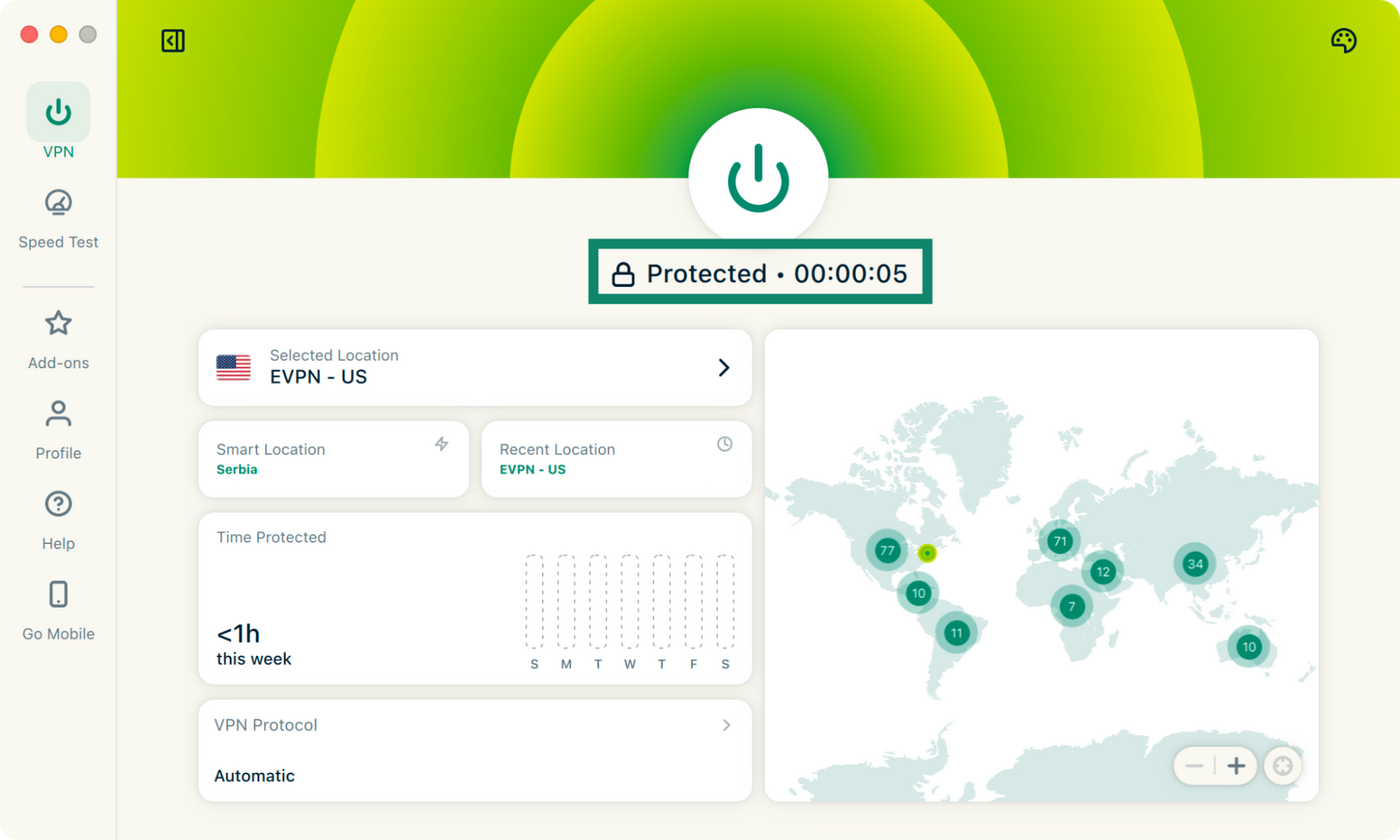
- Wait for the app to display Protected.
Tracking that ExpressVPN can’t prevent
Some tracking doesn’t involve a separate request to a listed tracker domain. It may happen directly on the website you visit, through a signed-in account, or through information the browser and device reveal automatically. For example:
- Activity and information shared directly with a website: A website can record what you view, click, search for, or purchase on its own pages, as well as information you enter directly, such as an email address, phone number, or payment details. While ExpressVPN can hide your IP address from the website, it doesn’t prevent the site from collecting this first-party data. Blocking third-party tracker domains also doesn’t prevent first-party data collection.
- Logged-in activity: A service can associate your activity with your account when you're signed in, even if ExpressVPN is hiding your IP address and Advanced Protection’s tracker blocking is preventing third-party requests.
- Browser fingerprinting: A site may compare details such as the browser version, screen size, language, time zone, and available features to recognize a returning device. Domain blocking doesn’t change those characteristics.
- Trackers that haven’t been identified: New or unlisted tracker domains won’t be blocked until they appear in one of the source lists and the revised list reaches the ExpressVPN app.
- Other identifiers and tracking signals: Account identifiers, mobile advertising IDs, and similar signals don’t always rely on a separate tracker domain.
Also, note that domain blocking can occasionally stop a legitimate page element or app function that depends on the same outside domain. If something stops working after a block is enabled, you can temporarily turn off the relevant setting and reload the website or app. ExpressVPN’s connection troubleshooting steps cover further checks you can do if this happens.
Why trust ExpressVPN to block trackers?
A tracker blocker is easier to assess when its filtering rules, technical limits, and data practices are visible. ExpressVPN makes information about each of these areas publicly available in its blocklist documentation, which identifies the open-source projects used to compile the lists of advertising, tracker, adult-site, and malicious-site domains.
Domain requests are checked on the device. When a listed domain is blocked, the request doesn’t leave the device or reach the tracker.
Under the ExpressVPN Privacy Policy, the VPN service doesn’t log your browsing history, traffic destinations, data content, or DNS queries.
ExpressVPN’s Advanced Protection blocks connections to known tracker domains across supported browsers and apps, while the VPN masks your regular public IP address.
Reduce tracking with ExpressVPN
Try ExpressVPN with a 30-day money-back guarantee for new users.